How To Add Table Of Contents to Google Docs? Quick Way


Learn how to add, update, and customize a table of contents in Google Docs. Follow this simple step-by-step guide to organize documents and improve navigation.
When you’re working on a long document, finding specific sections can quickly become frustrating. Whether you’re creating a report, research paper, business proposal, eBook, or study guide, readers need an easy way to navigate your content.
That’s where a table of contents comes in. A table of contents (TOC) automatically organizes your document by listing headings and sections in one place, making it easier for readers to jump directly to the information they need. It not only improves navigation but also gives your document a more professional and structured appearance.
In this guide, you’ll learn how to add a table of contents in Google Docs, update it when your content changes, and make your documents easier to read and navigate.
How to Add Table Of Contents To Google Docs?
Before diving into the steps, let’s understand what a table of contents is and why it’s essential for your document:
A table of contents serves as a roadmap for your document, listing all the major sections and subsections along with their respective page numbers or hyperlinks.
Advantages of Using a Table of Contents:
- Improved Navigation: Easily navigate through lengthy documents.
- Enhanced Readability: Provide readers with an organized overview of the document’s structure.
- Time-Saving: Save time by quickly jumping to desired sections.
Step-by-Step Guide on Adding Table Of Contents To Google Docs?
Step 1. Sign in to Google Docs
Open your web browser and navigate to Google Docs. Sign in with your Google account credentials if you’re not already signed in.
Step 2. Access Your Document
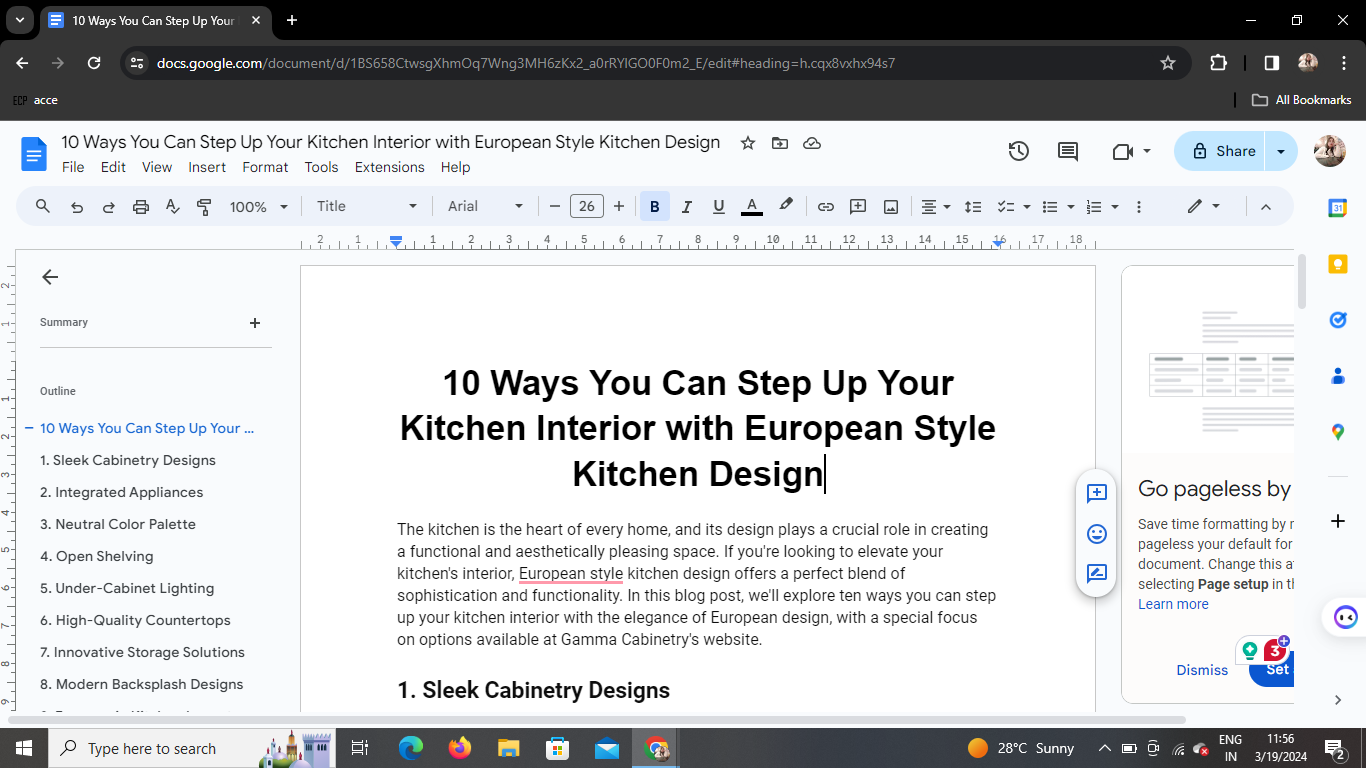
Locate the document where you want to add the table of contents. Click to open the document.
Step 3. Navigate to the Insert Tab
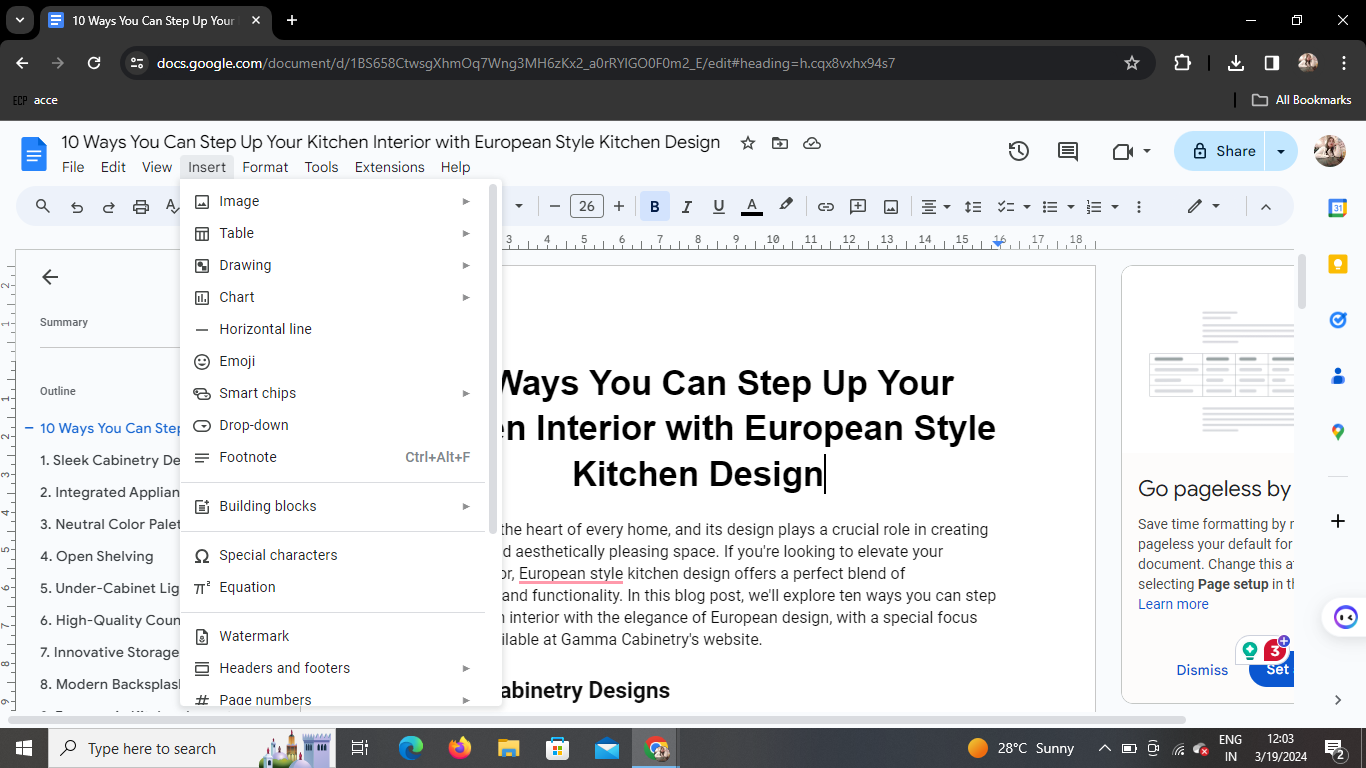
Once your document is open, look for the Insert tab in the menu bar at the top of the page.
Step 4. Insert Table of Contents
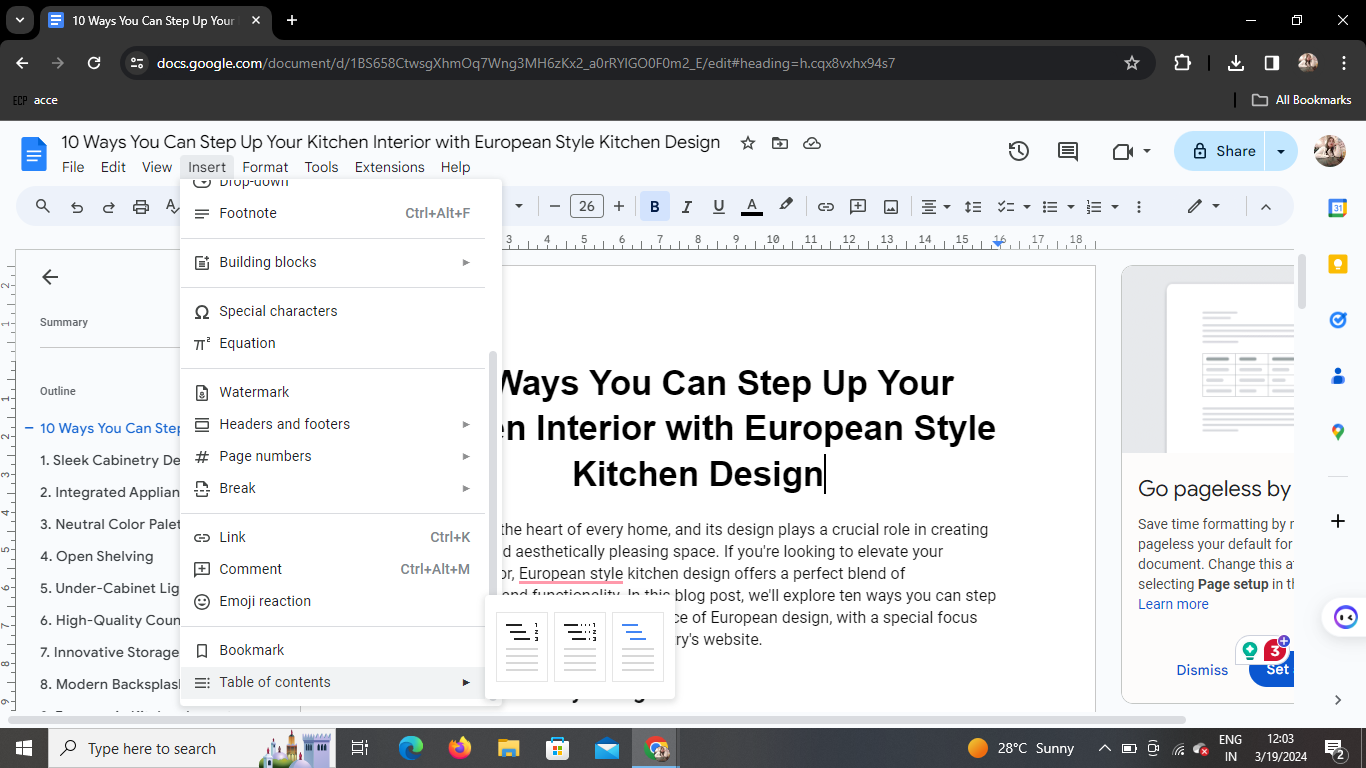
Click on the Insert tab to reveal a dropdown menu. From the dropdown menu, select Table of contents.
Step 5. Choose Table of Contents Type
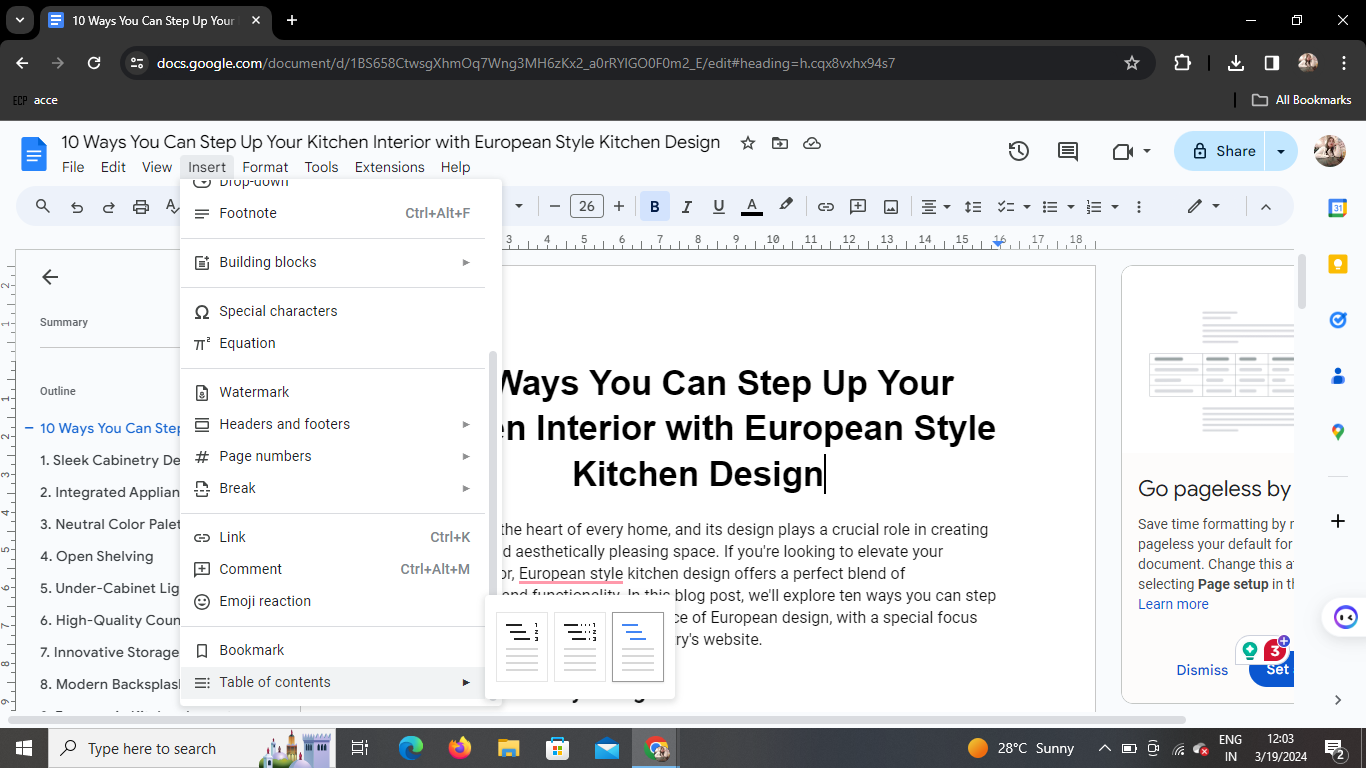
After selecting the Table of Contents, you’ll see options for different types of TOC formats. Choose the type of table of contents you prefer (e.g., with links, numbered sections, etc.).
Step 6. Insert Table of Contents
Click on your preferred table of contents style, and it will automatically be inserted into your document.
Step 7. View Your Table of Contents
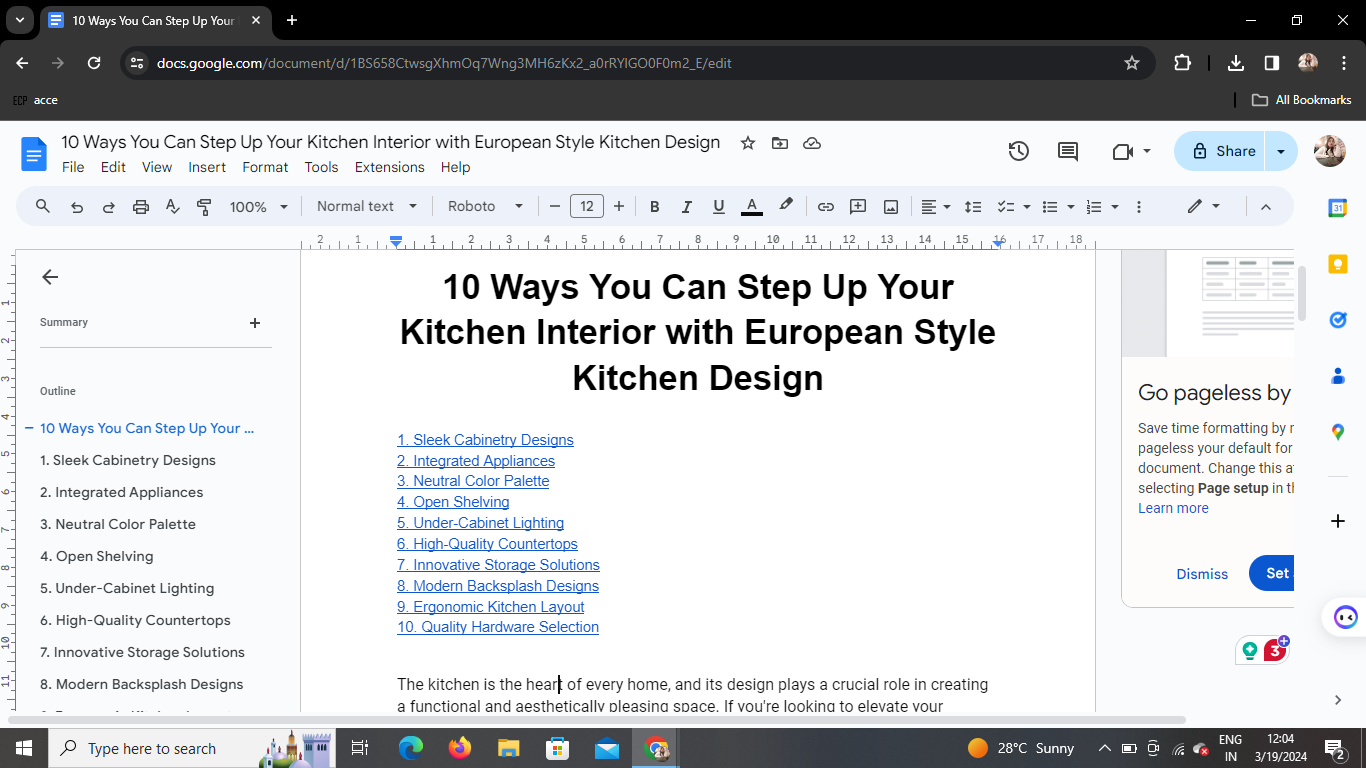
Once inserted, you’ll notice a table of contents appear in your document, listing all the headings. You’ve done with the fun part, to make it more formal yet appealing, add a table of contents to give an overall idea of your doc from here.
Create Presentations from Google Docs with MagicSlides
If you’ve finished writing your document in Google Docs and want to turn it into a presentation, you can use MagicSlides AI PPT Creator.

MagicSlides lets you:
- Convert Google Docs into presentations
- Create PPTs from text prompts
- Convert YouTube videos into slides
- Turn web pages into presentations
- Export directly to Google Slides or PowerPoint
This can save hours of manual slide creation and help you present your content faster.
Conclusion
Adding a table of contents in Google Docs is one of the simplest ways to improve the organization and usability of your documents. Whether you’re creating academic papers, project reports, manuals, or business documents, a TOC helps readers quickly find relevant sections and navigate through your content with ease.
By applying proper heading styles and inserting a table of contents, you can create a cleaner, more professional document in just a few clicks. And if your document changes over time, Google Docs makes it easy to update the table of contents automatically.
Once your document is complete, you can take it a step further with MagicSlides. Convert your Google Docs into professional presentations, transform text into slide decks, and create presentation-ready content in minutes instead of hours.
Frequently Asked Questions:
Q1. How can I customize the appearance of the table of contents?
You can customize the appearance of the table of contents by adjusting font styles, sizes, and colors.
Simply highlight the table of contents and use the formatting options available in the toolbar.
Q2. Can I manually edit the table of contents after it’s been inserted?
Yes, you can manually edit the table of contents by clicking on it and making changes as needed.
However, if you make significant structural changes to your document, you may need to update the table of contents by clicking on it and selecting “Update table of contents” from the menu.
Q3. Is it possible to create multiple table of contents in the same document?
Yes, you can create multiple table of contents in the same document by inserting them at different points.
Simply follow the same steps outlined in this guide for each additional table of contents you wish to add.
Q4. Will the table of contents update automatically if I make changes to my document?
Yes, if you make changes to the headings or structure of your document, the table of contents will update automatically. However, you can also manually update it by clicking on it and selecting “Update table of contents” from the menu.


