How to Change a Logo on Every Slide in PowerPoint – Quick Way


Learn how to change a logo on every slide in PowerPoint using Slide Master. Follow simple steps to update logos across all slides quickly.
A logo plays a major role in maintaining brand consistency across presentations. Whether you’re updating company branding, replacing an outdated logo, or customizing a client presentation, manually changing the logo on every slide in PowerPoint can quickly become frustrating and time-consuming.
Thankfully, PowerPoint offers a much easier solution through the Slide Master feature. Instead of editing slides one by one, you can replace the logo across your entire presentation in just a few clicks.
In this guide, I’ll show you how to change a logo on every slide in PowerPoint step by step, helping you save time while keeping your presentation professional and visually consistent.
Why Change the Logo Using the Slide Master?
When I first started editing presentation templates, I used to replace logos manually on every slide. That approach worked for small presentations, but it became extremely inefficient for large decks with dozens of slides.
Using the Slide Master solves this problem because it allows you to:
- Update branding across all slides instantly
- Maintain a consistent presentation design
- Save time during presentation editing
- Avoid missing logos on hidden or duplicate slides
- Keep future slides automatically updated
This method is especially useful for:
- business presentations
- sales decks
- training presentations
- marketing proposals
- client presentations
- educational presentations
Step-by-Step Guide to Changing a Logo on Every Slide in PowerPoint
Step 1. Open the Slide Master View
Open your PowerPoint presentation.
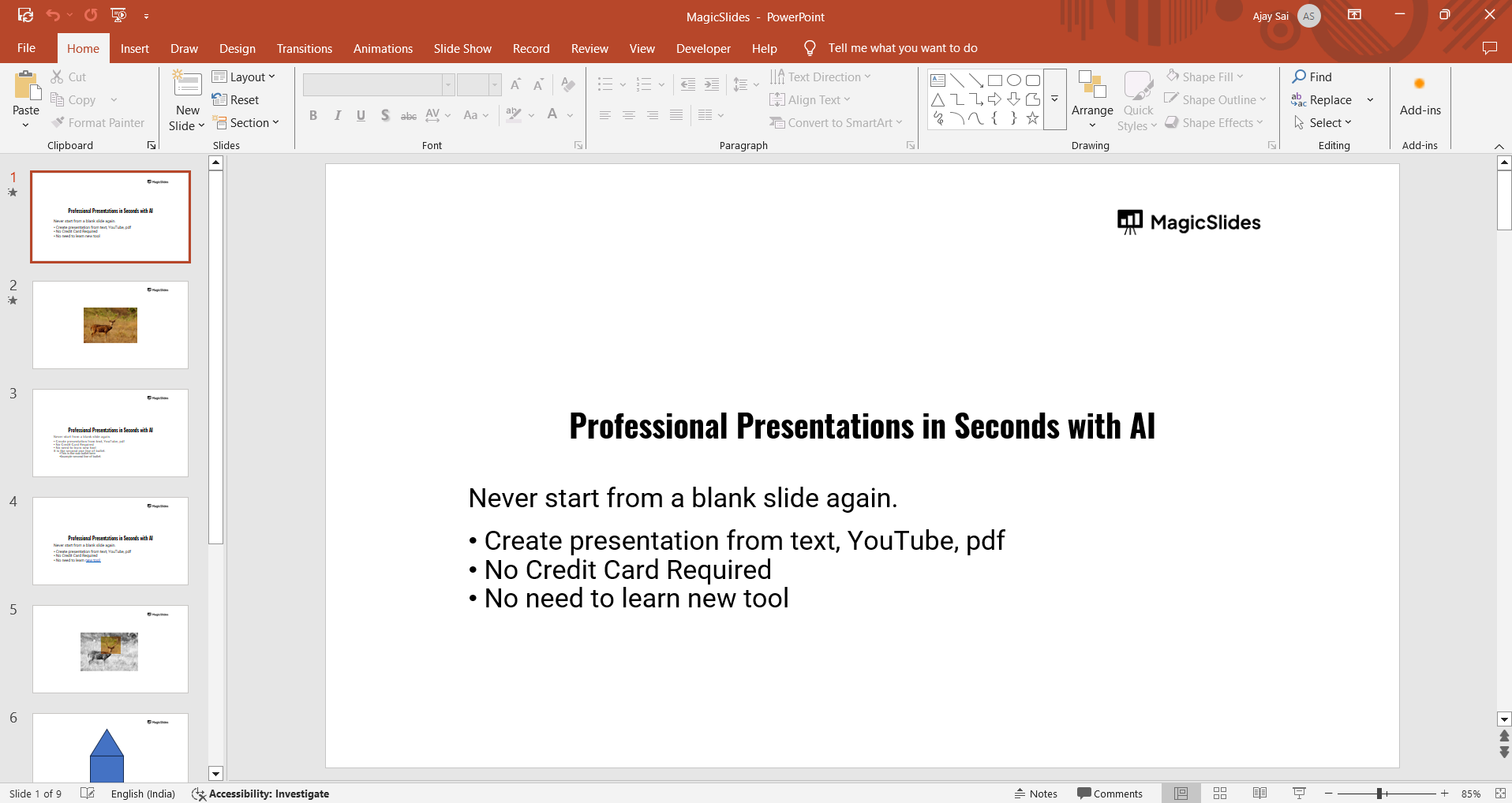
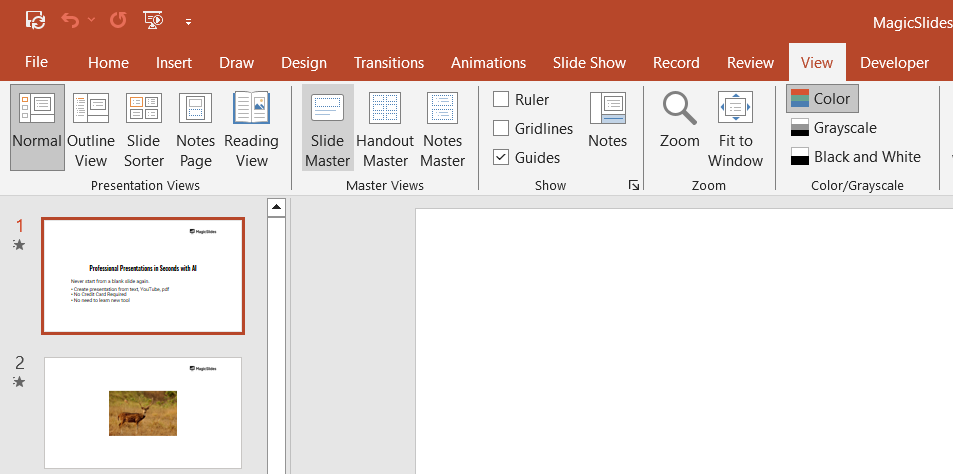
Click on the View tab in the top menu. Select Slide Master from the options. This will open a new view where you can edit the layout of all slides at once.
Step 2. Locate the Logo on the Slide Master
In the left-hand panel, scroll to the topmost slide (the Master Slide).
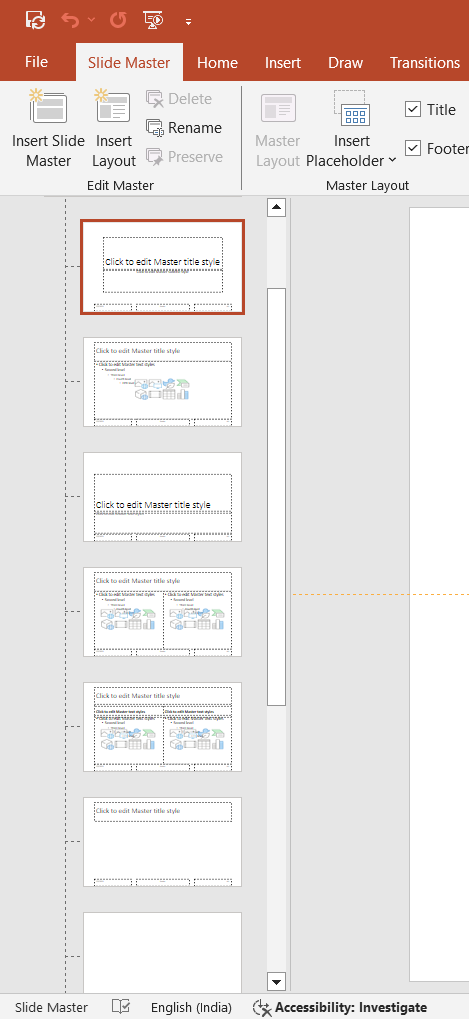
Look for the existing logo, usually found in the header, footer, or corner of the slide.
Step 3. Replace the Logo
Click on the current logo to select it. Press Delete on your keyboard to remove it.
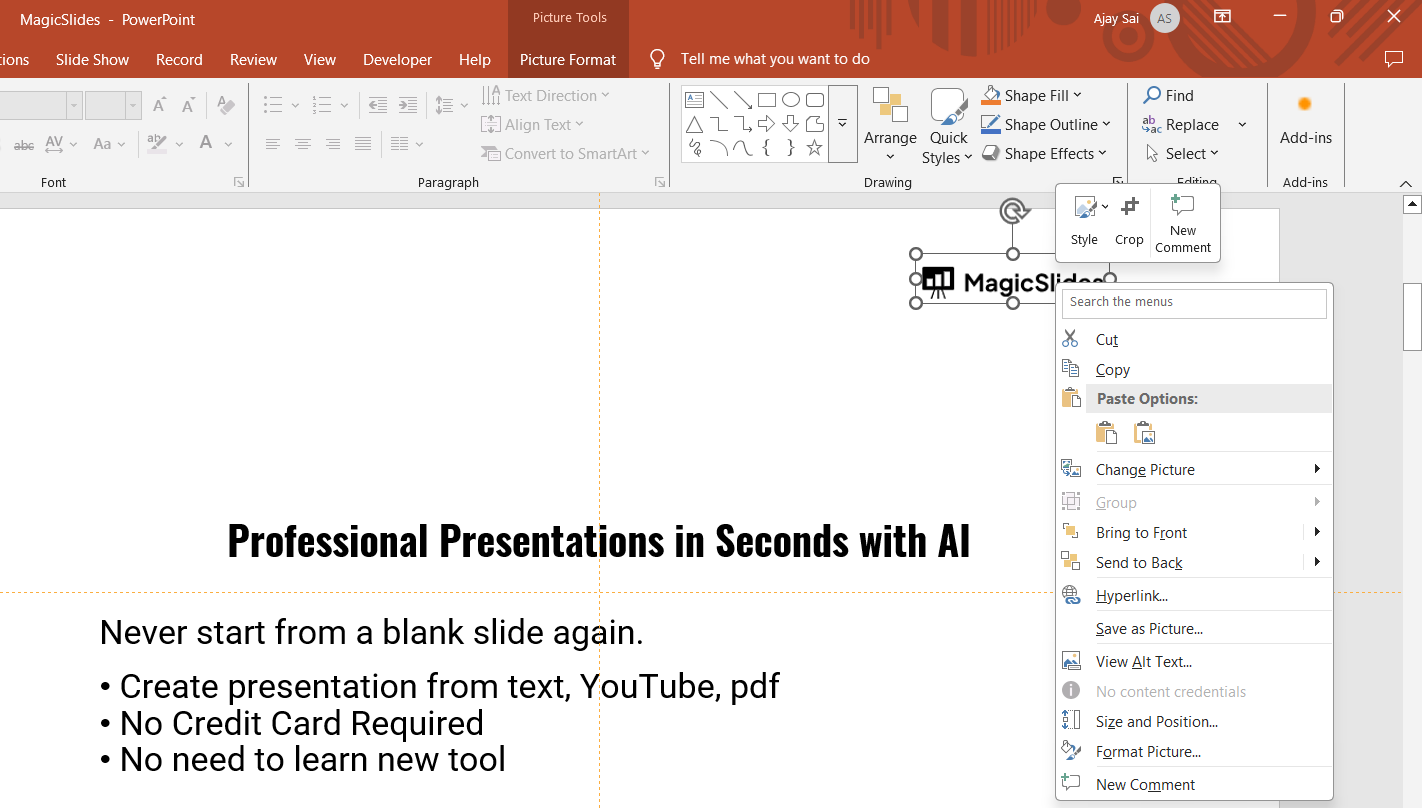
Go to the Insert tab and click Pictures to upload a new logo. Resize and position the new logo as needed.
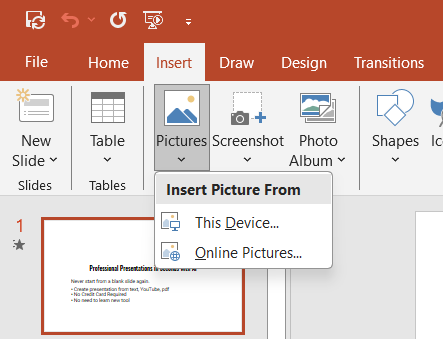
Step 4. Apply Changes to All Slides
Once the logo is placed correctly, click the Close Master View button in the Slide Master tab.
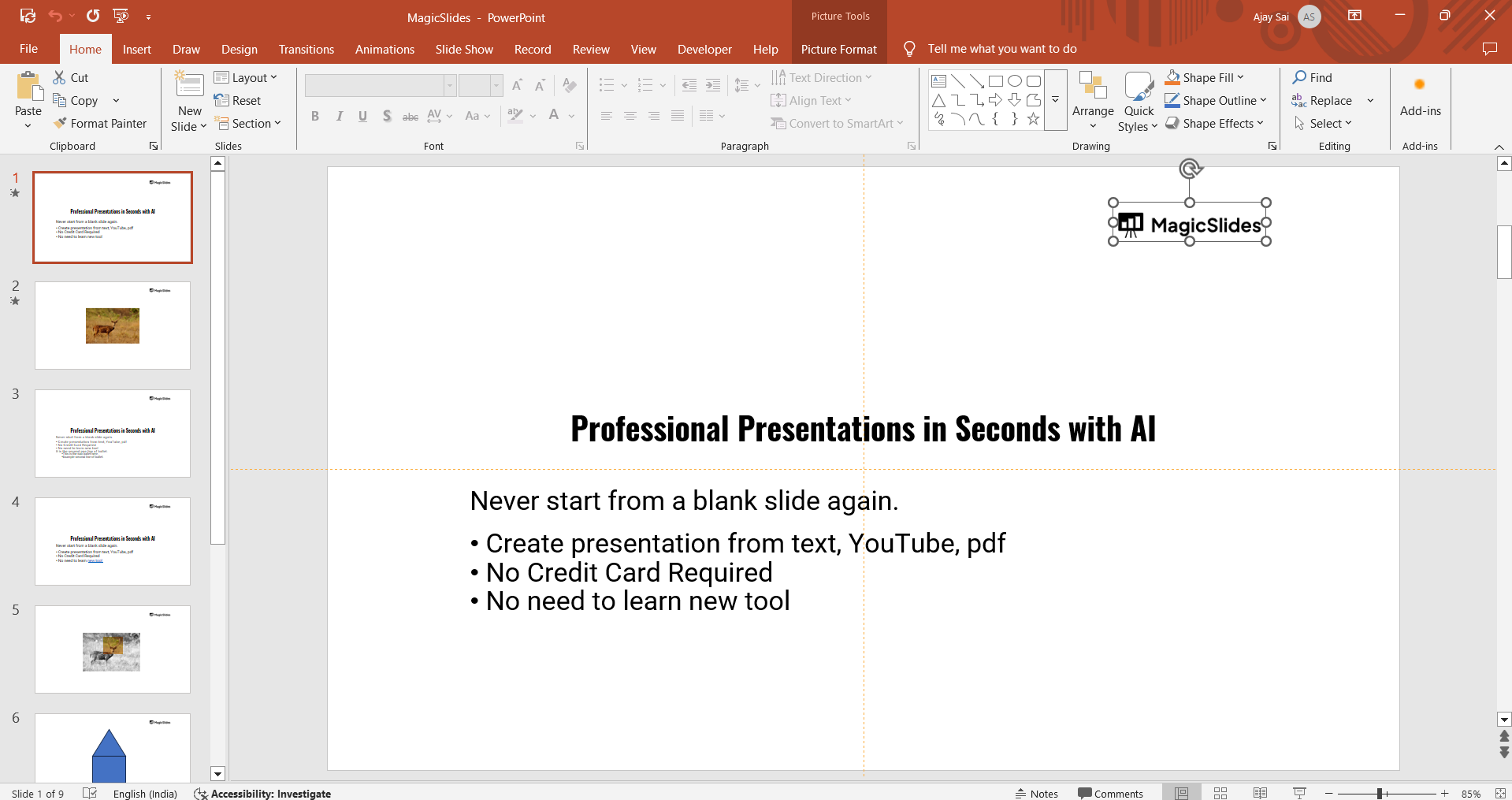
Your new logo will now appear on all slides automatically.
Step 5. Check and Adjust Individual Slides (If Needed)
Review each slide to ensure the logo is displayed correctly.
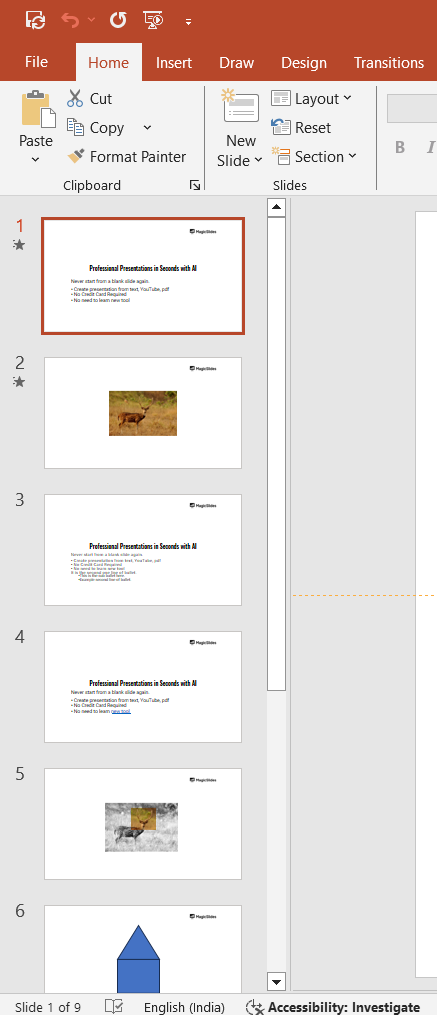
If necessary, adjust the size or position of specific slides without affecting the Master layout.
Create Professional Presentations Faster with MagicSlides AI
If you regularly create presentations, manually designing slides, formatting layouts, and updating branding can take a lot of time.
That’s where MagicSlides AI Presentation Maker can help.

MagicSlides AI is an AI-powered presentation maker that helps generate professional presentations in minutes. Instead of building slides from scratch, I can quickly create presentation decks, as it provides features like:
One feature I particularly like is how quickly it creates structured slides while maintaining clean layouts and professional design consistency.
This is especially useful for:
- business presentations
- sales pitches
- training decks
- educational presentations
- marketing reports
For teams and professionals who create presentations frequently, MagicSlides AI significantly reduces the time spent on manual slide creation and formatting.
Conclusion
Updating a logo on every PowerPoint slide is simple when you use the Slide Master feature.
This method ensures consistency and saves time, making it ideal for branding updates or company presentations.
With just a few steps, you can replace your logo across all slides effortlessly!
FAQs on Changing a Logo in PowerPoint
Q1. Why doesn’t my new logo appear on all slides?
If some slides have a different layout, you may need to update multiple slide master layouts manually.
Q2. Can I resize the logo for specific slides without affecting others?
Yes! Once you exit Slide Master View, you can manually adjust the logo on individual slides.
Q3. Will my new logo appear in the new slides I add later?
Yes, as long as you use the same slide layout, the logo will automatically appear on new slides.
Now, go ahead and update your PowerPoint presentation with a fresh, professional look!


