How to change all fonts in google slides


Revamp your Google Slides effortlessly by mastering the art of changing fonts for a polished presentation.
Enhance the visual appeal of your Google Slides presentation by mastering the art of font customization. In this step-by-step guide, learn how to effortlessly change all fonts, ensuring a cohesive and professional look across your slides. Elevate your presentation style with these simple yet impactful adjustments.
How to change all fonts in google slides
Open Your Google Slides Presentation:
Launch your web browser, navigate to Google Slides, and log in to your Google account. Open the specific presentation where you want to modify the fonts.
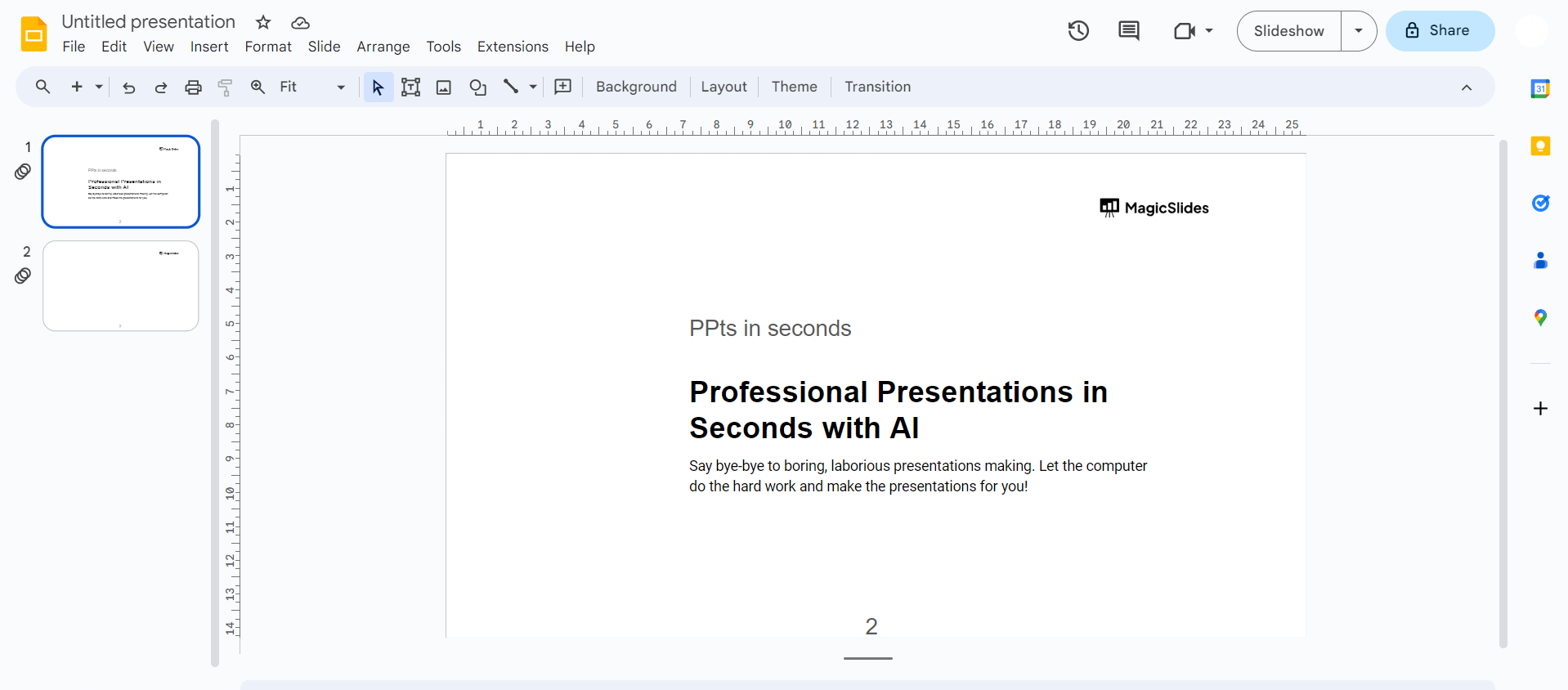
Select All Text:
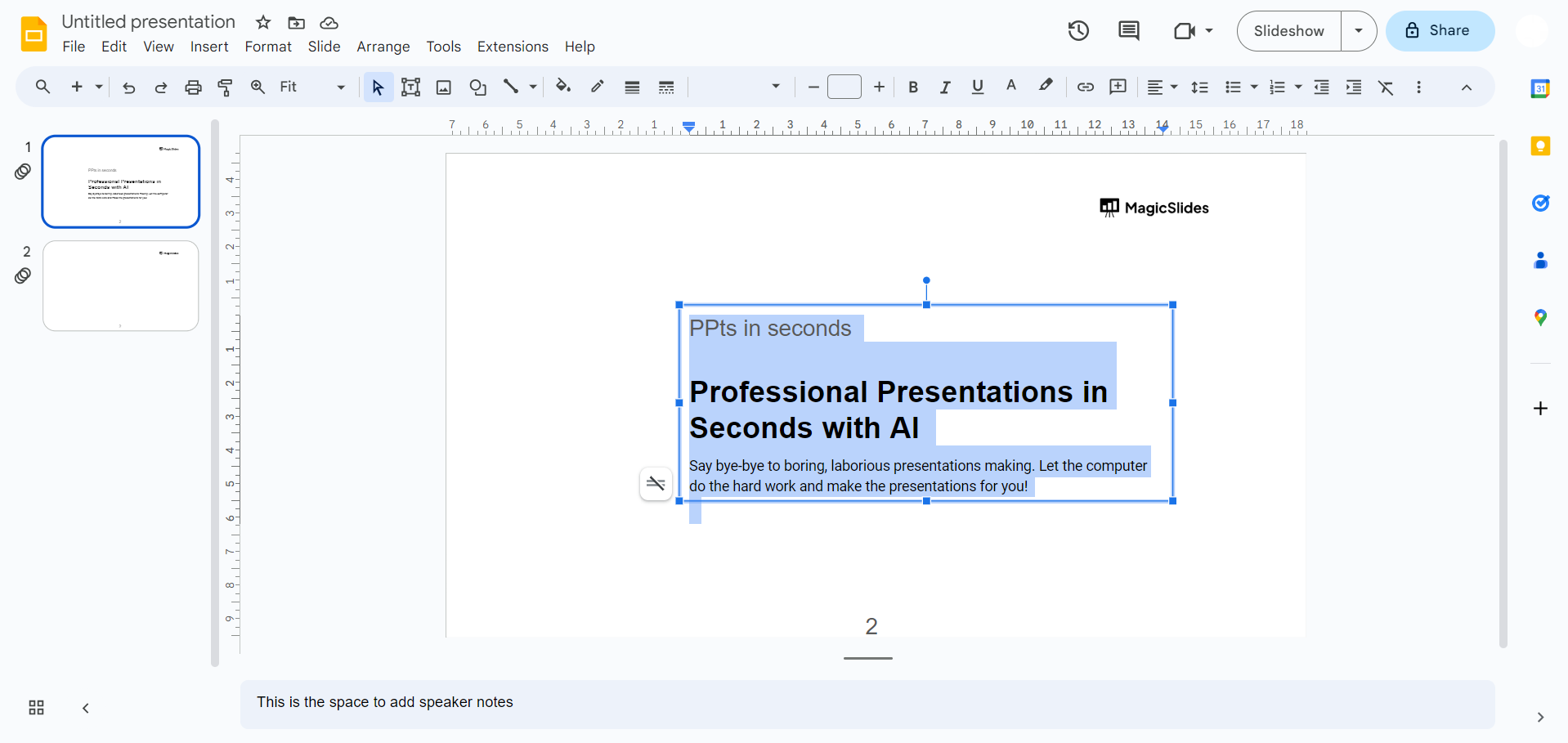
Click and drag your mouse cursor over the text in your slides to select all of it. Alternatively, use the keyboard shortcuts "Ctrl + A" (Windows) or "Command + A" (Mac) for quick selection.
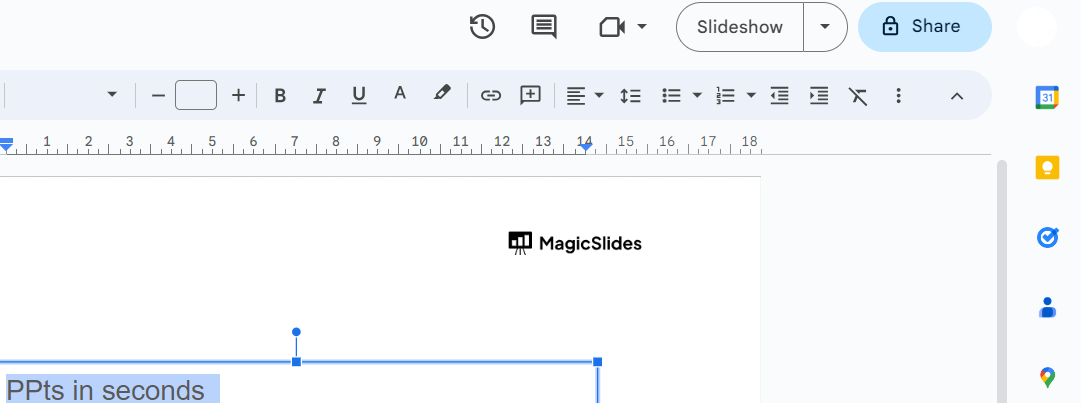
Access the Font Options:
With the text selected, direct your attention to the top menu bar. Locate and click on the "Format" option.
Choose "Font" from the Drop-down Menu:
In the "Format" menu, find the "Text" category. Hover over it, and a sub-menu will appear. From this sub-menu, select the "Font" option.
Pick a New Font:
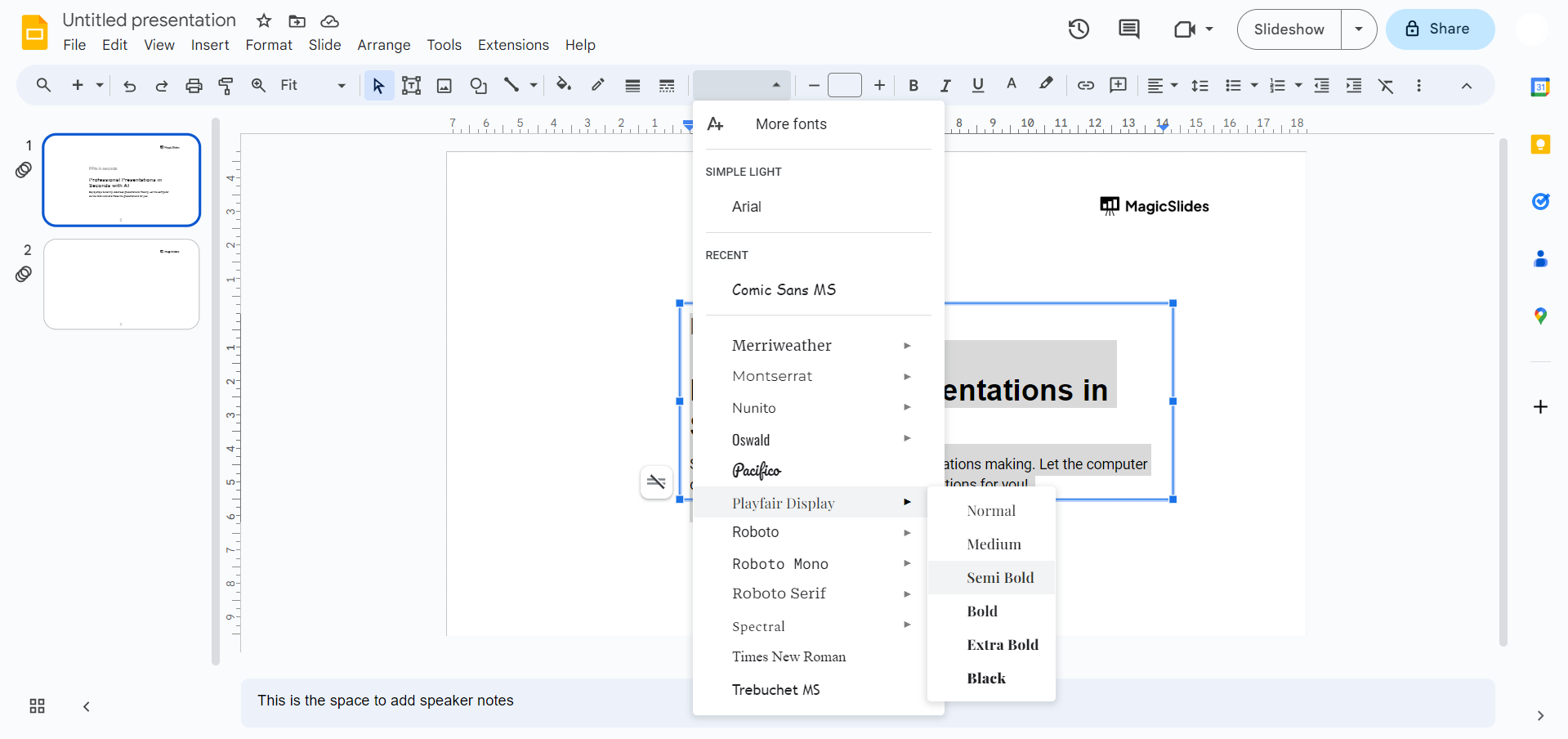
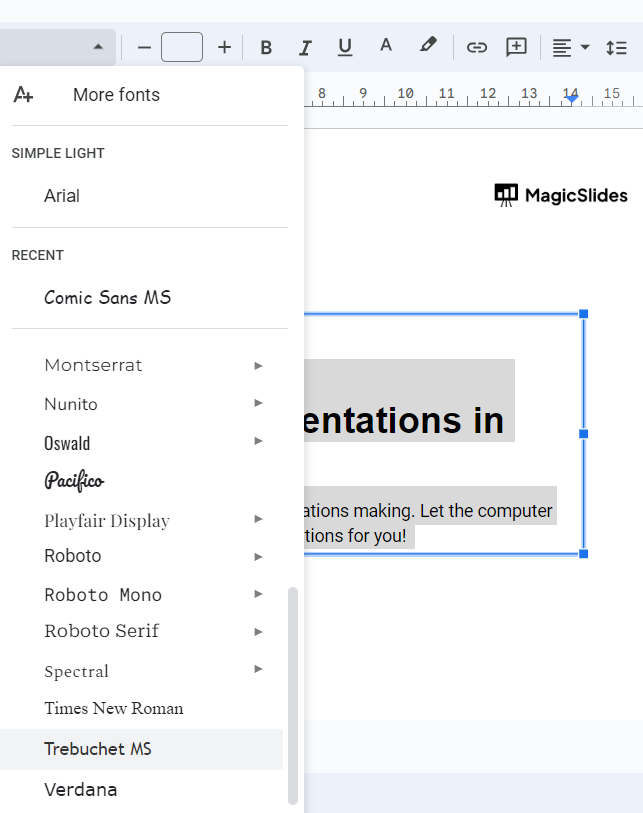
A list of available fonts will appear. Click on the current font name (e.g., Arial) to reveal the dropdown with various font options. Scroll through the list and click on the new font you wish to apply.
Confirm Font Change:
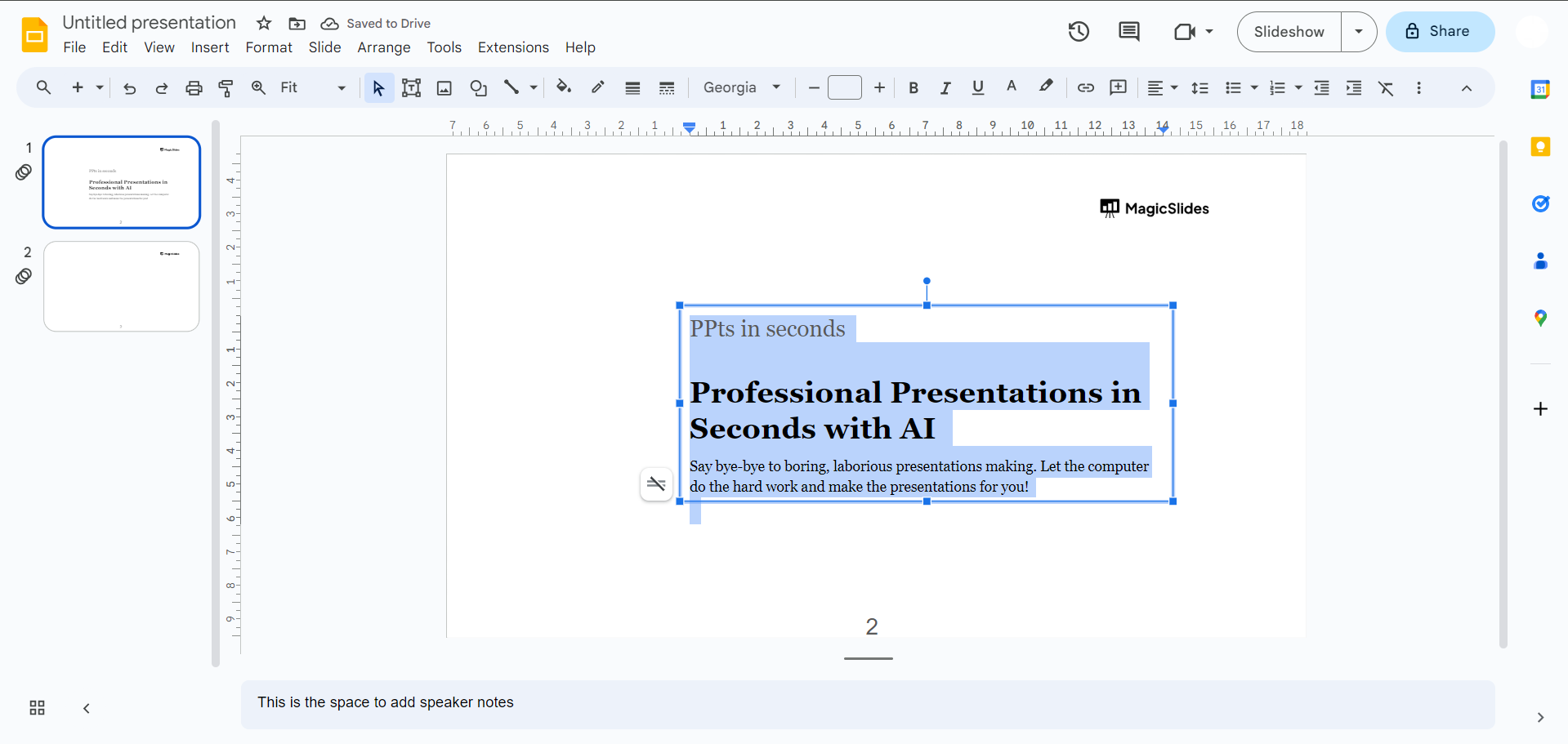
As you select the new font, the text in your slides will automatically update. Confirm the change by clicking on the chosen font. The font change will be applied to all the selected text.
Adjust Font Size and Style (Optional):
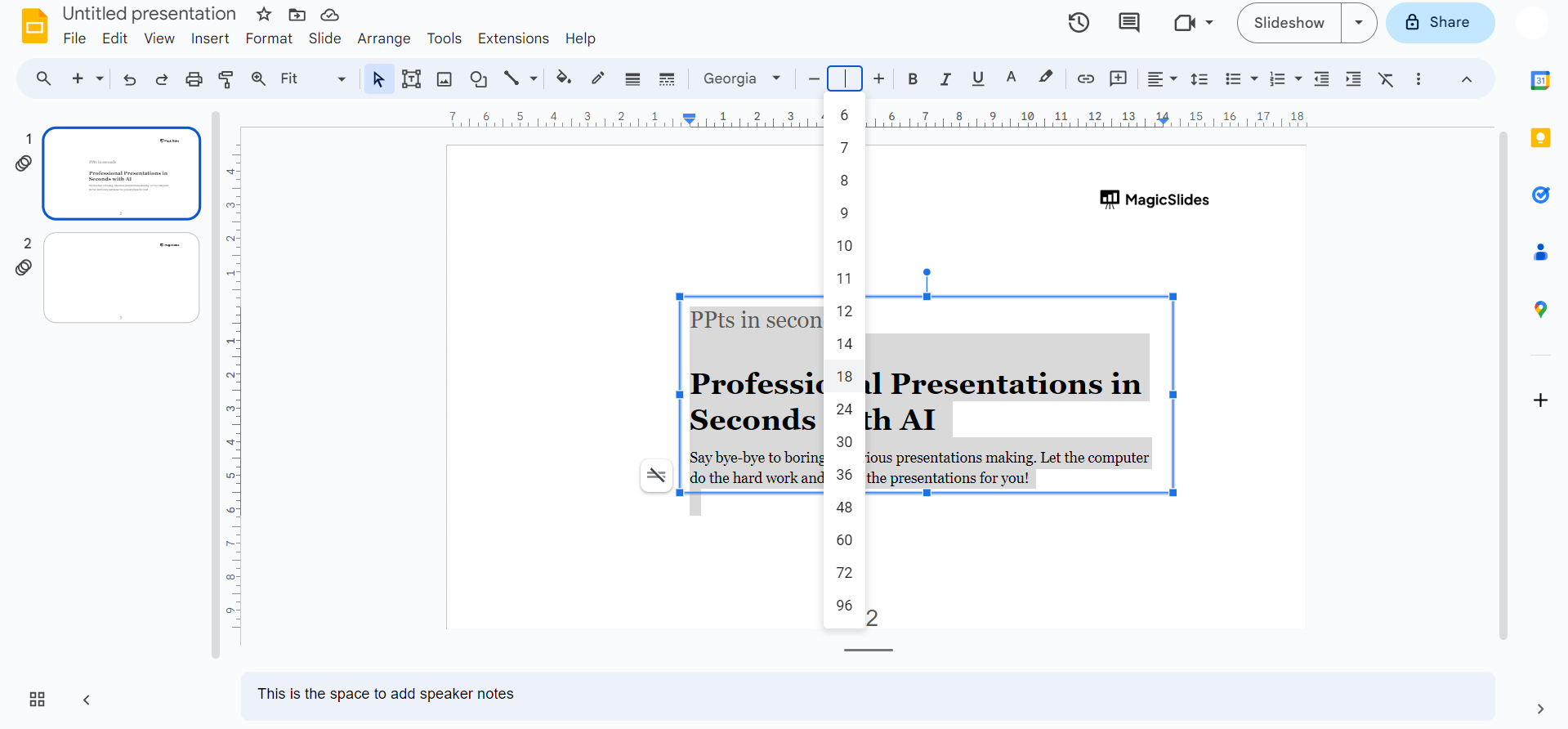
To further customize your text, you can modify the font size and style. Return to the "Format" menu, hover over "Text," and select options like "Font Size" or "Bold" and "Italic" as needed.
Review Your Slides:
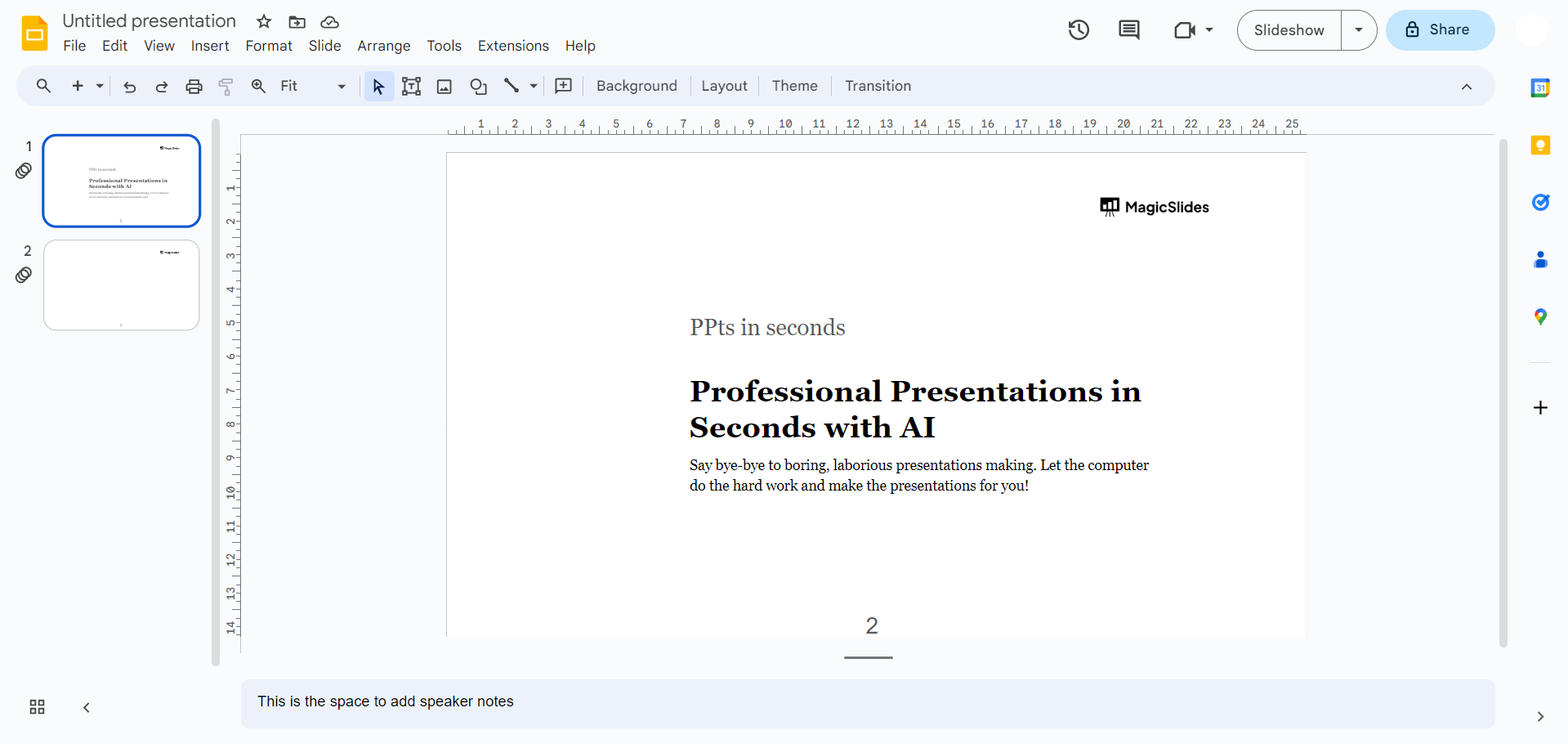
Take a moment to scroll through different slides in your presentation to ensure that the new font is consistently applied. Make adjustments if necessary.
Save Your Changes:
Once you're satisfied with the font changes, click on the "File" menu and select "Save" to save the updated version of your presentation.
Pro Tip 💡:
For a polished presentation, maintain consistency by choosing two complementary fonts—one for headings and another for body text. This harmonious pairing not only improves readability but also adds a professional touch to your Google Slides. Experiment with fonts to find the perfect combination that aligns with your content and enhances visual appeal.
Conclusion 💁♂️:
Now equipped with the knowledge to seamlessly alter fonts in Google Slides, your presentations are bound to captivate and engage. The ability to choose, apply, and customize fonts brings a refined touch to your content, leaving a lasting impression on your audience. Embrace the power of font transformation for truly impactful storytelling. By following these detailed steps, you can effectively and comprehensively change all fonts in your Google Slides presentation.
Frequently Asked Questions 🤔:
1. Can I change fonts for specific text elements within a slide?
A) Yes, after selecting the desired text, follow the same steps to change fonts, allowing for granular control over your presentation's visual aesthetics.
2. Will changing fonts affect the overall layout of my slides?
A) Generally, no. Google Slides adjusts the text within existing placeholders, maintaining your layout while refreshing the font style.
3. Can I revert to the original font after making changes?
A) Certainly. Use the "Undo" shortcut (Ctrl + Z or Command + Z) immediately after making font changes to revert to the original font settings.
Have a look @these tutorial blogs by us:
- How To Flip An Image In Powerpoint In 2024: https://www.magicslides.app/blog/How-to-mirror-an-image-in-powerpoint
- How To Add A Background In Powerpoint: https://www.magicslides.app/blog/How-to-add-a-background-in-powerpoint
- How To Add Mp4 Audio To Google Slides: https://www.magicslides.app/blog/How-to-add-mp4-audio-to-google-slides
- How To Automatically Play Your Google Slides: https://www.magicslides.app/blog/How-to-automatically-play-google-slides


