
In the realm of rapid content creation, generating a PowerPoint presentation with just a topic name has never been easier. This article guides you through a streamlined process using MagicSlides.app, a cutting-edge online tool designed for creating dynamic presentations effortlessly.
How to create PPT with just a topic name
Step 1: Navigate to MagicSlides.app
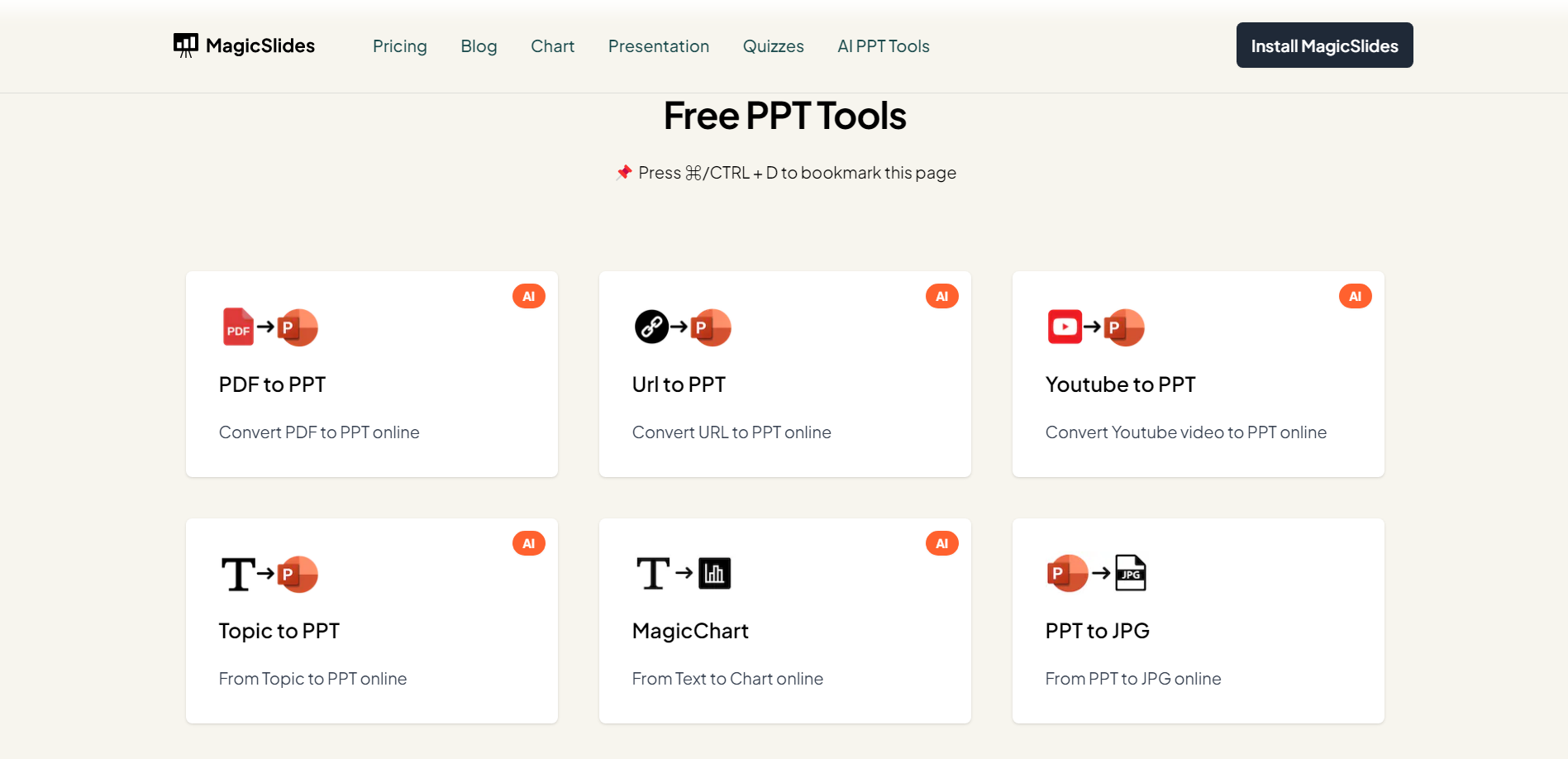
Commence by visiting https://www.magicslides.app/tools. Select the AI PPT Tool “Topic into PowerPoint presentation” and begin the process.
Step 2: Enter Your Topic
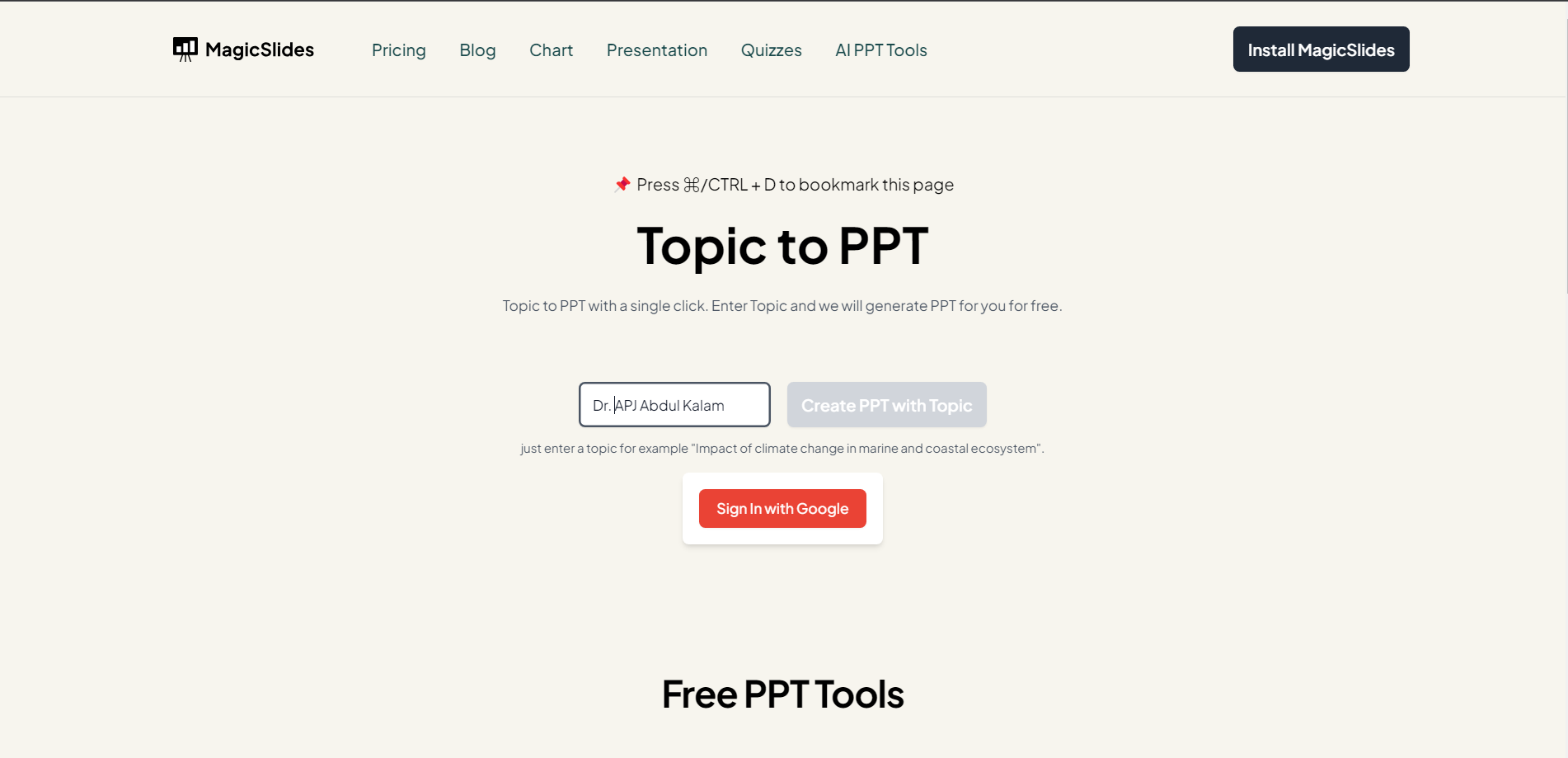
Once on the platform, input your chosen topic name. Click on "Create PPT with Topic" to initiate the generation process. MagicSlides.app's intuitive design ensures simplicity in conveying your ideas visually.
Step 3: Log in (Recommended for better experience)
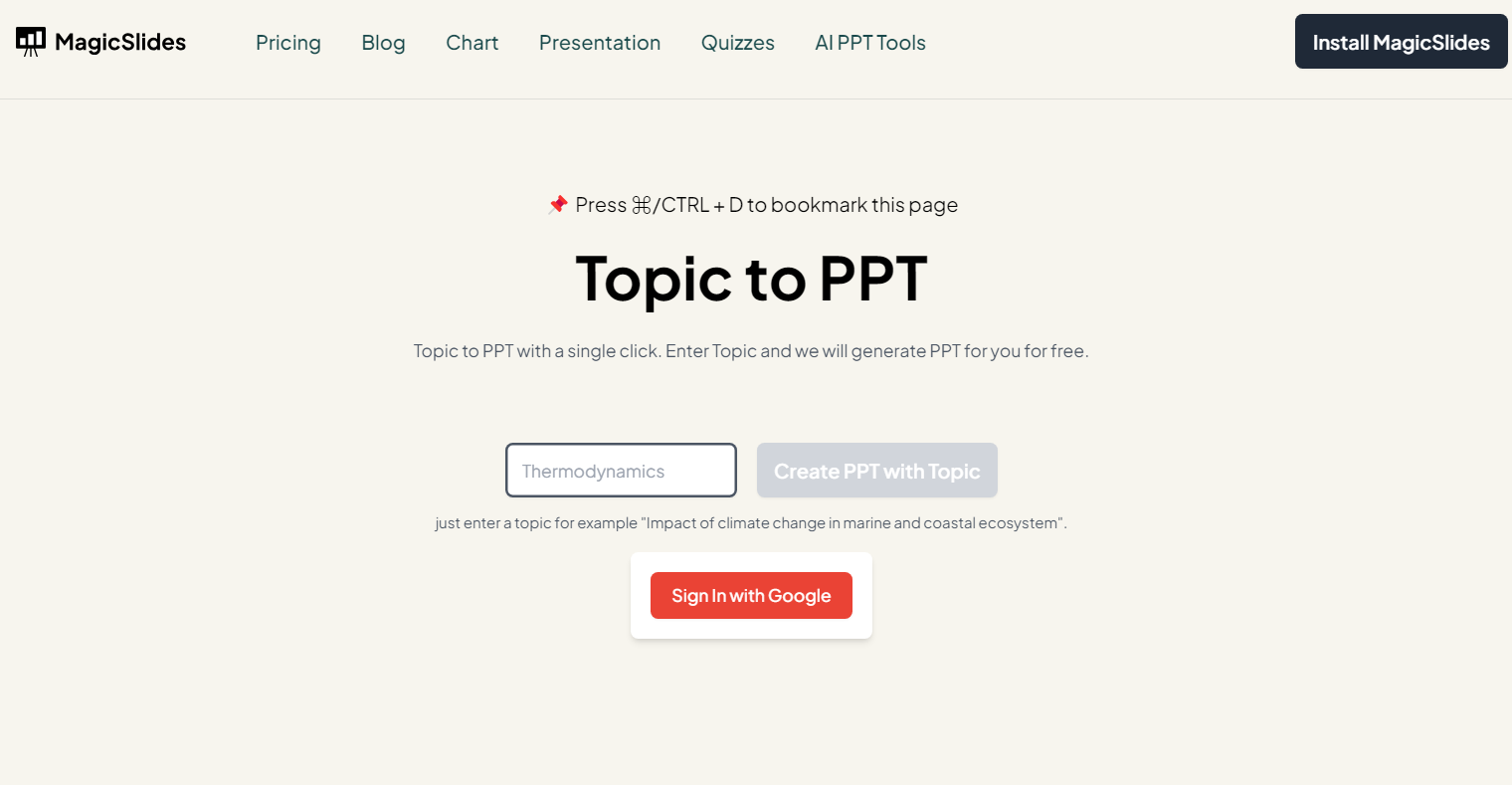
For a seamless experience and to access additional features, consider logging in with your Google account. Logging in not only enhances user convenience but also enables you to resume the process effortlessly.
Step 4: Initiate PPT Creation
With your topic entered and your account authenticated, click the designated button to kickstart the creation process. MagicSlides.app utilizes advanced algorithms to transform your topic into a visually appealing and cohesive PowerPoint presentation.

Step 5: Preview and Download
Upon completion, your presentation is ready for preview. Take a moment to review the slides and ensure they align with your expectations. Satisfied? Click on the download button, conveniently located on the platform, to save your presentation directly to your device.

Conclusion:
MagicSlides.app empowers you to bring your ideas to life with minimal effort. By following these five simple steps, you can effortlessly create a polished PowerPoint presentation with just a topic name. Embrace the efficiency of online tools and elevate your presentation game effortlessly!
Frequently Asked Questions:
Q1: Can I create a PowerPoint presentation with MagicSlides.app using any topic?
A1: Yes, MagicSlides.app allows you to craft presentations with any topic, making it versatile for diverse subjects.
Q2: Is logging in necessary to create a presentation with just a topic name?
A2: Logging in is optional but recommended. It provides a seamless experience and access to additional features.
Q3: Are there limitations on the complexity or length of the topic for this process?
A3: MagicSlides.app is designed for simplicity; however, extremely complex or lengthy topics may impact processing time.
Share on socials
About the author
Sanskar Tiwari is the founder of MagicSlides and IAG Tech. Over the past 5 years, he has shipped 24+ products and taught 100k+ students how to code. His work focuses on AI‑assisted creation and developer education.
More from the blog
How to Improve Slide Design for Presentations?
6 April 2026
How to Use Google Form Autofill Bot? Step-By-Step Guide
6 April 2026
How to Download Presentation from Gamma App: Easy Ways to Export, Convert & Save Slides
5 April 2026
How to Check Word Count in Google Docs: A Complete Guide
5 April 2026
How to Insert Bitmoji into Google Slides? Complete Guide
3 April 2026
How to Create a Timeline Slide for Presentation with AI
3 April 2026
How to Delete a Photo on Google Slides (6 Simple Ways).
3 April 2026
How to Add Subscript to Text in Google Slides? Explained
3 April 2026
100+ Extempore Topics for Students to Speak Confidently
2 April 2026
