How to Remove “Click to Add Title” in PowerPoint


Learn how to remove “Click to Add Title” in PowerPoint, delete title boxes, remove title placeholders from multiple slides, and create title-free slides.
PowerPoint automatically adds a “Click to add title” placeholder to many slide layouts. If you don’t need a title, you can easily remove the title box from a single slide or use a different layout to create a cleaner, title-free slide.
In this guide, you’ll learn how to remove “Click to Add Title” in PowerPoint, how to delete the title box, and how to remove title placeholders from multiple slides or a PowerPoint layout.
Quick Answer: How to Remove “Click to Add Title” in PowerPoint
To remove “Click to add title” in PowerPoint, select the title placeholder on your slide and press Delete. For multiple slides, select them and choose Home → Layout → Blank. If you want to permanently remove the placeholder from a layout, use View → Slide Master.
How to Remove “Click to Add Title” in PowerPoint
If you want to remove the “Click to add title” box from a single PowerPoint slide, you can delete the title placeholder directly.
Step 1: Open PowerPoint
Start by launching Microsoft PowerPoint on your computer.
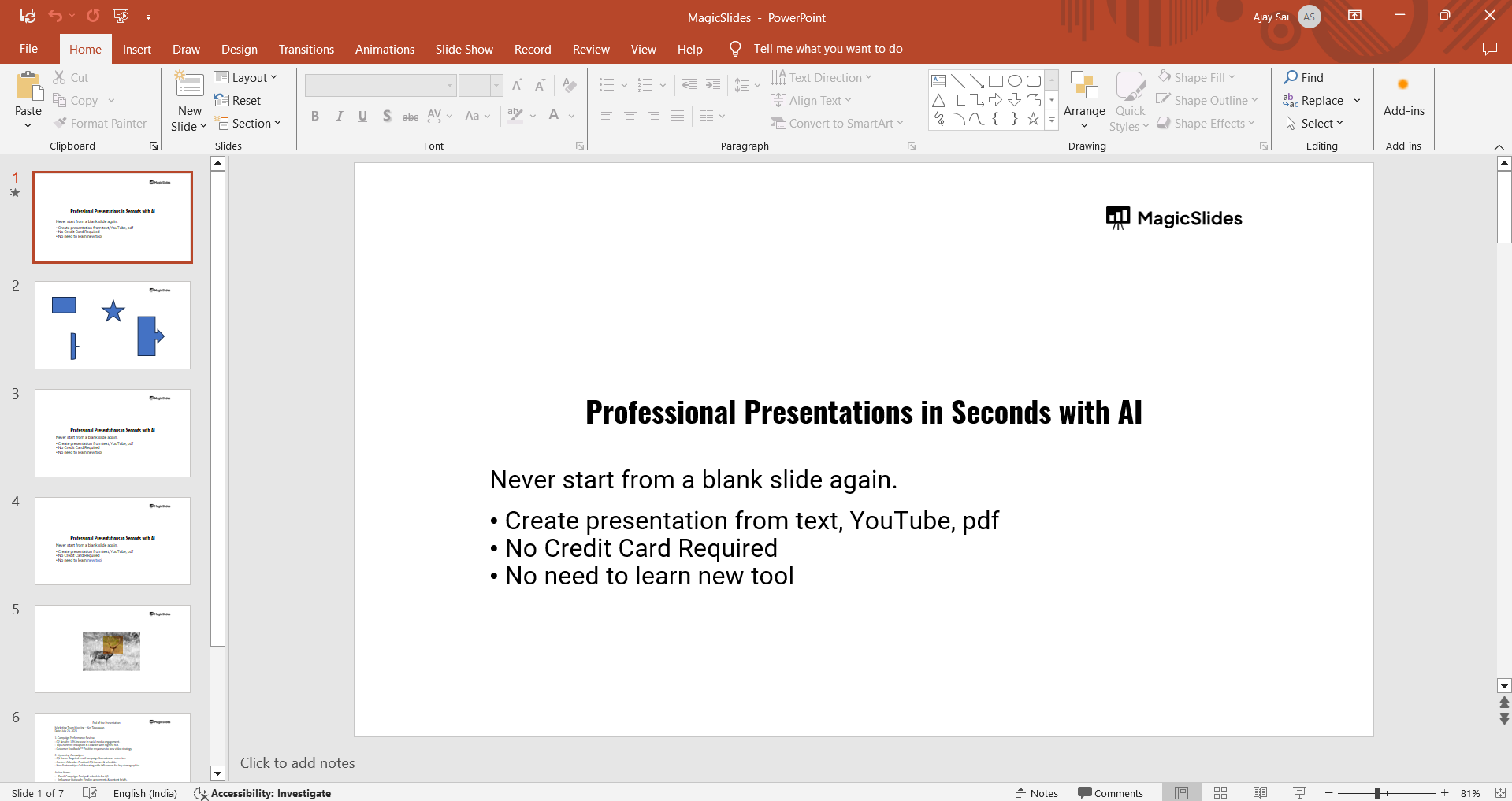
You can find it by searching in the Start menu or selecting the PowerPoint icon if it’s pinned to your taskbar.
Step 2: Create or Open a Presentation
Once PowerPoint is open, either create a new presentation or open an existing one where you want to delete the title box.
To create a new presentation, click on “Blank Presentation” or select a template.
To open an existing presentation, go to “File” in the top-left corner, click “Open,” and browse to the presentation you wish to edit.
Step 3: Navigate to the Slide with the Title Box
Locate the slide that contains the title box you want to delete.
The title box is usually found at the top of the slide and is labeled with the words “Click to add title.”
Step 4: Select the Title Box
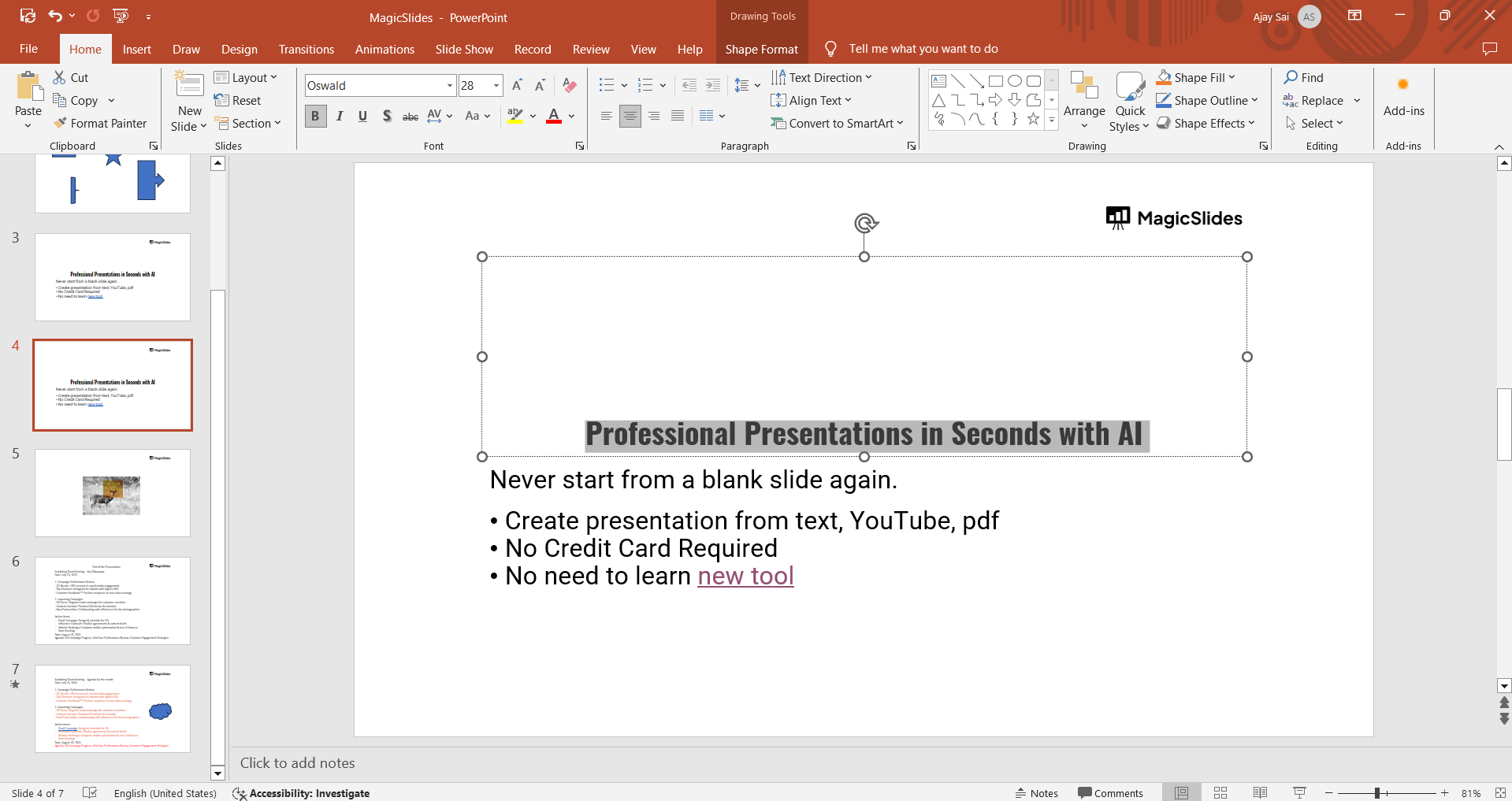
Click on the title box to select it.
You will know it’s selected when you see a solid border with sizing handles (small squares) around the title box.
Step 5: Delete the Title Box
With the title box selected, press Delete on your keyboard. If the entire box isn’t removed, click its border to make sure the placeholder itself is selected, then press Delete again.
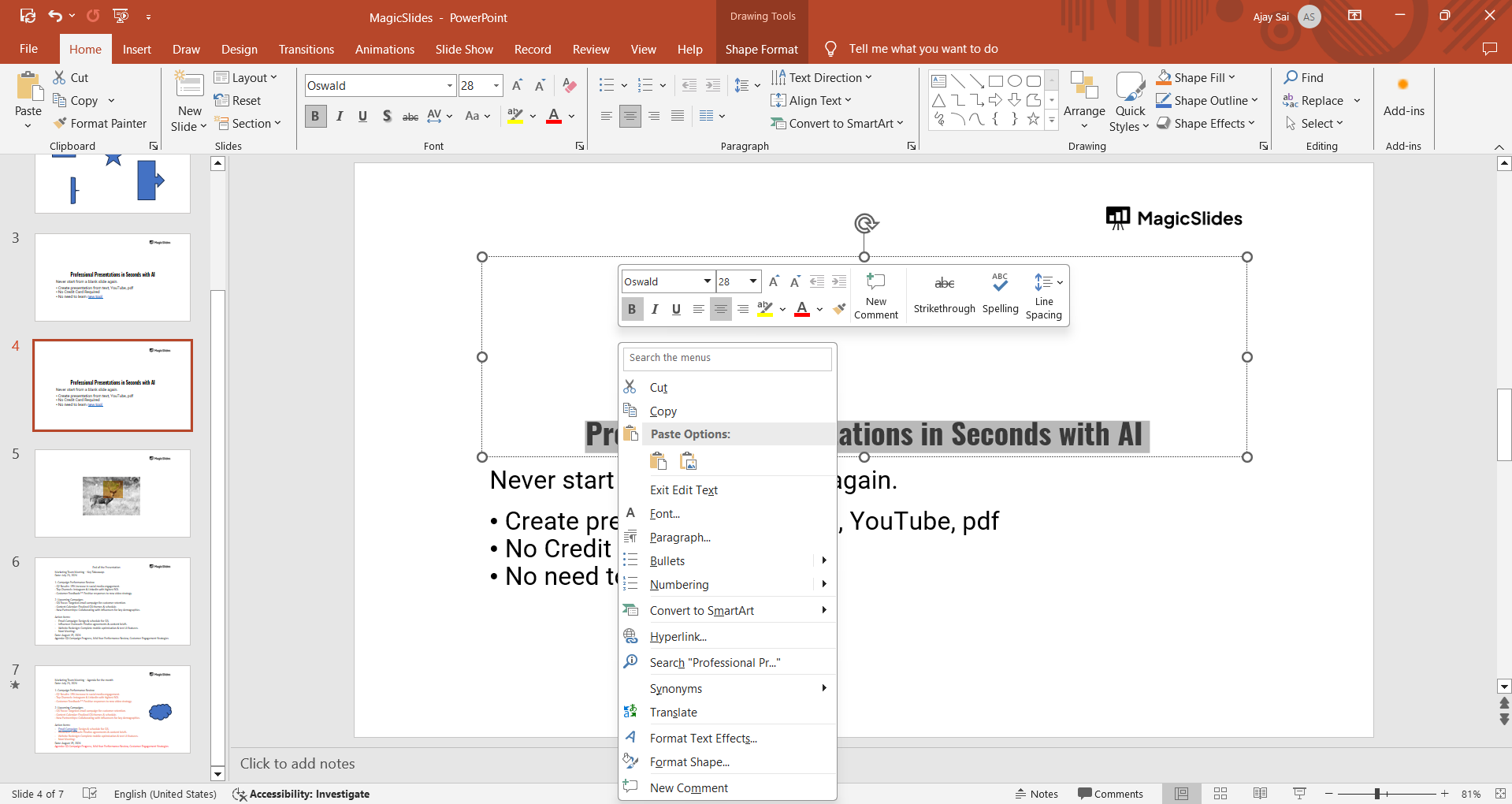
This action will remove the title box from the slide. If the title box doesn’t delete, make sure it is properly selected and try again.
Step 6: Adjust the Slide Layout (Optional)
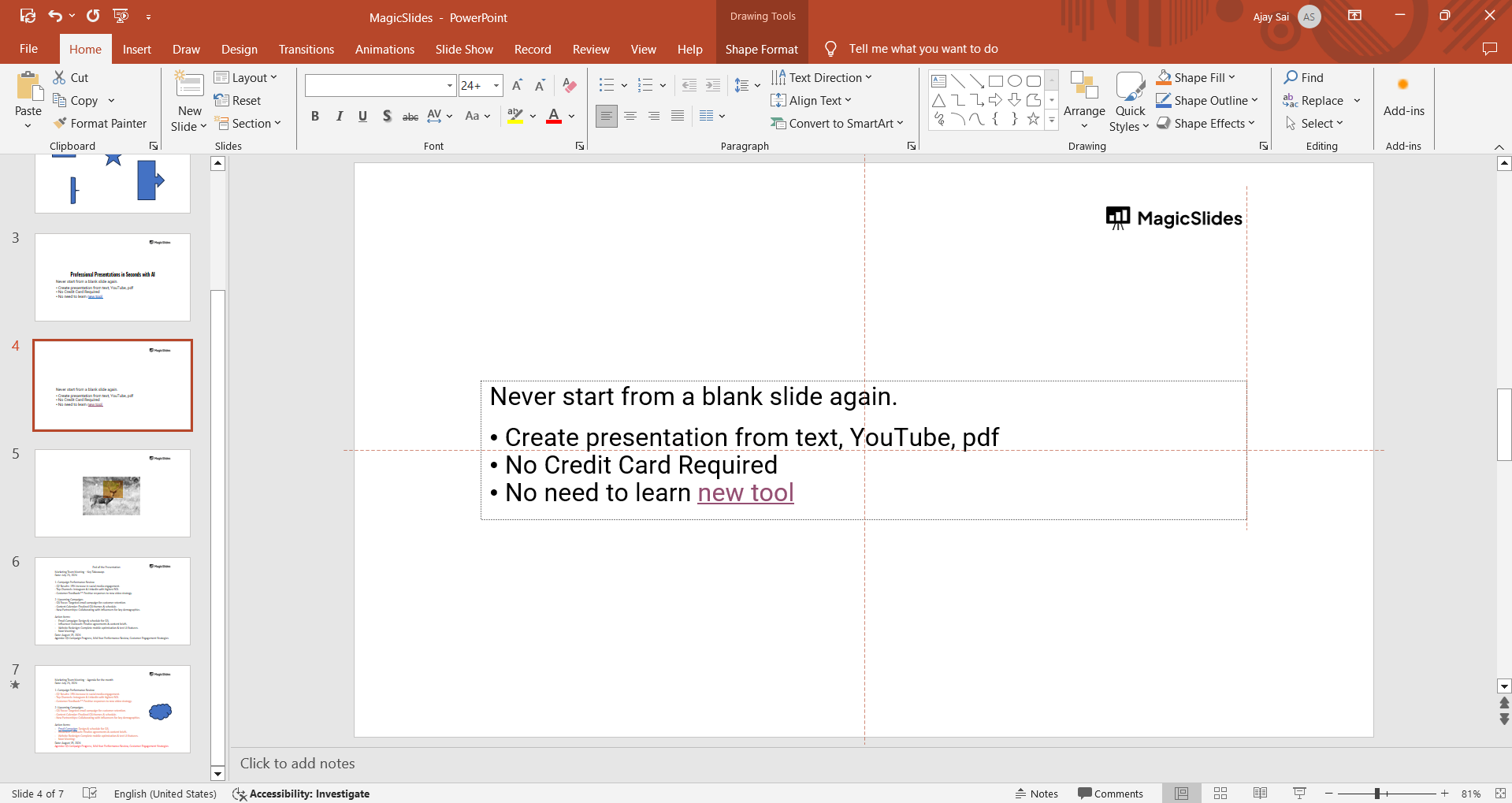
After deleting the title box, you may want to adjust the layout of your slide to better fit your content.
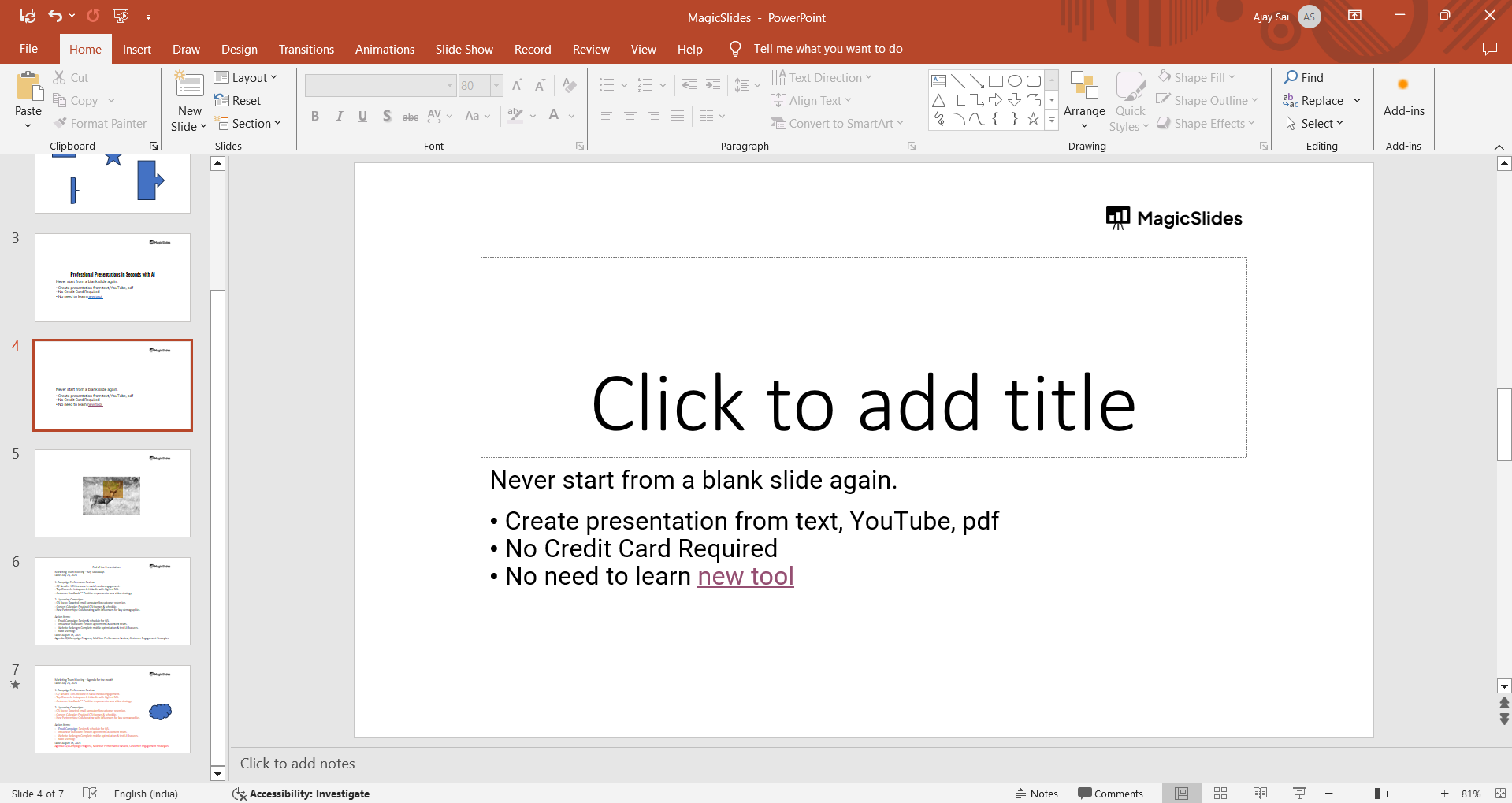
You can move or resize other elements on the slide by clicking and dragging them.
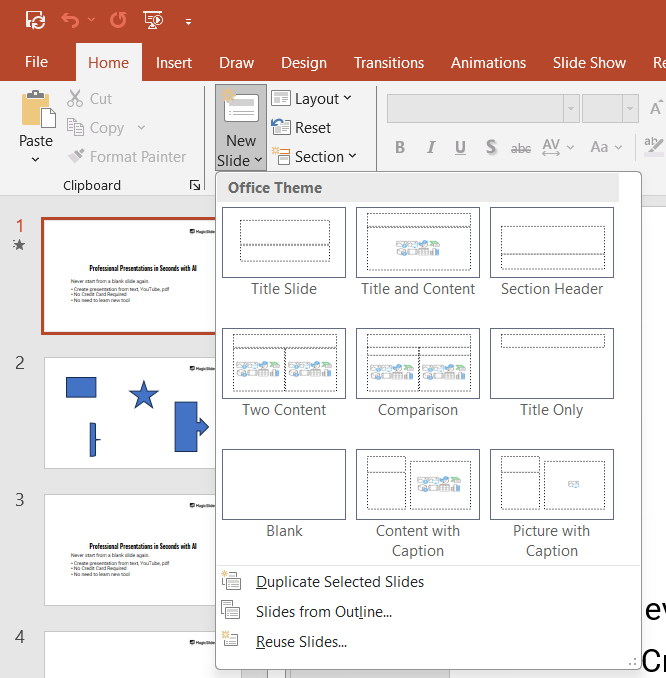
Alternatively, you can change the slide layout by going to the “Home” tab, clicking on “Layout,” and selecting a different layout option that better suits your needs.
How to Remove the Title Box From Multiple Slides
If you want to remove the title box from several PowerPoint slides, you don’t have to delete each placeholder one by one. You can apply a layout without a title placeholder to multiple slides at the same time.
Step 1: Select the Slides
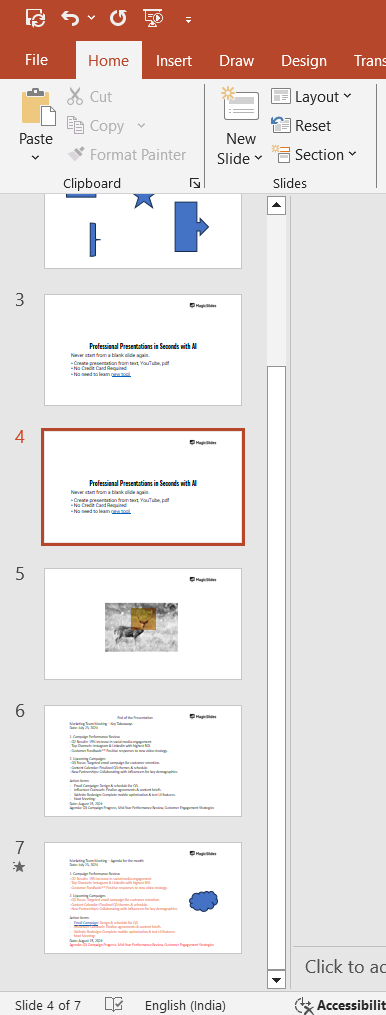
In the thumbnail pane on the left, select the slides you want to change. Hold Ctrl on Windows or Command on Mac while clicking to select multiple slides.
Step 2: Open the Layout Menu
Go to the Home tab and click Layout in the Slides section.
Step 3: Choose a Layout Without a Title
Select Blank or another layout that doesn’t contain a title placeholder.
PowerPoint will apply the selected layout to all the slides you selected, removing the “Click to add title” box from those slides.
Tip: If you regularly create slides without titles, consider modifying a layout through Slide Master. This lets you remove the title placeholder from the layout itself instead of changing individual slides.
How to Permanently Remove the Title Placeholder in PowerPoint
If you want to prevent the “Click to add title” placeholder from appearing on slides that use a particular layout, you can remove it through Slide Master.
- Step 1. Go to the View tab and select Slide Master.
- Step 2. From the thumbnail pane, select the layout you want to modify.
- Step 3. Click the title placeholder on the layout to select it.
- Step 4. Press Delete on your keyboard.
- Step 5. Click Close Master View to return to your presentation.
Slides that use the modified layout will no longer display the “Click to add title” placeholder.
Note: Changes made in Slide Master affect all slides that use that layout. If you only want to remove the title box from one slide, delete the placeholder directly instead.
How to Hide a Title Instead of Deleting It
If you want to keep a slide title for accessibility or presentation structure but don’t want it to be visible, you can hide it rather than deleting the title placeholder.
One simple approach is to move the title placeholder outside the visible slide area. However, this can make the presentation harder to maintain.
A better option is to use a slide layout that provides the structure you need while keeping the visible design clean. You can also format the title so it blends into the slide when appropriate.
If you need the title to remain available for accessibility or screen readers, avoid deleting it completely. Keeping a meaningful title can make your presentation easier to navigate and understand.
Create PowerPoint Presentations Faster With MagicSlides
Removing title boxes is easy, but creating an entire presentation from scratch can take much more time. MagicSlides, an AI PPT Maker, makes it easier by turning your ideas, documents, YouTube videos, or website content into polished PowerPoint presentations with just a prompt.
Whether you’re creating a business presentation, classroom slides, project deck, or pitch presentation, you can generate a complete PPT in seconds and customize it to fit your needs.

Ready to create your next presentation faster? Try MagicSlides and start building presentations with AI.
Conclusion
Removing the “Click to add title” box in PowerPoint is simple, whether you want to delete it from one slide, remove it from multiple slides, or permanently change a slide layout.
For a single slide, select the title placeholder and press Delete. If you want a title-free slide, choose the Blank layout from Home → Layout. For a more permanent solution, use Slide Master to remove the title placeholder from a specific layout.
With these options, you can create cleaner, more flexible PowerPoint slides that match the design and content of your presentation.
Also read: How to Delete a Slide in PowerPoint: Easy Step-by-Step Guide
Frequently Asked Questions
Q1. How do I remove “Click to Add Title” in PowerPoint?
Select the “Click to add title” placeholder on your slide and press Delete. If you want to remove it from multiple slides, select those slides and choose Home → Layout → Blank.
Q2. How do I delete the title box in PowerPoint?
Click the title box to select the entire placeholder, then press Delete on your keyboard. You can also choose the Blank slide layout to remove the title placeholder automatically.
Q3. How do I delete “Click to Add Title” in PPT?
Select the “Click to add title” box and press Delete. Alternatively, go to Home → Layout and choose a layout that doesn’t contain a title placeholder.
Q4. Can I remove the title box from multiple slides at once?
Yes. Select multiple slides in the thumbnail pane, go to Home → Layout, and choose Blank or another layout without a title placeholder. You can also modify a layout through Slide Master if you want to remove the placeholder from that layout.
Q5. How do I permanently remove the title placeholder in PowerPoint?
Go to View → Slide Master, select the layout you want to modify, select the title placeholder, and press Delete. Then click Close Master View. Slides using that modified layout will no longer show the title placeholder.
Q6. How do I make a PowerPoint slide without a title?
Select the slide, go to Home → Layout, and choose Blank. This removes the default title and other placeholders, allowing you to create a completely custom slide.
Also read: What Is an Infographic Presentation? Examples, Types & How to Create One


