How to Convert Canva to PowerPoint (.PPTX) in Minutes? Quick Guide


Convert Canva presentations to PowerPoint in seconds. Step-by-step guide to download Canva slides as PPTX and edit them in Microsoft PowerPoint.
If you’ve created a presentation in Canva but need to edit, present, or share it using Microsoft PowerPoint, you can easily export it as a PowerPoint (.pptx) file. Whether you’re working with clients, colleagues, or teachers who prefer PowerPoint, Canva makes the conversion process quick and straightforward. In this guide, I’ll show you how to convert Canva presentations to PowerPoint step by step, along with tips to avoid common formatting issues.
Convert Canva to PowerPoint (.PPTX) in Minutes
To convert a Canva presentation to PowerPoint, open your presentation in Canva, click Share → Download, choose Microsoft PowerPoint (.pptx) as the file format, and click Download. Canva will export your presentation as a PowerPoint file that you can edit in Microsoft PowerPoint.
Why Download Canva Presentation as PowerPoint?
Although Canva is the most powerful tool for creating engaging presentations, it still sometimes needs to be saved as a PPT because:
- PowerPoint files can be opened and edited even without an internet connection.
- Some corporate clients only accept PowerPoint files for review.
- PowerPoint gives access to advanced animation and slide transition controls that Canva doesn’t fully support.
- Having a local .pptx copy means you can easily email or store it on a drive for future use.
For these reasons, many users choose to export their Canva presentations as PowerPoint files for offline editing, client reviews, and broader compatibility. Let’s look at how to convert a Canva presentation to PowerPoint step by step.
How to Convert Canva Presentations to PowerPoint Step-by-Step
Exporting a Canva presentation as a PowerPoint (.pptx) file only takes a few clicks. Following these step-by-step instructions makes this more effortless:
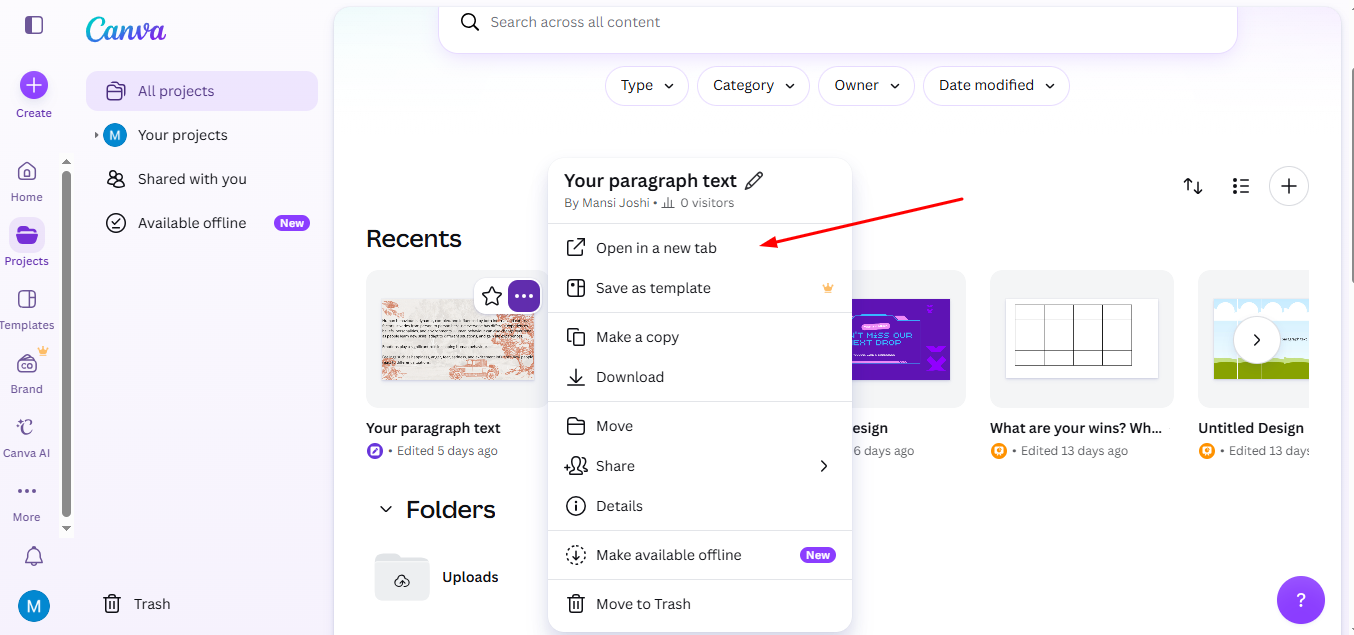
Step 1. Open Canva Presentation
- Log in to your Canva account. Open the Project or Recent Designs tab and click to open the presentation to export.
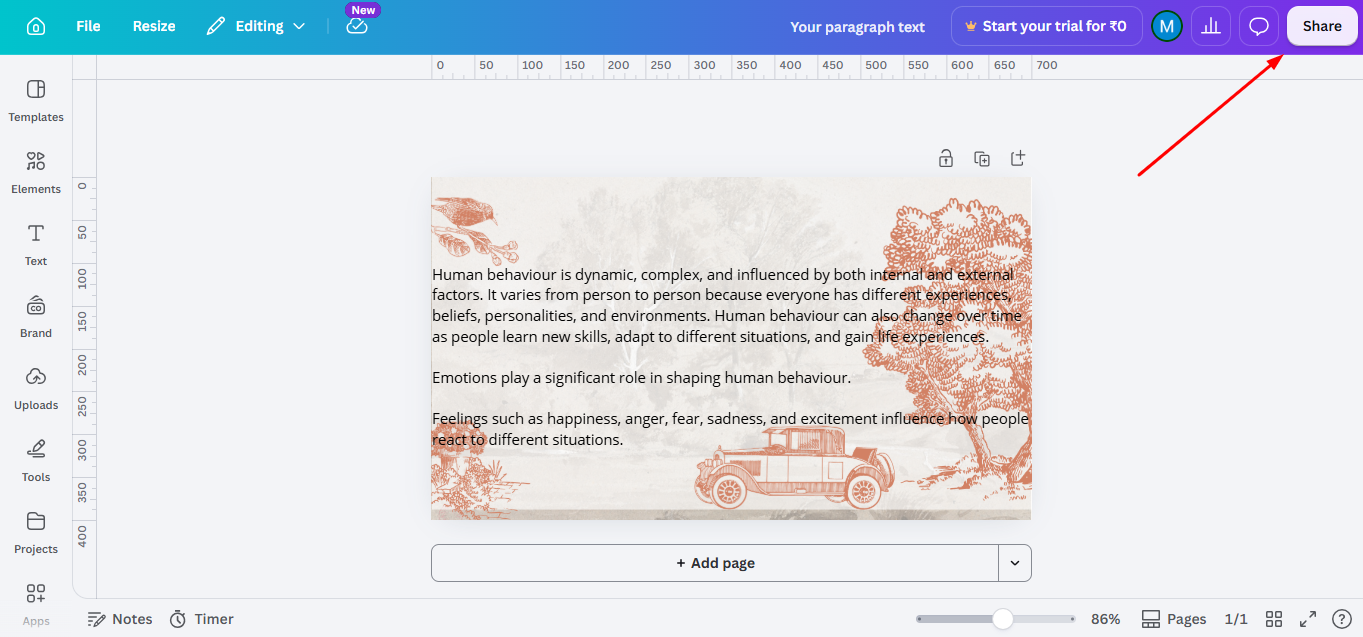
Step 2. Click on Share
- In the top-right corner of the Canva editor, click the Share button.
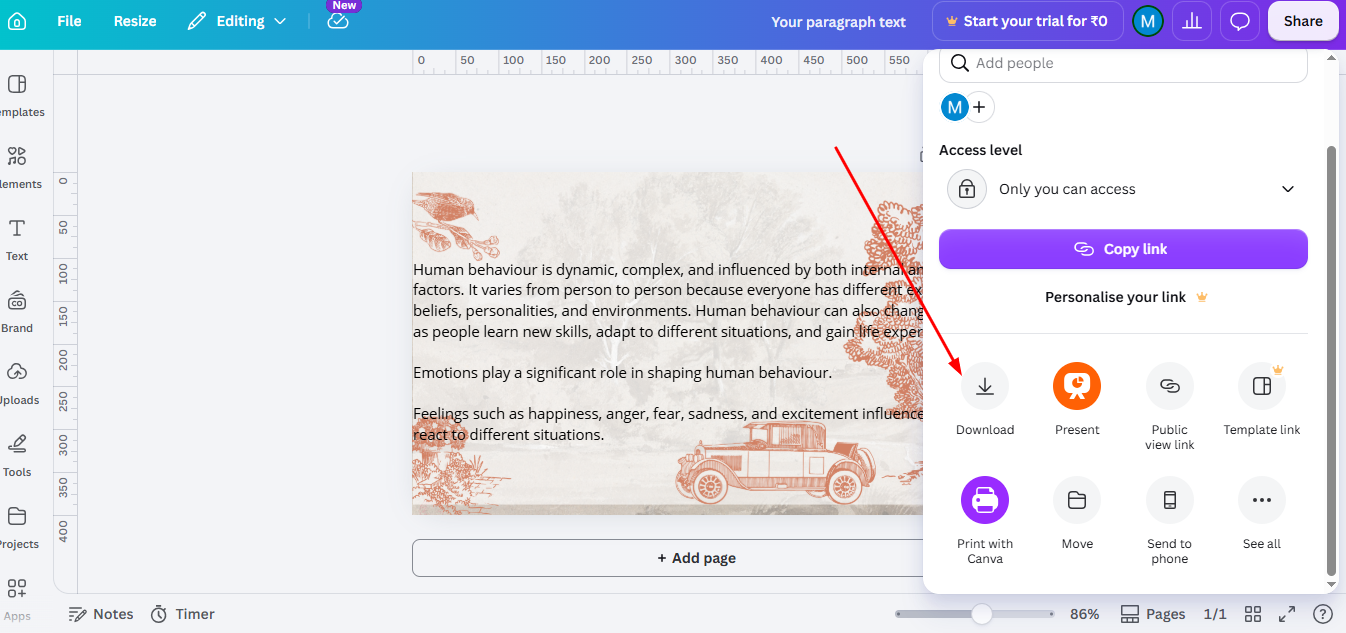
- You’ll see several export and sharing options like Download, Present, Share link, etc.
- Now, click on Download to save Canva as PowerPoint.
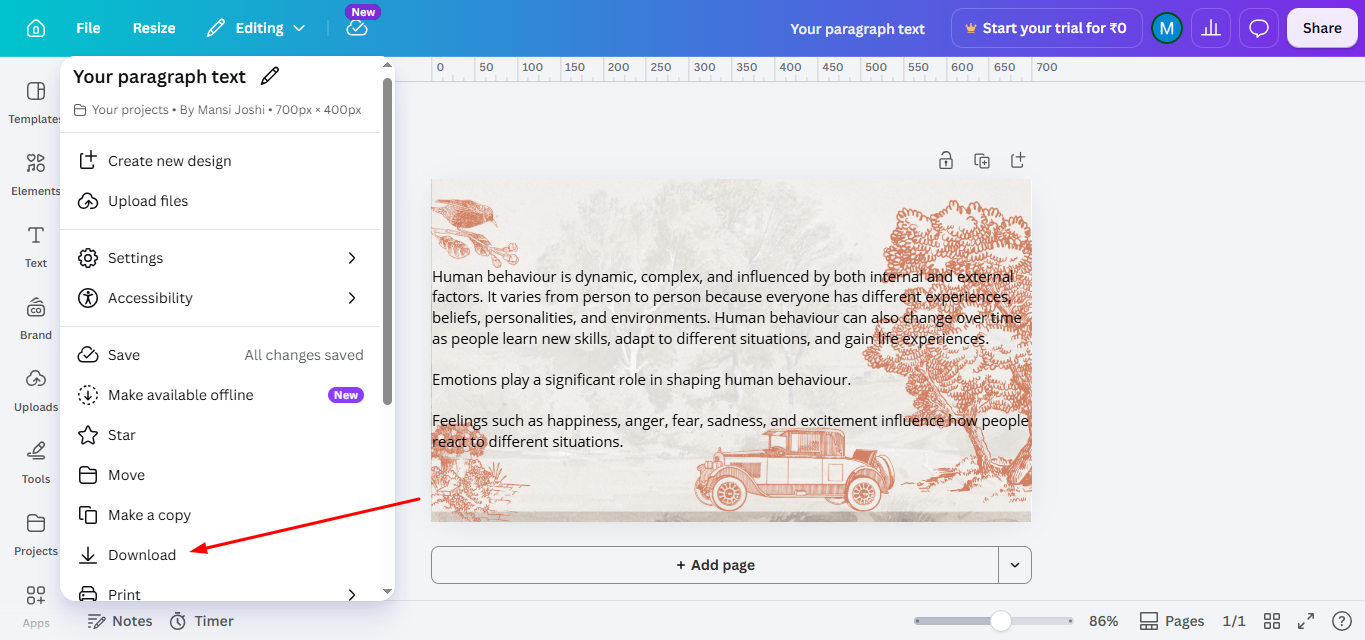
- Alternatively, you can also click on File > Download.
Step 3. Choose PowerPoint Format (.PPTX)
Under the “Download” dropdown, you’ll see options like:
- PNG
- JPG
- PDF Print & Standard
- MP4 Video
- GIFs
- SVG for Canva Pro Members only
- Microsoft PowerPoint (.PPTX)
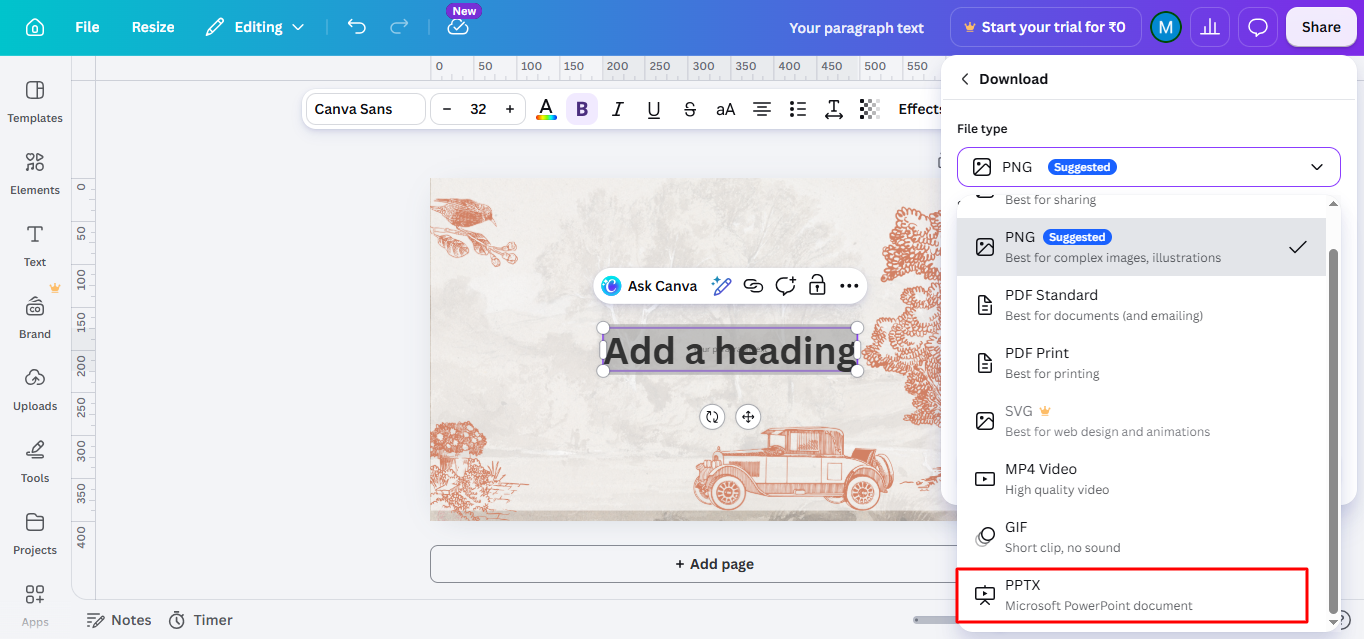
Select Microsoft PowerPoint as your export format to convert Canva presentations to PowerPoint.
Step 4. Adjust Download Settings
Before you hit Download, you can change a few options according to your work needs:
- Choose specific slides if you don’t need the entire deck.
- For Pro users, you can also check options like Transparent Background.
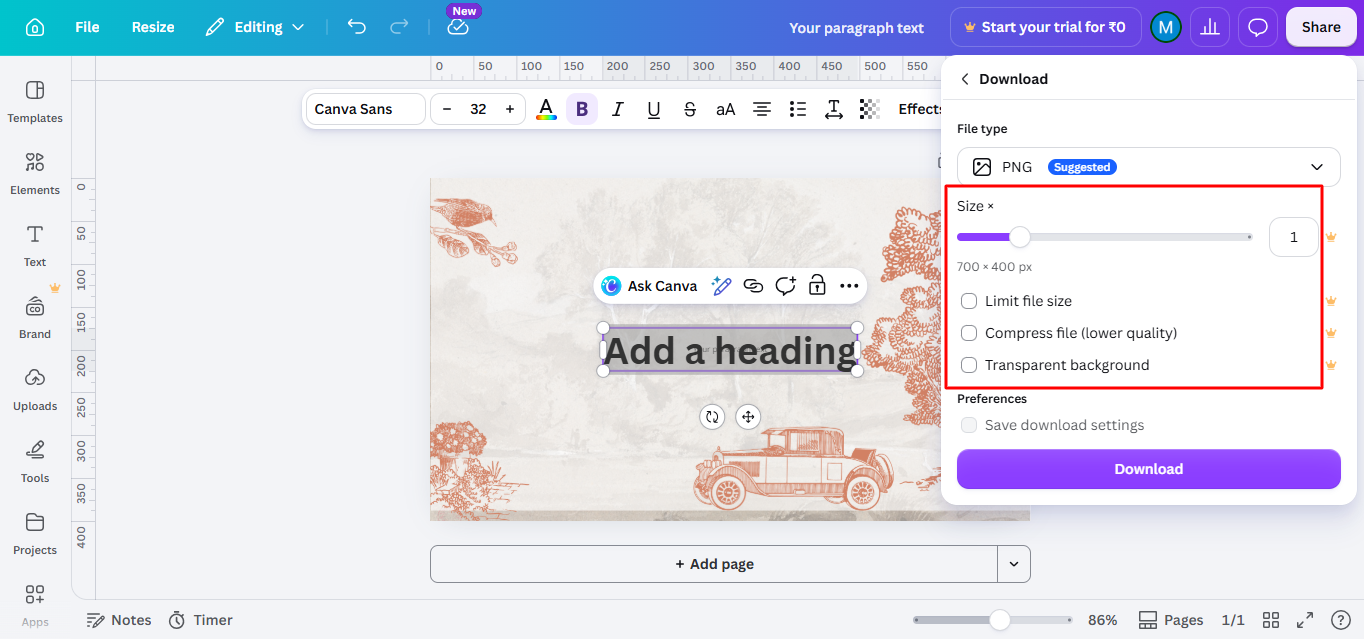
Once everything looks good, click Download. Then, Canva will start converting your presentation into a .pptx file.
Depending on your internet connection and the number of slides, it can take a few seconds to a couple of minutes to save your presentation as a PPT. When in Canva, the completed message prompts mean your PPTX is saved locally.
So, now go to your downloaded file in the download folder. Double-click it, open it directly in Microsoft PowerPoint, and customise it if needed.
What Happens After Conversion?
After converting the Canva file, here’s what you can do to fine-tune the presentation in PowerPoint:
- Sometimes text boxes or icons shift slightly; you have to fix them slide by slide manually.
- Canva animations don’t transfer to PowerPoint, so reapply them if needed.
- Embed fonts or replace missing ones to ensure consistent formatting on any device.
Expert Tips for Exporting Canva Presentations to PowerPoint
While converting a Canva presentation to PowerPoint is simple, a few best practices can help ensure your slides maintain their quality and formatting after export. Based on common user experiences, these tips can help you avoid common issues during the conversion process.
1. Use Standard Fonts
Custom fonts used in Canva may not always be available in PowerPoint. To prevent font replacement, try using widely supported fonts like Arial, Roboto, or Open Sans. This helps maintain consistent typography after conversion.
2. Avoid Canva-Only Animations
Animations created inside Canva usually do not transfer to PowerPoint. If your slides rely heavily on animations, you may need to reapply animations manually in PowerPoint after downloading the PPTX file.
3. Keep Layouts Simple
Complex layouts with many overlapping elements can sometimes shift slightly when opened in PowerPoint. Using clean layouts and aligned elements reduces the chances of formatting issues.
4. Check Icons and Graphics
Some Canva graphics or icons may convert into static images in PowerPoint. After exporting, quickly review each slide to ensure icons, shapes, and images appear correctly.
5. Review Slides After Downloading
Before presenting or sharing your file, open the downloaded .pptx file in Microsoft PowerPoint and review every slide. This helps you catch any minor alignment or formatting issues early.
6. Reinsert Media if Needed
Videos, GIFs, or audio files may not always embed perfectly during conversion. If your presentation contains media elements, you might need to reinsert them directly in PowerPoint for proper playback.
Following these tips will help ensure your Canva presentation converts smoothly to PowerPoint while keeping the design and layout as close as possible to the original version.
Convert Canva Presentations to PowerPoint – Limitations to Know→
While testing several Canva presentations with animations, videos, custom fonts, and icons, I noticed a few limitations after exporting them to PowerPoint.
- Animations don’t carry over.
- Videos or audio won’t be embedded.
- Custom fonts get replaced.
- Interactive elements behave differently.
So, that’s why nowadays I rely on the professional AI tool, which automates this task, which I’ll explain further.
Use MagicSlides to Generate Stunning Slides Instantly
If you want to create professional-quality slides faster than Canva, I recommend trying MagicSlides, an AI PPT Maker for quick deck generation. It automatically generates AI-powered slides based on your topic, and you can export them directly to PowerPoint, Google Slides, or even Canva.
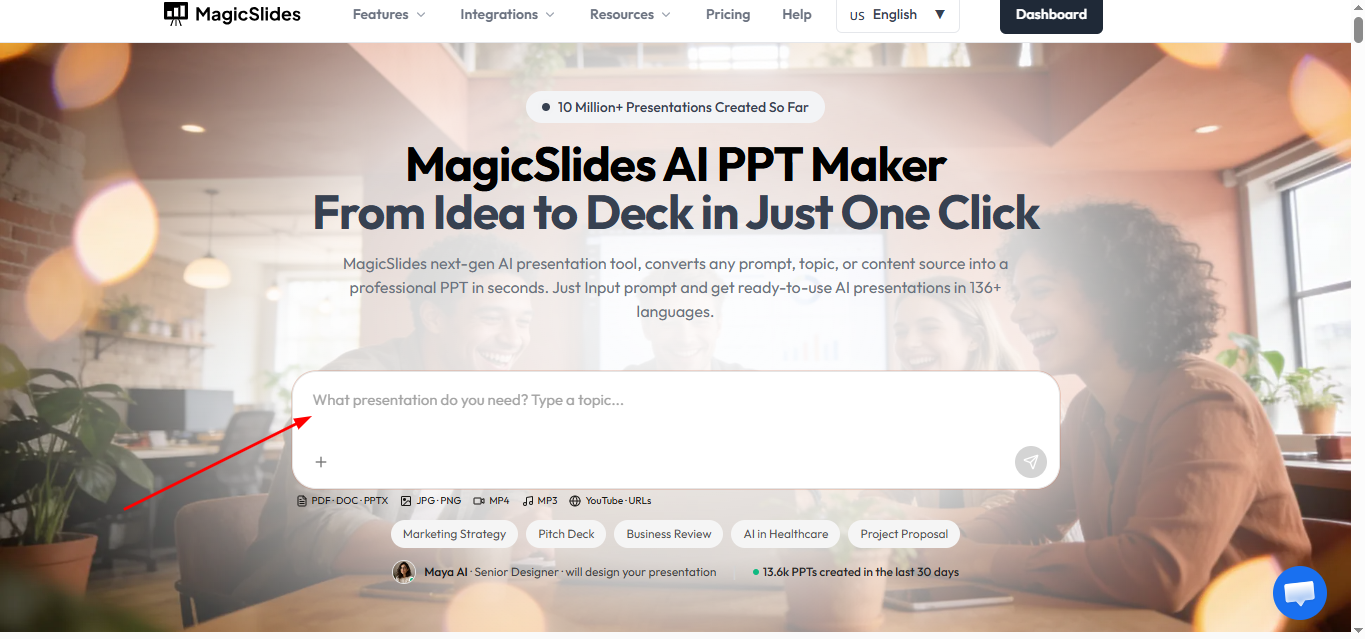
If you regularly create presentations from scratch, AI presentation tools like MagicSlides can reduce manual work by generating editable slides that export directly to PowerPoint.
- Generates visually aligned slides in seconds
- Supports PowerPoint export natively
- Perfect for professionals, marketers, and educators
- Let users customise themes, icons, and text instantly
- Comes with numerous built-in templates
If you frequently create presentations from scratch, AI presentation tools like MagicSlides can help automate slide creation and export presentations directly to PowerPoint or Google Slides, reducing manual work.
Also read: How to Create a Presentation in Canva in Less Than 5 Steps
Conclusion
Canva is an excellent tool for designing visually engaging presentations, while Microsoft PowerPoint remains the preferred format for many businesses, schools, and organisations. Exporting your Canva presentation as a PowerPoint (.pptx) file lets you edit, present, and share your slides more easily across different platforms. By following the steps in this guide, you can convert Canva presentations to PowerPoint with minimal formatting changes and quickly resolve any issues that arise after export.
People Also Ask
Q1. Can I convert a Canva presentation to PowerPoint for free?
Yes. Canva allows both Free and Pro users to download presentations as Microsoft PowerPoint (.pptx) files. However, if your presentation contains Pro-only elements, you’ll need a Canva Pro subscription to export those assets without watermarks or restrictions.
Q2. Will my Canva presentation lose formatting when converted to PowerPoint?
Most layouts, images, and text formatting are preserved during conversion. However, Canva-specific animations, transitions, custom fonts, videos, and some design elements may not appear the same in Microsoft PowerPoint and might require minor adjustments.
Q3. Can I edit a Canva presentation after downloading it as a PowerPoint file?
Yes. Once you download your presentation as a .pptx file, you can open it in Microsoft PowerPoint and edit text, images, shapes, layouts, and other supported elements just like any regular PowerPoint presentation.
Q4. Why are my fonts different after exporting Canva to PowerPoint?
PowerPoint replaces fonts that aren’t installed on your computer or aren’t supported. To minimise formatting changes, use common fonts such as Arial, Calibri, Roboto, or Open Sans, or install the missing fonts before opening the presentation.
Q5. Do Canva animations and transitions work in PowerPoint?
No. Most Canva animations and page transitions do not transfer when exporting to PowerPoint. If your presentation relies on animations, you’ll need to recreate them using PowerPoint’s built-in animation and transition tools.
Q6. Can I convert Canva presentations to PowerPoint on mobile?
Yes. You can export presentations using the Canva mobile app. However, the desktop version provides more export options and makes reviewing formatting much easier before presenting or sharing your slides.


