How to Insert Your Signature with Google Docs?


Learn how to easily insert your signature into Google Docs with step-by-step instructions and enhance your document workflow effortlessly.
In today's digital age, signing documents electronically has become the norm for many professionals. Google Docs offers a convenient way to insert your signature directly into your documents using the Drawing tool.
This step-by-step guide will walk you through the process of inserting your signature with Google Docs building blocks.
How to Insert Your Signature with Google Docs?
Before you begin, ensure you have access to a Google account and are logged in. If you don't have a Google account, you can easily create one for free.
Step 1: Open Google Docs
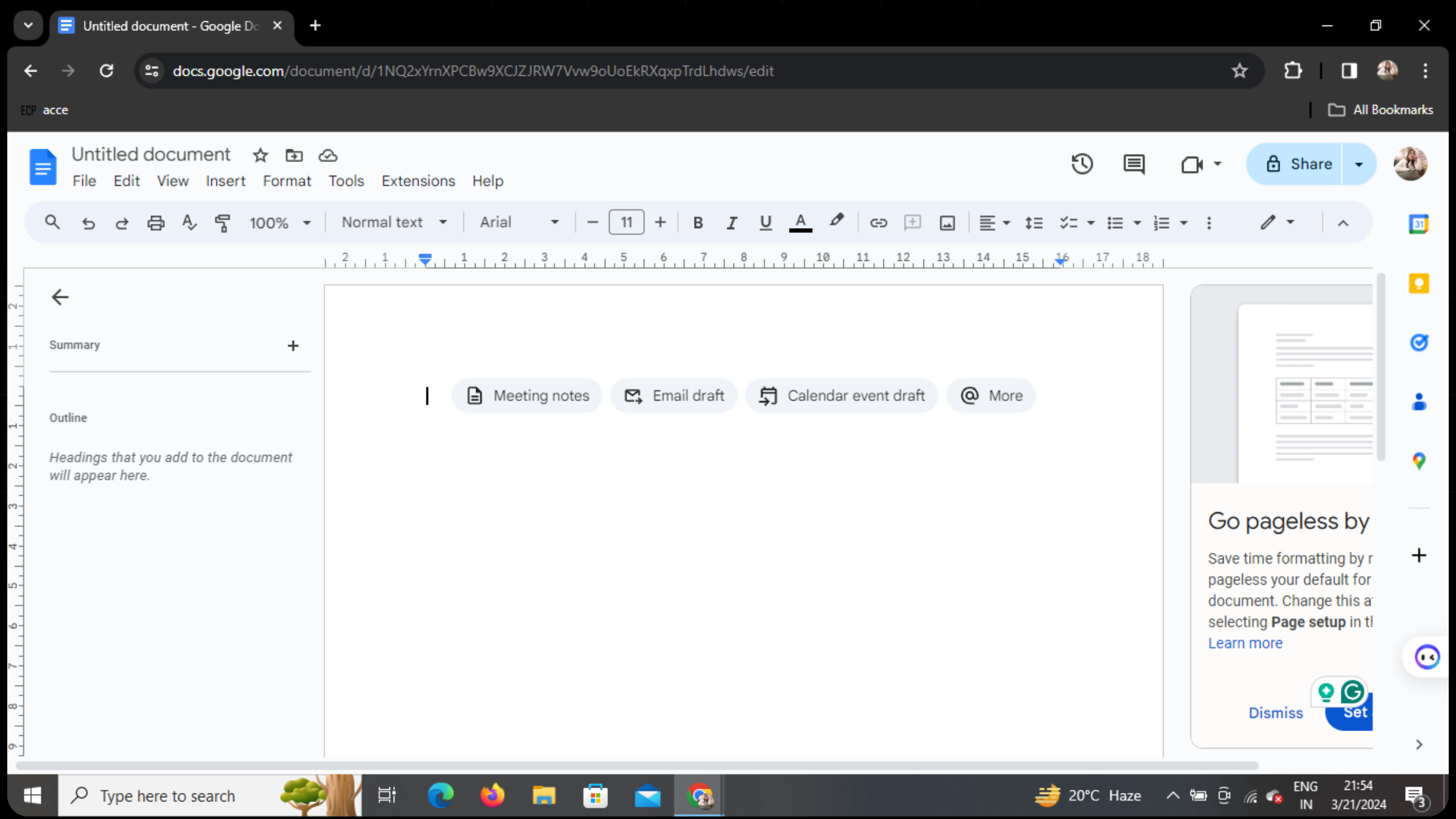
Navigate to Google Docs by visiting docs.google.com and sign in with your Google account credentials.
Step 2: Click on Insert Tab
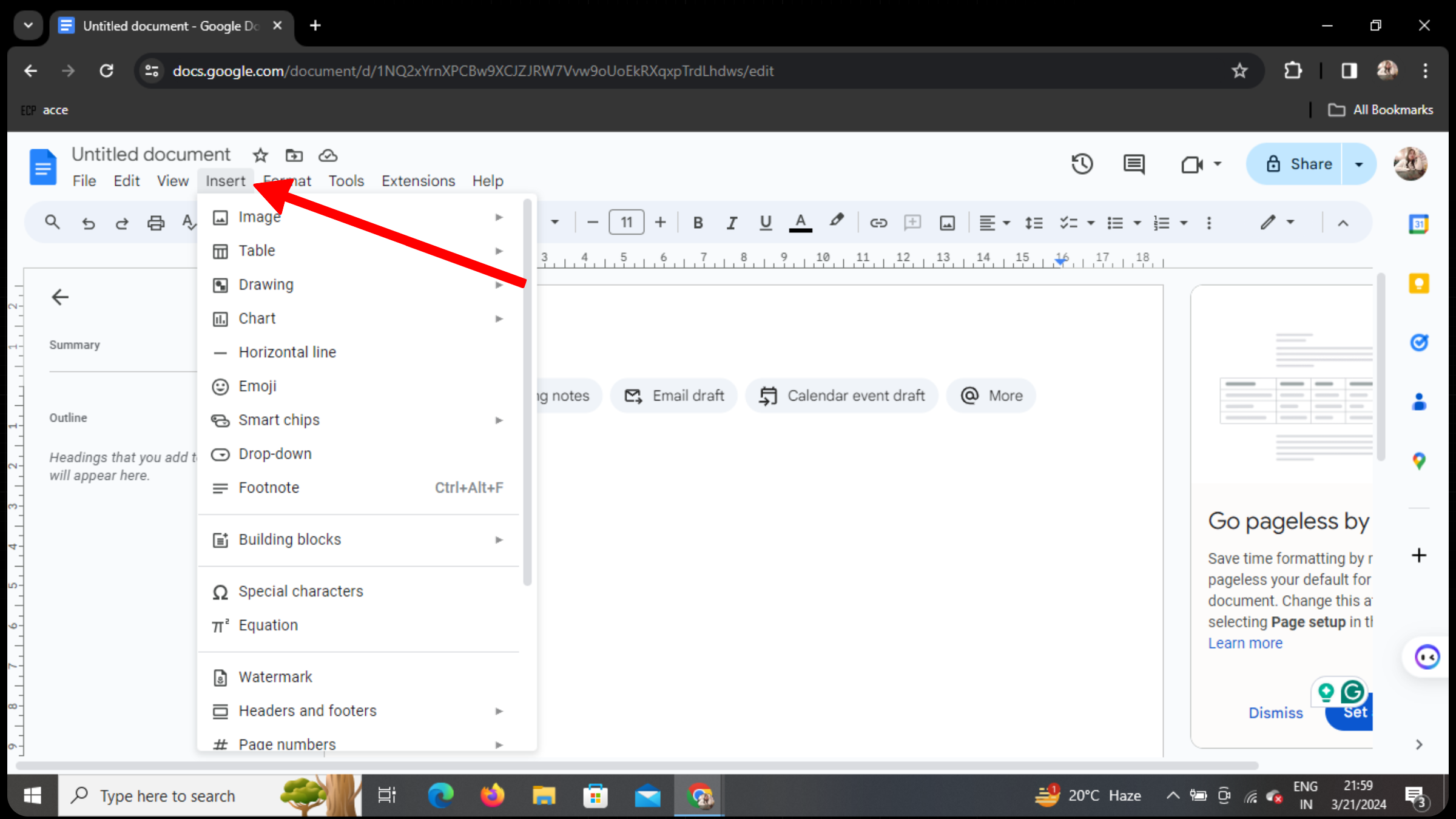
Once you have your document open, locate the "Insert" tab in the top menu bar.
Step 3: Select Drawing from the Dropdown
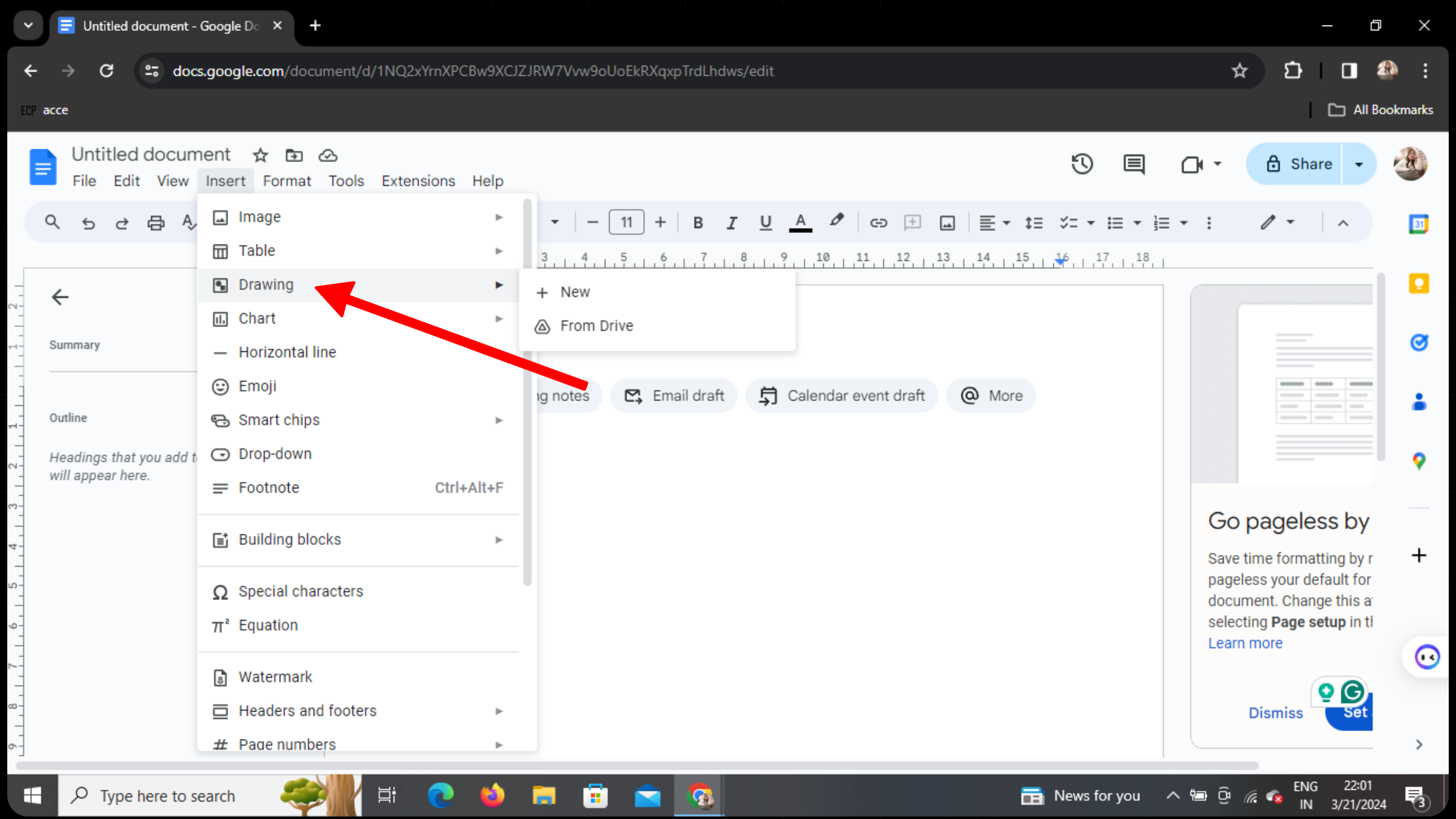
Click on the "Insert" tab, and then select "Drawing" from the dropdown menu.
Step 4: Access Drawing Menu
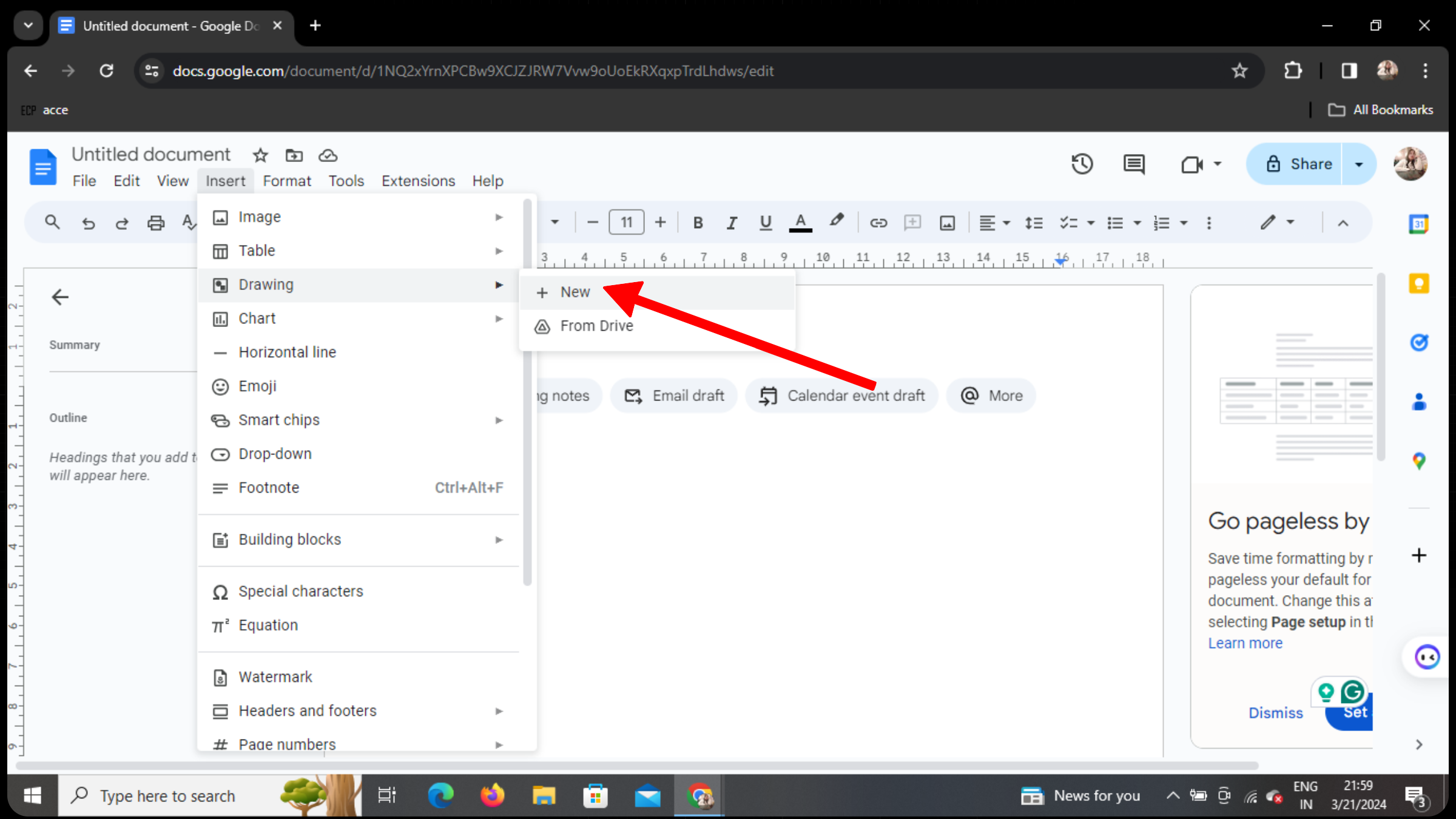
A submenu will appear. Click on "New" to open the Drawing tool.
Step 5: Choose Scribble
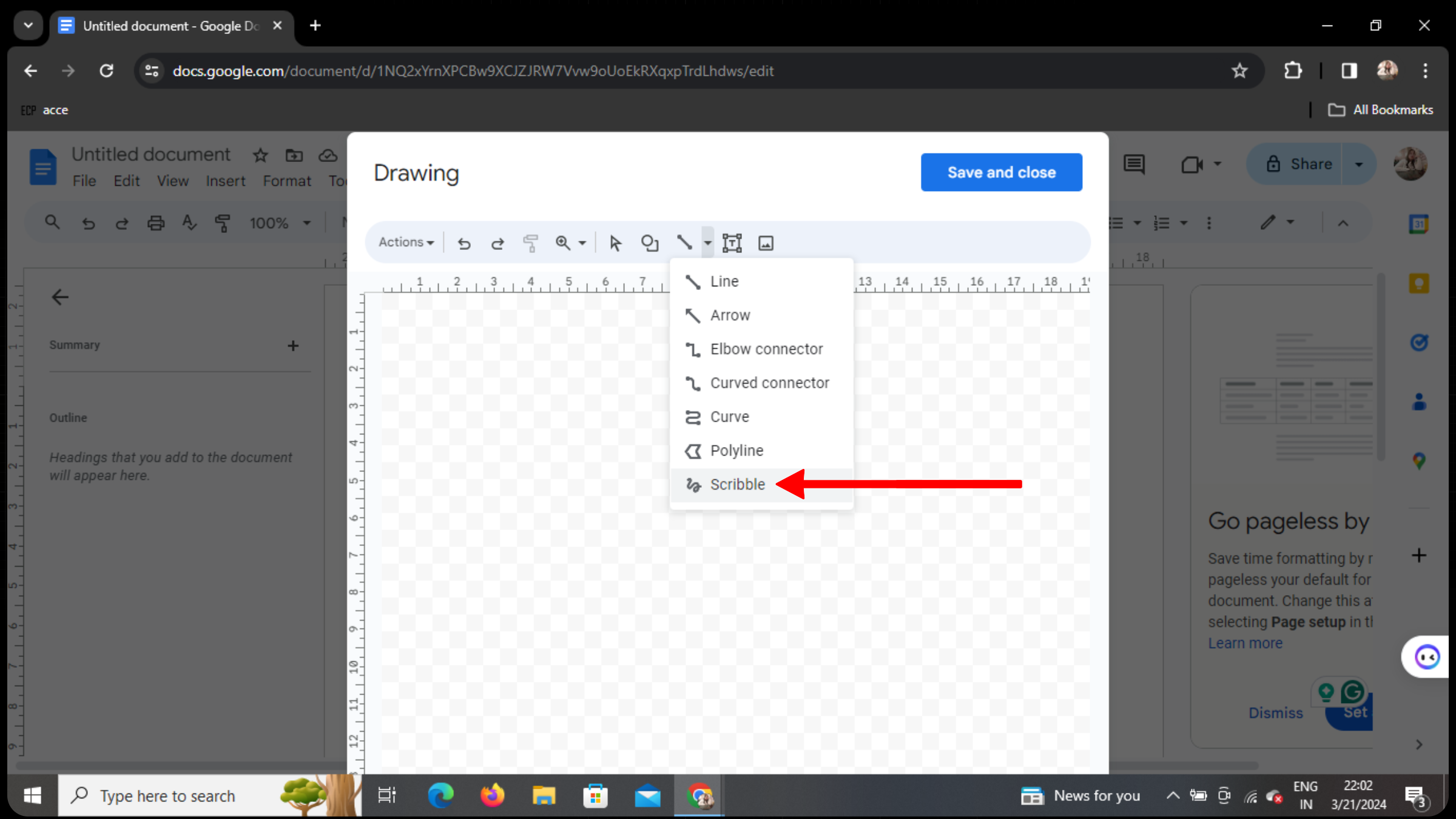
In the Drawing menu, locate the line icon, click on it, and select "Scribble" from the options.
Step 6: Draw Your Signature
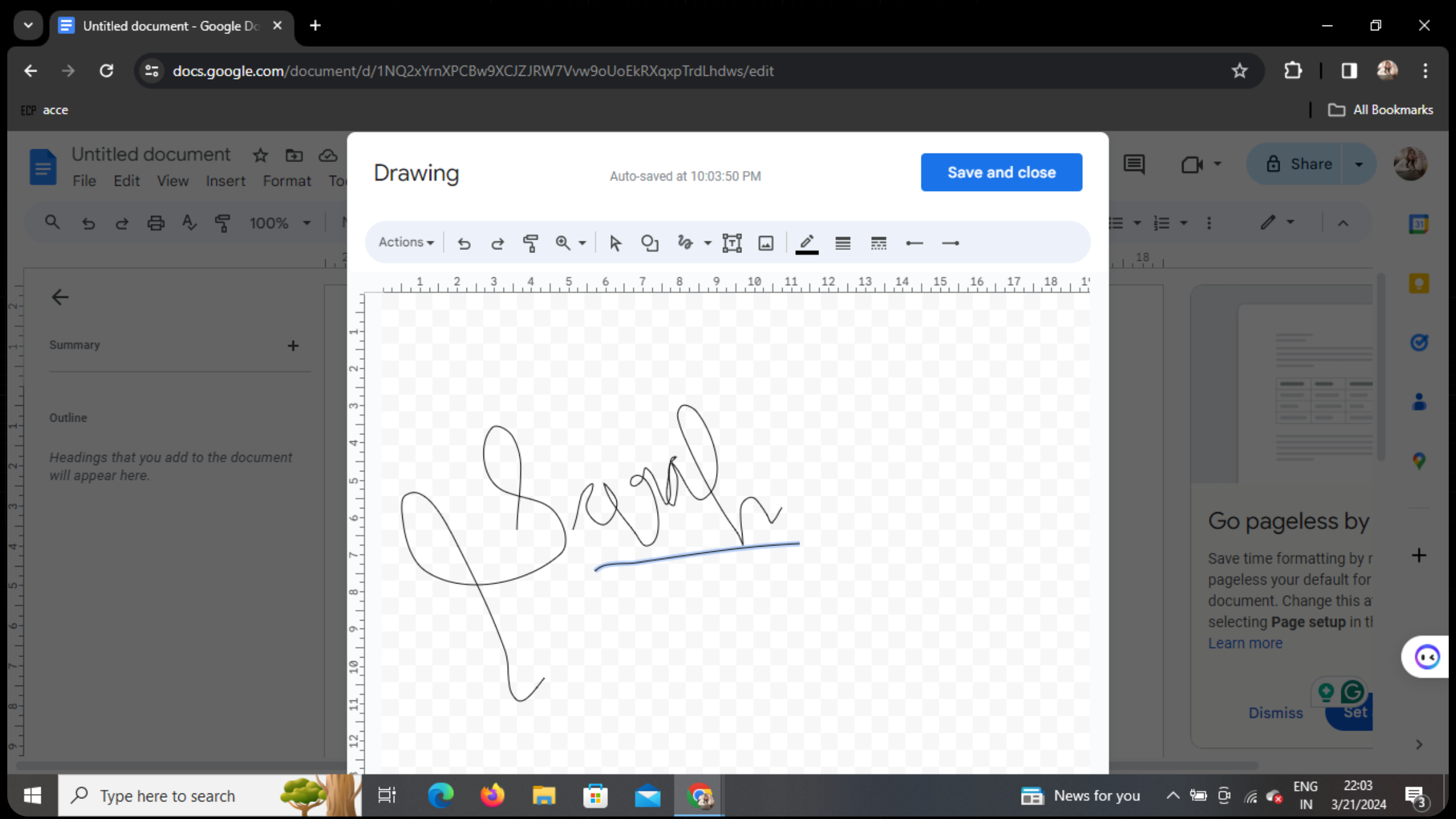
Use your mouse or touchpad to draw your signature in the provided space. Take your time to ensure accuracy.
Now that you’ve learnt how to paste without losing the format, know how to insert signature to Google docs in an even simpler way
Step 7: Save Your Signature
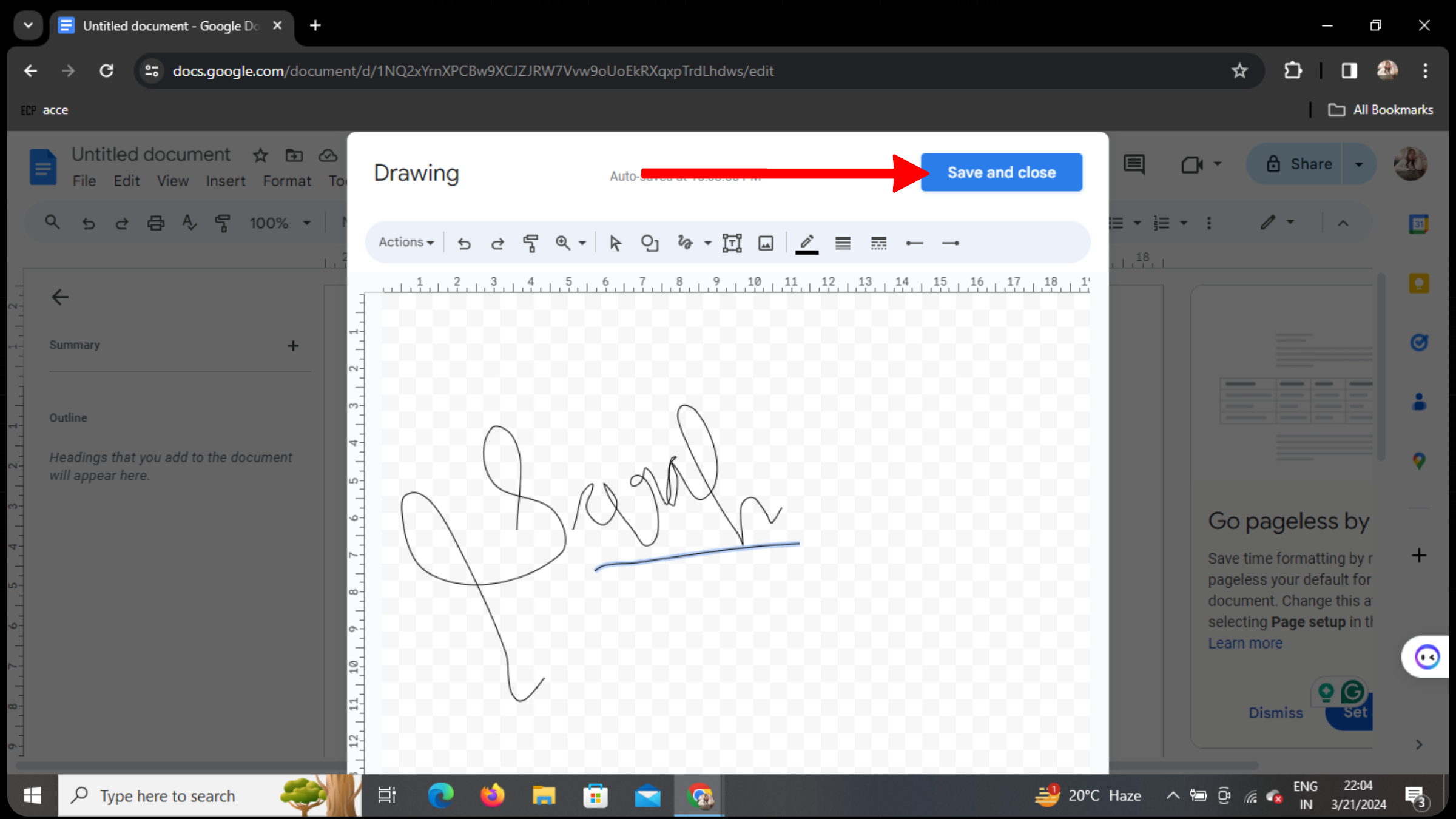
After drawing your signature, click on the "Save and Close" button located in the top right corner of the Drawing tool.
Step 8: Signature Ready for Use
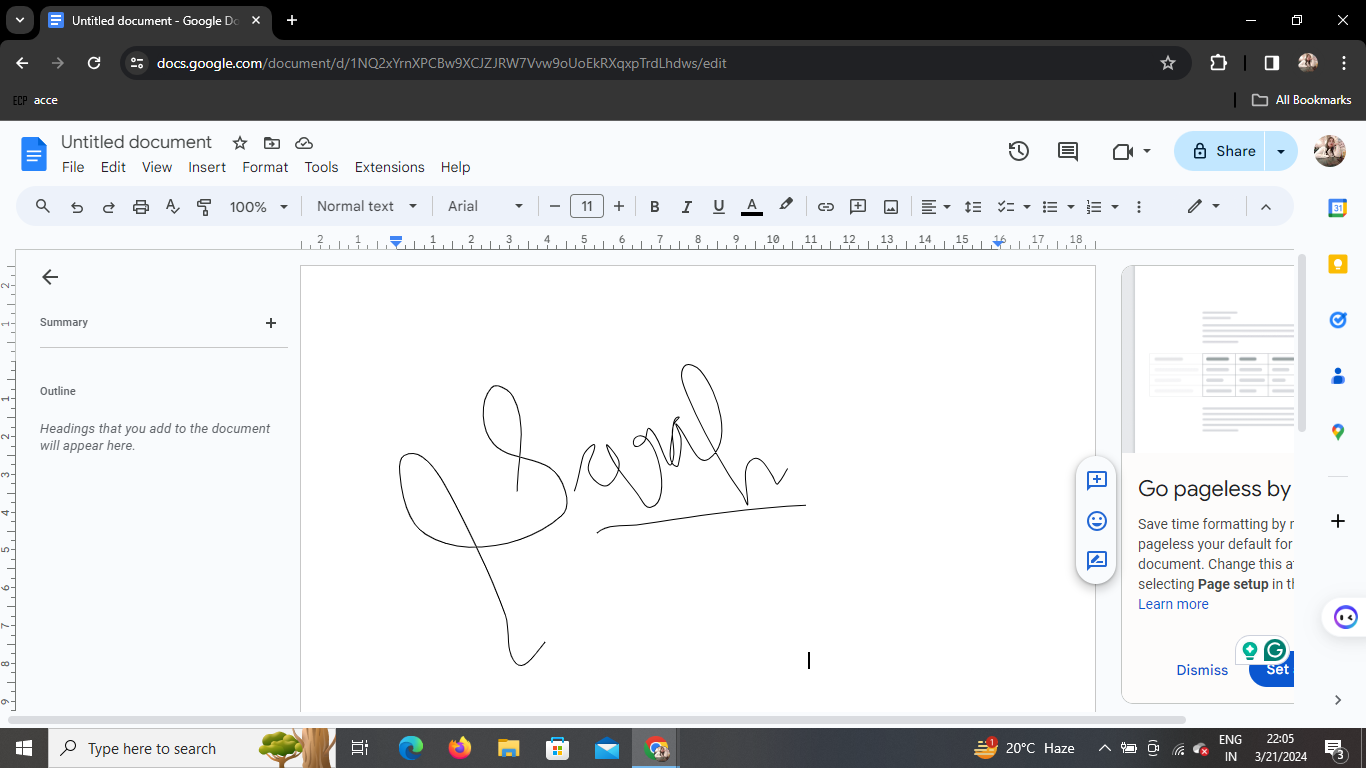
Your signature is now saved and ready for use in your Google Docs document. Simply click on it to insert it wherever you need within your document.
Conclusion
Adding your signature to Google Docs using building blocks is a straightforward process that can save you time and effort.
Whether you're signing contracts, agreements, or letters, this method provides a convenient and efficient way to incorporate your signature digitally.
Tired of making presentations? what if we tell you you can make a presentation with just a prompt, convert YouTube videos to PPTs, convert website content to PPTs? Yes! checkout magicslides.app that does all and enjoy the free credits to make presentations in seconds.
Frequently Asked Questions
How can I access my saved signature in future documents?
Once you've saved your signature using the Drawing tool, it will be accessible in the "Insert" tab under "Drawing" > "From Drive" for future use.
Can I resize my signature after inserting it into my document?
Yes, you can resize your signature by clicking and dragging the corners of the signature box to adjust its size as needed.
Is my signature secure when inserted into Google Docs?
Google Docs offers robust security measures to protect your documents, including encrypted connections and access controls. However, it's always advisable to use caution when sharing sensitive information electronically.


