How to make conditional questions in Google forms


Transform your Google Forms surveys into dynamic interactions with our step-by-step guide on conditional questions.
Engaging surveys go beyond static questions, offering respondents a personalized experience.
Google Forms allows you to achieve this through conditional questions, tailoring the survey based on previous responses.
In this detailed guide, we'll walk you through the steps of creating conditional questions in Google Forms, empowering you to design surveys that are both interactive and insightful.
How to make conditional questions in Google forms
Step 1: Create a New Google Form
Start by opening Google Forms and creating a new survey or selecting an existing one that you want to enhance with conditional questions.
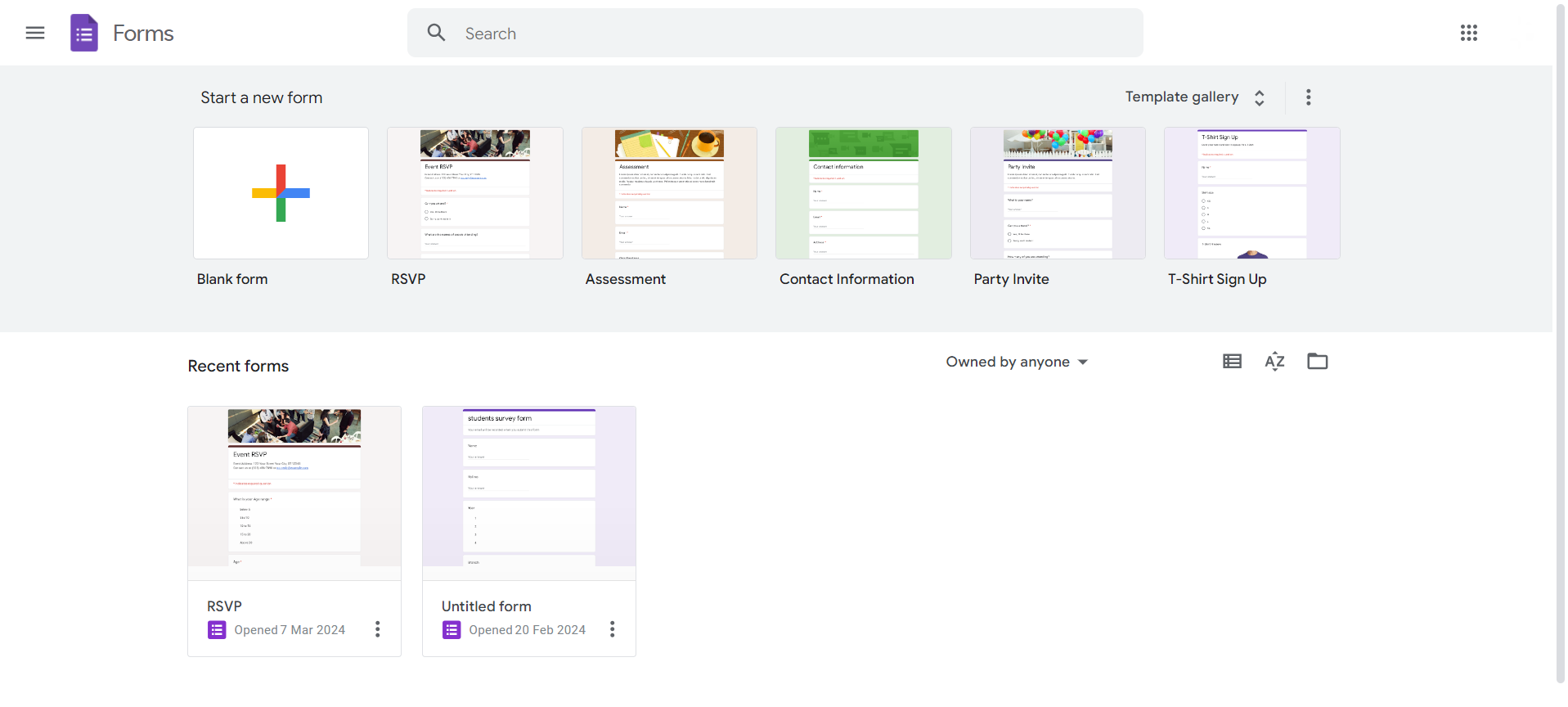
Step 2: Add Your Initial Questions
Compose the initial set of questions that will serve as the basis for branching into different paths based on respondent answers.
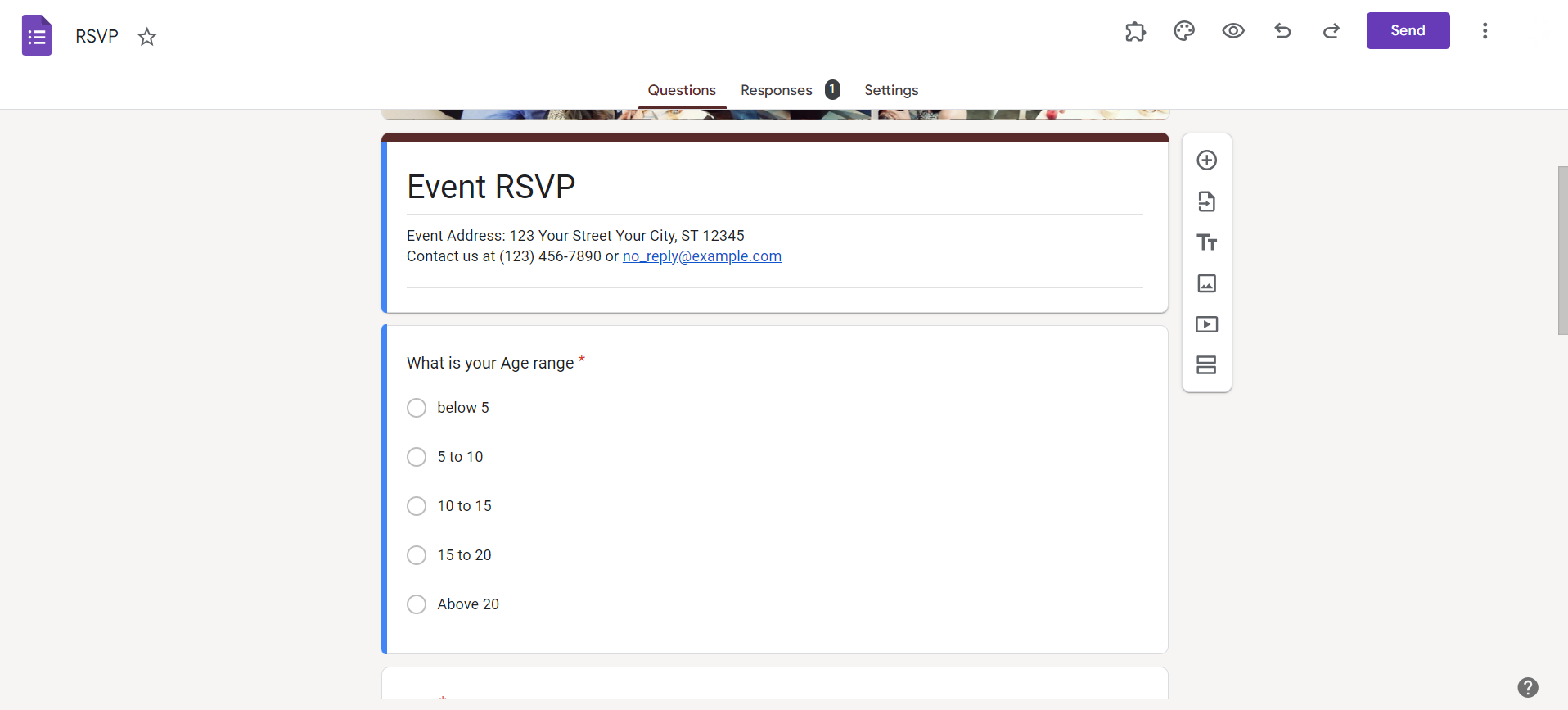
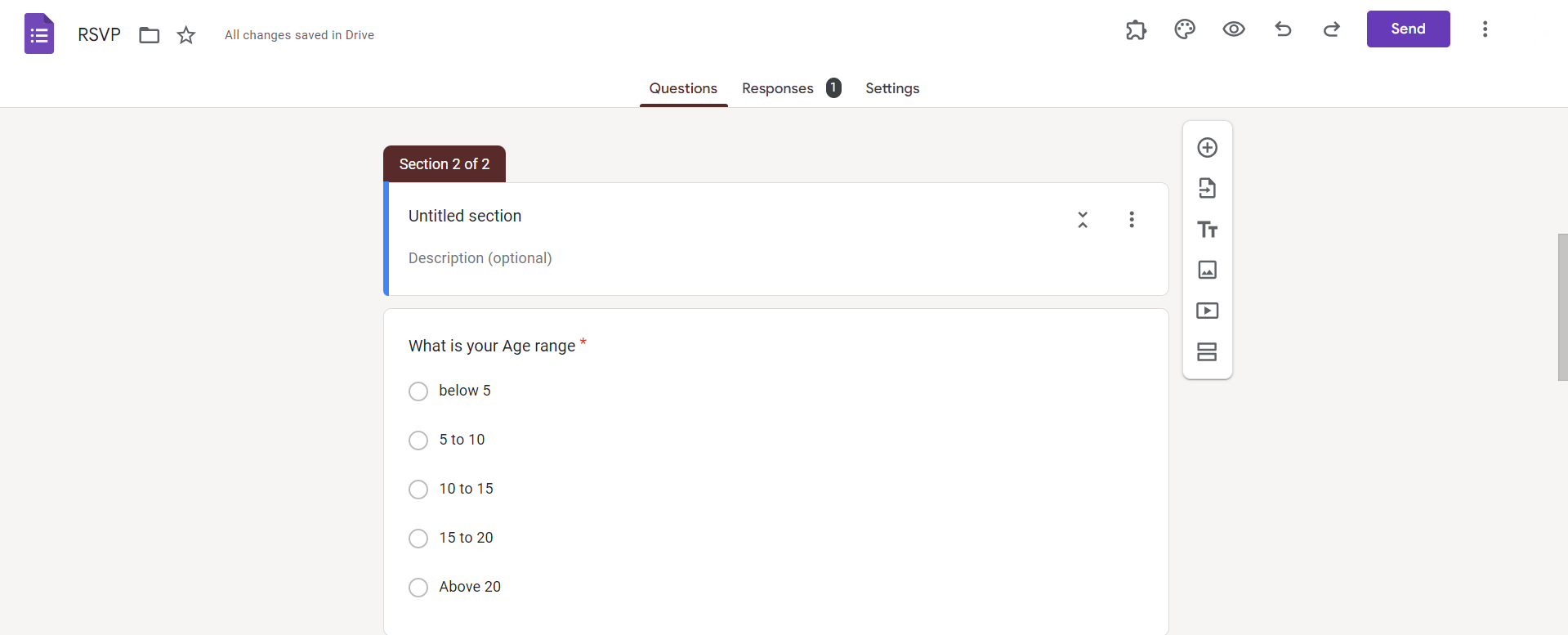
Jot down your conditional questions(if-else type or yes/no type) of questions. Here is an example question created for your reference.
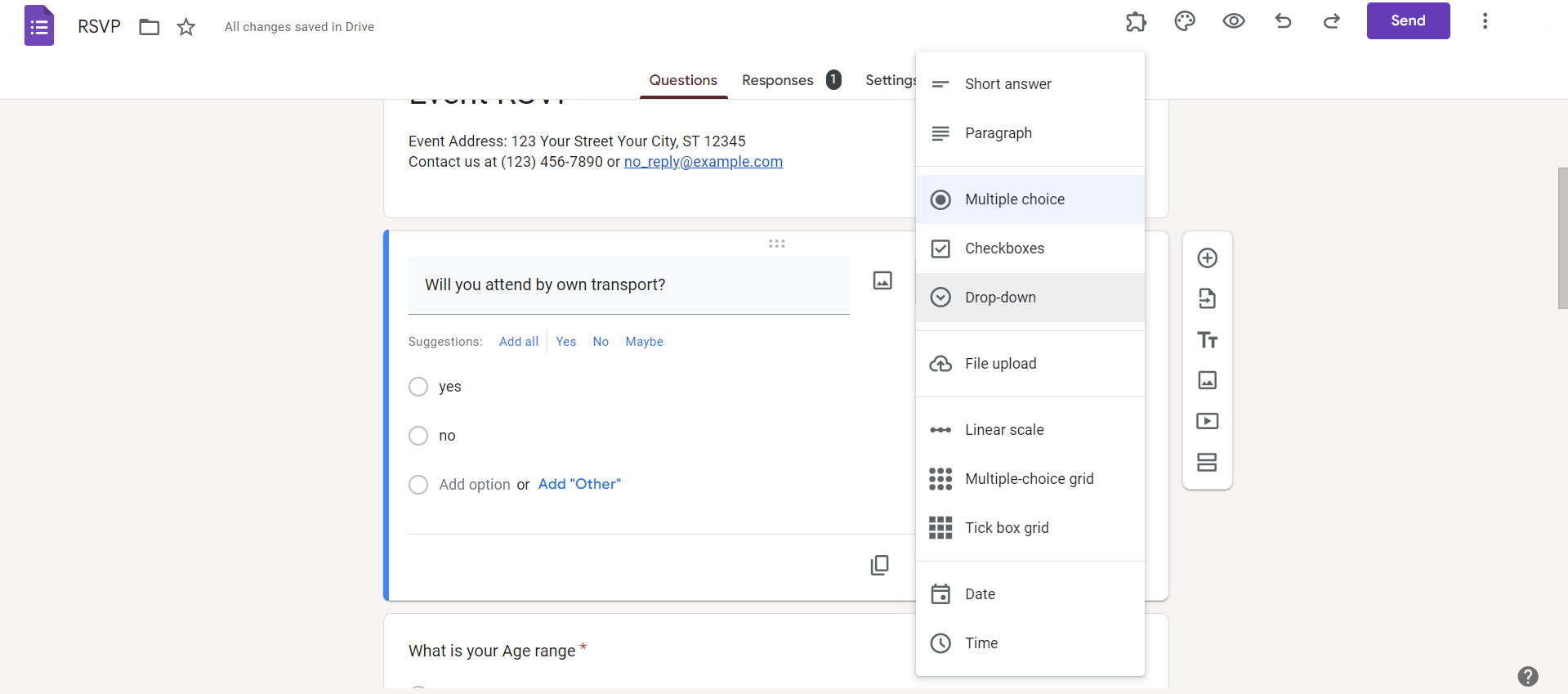
Step 3: Click on the Three Vertical Dots
Next to the question you want to make conditional, click on the three vertical dots to access the question options menu.
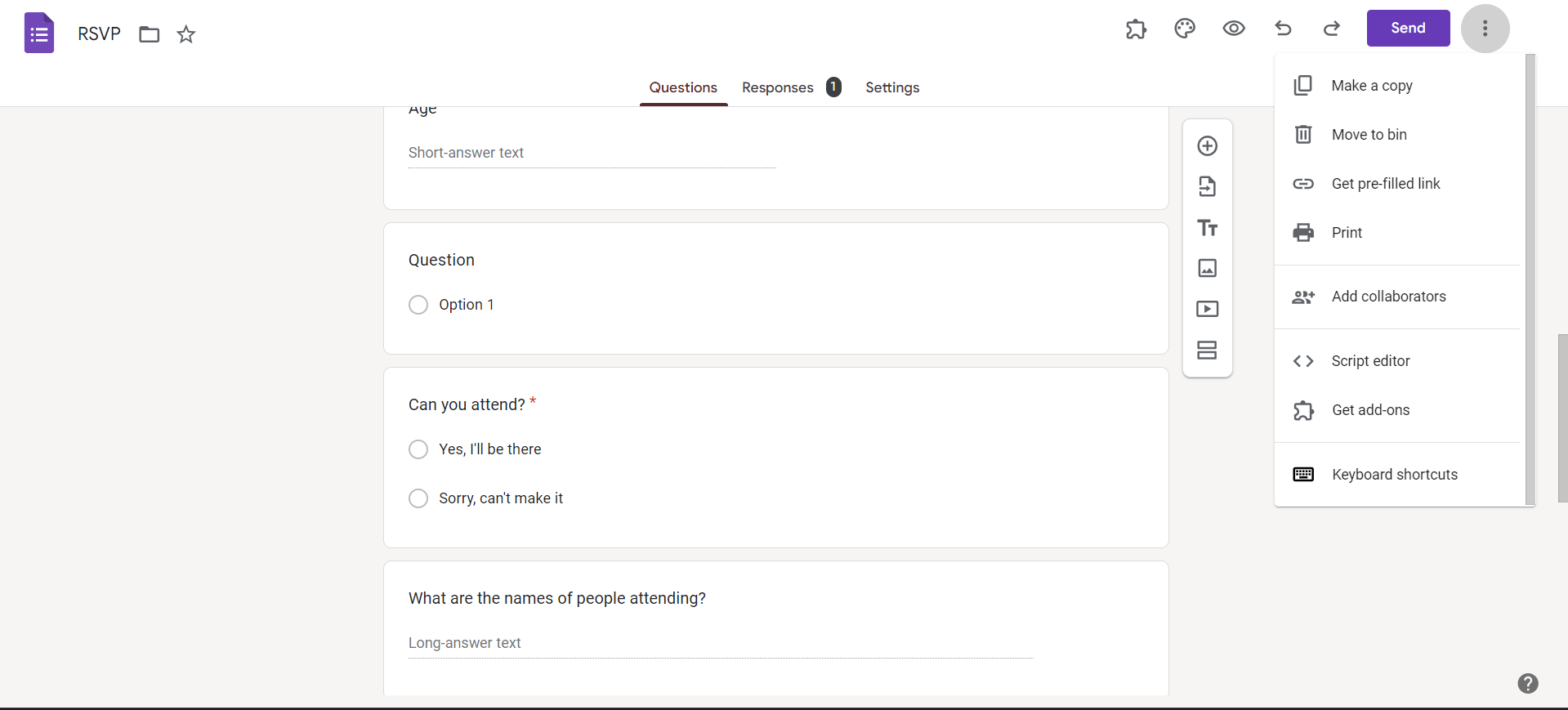
Now that you have learnt how to make a poll in forms, it makes it more engaging to introduce conditional questions, know how to make conditional questions in your Google forms from here
Step 4: Choose "Go to section based on answer"
Select the option "Go to section based on answer." This will prompt Google Forms to create branching sections depending on respondents' answers to the selected question.
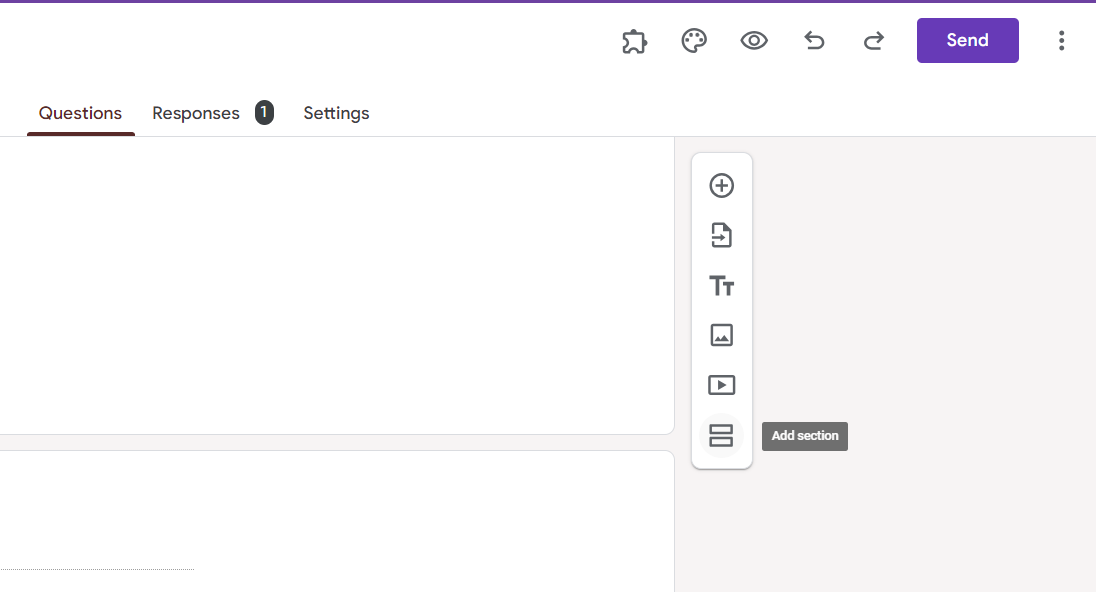
Step 5: Create Sections for Different Responses
Google Forms will generate new sections corresponding to each possible answer. Customize these sections by adding relevant questions or content tailored to each response.
Conclusion:
Unlock the full potential of your surveys by incorporating conditional questions in Google Forms.
This feature allows you to create a personalized experience for respondents, guiding them through a survey that aligns with their unique responses.
Enhance your data collection process and gain deeper insights by following these simple steps to implement conditional questions, making your surveys both interactive and efficient.
Tired of maing presentations? what if we tell you you can make presentation with just a prompt, convert YouTube videos to PPTs, convert website content to PPTs? Yes! checkout magicslides.app that does all and enjoy the free credits to make presentations in seconds.
Frequently Asked Questions:
Can I add multiple conditional questions to a single response in Google Forms?
Yes, you can create branching paths with multiple conditional questions based on the respondent's answers.
Will conditional questions affect the overall length of my Google Form?
While the form length may increase with branching paths, the conditional logic enhances survey relevance for respondents.
Can I edit conditional questions after creating them in Google Forms?
Absolutely! You can revisit and modify conditional questions and their corresponding sections at any time during form creation.
How can I ensure a seamless user experience with conditional questions in my survey?
Test your survey thoroughly to ensure smooth transitions between conditional sections, providing a user-friendly experience for respondents.


