How to Make Google Slides Vertical (Official Method + Alternatives)


Learn how to make Google Slides vertical using custom Page Setup. Create portrait slides for mobile, LinkedIn, Instagram, print, and more.
Google Slides doesn’t include a dedicated portrait mode, but you can easily make your slides vertical by changing the page size. Whether you’re creating LinkedIn carousels, Instagram Stories, printable documents, or mobile-friendly presentations, here’s how to do it.
Why Do You Need to Make Google Slides Vertical?
A vertical layout is useful because:
- Most people view content on their phones, and portrait 9:16 slides fit the screen better.
- Vertical mode makes my guides and tutorials easier to read without zooming or scrolling sideways.
- It works great for social media posts, such as LinkedIn carousels, Instagram slides, and Pinterest graphics.
- When I’m creating checklists, SOPs, or step-by-step guides, vertical slides feel more like a real document page.
- Text looks cleaner because it flows naturally from top to bottom, like reading a normal page.
- Vertical slides are easier to turn into PDFs, blog images, or internal documentation.
Next, I’ll explain all the practical methods to do so.
How to Make Google Slides Vertical (Official Method + Alternatives)
Quick Answer:
To make Google Slides vertical, open File → Page setup → Custom, then enter portrait dimensions such as 8.5 × 11 inches, A4 (21 × 29.7 cm), or 1080 × 1920 px for mobile-friendly presentations. Click Apply to switch all slides to a vertical layout.
Here are all the methods I’ve found and used to make a vertical or “portrait-like” slide in Google Slides:
Method #1. Change Slide Size Orientation via Page Setup
This is the most straightforward and widely used method; with this, you don’t need to download any external add-on or tool. This is a built-in option provided by Google Slides.
Follow these steps:
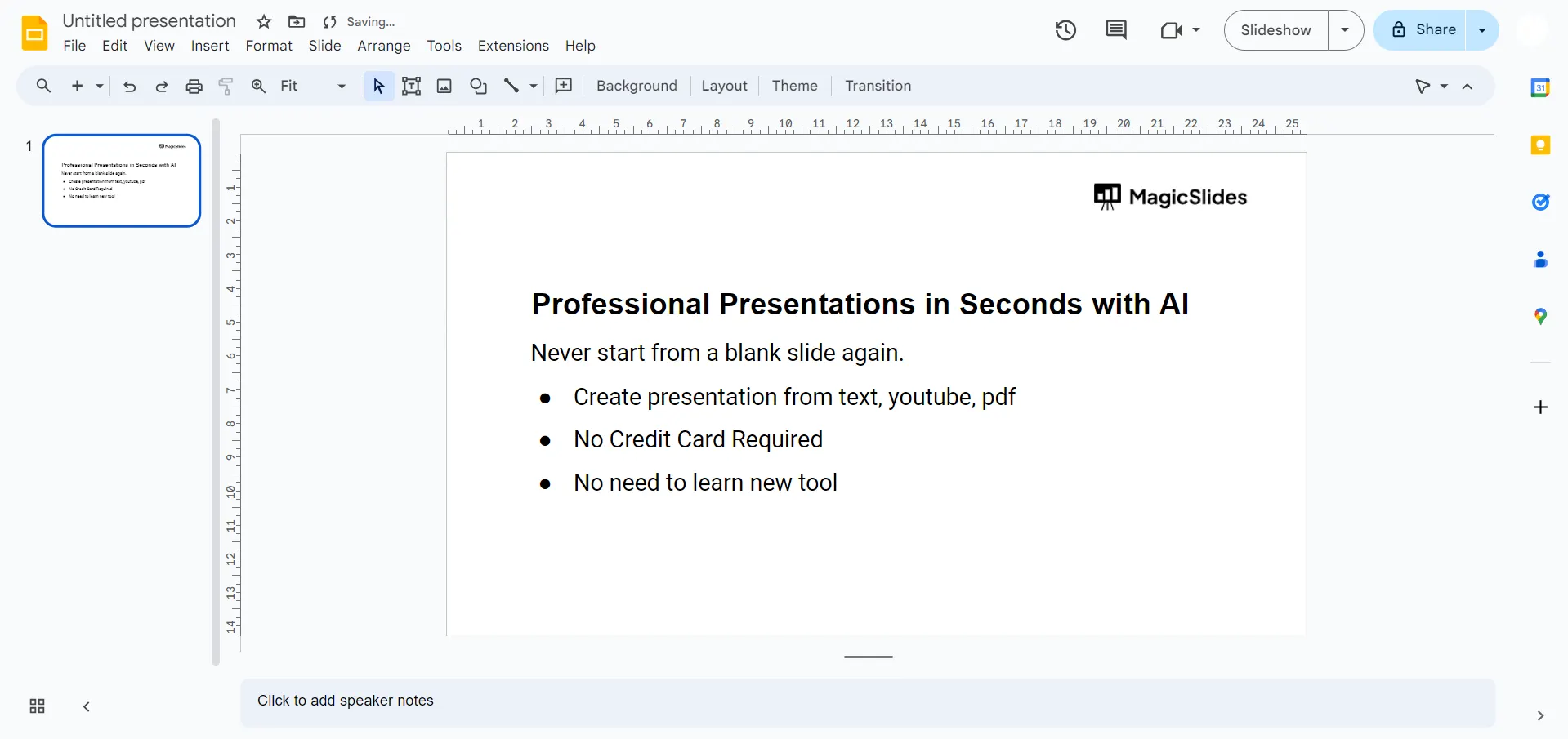
Step 1. Open the presentation in Google Slides.
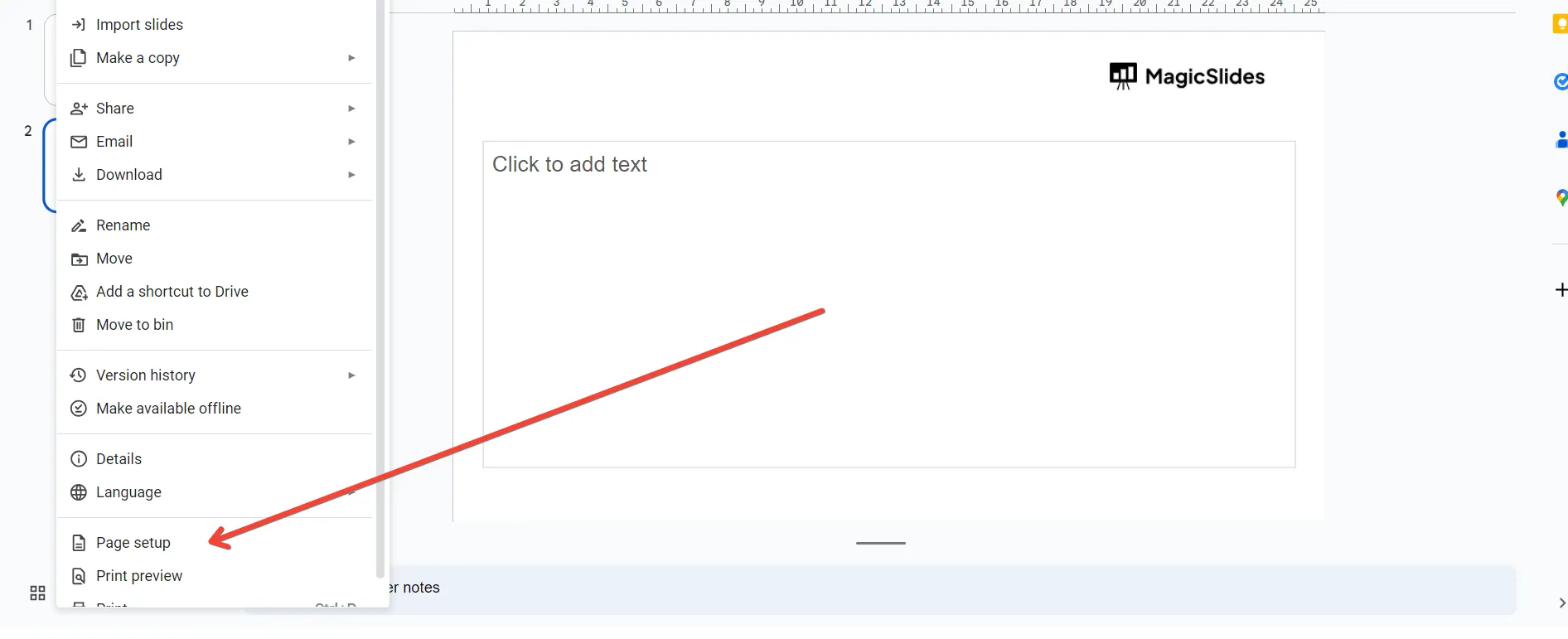
Step 2. Go to File > Page setup.
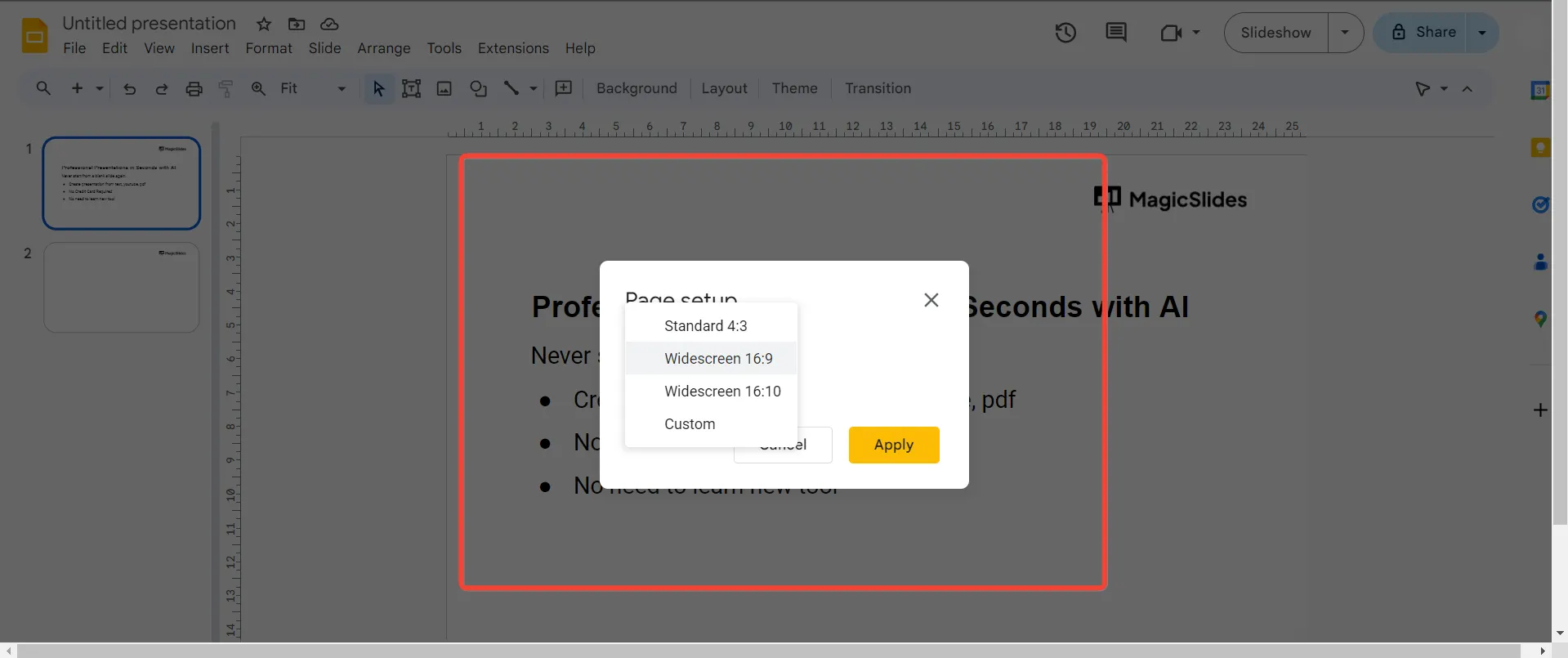
Step 3. Click the dropdown and choose Custom.
Step 4. Enter the desired dimensions, and make the height greater than the width.
- Example sizes:
- For US Letter: 8.5 in × 11 in
- For A4 21 cm × 29.7 cm
- For mobile/story format 1080 px × 1920 px
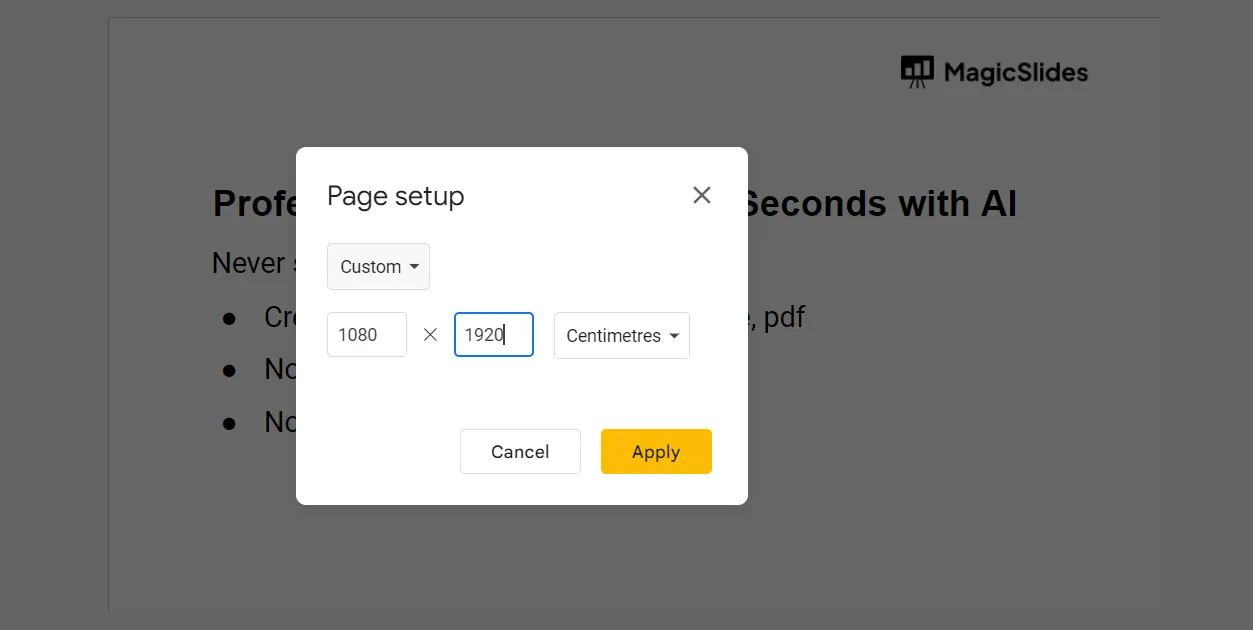
- Click Apply.
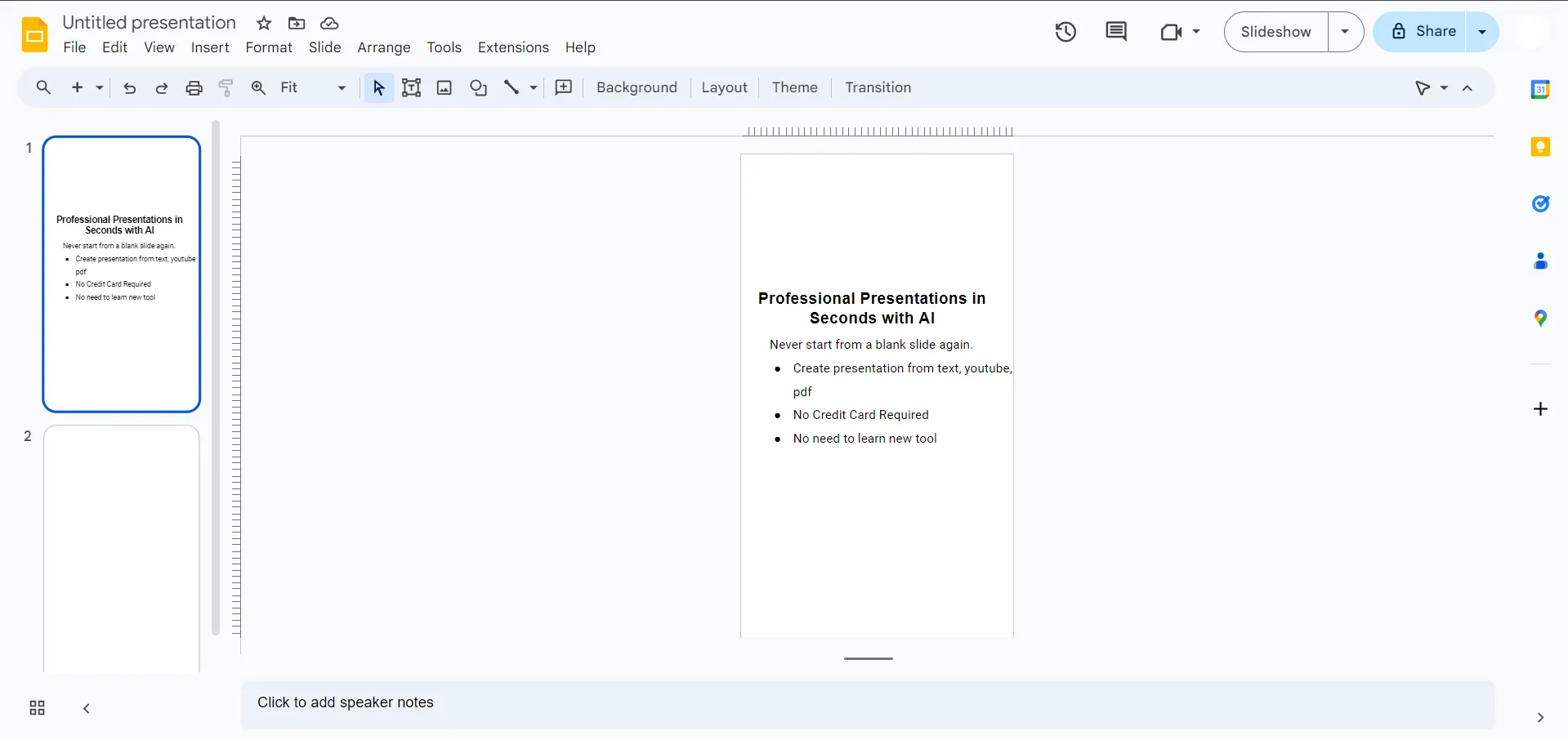
As you can see, this is the easiest solution. Still, if you need a more precise experience, then move to further solutions.
Also read: How to Group Shapes in Google Slides
Method #2. Use PowerPoint to Rotate Google Slides Vertically
I’ve also used PowerPoint when I want a true portrait deck and need a very accurate layout. Afterwards, I’ll import that PPTX into Google Slides. Here’s how:
- Open a new PowerPoint presentation.
- Go to Design → Slide Size → Custom Slide Size and choose Portrait.
- Design your presentation.
- Save it as a PPTX file.
- Upload the PPTX to Google Slides if you want to continue editing it there.
Related article: How to Convert PPT to Google Slides
Method #3. Use Tall Background Image
If I don’t want to change slide size but just want a vertical feel, I sometimes do this trick:
- Create or download a tall image, like 1080 × 1920 px.
- In Google Slides, go to Background > Choose image, and set that as the slide background.
- Now my slide looks vertical.
Method #4. Use an Automated Solution to Make Google Slides Vertical
If you’re creating a presentation from scratch, changing the page size is only one part of the process. You’ll still need to design every slide manually. If you’d rather generate a complete presentation automatically, MagicSlides AI PPT Maker can create a presentation in your preferred layout from a simple prompt.
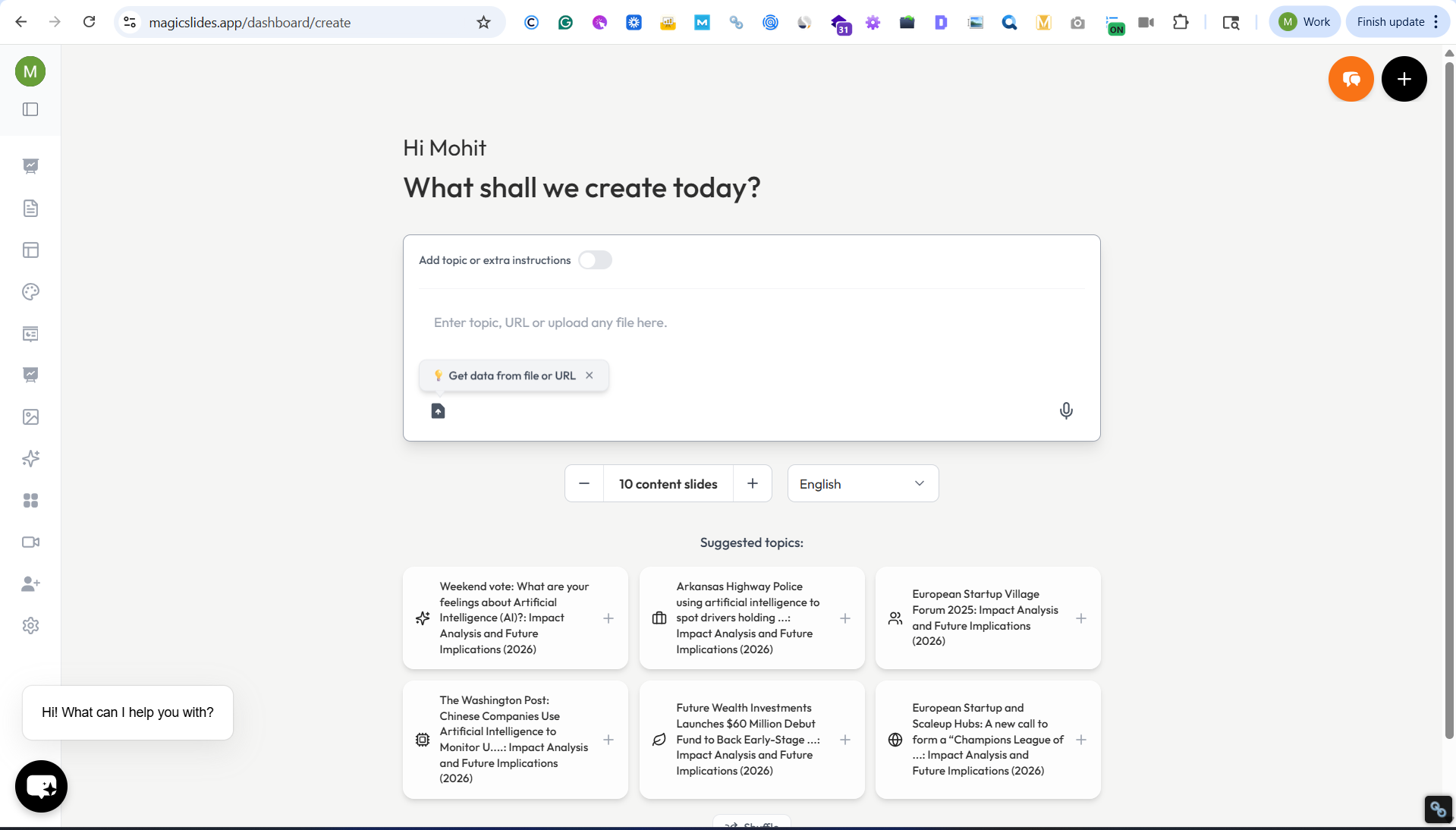
It will create a fully customised PowerPoint deck just by typing a simple prompt. Instead of manually adjusting slide size, the tool automatically does that based on your instructions.
For example, you can prompt:
- Create a 16:9 wide presentation about archiving SharePoint list items.
- Or you can create vertical slides too.
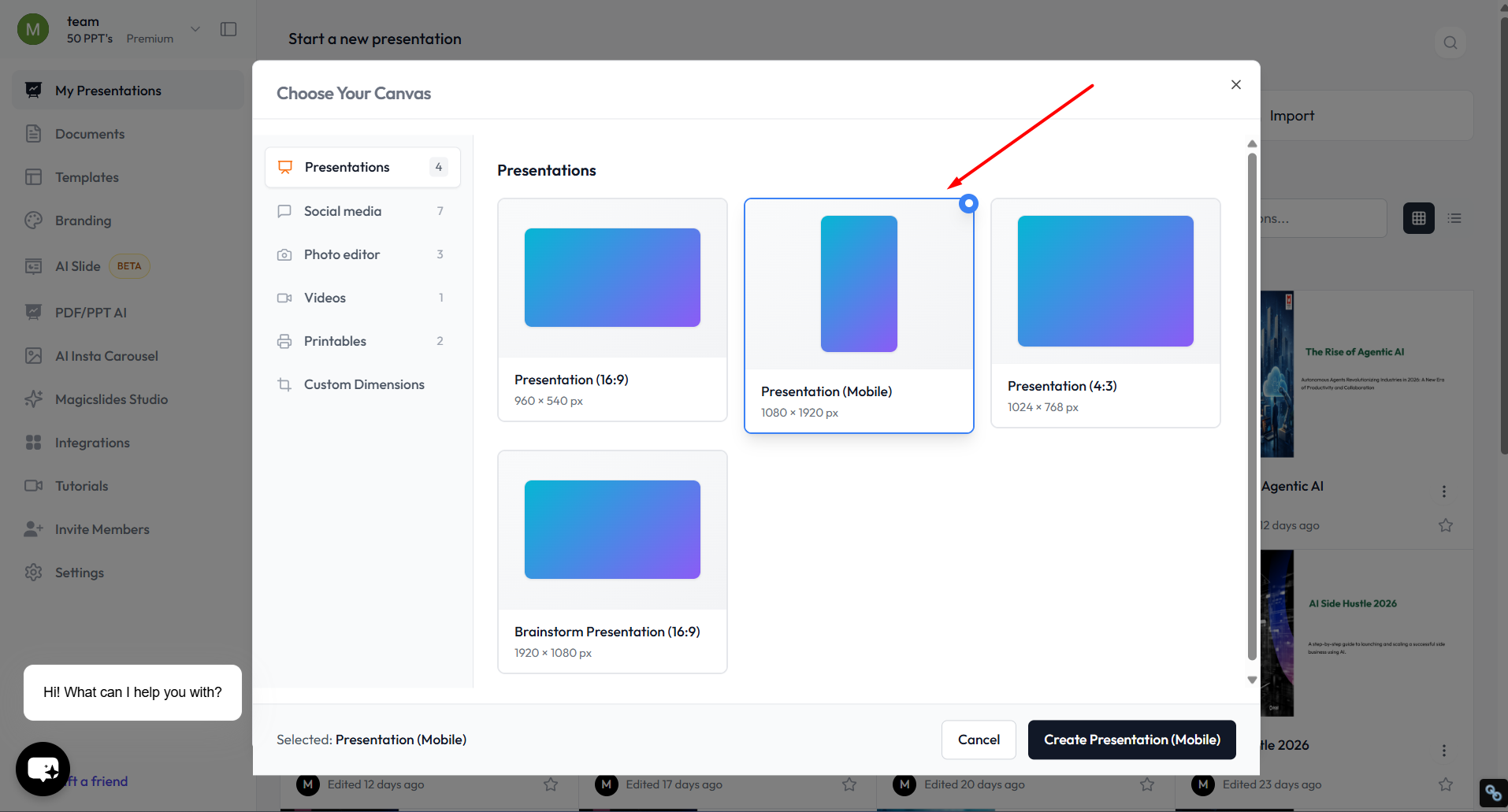
The tool handles the rest automatically, so you don’t need to manually create or format each slide.
Once the slides are generated, you can download the PPTX file or directly access Google Slides or any other presentation-supported platform.
You can try this for free now and bypass all the limitations of manual solutions.
Limitations to Keep in Mind
Here are some crucial points to keep in mind when making a presentation in Google Slides vertically:
- Google Slides can’t mix vertical and horizontal slides in the same presentation right now.
- On the Google Slides mobile app, you may not see the Page Setup option every time.
- After you change the slide size, some text or images may move around or look stretched, so you might need to fix them by hand.
- If you plan to print the slides, check Print Preview to make sure nothing is cut off.
- If the slides are for phones or screens, use sizes that match the screen so the slides don’t look blurry.
- Changing the page size won’t automatically rearrange your existing content. You may need to resize or reposition text boxes, images, and shapes after switching to a portrait layout.
Read also: How to Add Continuous Music to Google Slides
Additional Tips
- For social media / mobile slides, prefer a Page setup with 1080 × 1920 px
- For print/flyers, go for 8.5 × 11 in US Letter or A4, or a custom size.
- For very graphic-heavy work, like an infographic, use Google Drawings > export > import.
Author’s Verdict
Yes, there is more than one way to make Google Slides vertical. While the custom Page setup method is the most straightforward, other solutions we discussed above give you more flexibility.
I’m using all of the above in my work, and each has its own place. If you’re designing something critical and don’t have enough time to start the PPT from scratch, opt for the automated solution (Method 4).
People Also Ask
Q1. How to make Google Slides vertical on a phone?
You can’t change slide size on the mobile app. You must open Google Slides in a desktop browser to use the Page setup option.
Q2. Is there a portrait mode button in Google Slides?
No, there is no direct portrait button. The only official way is through Custom Page Setup.
Q3. Can I print vertical Google Slides?
Yes. Just choose a vertical size like A4 or Letter in Page Setup, then print normally.
Q4. Is there a way to switch between vertical and horizontal quickly?
Not directly. You need to change the Page Setup each time.
Q5. Can I make only one slide vertical in Google Slides?
No. Google Slides applies the same page size to every slide in a presentation, so you can’t mix portrait and landscape slides within the same deck.


