How to Add Continuous Music to Google Slides Presentation


Easily add continuous music to your Google Slides presentation using audio links or embedded files
How to Add Continuous Music to a Google Slides Presentation
Adding background music to your Google Slides presentation can enhance engagement and set the right tone.
However, Google Slides does not support continuous background music across multiple slides natively. Fortunately, there are workarounds to achieve this effect.
This guide will show you step by step how to add continuous music to your Google Slides presentation.
Step-by-Step Guide to Adding Continuous Music to Google Slides
Step 1: Choose Your Music Source
You can use an online music platform like YouTube.com, Spotify.com, or Google Drive to host your audio.
Ensure the music file is public or accessible for seamless playback.
Step 2: Insert an Audio Link in Google Slides
Open your Google Slides presentation at slides.google.com. Select the slide where you want to start the background music.
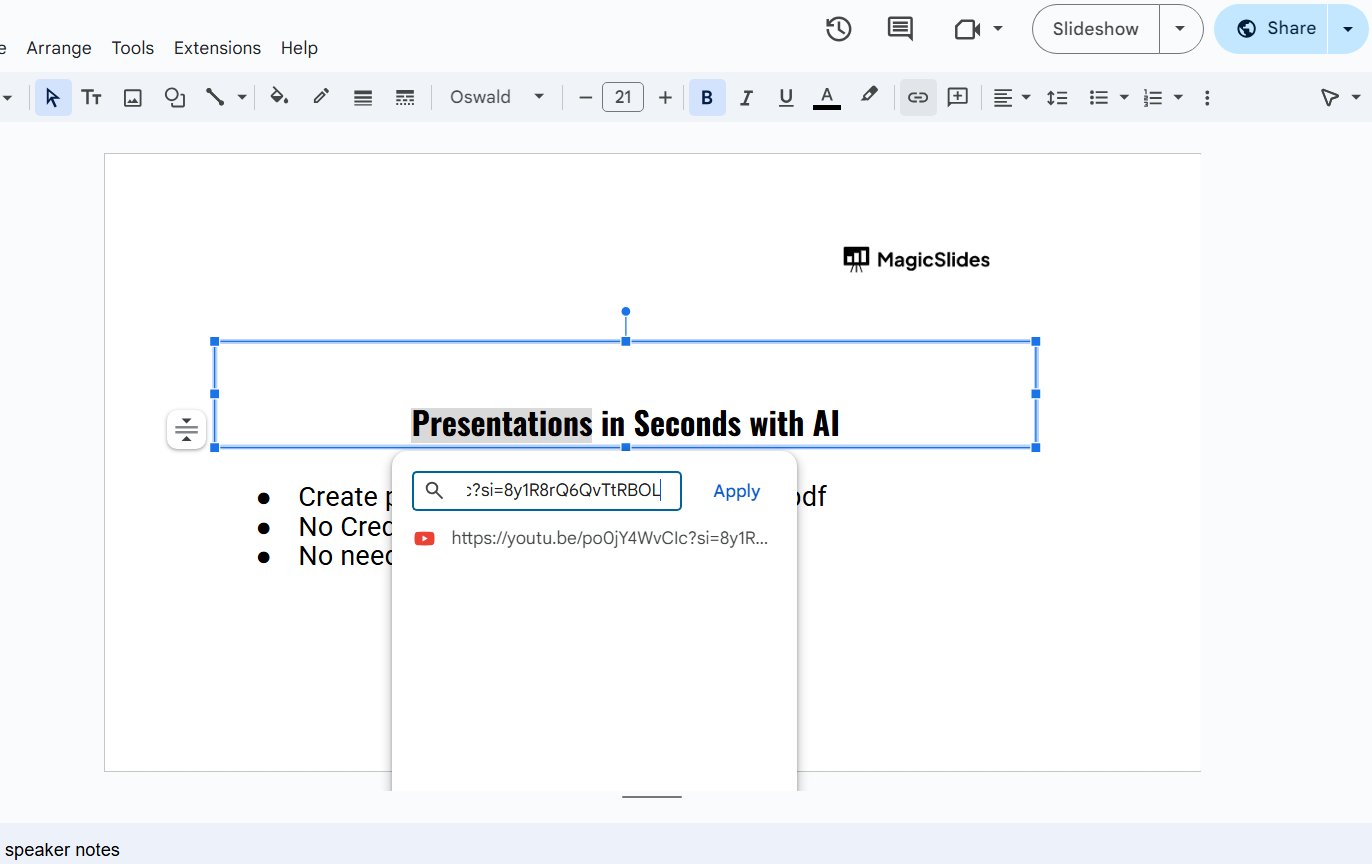
Click Insert > Text Box and type a phrase like “Click here for background music.”
Highlight the text and click Insert > Link (or press Ctrl + K / Cmd + K on Mac).
Paste the link to your music file (YouTube, Google Drive, or an online audio player) and click Apply.
Step 3: Set the Music to Autoplay (For Google Drive Audio Files)
Upload your audio file (MP3) to Google Drive. Click Insert > Audio and select the uploaded file.
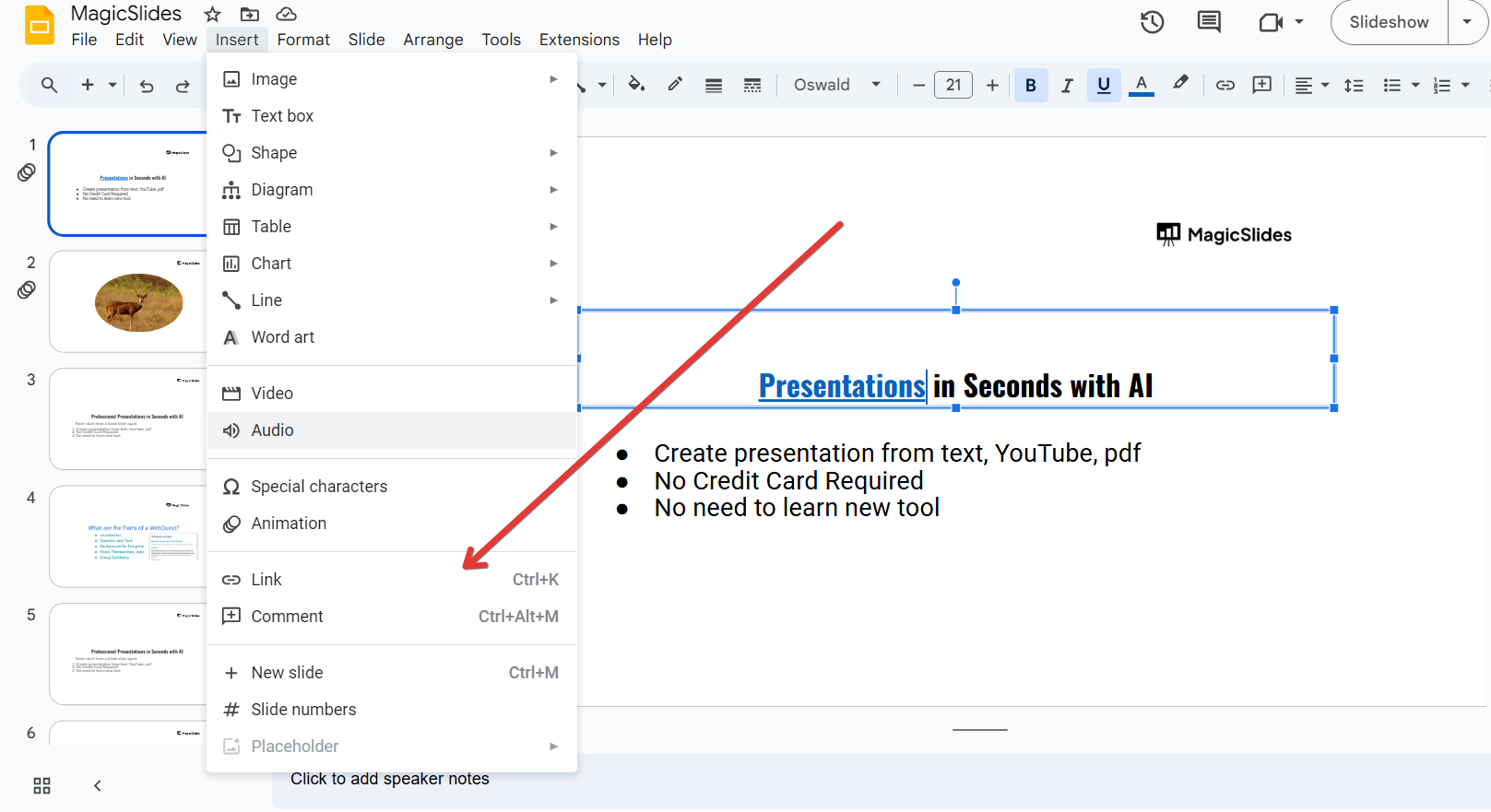
The audio icon appears on the slide click it and select Format options.
Under Audio playback, choose Start playing automatically and check Loop audio to ensure continuous playback.
Step 4: Extend Music Across All Slides
To keep the music playing across all slides, you must avoid clicking anywhere on the slide once the music starts.
Instead, use keyboard arrow keys or presenter mode to navigate through the slides without stopping the music.
Step 5: Test Your Presentation
Click Present mode in Google Slides.
Start the music and advance slides to ensure the audio continues without interruption.
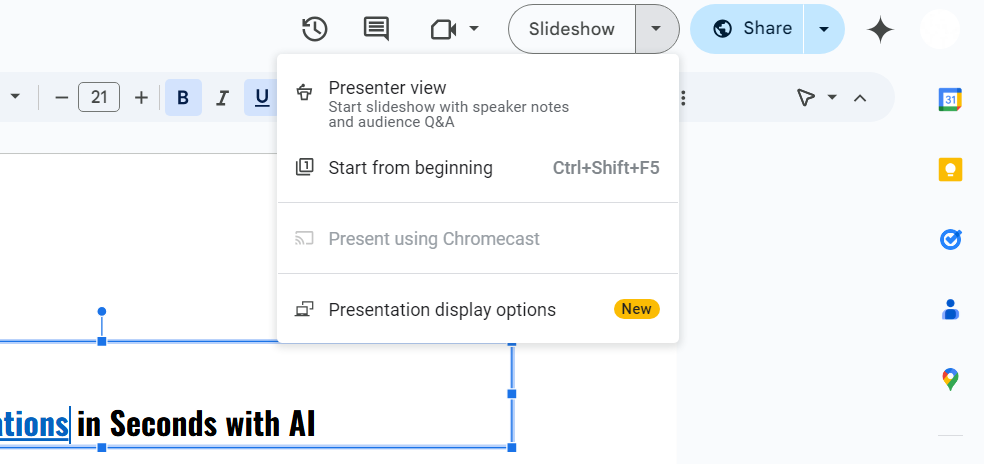
Adjust playback settings if needed for smooth transitions.
Want to enhance your Google Slides with continuous background music? Once you've set it up, take your presentations further with MagicSlides.app, where AI helps you create visually engaging and professional slides instantly!
Conclusion
While Google Slides does not support built-in continuous music playback, you can use workarounds like linking an online audio file or embedding a Google Drive audio file.
By following these steps, you can create a seamless musical experience for your presentation.
FAQs About Adding Continuous Music to Google Slides
Can I use Spotify music in Google Slides?
Yes, but you must link the Spotify track, and it will open in a separate tab.
Does Google Slides allow autoplaying music across slides?
Not natively. However, you can use Google Drive audio files set to autoplay and loop.
What if my audio stops when changing slides?
Try using presenter mode and keyboard arrows to navigate without interrupting the music.
Now, you can easily add continuous music to Google Slides and enhance your presentations! 🎵🚀


