How to Print Google Slides with Notes in Less Than 5 Steps?


Learn how to print Google Slides with notes, save speaker notes as PDFs, and create presenter-friendly handouts with this easy step-by-step guide.
To print Google Slides with notes, open your presentation, click File → Print Settings and Preview, select “1 Slide With Notes” from the layout options, and then click Print. Google Slides will print one slide per page along with the corresponding speaker notes underneath. You can also save the presentation as a PDF with notes instead of sending it directly to a printer.
If you’re giving a presentation, speaker notes can be incredibly helpful. They work similarly to notes in presentation software like PowerPoint, and many users who already know how to make notes in powerpoint presentation find Google Slides speaker notes easy to use.
But what if you want a physical copy?
Knowing how to print Google Slides with notes allows you to carry your presentation notes with you, practice offline, or keep a backup in case technology fails during an important meeting. Google Slides includes a built-in option to print slides together with their notes. The process only takes a few clicks, but many users don’t know where to find the correct print settings.
In this guide, you’ll learn how to print Google Slides with notes, save your notes as a PDF, troubleshoot common printing issues, and manage your Google Slides speaker notes more effectively. We’ll also cover how to add speaker notes in Google Slides and how to show speaker notes in Google Slides while presenting.
What Are Speaker Notes in Google Slides?
Speaker notes are like reminders that you can add to each slide in your presentation. They help you remember the points of Google Slides without showing extra text to the people watching.
These reminders can have things like:
- Talking points
- Statistics and data
- Reminders
- Presentation cues
- Additional explanations
When you are making your speaker notes in Google Slides section is at the bottom of each slide in Google Slides. Anything you write in this section will not be seen by the people watching your slideshow.
A lot of people who give presentations use the Google Slides speaker notes like a script to help them remember what to say. If you’ve ever searched for how to see notes in PowerPoint, you’ll notice that Google Slides offers a similar note-viewing experience for presenters. While trying to remember everything you can put the important information in the speaker notes and look at it when you need to.
The speaker notes in Google Slides are really helpful when you learn how to print Google Slides with notes. When you print out your Google Slides with the notes each slide is at the top of the page. The notes are below it which makes it easy to follow along, with your presentation.
Before you can print out the speaker notes you need to know how to add them to your Google Slides.
How to Print Google Slides with Notes While Presenting?
Printing Google Slides with speaker notes is a straightforward process. Here’s how to do it:
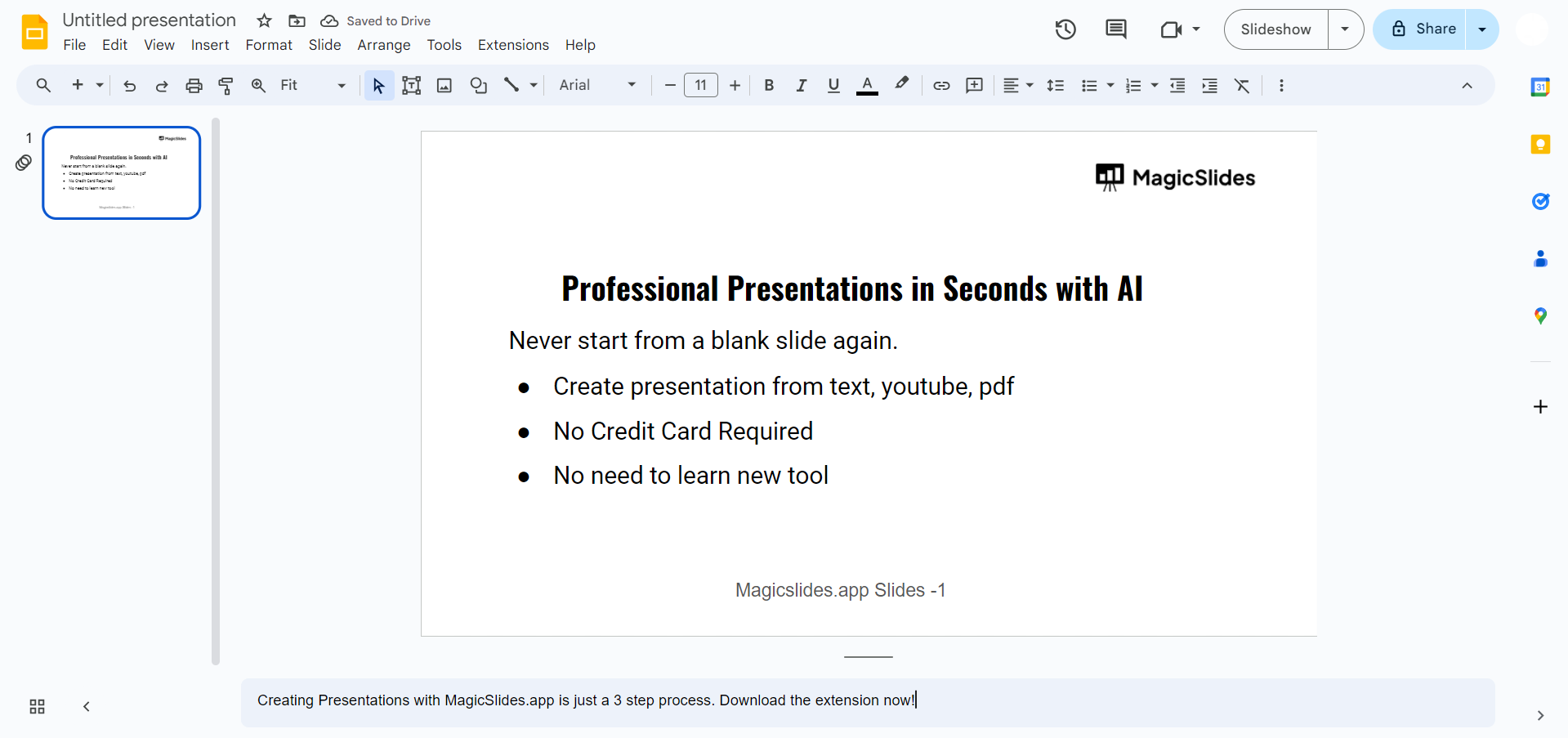
Step 1. Open Your Presentation
Begin by opening the Google Slides presentation you want to print with speaker notes. Make sure it’s the one you intend to present or share in printed format.
Step 2. Access the File Menu
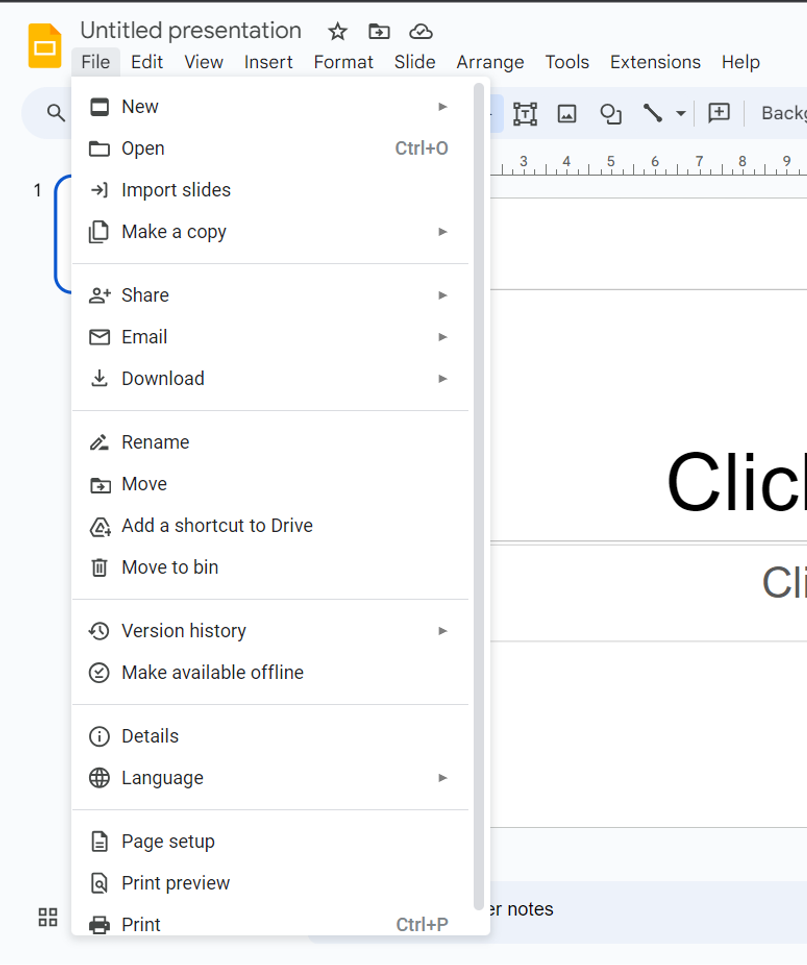
In the top-left corner of your screen, click on the “File” menu. This will open a dropdown menu with various options.
Step 3. Choose “Print Settings and Preview”
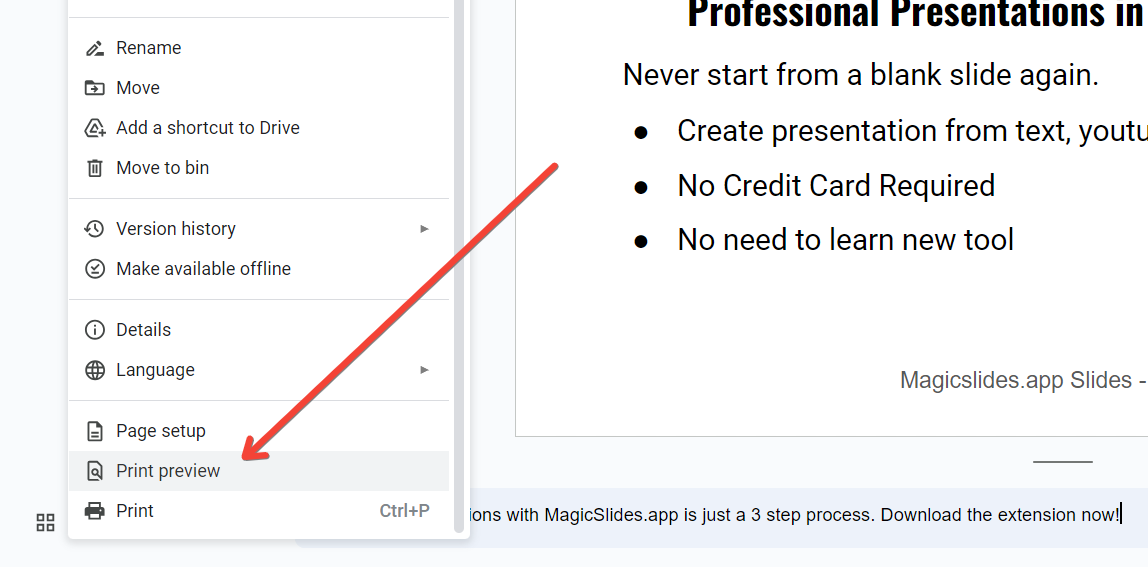
From the “File” menu, select “Print settings and preview.” This action will open the Print settings on the right side of your screen.
Step 4. Configure Print Settings
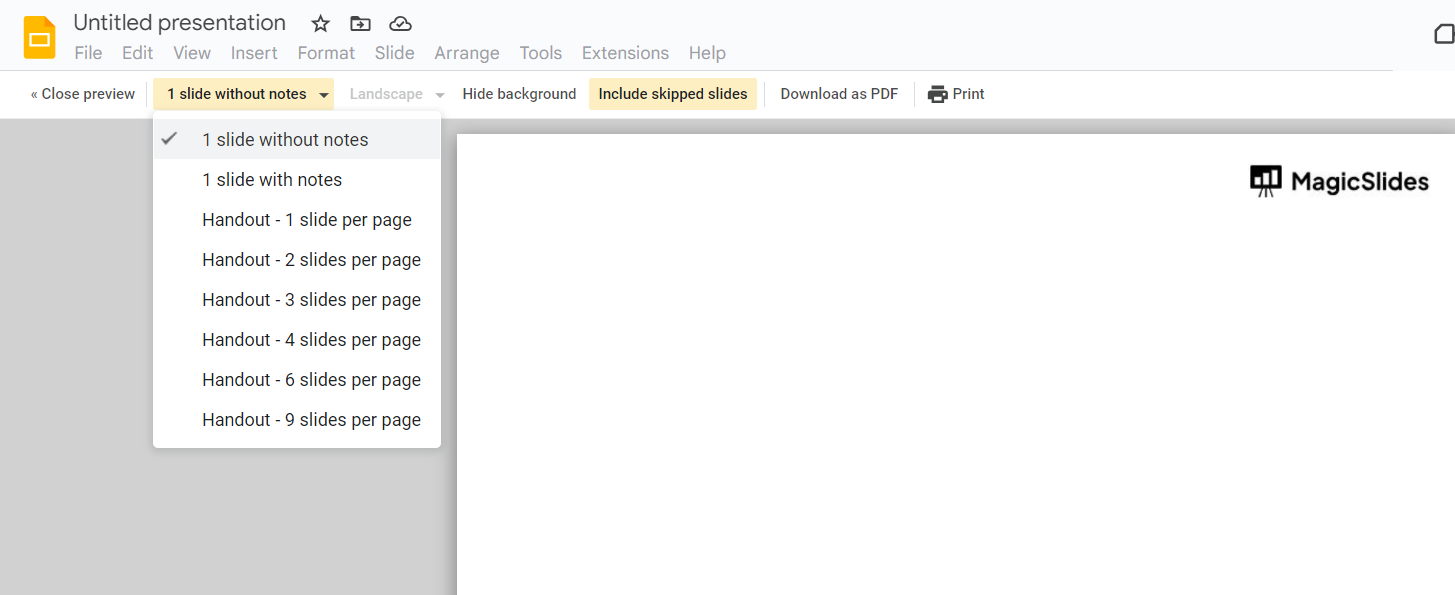
In the Print settings, you’ll see several options. Here’s what you need to configure:
- Destination: Ensure that your printer is selected as the destination. If not, click on the dropdown menu and choose your printer.
- Layout: Click on the “Layout” dropdown menu and select “Notes.” This option will print your slides with speaker notes.
- Color: Choose between color and grayscale, depending on your preference and your printer’s capabilities.
- Slides: Decide if you want to print all slides or a specific range. By default, it’s set to print all slides.
Step 5. Preview Your Printout
Take a moment to review how your printed slides will look in the preview section on the right side of the screen. This will give you an idea of how the speaker notes will appear.
Step 6. Print Your Slides with/ without Speaker Notes
Once you’re satisfied with the settings and preview, click the “Next” button at the bottom of the Print settings panel.
Step 7. Choose Print Options
In the next window, you can choose additional print options like the number of copies and whether to print in standard or high quality. Make your selections according to your needs.
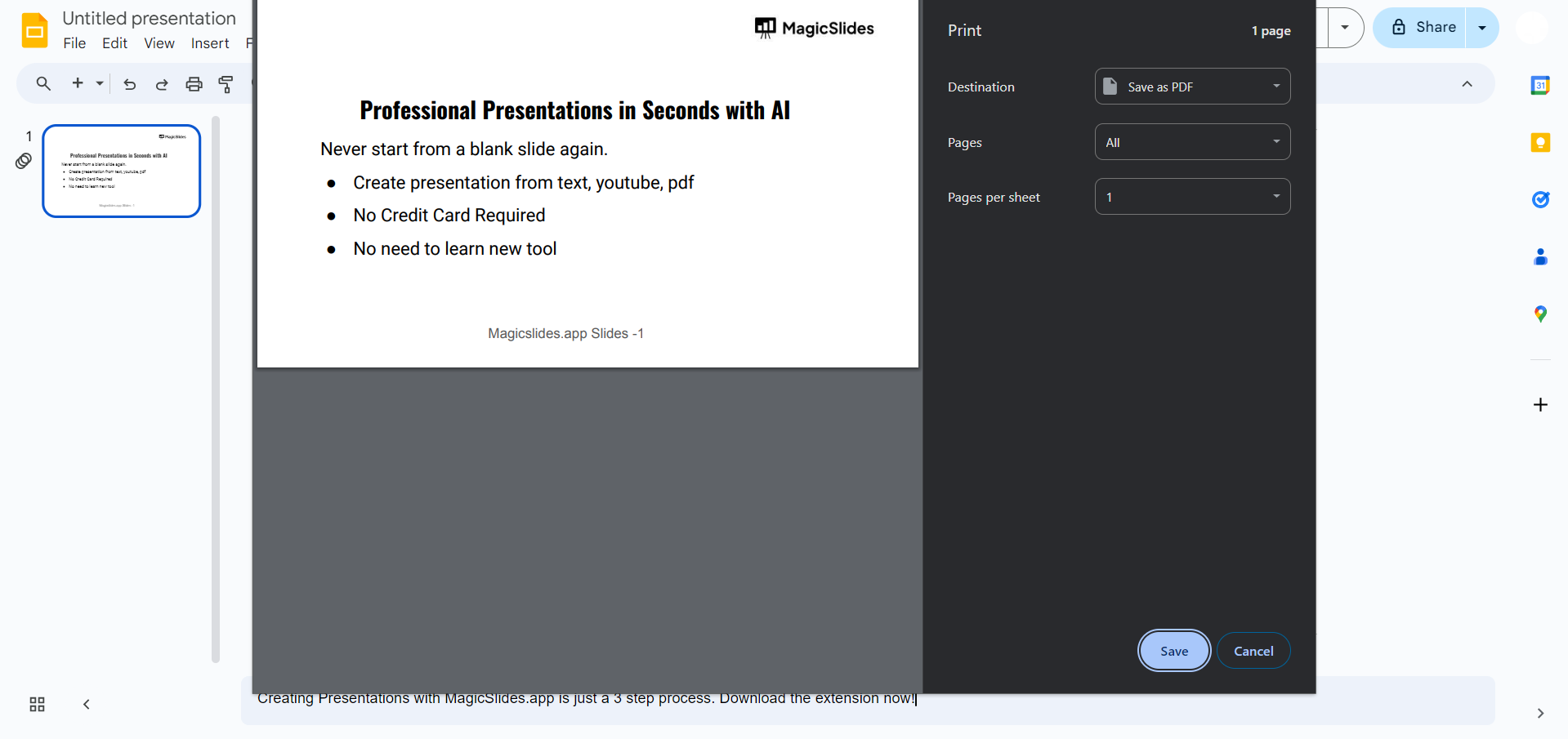
Step 8. Click “Print”
After configuring your print options, click the “Print” button. Google Slides will send the print job to your selected printer, and your slides with speaker notes will begin to print.
How to Add Speaker Notes in Google Slides Automatically?
To print Google Slides with notes you need a presentation first. You have to make a presentation.
If you make presentations a lot MagicSlides AI Presentation Maker can be very helpful. It can save you a lot of time.
You do not have to make each slide by yourself. You can make a presentation from something, like a topic or a PDF or a URL or a YouTube video or something you type in and you can do all this inside Google Slides.
When your Google Slides are ready you can add notes for the speaker practice what you are going to say. At last you will get a option of download your complete presentation into PDF format. Then you can print your Google Slides notes by following these steps.
Conclusion
Printing Google Slides with speaker notes is a convenient way to have physical copies of your presentation materials. Whether you need them for your own reference while presenting or to distribute to your audience, following these easy steps ensures that your notes are right at your fingertips when you need them.
So, next time you prepare for a presentation in Google Slides, rest assured that you can easily print it with speaker notes for a smooth and confident delivery. The feature is especially useful for anyone familiar with how to present with notes on PowerPoint and looking for a similar workflow in Google Slides.
Knowing how to print google slides with notes is just not enough. Google Slides, which is a PPT version by Google, can also print notes with slides.
Frequently Asked Questions:
Q1. Can I print Google Slides with speaker notes directly from the presentation view?
No, Google Slides does not offer an option to print slides with speaker notes directly from the presentation view. However, you can export your presentation to another format, such as PDF, and include speaker notes in the exported file.
Q2.Will printing Google Slides with speaker notes include slide thumbnails or only the notes?
When printing Google Slides with speaker notes, you have the option to include both the slide thumbnails and the accompanying speaker notes. This provides a comprehensive reference document for presenters and attendees.
Q3. Can I customize the appearance of speaker notes when printing Google Slides?
Yes, Google Slides allows you to customize the appearance of speaker notes when printing. You can adjust the font size, style, and formatting to ensure readability and consistency across your printed notes.
Q4. Is it possible to print speaker notes for only specific slides in my presentation?
Yes, you can choose to print speaker notes for specific slides in your presentation rather than the entire deck. Simply select the slides you want to include, adjust the print settings accordingly, and proceed with printing to generate a document containing only the selected slides and their accompanying notes.


