How to present with notes on PowerPoint


Presenting with notes in PowerPoint ensures a smooth presentation by keeping key points accessible privately
Presenting with notes in PowerPoint allows you to stay on track during your presentation without displaying the notes to your audience.
This feature, known as "Presenter View," helps you deliver a more structured and organized presentation.
In this step-by-step guide, I'll show you how to use Presenter View and access your notes while presenting in PowerPoint.
How to Present with Notes on PowerPoint: A Step-by-Step Guide
Step 1: Open Your PowerPoint Presentation
Start by opening the PowerPoint presentation you plan to present.
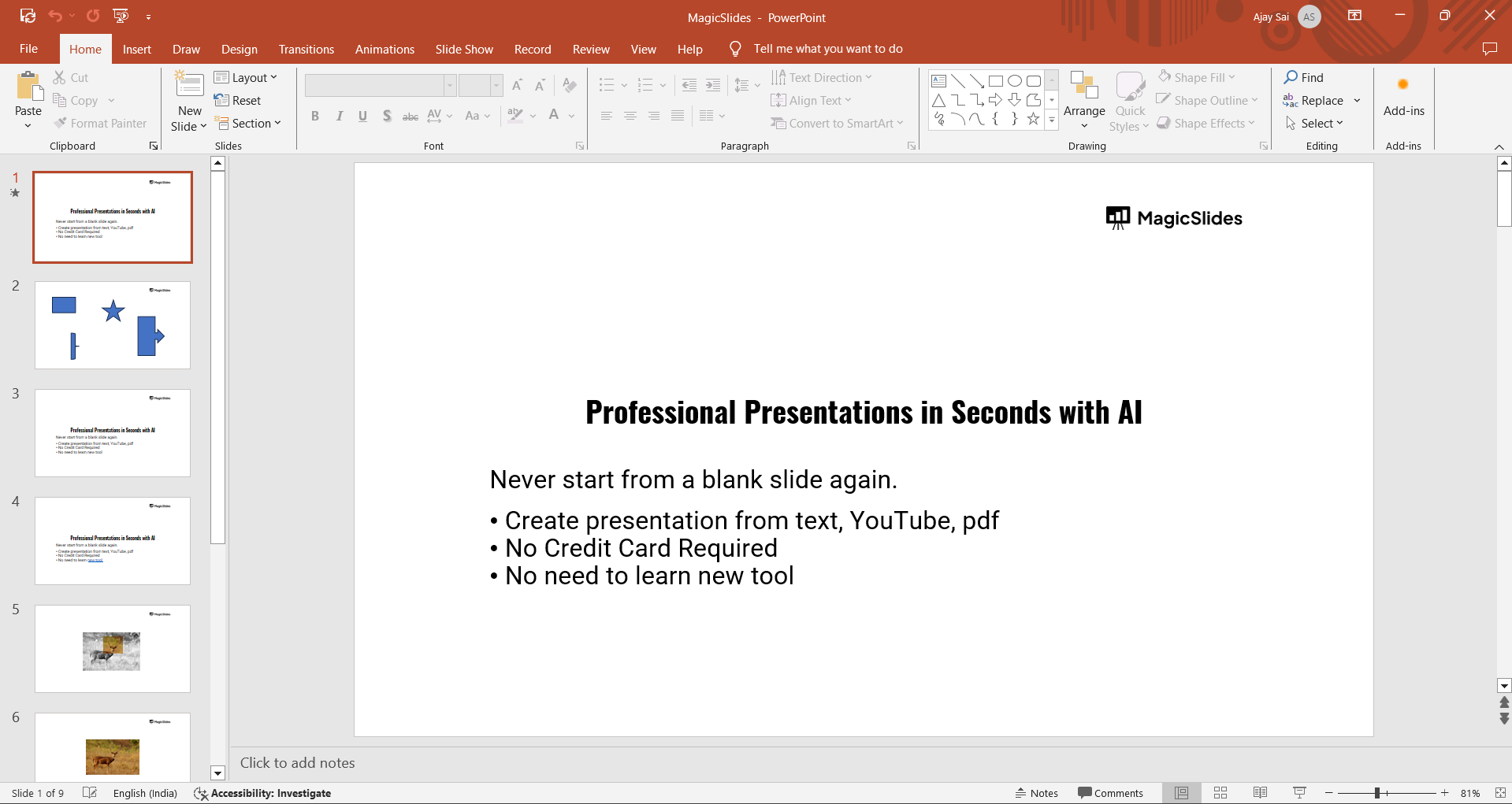
If you haven't added speaker notes yet, go to the slide where you want notes, and at the bottom of the PowerPoint window, you’ll see the "Notes" section.
Type your notes here to guide your presentation.
Step 2: Go to Slide Show Mode
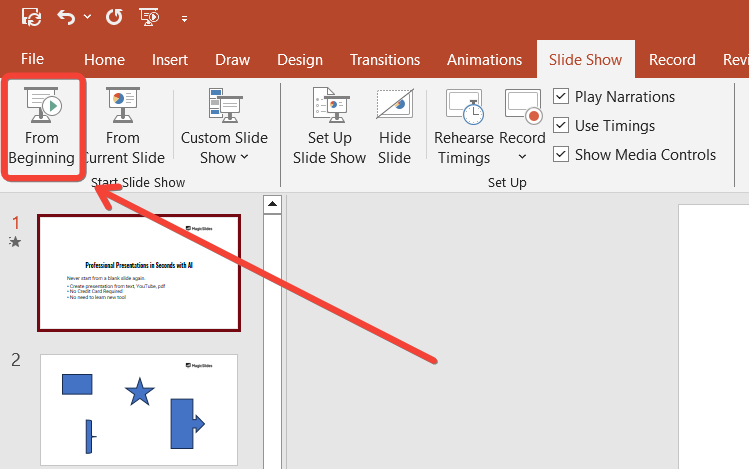
Once your notes are added, you’re ready to present. Navigate to the "Slide Show" tab in the toolbar at the top of the screen.
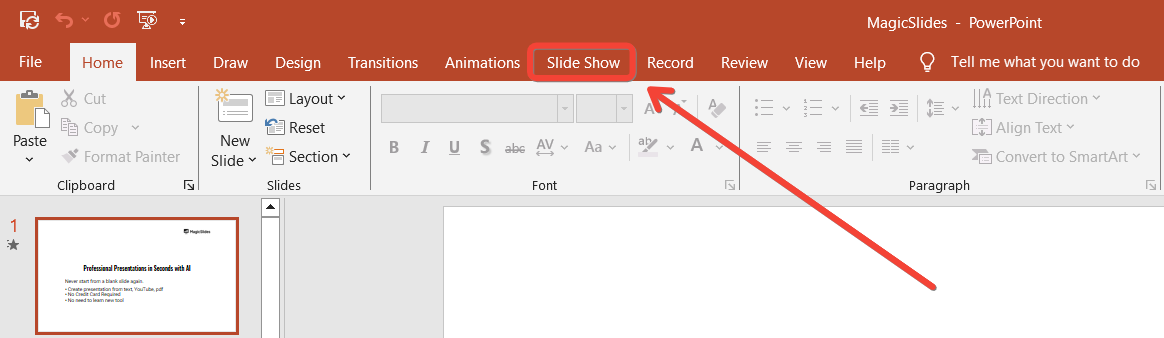
From here, click the "From Beginning" button to start your presentation from the first slide, or select "From Current Slide" to start from a specific point.
Step 3: Enable Presenter View
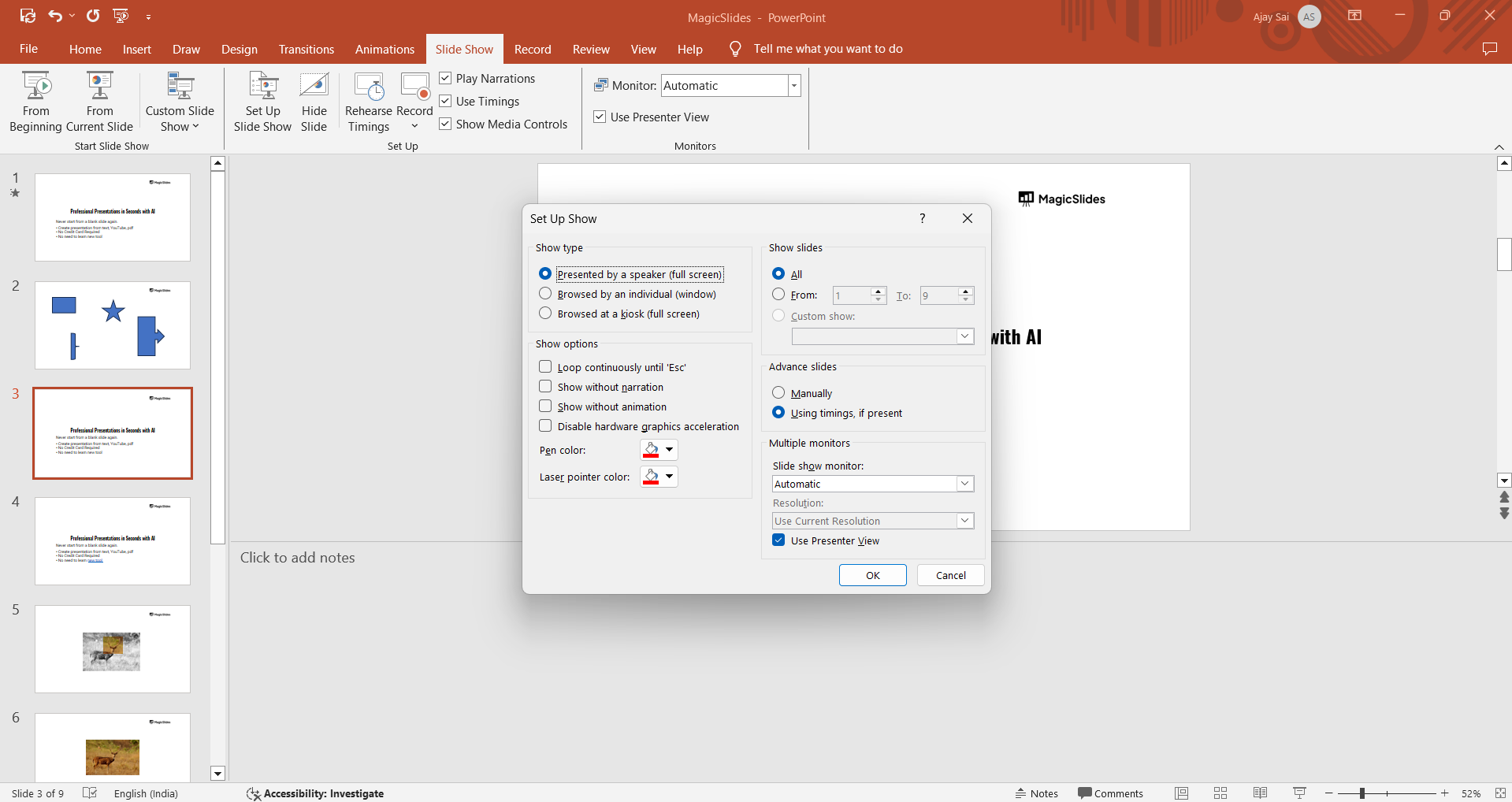
To view your notes while presenting, make sure "Presenter View" is enabled.
In the "Slide Show" tab, check the box labeled "Use Presenter View."
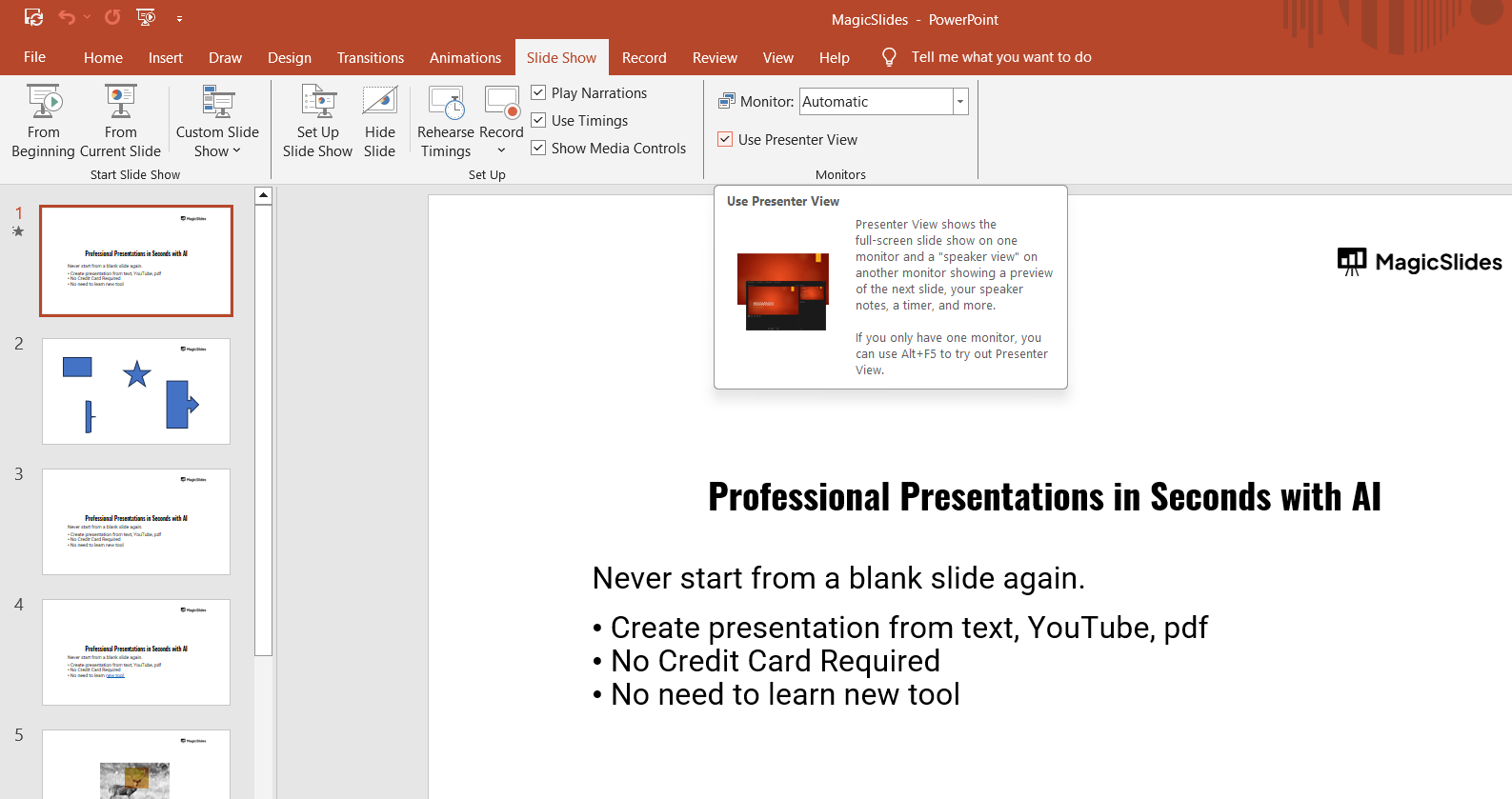
When you begin your presentation, this will allow you to see your notes, upcoming slides, and the current slide, while your audience only sees the slides.
Step 4: Use Multiple Displays for Presenter View
Presenter View works best when you’re using two displays (e.g., a computer and a projector or external monitor).
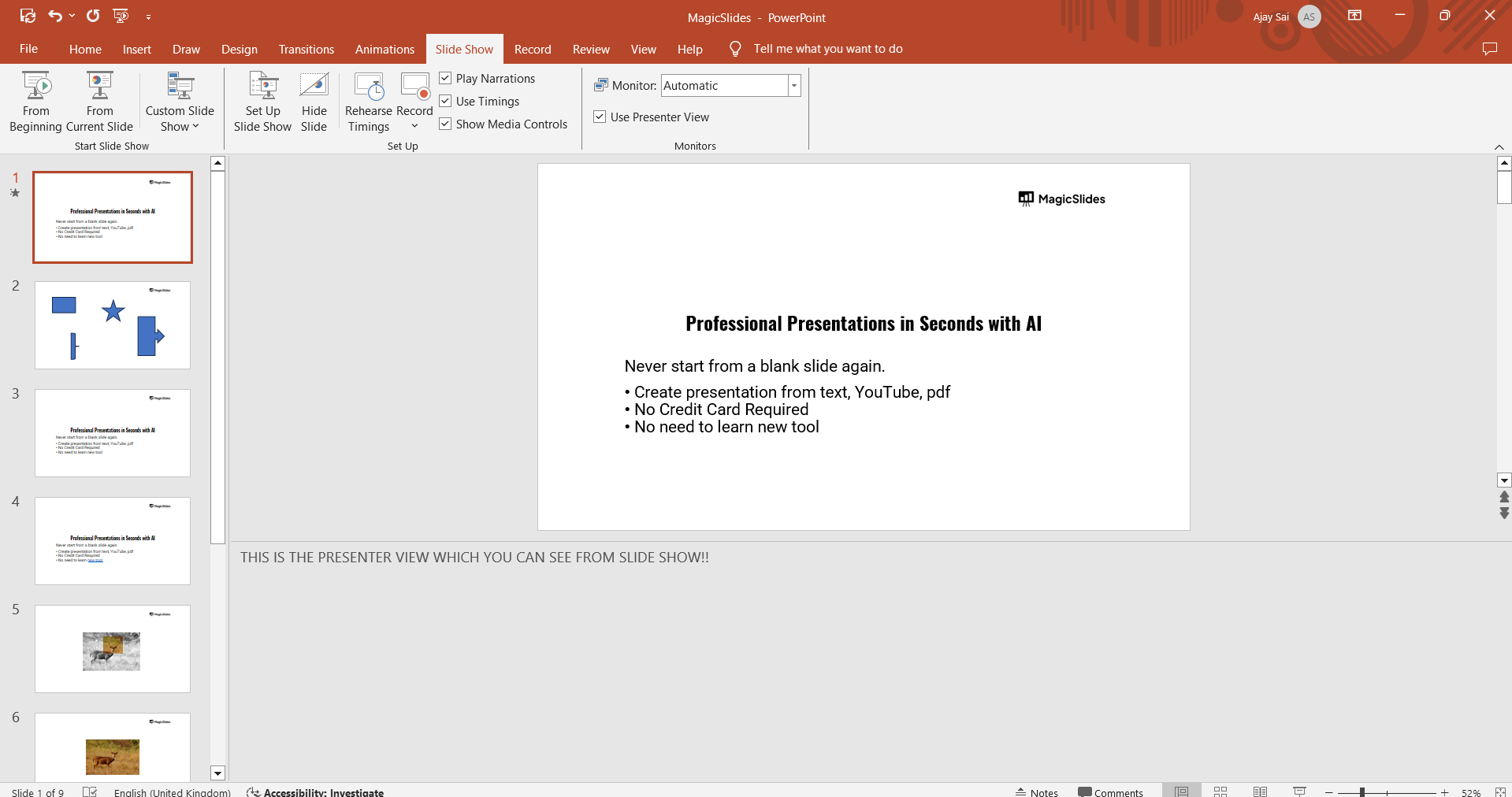
Your notes will be visible on your screen, while the slides are projected onto the external display.
PowerPoint automatically detects multiple displays and shows your notes on your primary monitor.
Step 5: Begin your slideshow
While in Presenter View, Your notes will be displayed next to the current slide, helping you stay on track without revealing your notes to the audience.
Step 6: End the Presentation
Once you’ve finished presenting, press "Esc" to exit the slide show. Your notes and slides will disappear, returning you to the PowerPoint editing interface.
After learning how to present with notes on PowerPoint, you might also want to learn how to download fonts for PowerPoint to ensure your slides match your design vision.
Conclusion
Using Presenter View in PowerPoint allows you to present smoothly while keeping your notes at hand.
This feature ensures you remain organized, confident, and able to deliver a clear, professional presentation without missing important points.
Mastering this function will help elevate your presentations to the next level.
FAQs are here to guide!
Can I view my notes on a single monitor while presenting?
Yes, you can use Presenter View on a single monitor by clicking "Alt + F5" to show the slide show in a window and see your notes at the same time.
Can the audience see my notes in Presenter View?
No, the audience only sees the slides. Your notes and navigation tools are visible only to you on your monitor.
How do I print my notes along with the slides?
Go to "File," select "Print," and choose the option "Print Slides with Notes" to include your notes when printing.


