How to record google slides with voice


Enhance your Google Slides with a personal touch – record your voice for engaging presentations.
Unlock the full potential of your Google Slides by recording them with your voice. Here's how. In the digital age, presentations have evolved beyond static slides.
Now, you can enhance your Google Slides by adding your voice, turning a traditional presentation into a dynamic and engaging experience. Let's explore how to record Google Slides with voice in a few simple steps.
If you need help creating presentation you should check MagicSlides.app
How to record google slides with voice
Step 1: Open Your Google Slides Presentation
Begin by opening the Google Slides presentation you want to enrich with your voice.
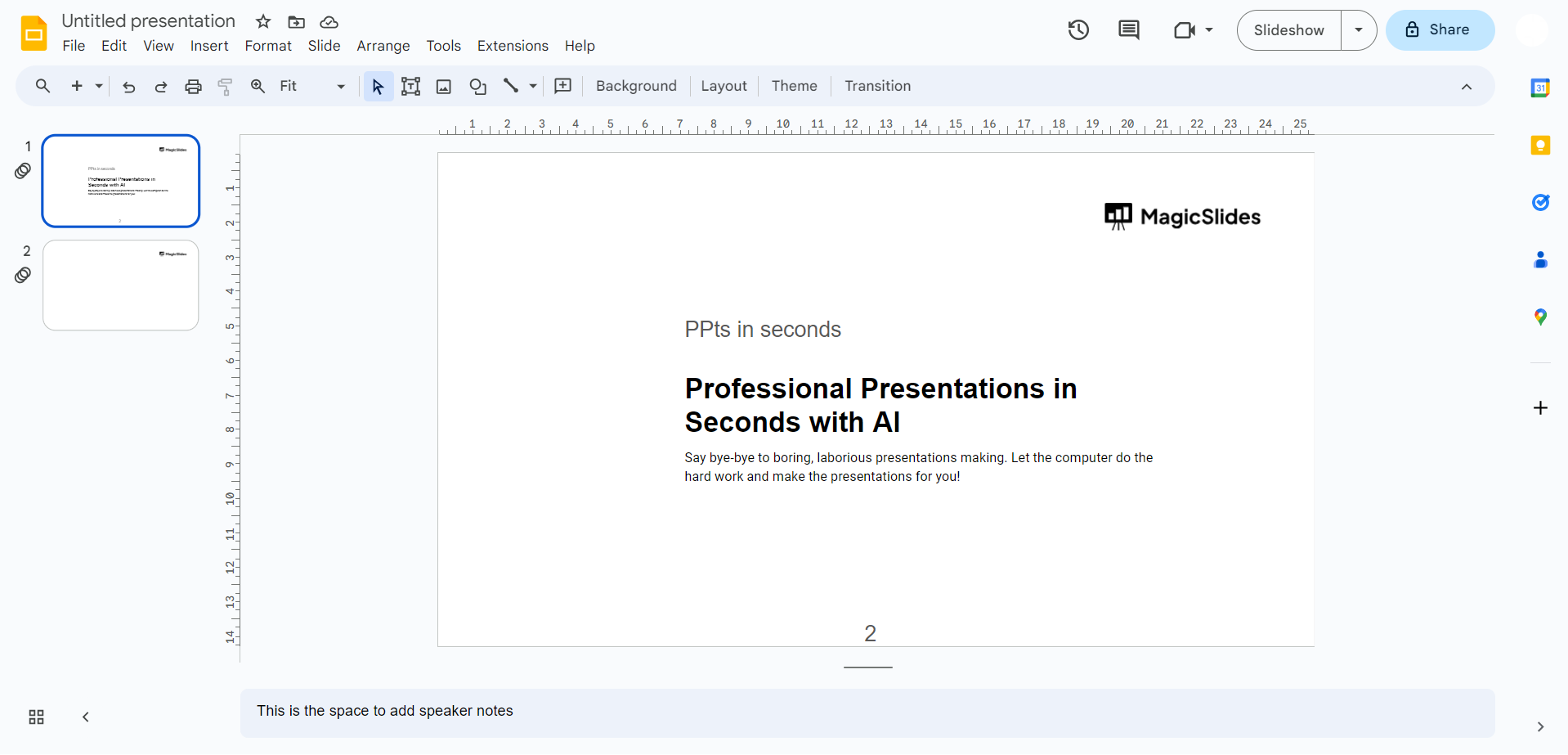
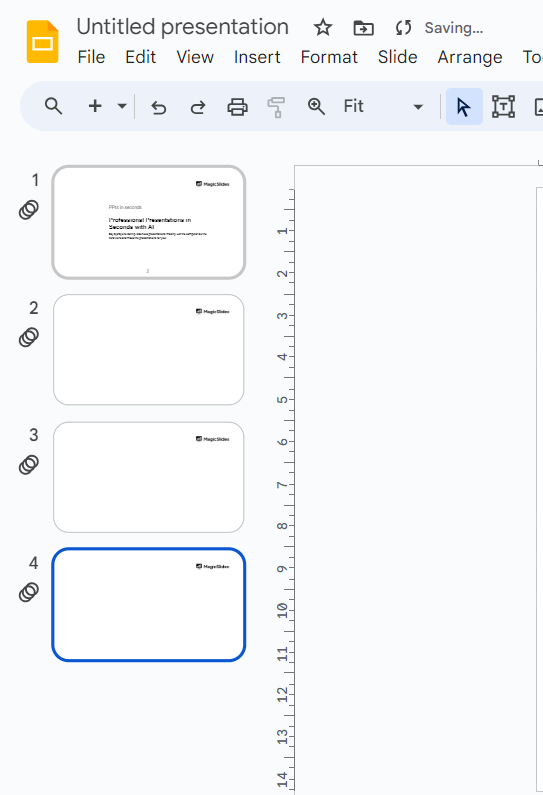
Step 2: Navigate to the Slide You Want to Record
Go to the specific slide where you want to add a voice recording.
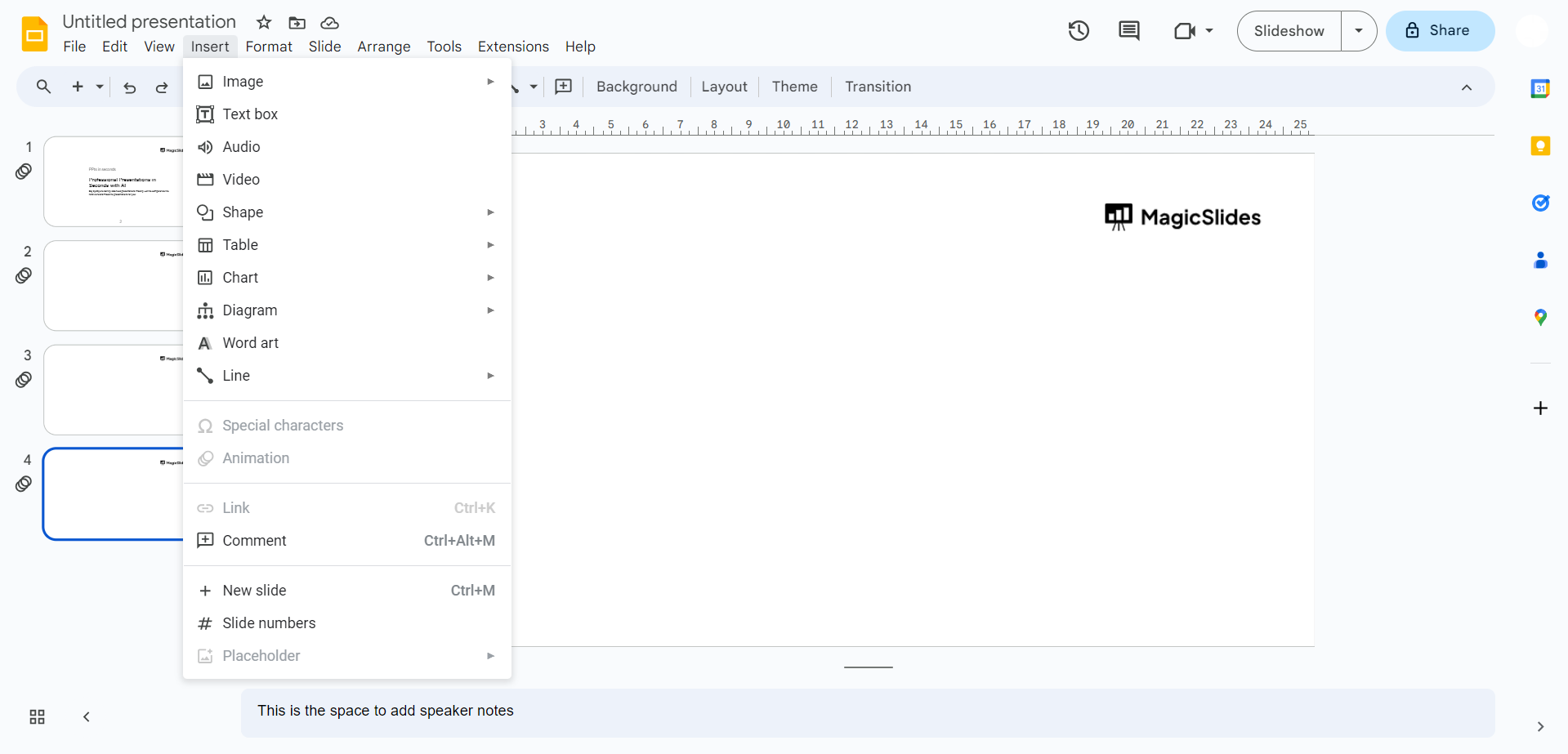
Step 3: Click on "Insert" in the Menu Bar
Locate the "Insert" option in the menu bar at the top of your screen.
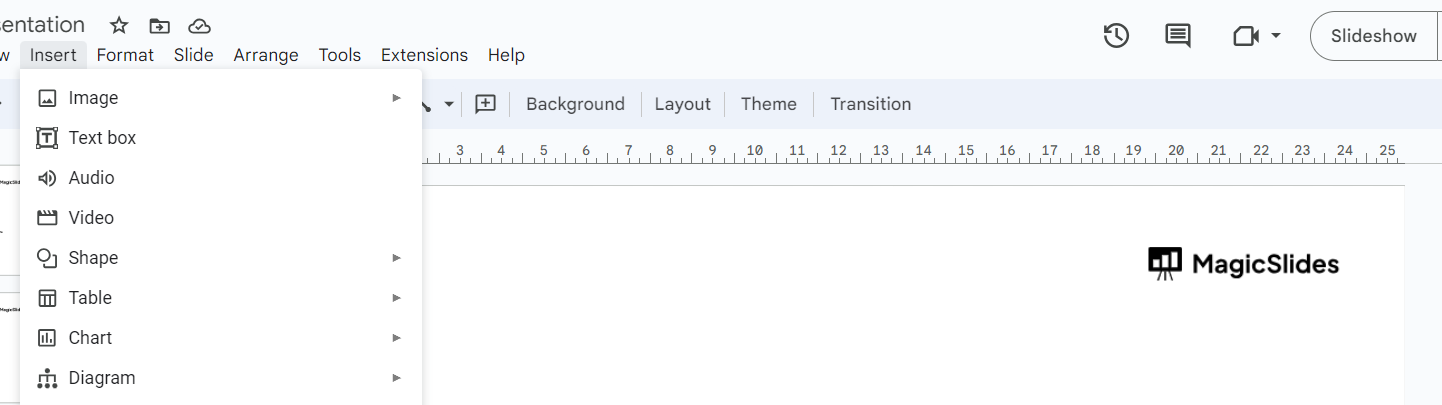
Step 4: Choose "Audio" from the Dropdown Menu
Select "Audio" from the dropdown menu that appears when you click "Insert." If you don’t have a pre recorded audio for your Presentation then you might want to follow below steps to record the audio on the go.
Step 5: Record Your Voice
Click on the "Record" button to start recording your voice in the presentation mode on the Top right corner of Google slides web app. Speak clearly and concisely to convey your message effectively.
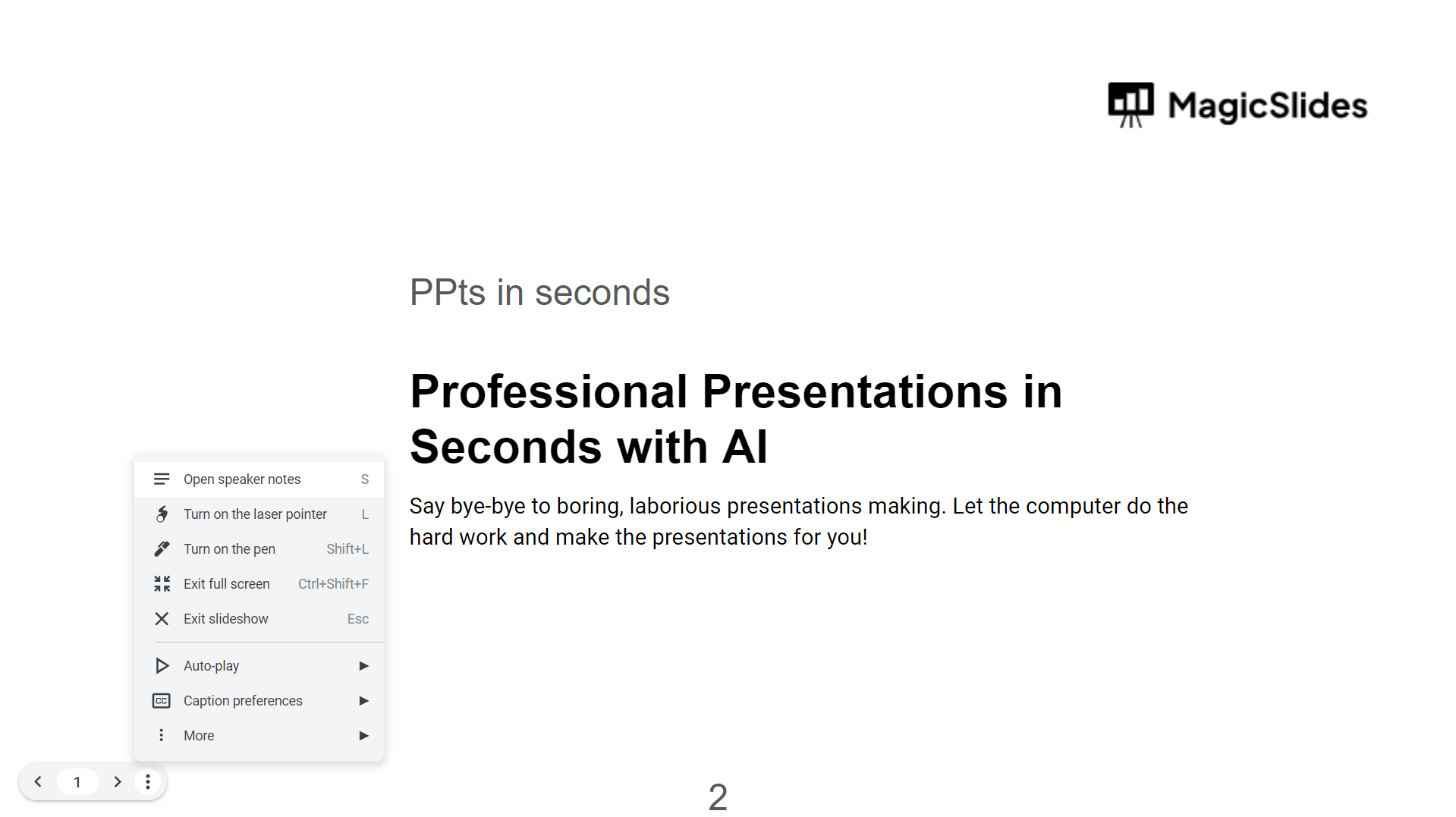
Step 6: Stop Recording
Once you've finished recording, click the "Stop" button. You can preview your recording to ensure it meets your expectations.
Step 7: Adjust Audio Settings
Google Slides provides options to fine-tune your audio. You can adjust the playback settings, volume, and other audio-related parameters for pre recorded audio.
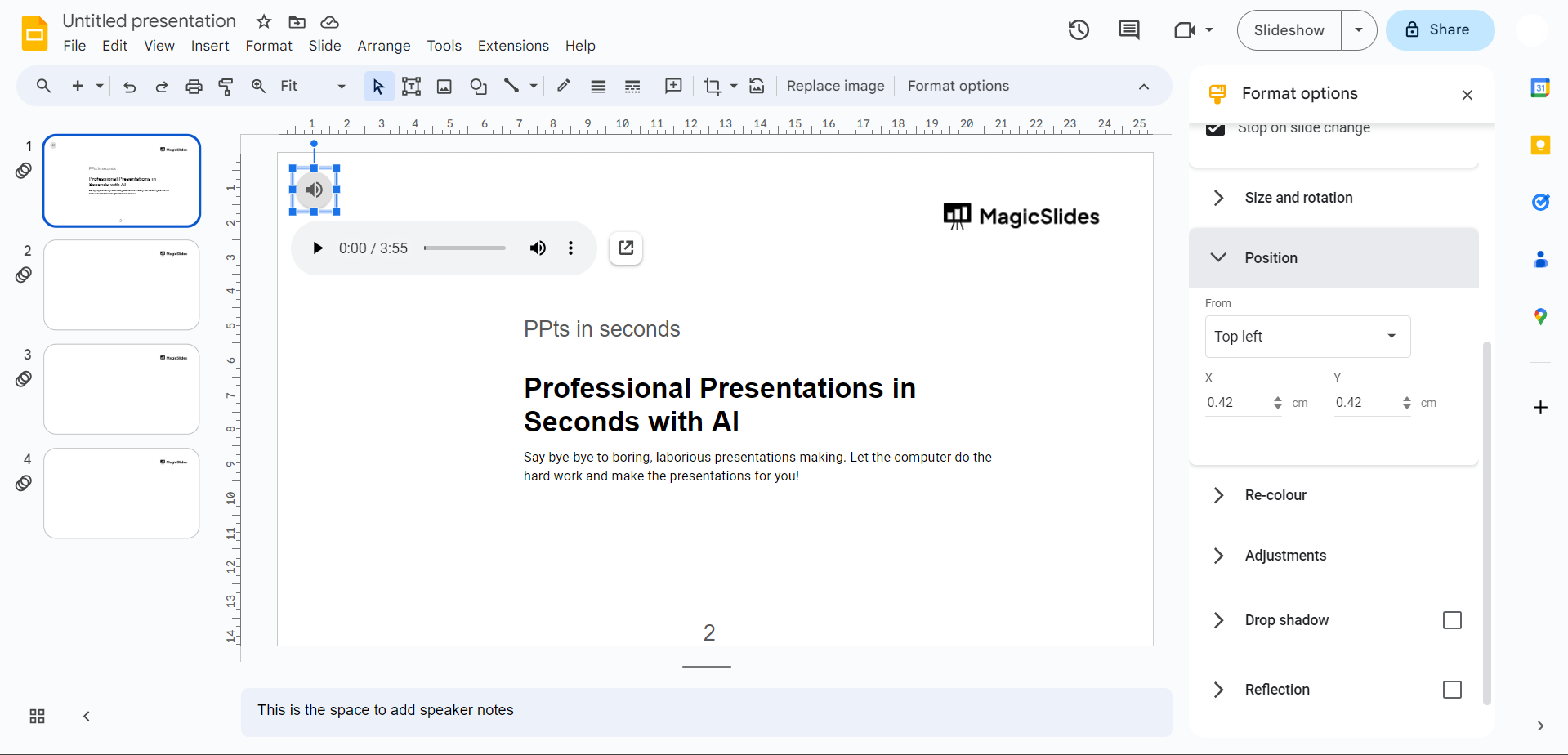
Step 8: Save Your Presentation
Don't forget to save your presentation to ensure that your voice recordings are preserved.
Recording voice over Google Slides adds a personal touch, but MagicSlides.app can handle the heavy lifting of creating professional slides in seconds. Simply input your topic or text, and let MagicSlides.app do the rest!
Conclusion:
By incorporating voice recordings into your Google Slides, you create a more immersive and engaging presentation that captures and maintains your audience's attention.
Whether you're a teacher, business professional, or student, this functionality adds a dynamic layer to your slideshows, making your presentations stand out. So, dive in, explore the possibilities, and elevate your Google Slides presentations with the power of your voice.
Frequently Asked Questions:
Can I record my voice on every slide of my Google Slides presentation?
Ans. Yes, you can! Navigate to each slide where you want to add a voice recording and follow the steps to insert audio.
How long can each voice recording be on Google Slides?
Ans. Google Slides allows for substantial voice recordings. However, it's recommended to keep individual recordings within a reasonable duration for audience engagement.
Can I edit or remove a voice recording after I've added it to a slide?
Ans. Absolutely! Click on the audio icon on the slide, and you'll find options to edit or delete your voice recording as needed.
Will my voice recordings play automatically when I present my Google Slides?
Ans. Yes, if you set the audio playback options accordingly. Adjust the settings during the recording process to determine when the voice recordings play during your presentation.
Check out these info Blogs by MagicSlides.app:
- Google Launches Gemini AI: What You Need To Know!: https://www.magicslides.app/blog/Google-launches-Gemini-AI-What-You-Need-To-Know
- How To Insert Music Into Powerpoint: https://www.magicslides.app/blog/how-to-insert-music-into-powerpoint
- How To Add Narration To Powerpoint: https://www.magicslides.app/blog/how-to-add-narration-to-powerpoint
- How To Create Columns In Google Slides: https://www.magicslides.app/blog/how-to-create-columns-in-google-slides


