How to add narration to powerpoint


Enhance your PowerPoint presentations by adding captivating narration. Follow these steps for an impactful delivery.
Incorporating narration brings a personal touch to your PowerPoint presentation, allowing you to articulate key points, share insights, and guide your audience through the content. Read on to discover how you can easily add narration to your slides and make your presentation more impactful.
Follow this step-by-step guide to seamlessly add narration to your PowerPoint slides and captivate your viewers.
How to add narration to powerpoint
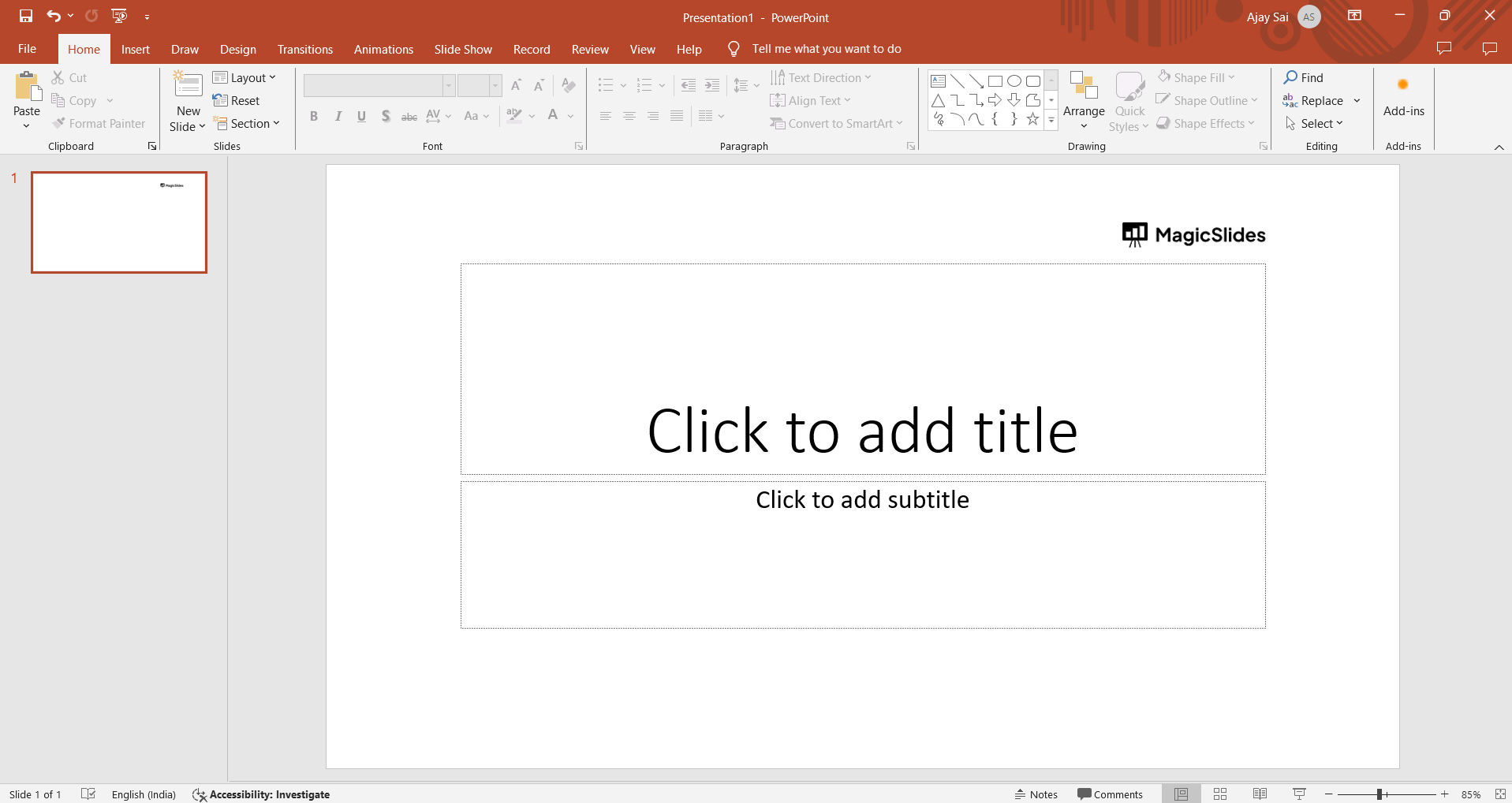
Open Your PowerPoint Presentation:
Launch Microsoft PowerPoint and open the presentation to which you want to add narration.
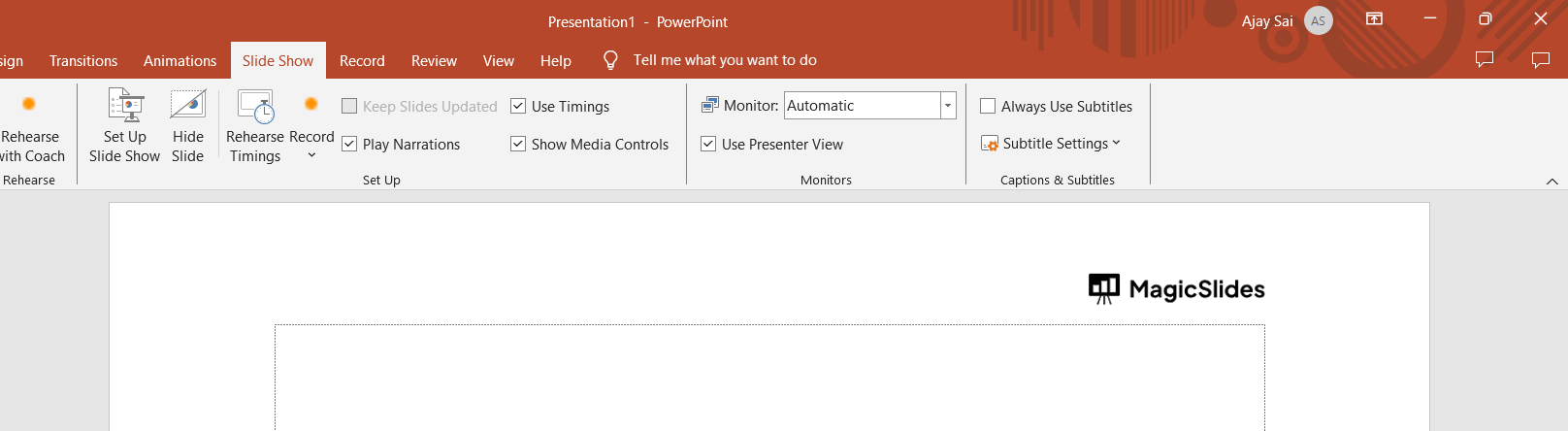
Navigate to the Slide Show Tab:
Click on the "Slide Show" tab in the PowerPoint ribbon at the top of the screen.
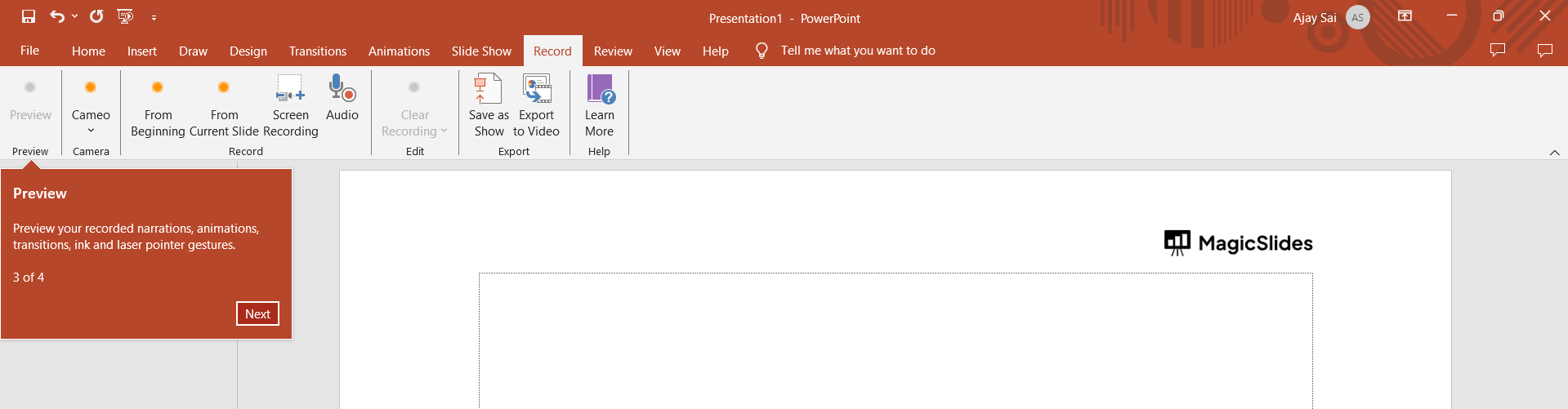
Select "Record Slide Show":
In the Slide Show tab, locate and click on the "Record Slide Show" dropdown.
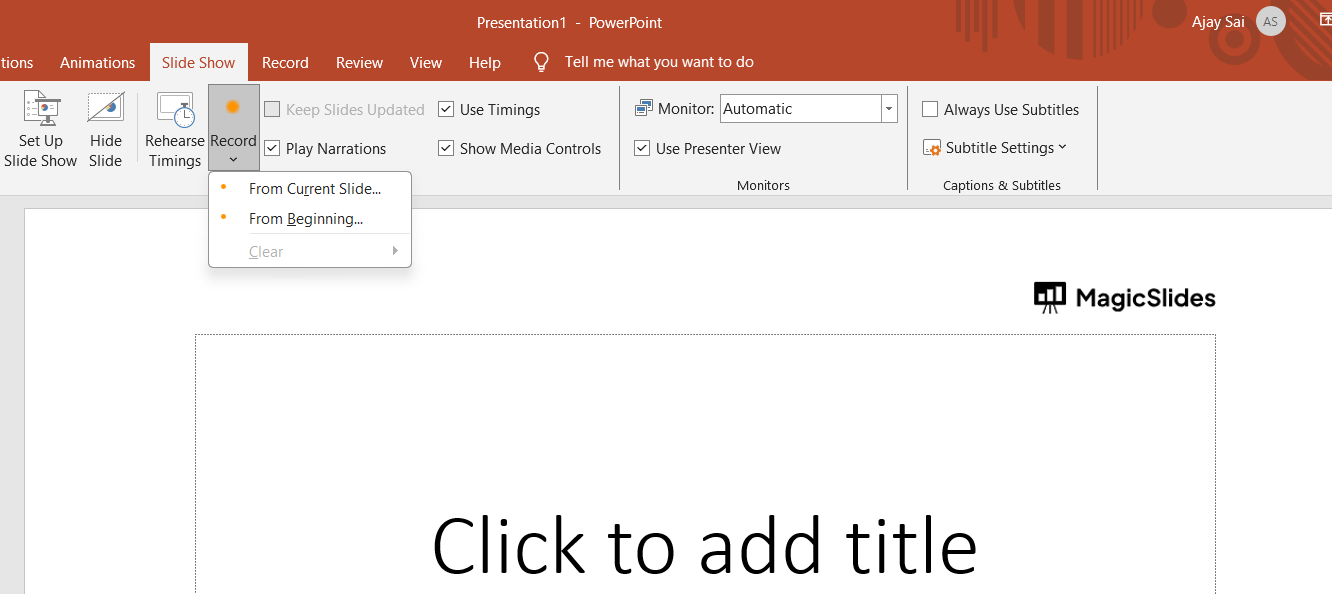
Choose "Start Recording from Beginning" or "Start Recording from Current Slide":
Opt for "Start Recording from Beginning" if you want narration for the entire presentation, or choose "Start Recording from Current Slide" if you only need narration from a specific slide.
Initiate Recording:
PowerPoint will begin recording your narration. Speak clearly into your microphone, providing explanations, insights, or additional context for each slide.
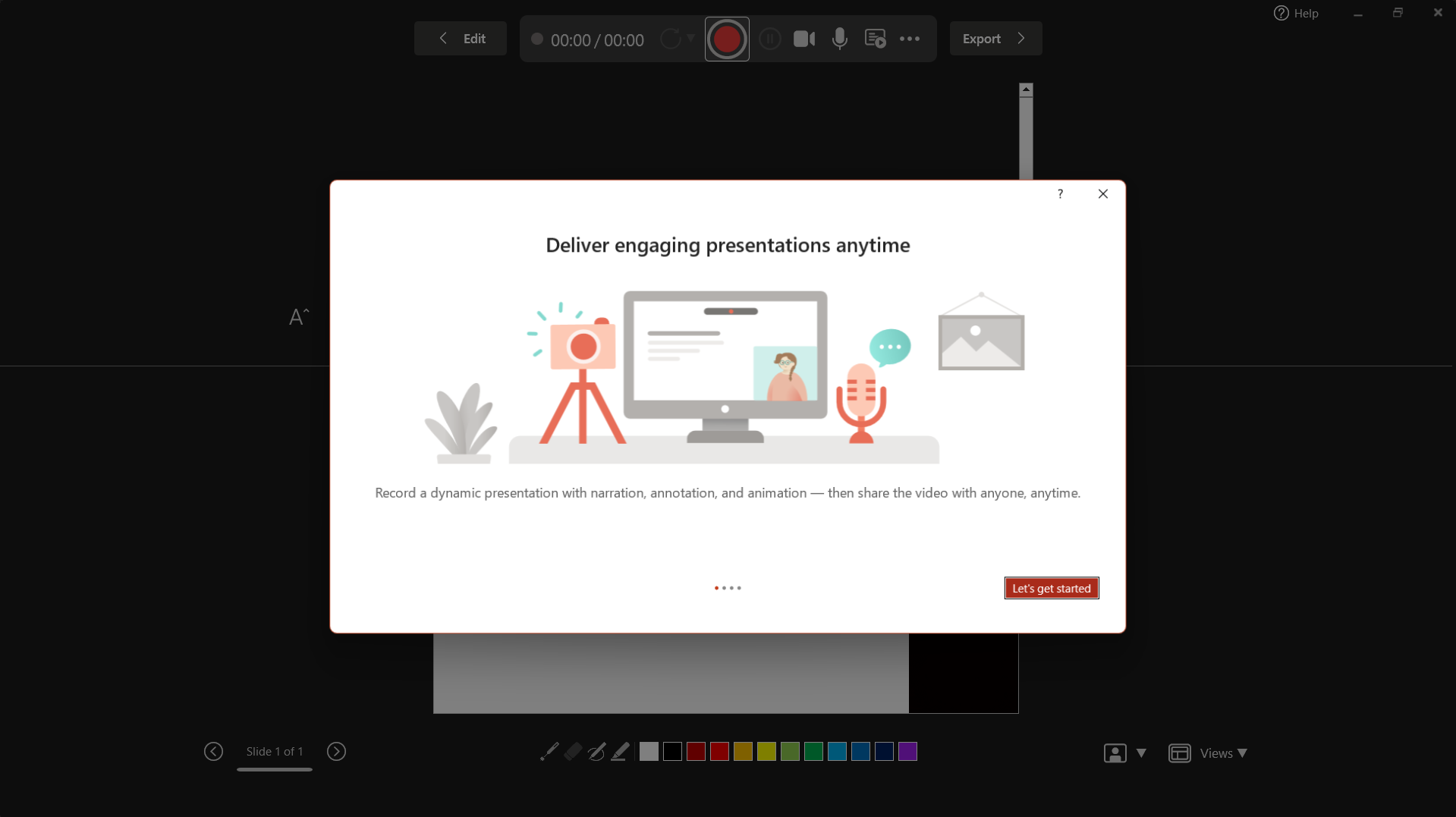
Advance Slides as Needed:
Progress through your slides by clicking or using arrow keys, ensuring your narration aligns seamlessly with the content.
End the Recording:
Once you've completed your narration, stop the recording by pressing the square "Stop" button in the top-left corner of the screen.
Review Your Recording:
Play back your presentation to review the narration. This step allows you to ensure timing and content alignment.
Save Your Presentation:
Save your PowerPoint presentation to preserve the added narration. This ensures that your recorded audio accompanies the slides during future presentations.
Conclusion:
By adding narration to your PowerPoint presentation, you inject personality and clarity, creating a more immersive experience for your audience. Whether you're delivering a virtual lecture, a business pitch, or a training session, the power of your voice enhances the impact of your visuals, making your message more memorable and engaging. Try incorporating narration into your next presentation and witness the positive difference it makes.
Frequently Asked Questions:
Q1: Can I add narration to specific slides in PowerPoint, or does it have to be for the entire presentation?
Absolutely, you have the flexibility to choose! When initiating recording, PowerPoint allows you to opt for "Start Recording from Beginning" for the entire presentation or "Start Recording from Current Slide" to focus on specific slides.
Q2: Is it possible to edit or re-record the narration if I'm not satisfied with the initial recording?
Certainly! After recording your narration, PowerPoint provides the option to review and re-record specific slides. Navigate to the "Slide Show" tab, click "Record Slide Show," and choose "Review Recorded Show." From there, you can re-record or fine-tune your narration.
Q3: Can I add background music or sound effects along with my narration in PowerPoint?
While PowerPoint doesn't have built-in features for background music, you can manually insert music or sound effects by adding audio files to specific slides. This enhances the overall audio experience and complements your narration effectively.
Q4: How do I share a PowerPoint presentation with narration? Will the narration play on any device?
When sharing your presentation, make sure to save it as a PowerPoint Show (.ppsx) file. This ensures that the narration is included, and viewers can play it on any device. However, it's advisable to test the presentation on different devices to ensure compatibility.
Have a look @these tutorial blogs by us:
- How To Flip An Image In Powerpoint In 2024: https://www.magicslides.app/blog/How-to-mirror-an-image-in-powerpoint
- How To Add A Background In Powerpoint: https://www.magicslides.app/blog/How-to-add-a-background-in-powerpoint
- How To Add Mp4 Audio To Google Slides: https://www.magicslides.app/blog/How-to-add-mp4-audio-to-google-slides
- How To Automatically Play Your Google Slides: https://www.magicslides.app/blog/How-to-automatically-play-google-slides


