Remove All Animations from PowerPoint in Minutes (5 Methods)


Learn how to remove all animations from PPT using 5 simple methods, including Animation Pane, VBA, and AI. Clean up your PowerPoint presentation quickly.
Sometimes animations in PPT make slides feel cluttered and distracting. In such cases, removing them helps keep the presentation clean and professional. In this guide, I’ll show you how to remove all animations from PPT quickly using 6 tried and tested methods.
If you’re working on improving your overall presentation, you can also check out how to make PPT attractive, which helps enhance slide quality even without animations.
Let’s first look at why removing animations is important in PowerPoint.
Why Remove Animations from PowerPoint?
Animations can sometimes affect readability and make slides cluttered, rather than engaging. Removing unnecessary animations helps improve readability and keeps the audience focused on the content.
It also reduces lag issues on slower systems. Here are a few more reasons to delete animations from PPT:
- Keeps slides clean and professional
- Makes content easier to understand at a glance
- Prevents distractions during presentations
- Improves overall presentation flow
- Avoids compatibility issues across different devices
Overall, a simple and static presentation looks more professional and is easier for viewers to follow. If your slides feel cluttered, removing animations can instantly improve clarity.
How to Remove All Animations from PPT?
There isn’t just one way to remove animations in PowerPoint, as per my research. I’ve used different methods based on the situation or business requirements. Below, I’ll walk you through simple and effective methods to remove animations from PPT, using both manual and advanced approaches.
#Method 1. How to Remove Animation from All Slides in PowerPoint
This is a simple and direct method to remove animations from slides. It works well for smaller presentations or when animations need to be removed step by step. By using the Animation Pane, all applied effects can be viewed in one place and deleted quickly.
Here’s how:
Step 1. Open your PowerPoint presentation.
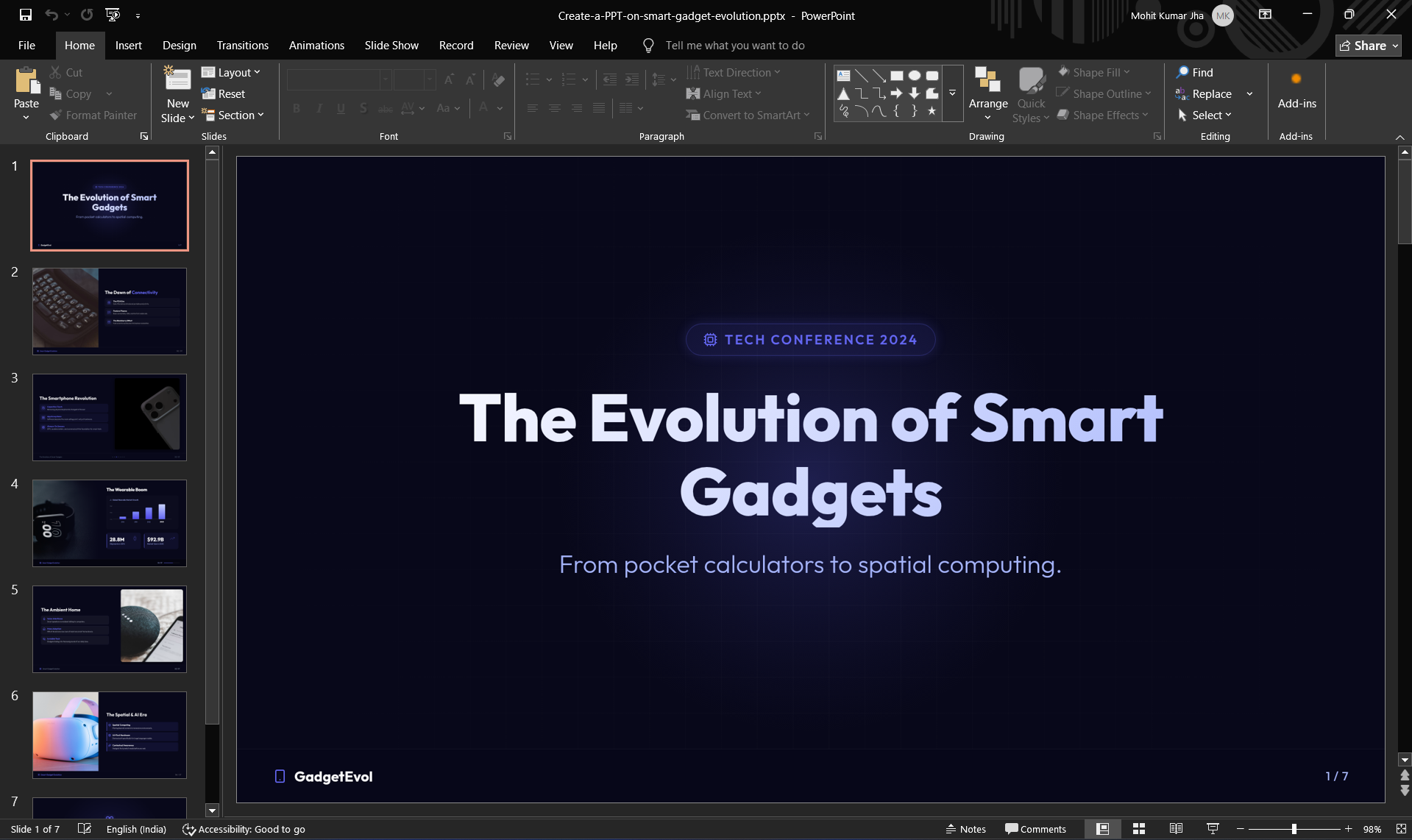
Step 2. Go to the “Animations” tab.
Step 3. Click on any object with animation.
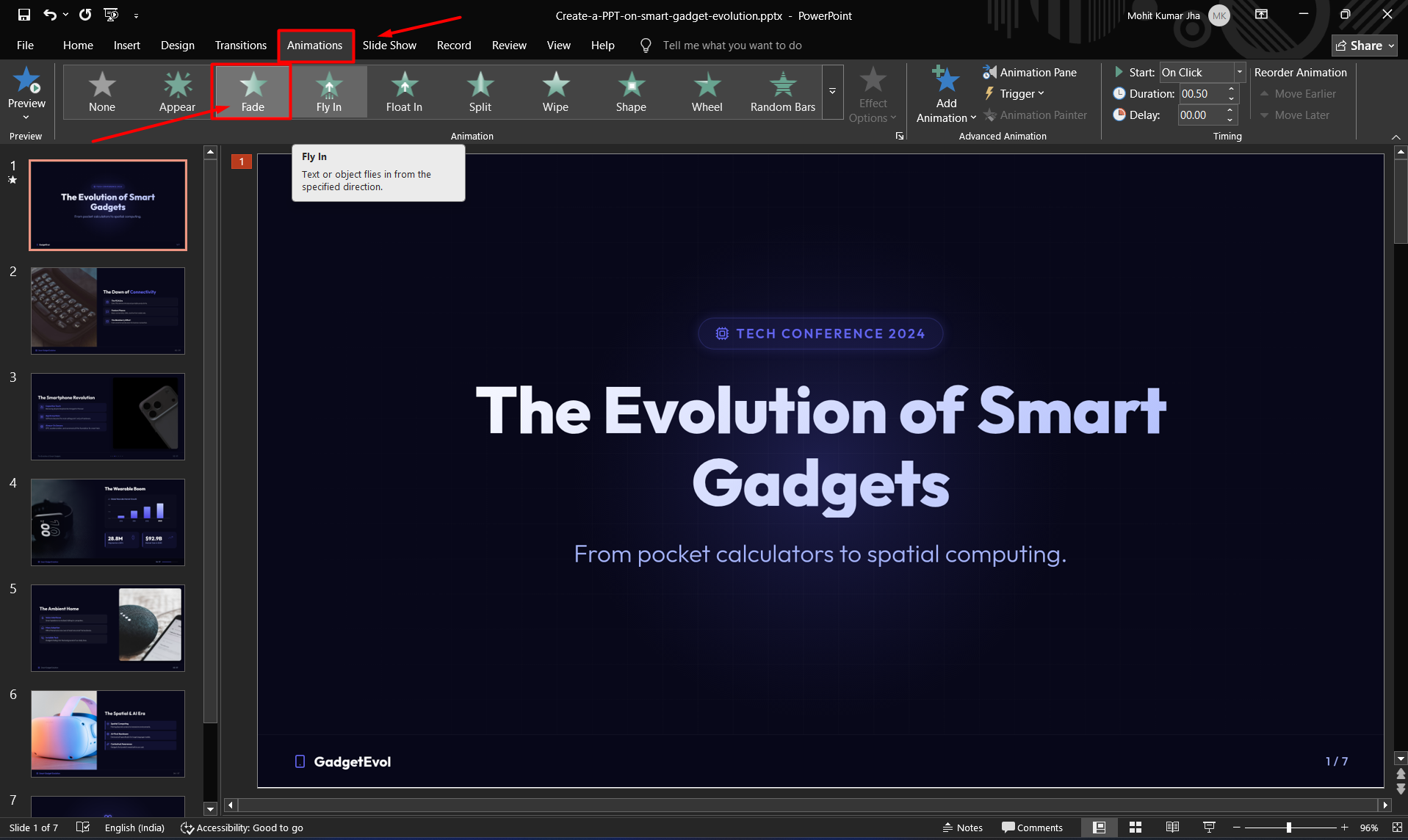
Step 4. Open the Animation Pane.
Step 5. Select all animations (Ctrl + A inside the pane).
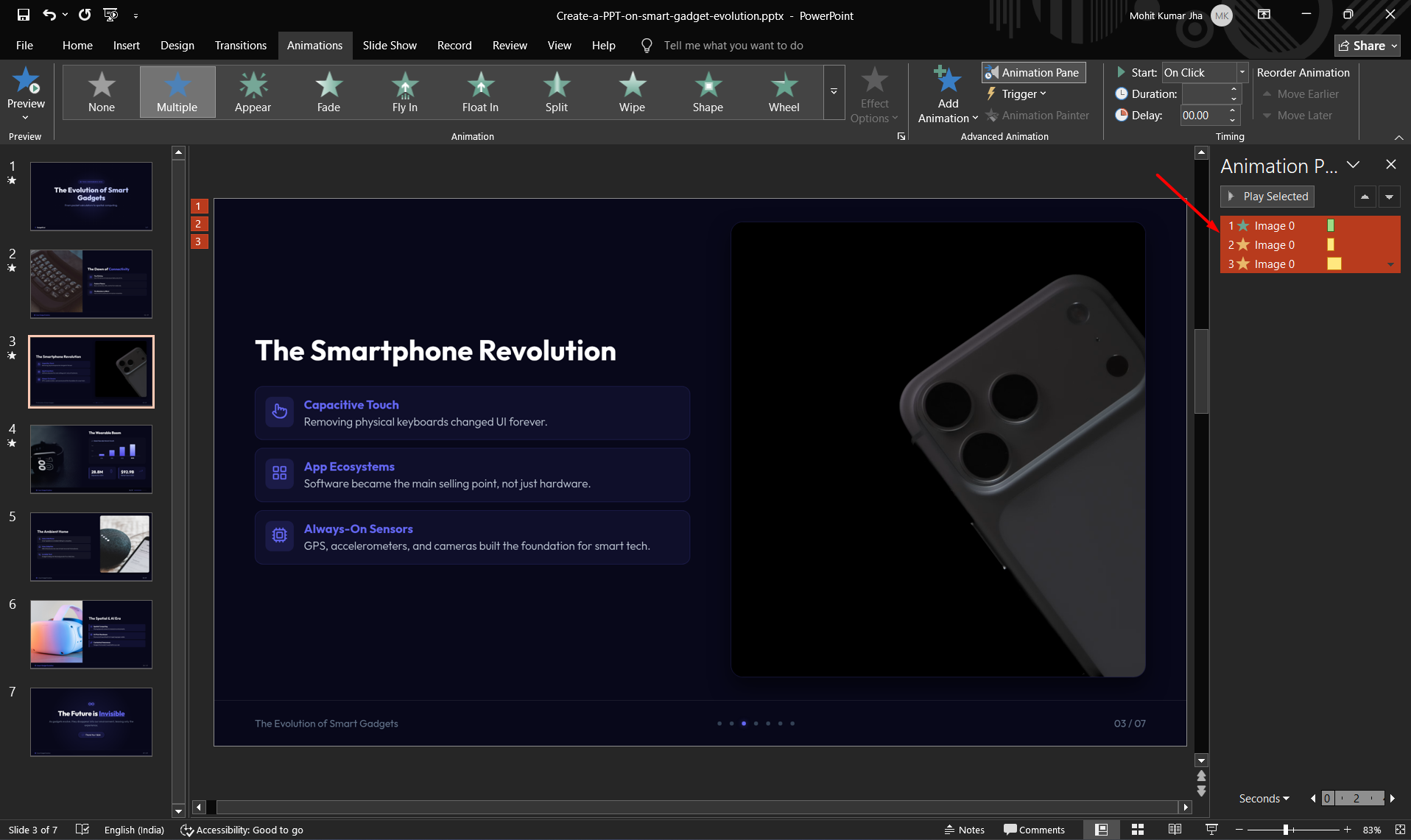
Step 6. Press Delete.
Repeat this for each slide if needed.
#Method 2. Remove Animations from Multiple Slides Using Slide Sorter View
If your presentation contains dozens of slides, Slide Sorter View makes it much easier to move between slides while removing animations. Although PowerPoint doesn’t let you remove animations from every slide at once, this view speeds up the process.
Steps:
- Open your PowerPoint presentation.
- Go to the View tab.
- Select Slide Sorter.
- Click a slide and open the Animations tab.
- Open the Animation Pane.
- Press Ctrl + A inside the Animation Pane and press Delete.
- Move to the next slide using Slide Sorter and repeat.
Best for: Large presentations with many slides.
#Method 3. How to Remove All Animations from PPT Using the “None” Option
This method provides a quick way to remove animations without going into detailed settings. By selecting the “None” option from the Animations tab, applied effects can be cleared from selected objects in just a few clicks. To do so:
- Select any object on the slide
- Go to the Animations tab
- Choose “None” from the animation gallery
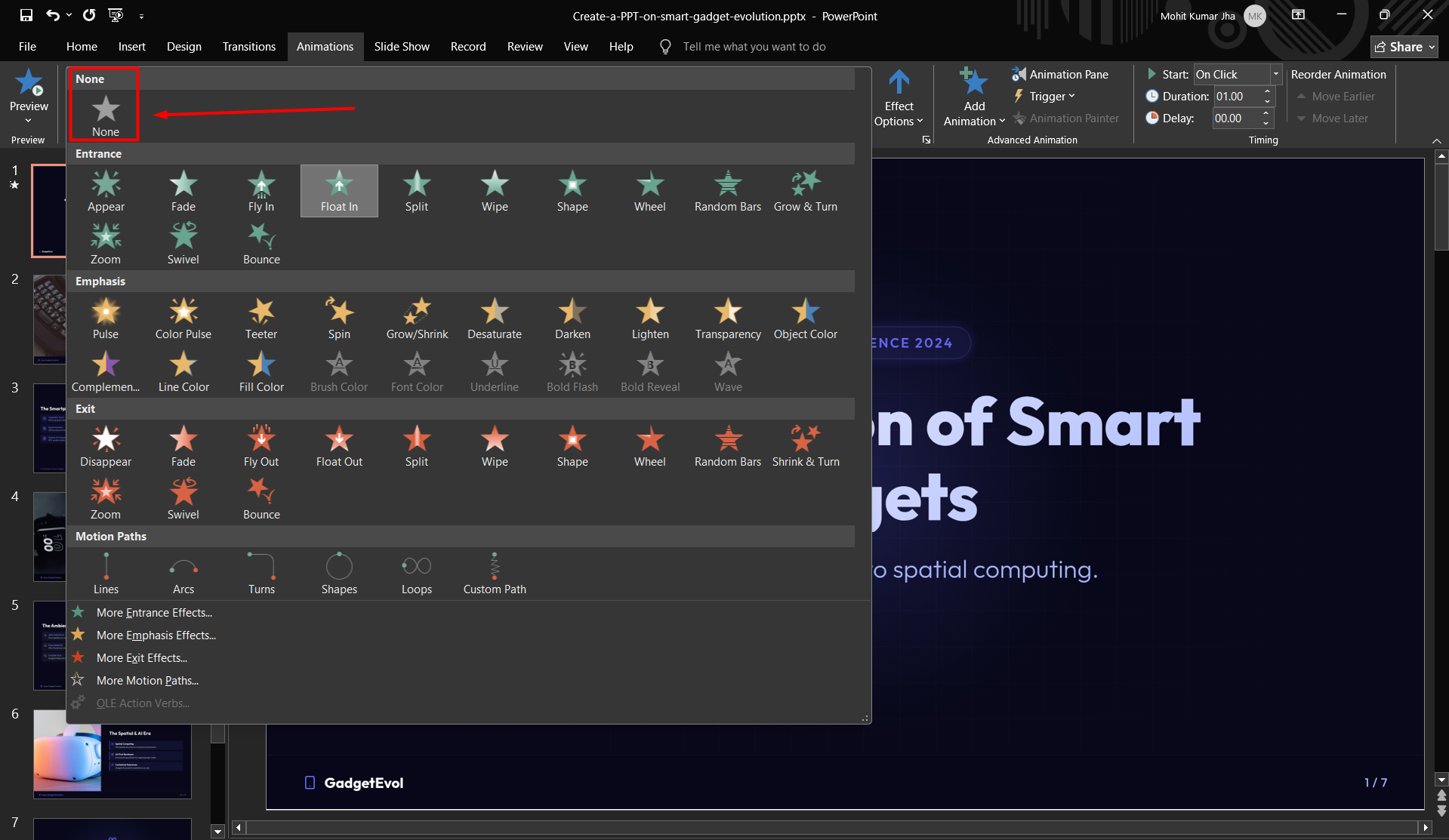
Repeat for grouped objects if necessary.
#Method 4. How to Remove All Animations from PPT Via VBA
This method is ideal for large presentations where removing animations manually would take too much time. By using a simple VBA script, all animations can be removed from every slide in one go. It automates the entire process. Below is the complete VBA script for this:
Sub RemoveAnimations()
Dim sld As Slide
For Each sld In ActivePresentation.Slides
sld.TimeLine.MainSequence.Clear
Next sld
End Sub
How to Use It:
- Press Alt + F11
- Insert a new module
- Paste the code
- Run the script
This removes animations from the entire PPT instantly. However, this is a little technical approach.
Once animations are removed, the next step is refining your slides. A helpful guide on how to improve slide design for presentations can make your content more impactful.
If you make this process automated without needing any technical expertise, then move to the next option.
#Method 5. How to Remove All Animations from PPT Via Cutting-edge Solution
For a faster and more automated approach, MagicSlides AI PowerPoint Generator can be used to clean up presentations in seconds. Instead of manually going through each slide, the PPT file can be uploaded, and a prompt like “remove animations from all slides” will automatically remove all effects across the presentation.

This method is especially helpful for large or complex presentations where animations are applied across multiple slides. If you’re exploring automation, you might also like how to turn notes into presentation AI, which shows how AI can simplify presentation creation.
Try this for free now on any browser, and quickly clean up your entire presentation in seconds.
How to Remove All Animations from PPT Automatically?
Step 1. Open the solution in your browser and create an account using your email.

Step 2. After logging in, click on “Get Started – Free” to begin.

Step 3. Upload your existing PowerPoint (PPT) file to the platform.
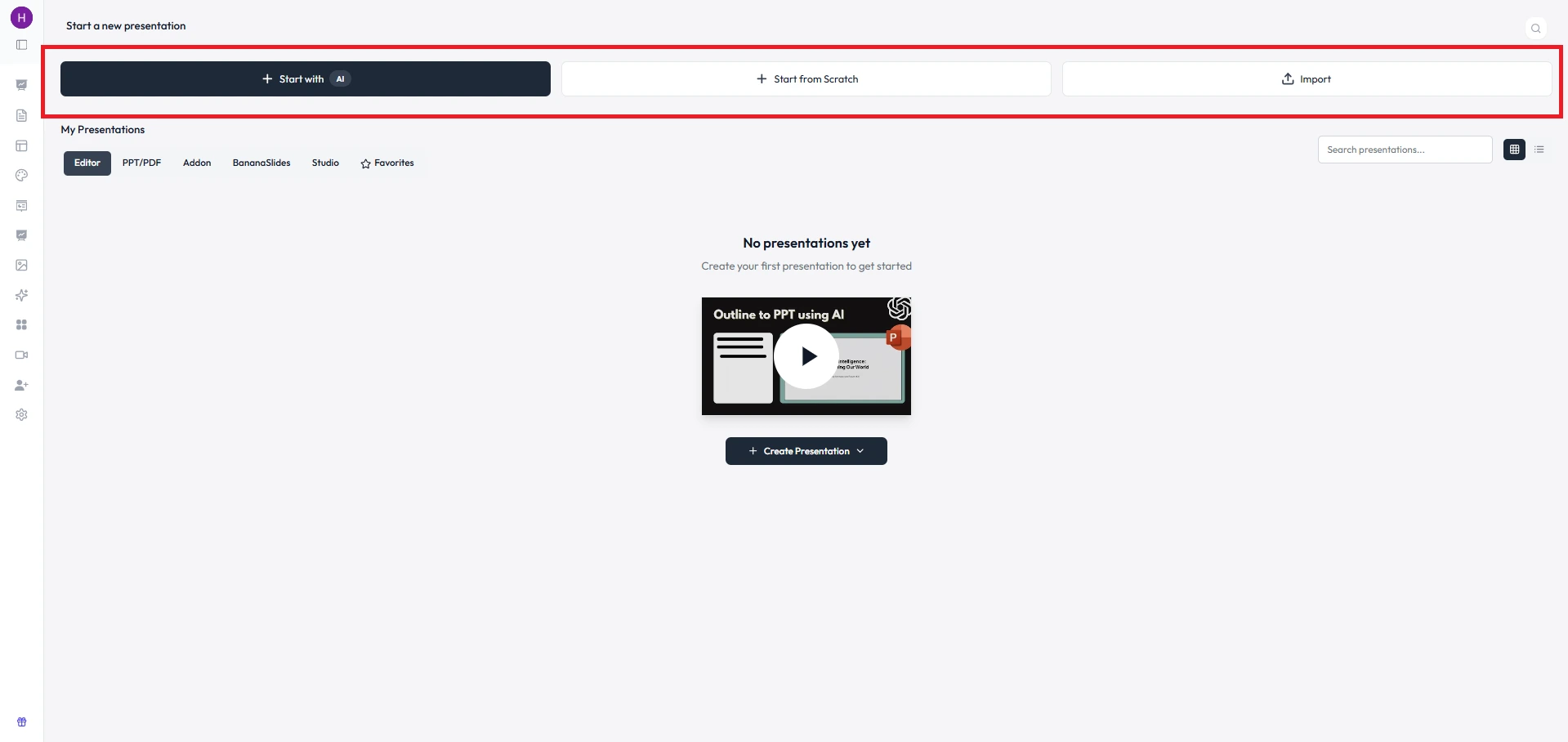
Step 4. Enter a prompt such as “remove animations from all slides” and proceed.
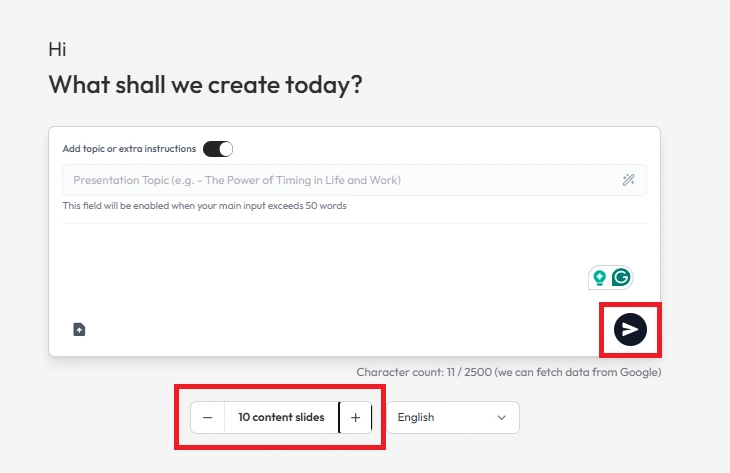
Let the tool process your request. Once completed, review the updated presentation and download the animation-free PPT file.
Best Practices to Follow After Removing Animations
After removing animations, it’s important to ensure the presentation still looks polished and engaging. For the same, validate all these points:
- Keep slide layouts clean and well-structured
- Ensure text is readable with proper font size and spacing
- Highlight key points using bold text or icons
- Avoid too much content in a single slide
- Use high-quality visuals to support your message
- To maintain consistency and readability, choosing the right fonts is essential. You can explore the best fonts for PPT to enhance clarity and professionalism.
Following these practices ensures the presentation remains clear and professional, even without animations.
Author’s Verdict
Knowing how to remove all animations from PPT can completely transform your presentation quality. Doesn’t matter whether you are choosing manual methods or automation; the goal is simple: make your slides clean and professional.
If you’re dealing with a large presentation, I recommend using MagicSlides. Otherwise, the Animation Pane method works perfectly for most cases.
People Also Ask
Q. How to remove animation from all slides in PowerPoint quickly?
Use the Animation Pane + Ctrl + A + Delete method; it’s the fastest manual way.
Q. Can I remove animations from PPT in one click?
Not exactly in one click, but using VBA, you can do so in a few clicks.
Q. Does removing animations affect slide content?
No, it only removes visual effects, not the actual content.


