Learn How to Insert Online Pictures in PowerPoint 2016


Learn to insert online pictures in PowerPoint 2016 and fix common errors quickly. Master your presentation visuals with this simple, step-by-step tutorial.
Suppose you are preparing a new pitch deck, but you realize that your slides are only containing bullet points and some boring text. At that time, you needed images to break up the text but didn’t know how to insert online pictures in PowerPoint 2016. Then don’t fret, you will find the complete solution in this guide.
When I first started using MS PowerPoint 2016, I also struggled. Even I also faced “Service Unavailable” errors. It is because of the copyright images and file sizes being too large that created issues for sharing the PPT as well.
After a lot of trial and error, I’ve successfully done the workflow. Here is exactly how I flawlessly add online pictures in PowerPoint to keep my PPTs professional.
My Go-To Method for Quick Insertion of Online Images
I’ve stopped moving back and forth between Google Chrome and MS PowerPoint. Here are the quick steps:
1. After opening the MS PowerPoint.
2. Just hit the Insert tab.
3. Choose the Online Pictures button.
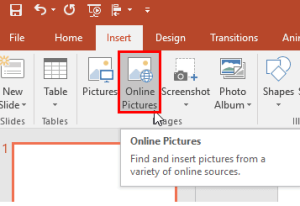
4. I use the Bing Search option instead of OneDrive; you can choose the best-suited one.
5. Search for the needed image and hit the Insert button.
The “Service Unavailable” Headache (How I Fixed It)
I have encountered a “Service Unavailable” error, which means “clicking that button and seeing a grayed-out box or an error message” frustrates me a lot. I used to think it was my Wi-Fi, but it was usually a privacy setting in the PowerPoint itself. So, let’s understand how I solved it.
- Go to File > Options > Trust Center > Trust Center Settings > Privacy Options.
- Verify the “Let Office connect to online services” option was checked.
- Then I restarted the MS PowerPoint, and the search worked perfectly every time.
How to Stay Legally Safe – The Creative Commons Rule
When the PowerPoint Online image search results pop up, I look for the “Creative Commons Only” filter.
- If I’m preparing PPT for a client or to show in public, I only use CC-0 (Public Domain) images.
- I always tick the small web link in the corner of the image preview to verify if the creator requires an attribution slide.
“Pro” Moves I Use to Polish My Slides
Once the image is on the slide, then the task isn’t done at all. It’s time to polish it with the design. Let’s see how.
- Use the Design tab to provide a layout and frames for online images for a better visual. Also, change PowerPoint slide orientation.
- Also, edit alt text and write some words about the image. It ensures my PPT is inclusive for everyone.
- After the completion of the presentation, I compressed it without losing its quality for easy and fast sharing.
Conclusion
In this detailed write-up, I have shared a complete step-by-step solution for the query “how to insert online pictures in PowerPoint 2016.” In addition, I have also explained the errors that one might face while adding online images in MS PowerPoint 2016.
Frequently Asked Questions
Q1. Can I use Google Image instead of Bing Images?
A: Unfortunately no, MS PowerPoint 2016 is locked for Bing only. If you need to pick images from Google, then you need to copy images from Google and then upload them to the slides.
Q2. How many images can I insert using the online images option in MS PowerPoint?
A—You can use as many as you want; there are no such limitations.
Q3. Why are my images disappearing after I save my PPT?
A – This usually occurs when the image is downloaded completely from the web before you save it.
Have a look @these info blogs:
What are the Design Tips for PowerPoint Presentations?


