How to Change Slide Orientation in PowerPoint: A Complete Guide


Learn to change PowerPoint slide orientations with our step-by-step guide, including tips and FAQs on managing presentation layouts.
Changing the orientation of slides in PowerPoint is a fundamental skill that enhances the visual appeal and suitability of presentations for different viewing contexts.
Whether you're preparing for a widescreen presentation or need a portrait layout for digital signage, knowing how to adjust slide orientation is crucial.
This guide will walk you through the steps to change slide orientation in PowerPoint and touch on how tools like MagicSlides.app can enhance your presentation creation process.
What is Slide Orientation?
Slide orientation refers to the direction in which a slide is displayed, either horizontally (landscape) or vertically (portrait). The default orientation in PowerPoint is landscape, which is suitable for most presentation scenarios.
However, certain situations, like digital posters or document-style presentations, might require a portrait orientation.
Step-by-Step Guide to Changing Orientation in PowerPoint
- Open Your Presentation: Begin by opening your PowerPoint presentation. Ensure you are on the slide or in the section where you want to change the orientation.
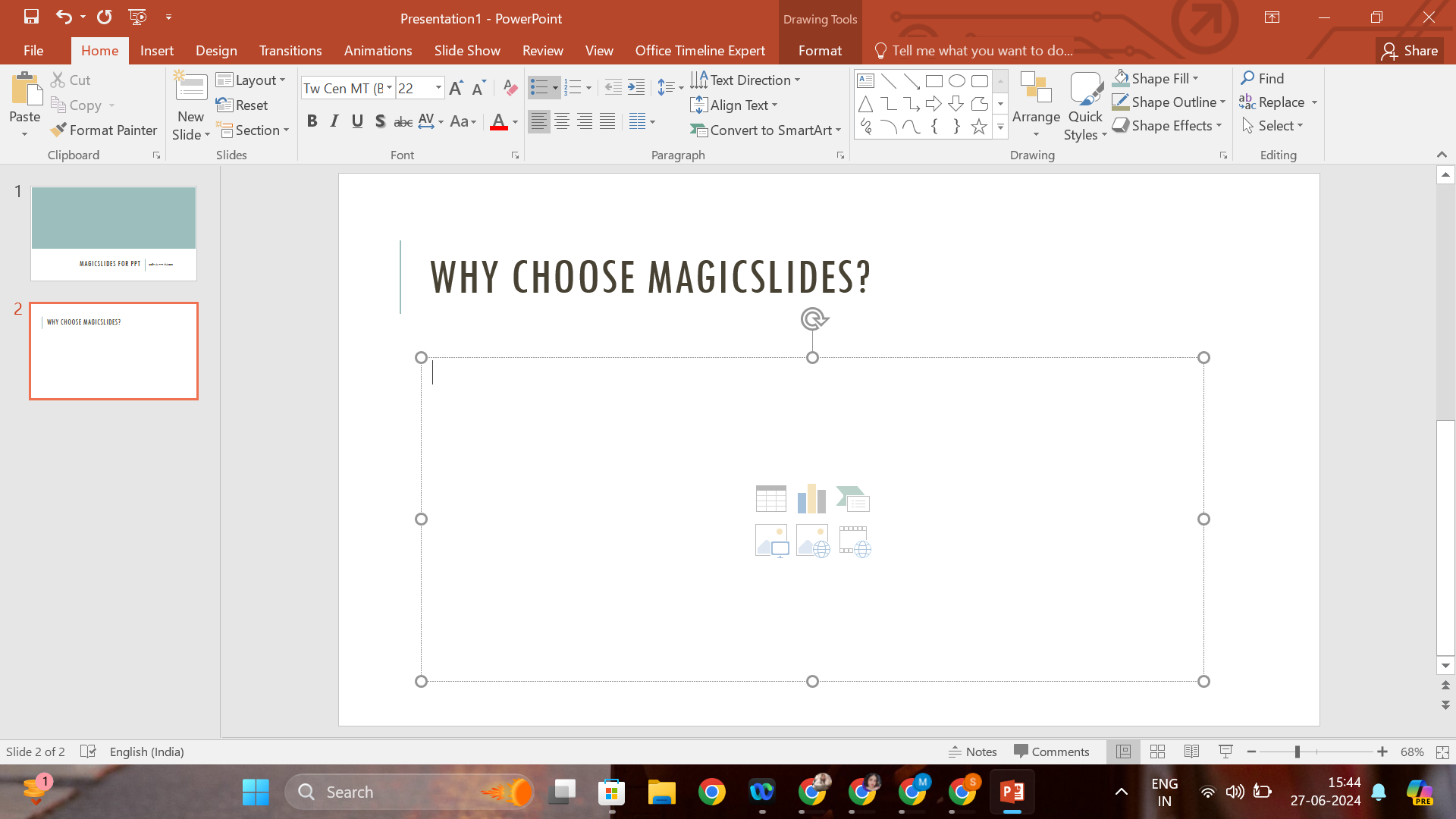
- Access the Design Tab: Click on the "Design" tab in the top menu. This section houses various options related to the appearance of your slides.
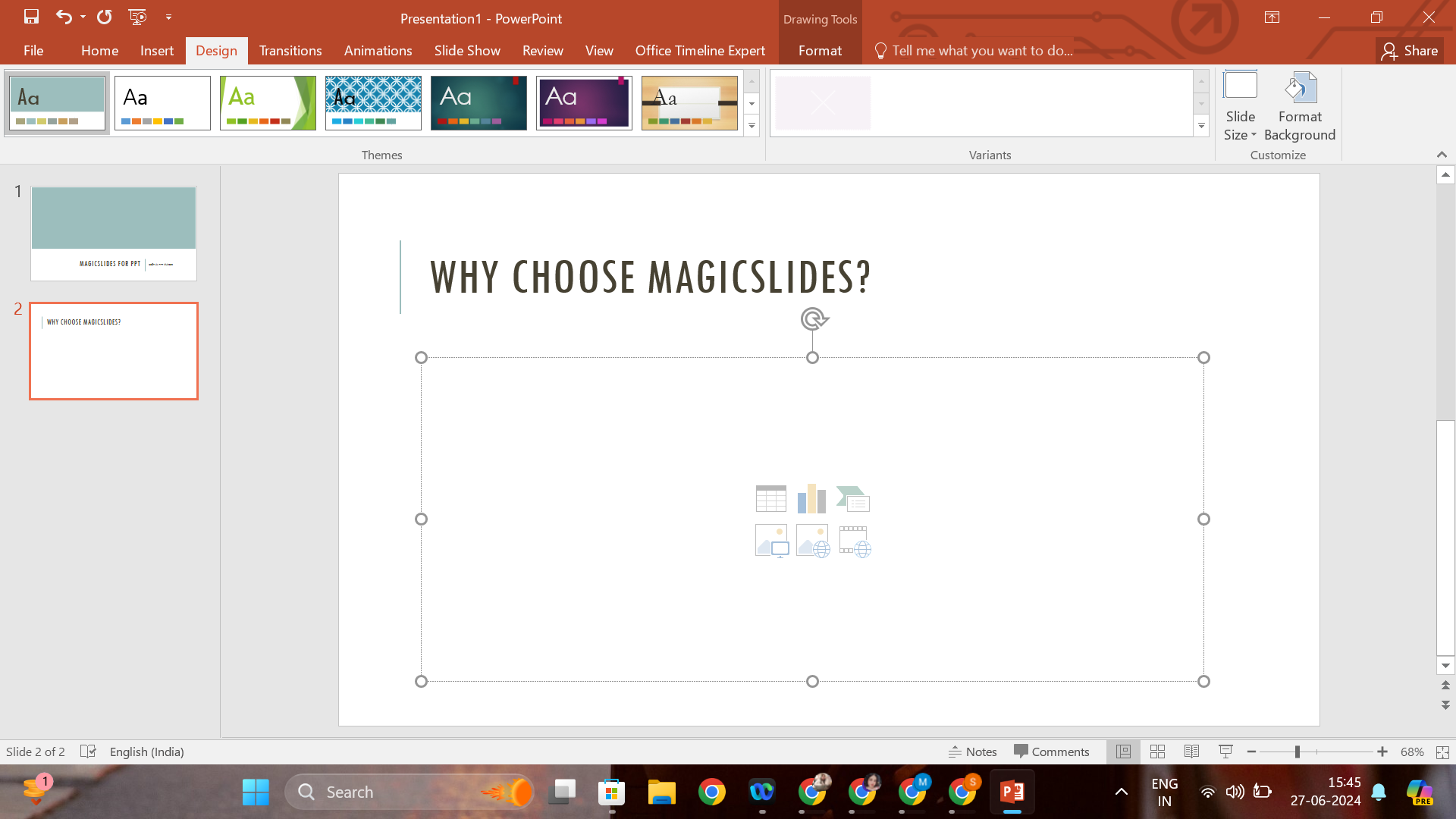
- Select Slide Size: Within the Design tab, locate and select the "Slide Size" button. A drop-down menu will appear, offering different size and orientation options.
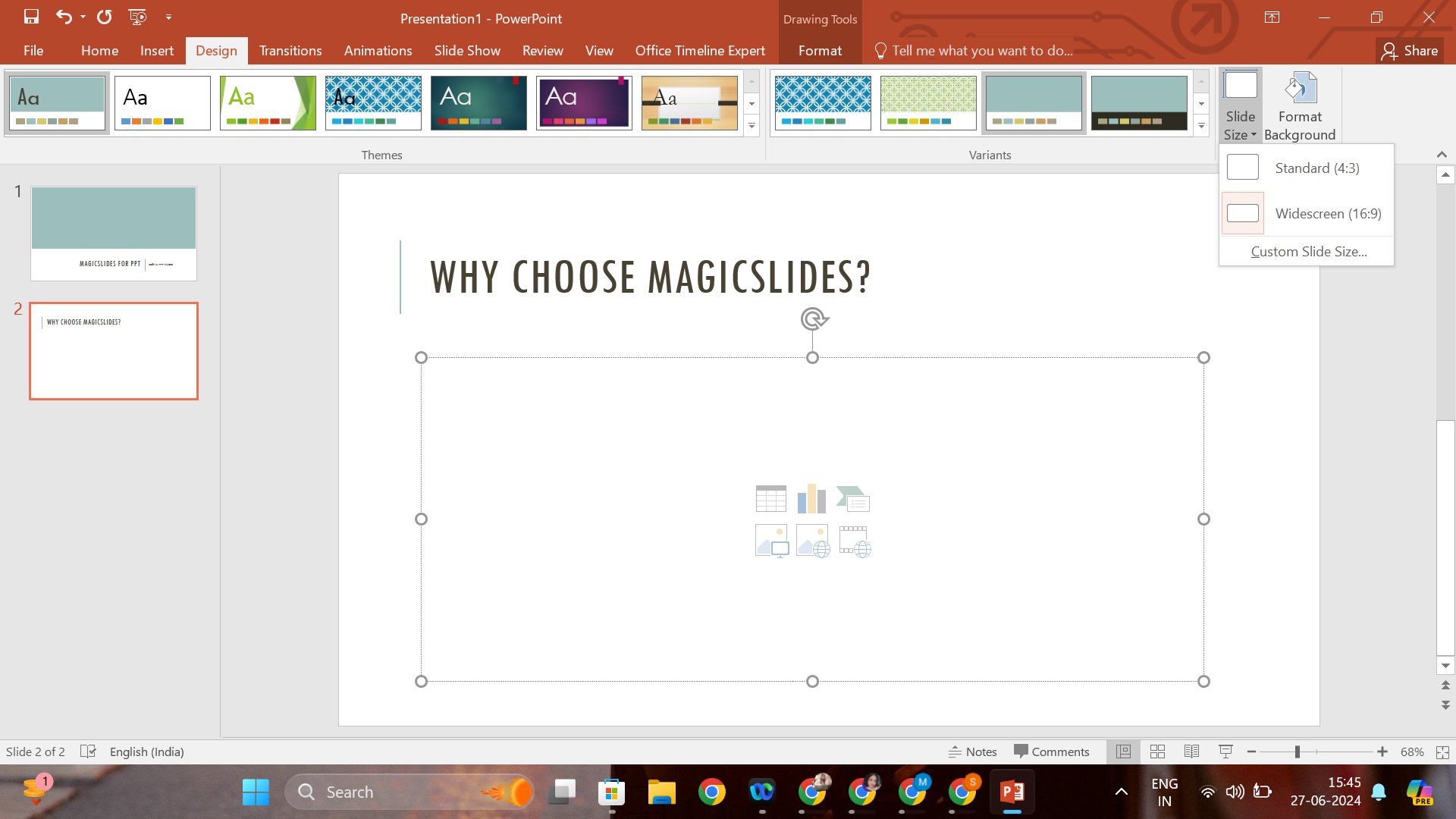
- Choose Orientation: From the drop-down menu, select "Custom Slide Size" to open the Slide Size options dialog box. Here, you can choose between 'Landscape' and 'Portrait' under the 'Slides' tab.
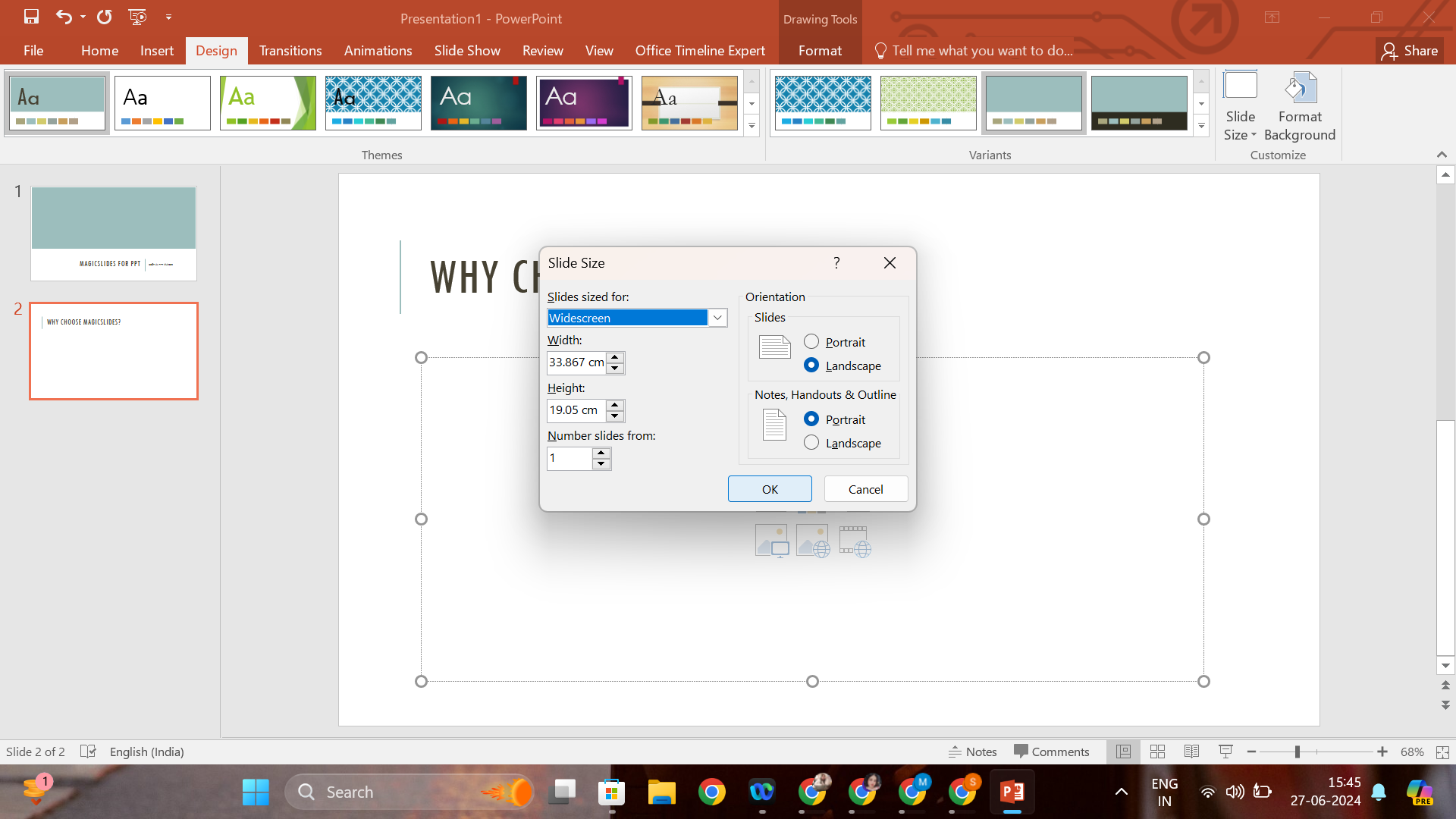
- Apply to All or Selected Slides: Once you've selected your desired orientation, you have the option to apply it to all slides in the presentation or only to selected slides. This flexibility is beneficial if you only need to change the orientation for specific parts of your presentation.
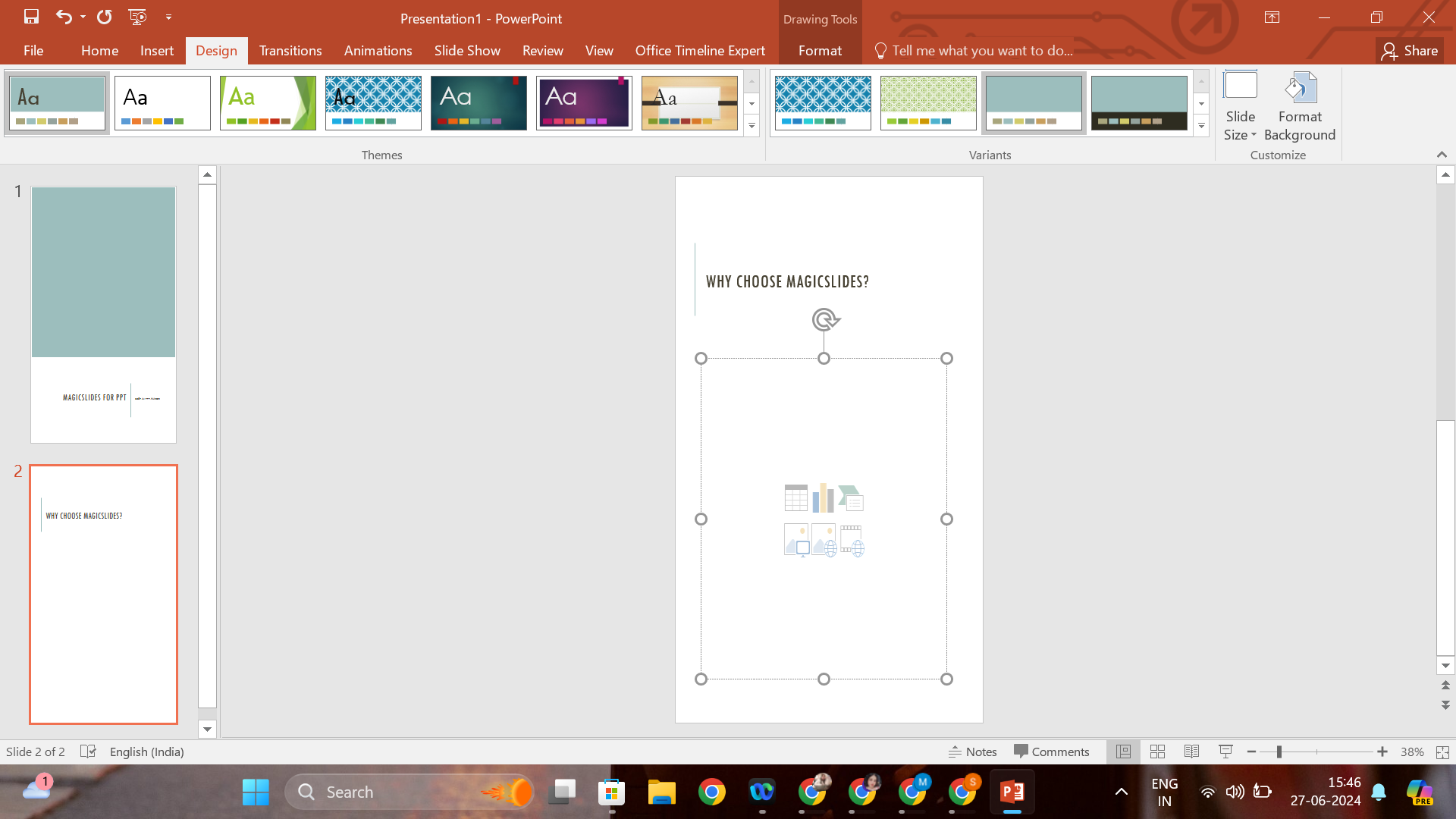
- Confirm and Adjust Content: After changing the orientation, review your slides to ensure all elements (text, images, charts) fit well in the new layout. You may need to resize or rearrange some content to optimize the slide's appearance.
Tips for Managing Different Orientations in One Presentation
Managing multiple orientations within a single PowerPoint presentation can be challenging but is achievable with careful planning.
Use section breaks to divide your presentation into different parts, each with its own orientation. This method keeps your content organized and visually coherent.
How Tools Like MagicSlides.app Can Simplify Presentation Design
While PowerPoint offers robust features for presentation design, additional tools like MagicSlides.app can significantly streamline the creation process.
MagicSlides.app provides intuitive design tools and customizable templates that make it easy to create professional-looking presentations without extensive design skills.
This can be particularly handy when working with complex layouts or when you need to switch between different orientations seamlessly.
Conclusion
Mastering how to change slide orientation in PowerPoint empowers you to tailor your presentations to your audience and context more effectively.
By following the steps outlined above, you can ensure your content is displayed in the most impactful way possible. And with the support of additional tools like MagicSlides.app, you can enhance your productivity and creativity, allowing you to focus more on delivering your message rather than the technicalities of presentation design.
Whether you are a student, a business professional, or anyone in between, these skills and tools can elevate the quality and effectiveness of your presentations.
Frequently Asked Questions
1. Can I have different orientations for different slides within the same PowerPoint presentation? Yes, you can have different orientations for different slides within the same presentation. You'll need to separate the slides into different sections and change the orientation for each section as required. This can be managed under the "Custom Slide Size" option in the Design tab.
2. Will changing the slide orientation affect the formatting of my existing content? Changing the slide orientation can affect the formatting of your content, such as text alignment, image placement, and layout. After changing the orientation, it's important to review each slide and adjust the content to fit the new layout appropriately.
3. Is there a quick way to apply a new orientation to only a few slides instead of the entire presentation? Yes, when you change the slide orientation through the "Custom Slide Size" dialog, PowerPoint gives you the option to apply the changes either to all slides or just the selected slides. To apply to specific slides, select those slides in the slide sorter view before making the change.
4. How do I save a presentation with mixed orientations? Once you have adjusted your slides to the desired orientations, simply save your presentation as usual. PowerPoint supports saving the presentation with mixed orientations without any additional steps.
5. Can tools like MagicSlides.app help with orientation changes? While MagicSlides.app primarily enhances presentation design through intuitive tools and templates, it complements PowerPoint's functionalities. For orientation changes, you would still use PowerPoint's features directly, but MagicSlides.app can assist in redesigning and adjusting templates to suit new orientations quickly and effectively.


