How to Rotate a Picture in PowerPoint Step By Step Guide


Learn how to rotate a picture in PowerPoint, flip images horizontally or vertically, rotate multiple pictures, and set a custom rotation angle.
Rotating a picture in PowerPoint is a simple way to adjust its orientation, improve slide alignment, or create a more dynamic visual layout. You can quickly rotate an image by 90 degrees, flip it horizontally or vertically, or set a custom rotation angle. In this guide, you’ll learn how to rotate a picture in PowerPoint step by step using PowerPoint’s built-in tools.
How to Rotate a Picture in PowerPoint?
PowerPoint makes it easy to change the orientation of any picture directly from the ribbon. Whether you want to turn an image sideways, flip it like a mirror, or rotate it to a specific angle, you can do it in just a few clicks. Follow these steps to rotate your picture without using any additional tools.
Step 1. Select the Picture: Open your PowerPoint presentation and navigate to the slide containing the picture you want to rotate. Click on the picture to select it. You’ll know it’s selected when you see resizing handles around the edges of the picture.
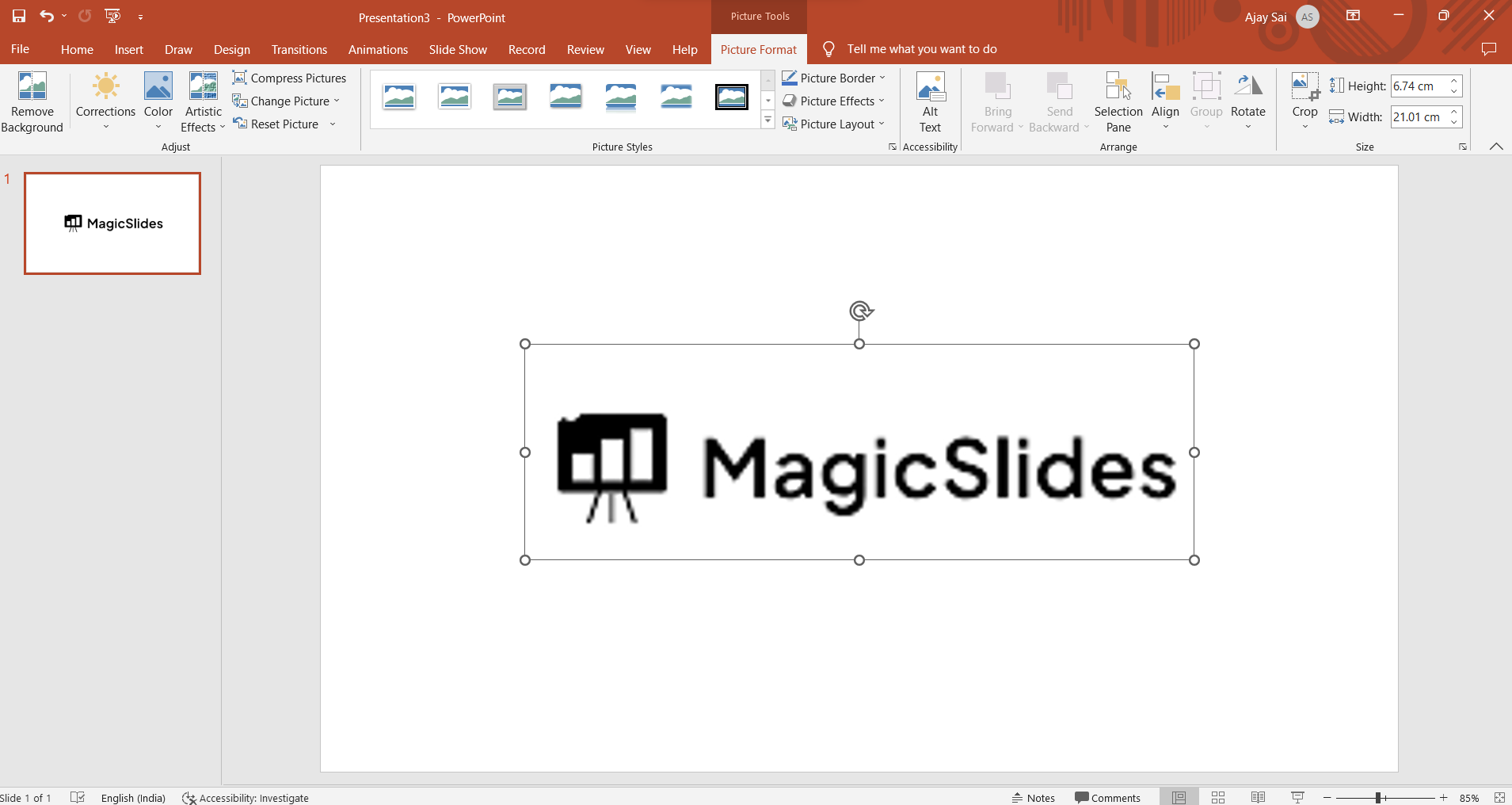
Step 2. Access the “Format” Tab: At the top of the PowerPoint window, you’ll see a set of tabs in the menu bar. Look for the “Format” tab. This tab contains various formatting and editing options for the selected object, including pictures.
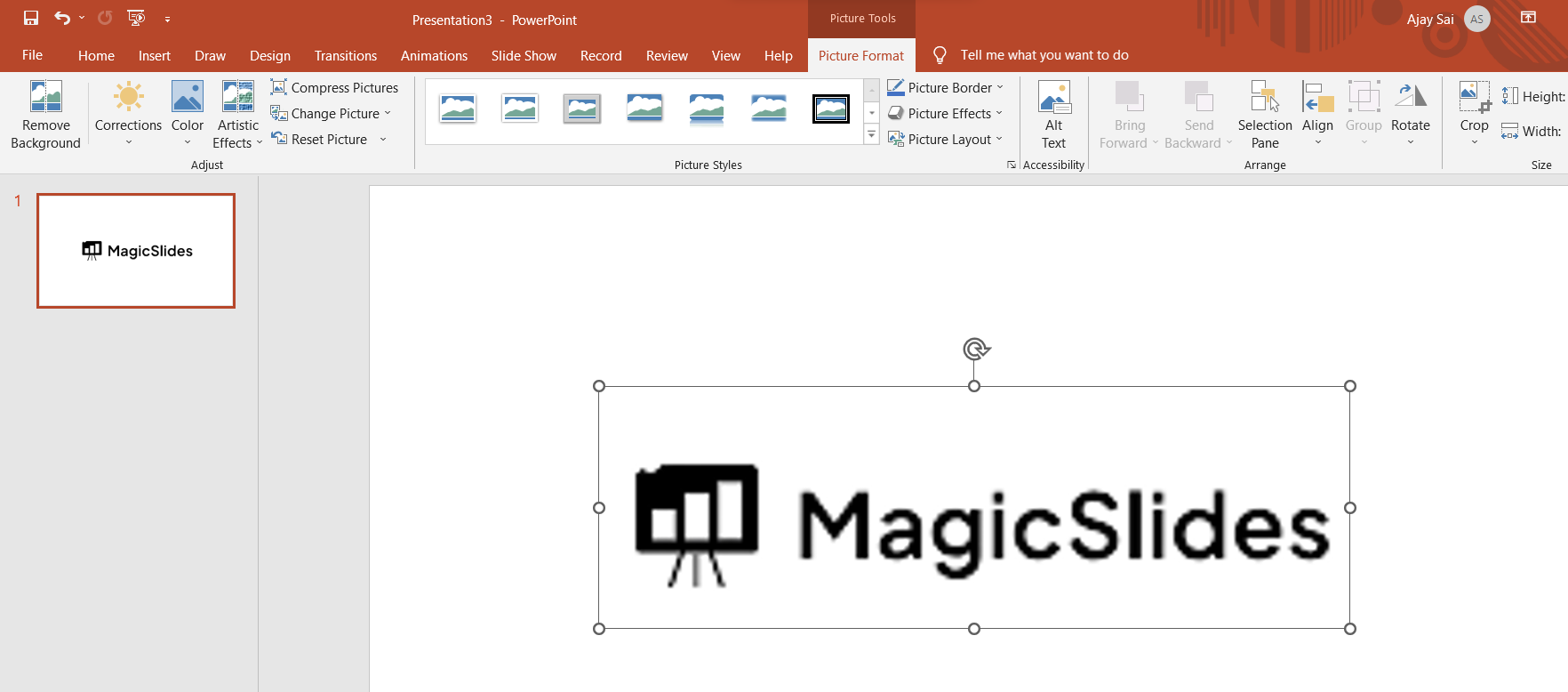
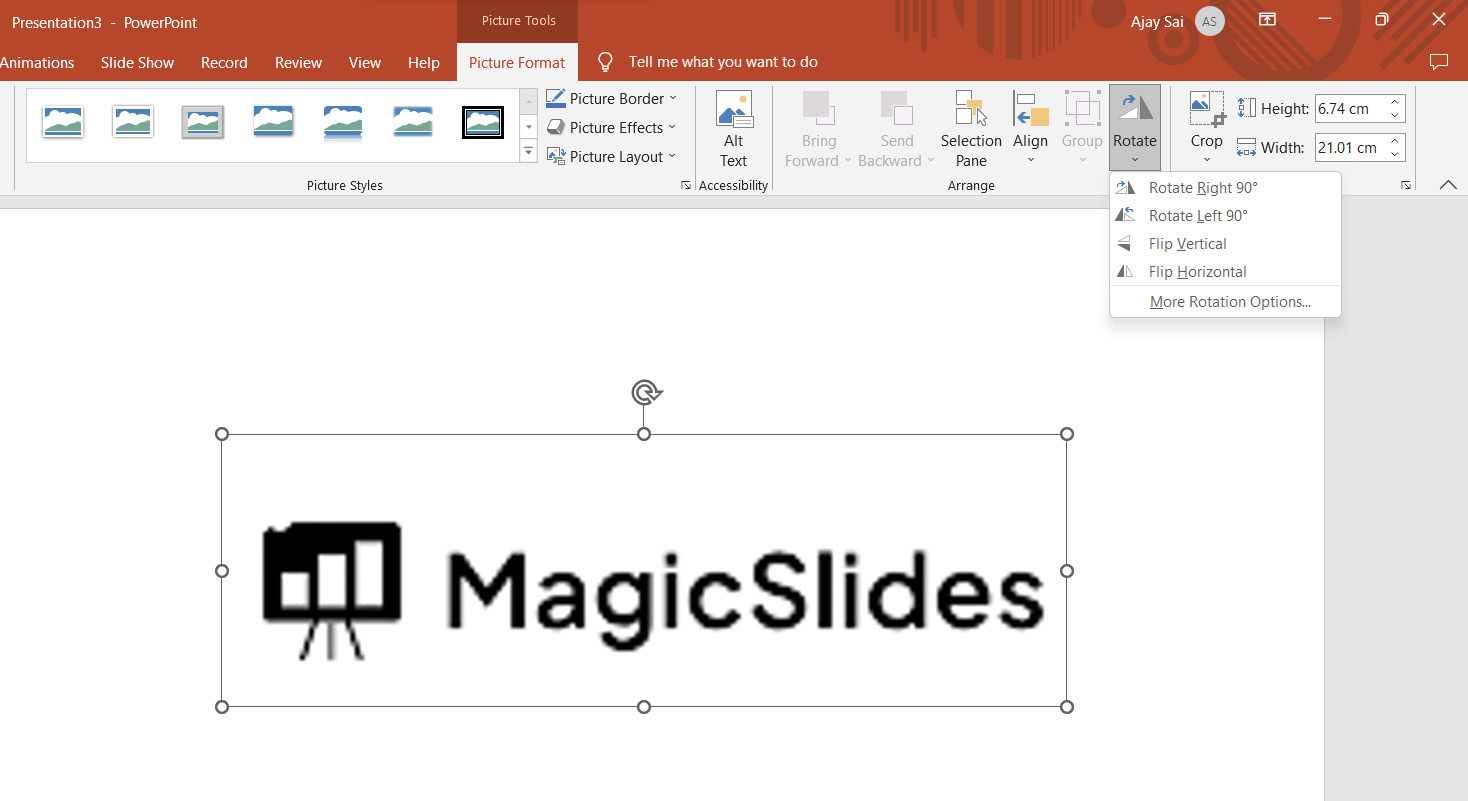
Step 3. Click on the “Rotate” Dropdown: Within the “Format” tab, you’ll find a group of options related to picture formatting. One of these options is the “Rotate” dropdown button. Click on this dropdown button to reveal a list of rotation-related options.
Step 4. Choose a Rotation Option: In the “Rotate” dropdown menu, you’ll see several options for rotating or flipping the selected picture:
- “Rotate Right 90°”: This option rotates the picture 90 degrees clockwise.
- “Rotate Left 90°”: This option rotates the picture 90 degrees counterclockwise.
- “Flip Horizontal”: This option creates a mirror image of the picture along a horizontal axis.
- “Flip Vertical”: This option creates a mirror image of the picture along a vertical axis.
Click on the specific rotation or flip option that you want to apply to your picture.
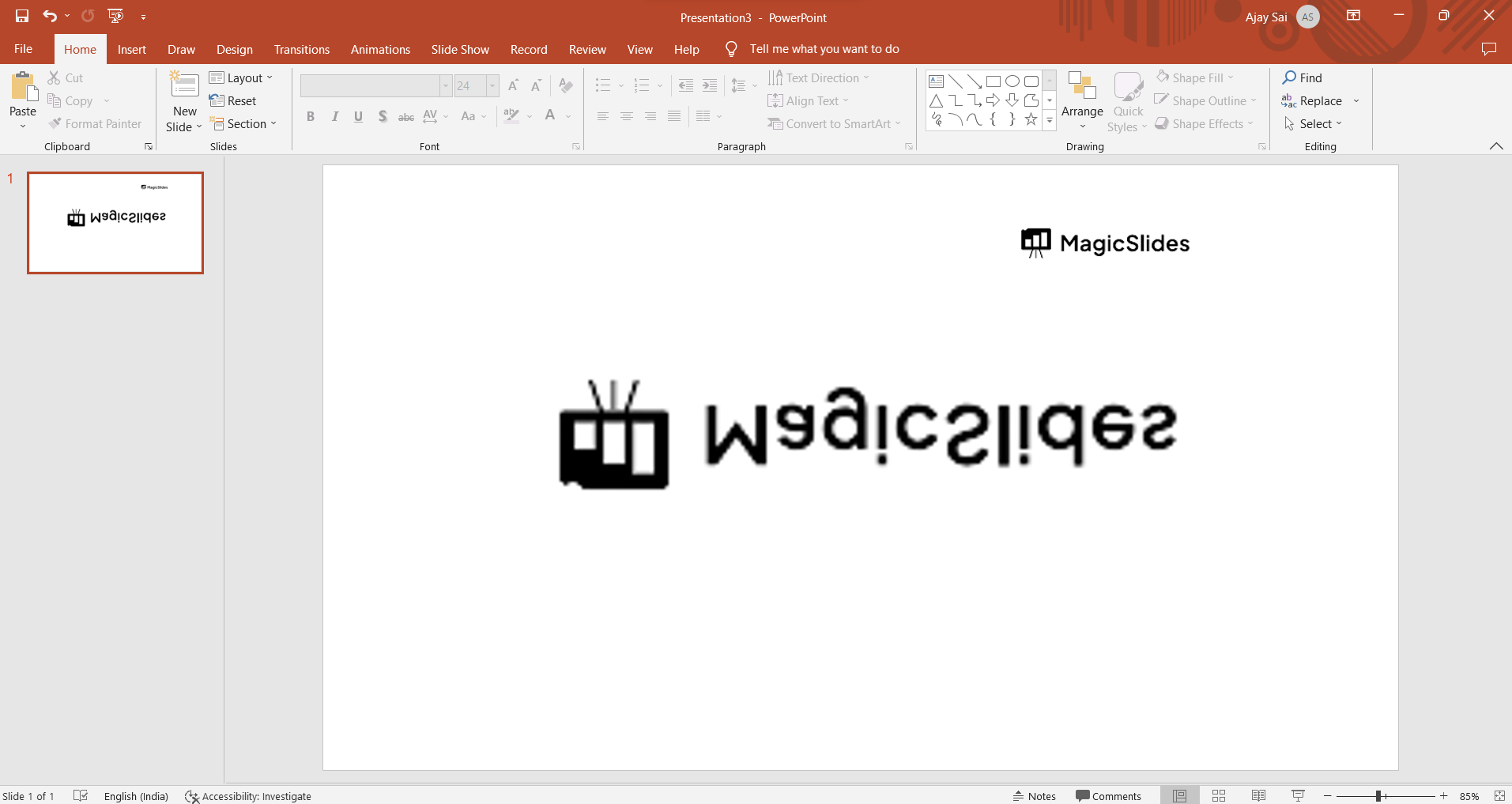
Step 5. Observe the Rotated Picture: After you select a rotation option, the picture will be instantly transformed according to your selection. You can observe the changes to ensure that the rotation or flip has been applied as you intended.
Remember that these steps should work for most versions of PowerPoint, but there might be slight differences in the interface or terminology depending on the version you are using. Experiment with these options to achieve the desired orientation for your picture within your presentation.
How to Rotate a Picture to a Specific Angle
If you want to rotate a picture by an exact angle, such as 45°, PowerPoint also lets you enter a custom rotation value.
- Select the picture.
- Go to Picture Format → Rotate → More Rotation Options.
- Enter the desired angle in the Rotation field.
- Click OK to apply the change.
This option is useful when you need to precisely align an image or create a specific visual effect.
How to Flip a Picture in PowerPoint
PowerPoint also lets you flip a picture in PowerPoint horizontally or vertically. This is useful when you want to create a mirror effect or change the image’s orientation.
- Select the picture you want to flip.
- Go to the Picture Format tab.
- Click Rotate in the Arrange section.
- Choose Flip Horizontal or Flip Vertical.
- Check the picture and adjust its position if needed.
Tips for Rotating Pictures in PowerPoint
Keep these tips in mind when rotating images:
- Use 90-degree rotation options for quick and precise adjustments.
- Use the rotation handle when you need a custom angle.
- Hold Shift while dragging the rotation handle to rotate the picture in fixed increments.
- Use Flip Horizontal or Flip Vertical to create a mirror effect.
- After rotating, check the picture’s alignment and position on the slide.
Rotate Pictures in PowerPoint With MagicSlides
If you’re creating presentations with multiple images, MagicSlides can help streamline the overall slide creation process. Its AI-powered PPT tools can help you create and customize presentations more efficiently, so you can spend less time building slides manually.

For precise image adjustments, you can still use PowerPoint’s built-in Rotate and Picture Format tools after creating your presentation. This gives you control over the orientation, alignment, and placement of your pictures.
Conclusion
Rotating a picture in PowerPoint takes just a few clicks. You can use the Rotate option to turn an image 90 degrees, flip it horizontally or vertically, or use the rotation handle for a custom angle. With these built-in tools, you can quickly adjust pictures to create a clean and well-aligned presentation.
Frequently Asked Questions
Q1. How do I rotate a picture in PowerPoint?
Select the picture, go to Picture Format → Rotate, and choose the rotation option you need.
Q2. How do I rotate a picture 90 degrees in PowerPoint?
Select the picture and choose Rotate Right 90° or Rotate Left 90° from the Rotate menu.
Q3. Can I rotate a picture to a specific angle?
Yes. Go to Picture Format → Rotate → More Rotation Options, then enter your desired angle.
Q4. How do I flip a picture in PowerPoint?
Select the picture, click Rotate, and choose Flip Horizontal or Flip Vertical.
Q5. Can I rotate multiple pictures at once?
Yes. Select multiple pictures by holding Ctrl on Windows or Command on Mac, then use the Rotate option to rotate them together.


