What is the use of Action button in PowerPoint


Action buttons in PowerPoint add interactivity, allowing you to navigate slides or trigger specific actions. FAQs
Action buttons in PowerPoint are interactive elements that can greatly enhance your presentations by adding dynamic functionality.
Whether you want to link to another slide, launch a program, or play a video, action buttons can provide an intuitive way for your audience to navigate your presentation or trigger specific actions.
In this blog post, we’ll explore the purpose of action buttons in PowerPoint and guide you through the steps to effectively use them in your slides.
What is the use of Action button in PowerPoint
Step 1: Open PowerPoint
Start by opening Microsoft PowerPoint on your computer.
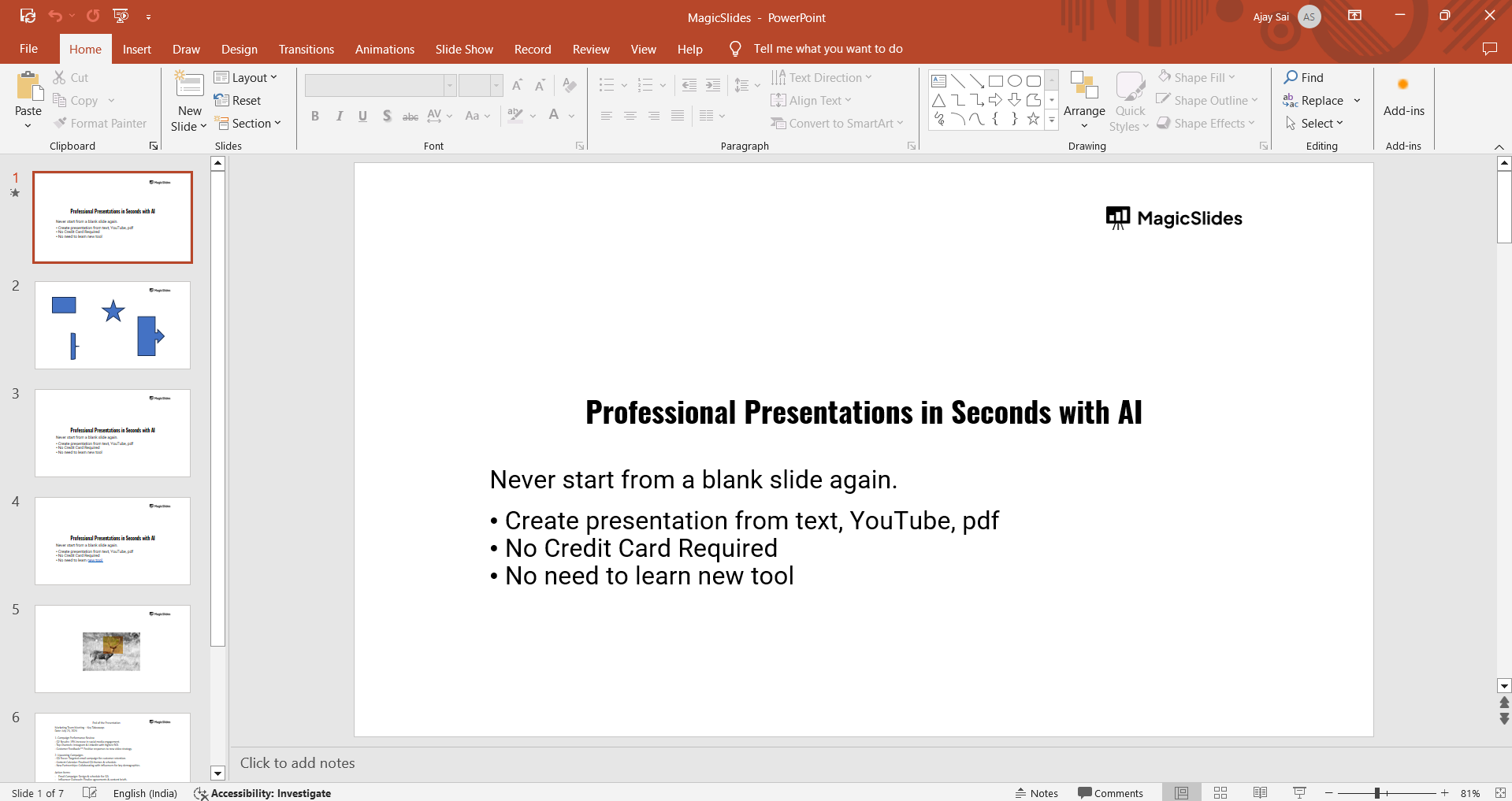
You can do this by searching for PowerPoint in your Start menu or clicking on the PowerPoint icon if it’s available on your desktop or taskbar.
Step 2: Create or Open a Presentation
Once PowerPoint is open, either create a new presentation or open an existing one where you want to add action buttons.
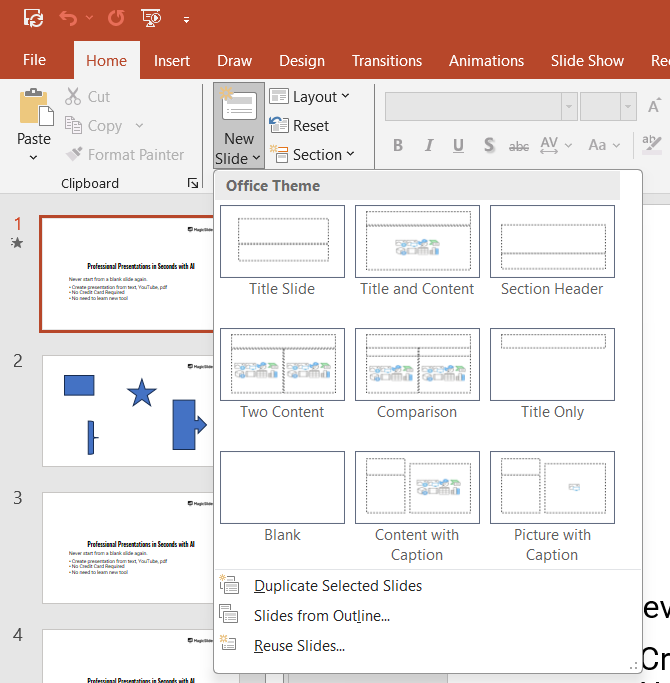
To create a new presentation, click on "Blank Presentation" or choose a template.
To open an existing presentation, click on "File" in the top-left corner, select "Open," and browse to the presentation you wish to edit.
Step 3: Select the Slide for Action Button Placement
Navigate to the slide where you want to insert an action button.
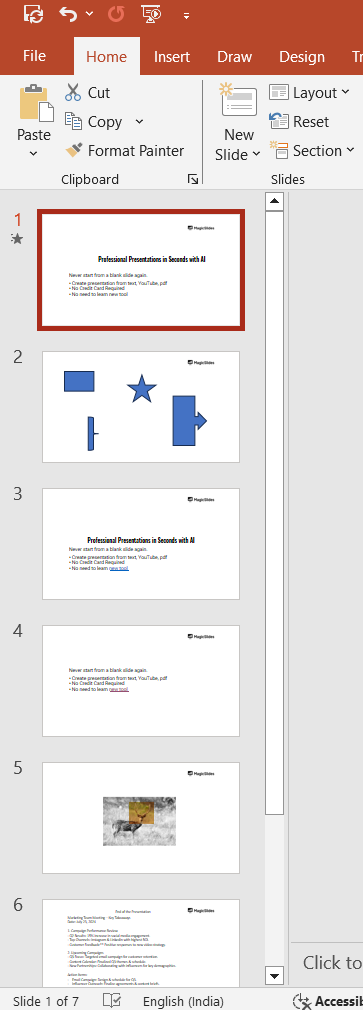
Action buttons are typically used on slides where you want to add interactivity, such as a table of contents, a quiz, or a slide that links to additional resources.
Step 4: Insert an Action Button
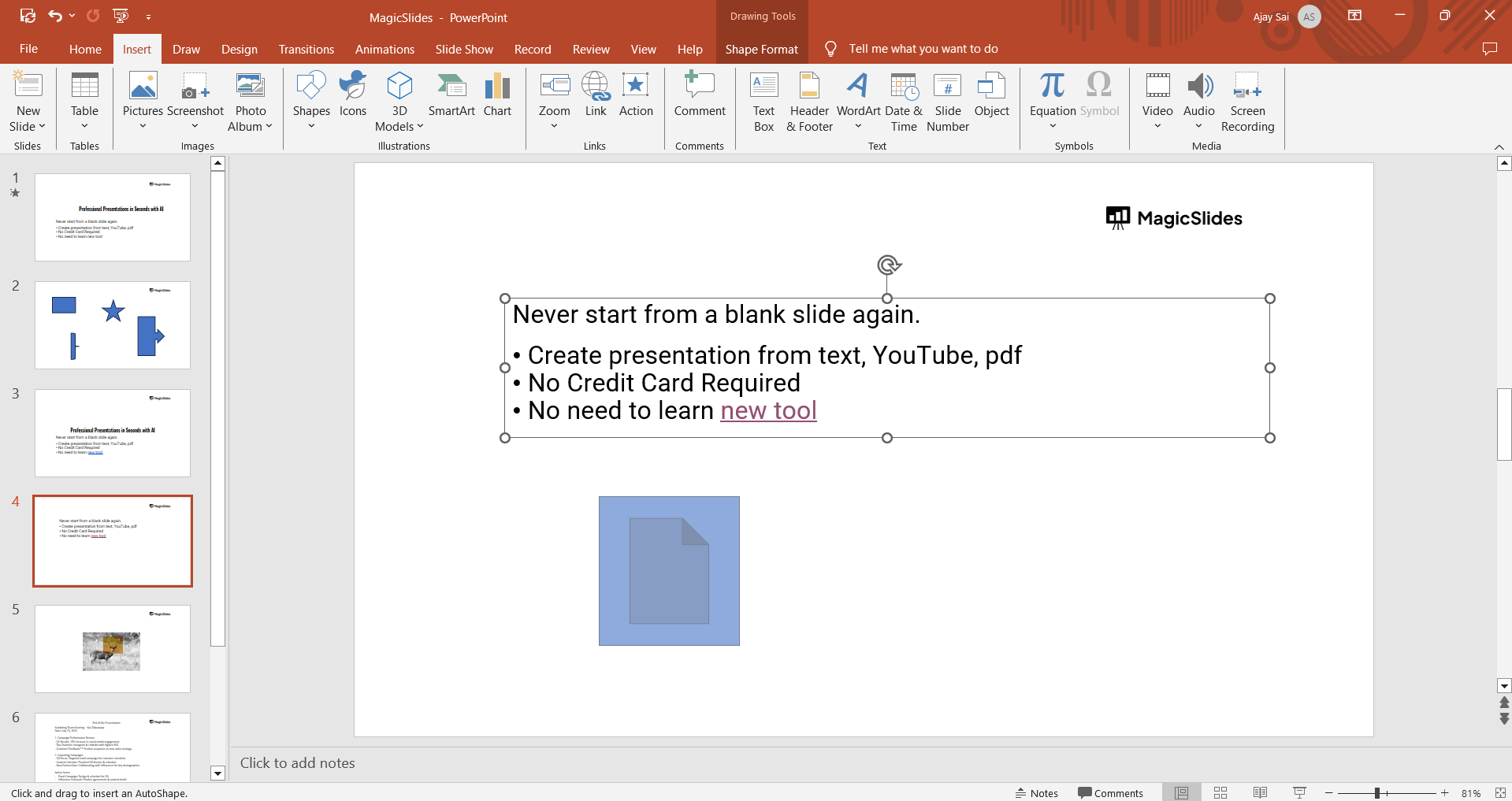
To insert an action button, go to the "Insert" tab on the PowerPoint ribbon.
In the "Shapes" group, click on "Shapes," then scroll down to the "Action Buttons" section. Choose the shape that best suits your needs, such as "Home," "Back," "Forward," or a custom shape.
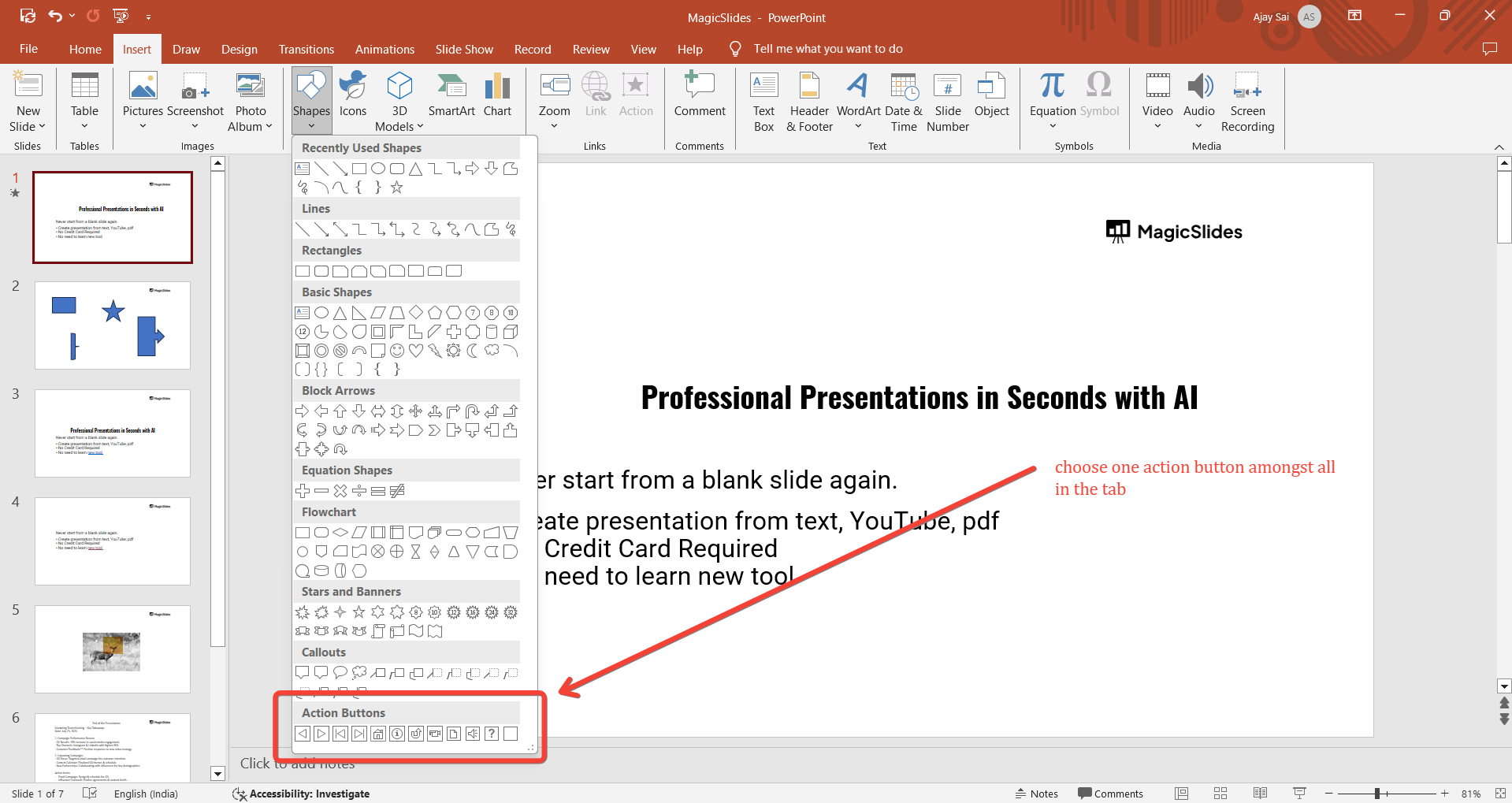
Click on the slide where you want to place the action button and drag to draw the button.
The "Action Settings" dialog box will automatically appear once you release the mouse button.
Creating diagrams in PowerPoint enhances visual communication, simplifying complex ideas for impactful presentations.
Step 5: Configure the Action Settings
In the "Action Settings" dialog box, you can choose what happens when the action button is clicked or when the mouse hovers over it.
You have two main options:
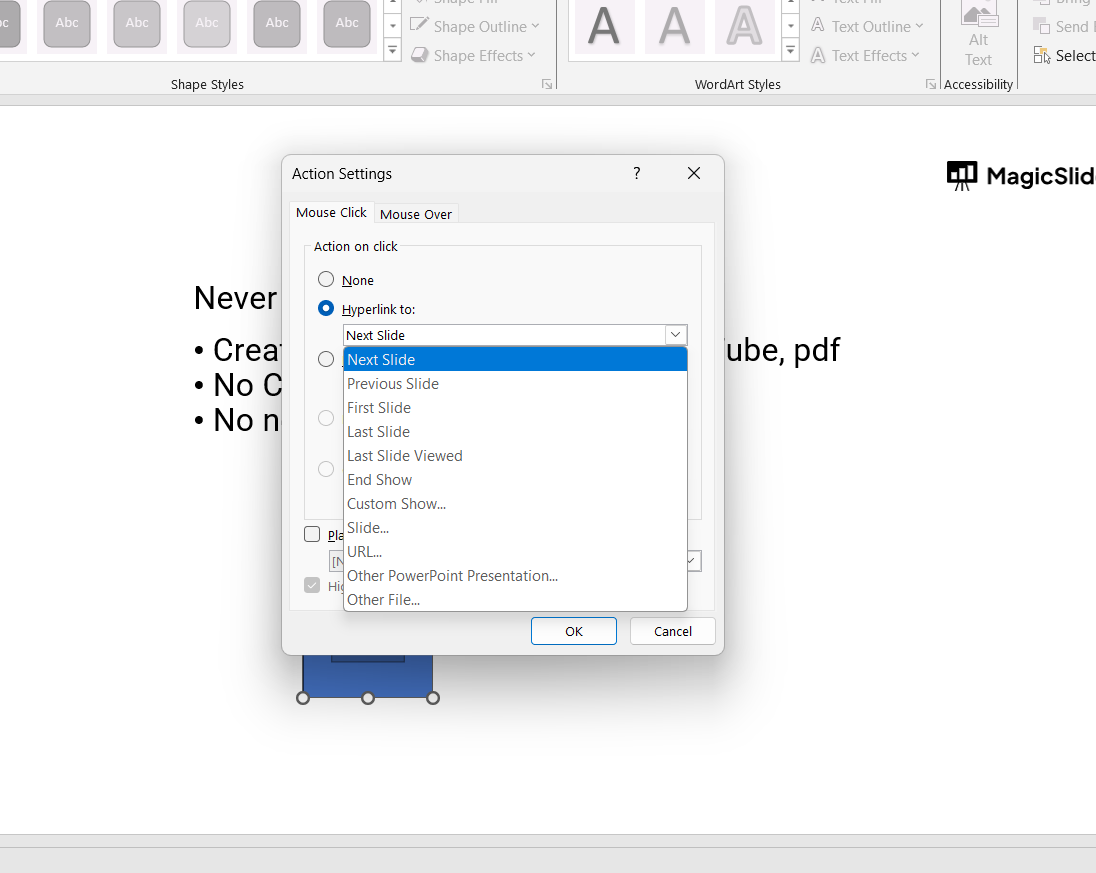
- Hyperlink to: Use this option to link to another slide, a URL, another presentation, or an external file.
- Run Program: Select this to launch a specific program when the button is clicked.
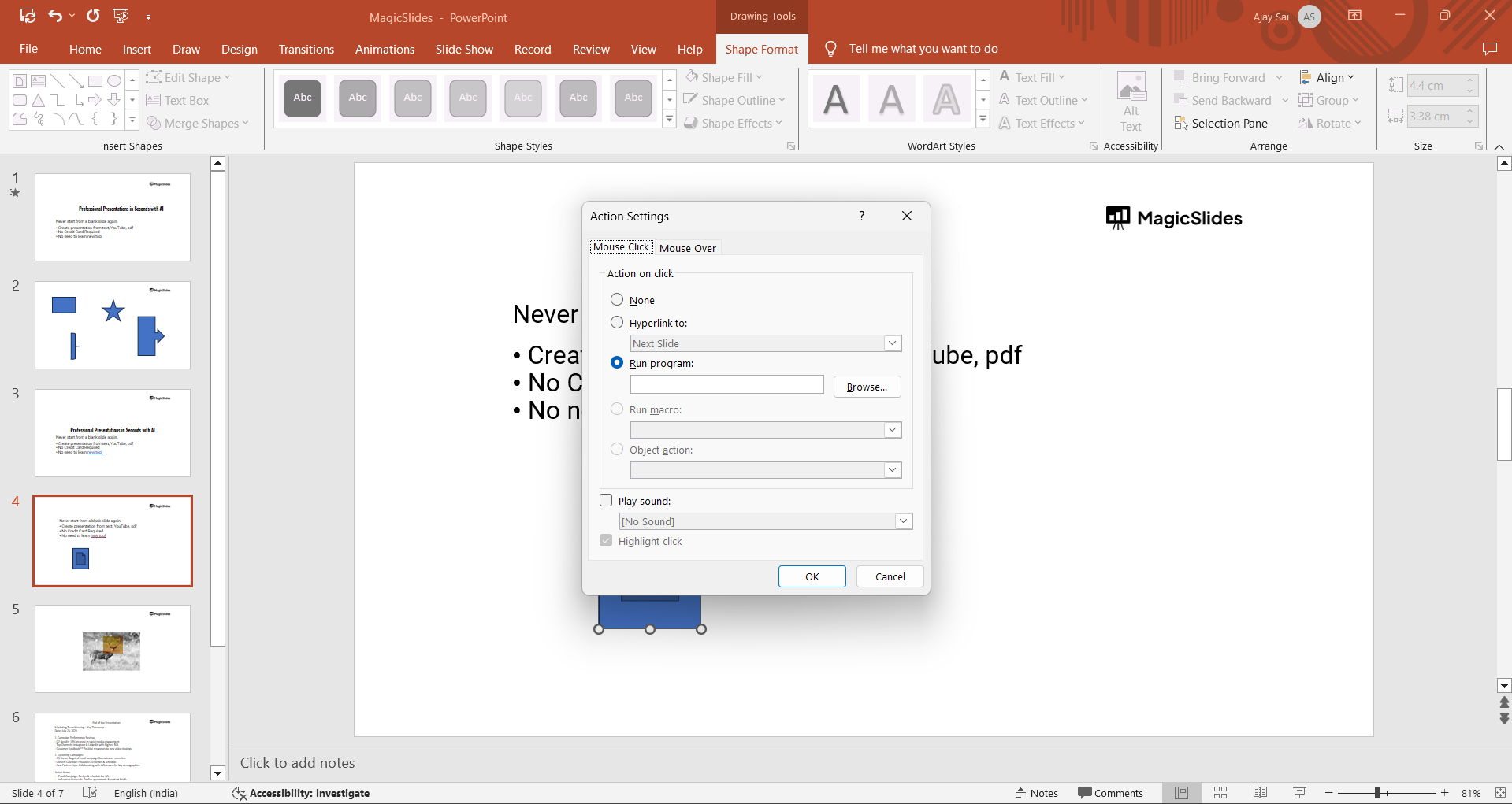
You can also use the action button to perform tasks like running a macro, playing a sound, or even ending the presentation.
After selecting your desired action, click "OK" to apply the settings.
Step 6: Test the Action Button
To ensure that the action button works as intended, run your presentation in "Slide Show" mode.
Click on the action button to verify that it performs the assigned action, such as navigating to another slide or opening a webpage.
If the button doesn’t work as expected, return to the "Action Settings" and adjust your configurations.
Conclusion
Action buttons in PowerPoint are powerful tools that allow you to add interactivity and control to your presentations.
By following these steps, you can easily insert and configure action buttons to perform a variety of tasks, from navigating slides to launching external applications.
These buttons can significantly enhance the user experience, making your presentation more engaging and dynamic.
Tired of making presentations? what if we tell you you can make a presentation with just a prompt, convert YouTube videos to PPTs, convert website content to PPTs? Yes! checkout magicslides.app that does all and enjoy the free credits to make presentations in seconds.
FAQs can take you forward!
Can action buttons link to external websites?
Yes, action buttons can be configured to hyperlink to external websites or any online resources.
How do I remove an action from a button?
Right-click the button, select "Action Settings," and choose "None" to remove the action.
Can I customize the appearance of action buttons?
Yes, you can customize the shape, color, and effects of action buttons through the "Format Shape" options.


