Which AI presentation tool wins?

Slidesgo Alternative: Is MagicSlides Better Than Slidesgo?

MagicSlides creates complete presentations from a topic, URL, PDF, or YouTube video. Slidesgo offers more templates and requires more manual editing. I tested both tools to see which one saves more time and provides better results. In this comparison guide, I'll show how MagicSlides and Slidesgo differ so you can choose the right tool for your needs.

No credit card required · Free forever plan
Quick verdict

After comparing both tools, I found that they work in different ways. Slidesgo gives you more templates, but the presentation generated by this needs to be edited every time. This is the biggest limitation I found. MagicSlides can create a full presentation from a topic, URL, PDF, DOCX file, or YouTube video in just a few clicks. The thing I liked the most was that I didn’t have to modify my presentation, as it created ready-to-present slides in just 54 seconds.

MagicSlides wins at
  • Generating slides automatically with minimal editing
  • Built-in Google Slides integration
Slidesgo wins at
  • Offering a large library of presentation templates
  • Giving users more template styles
The contenders

Understanding MagicSlides and Slidesgo

See What MagicSlides & Slidesgo Offer & Who Should Use Them

What is MagicSlides?

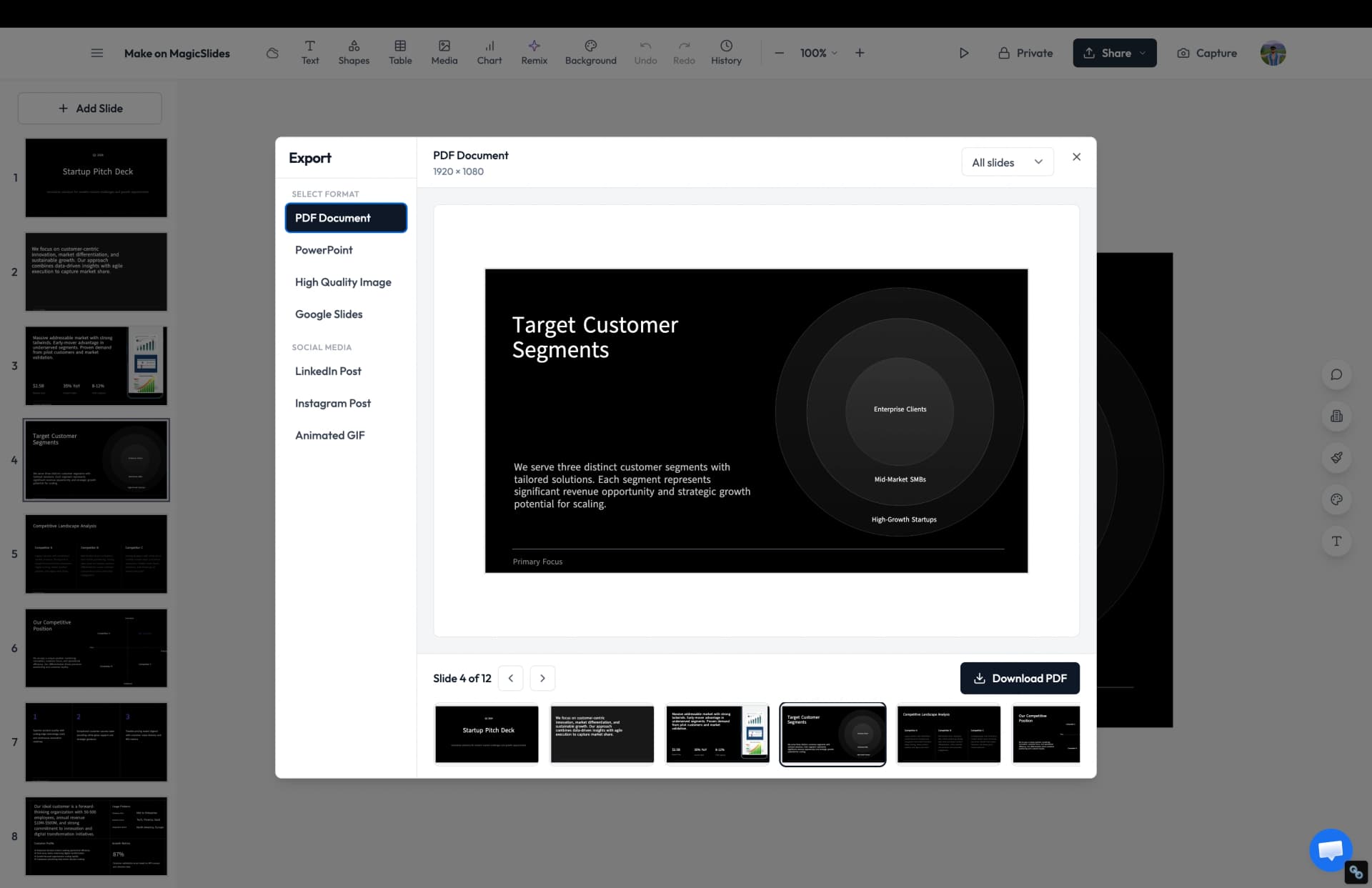
MagicSlides helps you create a complete presentation from a topic, URL, PDF, DOCX file, YouTube video, or simple text. Instead of building slides one by one, you can generate the entire presentation in a few clicks and edit it later if needed. It works with both PowerPoint and Google Slides.

Founded2022
Best forPeople who want to create complete presentations quickly.
Visit MagicSlides

What is Slidesgo?

Slidesgo is a website that provides presentation templates for PowerPoint and Google Slides. You choose a template, download it, and then add your own content to the slides. It is mainly for those who already have their content and need a presentation design.

Founded2018
Best forPeople who need presentation templates and want to create the slides themselves.
Visit Slidesgo
Methodology

How I Compared MagicSlides and Slidesgo?

I Created the Same Presentations in Both Tools and compared the Results Using the Same Testing Criteria

I used both tools myself and created presentations from scratch. I wanted to see which tool was easier for me and which one produced better presentations. Here’s what the testing process is:

Presentations tested
  • 6 presentations created in total
  • 3 with MagicSlides
  • 3 with Slidesgo
  • 37 slides generated across all presentations
  • MagicSlides' average creation time: about 45-60 seconds per presentation
  • Slidesgo's average setup time: about 9-15 minutes to find a template and add content
What we checked
  • Speed
  • Ease for me
  • Slide quality
  • Export options
  • Pricing
  • 12 months of pricing compared

5 areas compared:

I used both tools to create presentations and checked how much time and work each one required. This helps me to find out if MagicSlides is the best alternative to Slidesgo.
6
Presentations created
37
Slides generated
5
Areas compared
12mo
Cost analyzed
Step-by-step

MagicSlides vs Slidesgo: Presentation Creation Process

See the Exact Steps I Followed to Create a Presentation in MagicSlides & Slidesgo

How to create your first presentation with Slidesgo

I created a presentation in Slidesgo and outlined every step of the process below:

Open the Slidesgo

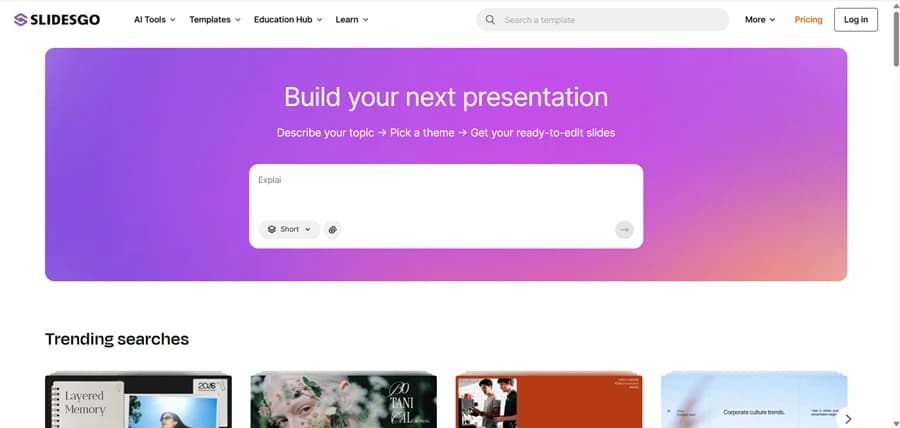
Visit the Slidesgo website, and click on login or sign up. On the homepage, you'll find a prompt box where you can enter your presentation topic and start creating slides.

Open the Slidesgo

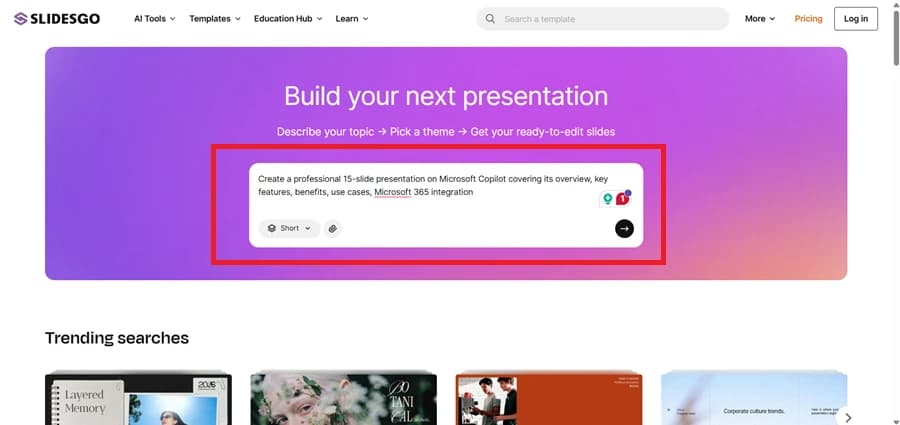
Enter Your Presentation Topic

Type or paste your presentation topic into the prompt box.

Enter Your Presentation Topic

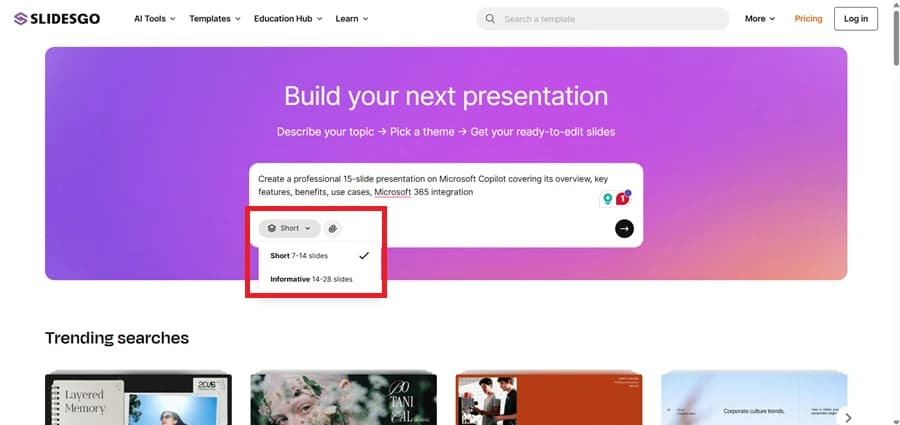
Choose the Presentation Length

Slidesgo provides options such as Short (7-14 slides) and Informative (14-28 slides). Once your topic is ready, click the arrow button to generate the presentation structure.

Choose the Presentation Length

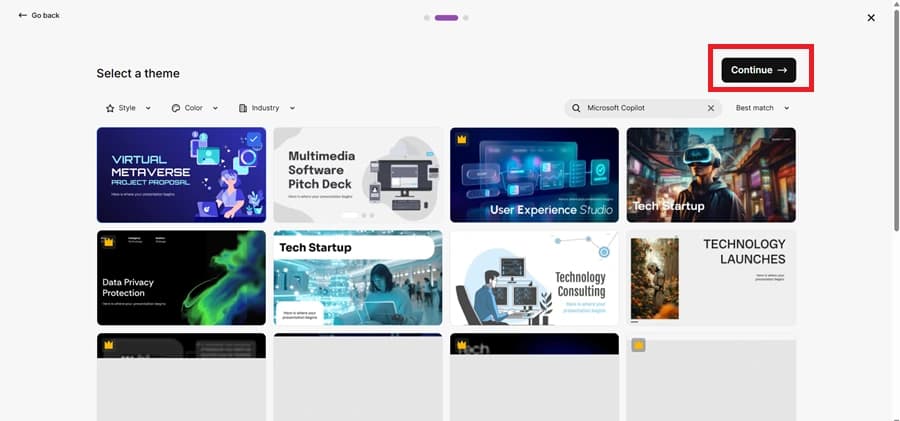
Choose a Template and Continue

Now, select the template that best matches your presentation style, and then click the Continue button to proceed.

Choose a Template and Continue

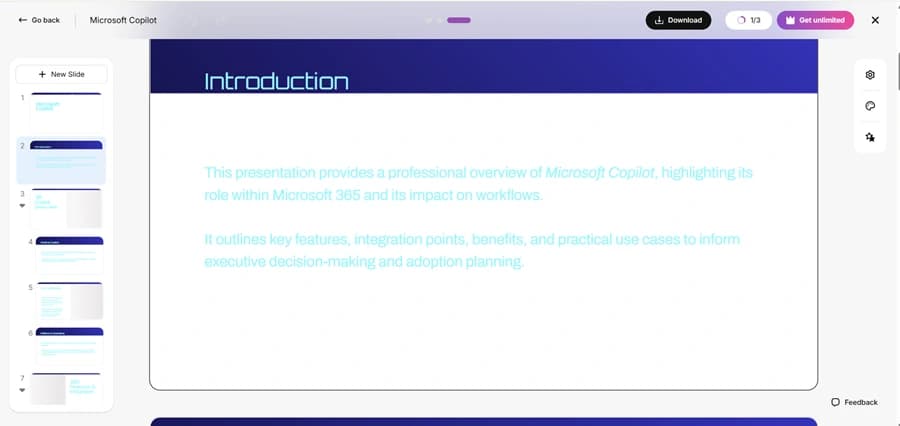
Review and Download the Presentation

Review the slides, make any changes if required.

Review and Download the Presentation

Export the Presentation

Once your presentation is ready, click the Download button and choose your preferred export format, i.e., PowerPoint (.PPTX) file or Google Slides.

Export the Presentation

How to create your first presentation with MagicSlides

See the exact steps I used to create a presentation with MagicSlides:

Visit the MagicSlides Website

Open MagicSlides in your preferred web browser and sign up by entering your email address.

Visit the MagicSlides Website

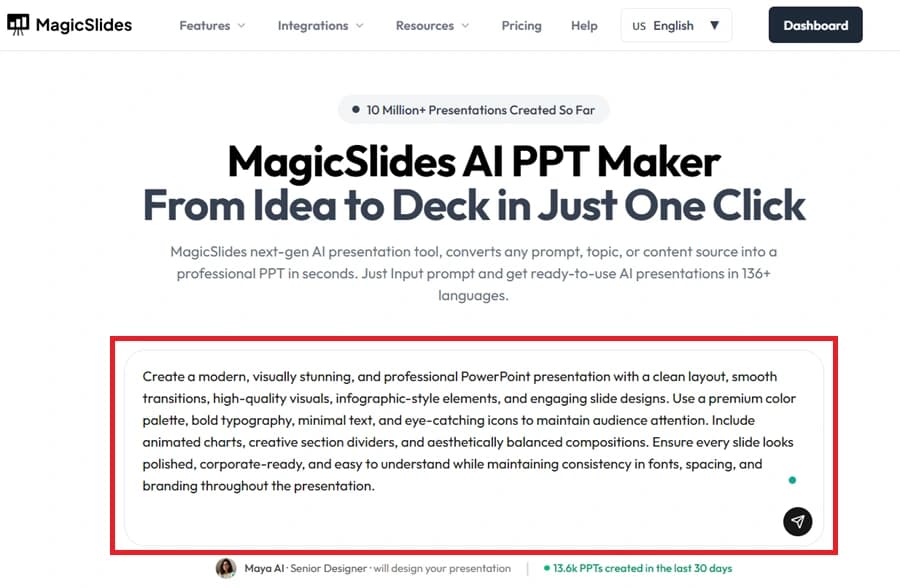
Enter Your Presentation Idea

After logging in, type your topic, prompt, or presentation idea into the available input field.

Enter Your Presentation Idea

Open the Dashboard

Select the Dashboard option from the top-right corner to access all presentation creation tools and settings.

Open the Dashboard

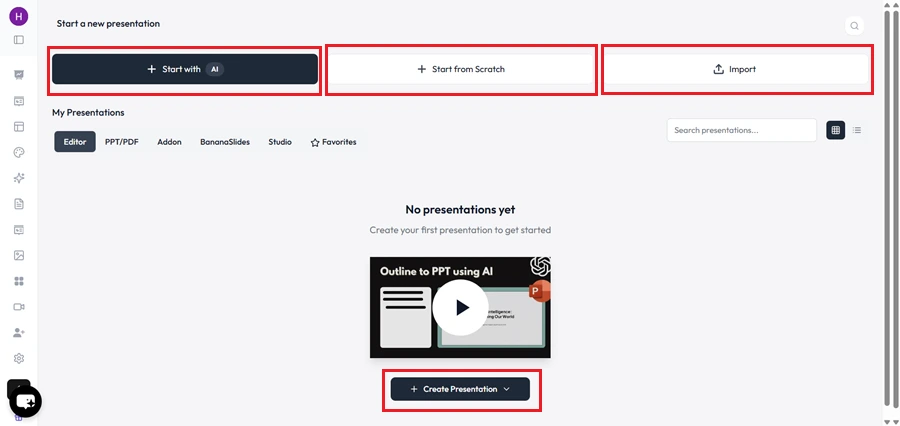
Select a Creation Method

Choose how you want to generate your presentation. MagicSlides provides options such as Start with AI, Start from Scratch, and Import.

Select a Creation Method

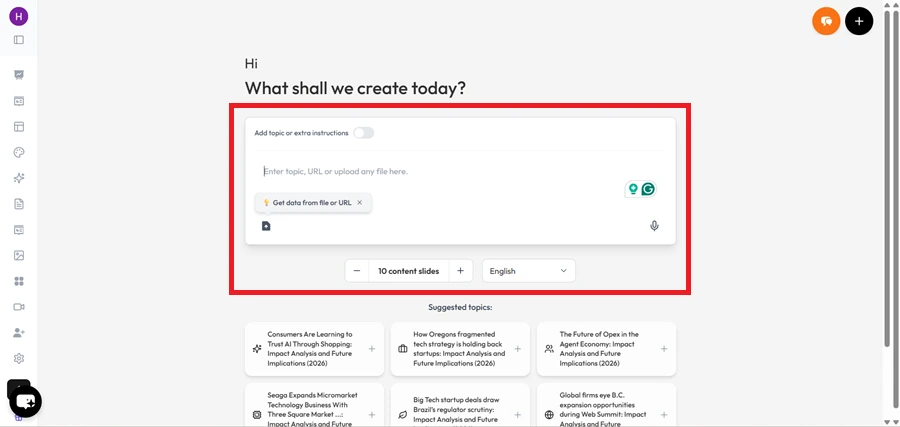
Provide the Source Content

Add the information that you want to turn into a presentation. MagicSlides will give you this content to create the slides.

Provide the Source Content

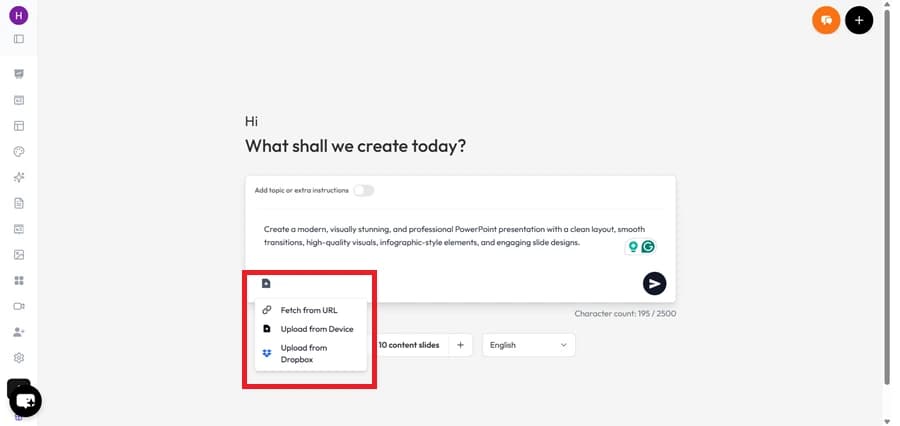
Add Supporting Files (Optional)

You can upload additional resources such as PDF files, DOCX documents, images, or other supporting materials to gain the expected result.

Add Supporting Files (Optional)

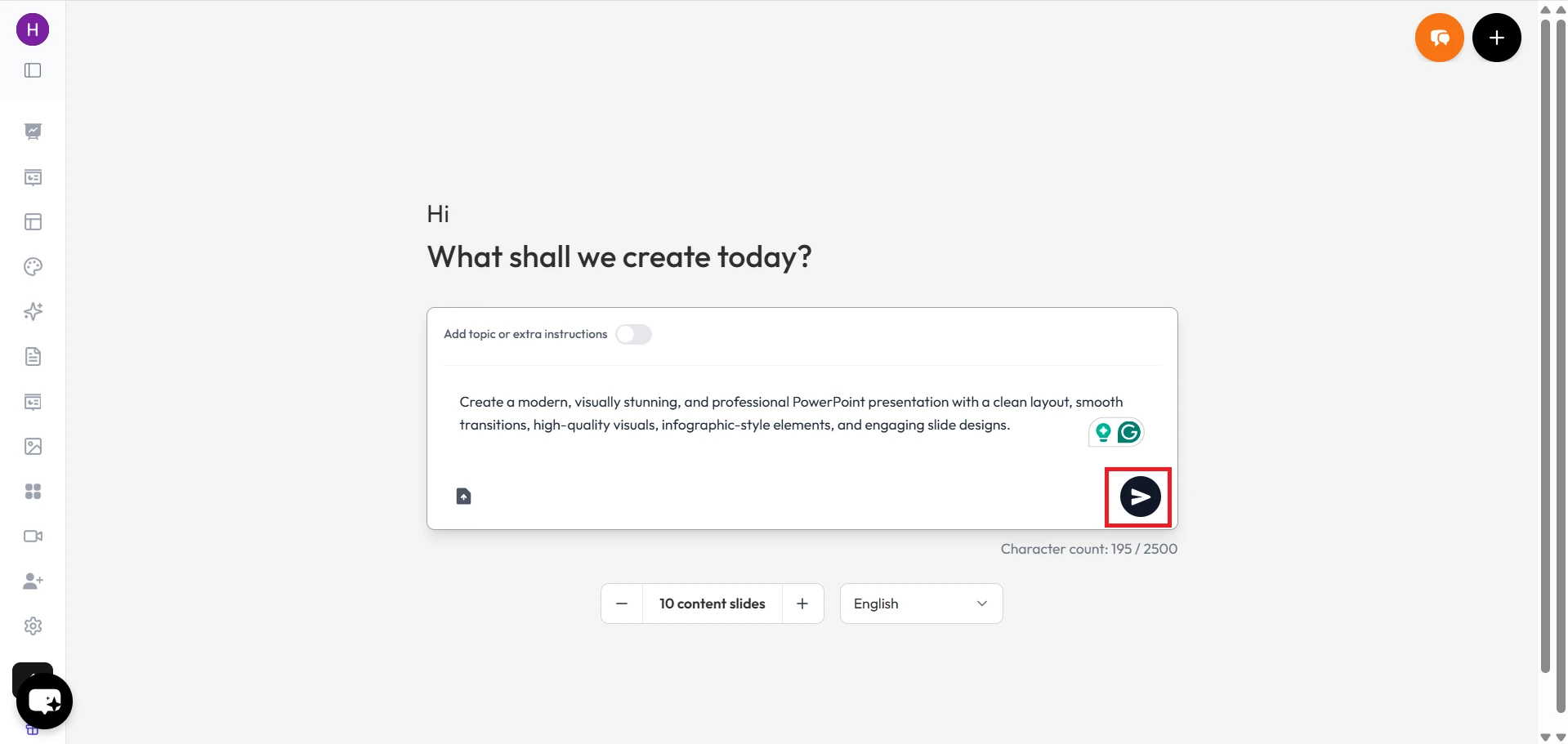
Create the Presentation Structure

Click the arrow icon to continue.

Create the Presentation Structure

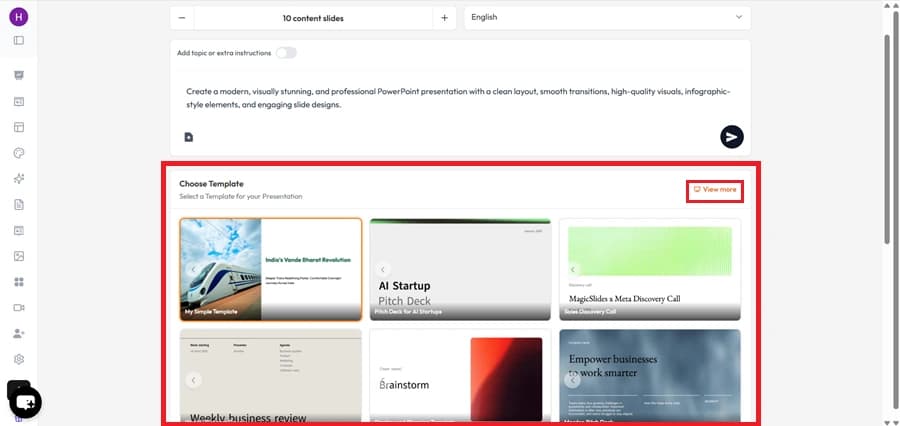
Pick a Presentation Template

Browse the available templates and select a design that matches your requirements.

Pick a Presentation Template

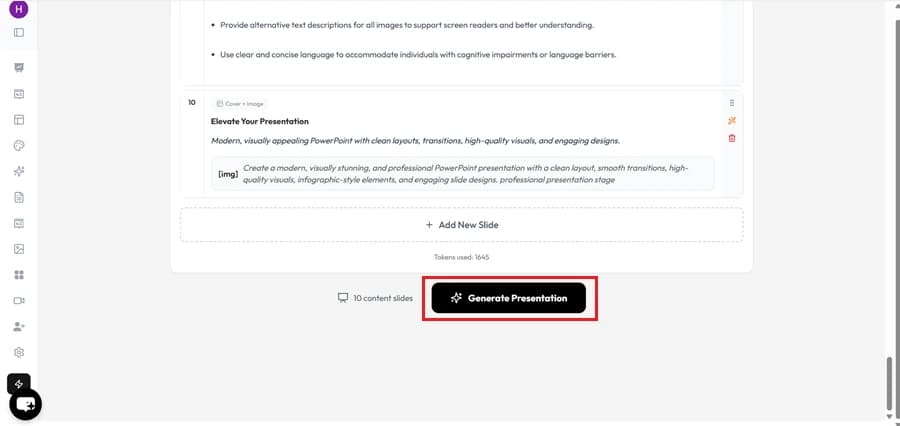
Build the Complete Slide Deck

Click Generate Presentation and allow MagicSlides to create the full presentation automatically.

Build the Complete Slide Deck

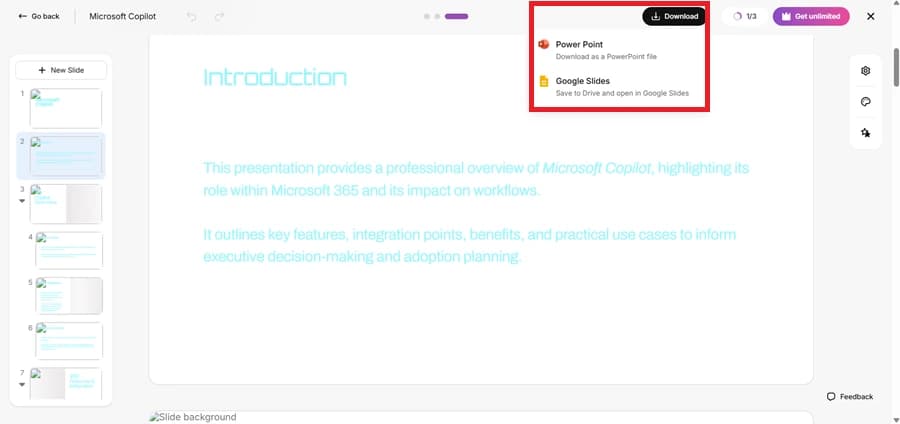
Download or Share Your Presentation

Save the presentation as PowerPoint, PDF, or Google Slides. You can also share the presentation directly with others.

Download or Share Your Presentation
Demo

Slidesgo Alternative in Action

Watch How MagicSlides Turns a PDF, topic, URL, or YouTube Video into a Complete Presentation in Just a Few Steps

MagicSlides in action
Our pick
Feature matrix

MagicSlides vs Slidesgo: Feature Comparison

I Compared the Most Important Features to See which Tool Offers Better Presentation Creation Options & Overall Value

Feature
Slidesgo
MagicSlides
AI presentation generation
Limited AI maker
From any input
Template library
20K+ templates
500+ AI templates
Free downloads
Limited free; many premium
Generate from URL / YouTube / PDF
PowerPoint export
Google Slides export
Google Slides add-on
AI image generation
No watermark on free plan
Attribution required
Languages supported
English-first
100+
Output quality

Slidesgo Alternative: Design Quality Comparison

See How the Final Presentations Look After Creation & How Much Editing is Needed

Slidesgo

Slidesgo gives you thousands of presentation templates to choose from. Simple process:

- You pick a template you like, download it
- Then add your own text, images, and content

It is a good option if you want to create the presentation yourself.

MagicSlides

MagicSlides does most of the work for you. Just enter a topic, URL, PDF, DOCX file, or YouTube video, and it creates a complete presentation automatically. In my testing, the slides looked good and needed very few changes.

Our verdict

Choose Slidesgo if you mainly need presentation templates. Choose MagicSlides if you want to create a complete presentation faster and with less manual work.

Under the hood

Slidesgo Alternative: Which Tool Has Better AI?

I Tested Both Tools to See which One Creates Better Presentation Content Automatically

Slidesgo

Slidesgo includes an AI feature that can create a presentation from a text prompt. During my testing, it generated basic slides, but the content was simple and needed extra editing. It also does not support creating presentations from URLs, PDFs, DOCX files, or YouTube videos.

MagicSlides

MagicSlides can create presentations from a topic, URL, PDF, DOCX file, YouTube video, or text prompt. In our testing, the presentations contained more complete content and needed fewer changes before presenting.

Our verdict

If AI presentation creation is important to you, MagicSlides is the stronger option. It supports more input sources and saves more time during the creation process.

Cost

MagicSlides vs Slidesgo: Pricing Comparison

Compare the Cost of Both Tools to See which One is Worth your Money

Slidesgo
Premium
$4.99/mo
  • Unlimited template downloads
  • No attribution required
  • No AI generation
  • Editor-only workflow
Best value
MagicSlides
Pro
$8/mo
  • Unlimited AI generation
  • No attribution required
  • Brand kit + AI images
  • PPTX + Google Slides
The honest scorecard

MagicSlides vs Slidesgo: Strengths and Weaknesses Compared

See What Each Tool Does Well & Where it has Limitations

MagicSlides Pros

  • Creates the presentation for you automatically.
  • Works with topics, links, PDFs, documents, and videos.
  • Saves a lot of time and effort.
  • Easy to update and edit slides later.

MagicSlides Cons

  • Has fewer templates than Slidesgo.
  • Some features are only available in paid plans.

Slidesgo Pros

  • Has a huge collection of presentation templates.
  • Lets you fully customize your slides.
  • Offers templates for many different topics.
  • Good for users who enjoy creating slides manually.

Slidesgo Cons

  • Does not create the presentation for you.
  • You need to write and add the content yourself.
  • Takes more time to finish a presentation.
  • AI features are limited.
  • Not the best choice if you need slides quickly.
  • Large presentations require more manual work.
The recommendation

Best Slidesgo Alternative: Which Tool Is Right for You?

See which Tool is the Better Choice Based on How you Create Presentations and the Features you Need

Pick MagicSlides if…

  • Want a complete presentation created for you automatically.
  • Want to turn a topic, website link, PDF, document, or video into slides.
  • Want to spend less time creating presentations.
  • Need slides quickly for work, school, or meetings.

Pick Slidesgo if…

  • Mainly need presentation templates.
  • Already have the content and only need a layout.
  • Want to create and edit the presentation manually.
In closing

Author's Verdict

MagicSlides vs Slidesgo — the take after testing both end-to-end.

After using both tools, I found that:

- Slidesgo is a template platform that offers many presentation designs, but you still need to add content and create the slides yourself. - MagicSlides does most of the work for you. Just enter a topic, website link, PDF, document, or YouTube video, and it creates a complete presentation in minutes.

If you want to create presentations faster and with less effort, MagicSlides is the better option.

Try it yourself

Make your first deck with MagicSlides

Type a topic and Maya turns it into an editable presentation in under a minute — free, no credit card.

Maya

Maya AI · Senior Designer · will design your presentation

13.6k PPTs created in the last 30 days

FAQ

Frequently Asked Questions

Quick Answers to the Most Common Questions About MagicSlides & Slidesgo

Is MagicSlides a good Slidesgo alternative?
Yes. MagicSlides is a strong Slidesgo alternative if you want AI to create the presentation for you. Instead of choosing a template and creating slides manually, you can generate a complete presentation from an idea or topic.
Which tool is faster for creating presentations?
MagicSlides is faster because it generates the entire presentation automatically. With Slidesgo, you still need to choose a template and add content manually.
Which tool is better for students?
Both tools can work for students: - Slidesgo is useful for students who want ready-made templates - MagicSlides is better for students who want to create complete presentations with less effort quickly.
Which tool is better for business presentations?
MagicSlides is the better choice for business users because it can generate complete presentations quickly and reduce the amount of manual work required.
Does MagicSlides work with Google Slides?
Yes. MagicSlides offers a Google Slides add-on, which allows you to create and edit presentations directly inside Google Slides.

Ready to create your presentation?

Join thousands of professionals who save hours every week with AI-powered presentations.

1,511 reviews · Trustpilot & Workspace

Ask AI about MagicSlides
ChatGPT logoClaude logoGemini logoPerplexity logo