Which AI presentation tool wins?

MagicSlides vs SlidesAI: Which Is Better for Creating Presentations?

After testing both MagicSlides and SlidesAI, we created this detailed comparison to help you choose the right AI presentation solution in minutes. We compared their pricing, presentation creation speed, and which one has more features & output formats. By the end of this guide, you'll know which tool is better and which one is the right fit for your presentation needs.

No credit card required · Free forever plan
Quick verdict

SlidesAI and MagicSlides are both presentation tools that can turn any idea or text into Microsoft PowerPoint or Google Slides. However, they are still different in terms of platform support and content sources. SlidesAI works as a Google Slides & Microsoft PowerPoint add-on and focuses on creating presentations from text prompts. But, MagicSlides supports Google Slides, PowerPoint, a dedicated web app, and a Chrome extension. It can generate presentations from multiple sources, including text, URLs, YouTube videos, PDFs, DOCX files, and more. If your requirement is a simple Google Slides or Microsoft PowerPoint add-on, SlidesAI is a good choice. But if you need more content sources, more templates, export options, then try MagicSlides for free now.

MagicSlides Wins At
  • Creating presentations from URLs, YouTube videos, PDFs, Word documents, and text prompts from a single dashboard
  • Option to generate and add an image within the presentation creation workflow
SlidesAI Wins At
  • Faster presentation generation when starting with a simple prompt or topic
  • A simpler interface with fewer settings best for beginners
The contenders

MagicSlides vs SlidesAI: Platform Overview

Understand the Basics of MagicSlides & SlidesAI Before We Compare Them

What is MagicSlides?

MagicSlides started as a Google Slides add-on, but now it is a complete presentation platform that works on every device and platform. Today, it is used by:
- Students
- Teachers
- Marketers
- Consultants
- Business teams

…who need to turn an idea or topic into a presentation, instead of creating a slide deck from scratch.

Founded2022
Best forExpanding from a Google Slides add-on into a multi-platform presentation tool
Visit MagicSlides

What is SlidesAI?

SlidesAI is a solution for people who want a quick way to create slides from a topic or notes. It is commonly used by:
- Students
- Teachers
- Freelancers
- Startup founders
- Small business owners

...who need a presentation draft quickly in simple steps, without any design knowledge.

Founded2022
Best forQuickly create presentations from topics and written content
Visit SlidesAI
Methodology

Our Testing Process

To Keep this Comparison Fair, we Tested MagicSlides and SlidesAI Using the Same Presentation Topics & Evaluation Criteria

We tested both tools using the same 3 presentation scenarios:

Presentations tested
  • 10-slide startup pitch deck
  • 15-slide product presentation
  • 12-slide training deck

For each test, we measured: - Generation time - Presentation quality - Overall value In total, we created 6 presentations and spent more than 8 hours testing both platforms side by side.

Result: MagicSlides was 48 seconds faster on average, but SlidesAI required 20% fewer manual edits. So, if you are looking for a fast generator or require more export options, then opt for MagicSlides.
6
Decks generated
5
Metrics scored
12mo
Cost compared
2
Tools head-to-head
Step-by-step

SlidesAI vs MagicSlides: Presentation Creation Process

See Exactly How Many Steps & Minutes it Takes to Create Your First Presentation with Each Tool

How Users Create Presentations in SlidesAI

A Step-by-Step Look at How SlidesAI Turns Your Topic or Content into a Presentation:

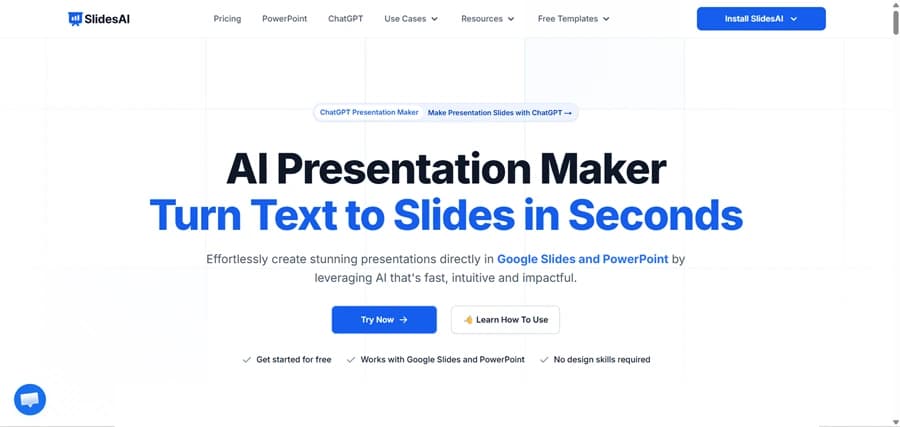
Open SlidesAI and Start a New Presentation

Visit the SlidesAI website and click the Try Now button.

Open SlidesAI and Start a New Presentation

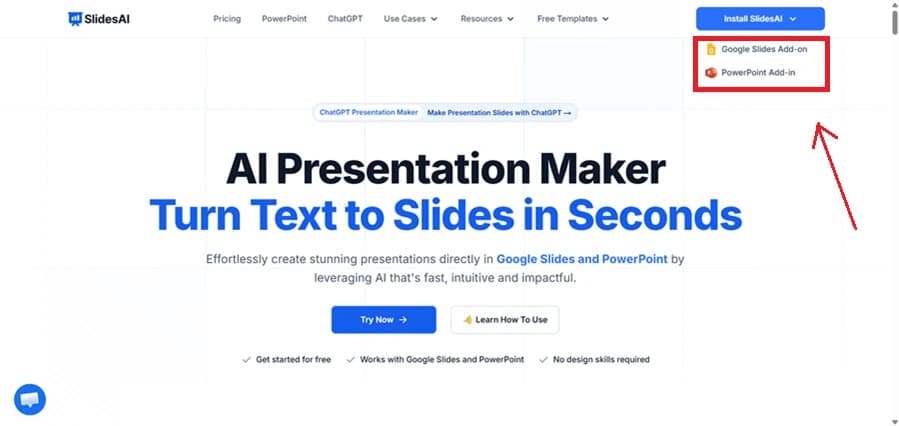
Choose Where You Want to Use SlidesAI

Click the Install SlidesAI button and select either Google Slides Add-on or PowerPoint Add-in as desired.

Choose Where You Want to Use SlidesAI

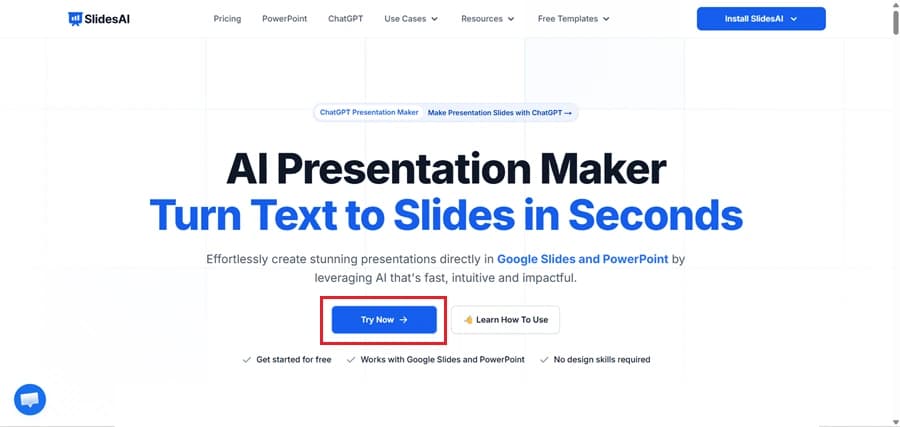
Click the “Try Now” Button

Click the Try Now button on the SlidesAI homepage.

Click the “Try Now” Button

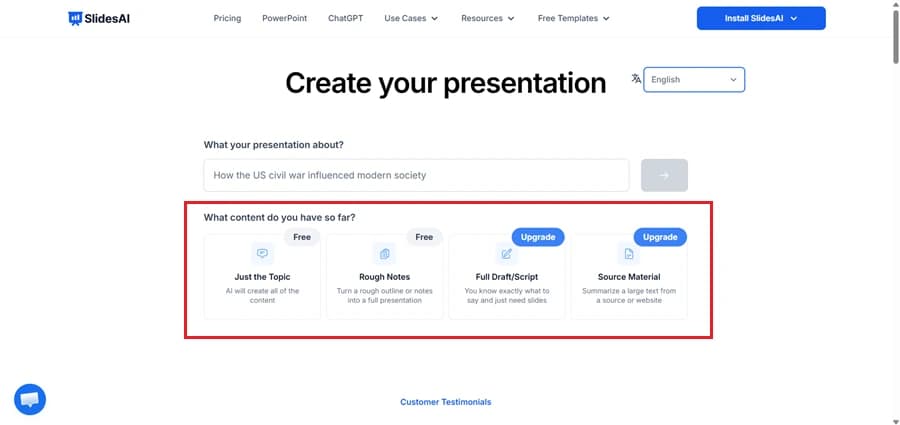
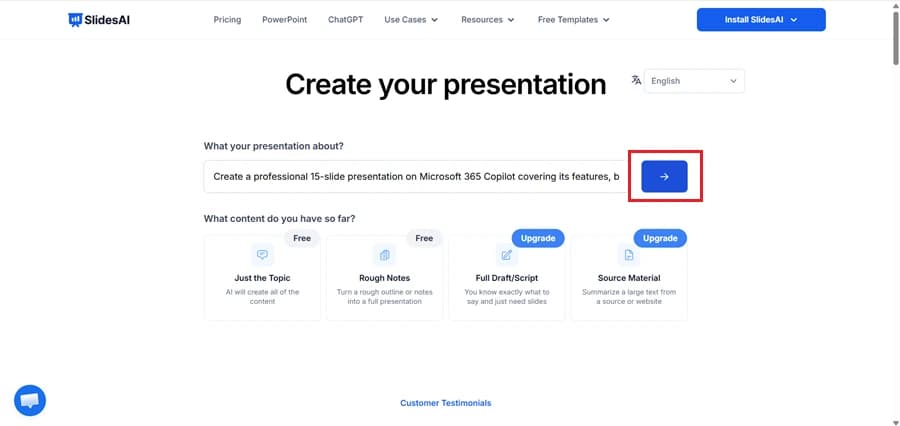
Enter Your Topic and Choose the Content Type

Enter your idea or topic and select the type of content to use, such as a topic, notes, script, or source material.

Enter Your Topic and Choose the Content Type

Generate the Presentation

After entering your topic, click the arrow (>) button to let SlidesAI create the presentation outline and slides.

Generate the Presentation

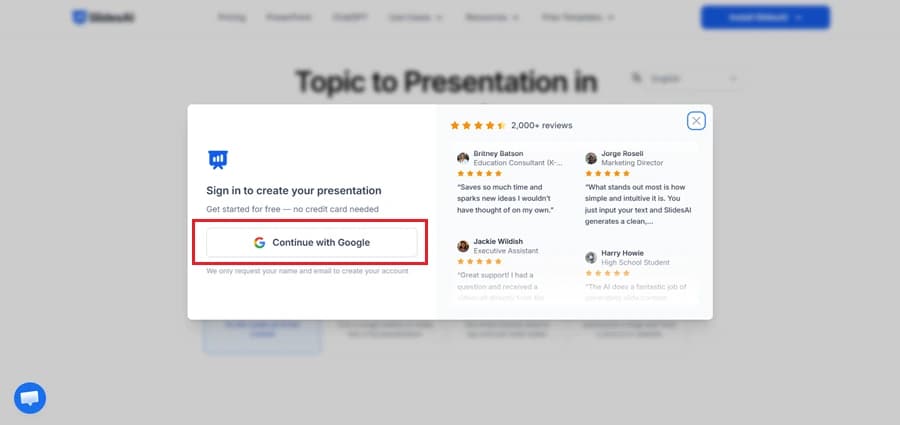
Sign In to Your SlidesAI Account

When prompted, click Continue with Google and sign in to your account to generate and access your presentation.

Sign In to Your SlidesAI Account

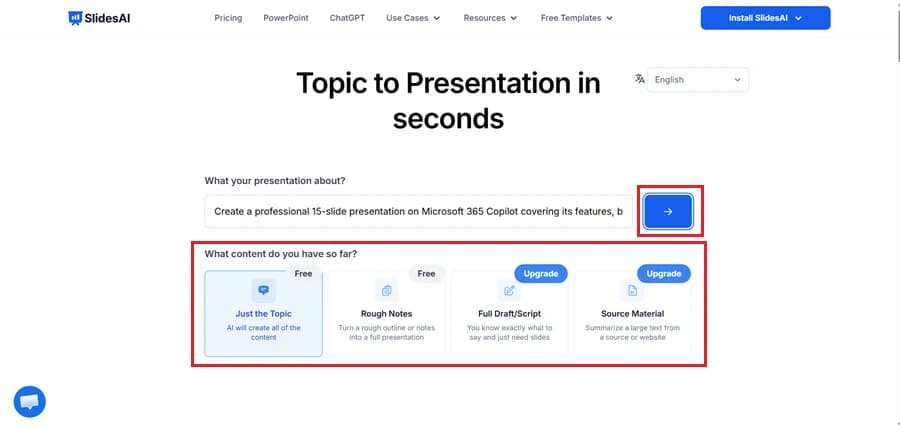
Select “Just the Topic” and Generate Your Presentation

Choose the Just the Topic option if you want SlidesAI to create the presentation content for you, then click the arrow (>) button to generate your slides.

Select “Just the Topic” and Generate Your Presentation

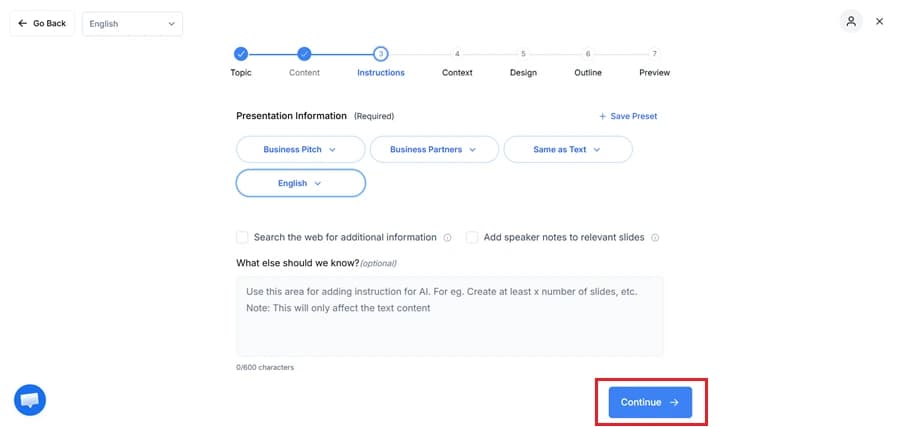
Configure Your Presentation Settings

Select your presentation type, audience, and other options, then click Continue to move to the next step.

Configure Your Presentation Settings

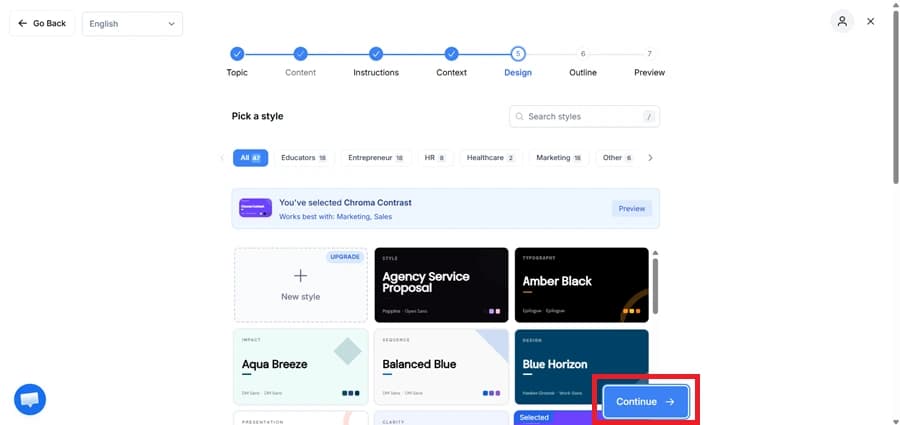
Choose a Template

Select the template to use for your presentation, then click Continue to generate the outline of the presentation.

Choose a Template

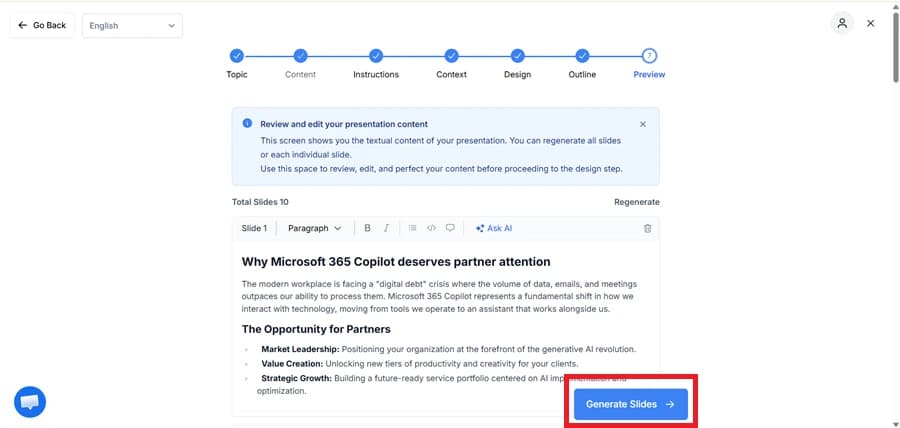
Review the Outline & Generate Slides

Check the generated presentation outline and click the “Generate Slides” button to proceed with the presentation creation process.

Review the Outline & Generate Slides

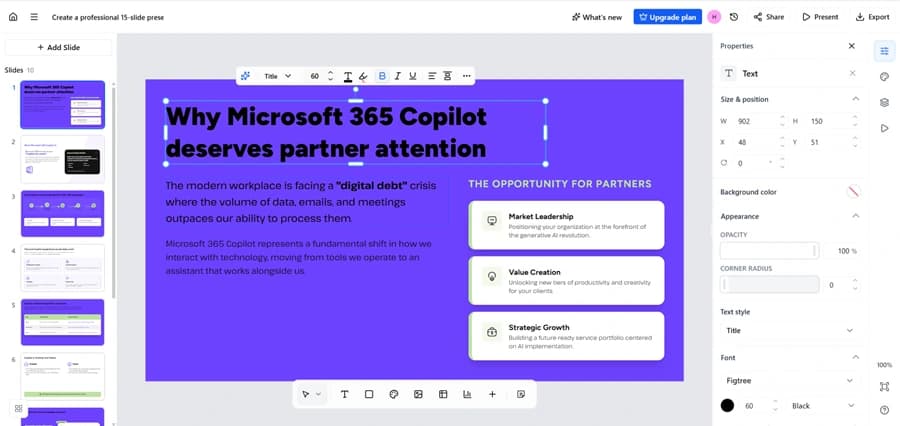
Review Generated Presentation

Review the generated slides and make any changes if needed.

Review Generated Presentation

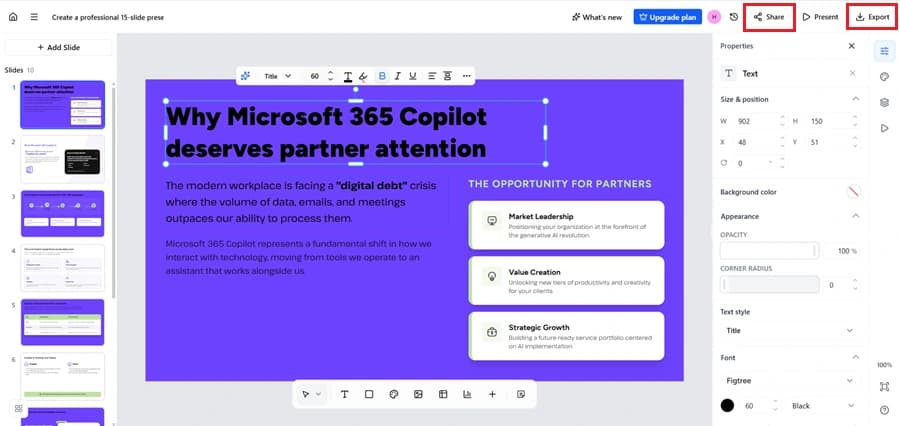
Export or Share Your Presentation

Once you're satisfied with the presentation, click Export to download it or use the Share option to share it with others.

Export or Share Your Presentation

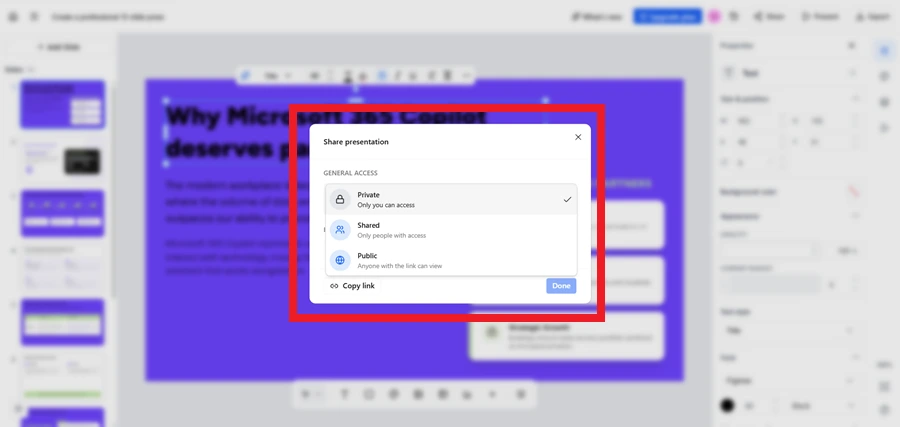
Set Sharing Permissions

Choose who can access your presentation by selecting Private, Shared, or Public, then copy the link or click Done to save your sharing settings.

Set Sharing Permissions

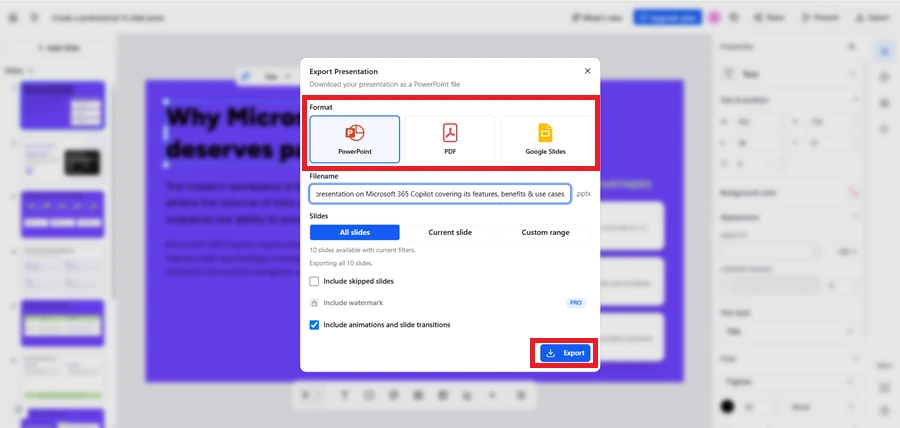
Choose an Export Format and Download the Presentation

Select your preferred export format (PowerPoint, PDF, or Google Slides), choose the slides to export, and click Export to download the presentation.

Choose an Export Format and Download the Presentation

How to Generate a Presentation Using MagicSlides?

MagicSlides allows users to create presentations from multiple sources, including topics, ideas, web links, YouTube videos, PDF documents, DOCX files, images, and existing PowerPoint presentations. We tested it by using all these content sources, and even just an idea. For the same, we followed these steps to create a deck:

Open MagicSlides on any Web Browser

Open the MagicSlides website on any device or browser and register with your email address. You can sign up for free, as it offers a lifetime free membership.

Open MagicSlides on any Web Browser

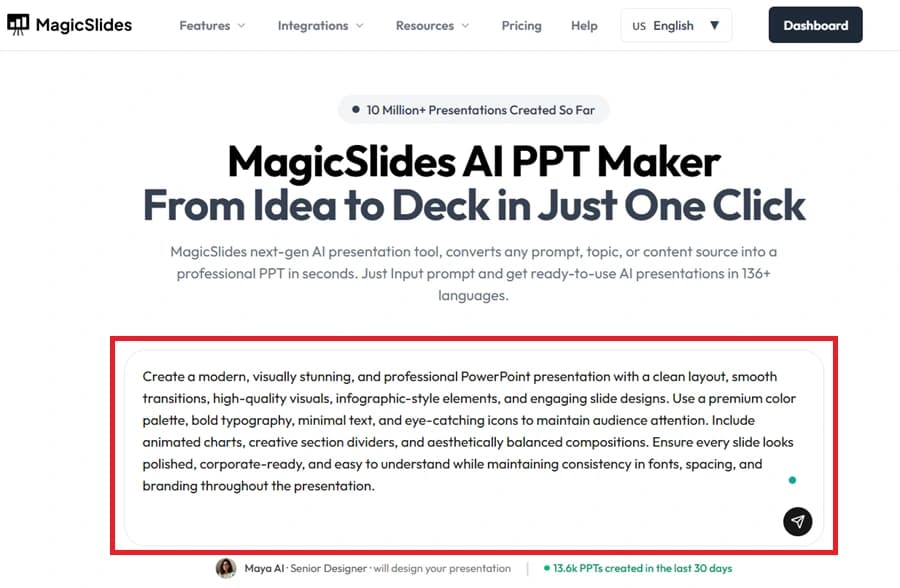
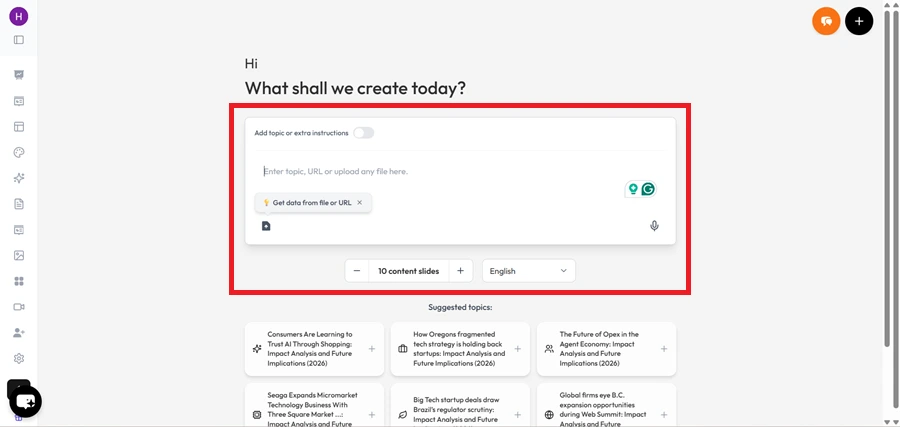
Write Prompt or Paste an Idea

After logging in, write or paste your topic in the prompt box.

Write Prompt or Paste an Idea

Select the Dashboard button

Now, in the top-right corner, there is a Dashboard button; click on it to open more presentation options.

Select the Dashboard button

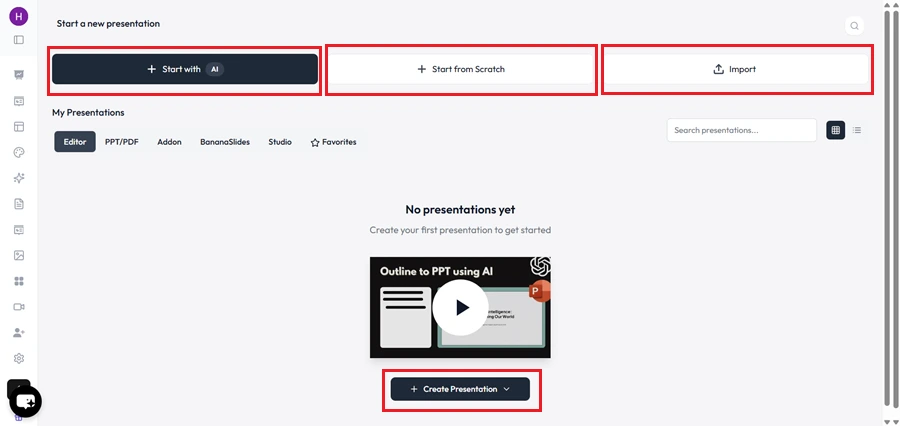
Provide Your Topic or Upload Files

Afterwards, a new window will open, where three options are available: Start with AI, Start from Scratch & Import. Choose any one of these options, and start creating slides automatically.

Provide Your Topic or Upload Files

Start AI-Powered Content Processing

Write a text or paste an idea in the prompt box. You can also upload documents for expected results, such as company logos, PDFs, DOCX, or any other type of content.

Start AI-Powered Content Processing

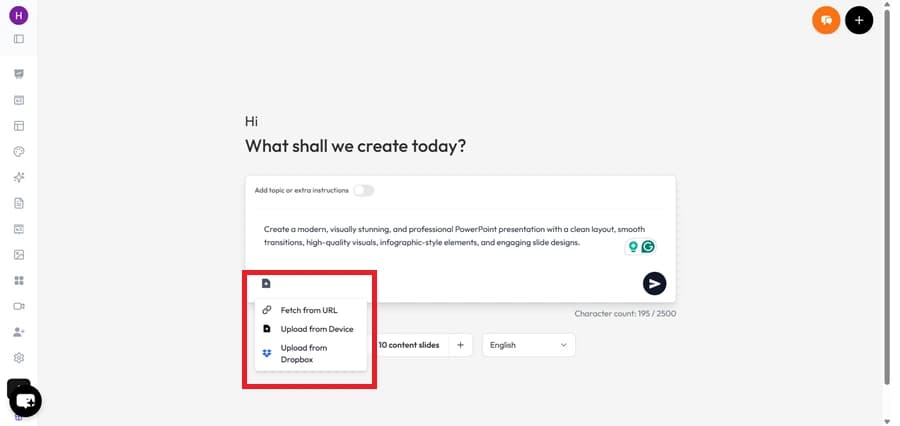
Import Files (Optional)

You can also upload documents for expected results, such as company logos, PDFs, DOCX, or any other type of content.

Import Files (Optional)

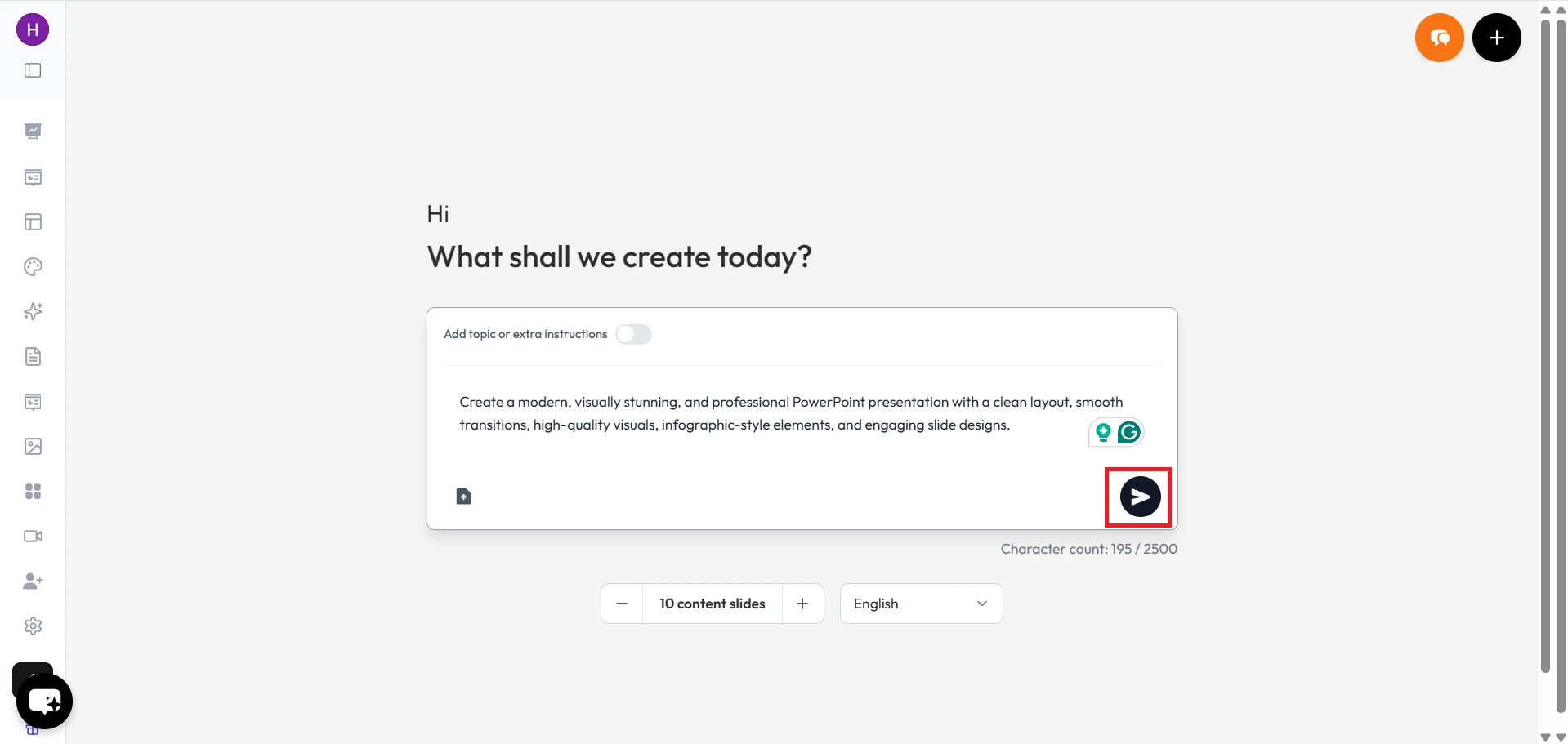
Generate the Outline

Once you have uploaded or written the text, click on the arrow button as shown in the screenshot to generate an outline.

Generate the Outline

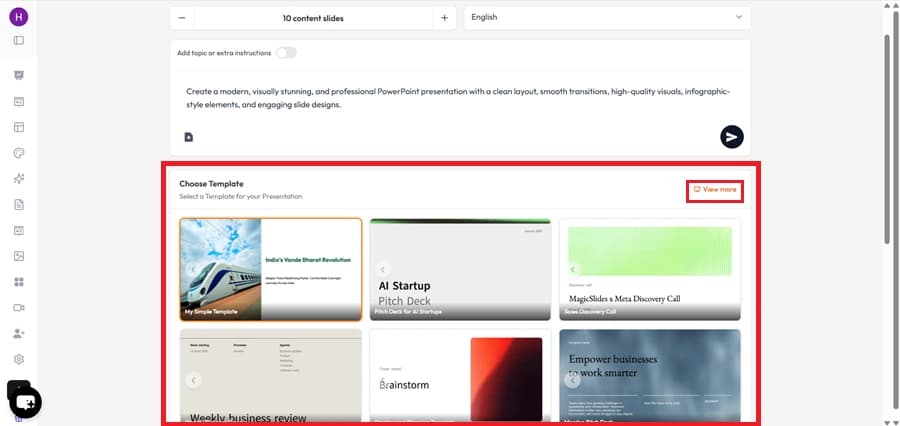
Choose Template

Now, choose the template for the presentation according to your plan.

Choose Template

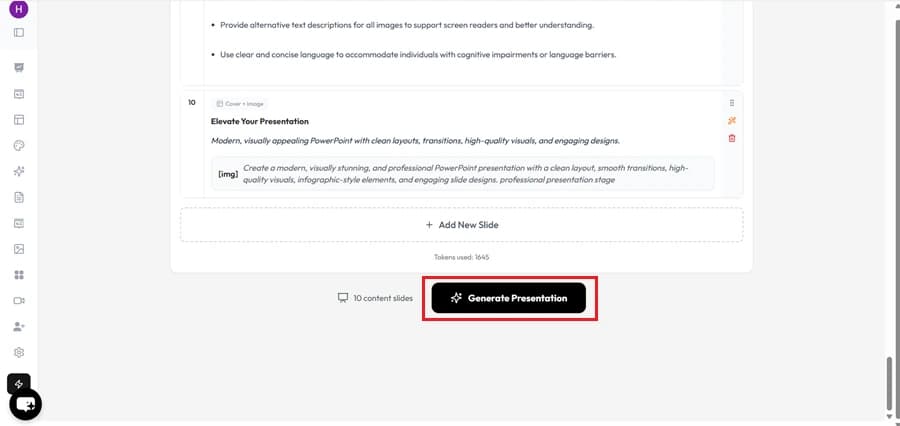
Generate Presentation

Afterwards, hit the “Generate Presentation” button to let MagicSlides start creating your complete slide deck.

Generate Presentation
Demo

See How MagicSlides Creates Presentations

MagicSlides
Our pick
Feature matrix

MagicSlides vs SlidesAI: Feature-by-Feature Comparison

See which Features are Available in MagicSlides & SlidesAI Before Choosing the Right Presentation Tool

Feature
SlidesAI
MagicSlides
Google Slides add-on
Web app (no add-on needed)
PowerPoint (.pptx) export
Generate from URL
Generate from YouTube
Generate from PDF
Generate from DOCX
Free plan
3 presentations/mo
Free forever
AI image generation
Languages supported
100+
100+
Output quality

Which Tool Produces More Polished Slides?

We Created Presentations on the Same Topic in Both Tools and Compared the Final Slides Based on Design & Overall Presentation Quality

SlidesAI

SlidesAI provides clean and readable slides that work well for basic presentations, not for professional ones. The layouts are simple, and the slides are easy to edit. However, most presentations follow a similar design pattern, which we feel is a limitation of this platform. Moreover, after slide generation, it requires more modification. This means that with SlidesAI, manual intervention is necessary.

MagicSlides

MagicSlides produces every type of presentation, i.e., investor pitches, students' assignments, business or enterprise PPTs. Additionally, we found several template options in this, as compared to SlidesAI. The final presentation requires minimal manual tweaks.

Our verdict

Both tools can create usable presentations, but the final output looks different. SlidesAI can be used for simple presentations, while MagicSlides is best for all types of presentations.

Under the hood

Comparing Content Generation Quality

We Compared the Generated Content from Both Tools to See which One Produces Better Presentation Drafts with Less Manual Editing

SlidesAI

SlidesAI turns a topic into a basic presentation structure. The generated content is easy to understand for users of any skill level. However, in our testing, I think we found that some slides need to have detailed points added to make the presentation more informative and presentation-ready.

MagicSlides

MagicSlides generated more detailed slide content with readable fonts. The presentations required fewer content edits after generation, which makes it a go-to tool for those who are in a hurry to make presentations, without any manual intervention.

Our verdict

Both tools can create presentations from the same topic, but the quality of content differs. In our testing, MagicSlides required less manual editing before the presentation was ready to share.

Cost

Pricing and Value Comparison

See How the Pricing & Included Features Compare Before Choosing a Plan

SlidesAI
Pro
$10/mo
  • 10 presentations/mo
  • Google Slides only
  • 2,500 char input limit
  • No PowerPoint export
Best value
MagicSlides
Pro
$8/mo
  • Unlimited AI presentations
  • PPTX + Google Slides
  • All input types (URL, YT, PDF, DOCX)
  • AI image gen
The honest scorecard

Strengths and Limitations Compared

No Presentation Tool is Perfect. To Help You Make an Informed Decision, We've Outlined the Key Strengths and Limitations of Both Tools

MagicSlides Pros

  • Works on the web and also supports Google Slides.
  • Let's you create presentations from topics, URLs, YouTube videos, PDFs, and documents.
  • Offers various presentation templates.
  • Includes image generation features.
  • Presentations usually need very little editing after they are created.
  • Supports both Google Slides and PowerPoint workflows.

MagicSlides Cons

  • The free plan has some usage limits.

SlidesAI Pros

  • Easy to get started with and beginner-friendly.
  • Creates presentations quickly from a topic or written content.
  • Simple interface with fewer settings to manage.
  • Suitable for users who want a straightforward presentation creation process.

SlidesAI Cons

  • Fewer content input options compared to MagicSlides.
  • Generated presentations require more manual editing.
The recommendation

MagicSlides vs SlidesAI: Which One Should You Choose?

The Right Choice Depends on How you Create Presentations & How Many Features you Want from the Platform

Pick MagicSlides if…

  • You also use PowerPoint, not just Google Slides
  • You want to generate from URLs, YouTube videos, or PDFs
  • You need unlimited generations on the paid plan
  • You want AI-generated images inside your slides

Pick SlidesAI if…

  • You exclusively use Google Slides and want a minimal add-on
  • You don't need to import from URLs, YouTube, or files
  • You only need a few presentations per month
In closing

Author's Verdict

MagicSlides vs SlidesAI — the take after testing both end-to-end.

After testing both tools, I found that MagicSlides is a complete presentation creation platform, where you just need to write or paste text, and everything will be done automatically.

It supports more content sources and produces presentations that generally require less manual editing. For users who create presentations regularly, the additional features can save more time and effort.

SlidesAI is also a good option for users who want a simple tool to turn a topic or text into a presentation quickly. It is easy to use and has a minimum of features, but best for those who want a simple presentation.

Still, the choice is yours; you can try any of them for free and understand which tool best fits your needs.

Try it yourself

Make your first deck with MagicSlides

Type a topic and Maya turns it into an editable presentation in under a minute — free, no credit card.

Maya

Maya AI · Senior Designer · will design your presentation

13.6k PPTs created in the last 30 days

FAQ

Frequently Asked Questions

Find Answers to the Most Common Questions about the Key Differences Between MagicSlides & SlidesAI

Is MagicSlides free like SlidesAI?
Yes. MagicSlides has a free forever plan with no credit card required. SlidesAI also has a free tier (3 presentations/month).
Does MagicSlides work in Google Slides like SlidesAI?
Yes — MagicSlides has an official Google Slides add-on, plus a web app, plus a Chrome extension. SlidesAI is Google Slides-only.
Can MagicSlides export to PowerPoint?
Yes. SlidesAI cannot — it only outputs to Google Slides. MagicSlides exports to both .pptx and Google Slides natively.
Is MagicSlides cheaper than SlidesAI?
MagicSlides Pro is $8/mo with unlimited generations. SlidesAI Pro is $10/mo capped at 10 presentations.
Can I generate from a YouTube video or URL?
MagicSlides can — paste a URL or YouTube link and it generates a deck. SlidesAI requires you to paste raw text.

Ready to create your presentation?

Join thousands of professionals who save hours every week with AI-powered presentations.

1,511 reviews · Trustpilot & Workspace

Ask AI about MagicSlides
ChatGPT logoClaude logoGemini logoPerplexity logo