Which AI presentation tool wins?

Pitch Alternative: Why MagicSlides Is a Better Choice Than Pitch

Compare MagicSlides vs Pitch to choose the one that suits your requirements best. Find out their strength and limitations, and which tool is worth buying.

No credit card required · Free forever plan
Quick verdict

MagicSlides has more ways to create presentations and supports several types of content uploads. MagicSlides is a strong Pitch alternative for anyone who wants to quickly create AI-powered presentations from different types of content and export or share them with ease. Anyone looking for a free Pitch alternative can try MagicSlides for free with its advanced AI features.

MagicSlides wins at
  • Create presentations from PDFs, DOCX files, URLs, YouTube videos, and prompts
  • Two export options: PowerPoint and Google Slides
  • Option to share and download the presentation
  • Supporting 100+ languages for slide generation
Pitch wins at
  • Creating presentations from a topic or prompt
  • Choosing ready-made templates for your slides
  • Option to edit and improve slides with the Pitch Agent
  • Sharing presentations with other people using a link
  • Team collaboration on the same presentation
The contenders

MagicSlides vs Pitch: Understanding the Basics

A Quick Overview of MagicSlides and Gamma, Including What Each Platform Does & Who It Is Best For

What is MagicSlides?

MagicSlides is an AI-powered presentation maker that helps users turn topics, text, documents, PDFs, URLs, and other content into editable presentations. Once finished, the presentation can be downloaded or shared with others.

It supports multiple input sources such as PDFs, Word documents, URLs, and YouTube videos. MagicSlides comes with a simple user interface that can be easily understood by both beginners and professionals.

Presentations remain fully editable after export. Users can download their work as PowerPoint files or continue editing in Google Slides.


Founded2022
Best forStudents, educators, professionals, and businesses
Visit MagicSlides

What is Pitch?

Pitch helps individuals and teams create professional presentations. The generated slides can be edited and improved using the Pitch Agent. Users can also export presentations as PDF or PowerPoint (PPTX) files.

Pitch is well-suited for teams who need to collaborate on the same presentation in real time. It offers ready-made templates and an AI-powered agent that helps users refine and improve their slides after generation.

Founded2018
Best forIndividuals and teams looking to create and share professional presentations
Visit Pitch
Methodology

Our Testing Approach for MagicSlides vs Pitch

We Tested Both AI Presentation Tools Using the Same Type of Content to Compare Their Presentation Creation Process

For this comparison, I created 4 presentation decks in total, 2 with MagicSlides and 2 with Pitch. Each presentation contained 10–15 slides generated on business and education topics.

4
Presentations created
6
Key areas compared
10-15
Average slides per deck
2
Tools tested head-to-head
Step-by-step

MagicSlides vs Pitch: Step-by-Step Presentation Creation Process

Compare How Presentations are Created in MagicSlides and Pitch

How to Create Your First Presentation With Pitch?

A simple step-by-step process to create AI-powered presentations using Pitch:

Open the Pitch AI Homepage

Open the Pitch AI website and log in or sign up.

Pitch AI homepage

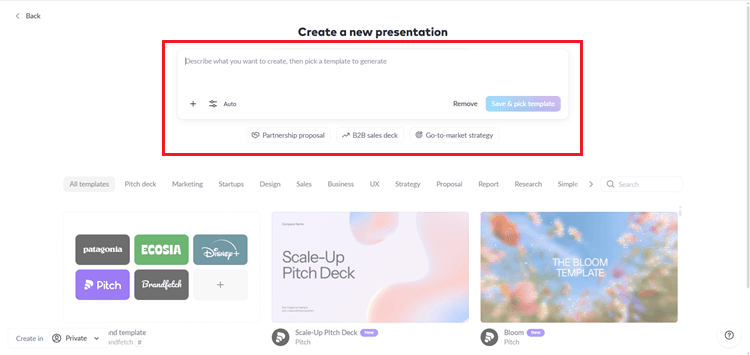
Enter Your Presentation Prompt

Type or paste your presentation topic in the prompt box and click Save & pick template to continue.

Pitch prompt input

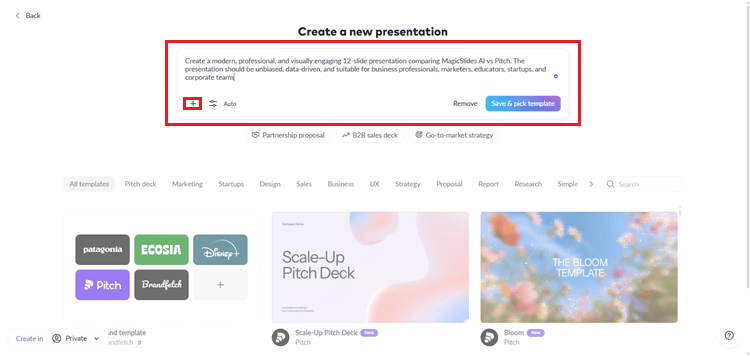
Add Supporting Resources (Optional)

Click the + icon to attach reference files or documents that Pitch AI can use to generate your presentation.

Pitch supporting files

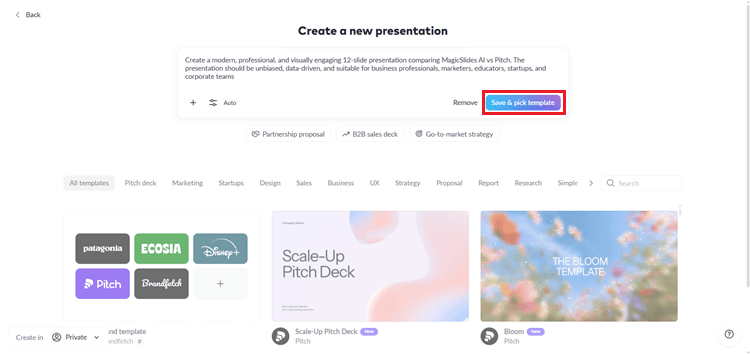
Choose a Presentation Template

Click Save & pick a template to select a template for your presentation.

Pitch template selection

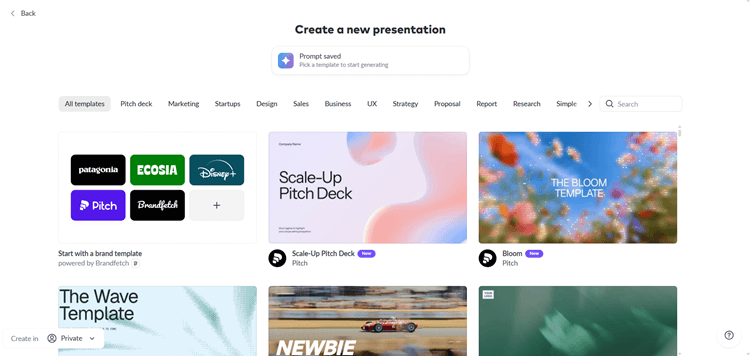
Select Your Preferred Template

Choose the presentation template that best matches your content and requirements.

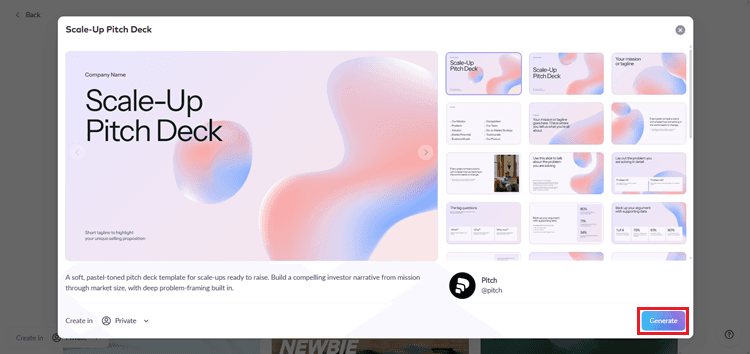
Pitch template picker

Generate the Presentation

Click the Generate button to create your presentation using the selected template.

Pitch generate button

Review and Edit Your Presentation

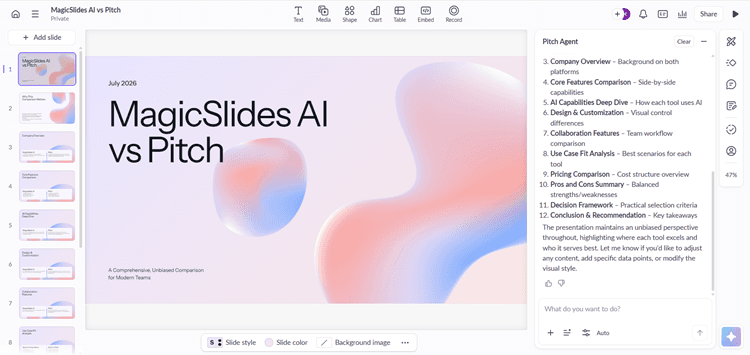
Review the generated slides and use the Pitch Agent to edit your presentation if needed.

Pitch editor and Pitch Agent

Share or Export the Presentation

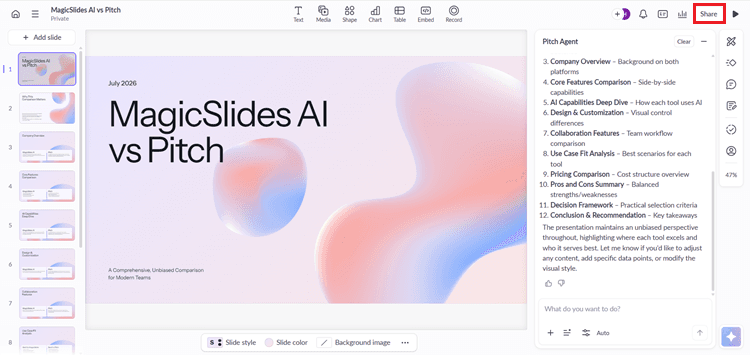
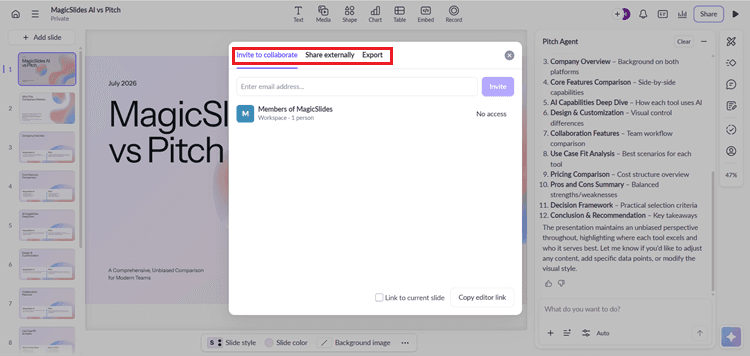
Click the Share button to collaborate with others. Choose Invite to collaborate, Share externally, or Export to save your presentation locally.

Pitch share and export options

Create a Shareable Link or Export

Open the Share externally tab and click + New link to generate a shareable presentation link. Or select your preferred export format and click Export presentation to download.

Pitch shareable link and export

How to Create Presentations in MagicSlides: Step-by-Step Guide

Create professional presentations from topics, documents, URLs, PDFs, and more in just a few simple steps:

Access MagicSlides

Open the MagicSlides website on any device and sign in or create a new account.

MagicSlides sign up

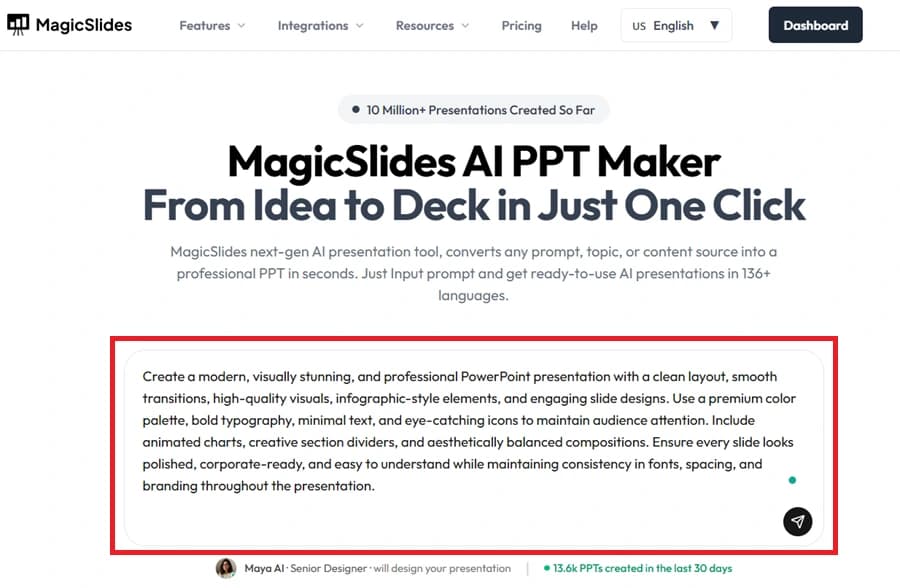
Enter Your Presentation Topic

Provide the topic, prompt, or idea for your presentation.

MagicSlides prompt input

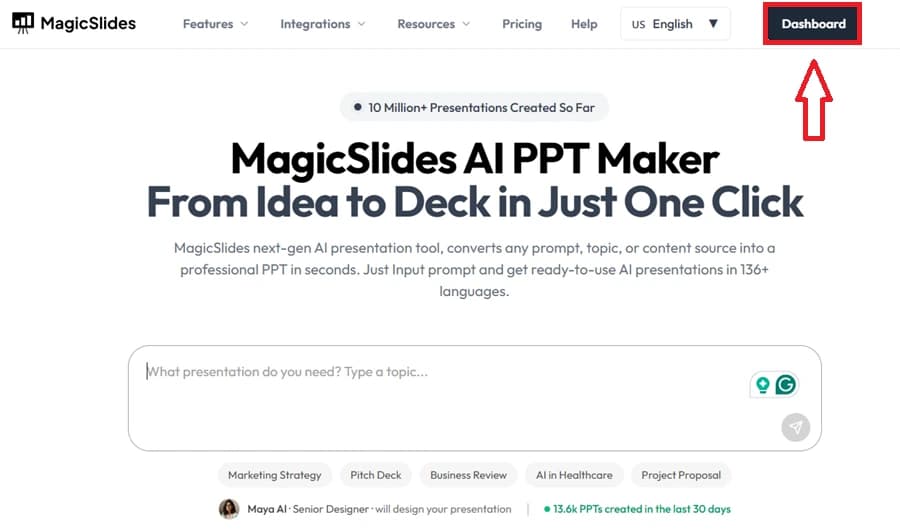
Go to the Dashboard

After signing in, access the MagicSlides dashboard to begin creating your presentation.

MagicSlides dashboard

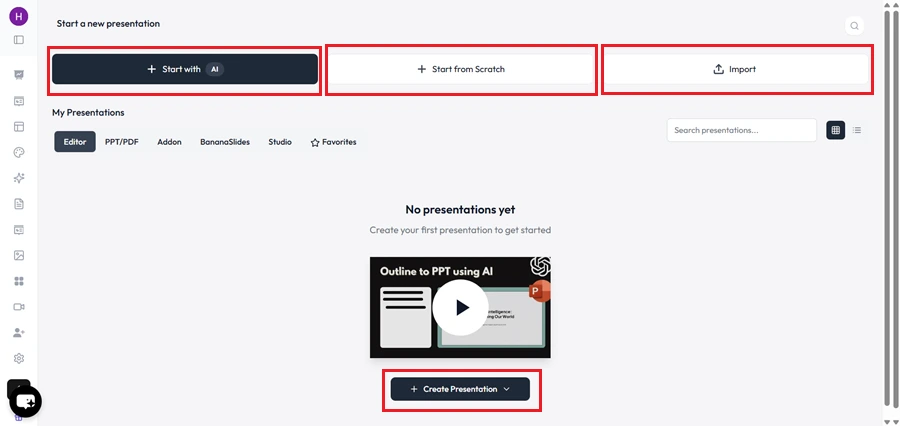
Select a Presentation Creation Method

Choose whether to generate slides with AI, start from a blank presentation, or create slides from existing content.

MagicSlides creation method

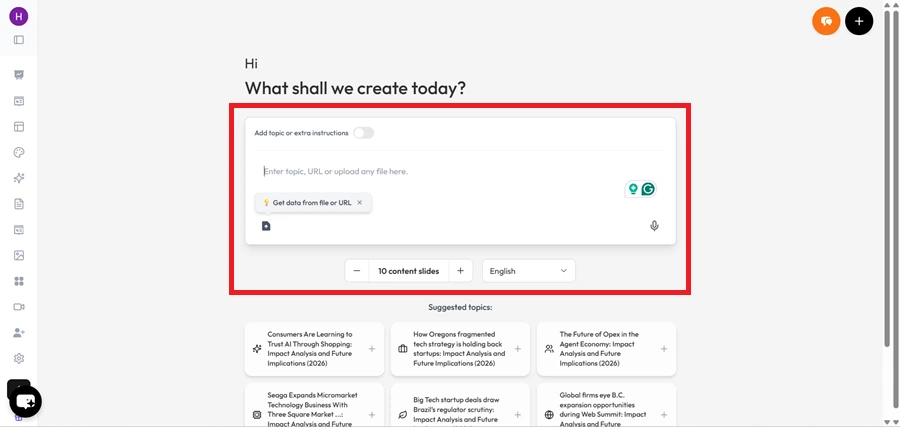
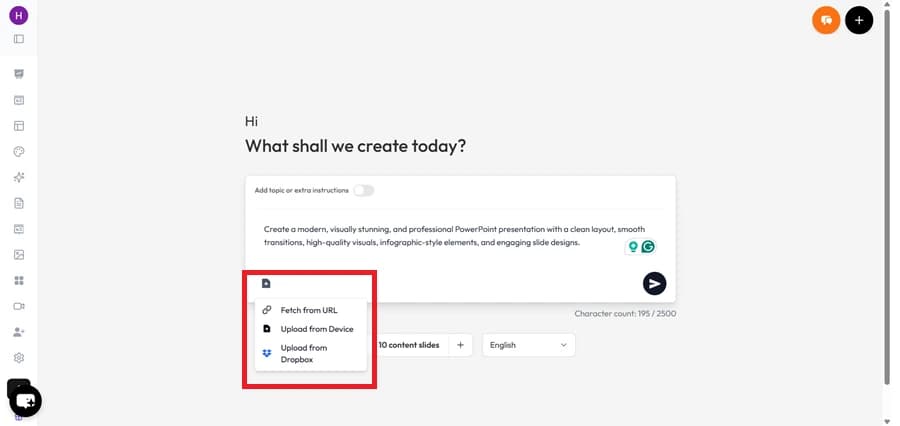
Add Your Primary Content

Paste or upload the main content that will be used to generate your presentation.

MagicSlides content input

Upload Supporting Files (Optional)

Include PDFs, images, documents, or other reference files to enhance the presentation output.

MagicSlides file upload

Generate the Presentation Outline

Allow MagicSlides to create a structured outline based on your content automatically.

MagicSlides outline generation

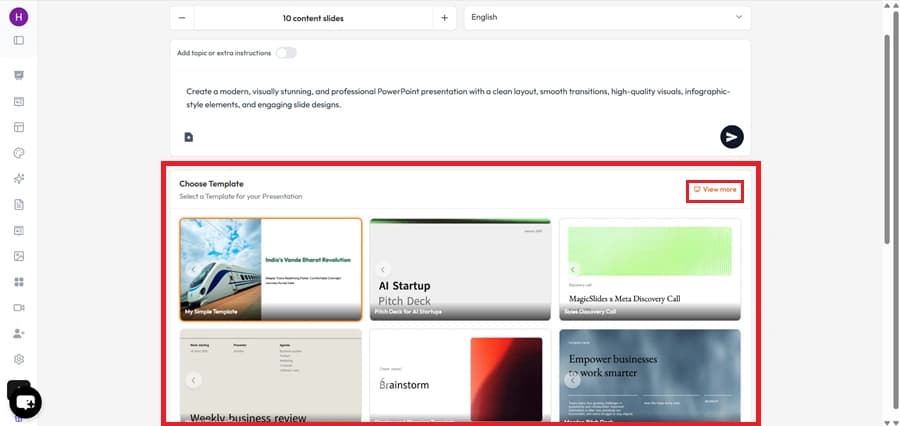
Pick a Presentation Theme

Choose a template or design theme that matches your presentation style.

MagicSlides theme selection

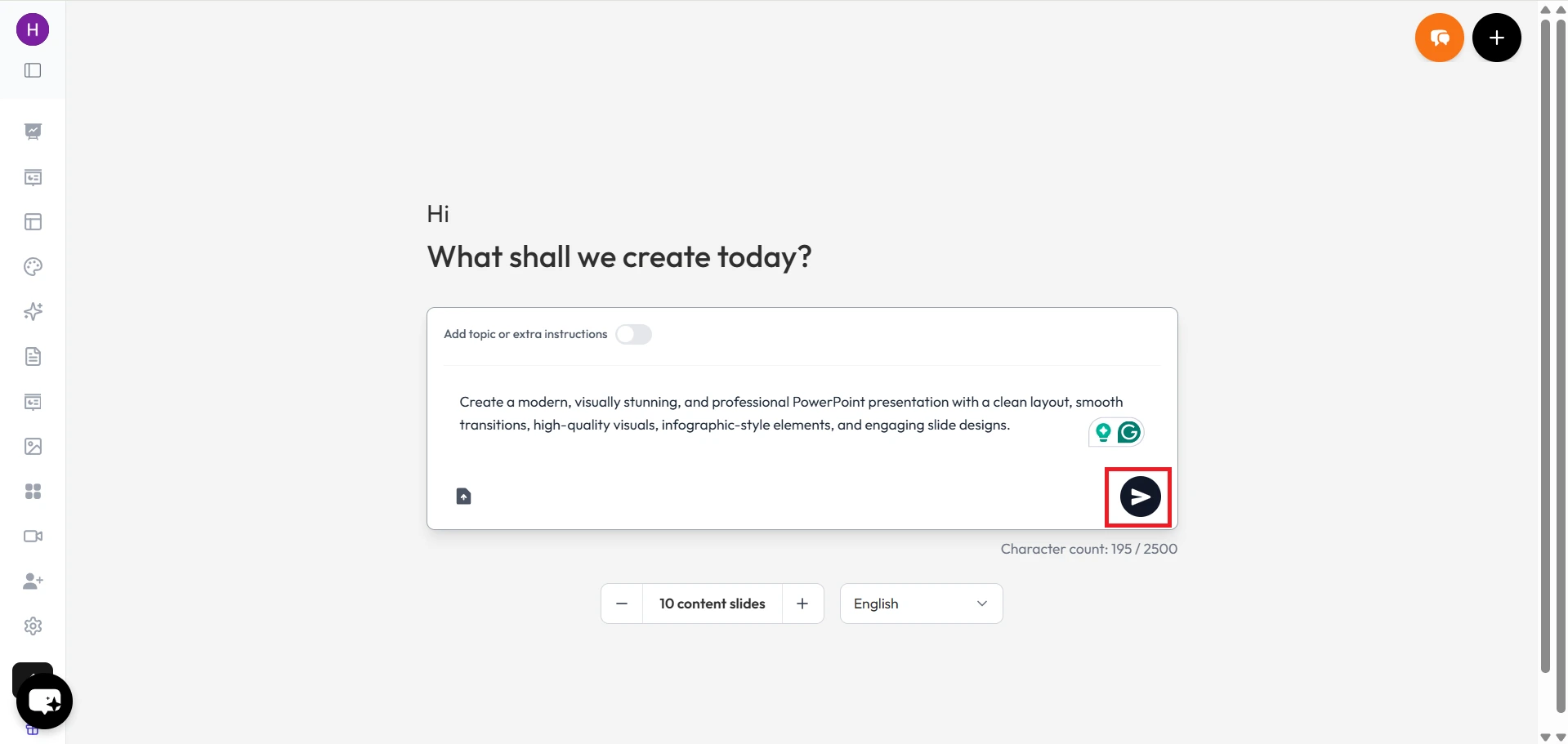
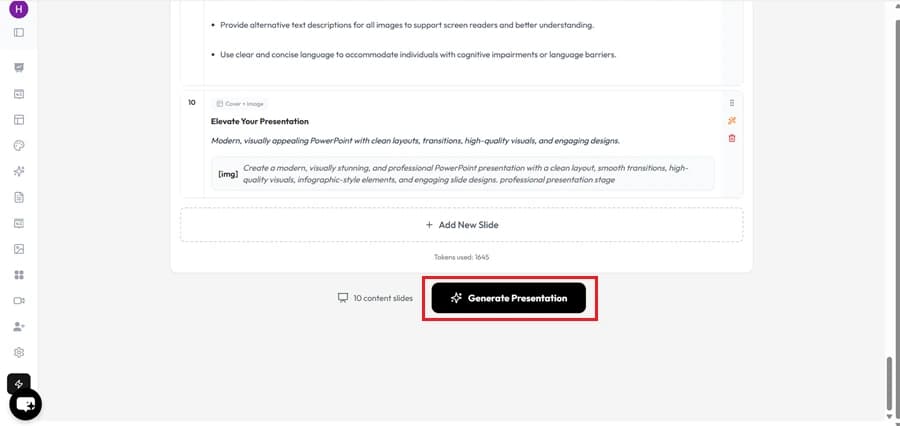
Generate the Presentation

Start the AI generation process to create a complete slide deck automatically.

MagicSlides slide generation

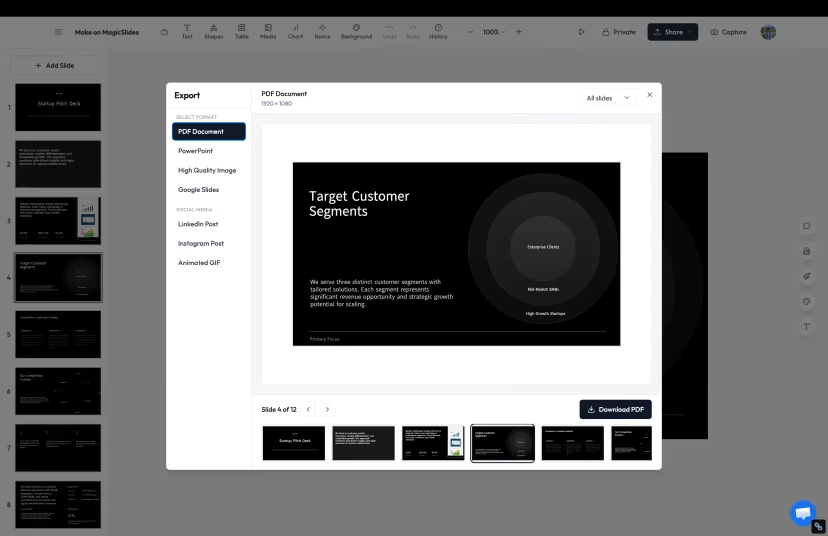
Export or Share the Presentation

Download your presentation in the desired format or share it directly with your audience.

MagicSlides export
Demo

Watch MagicSlides Turn an Idea into a Presentation

MagicSlides
Our pick
Feature matrix

MagicSlides vs Pitch: Key Features Compared

Compare the Key Features and Limitations of MagicSlides and Pitch

Feature
Pitch
MagicSlides
Free plan
Limited features
Free forever, no card
PowerPoint (.pptx) export
Google Slides export
Generate from URL / YouTube
Generate from PDF / DOCX
As supporting files
Editable in PowerPoint
AI slide editing agent
Pitch Agent
Team collaboration
Ready-made templates
100+ layouts
Shareable presentation link
Languages supported
Limited
100+
Output quality

MagicSlides vs Pitch: Design Quality Comparison

See How Presentations Look in MagicSlides and Pitch

Pitch

Pitch offers a clean, modern editor with a wide selection of professionally designed templates. Slides look polished and are easy to customize using the drag-and-drop editor. The Pitch Agent allows users to refine and improve slide content after generation, which is useful for teams that need to iterate on a presentation.

MagicSlides

MagicSlides creates professional-looking presentations in one go. The slides have simple layouts and easy-to-read text that make it suitable for all types of users. The design remains consistent after downloading as PowerPoint or opening in Google Slides, so editing after export is seamless.

Our verdict

Pitch produces visually polished presentations with strong template options and team-friendly editing. MagicSlides focuses on speed and practicality, delivering clean professional slides that remain fully editable in PowerPoint and Google Slides. For business and academic use, MagicSlides gets the job done faster. For teams who need collaborative design control, Pitch is the better fit.

Under the hood

MagicSlides vs Pitch: AI Content Generation Compared

Compare How MagicSlides and Pitch Generate Presentation Content from Prompts and Documents

Pitch

Pitch uses AI to generate slide content from a text prompt. Users can also attach supporting files to give the AI more context. After generation, the Pitch Agent can help refine and improve individual slides. The output is clean and well-structured, though input source variety is limited compared to MagicSlides.

MagicSlides

MagicSlides generates complete presentation content from topics, PDFs, Word documents, URLs, YouTube videos, and text prompts. The AI automatically structures slides with clear headings and relevant content. Users can regenerate individual slides or edit content without starting over from scratch.

Our verdict

Both tools use AI to generate slides from prompts. MagicSlides supports a wider range of input sources and gives users more flexibility in how they provide content. Pitch is better suited for users who want a prompt-to-slide workflow with team collaboration built in.

Cost

MagicSlides vs Pitch: Pricing Comparison

Explore the Pricing Plans of MagicSlides and Pitch to Find the Best Value

Pitch
Pro
$8/mo
  • Unlimited decks
  • Custom domains
  • Analytics
  • PDF + PPTX export
Best value
MagicSlides
Pro
$8/mo
  • Unlimited AI presentations
  • PPTX + Google Slides export
  • Custom branding
  • Priority support
The honest scorecard

MagicSlides vs Pitch: Advantages and Limitations Compared

See the Pros and Cons of MagicSlides and Pitch

MagicSlides Pros

  • Creates presentations from topics, PDFs, Word files, URLs, and YouTube videos
  • Exports presentations as editable PowerPoint (.PPTX) files
  • Supports Google Slides to continue editing online
  • Supports 100+ languages for slide generation
  • Free plan available with advanced AI features

MagicSlides Cons

  • No real-time team collaboration features
  • Fewer design-focused template options than Pitch

Pitch Pros

  • Clean, modern templates for professional-looking slides
  • Pitch Agent helps edit and improve slides after generation
  • Team collaboration on the same presentation in real time
  • Shareable presentation links for external stakeholders
  • PDF and PowerPoint export available

Pitch Cons

  • Fewer content input sources compared to MagicSlides
  • No Google Slides export
  • Team features locked behind paid plans
The recommendation

MagicSlides vs Pitch: Which One Should You Choose?

Choose the Tool That Best Matches How You Want to Create and Work on Your Presentations

Pick MagicSlides if…

  • Want a simple way to create presentations with AI.
  • Need to turn your existing content into slides.
  • Want different ways to start creating a presentation.
  • Create slides for school, work, meetings, or other purposes.
  • Want an easy-to-use tool for creating and managing presentations.

Pick Pitch if…

  • Want to create presentations with your team.
  • Need other people to work on the same presentation.
  • Like using ready-made templates to design slides.
  • Want to easily edit and improve your slides after creating them.
  • Share presentations with your clients or other people.
In closing

Author's Verdict

After testing both MagicSlides and Pitch, I found that both tools make presentation creation easier.

MagicSlides is my preferred choice for users who want more ways to create presentations from topics, PDFs, documents, URLs, and other content sources.

Pitch is better for users who need a solution for team collaboration and ready-made templates.

Try it yourself

Make your first deck with MagicSlides

Type a topic and Maya turns it into an editable presentation in under a minute — free, no credit card.

Magic Slides

Magic Slides · Senior Designer · will design your presentation

13.6k PPTs created in the last 30 days

FAQ

Frequently Asked Questions

What is the best Pitch alternative for creating AI presentations?
MagicSlides is a strong Pitch alternative that helps generate presentations from topics, PDFs, Word files, URLs, YouTube videos, and more using AI.
Can I create presentations with AI in both MagicSlides and Pitch?
Yes. Both MagicSlides and Pitch use AI to generate presentations from prompts, although MagicSlides supports a wider range of content sources.
Can I edit AI-generated presentations after creation?
Yes. MagicSlides and Pitch allow you to modify text, images, and other slide elements after the presentation is generated.
Can I export presentations from MagicSlides and Pitch?
Yes. Both tools let you export presentations, although the supported file formats depend on your subscription plan.
Can I create presentations from PDFs or documents?
Yes. MagicSlides supports generating presentations from PDFs, Word documents, URLs, YouTube videos, and other content sources.
MagicSlides AI PPT Maker — happy team turning documents into presentations

Ready to create your presentation?

Join thousands of professionals who save hours every week with AI-powered presentations.

1,511 reviews · Trustpilot & Workspace

Ask AI about MagicSlides
ChatGPT logoClaude logoGemini logoPerplexity logo