
In the dynamic world of presentations, incorporating audio elements can elevate your Google Slides to a whole new level. One effective method to seamlessly integrate audio is by leveraging the capabilities of Google Drive. In this comprehensive guide, we'll walk you through the step-by-step process, ensuring your audience is not only engaged visually but also captivated by the power of sound.
How to upload audio to google slides through google drive
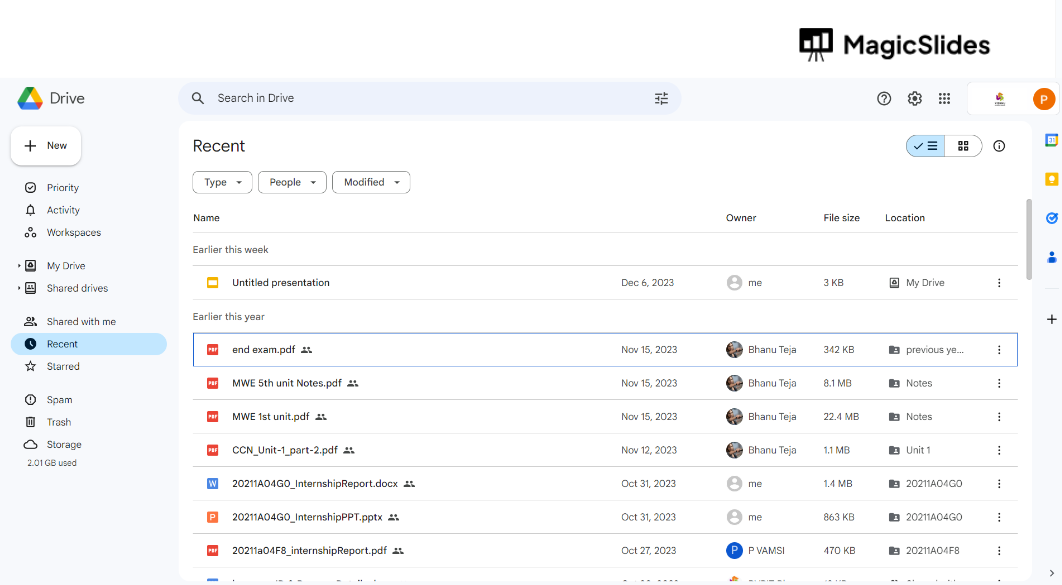
Step 1: Navigate to Google Drive
Begin by logging into your Google Drive account. If you're using Google Workspace, access your Drive through the dedicated app launcher.
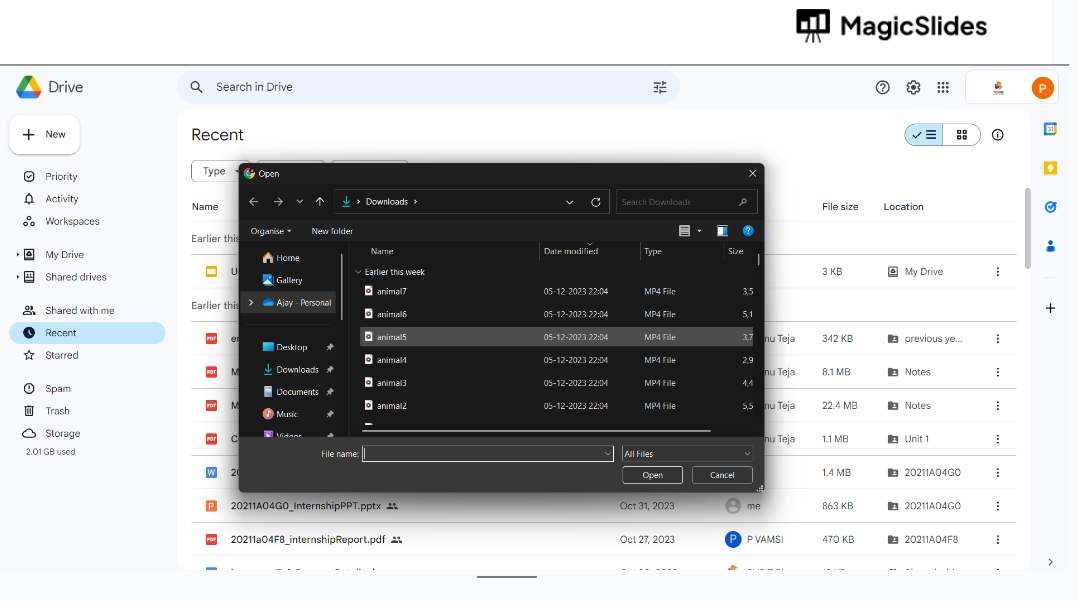
Step 2: Upload Your Audio File
Select the "+ New" button on the left-hand side and choose "File upload." Locate your desired audio file on your device, and let Google Drive work its magic by uploading it seamlessly.
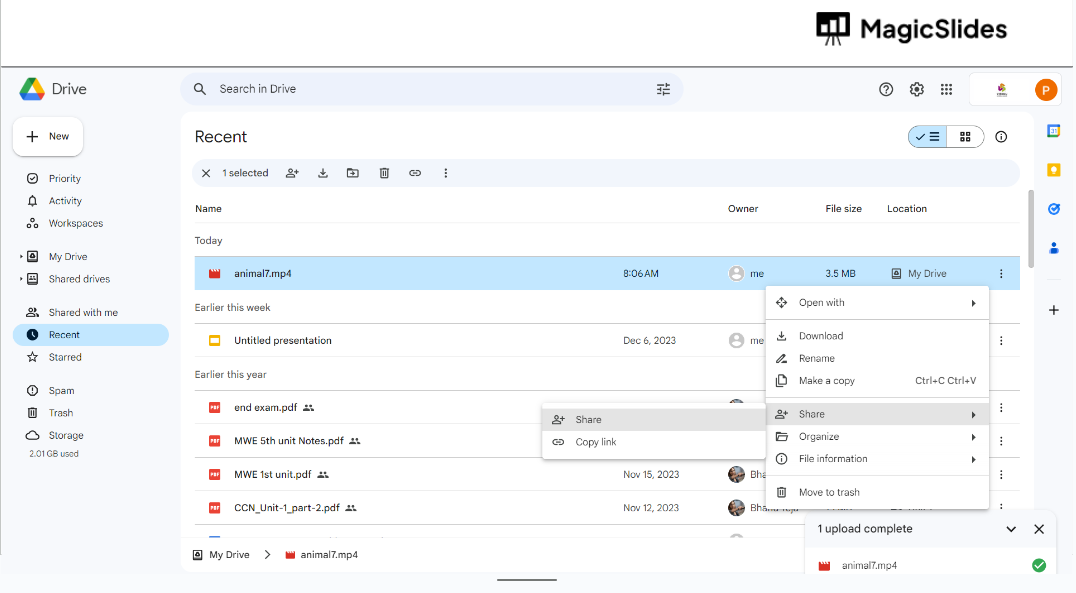
Step 3: Set Share Settings
Right-click on the uploaded audio file and choose "Share." Adjust the sharing settings to ensure that your audience can access and play the audio during the presentation. Select the appropriate sharing options to match your preferences.
Step 4: Copy the Shareable Link
Once sharing settings are configured, copy the shareable link provided by Google Drive. This link will be used to embed the audio into your Google Slides presentation.
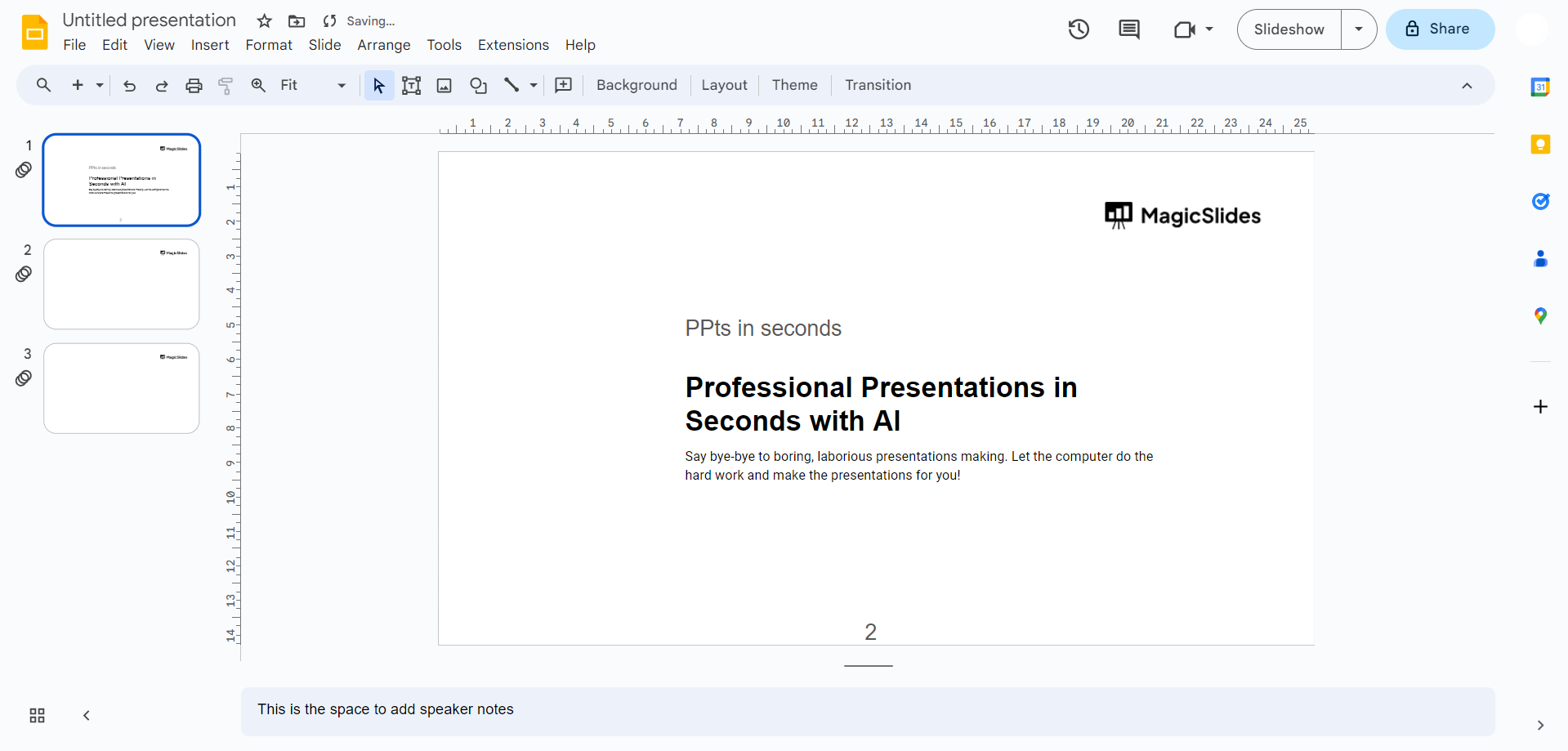
Step 5: Return to Google Slides
Open the Google Slides presentation where you want to incorporate the audio. Navigate to the slide where you'd like the audio to play and select "Insert" from the top menu.
Step 6: Insert Audio
Choose the "Audio" option from the drop-down menu and select "By URL." Paste the copied shareable link into the provided field and click "Insert."
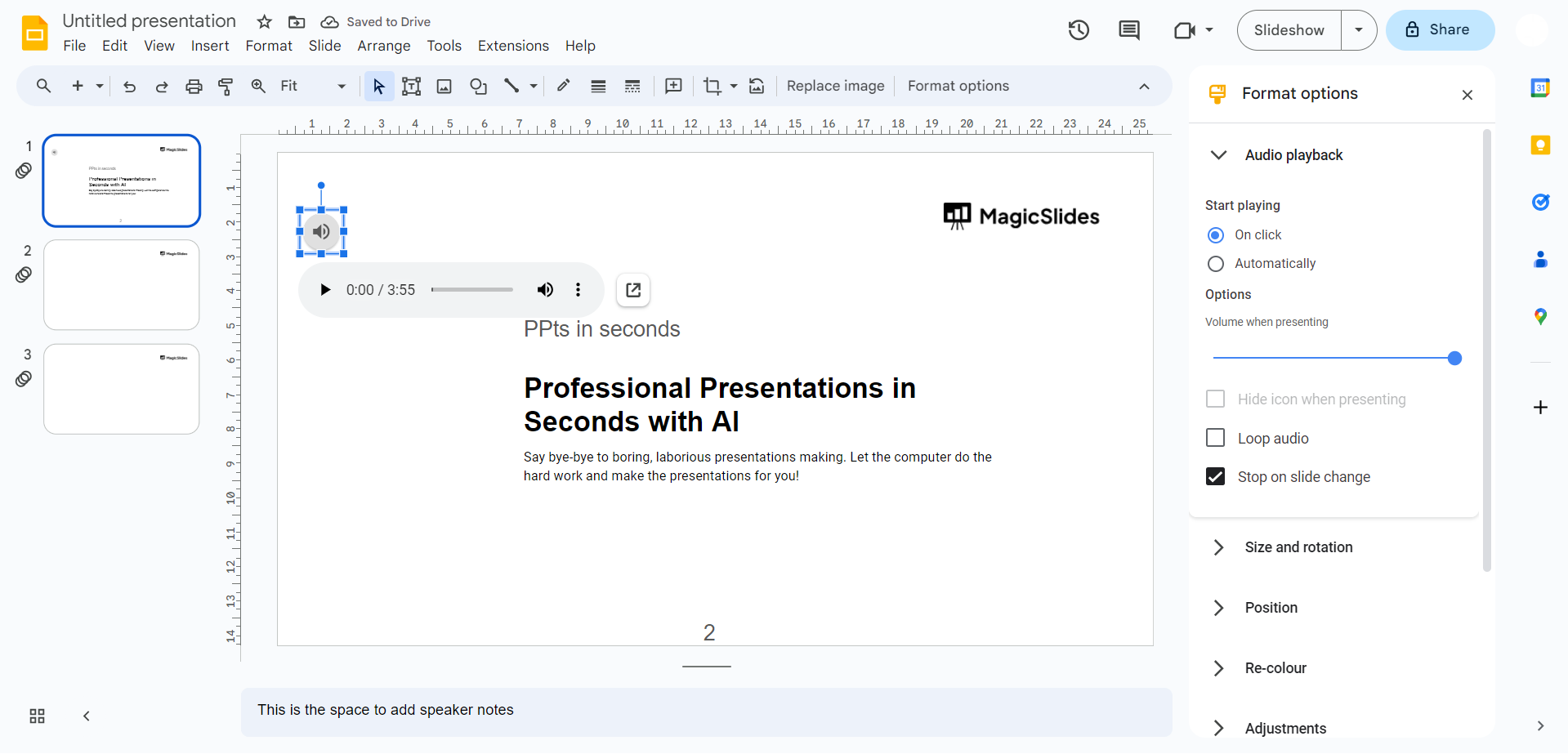
Step 7: Customize Audio Settings
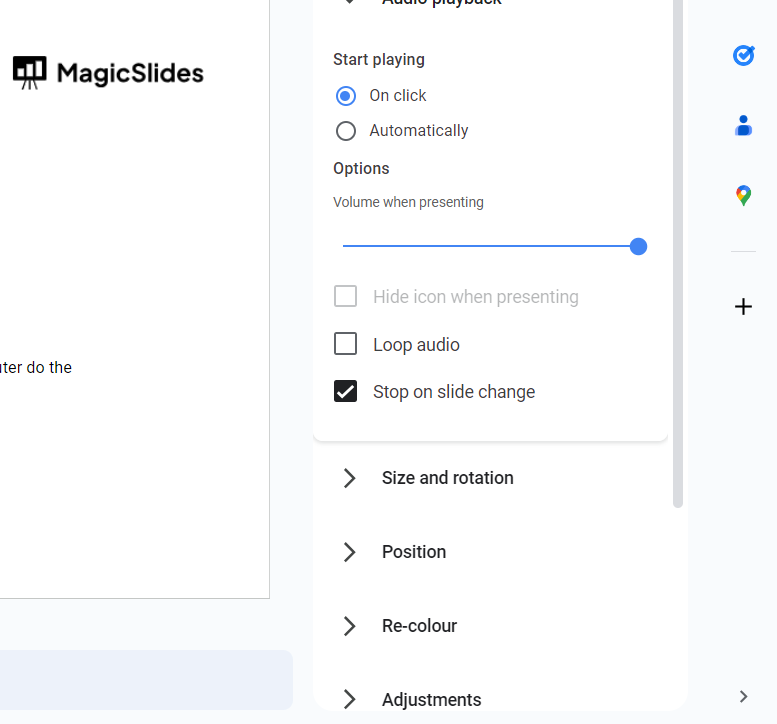
Once inserted, click on the audio icon to access customization options. Adjust settings such as playback options, volume, and start/end times to fine-tune the audio's behavior during your presentation.
Conclusion:
By following these simple yet effective steps, you can seamlessly enhance your Google Slides presentation with engaging audio content. Whether you're narrating a key point, incorporating background music, or adding sound effects, the fusion of visual and auditory elements will undoubtedly leave a lasting impression on your audience. Elevate your presentations with the dynamic integration of audio via Google Drive, bringing your slides to life in a way that captivates and resonates.
Frequently Asked Questions:
Q1: Can I add audio to specific slides, or will it play across the entire presentation? A: Absolutely! With Google Slides, you have the flexibility to add audio to individual slides, tailoring your presentation to match your content perfectly.
Q2: Is there a limit to the file size or format of the audio I can upload to Google Drive? A: Google Drive supports a variety of audio formats, including MP3 and WAV. While there's no strict file size limit, it's recommended to optimize your audio files for faster loading times.
Q3: Can I collaborate on a presentation with embedded audio, and will it play for my collaborators? A: Yes, Google Slides allows for seamless collaboration. However, collaborators will need access to the shared audio file in Google Drive to ensure proper playback during editing and presenting.
Q4: Will the audio automatically play when I present my slides, or do I need to initiate it manually? A: The audio can be set to play automatically or manually. Adjust the playback settings within Google Slides to suit your preferred presentation style, ensuring a seamless and controlled audio experience.
Have a look @these tutorial blogs by us:
- How To Flip An Image In Powerpoint In 2024: https://www.magicslides.app/blog/How-to-mirror-an-image-in-powerpoint
- How To Add A Background In Powerpoint: https://www.magicslides.app/blog/How-to-add-a-background-in-powerpoint
- How To Add Mp4 Audio To Google Slides: https://www.magicslides.app/blog/How-to-add-mp4-audio-to-google-slides
- How To Automatically Play Your Google Slides: https://www.magicslides.app/blog/How-to-automatically-play-google-slides
Share on socials
About the author
Sanskar Tiwari is the founder of MagicSlides and IAG Tech. Over the past 5 years, he has shipped 24+ products and taught 100k+ students how to code. His work focuses on AI‑assisted creation and developer education.
More from the blog
How to Insert Bitmoji into Google Slides?
7 April 2026
How to Make PowerPoint for Research Defense (2026 Guide)
7 April 2026
100+ Best Seminar Topics for Students in 2026
7 April 2026
How to edit a PowerPoint template
7 April 2026
Best Fonts for PPT: Top PowerPoint Fonts for Readability & Engagement
7 April 2026
How to Improve Slide Design for Presentations?
6 April 2026
How to Use Google Form Autofill Bot? Step-By-Step Guide
6 April 2026
How to Download Presentation from Gamma App: Easy Ways to Export, Convert & Save Slides
5 April 2026
How to Check Word Count in Google Docs: A Complete Guide
5 April 2026
