Does Canva Work with Smartboard?


Easily use Canva with SMART Boards to create, present, and interact with engaging visual content
Canva is a versatile design tool that can be effectively used with SMART Boards for educational, business, and creative purposes.
By leveraging Canva’s design capabilities and a SMART Board’s interactive features, you can create and present engaging content seamlessly.
Follow these steps to understand how to use Canva with a SMART Board.
Does Canva Work with SMART Board? | Steps to Use Canva with a SMART Board
Step 1: Access Canva on the SMART Board
Open the SMART Board and navigate to its browser or compatible apps section.
Log in to Canva using your account credentials directly on the SMART Board’s interface.
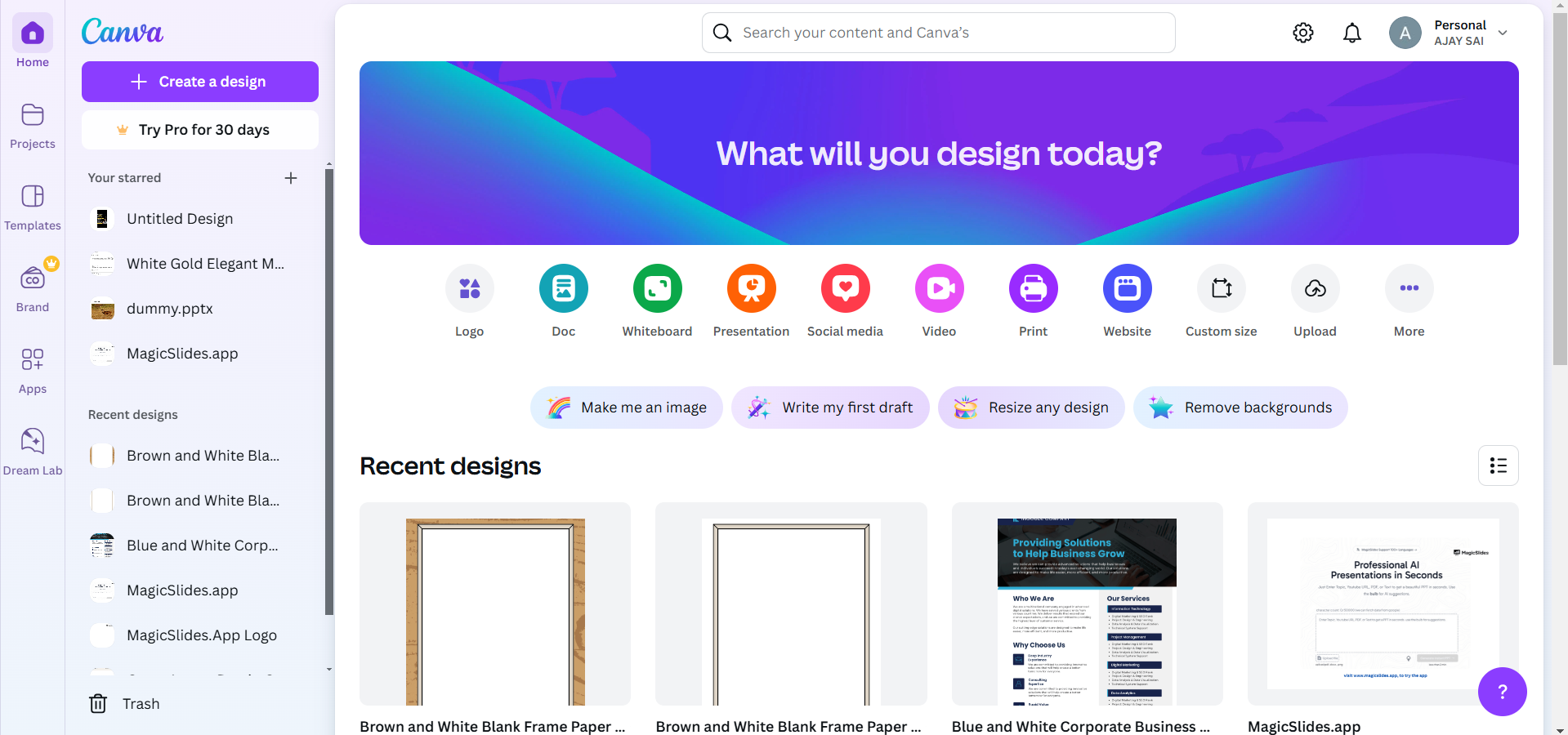
Step 2: Design Content in Canva
Use Canva’s templates, graphics, and text tools to create slides, posters, or interactive materials.
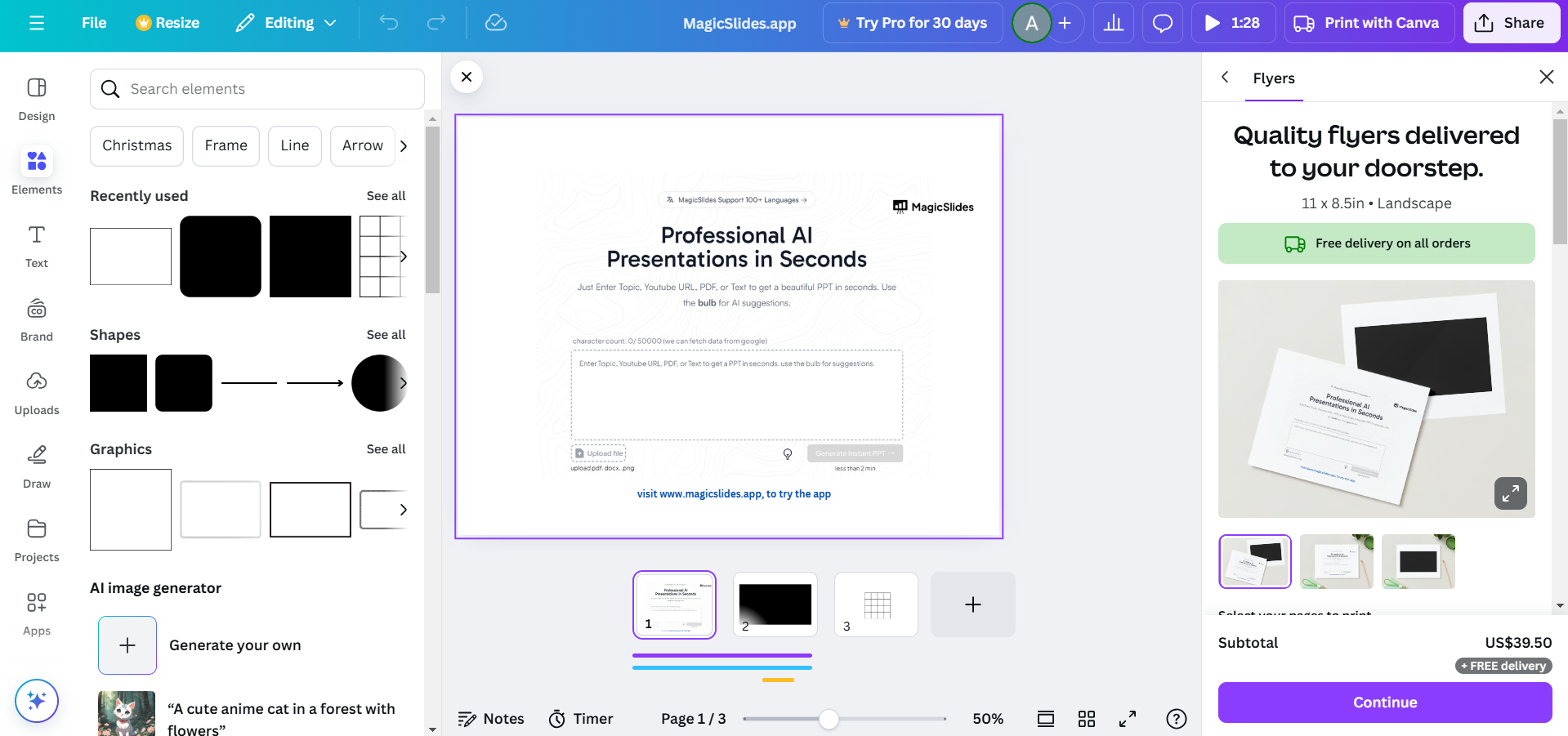
Optimize designs for large screens by choosing a suitable resolution and font size.
Step 3: Save or Export Your Canva Design
Save your design on Canva for direct access during your session.
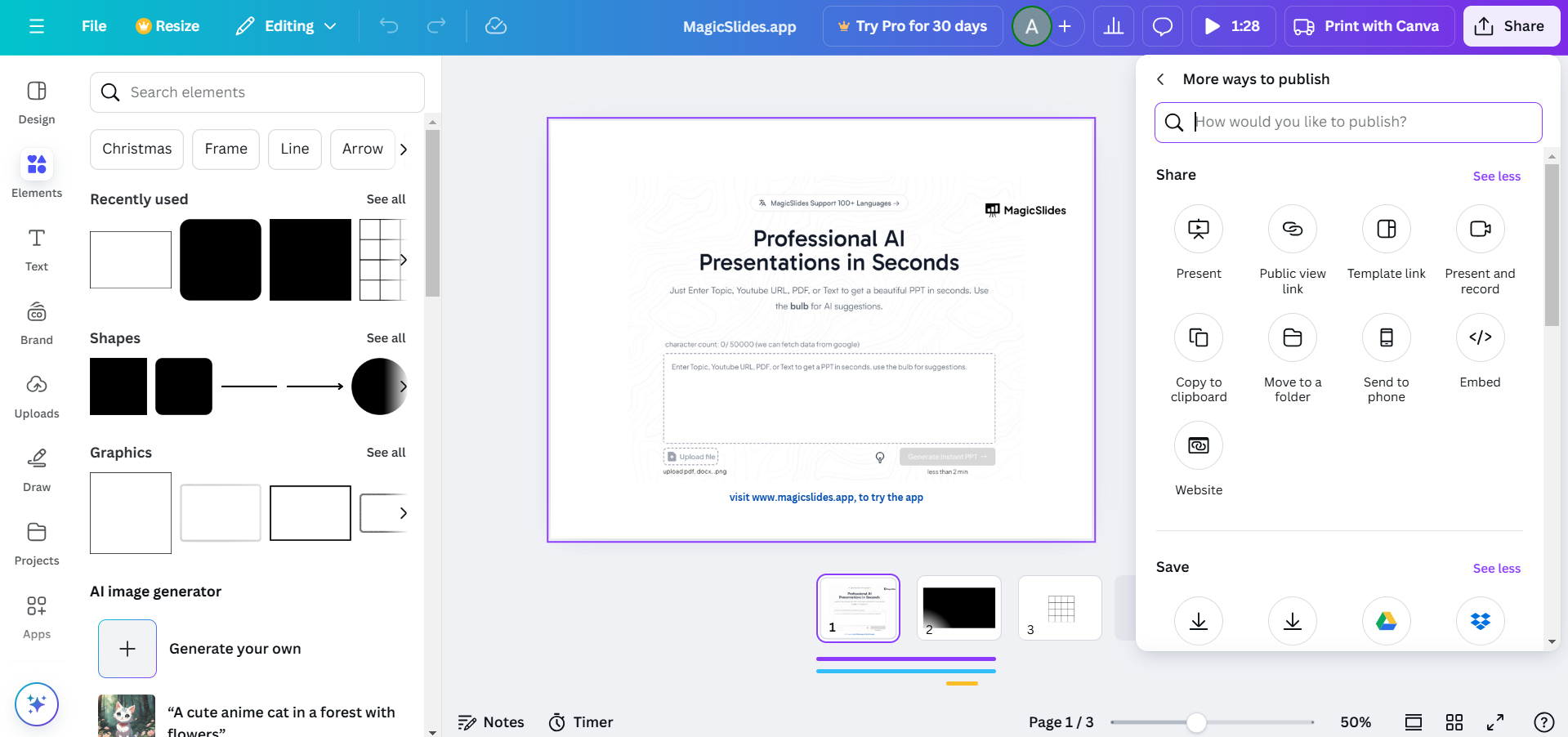
Alternatively, export the design as a PDF, PNG, or JPEG for easier use on the SMART Board.
Step 4: Display Canva Content on the SMART Board
Open the Canva design directly on the SMART Board browser or through a connected device.
Use touch or stylus functionality to navigate through your designs during a presentation.
Step 5: Interact with the Design
Annotate or draw on Canva designs during your session using the SMART Board’s interactive tools.
Highlight key points, add notes, or draw diagrams directly on your Canva presentation.
Step 6: Share or Save Annotations
Save any annotations or changes made on the SMART Board during the session.
Export the annotated version for future reference or sharing with participants.
Conclusion
Canva works seamlessly with SMART Boards, combining Canva’s design flexibility with the interactive features of SMART Boards.
Whether for teaching, brainstorming, or presenting, this combination enhances engagement and collaboration.
FAQs on Using Canva with SMART Board
Can I use all Canva features on a SMART Board?
Yes, most features work, but functionality may depend on the browser or app capabilities of the SMART Board.
How can I interact with Canva designs on a SMART Board?
Use the SMART Board’s touch or stylus features to annotate, navigate, or enhance your Canva presentations.
Can I use Canva offline on a SMART Board?
No, Canva requires an internet connection. However, you can download designs and use them offline as static files.
By combining Canva with SMART Board features, you can create and present interactive and visually appealing content effortlessly!


