How do you Duplicate Something in Google Slides


Easily duplicate objects or slides in Google Slides with these quick and efficient step-by-step instructions
Duplicating objects or slides in Google Slides is a simple yet powerful feature.
It helps save time when creating consistent layouts, duplicating elements, or reusing slides.
Whether you need to copy text boxes, images, or entire slides, this guide will walk you through the steps to easily duplicate anything in Google Slides.
How Do You Duplicate Something in Google Slides? | Steps to Duplicate Something in Google Slides
Step 1: Open Your Google Slides Presentation
Log in to your Google account and open the presentation where you want to duplicate content.
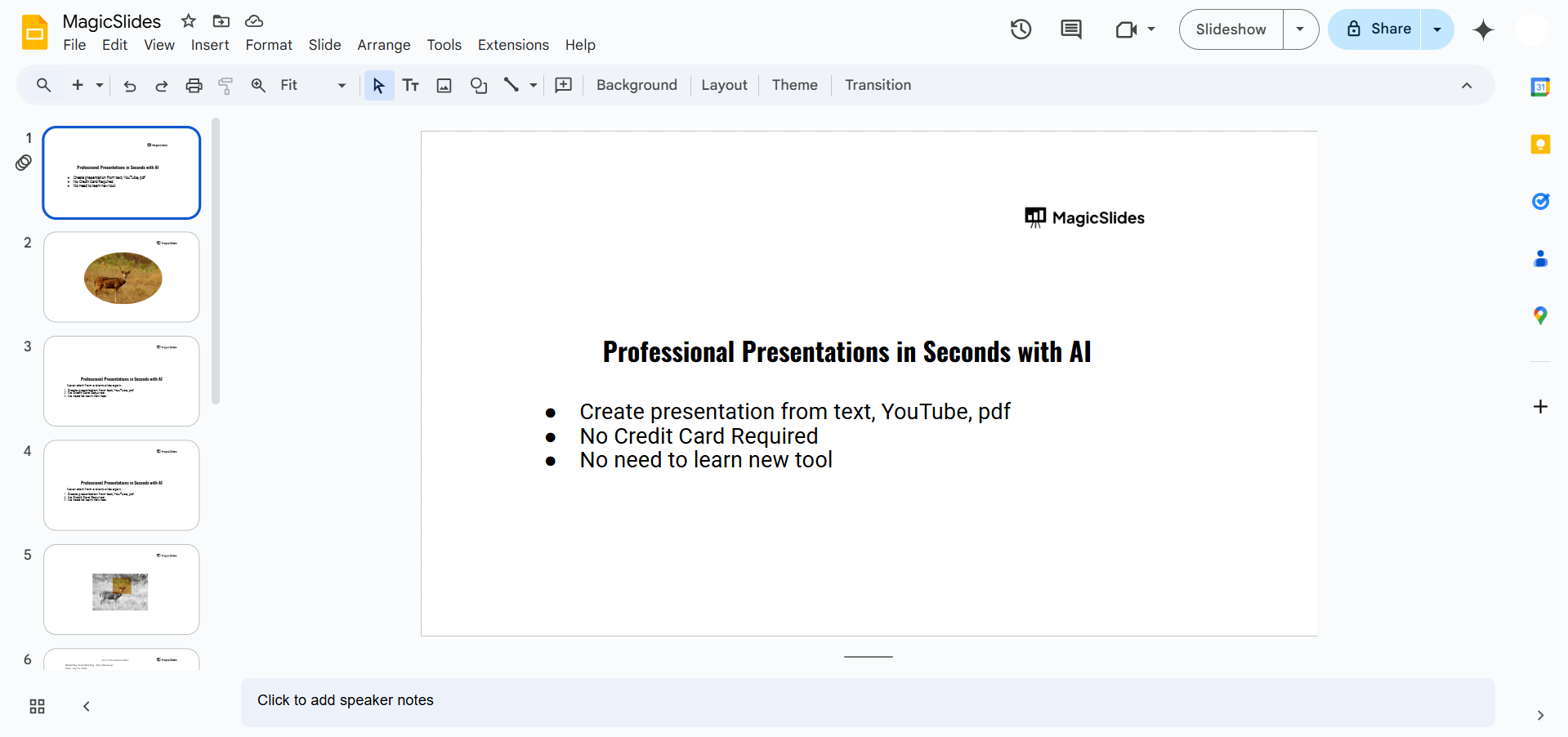
Navigate to the slide or object you want to duplicate.
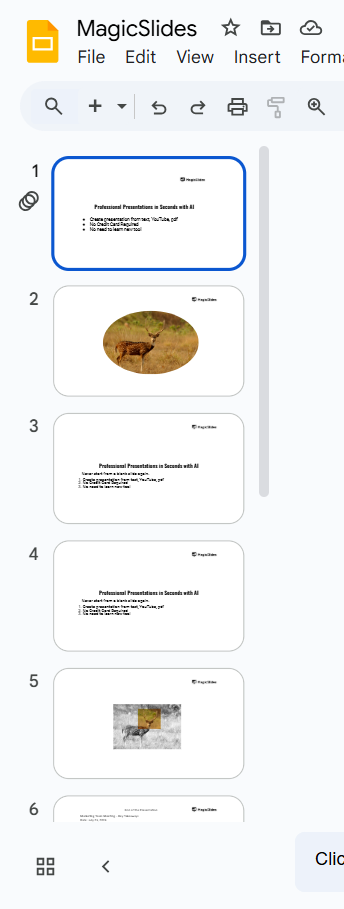
Step 2: Select the Object or Slide to Duplicate
To duplicate an object (e.g., text box, image, shape):
- Click on the object to select it.

To duplicate an entire slide:
- Click on the slide thumbnail in the left-hand navigation pane.
Step 3: Duplicate the Object or Slide
For an object:
- Right-click on the object and select “Duplicate” from the context menu.
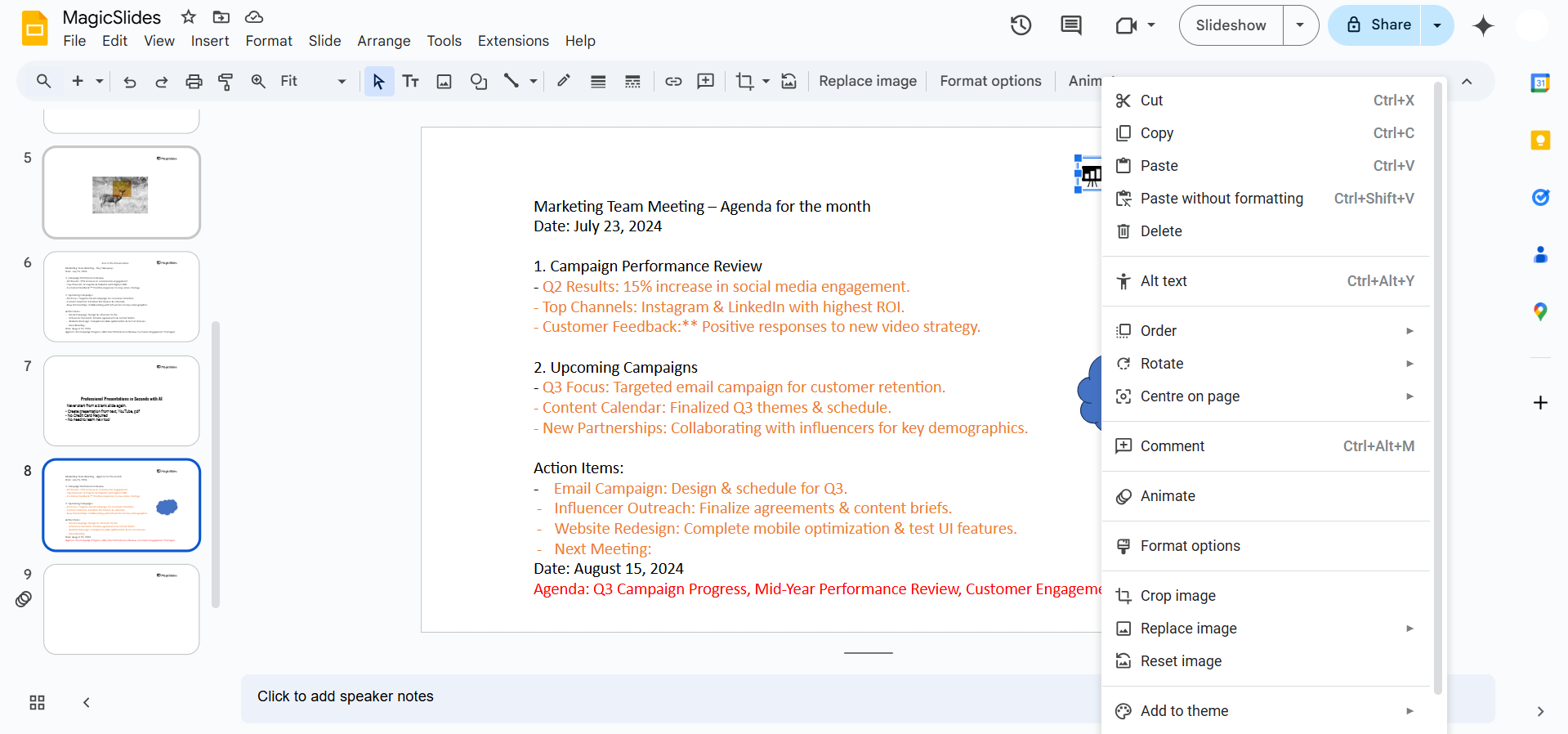
- Alternatively, use the shortcut Ctrl + D (Windows) or Cmd + D (Mac) to quickly duplicate it.
For a slide:
- Right-click on the slide thumbnail and select “Duplicate Slide.”

- Alternatively, use the same keyboard shortcut (Ctrl + D or Cmd + D) to duplicate the slide.
Step 4: Position the Duplicated Content
After duplicating, move the object to the desired position on the slide.
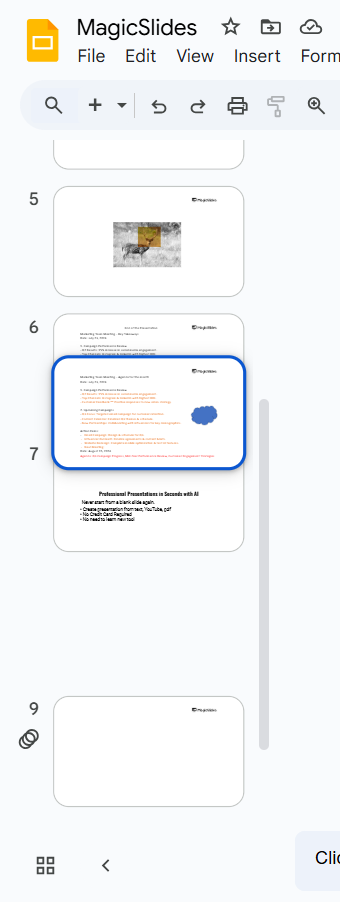
For duplicated slides, drag and drop the new slide to rearrange its order in the presentation.
Step 5: Edit the Duplicated Content (if necessary)
Customize the duplicated object or slide as needed.
This allows you to maintain consistency while making unique modifications to the duplicate.
Conclusion
Duplicating objects or slides in Google Slides is a straightforward process that saves time and ensures consistency in your presentations.
Whether you're replicating content for design purposes or streamlining your workflow, these simple steps make it easy to achieve your goals.
Mastering duplication enhances your efficiency and helps you create polished, professional presentations effortlessly.
FAQs on Duplicating in Google Slides
Can I duplicate multiple objects at once in Google Slides?
Yes! Select multiple objects by holding down Shift and clicking each one, then use Ctrl + D (Windows) or Cmd + D (Mac) to duplicate them simultaneously.
Can I duplicate slides between different presentations?
Yes! Copy the slide from one presentation and paste it into another to duplicate it there.
Does duplicating retain the original formatting?
Yes! Duplicated objects or slides retain their original formatting, making it easy to replicate designs.
By following these steps, duplicating in Google Slides becomes a quick and efficient way to manage your content.


