How to change slack account profile picture

Enhance your Slack presence with a fresh profile picture navigate these simple steps for instant personalization.
In the dynamic realm of online collaboration, a well-curated profile speaks volumes. Your Slack account is no exception.
One of the fundamental aspects of personalization is your profile picture.
In this guide, we'll walk you through the simple steps to change your Slack account's profile picture, ensuring that your digital identity remains vibrant and professional.
Before we begin, if you are looking to send Google form submissions directly to Slack, check SlackNotify.app. It will include all info submitted and sent directly to the Slack channel of your choice
How to change slack account profile picture
1. Open Slack:
Begin by launching the Slack app on your device or navigating to the Slack website (https://slack.com/).

2. Log in:
If not already logged in, provide your current email address and password to access your Slack account.

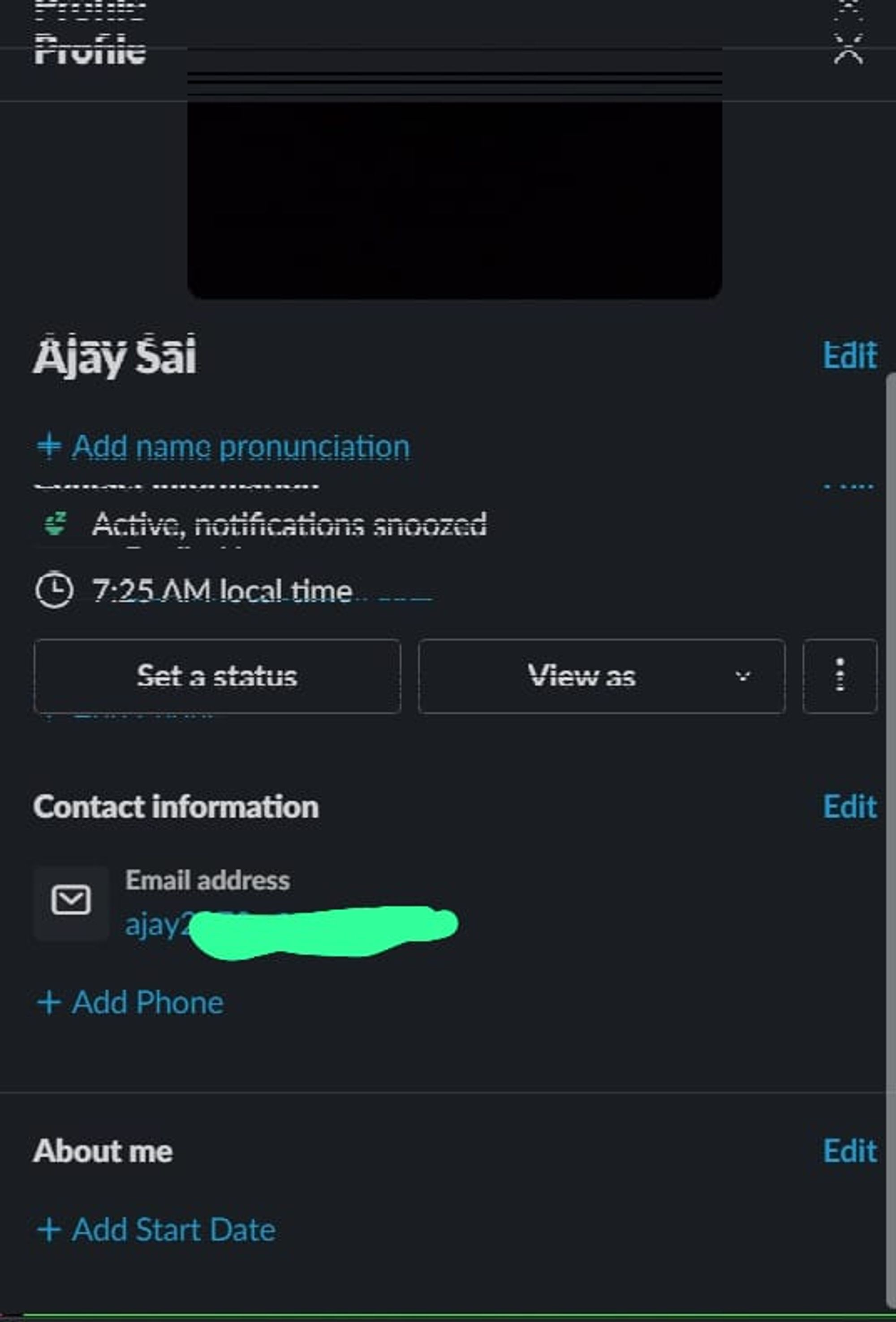
3. Access Profile Settings:
In the top-left corner, click on your workspace name to open the menu. Select "Profile & account" to access your profile settings.

4. Navigate to Profile Picture:
Within the profile settings, locate and click on the section related to your profile picture. This could be labeled as "Profile Picture," "Avatar," or something similar.
5. Upload a New Picture:
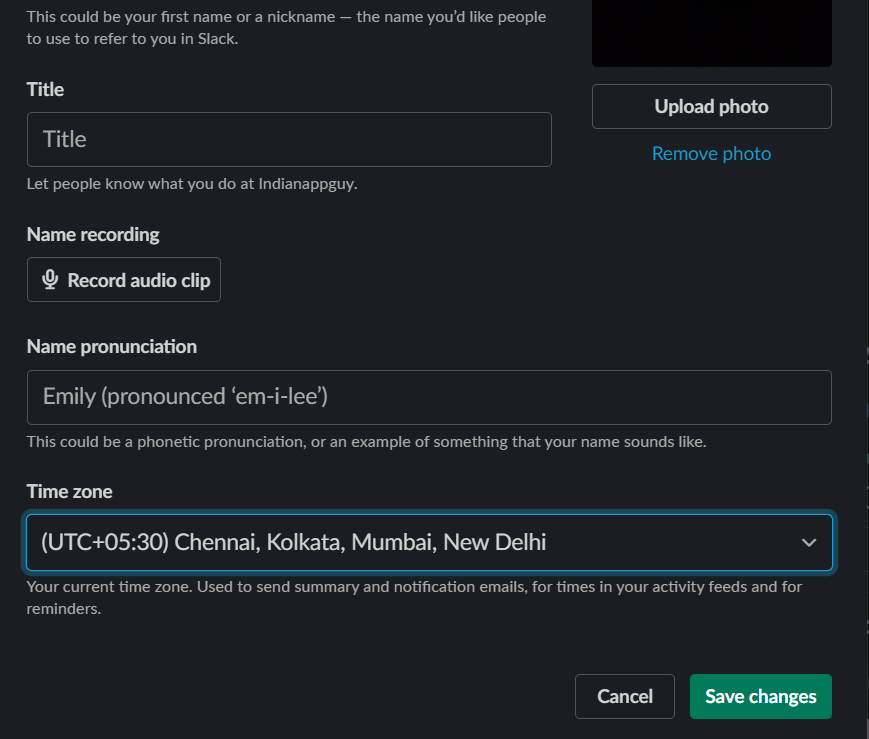
Look for an option to upload a new picture. Depending on your Slack version, this may be represented by an "Edit" or "Change" button. Click on it to initiate the upload process.

6. Choose or Capture an Image:
You'll be prompted to choose an image from your device or capture one using your webcam. Select the desired image and proceed.
7. Adjust and Crop (if necessary):
Some versions of Slack allow you to adjust or crop the image for a perfect fit. Follow the on-screen instructions to make any necessary adjustments.
8. Save Changes:
After selecting or capturing the image and making any adjustments, look for a "Save" or "Update" button. Click it to save your new profile picture. After updating your Slack profile picture, check out how to delete Slack messages to maintain a clutter-free workspace.
Pro Tip 💡:
Choose a clear and professional image to enhance your online presence within your Slack workspace.
As you update your Slack profile picture, consider setting up Google Form notifications to keep your team informed. Every time a Google Form is submitted, you'll get an instant notification in Slack.
Conclusion 💁♂️:
Your Slack profile picture is a visual representation of yourself in the digital workspace. Taking a few moments to update it not only adds a personal touch but also ensures that your colleagues can easily recognize you.
With these simple steps, you can effortlessly refresh your Slack profile picture and present yourself in the best light in the online collaboration arena. Keep your digital identity dynamic, reflecting the ever-evolving nature of your professional journey.
Frequently Asked Questions 🤔:
How do I change my profile picture on Slack?
Start by opening Slack, go to your workspace name, select "Profile & account," find the profile picture section, and upload a new image.
Can I use a photo from my phone for my Slack profile picture?
Absolutely! During the upload process, choose the option to upload an image and select one from your phone's gallery.
Is there a specific size or format requirement for the profile picture?
Slack is flexible; it automatically adjusts the size. Aim for a clear and professional image for the best visual impact.