How to delete Slack conversation history


Streamline your Slack experience by learning how to delete conversation history in just a few steps.
In the fast-paced world of professional communication, tools like Slack have become indispensable for teams to collaborate and stay connected.
However, as conversations accumulate, you may find yourself wanting to declutter your workspace by deleting old messages.
Whether it's for privacy reasons or simply to maintain a more organized digital environment, the ability to delete Slack conversation history can be a valuable feature.
In this guide, we'll walk you through the step-by-step process of clearing your Slack conversation history, helping you regain control over your workspace.
Before we begin, if you are looking to send Google form submissions directly to Slack, check SlackNotify.app
How to delete Slack conversation history
Step 1: Open Slack and Navigate to the Desired Channel or Direct Message
To start the process, open the Slack workspace and navigate to the channel or direct message whose history you wish to delete.
Locate the conversation you want to clear, as the deletion process is specific to each channel or direct message.
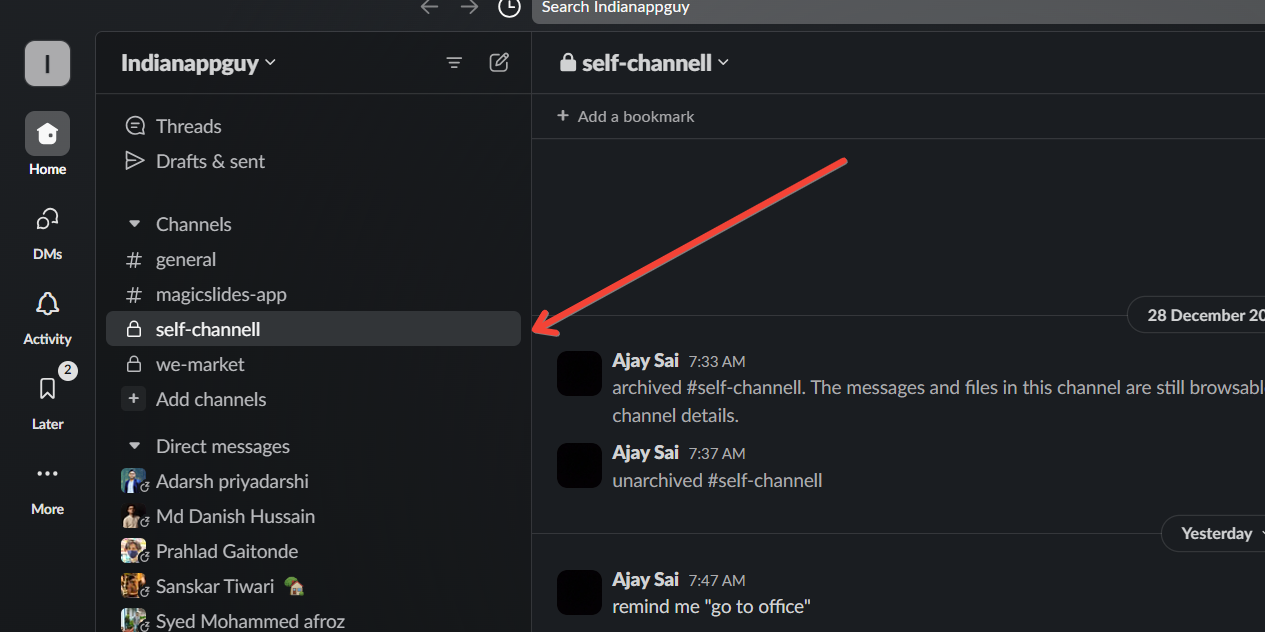
Step 2: Access Conversation Options
Once you're in the desired conversation, look for the gear icon or three dots (depending on your Slack version) typically located at the top-right corner of the screen.
Click on this icon to reveal a drop-down menu of conversation options.
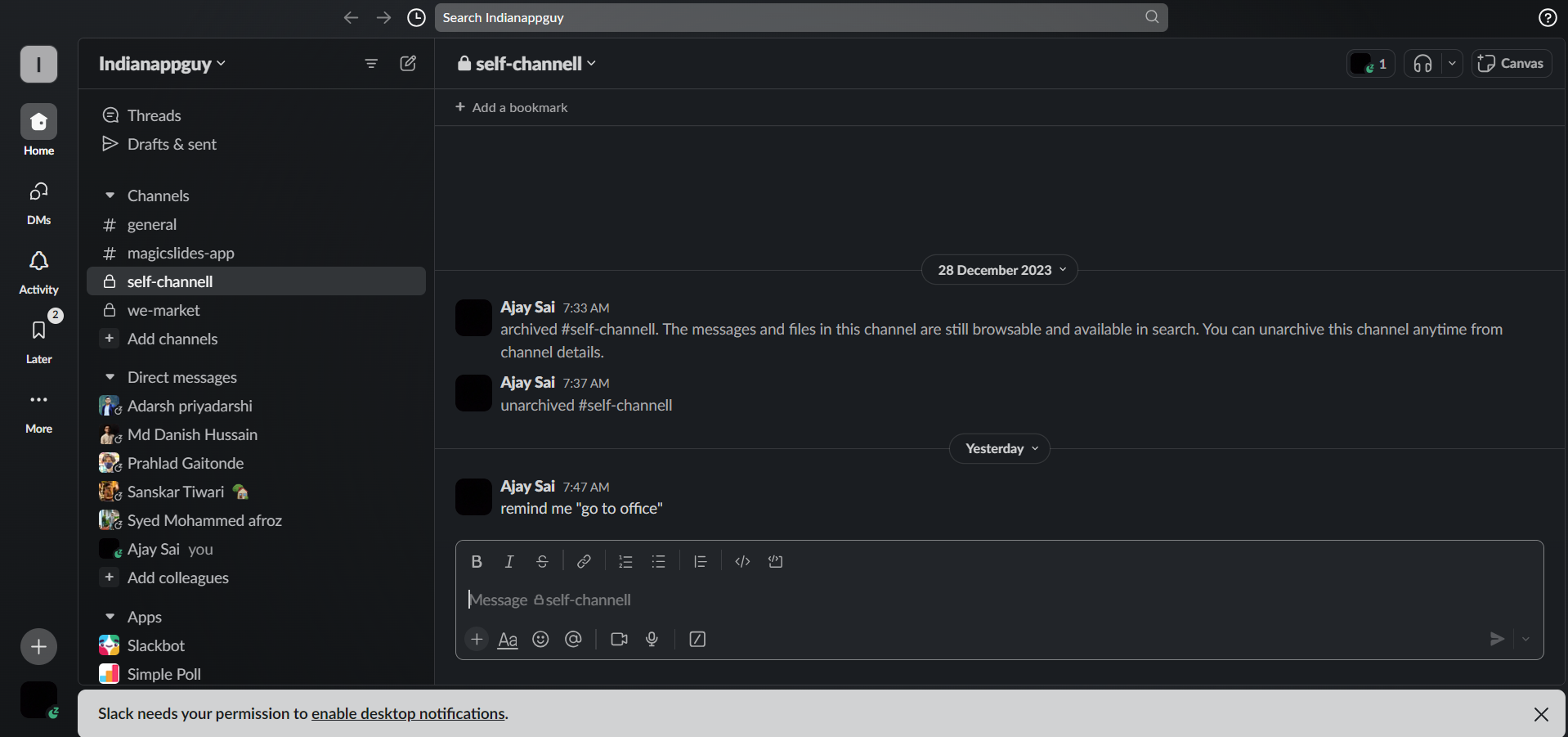
Step 3: Select "More" or "Additional Options"
In the drop-down menu, you'll find an option labeled "More" or "Additional Options." Click on this option to reveal a submenu with additional actions you can perform within the conversation.
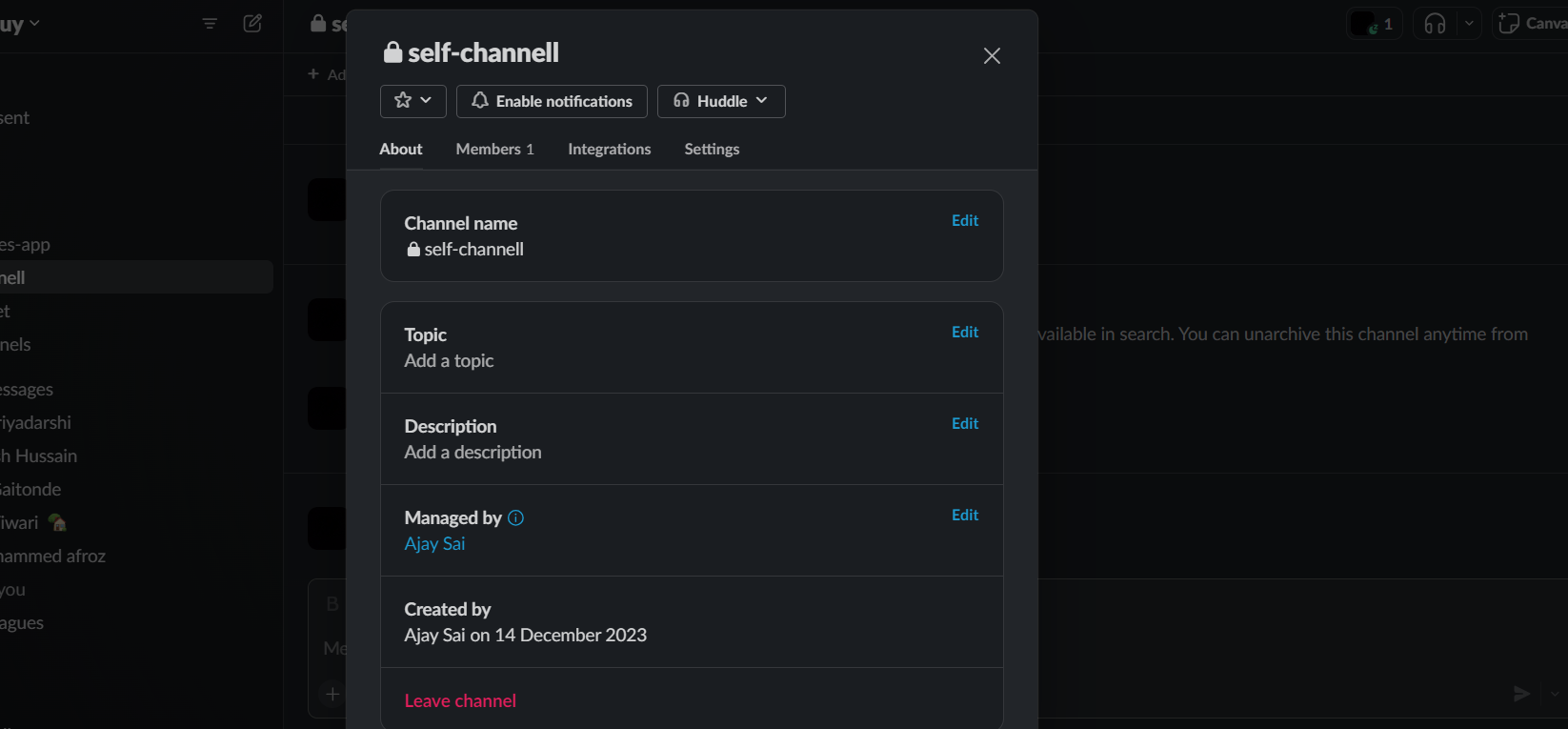
Step 4: Choose "Clear Conversations/delete or leave channel"
Within the submenu, look for the option labeled "Clear Conversations." Click on this option to initiate the process of deleting the conversation history.
Slack will prompt you to confirm whether you want to proceed with the deletion.
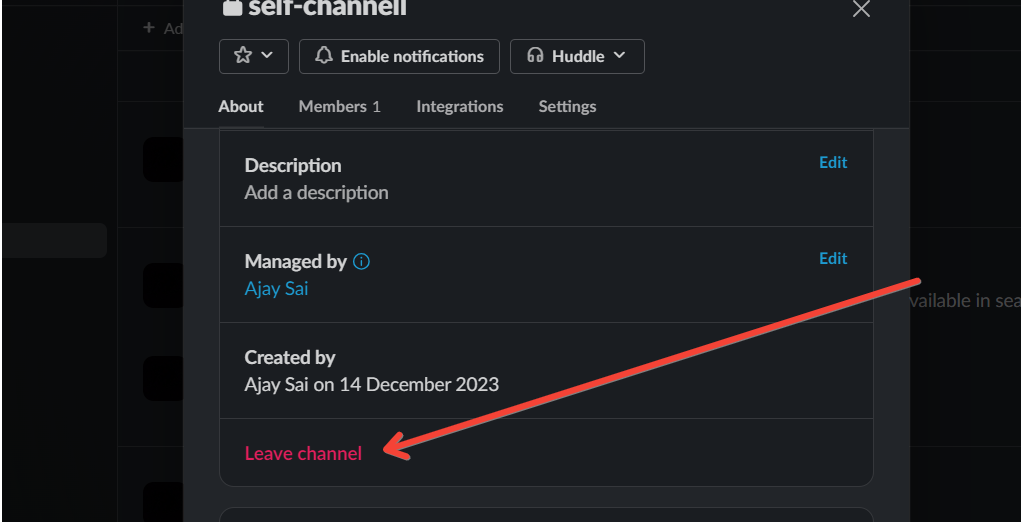
If you are using the newer version of Slack then you may have to delete the channel itself as bulk deleting channels is not possible as per newer update.
If you wish not to delete the entire conversation history but only a particular message you can manually delete them by right clicking on the message more actions and delete message.
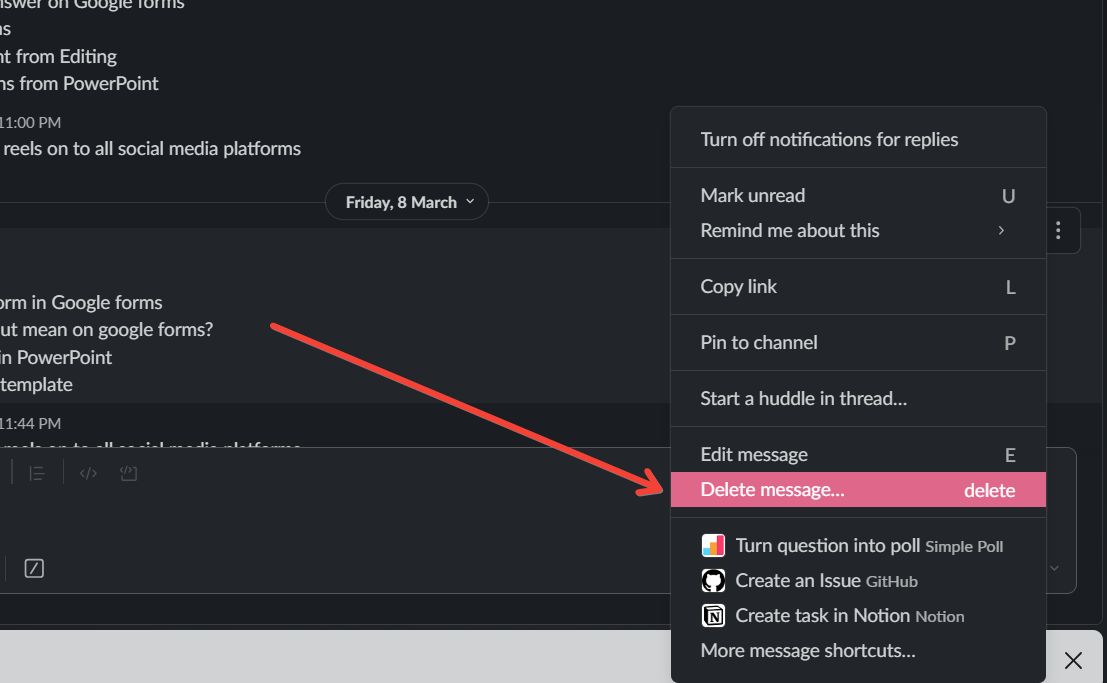
Step 5: Confirm Deletion
After selecting "Clear Conversation/leave channel" Slack will display a confirmation message to ensure that you intend to delete the conversation history.
Confirm your decision by clicking on the appropriate button (e.g., "Clear" or "Delete"). In Slack Leaving a channel is same as clearing conversations and deleting Conversations.
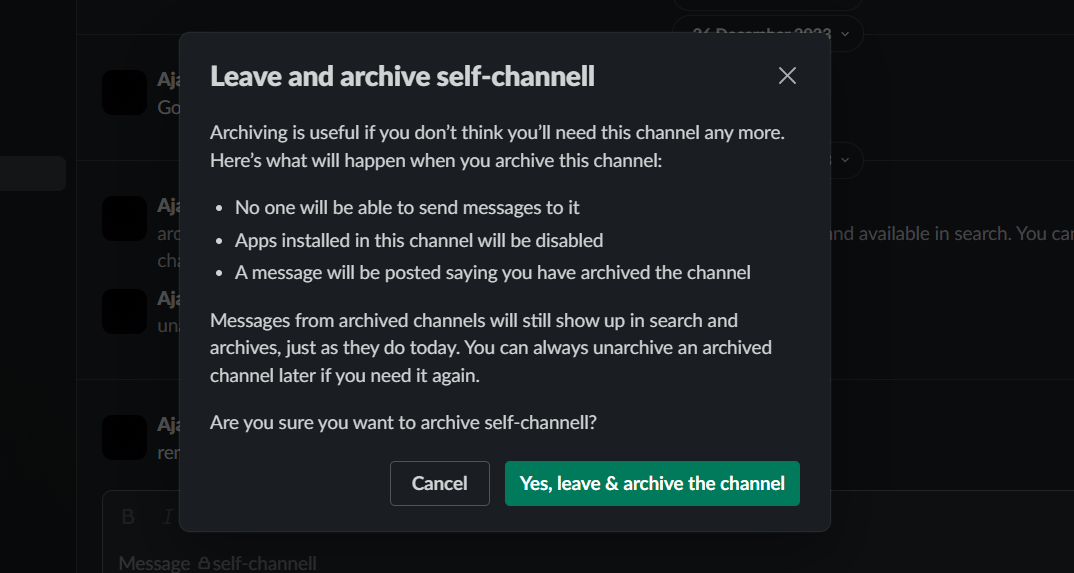
Step 6: Verify the Conversation is Cleared
Once the process is complete, take a moment to verify that the conversation history has been successfully cleared.
You should no longer see the previous messages within the selected channel or direct message.
As you manage Slack conversation history, consider enabling Google Form notifications in Slack to automatically send alerts when a Google Form is submitted, helping you maintain relevant, up-to-date conversations.
Conclusion:
Clearing Slack conversation history is a simple yet effective way to declutter your workspace and maintain a focused, organized communication platform.
By following these step-by-step instructions, you can easily delete specific conversations, providing you with the flexibility to manage your digital interactions efficiently.
Remember to exercise caution and confirm your decision before proceeding with the deletion to avoid any unintended data loss.
Managing digital tools like Slack is important, but for your presentation needs, MagicSlides.app is the ultimate tool. Create professional slides effortlessly from any input. Explore MagicSlides.app now and simplify your workflow!
Frequently Asked Questions:
Will deleting conversation history in Slack affect my colleagues' access to the messages?
No, only your view of the conversation will be cleared. Others will retain their message history.
Can I selectively delete messages or is it an all-or-nothing process?
You can clear entire conversations, wheathere an individual message or the entire chat history, please refer to step 4 above explaining both the types of deletion.
Is there a way to recover deleted Slack conversation history once it's cleared?
Unfortunately, Slack doesn't offer a built-in recovery feature, so ensure you want to delete before confirming.


