How to check how many words you have on google slides


Master Google Slides word count feature for precision and impact in your presentations. Here’s how!
In the dynamic world of presentations, Google Slides has emerged as a powerful tool for creating visually engaging slideshows. Whether you're preparing a business presentation, a school project, or a collaborative report, it's crucial to keep track of your content. One essential aspect is monitoring the word count within your slides, ensuring conciseness and meeting any specified requirements. In this guide, we'll walk you through the step-by-step process of checking word count in Google Slides, empowering you to manage your content effectively.
How to check how many words you have on google slides
Open Your Presentation:
Begin by opening the Google Slides presentation that you are working on. If you haven't started one yet, create a new presentation or open an existing one.
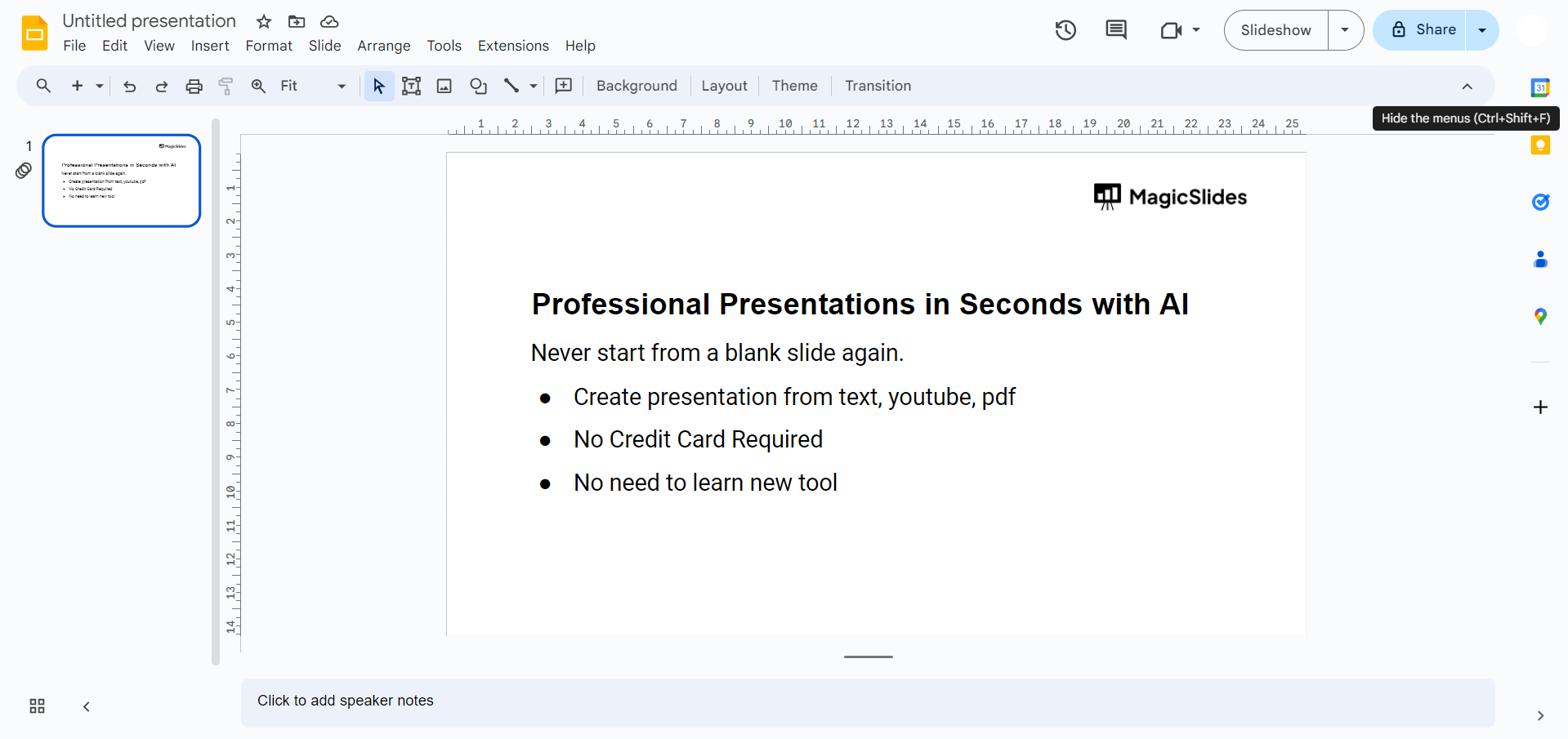
Select the Text:
Within the slide, click and drag your mouse cursor to select the text you want to include in the word count. This could be a single text box or multiple elements on the slide.
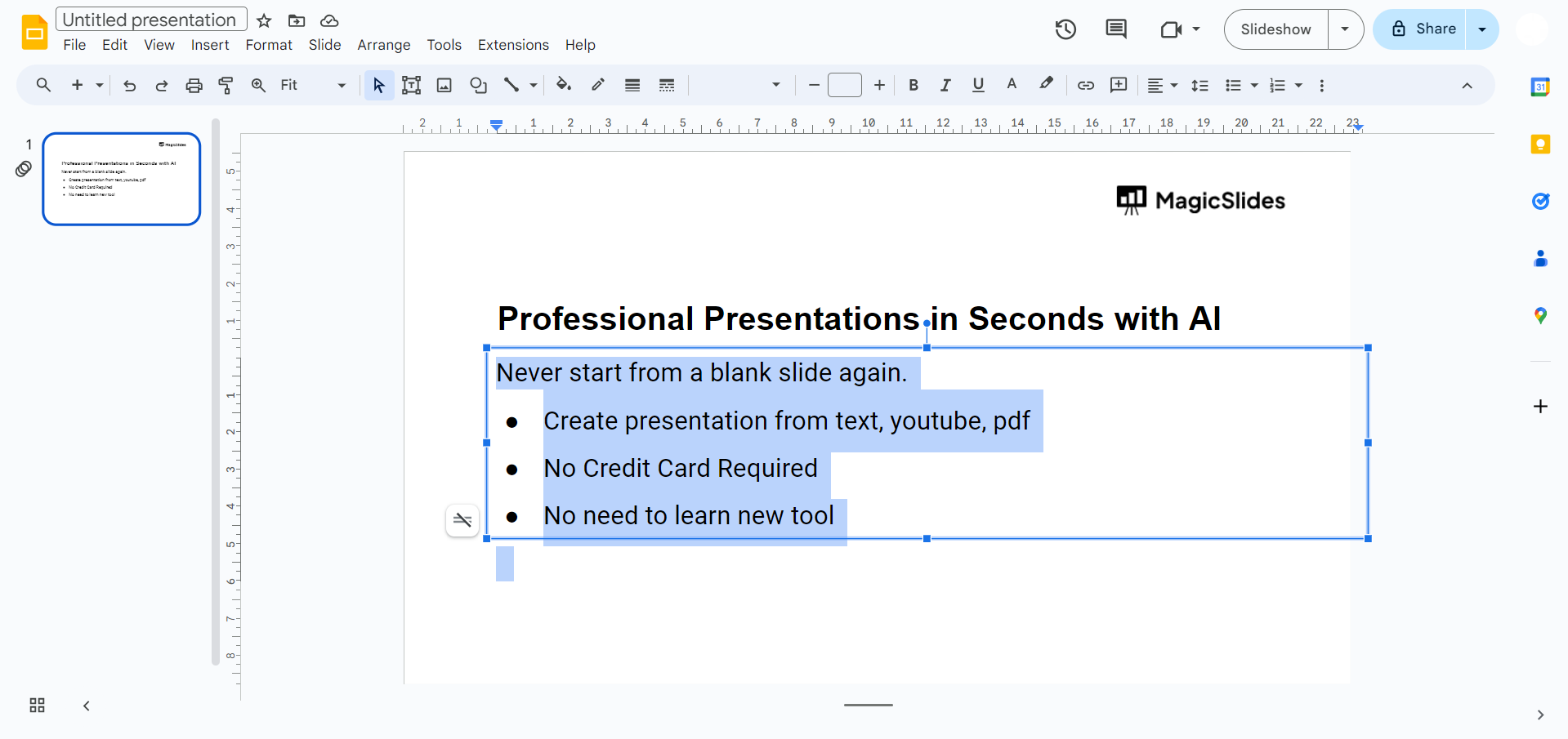
Copy the Text:
After selecting the text, right-click on the highlighted area and choose the "Copy" option from the context menu. Alternatively, you can use the keyboard shortcut (Ctrl+C on Windows or Command+C on Mac).
Open Google Docs:
In a new tab or window, navigate to Google Docs (docs.google.com) and open a new or existing document where you'd like to check the word count.
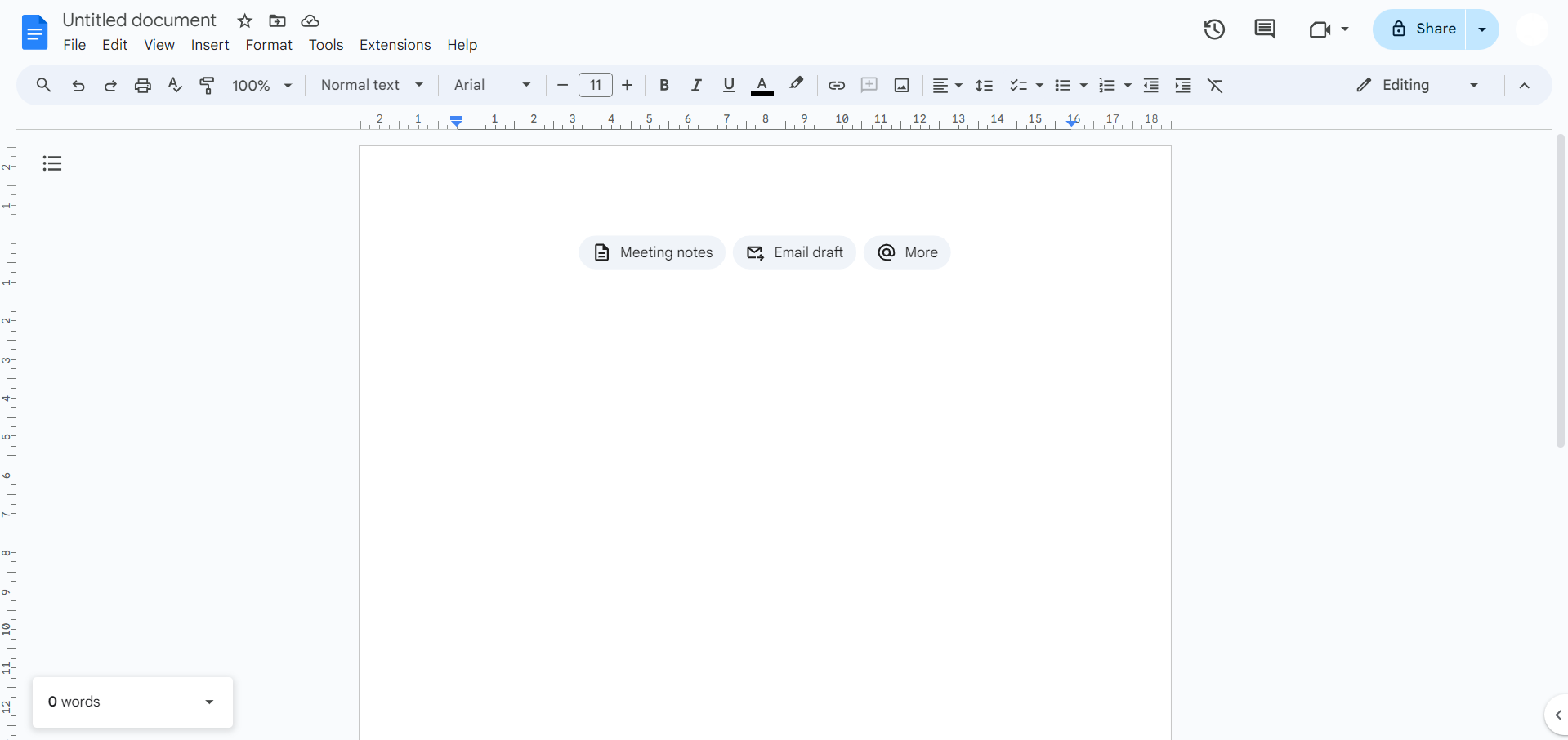
Paste the Text:
Right-click at the desired location in your Google Docs document and select "Paste" from the context menu. Alternatively, you can use the keyboard shortcut (Ctrl+V on Windows or Command+V on Mac).
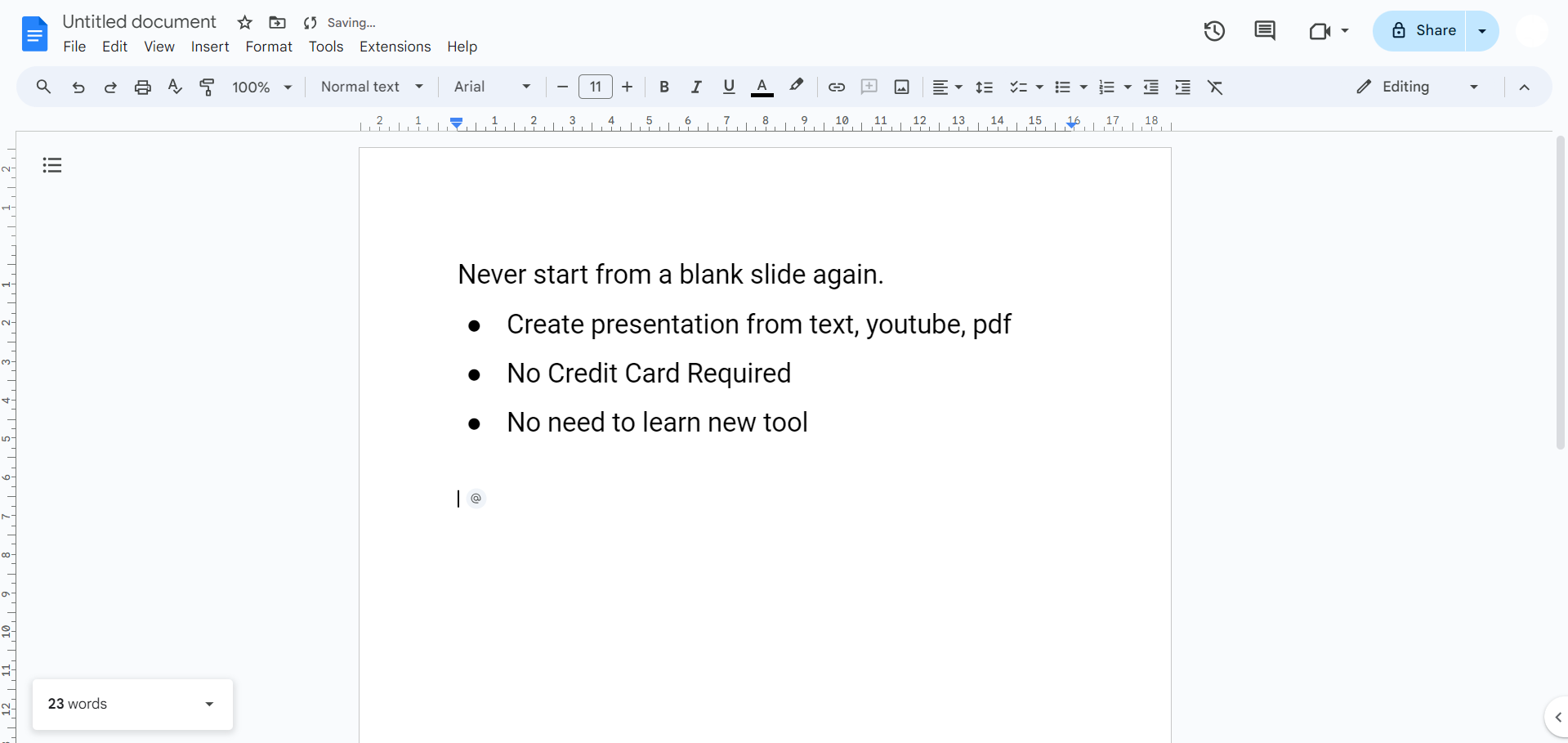
Check Word Count:
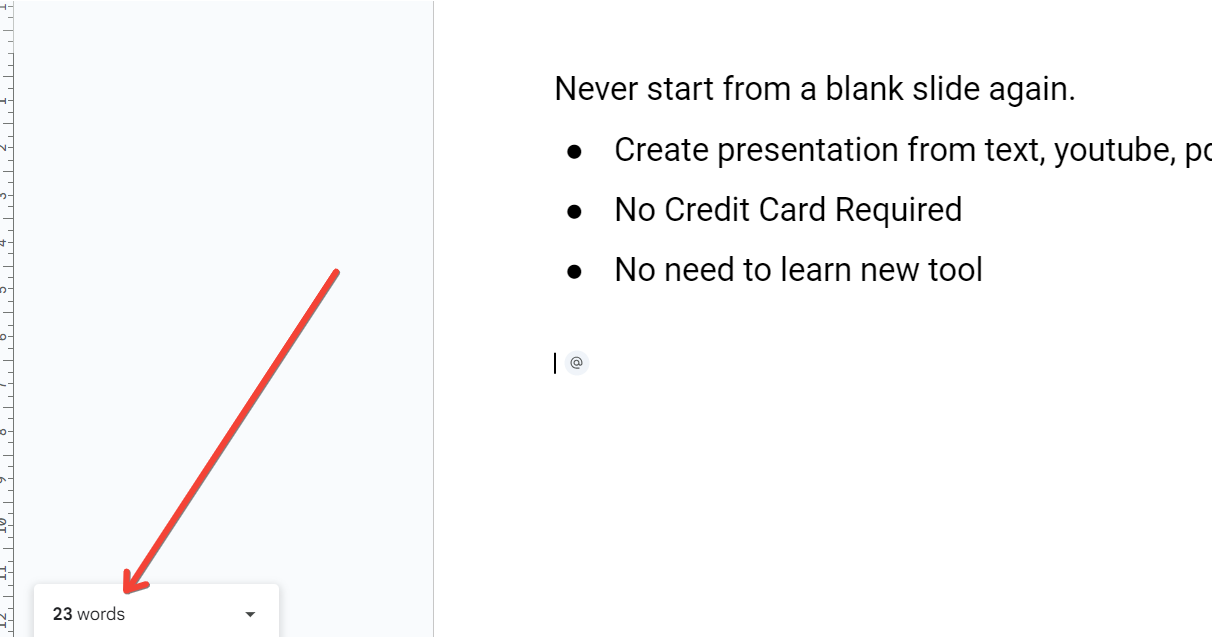
In Google Docs, navigate to the "Tools" menu at the top of the screen. Choose the "Word count" option from the dropdown menu. A small window will appear, displaying the word count, character count, and other relevant information for the pasted text.
Repeat as Needed:
If your content spans multiple slides, repeat these steps for each slide's text. You can continue pasting the text into the same Google Docs document, and the word count will accumulate.
Conclusion:
Keeping track of word count is a fundamental aspect of creating effective presentations. With Google Slides, the process is straightforward and easily accessible. This guide has equipped you with the knowledge to seamlessly check the word count in your presentation, allowing you to maintain clarity, meet requirements, and refine your content. As you harness the power of Google Slides for your next presentation, the ability to monitor word count ensures that your message remains impactful and concise. Happy presenting!
Frequently Asked Questions:
Why is it important to check word count in Google Slides?
Monitoring word count ensures conciseness, adherence to guidelines, and impactful communication in your presentations.
Can I check word count for individual slides?
Absolutely! Google Slides allows you to review word count details for each slide, aiding in content management.
Is the word count feature easy to access?
Yes, it's conveniently located in the "Tools" menu, providing a quick and user-friendly way to analyze your presentation's word count.
Does this guide apply to both new and existing presentations?
Certainly! Whether you're starting fresh or working on an existing presentation, these steps apply seamlessly to keep your content in check.


