how to compress a ppt


Optimize your PowerPoint files for easy sharing and efficient performance. Learn how to compress a PPT!
Large PowerPoint presentations with many images and multimedia elements can become unwieldy, making them difficult to share and causing slow performance.
Compressing your PPT file is the solution to these issues. In this guide, we'll show you how to efficiently compress your PowerPoint presentation, reducing its file size without compromising the quality of your content.
Steps: How to Compress a PowerPoint (PPT) Presentation
- Open Your PowerPoint Presentation:
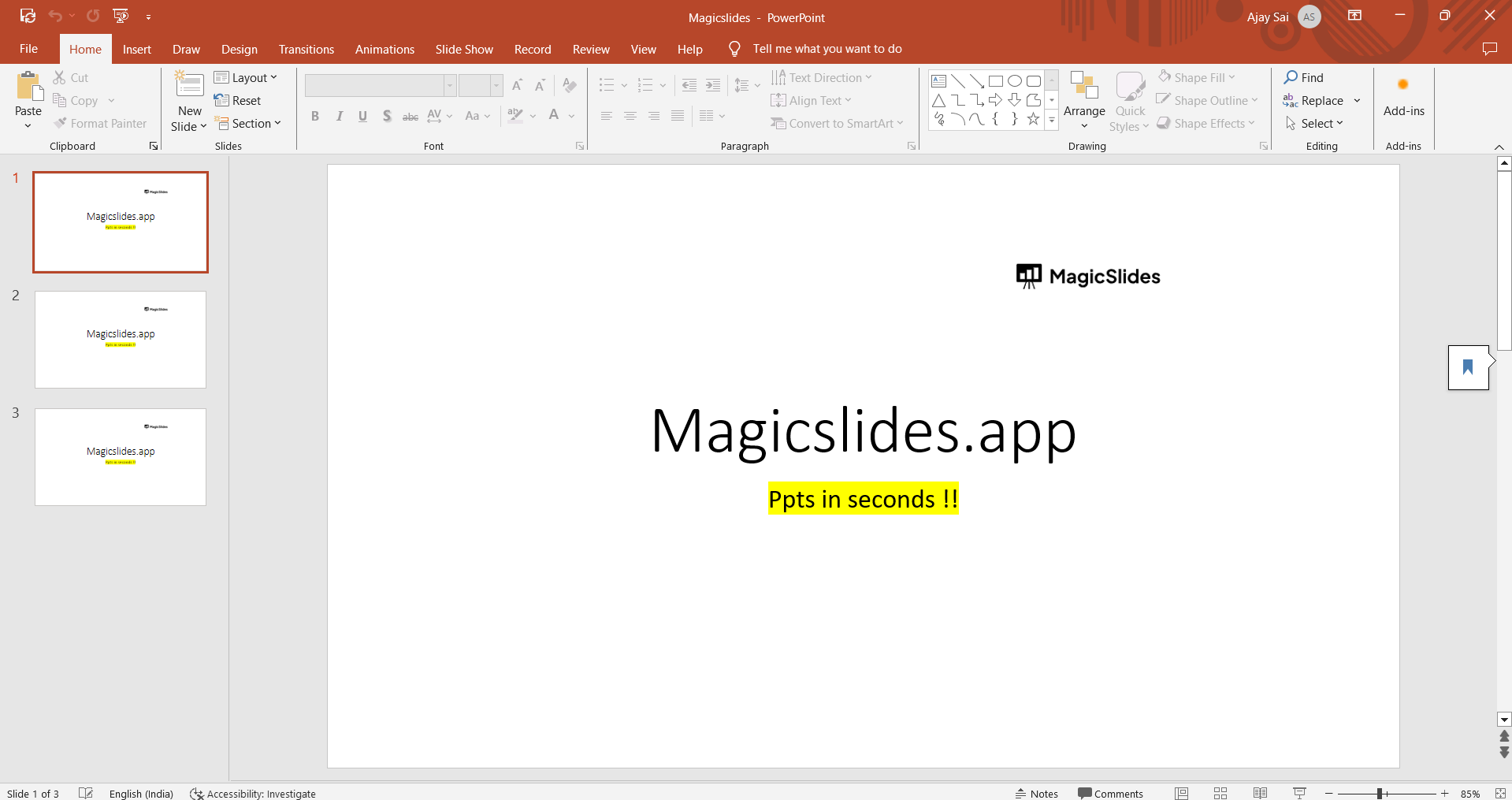
homepage for your powerpoint presentation - Begin by opening the PowerPoint presentation you want to compress. Make sure it's complete and ready for the compression process.
- Go to "File":
- In the top-left corner of the PowerPoint window, click on the "File" tab to access the File menu.
- Select "Reduce File Size":
- From the File menu, choose "Reduce File Size." This will open the Reduce File Size dialog box, if it doesn’t appear choose powerpoint options
- Choose Compression Options:
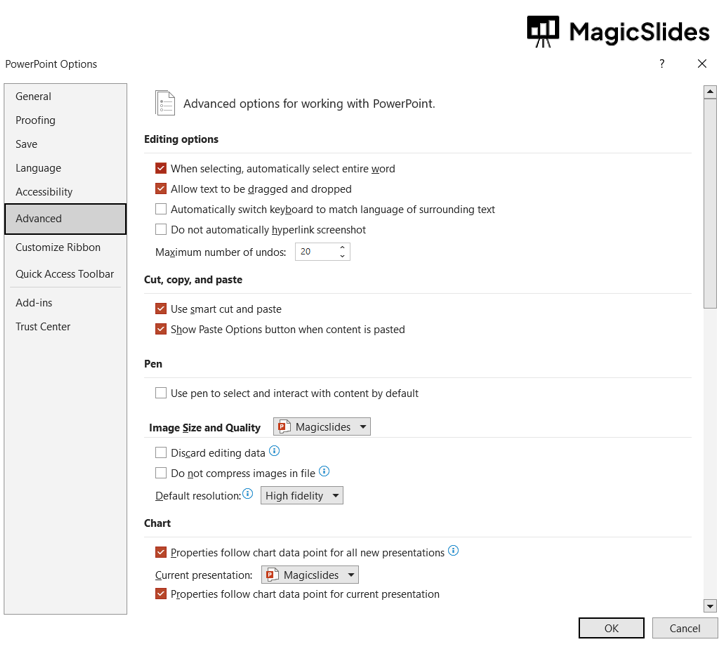
choose a resolution of your choose HD/ Low definition to reduce file size - In the Reduce File Size dialog box, you'll see a list of compression options. Select the one that best fits your needs. "Best for Printing" retains the highest quality, while "Best for Viewing on Screen" offers higher compression.
- Unselect "Delete Cropped Areas of Pictures" (optional):
- If you've cropped images in your presentation and want to retain the cropped areas, unselect the "Delete cropped areas of pictures" checkbox.
- Click "OK":
- After choosing your compression options, click the "OK" button. PowerPoint will process your presentation and reduce the file size.
- Review Your Compressed Presentation:
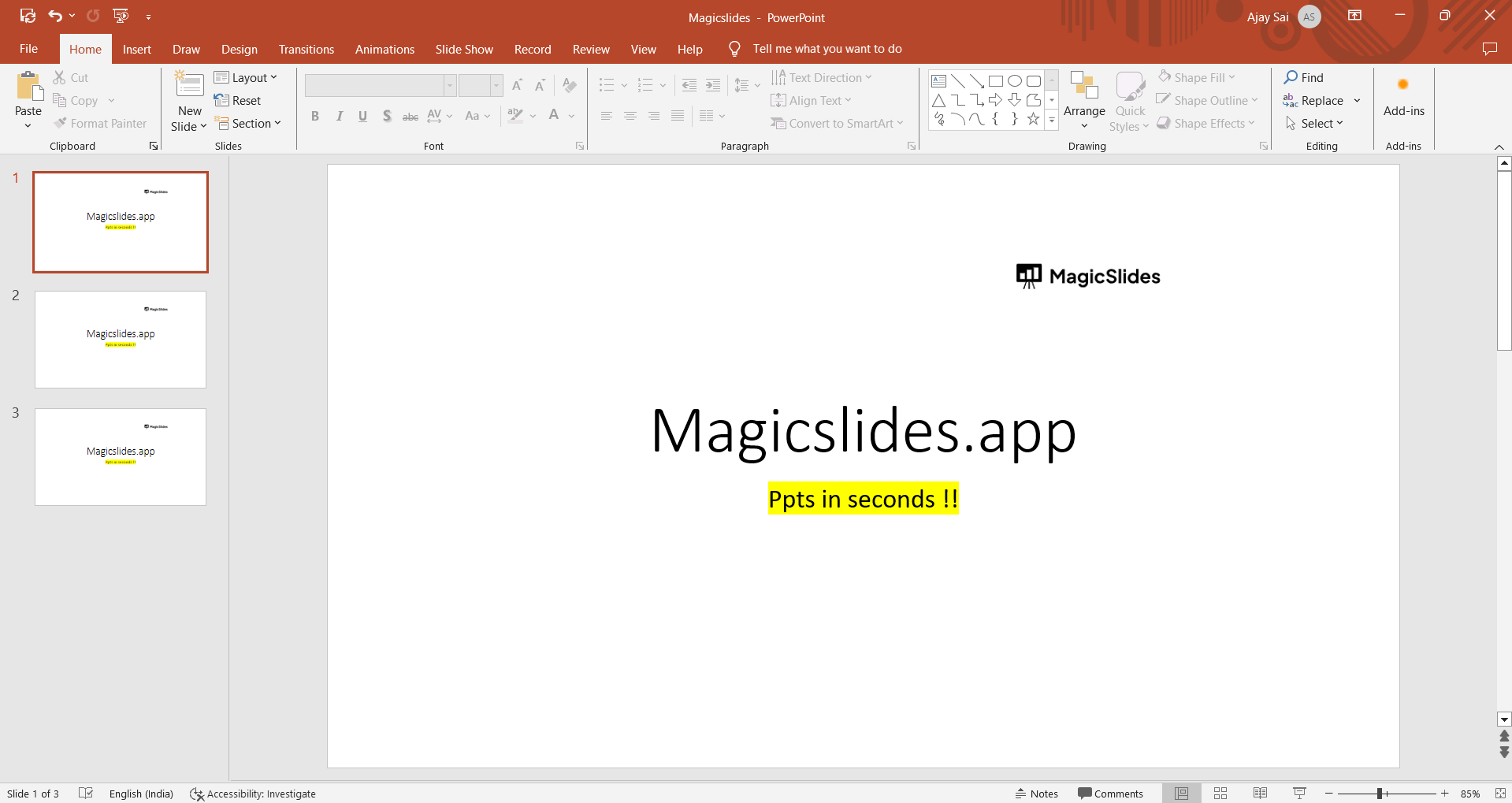
review your compressed ppt - Once the compression is complete, review your presentation to ensure that the quality remains satisfactory and that no content was unintentionally altered.
- Save the Compressed Presentation:
- To save the compressed presentation as a new file, go to "File" > "Save As." Choose a new file name or location, and save the presentation.
- Check the New File Size:
- You can check the file size of the compressed presentation to confirm that the compression was effective.
Conclusion:
Compressing a PowerPoint presentation is a valuable technique for reducing file size and ensuring smoother sharing and performance.
By following these steps, you can efficiently optimize your PPT file without sacrificing the quality of your content. This is especially useful when sharing presentations through email or in scenarios where file size matters.
Frequently Asked Questions:
- Why should I compress a PowerPoint presentation?
- Compressing a PowerPoint presentation reduces its file size, making it easier to share, send via email, and improve performance during presentations.
- Will compressing a PPT affect the quality of my images and multimedia?
- It may slightly reduce image quality, but the impact is usually minimal, especially when choosing appropriate compression options.
- Can I revert to the original file after compressing it?
- No, the compression process is irreversible. Make sure to keep a backup of the original presentation if needed.
- What is the difference between "Best for Printing" and "Best for Viewing on Screen" compression options?
- "Best for Printing" retains higher quality for high-resolution printouts, while "Best for Viewing on Screen" optimizes for screen display, offering higher compression.
- Are there any file size limitations for compressed PowerPoint presentations?
- While compressed presentations are smaller, there are still limitations depending on your storage and sharing methods. Check the requirements of your intended platform or email service for specific limits.