
Creating a compelling pitch deck is crucial for effectively communicating your business idea to potential investors, partners, or clients.
A well-structured pitch deck typically consists of 10 slides, each addressing a specific aspect of your business.
This blog post will guide you through the step-by-step process of creating a 10-slide pitch deck using Google Slides and the MagicSlides extension, making the process simple and efficient.
Creating a Pitch deck (Step by Step Guide)
Step 1: Open Google Slides
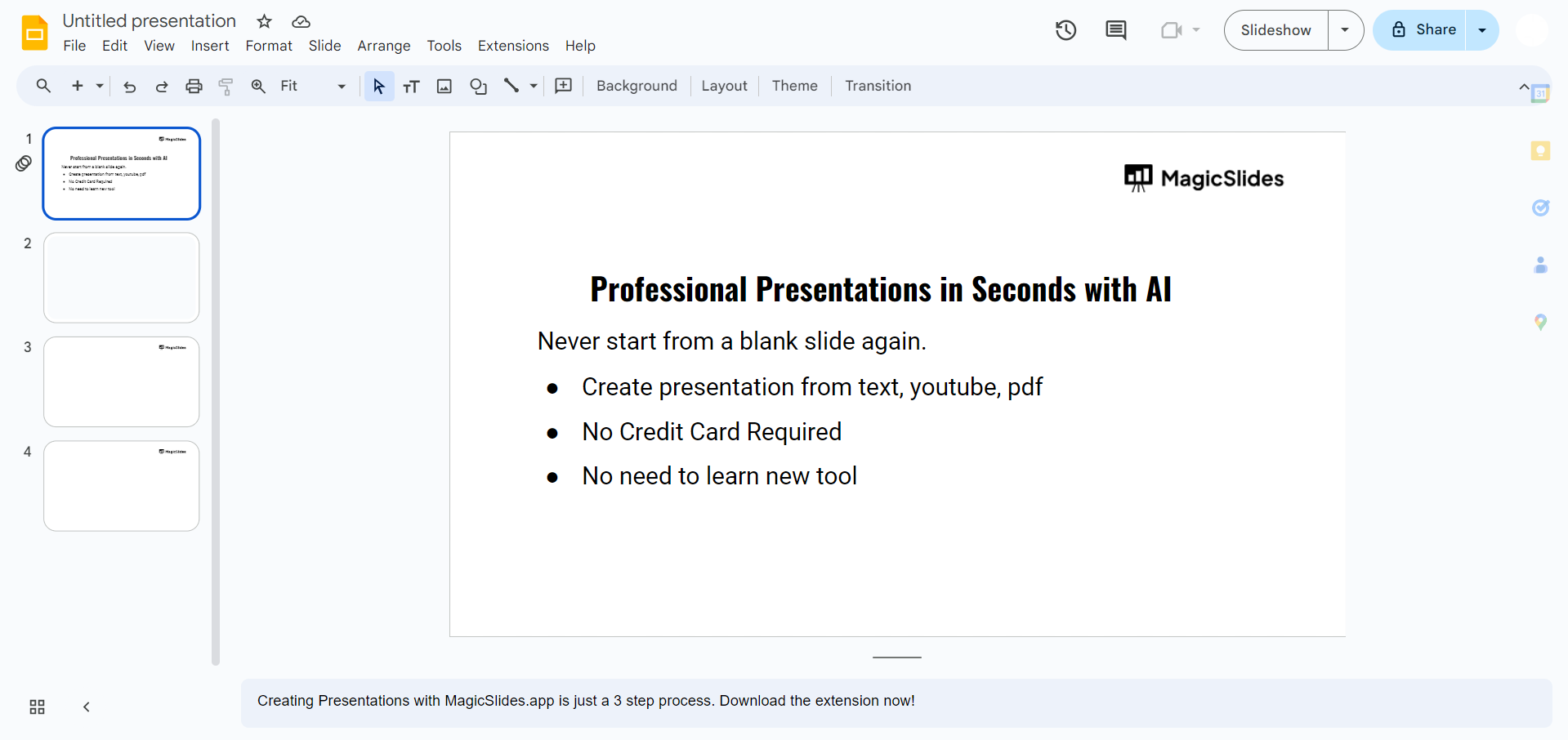
Begin by opening Google Slides in your web browser. You can do this by navigating to Google Slides and logging in with your Google account.
Step 2: Add the MagicSlides Extension
If you haven't already installed the MagicSlides extension, go to the Google Workspace Marketplace. Search for "MagicSlides" and click on "Install." Follow the prompts to add the extension to your Google Slides account. This extension will help streamline the creation of your pitch deck.

Step 3: Create a New Presentation
Once the MagicSlides extension is installed, return to Google Slides and create a new presentation. Click on the "Blank" option to start with a clean slate.
Step 4: Open the MagicSlides Extension
In your new presentation, open the MagicSlides extension. You can find it in the "Add-ons" menu at the top of the screen.
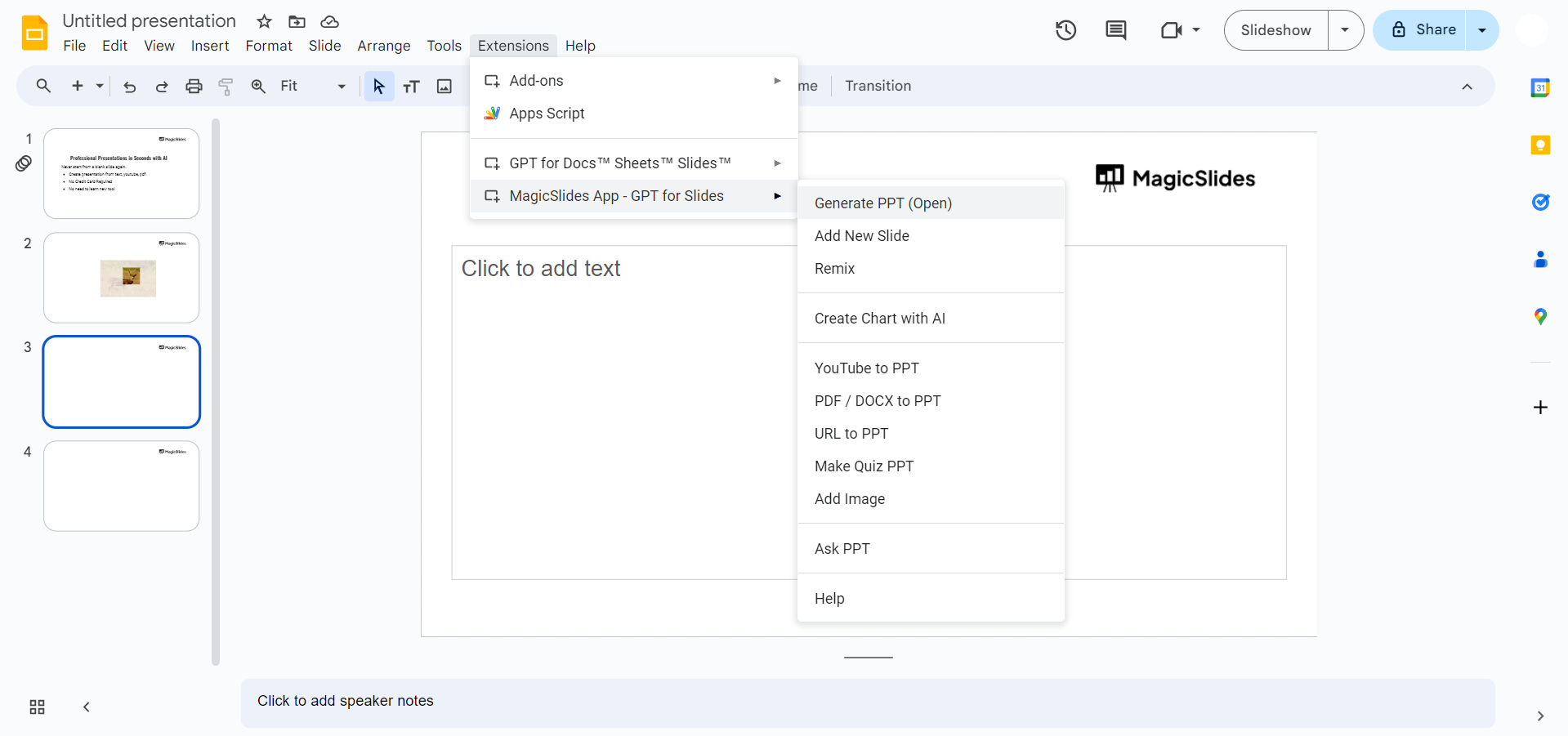
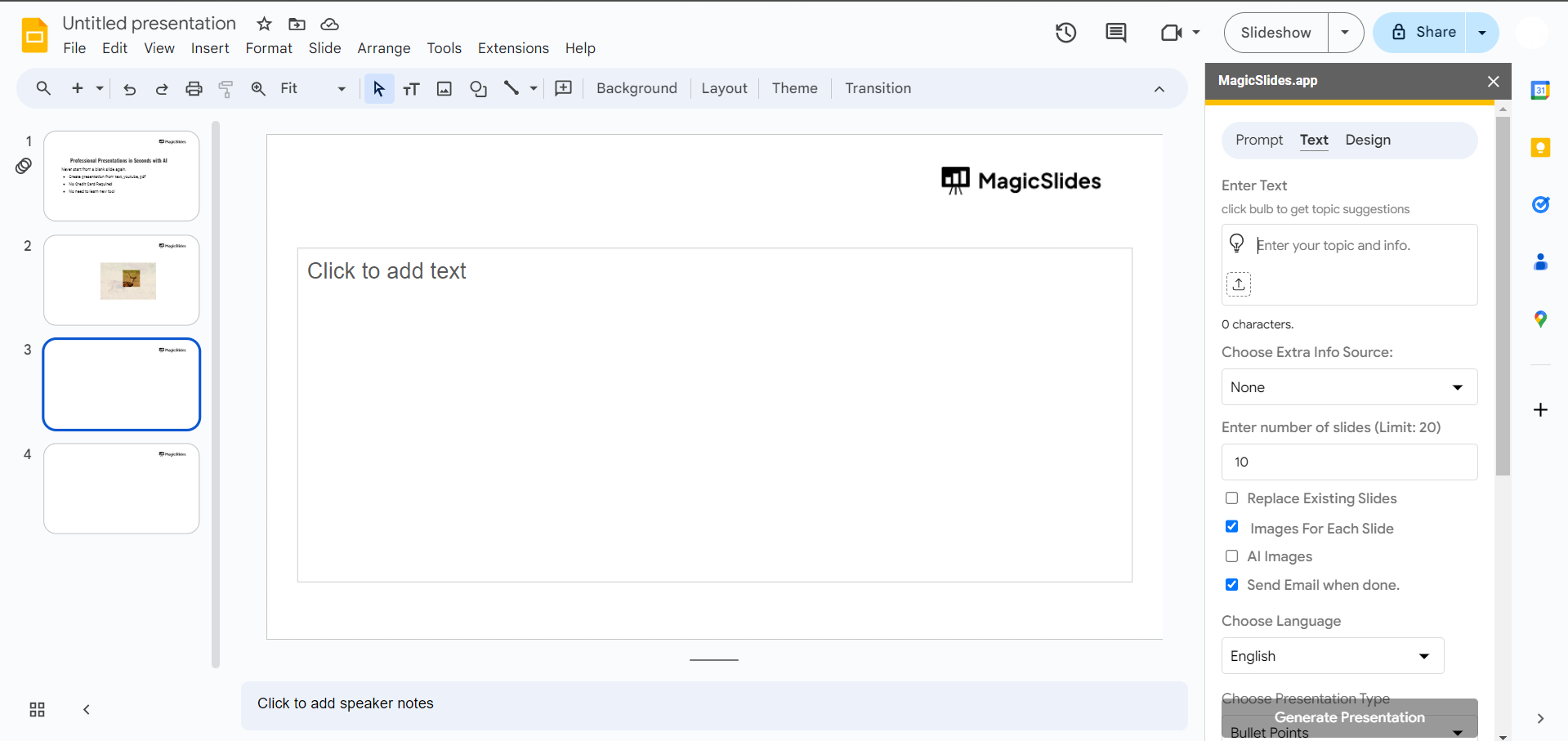
Click on "MagicSlides" and then select "Open." This will open the MagicSlides interface on the right side of your screen.
Step 5: Add Content for Slide 1 - Problem Statement
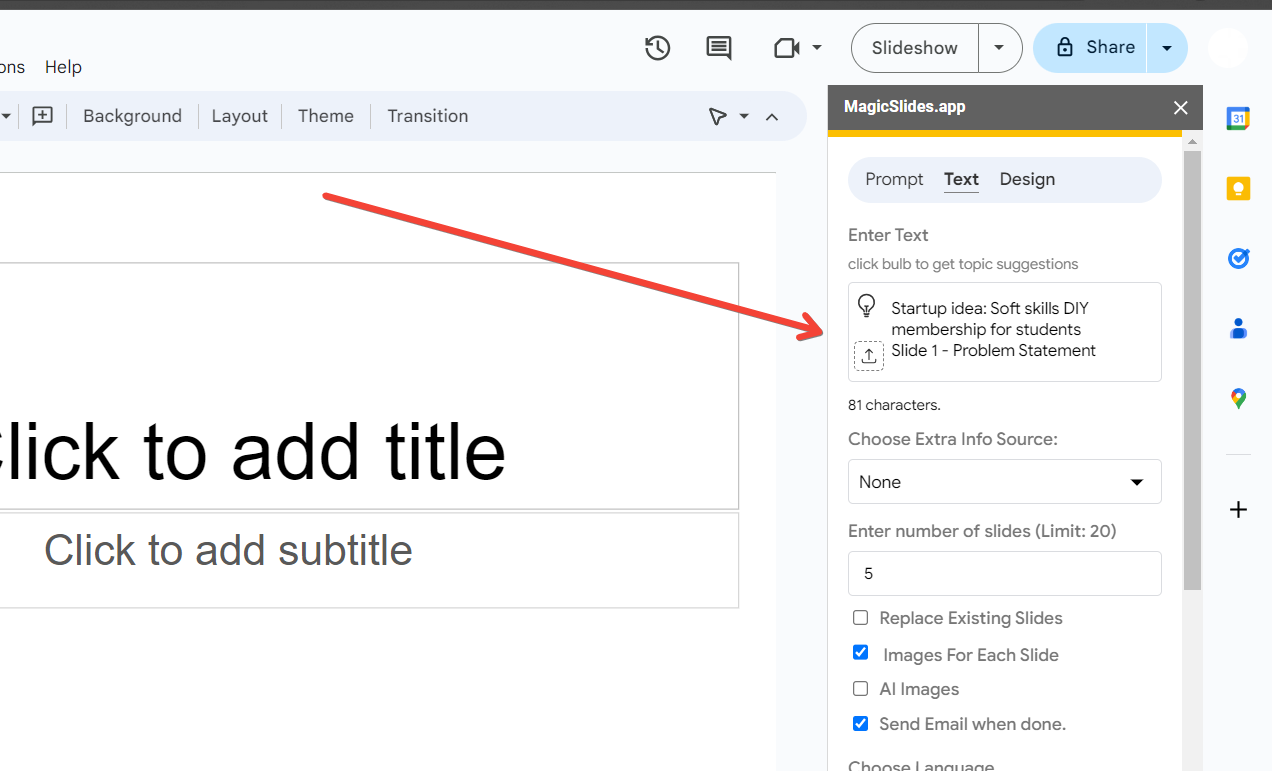
In the MagicSlides interface, start by adding content for your first slide, which should be the Problem Statement. Clearly articulate the problem your business aims to solve. This slide should be concise and impactful, highlighting the pain points your target audience faces.
Step 6: Add Content for Slide 2 - Solution
Next, add content for your second slide, which should outline your Solution. Describe how your product or service addresses the problem mentioned in the previous slide. Focus on the unique value proposition and key benefits of your solution.
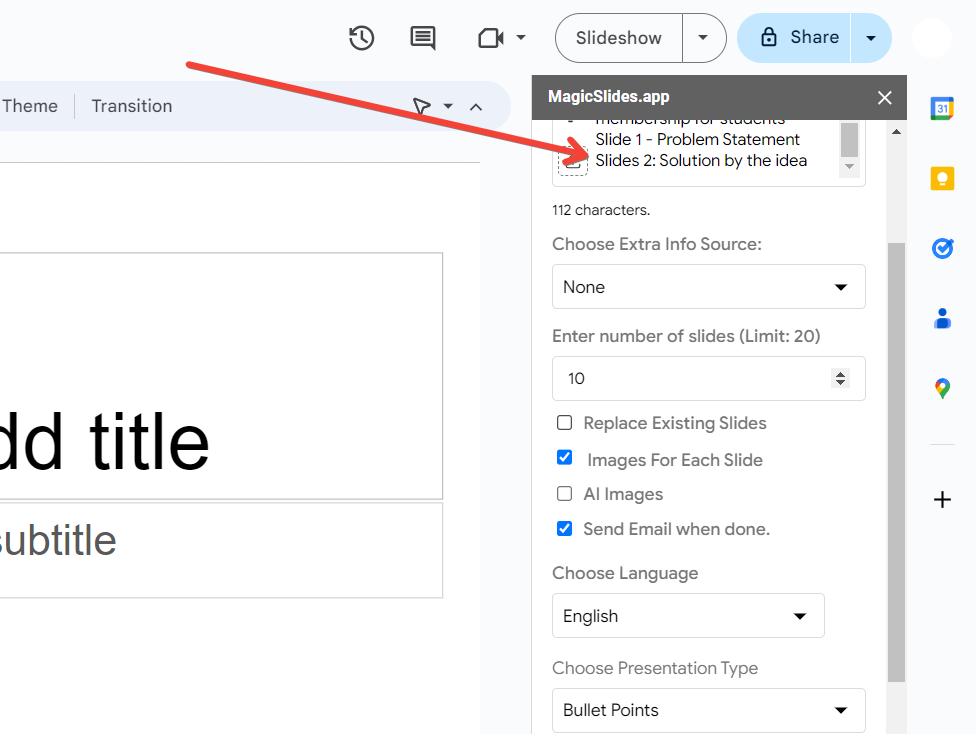
Step 7: Continue Adding Content for Remaining Slides
- Slide 3: Market Opportunity - Provide an overview of the market size and potential growth.
- Slide 4: Business Model - Explain how your business will make money.
- Slide 5: Traction - Highlight any progress or milestones achieved so far.
- Slide 6: Marketing and Sales Strategy - Describe your plan for reaching and acquiring customers.
- Slide 7: Competition - Identify key competitors and explain your competitive advantage.
- Slide 8: Team - Introduce the core team members and their relevant experience.
- Slide 9: Financials - Present key financial projections and funding requirements.
- Slide 10: Ask - Clearly state what you are asking for, whether it's investment, partnerships, or other support.
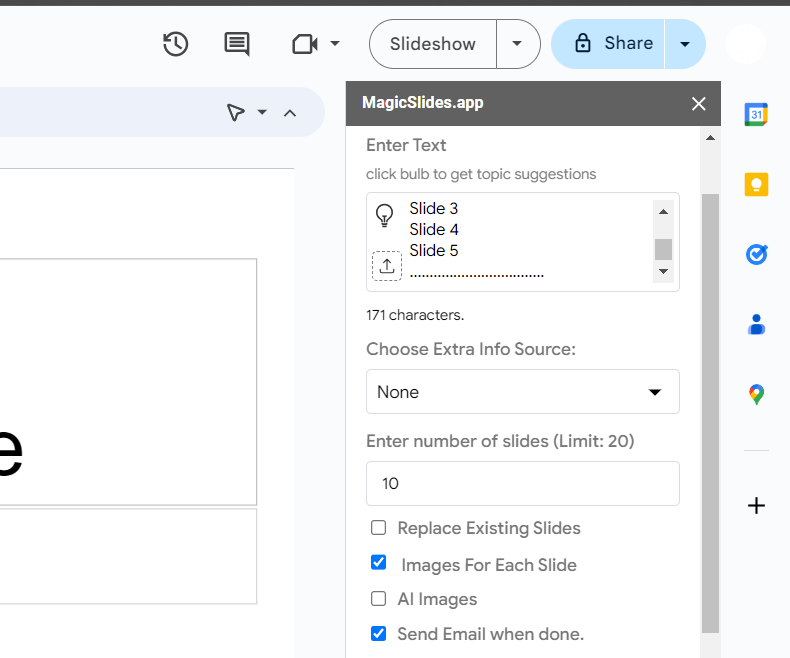
Step 8: Click on "Create Presentation"
After adding content for all 10 slides, click on the "Create Presentation" button in the MagicSlides interface. MagicSlides will automatically generate your pitch deck based on the content you provided.
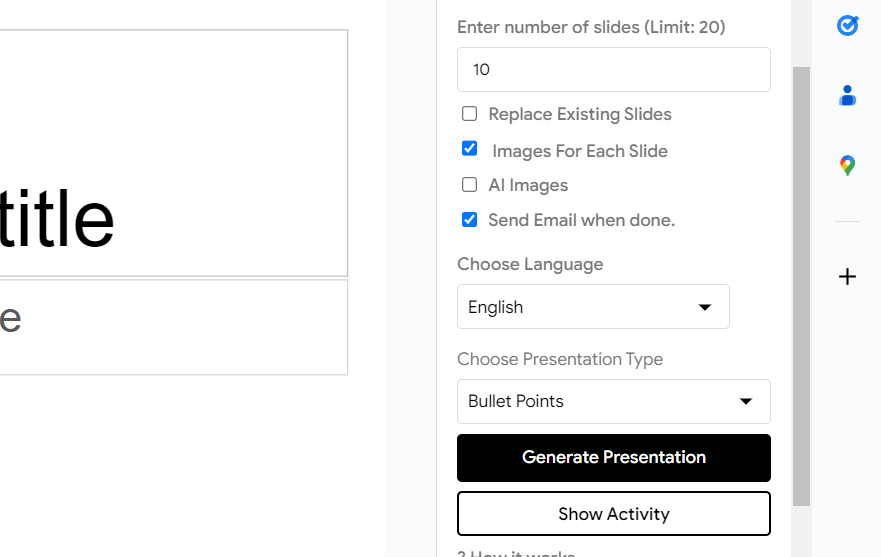
Step 9: Review and Customize
Review the generated presentation to ensure all information is accurate and well-presented.
Customize the slides as needed to match your brand’s style and ensure clarity. You can adjust fonts, colors, images, and layouts to enhance the visual appeal of your pitch deck.
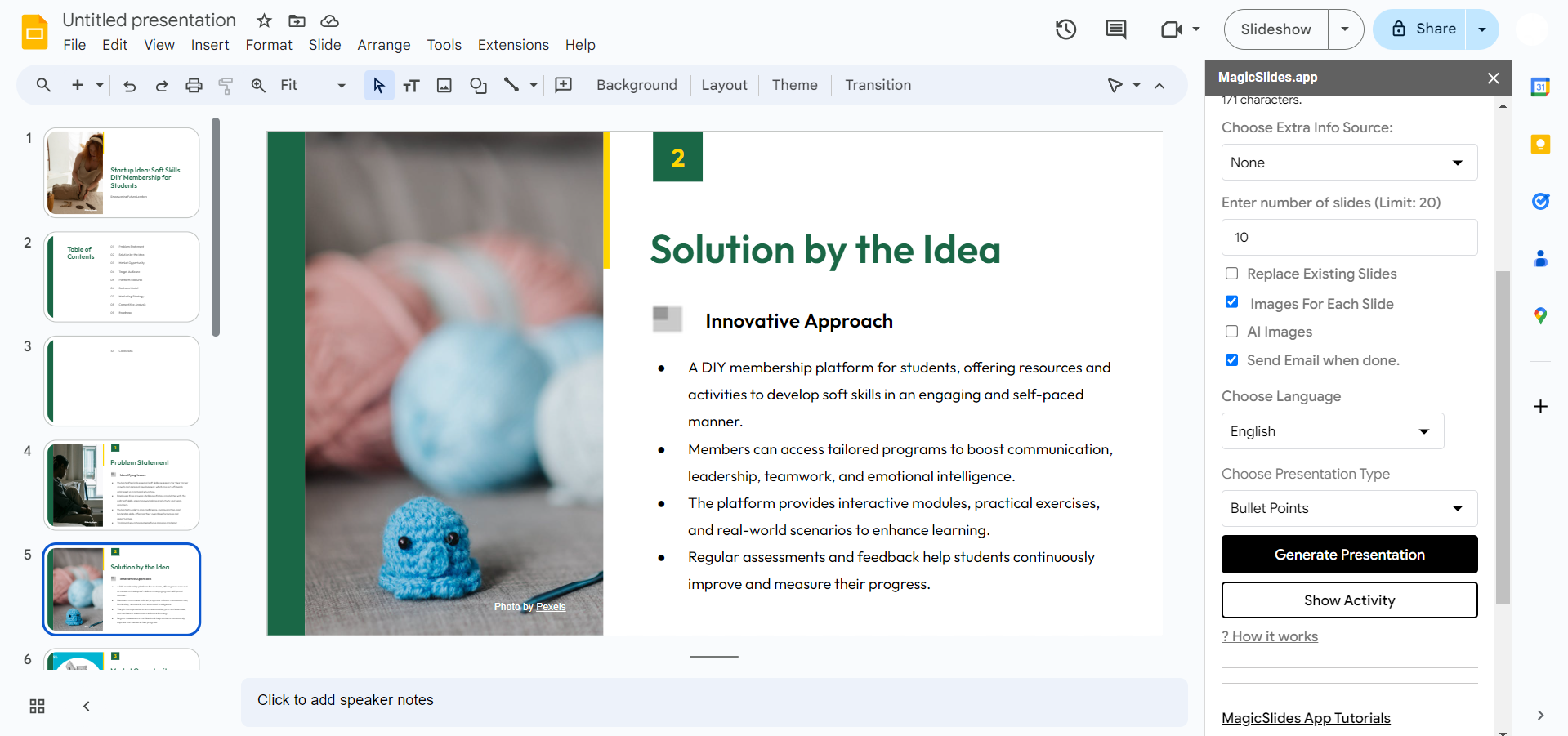
Step 10: Save and Share Your Presentation
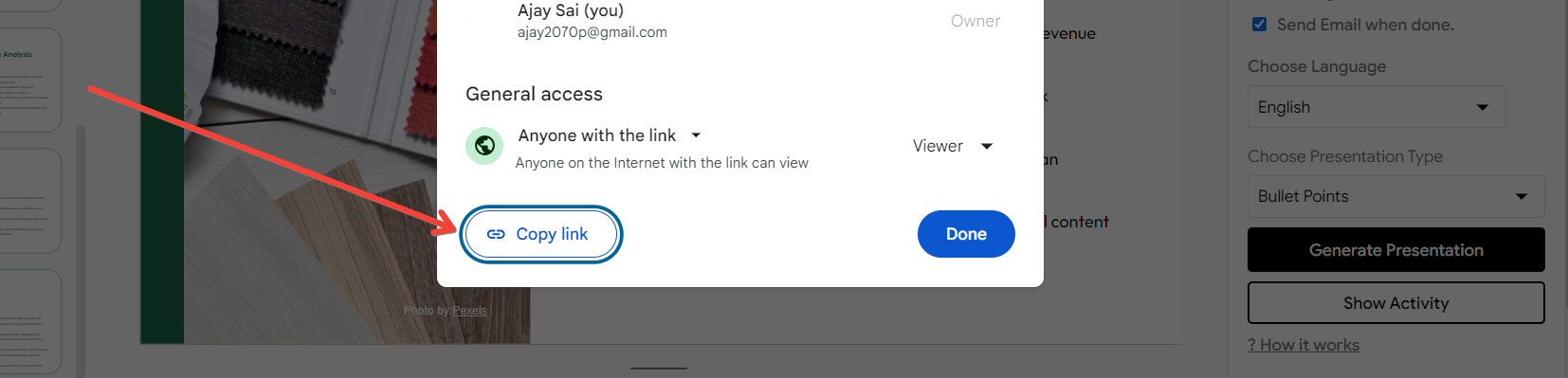
Once you are satisfied with your pitch deck, save it by clicking on "File" and then "Download" to save it as a PDF or PowerPoint file.
You can also share the presentation directly from Google Slides by clicking on the "Share" button and entering the email addresses of your intended recipients.
Conclusion
Creating a 10-slide pitch deck with Google Slides and the MagicSlides extension is a straightforward process that helps you efficiently organize and present your business idea.
By following these steps, you can ensure that your pitch deck is comprehensive, visually appealing, and ready to impress potential investors and stakeholders.
With a clear problem statement, a compelling solution, and well-structured content, your pitch deck will effectively convey the value of your business and help you achieve your goals.
Frequently Asked Questions
What is the ideal design for a pitch deck?
The ideal design for a pitch deck should be clean, professional, and visually appealing.
Use consistent fonts, colors, and layouts throughout the presentation. Incorporate high-quality images, graphs, and charts to illustrate key points.
Note: Avoid clutter and ensure that each slide is easy to read and understand. The design should complement the content, making it engaging without distracting from the message.
How do I tailor my pitch deck for different audiences?
To tailor your pitch deck for different audiences, consider the specific interests and concerns of each group. For investors, focus on financials, market opportunity, and growth potential. For potential partners, highlight the mutual benefits and strategic fit.
Customize the language, examples, and emphasis based on what will resonate most with your audience. Always research your audience beforehand and adjust your pitch accordingly to ensure it meets their expectations and addresses their priorities.
How long should a pitch deck be?
A pitch deck should be concise and to the point, typically consisting of 10-12 slides. Each slide should focus on a specific aspect of your business, providing enough information to convey your message without overwhelming your audience.
The goal is to keep the presentation brief, engaging, and informative.
Share on socials
About the author
Sanskar Tiwari is the founder of MagicSlides and IAG Tech. Over the past 5 years, he has shipped 24+ products and taught 100k+ students how to code. His work focuses on AI‑assisted creation and developer education.
More from the blog
How to insert bitmoji into Google Slides
17 March 2026
Top 12 PowerPoint Alternatives Compared – Find the Best Presentation Tool
17 March 2026
Genetics Topics for Presentation: 100+ Comprehensive Ideas
17 March 2026
Interesting Biology Topics for Presentations: 100+ Captivating Ideas
17 March 2026
How to add morph Transition in PowerPoint
15 March 2026
How to Convert PPT to Google Slides - Complete 2026 Guide
13 March 2026
How to animate google slides
10 March 2026
50+ Funny Presentation Topic Ideas to Get You Started
5 March 2026
Scribd PPT Downloader Free: Step-by-Step Guide (Updated 2026)
2 March 2026
