How to create a PowerPoint template with Company Logo


Create a professional PowerPoint template with your company logo for consistent branding in presentations.
Creating a custom PowerPoint template with your company logo is a great way to maintain brand consistency across presentations.
A template ensures that all slides have a cohesive look and feel, with your company logo and branding elements automatically included.
In this blog post, we'll walk you through the process of creating a PowerPoint template with your company logo, step by step, so you can use it for all your future presentations.
How to create a PowerPoint template with Company Logo
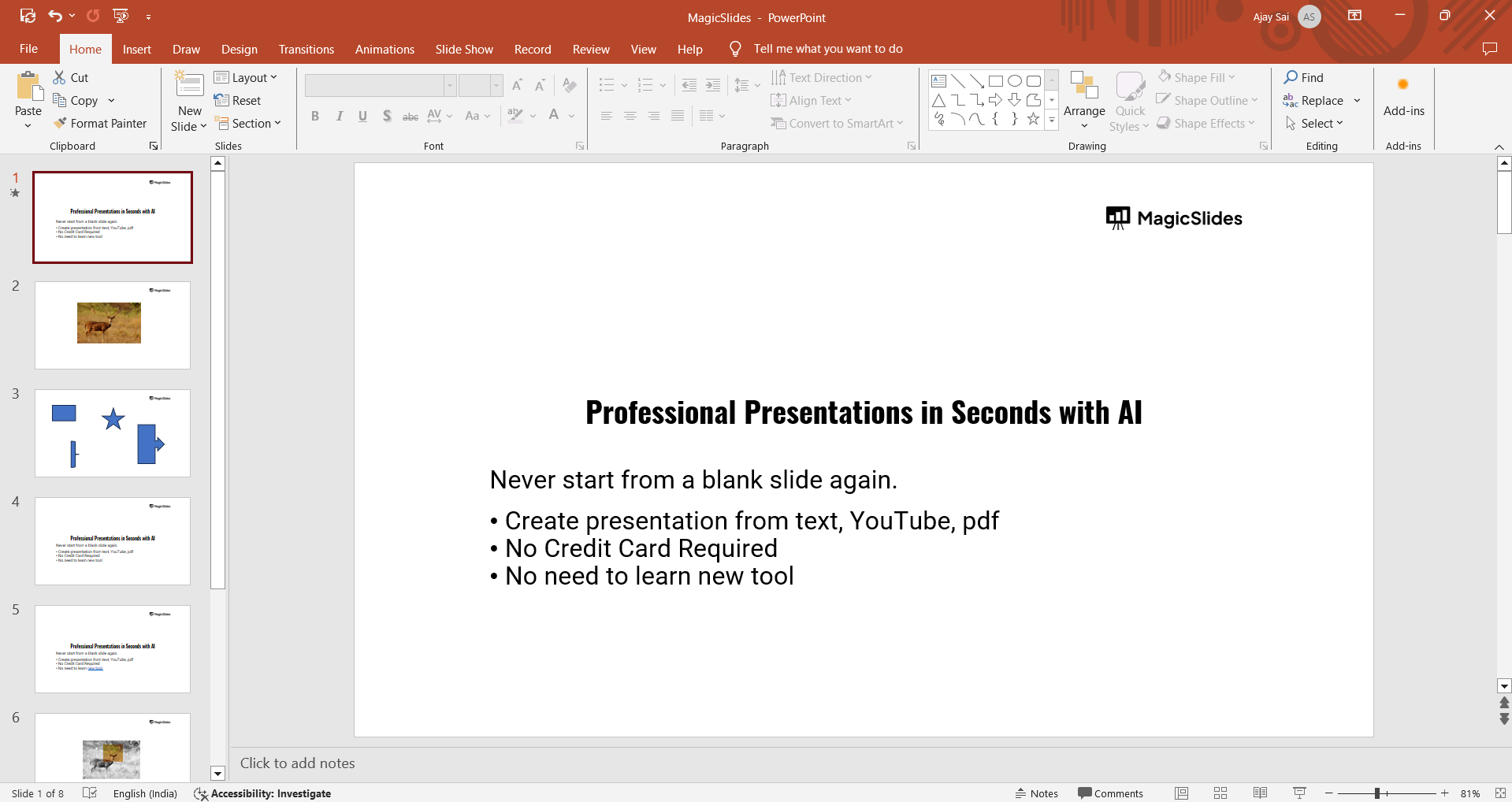
Step 1: Open a New Presentation
Start by opening PowerPoint and creating a new blank presentation. This will serve as the foundation for your custom template.
Step 2: Access the Slide Master View
To create a template, you'll need to work in Slide Master view. Click on the "View" tab in the ribbon, then select "Slide Master."
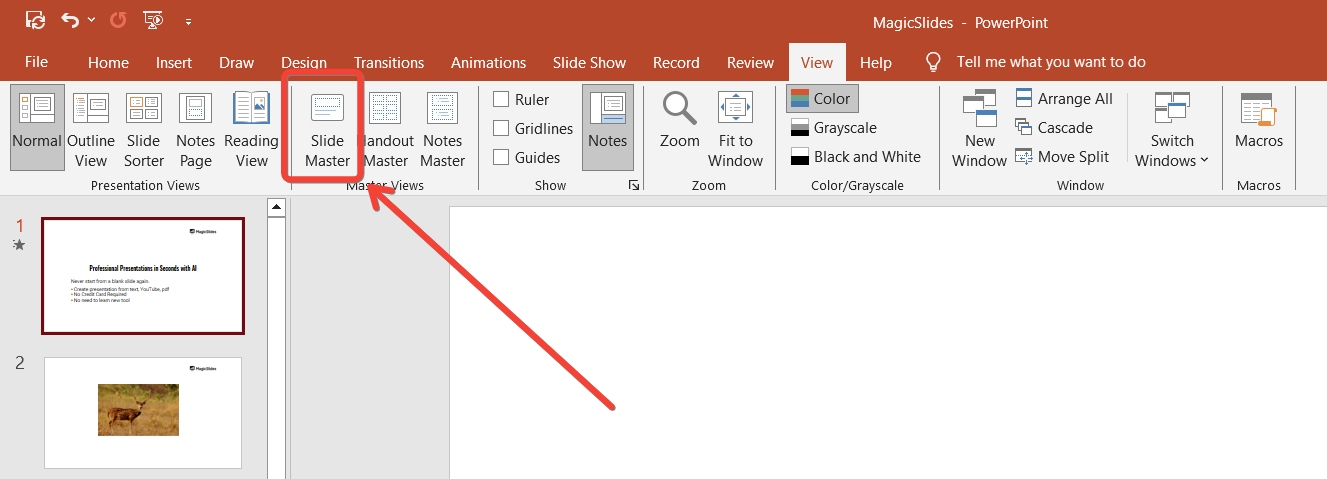
This view allows you to make changes that will apply to all slides in your template.
Step 3: Choose the Slide Layout to Customize
In the Slide Master view, you'll see a list of slide layouts on the left side.
The topmost slide represents the master slide, which controls the overall design of your presentation.
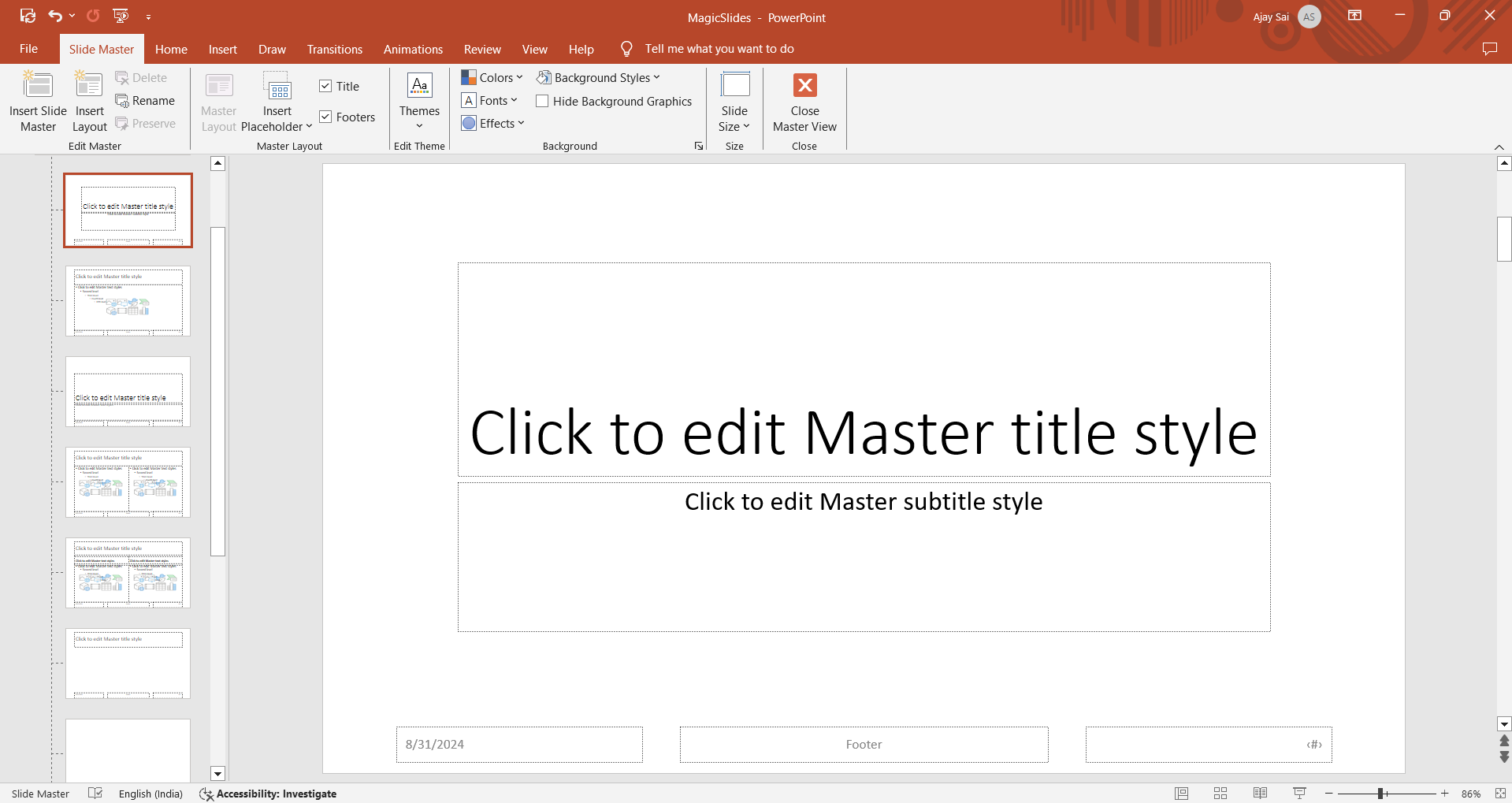
Below it are various slide layouts that inherit the master slide’s design.
Click on the master slide if you want the logo to appear on every slide, or select specific layouts where you want to include the logo.
Step 4: Insert Your Company Logo
With the desired slide selected, go to the "Insert" tab and click on "Pictures."
Choose the location of your logo image (e.g., "This Device," "Stock Images," or "Online Pictures") and select the file. Click "Insert" to add the logo to the slide.
Step 5: Position and Resize the Logo
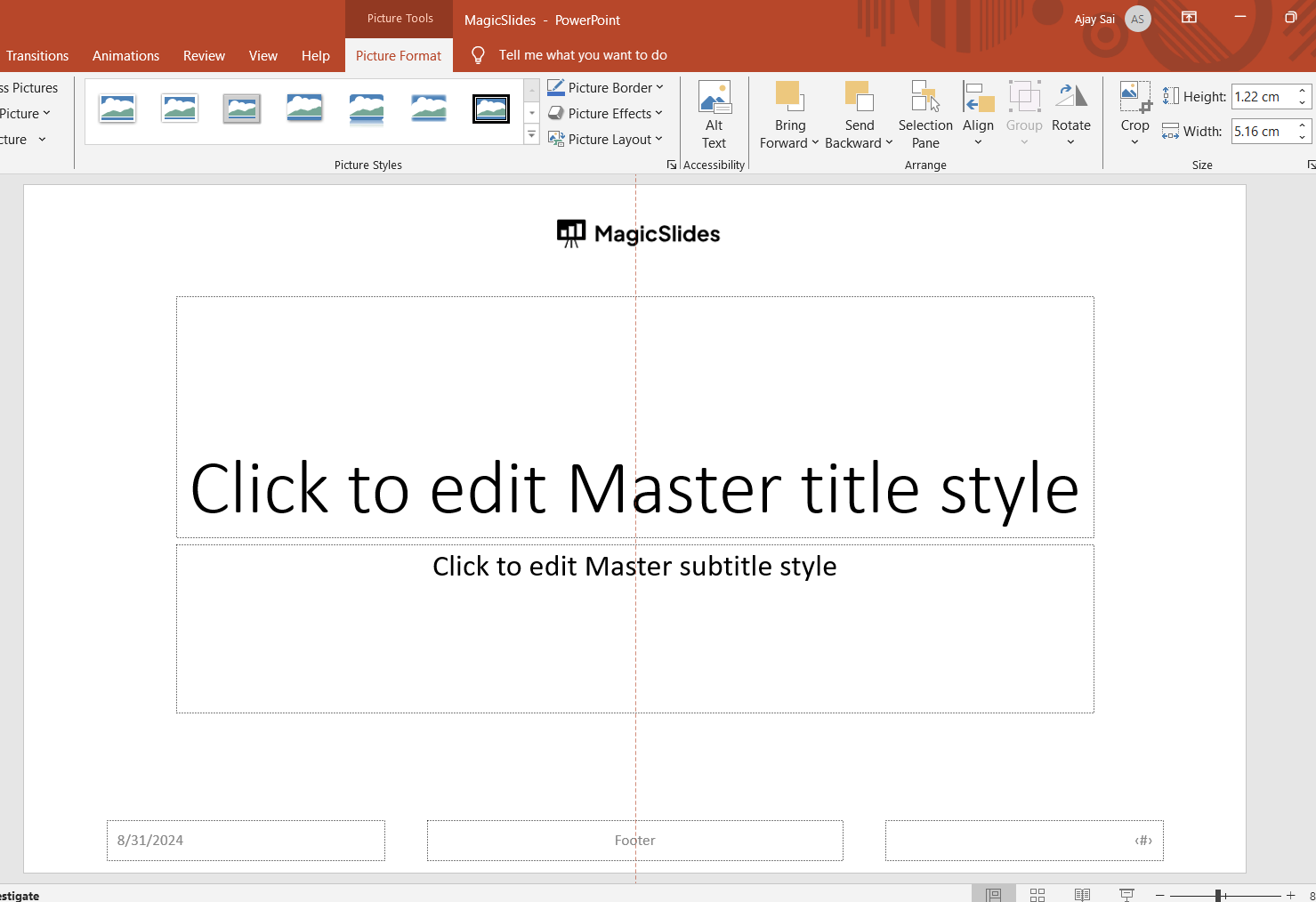
Once the logo is on the slide, click and drag it to the desired location.
Common positions for a logo include the top-left, top-right, bottom-left, or bottom-right corners of the slide.
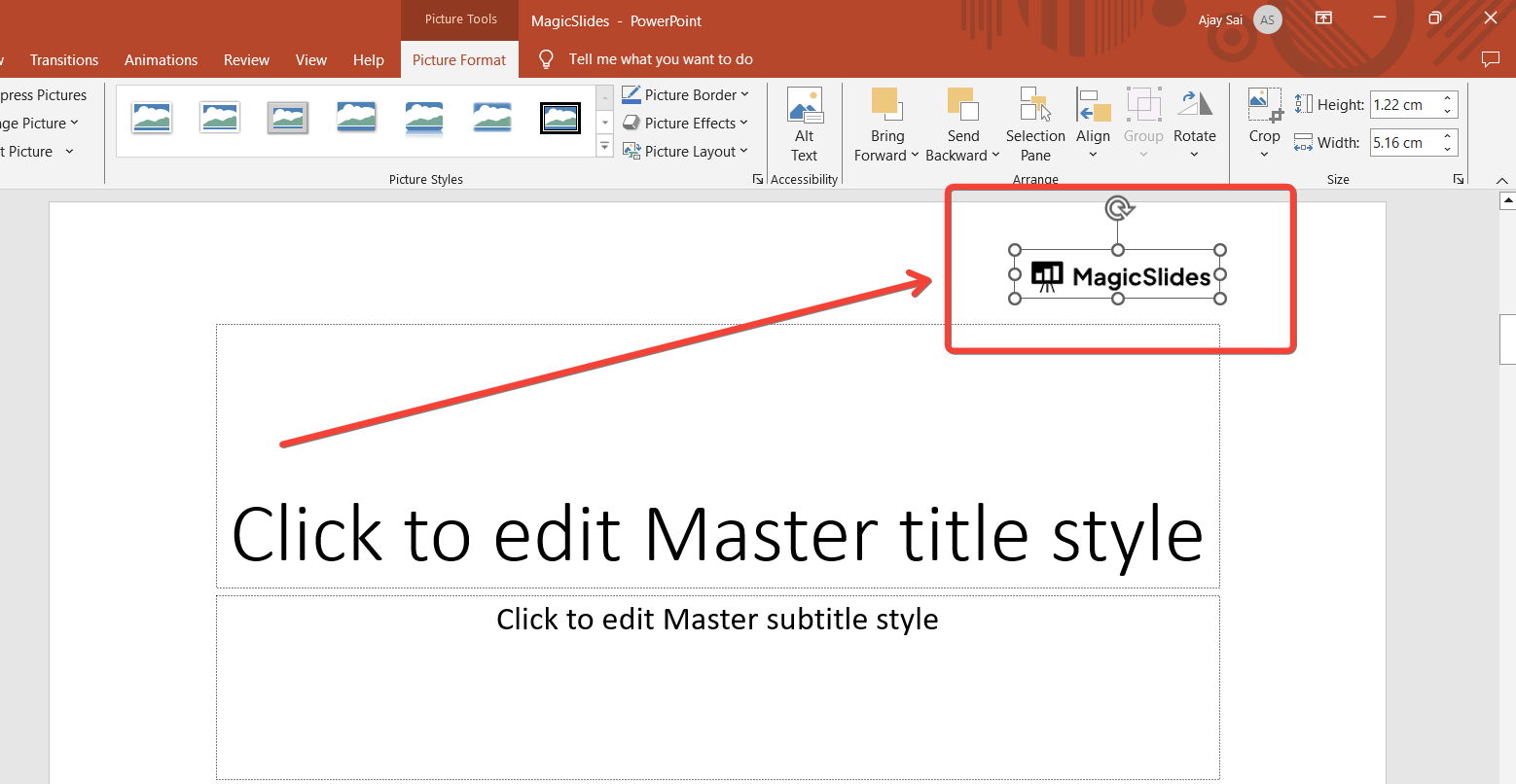
Use the handles on the logo to resize it as needed. Make sure the logo is proportionate and doesn’t overpower the slide’s content.
Tip: Consider adding the logo to the Slide Master if you want it on every slide, or to specific layouts if you only want it on certain types of slides.
Step 8: Use the Template in Future Presentations
To use your new template, open PowerPoint and select "New" from the "File" menu. Click on "Personal" or "Custom" to find your saved template.
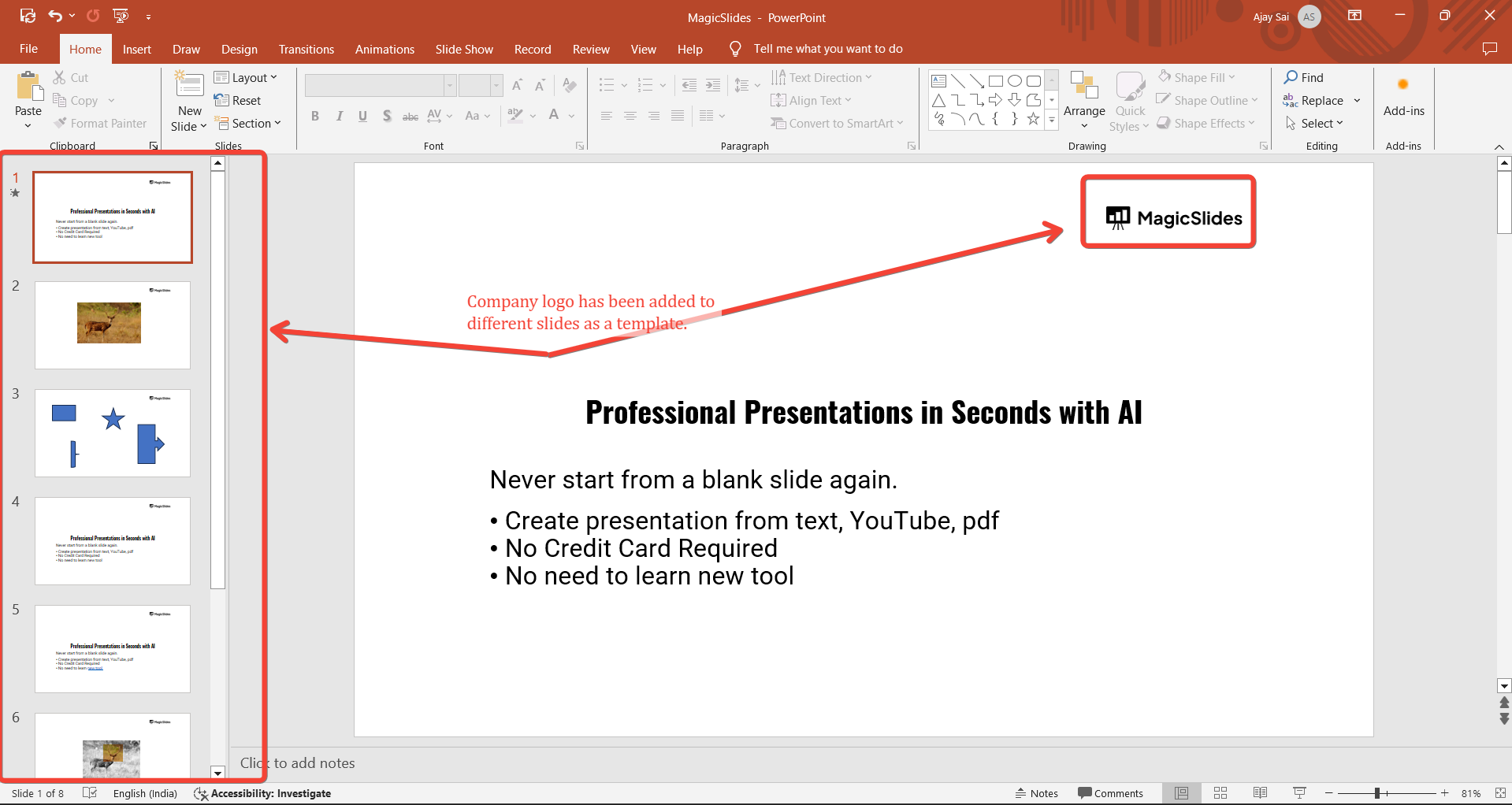
From here, you can create new presentations with your company logo and branding already in place.
Conclusion
Creating a PowerPoint template with your company logo is an effective way to streamline your presentation process and ensure brand consistency.
By following these steps, you can easily set up a template that includes your logo, making it ready for use in any future presentations.
This not only saves time but also helps maintain a professional appearance across all your company’s slides.
FAQs can come handy!
Where should I place the company logo in a PowerPoint template?
Common placements are in the top-left, top-right, bottom-left, or bottom-right corners.
Can I edit the template after saving it?
Yes, you can reopen the template, make changes, and save it again.
How do I use my saved PowerPoint template in future presentations?
Open PowerPoint, select "New," then choose your template under "Personal" or "Custom" templates.


