How to create a word cloud in powerpoint


Unlock creativity with this guide on crafting visually engaging word clouds in PowerPoint presentations.
Unlocking the potential of visual storytelling in presentations has never been more crucial, and one innovative tool to achieve this is the word cloud. Imagine transforming textual data into a dynamic visual representation that captivates your audience. In this guide, we'll navigate the process of creating a compelling word cloud in PowerPoint, adding a layer of creativity to your narrative.
How to create a word cloud in powerpoint
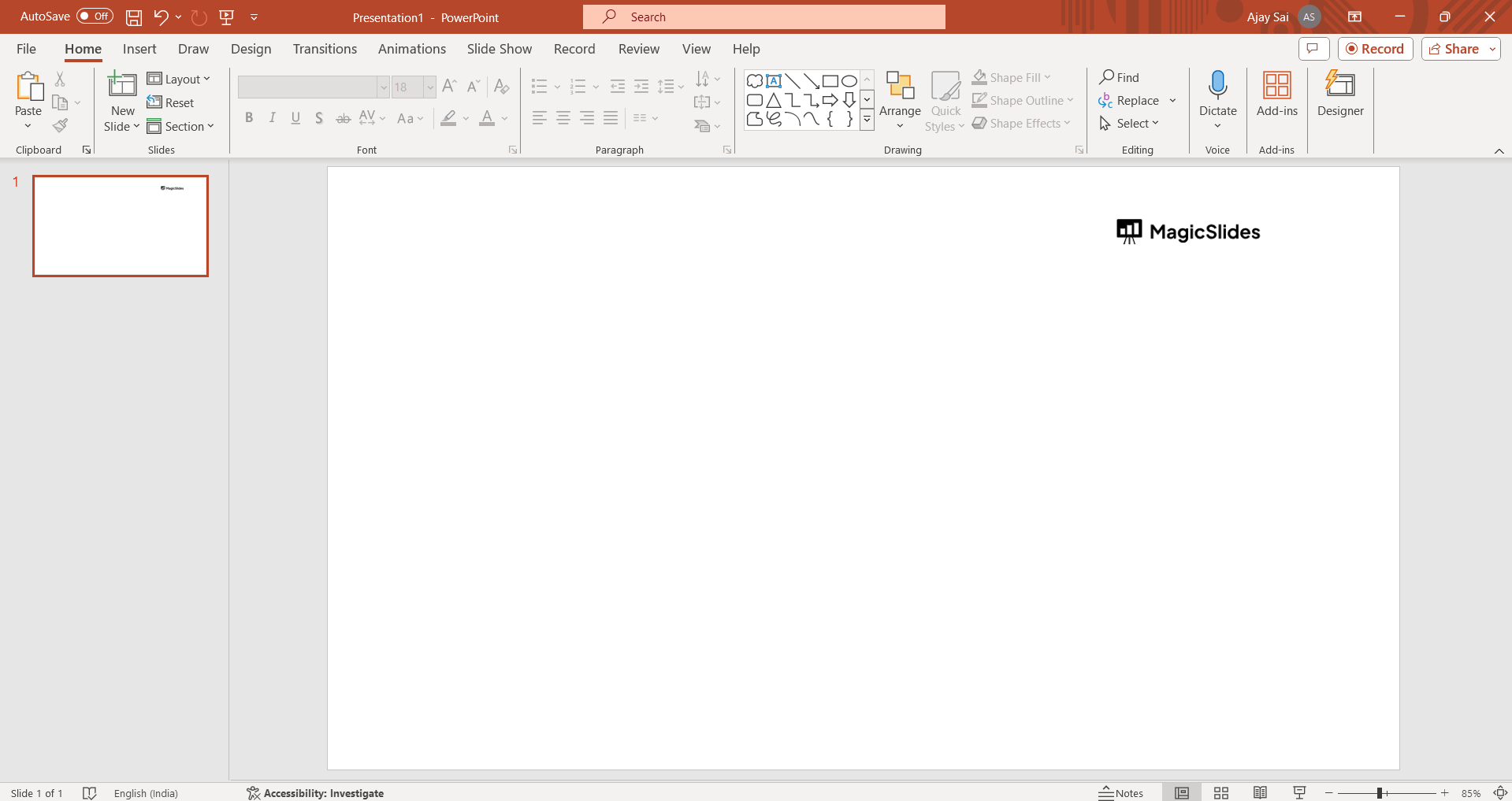
Open PowerPoint:
Begin your journey by launching PowerPoint and accessing the presentation where the word cloud will weave its magic.
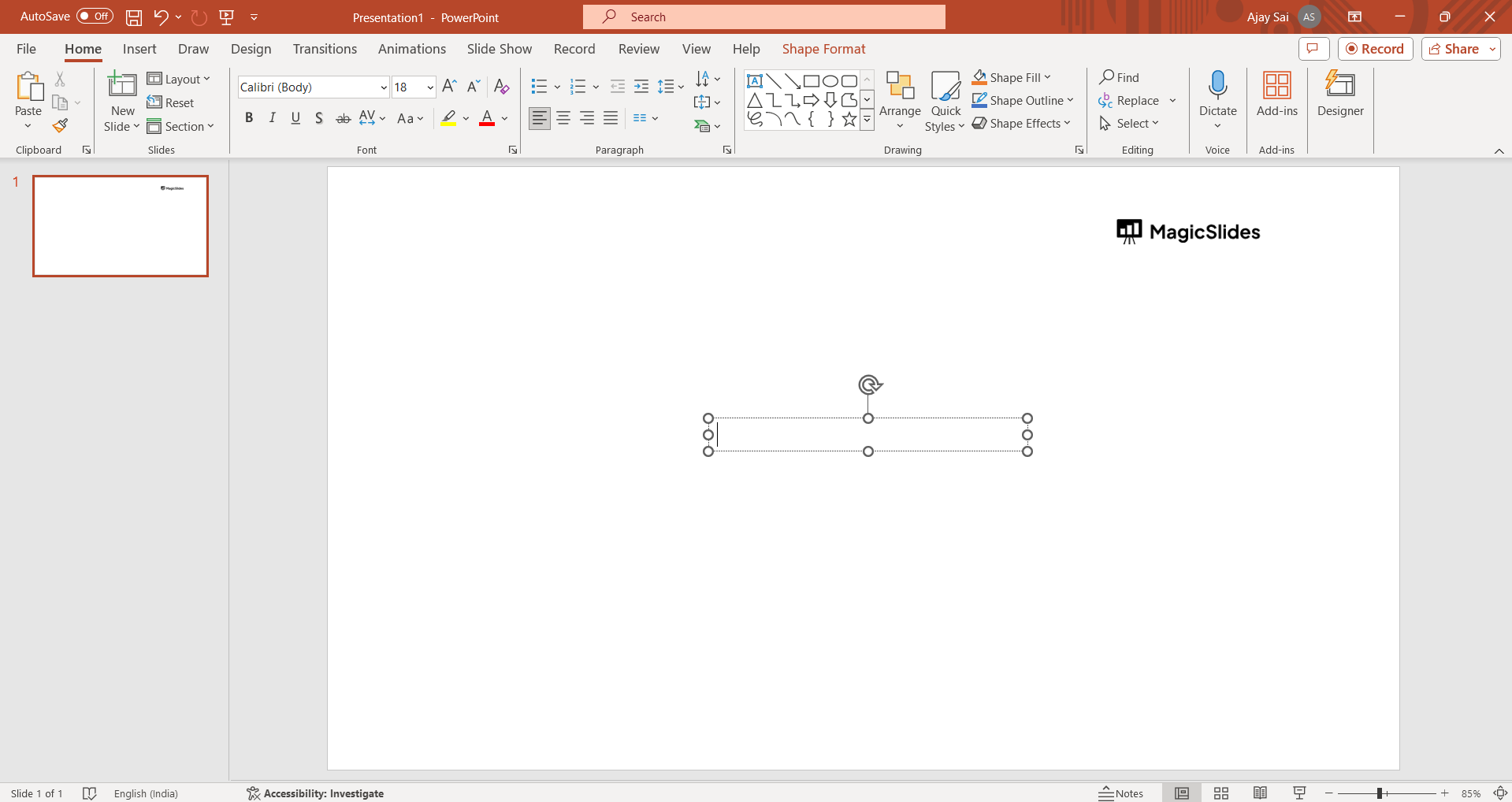
Insert a Text Box:
Navigate to the "Insert" tab and seamlessly incorporate a text box into the chosen slide, setting the stage for your word cloud.
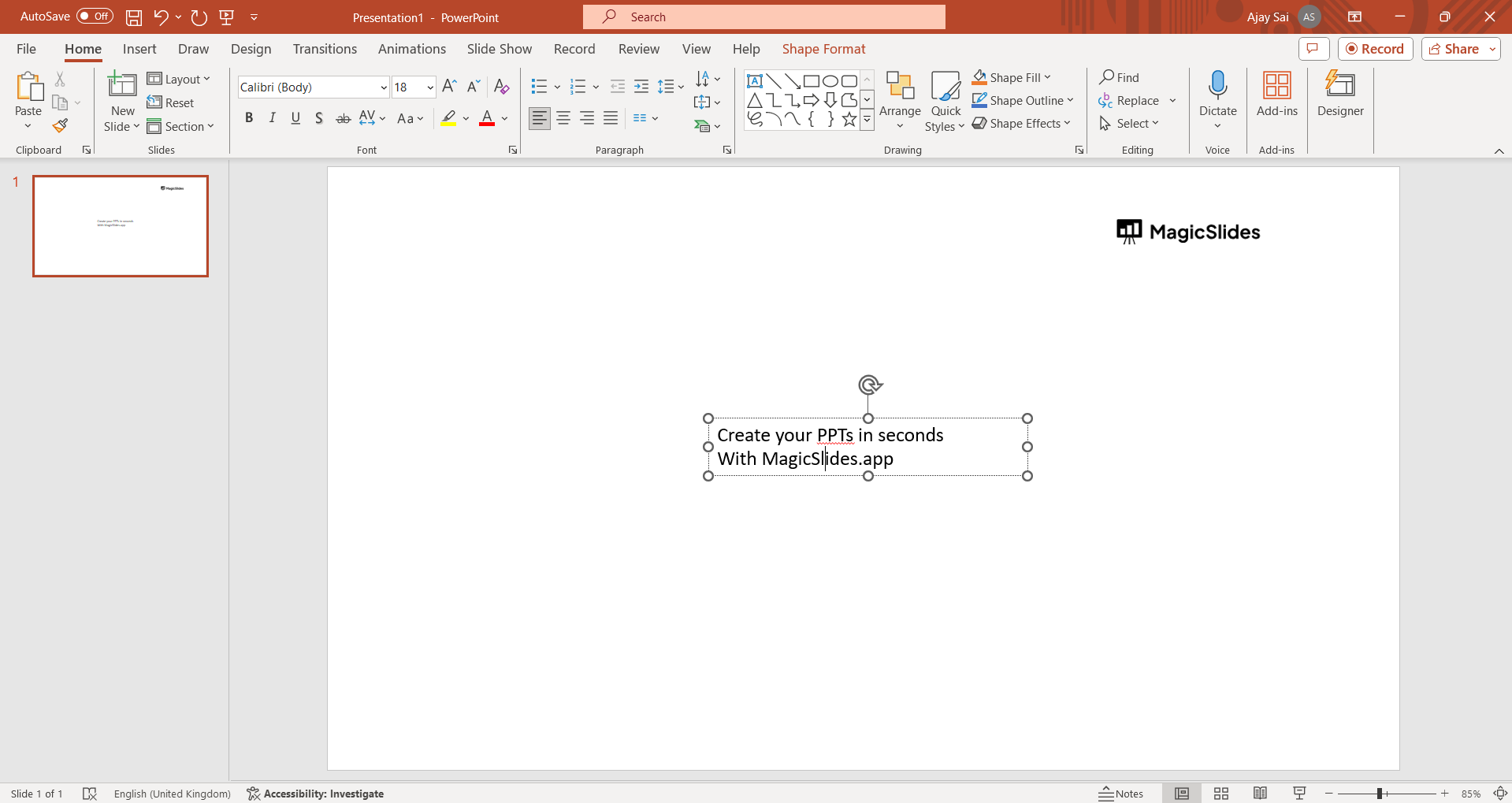
Type or Paste Text:
Populate the text box with relevant content—keywords, phrases, or any textual elements you wish to visualize within the word cloud.
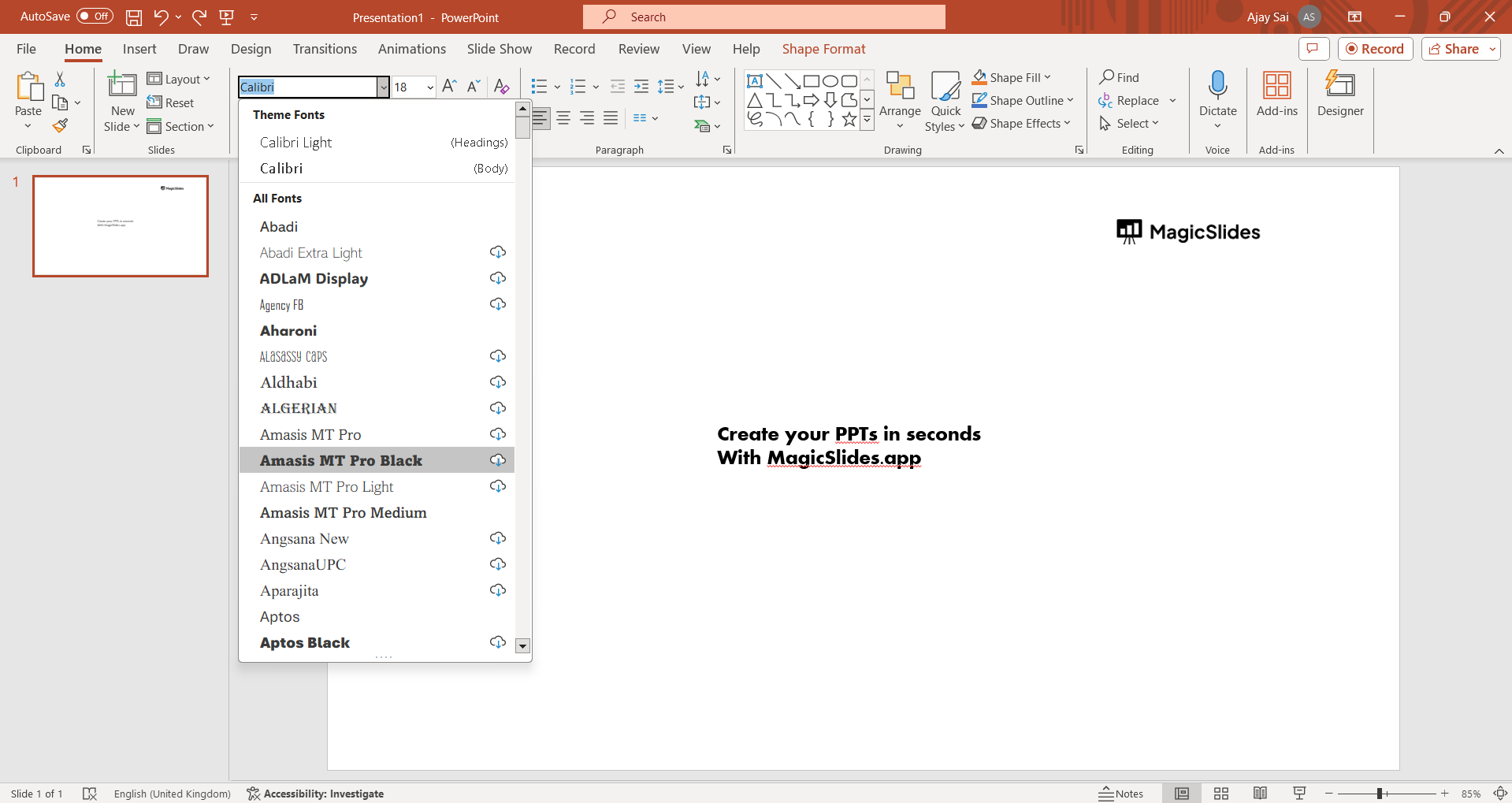
Format the Text:
Delve into the finer details of your word cloud by adjusting font styles, sizes, and formatting options, ensuring a harmonious blend with your presentation's aesthetic.
Generate Word Cloud:
Embark on the word cloud creation process by visiting reputable online platforms like WordClouds.com or WordArt.com. Here, you'll input or paste your text, customize visual settings, and witness the word cloud come to life.
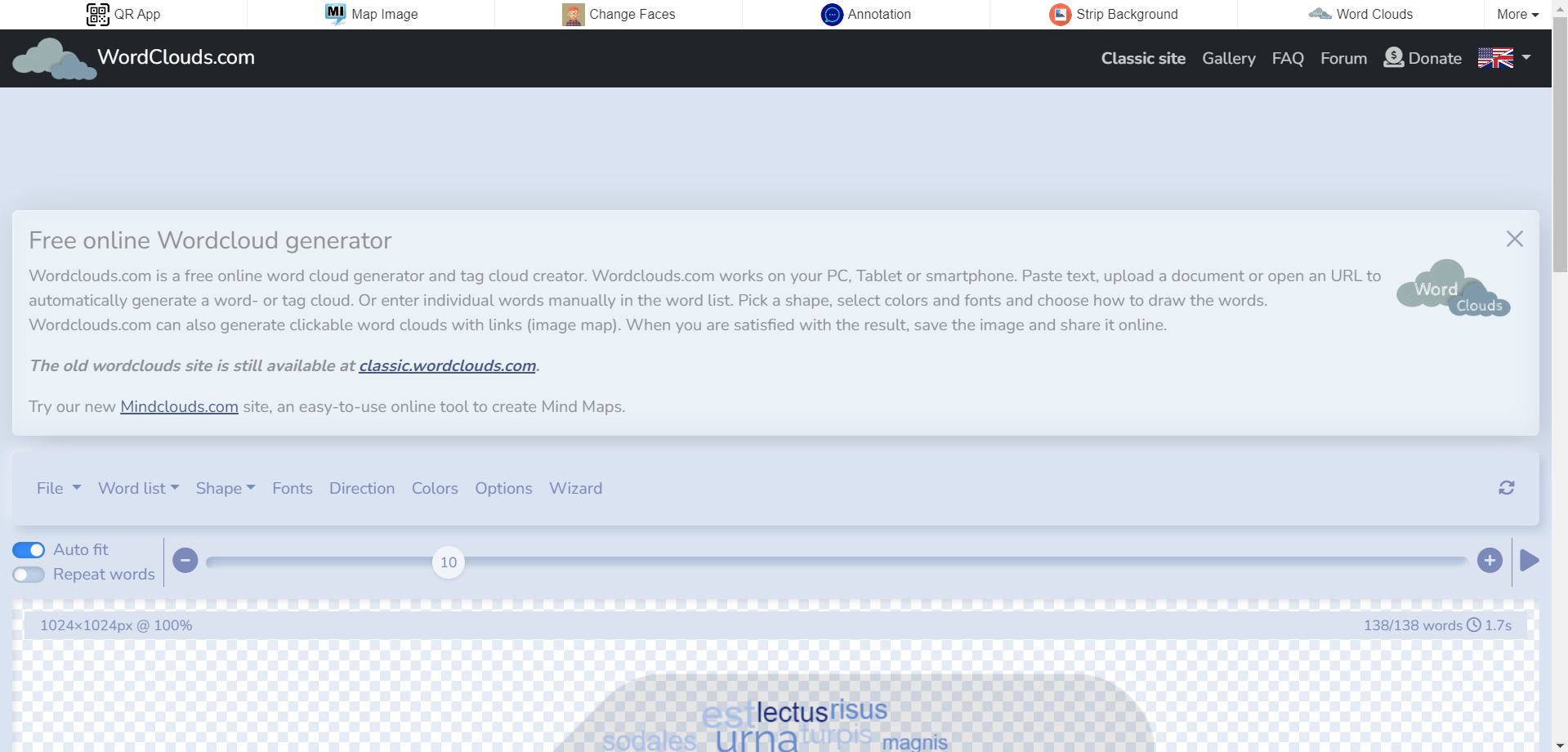
Download and Insert:
Download the generated word cloud as an image and seamlessly integrate it back into your PowerPoint presentation. Head to the "Insert" tab, select "Picture," and let your downloaded word cloud take center stage.
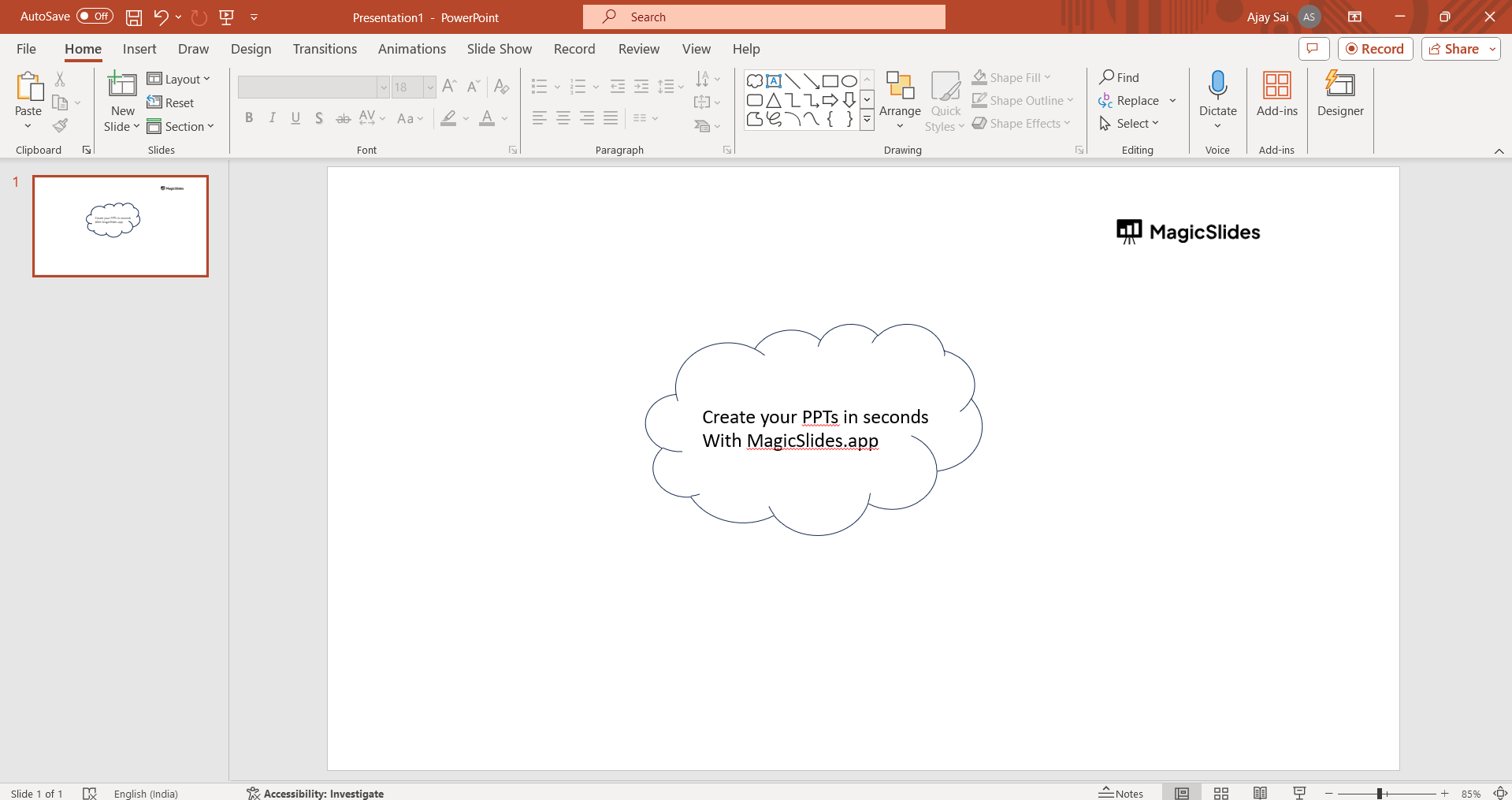
Pro Tip 💡:
Elevate the impact of your word cloud by strategically placing it within a slide adorned with complementary visuals. This thoughtful integration ensures a seamless and visually cohesive presentation.
Conclusion 💁♂️:
In the ever-evolving landscape of presentations, the inclusion of a word cloud emerges as a dynamic storyteller. By effortlessly translating textual information into a visually striking spectacle, you not only enhance engagement but also provide your audience with a unique and memorable experience. Elevate your presentations by embracing the art of word cloud creation in PowerPoint, transforming the mundane into the extraordinary.
Frequently Asked Questions 🤔:
Q) Can I edit the word cloud after inserting it into PowerPoint?
Absolutely. Simply right-click on the inserted word cloud image, choose "Format Picture," and make the necessary adjustments. Q) Are there specific websites for generating word clouds?
Indeed, platforms like WordClouds.com and WordArt.com offer user-friendly interfaces for crafting customized word clouds. Q) Can I use phrases instead of individual words in the word cloud?
Certainly. Incorporating phrases adds depth and context, enriching the narrative within your word cloud. Q) Is it possible to animate the word cloud in PowerPoint?
Yes, explore the animation features in PowerPoint to add entrance or motion path animations, infusing dynamic movement into your word cloud presentation.
Check out these info Blogs by MagicSlides.app 👇:
- Google Launches Gemini AI: What You Need To Know!: https://www.magicslides.app/blog/Google-launches-Gemini-AI-What-You-Need-To-Know
- How To Insert Music Into Powerpoint: https://www.magicslides.app/blog/how-to-insert-music-into-powerpoint
- How To Add Narration To Powerpoint: https://www.magicslides.app/blog/how-to-add-narration-to-powerpoint
- How To Create Columns In Google Slides: https://www.magicslides.app/blog/how-to-create-columns-in-google-slides


