How to Create Internal Corporate Slide Decks for Clear Messaging


Learn how to create clear, professional internal corporate slide decks with structured content, clean design, and tools like MagicSlides.app for efficiency.
Internal corporate slide decks play a critical role in ensuring that messaging is clear, consistent, and aligned with your organization's goals. Whether you’re presenting a strategy update, sharing quarterly results, or onboarding new team members, the quality of your slide deck can make or break the effectiveness of your message.
Creating a compelling and professional internal corporate slide deck doesn’t have to be a daunting task. Follow these steps to craft a slide deck that resonates with your audience while maintaining clarity and focus.
How to Create Internal Corporate Slide Decks
1. Understand Your Objective
Before diving into slide creation, define the purpose of your internal corporate slide deck. Ask yourself:
- What message am I trying to convey?
- Who is the target audience (e.g., executives, managers, team members)?
- What is the desired outcome of this presentation?
Being clear about your objective ensures that every slide contributes to your goal, avoiding unnecessary distractions or filler content.
2. Structure Your Slide Deck
A well-structured slide deck is easier to follow and keeps your audience engaged. Consider this outline:
- Title Slide: Include the title, date, and presenter name or department.

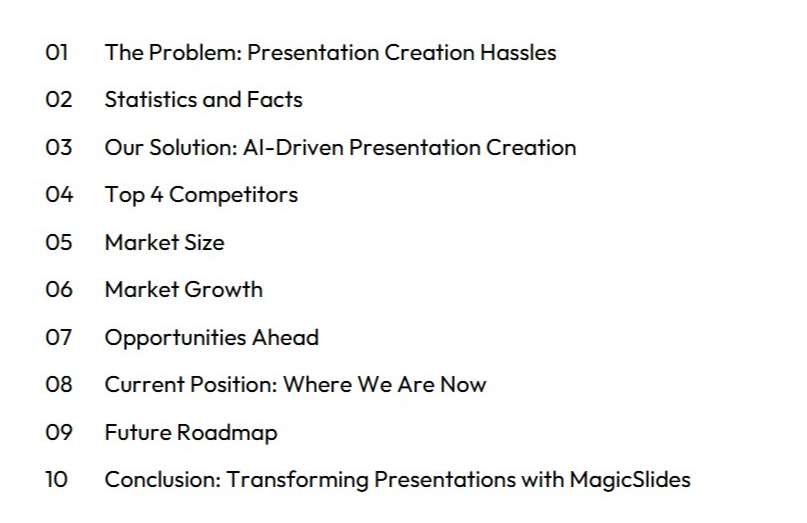
- Agenda Slide: Provide an overview of the topics you’ll cover.
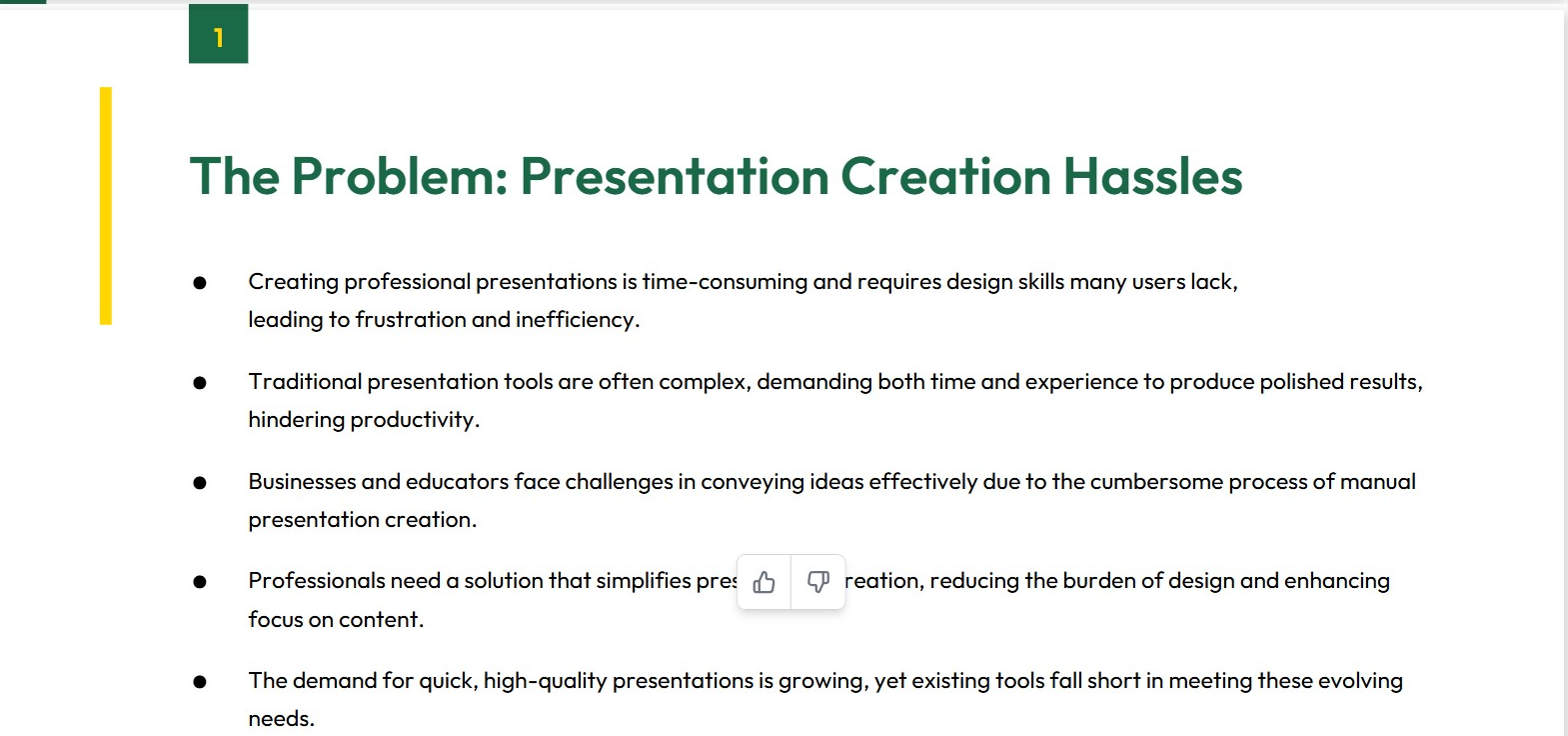
- Core Content: Divide this into sections such as:
- Key points or updates
- Supporting data or visuals
- Challenges and solutions
- Call to Action: Outline next steps or key takeaways.
- Closing Slide: End with a thank-you message or contact information.
3. Keep the Design Clean and Professional
Your slide design should reflect your company’s professionalism. Follow these best practices:
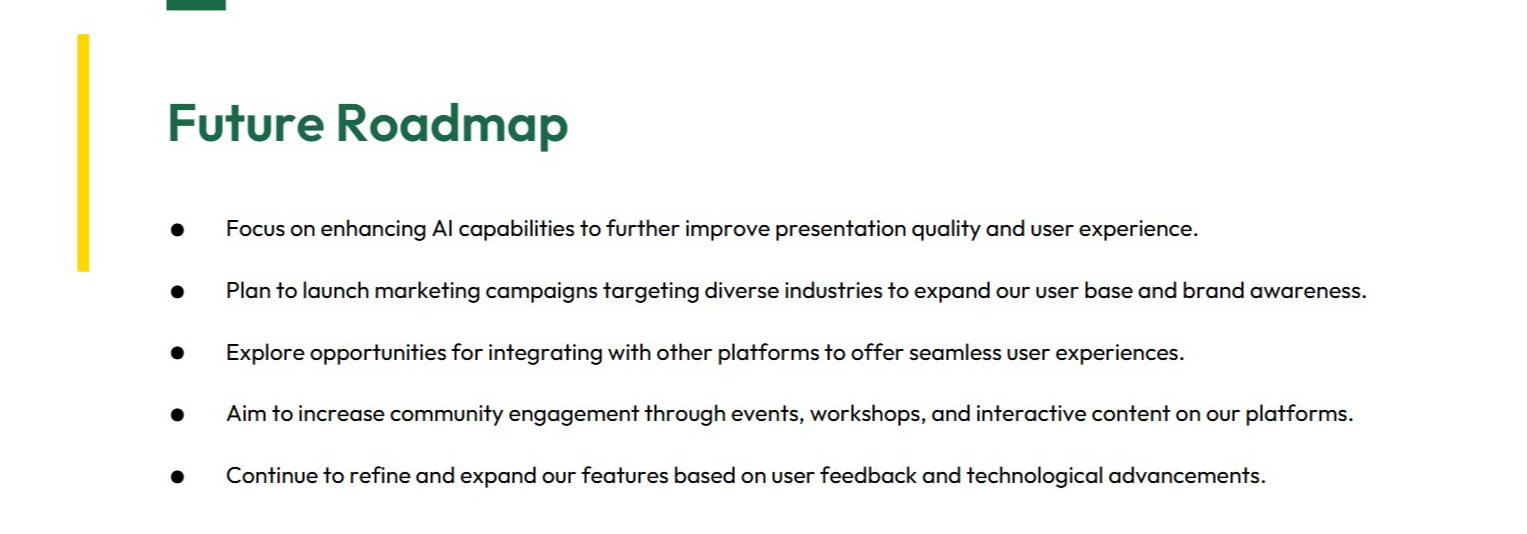
- Stick to a Consistent Theme: Use your company’s brand colors, fonts, and logo.
- Limit Text: Aim for bullet points or short sentences rather than paragraphs.
- Use High-Quality Visuals: Incorporate charts, graphs, and images that support your content.
- Ensure Readability: Use a font size that is easy to read, even for people sitting at the back of the room.
4. Use Data to Reinforce Your Message
Data is powerful for making your case or backing up claims. When presenting data in your internal corporate slide deck:
- Use charts or graphs instead of raw tables.
- Highlight key numbers or trends with bold or contrasting colors.
- Keep visuals simple to avoid overwhelming the audience.
For example, if you're sharing a quarterly revenue update, a clean bar graph showcasing growth over time will be far more effective than a cluttered spreadsheet.
5. Focus on Clear Messaging
Your internal corporate slide deck is a communication tool. To ensure clarity:
- Avoid jargon or overly technical language unless your audience is familiar with it.
- Stick to one key idea per slide.
- Use headlines that summarize the content of the slide (e.g., "Revenue Increased by 15% in Q4" instead of "Revenue Overview").
- Anticipate questions your audience might have and address them proactively within the deck.
6. Practice Visual Storytelling
Visual storytelling helps make your presentation memorable and engaging. Instead of presenting a list of facts, use a combination of visuals, metaphors, or scenarios to tell a story. For example, when discussing a team’s success, show a photo of the team celebrating alongside metrics that illustrate their achievements.
7. Leverage Tools for Efficiency
Creating a polished slide deck can take significant time and effort, but tools like MagicSlides.app can simplify the process. This pitch deck generator is a great resource for creating professional, visually appealing presentations quickly. It’s especially helpful for corporate teams looking to maintain brand consistency and save time on design without compromising quality.
8. Proofread and Test
Before presenting your slide deck, take the time to:
- Proofread for typos, grammatical errors, or inconsistent formatting.
- Test the deck on a large screen to ensure visuals and text are clear.
- Rehearse your presentation to identify areas that need further refinement or clarification.
9. Solicit Feedback
Once your slide deck is complete, consider sharing it with a colleague or supervisor for feedback. A fresh set of eyes can help catch any oversights or suggest improvements. This step is particularly important for high-stakes presentations.
10. Deliver with Confidence
Even the best-designed slide deck won’t shine without a confident delivery. Familiarize yourself with the content, anticipate audience questions, and practice your timing to ensure a smooth presentation.
Conclusion
Creating an internal corporate slide deck for clear messaging doesn’t have to be overwhelming. By understanding your objective, structuring your deck logically, using clean design principles, and leveraging tools like MagicSlides.app, you can craft a professional presentation that effectively communicates your message.
Remember, a great slide deck is not just about aesthetics – it’s about clarity, alignment, and ensuring your audience walks away with a clear understanding of your key points.
2/2
4o


