How to Delete Image in PPT (PowerPoint) – Best 10 Methods


How to delete image in PPT (PowerPoint) quickly and easily. I share step-by-step methods to remove images from slides and the background in PowerPoint.
How to Delete Image in PPT (PowerPoint)- Remove Unwanted Images Easily
I’ve noticed that many users struggle when an image in PowerPoint won’t delete as expected. This usually happens when the image is part of the Slide Master or background. Don’t worry! Today, I’ll answer every query regarding:
- How to delete image in PPT?
- How to delete background image in PowerPoint?
If you're also redesigning your slides, you might want to check how to make PPT attractive to improve overall presentation quality.
To make things simple, I’ll walk you through all the possible ways to remove images in PowerPoint. I’ll keep the steps clear and practical so you can follow along without confusion, even if you’re working on a large or complex presentation. By the end of this guide, you’ll know how to handle any situation where an image refuses to delete.
How to Delete Background Image in PowerPoint?
Before jumping straight into the methods, always identify what type of image you’re dealing with (Slide master or background), because that’s where most people get stuck. If you're working on slide formatting alongside this, you can also explore how to change shape transparency in PowerPoint to refine your design further.
So, let’s first look at how to remove an image in PowerPoint directly step by step, and then we’ll move on to other scenarios.
#Method 1. How to Delete Image in PPT
In this first method, I’ll show you the simplest and most direct way to delete an image in PowerPoint. This approach works perfectly when the image is placed normally on the slide and is not part of the background or Slide Master.
Here are the steps for the same:
Step 1. Open the PowerPoint presentation.
Step 2. Navigate to the slide containing the image.
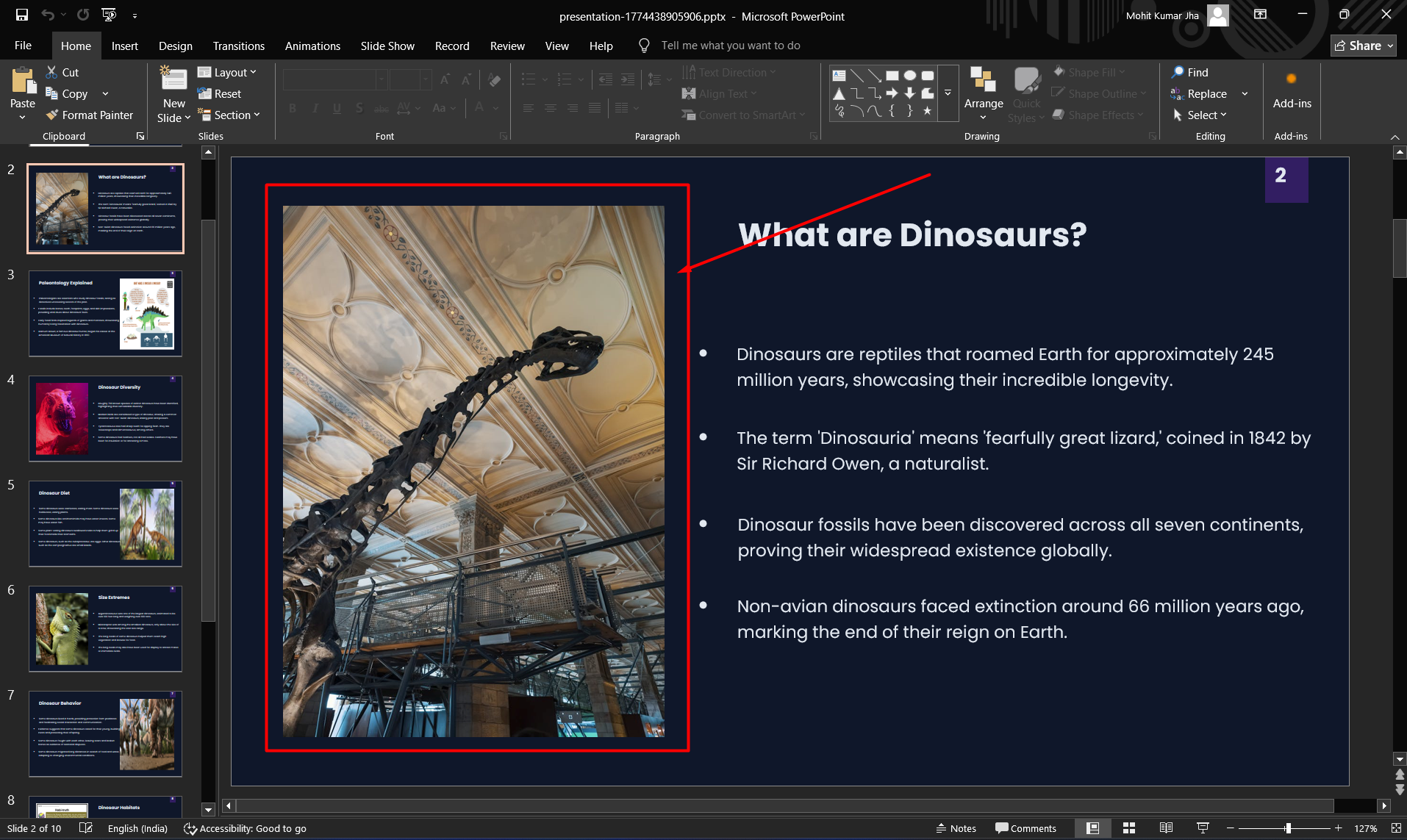
Step 3. Click on the image to delete.
Step 4. Press the Delete (Del) key on your keyboard.
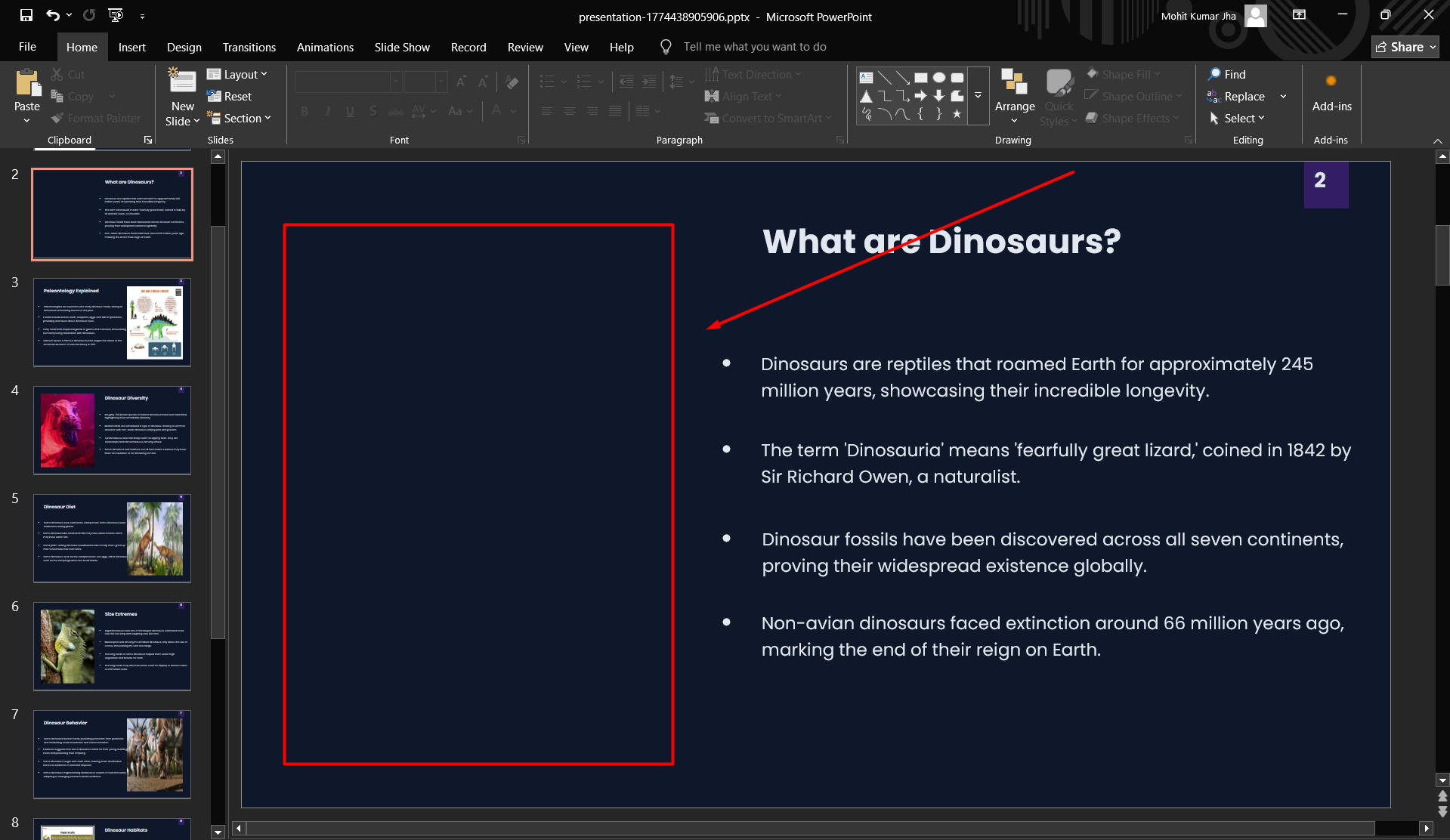
Alternative:
- Right-click the image > Click Cut or Delete
This is the most straightforward and simple, if you want to remove an image from 2-5 slides. To clear several pictures simultaneously, move to the next approach.
#Method 2. Delete Multiple Images at Once
In this method, we’ll focus on removing multiple images at once, which is especially useful when you’re cleaning up slides or redesigning an entire presentation. Instead of deleting each image one by one, select several images together and remove them in a single step.
To do so:
Step 1. Hold down the Ctrl key (Windows) or Cmd key (Mac)
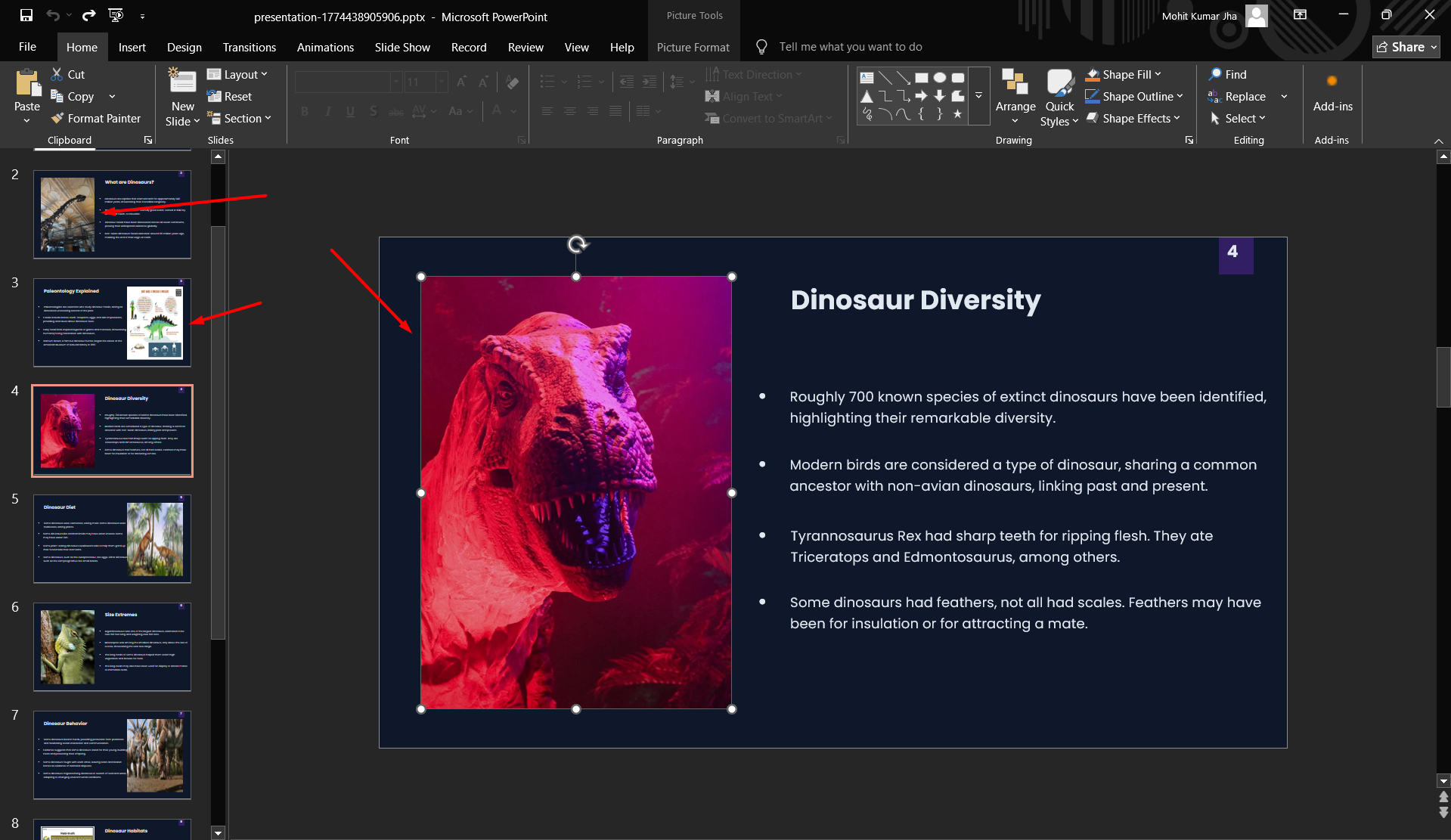
Step 2. Click on multiple images one by one.
Step 3. Press Delete.
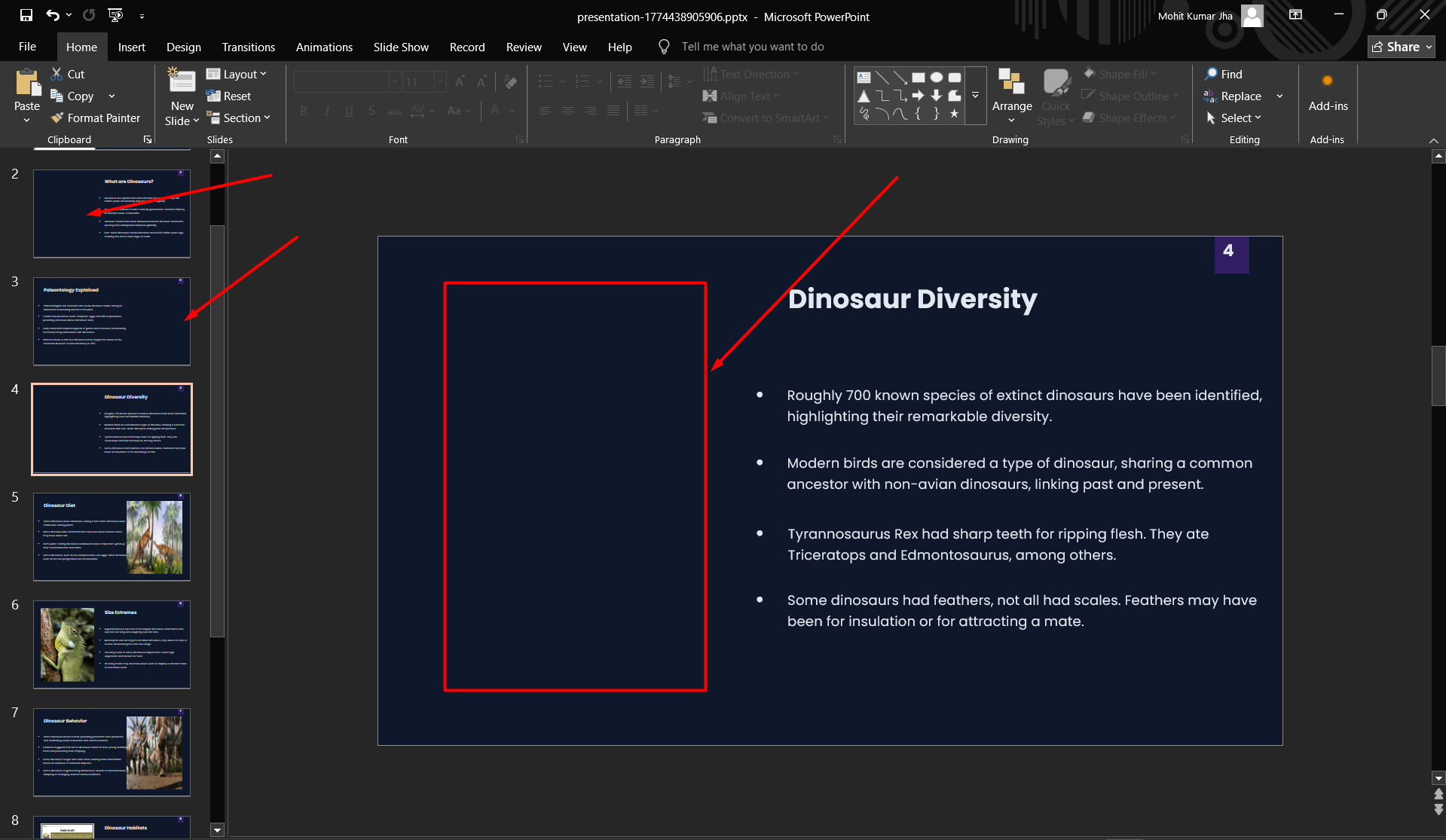
Or:
- Drag your mouse to select multiple objects on the slide
- Press Delete
This method saves a lot of time when you’re redesigning slides or removing bulk visuals from templates.
#Method 3. Delete Images from Slide Master
If an image is part of the Slide Master, deleting it from a normal slide won’t work. The steps are slightly different, which are:
- Go to the View tab.
- Click Slide Master
- Select the layout where the image appears.
- Click on the image.
- Press Delete.
- Click Close Master View.
I hope you’ve learned how to delete image in PPT from the Slide Master.
#Method 4. Remove Background Images
Sometimes, the image isn’t a normal object; it’s set as a background. Here’s how to remove it:
- Right-click on the slide
- Select Format Background
- In the panel, check if a picture is applied
- Click Reset Background
If you can’t select the image directly, it’s probably part of the background.
#Method 5. How to Delete Image in PPT Using the Selection Pane
In this method, use the Selection Pane to locate and delete images that are hard to select. This is useful when you want to delete pictures which are hidden behind other objects or layered within complex slides. For the same:
- Go to Home tab
- Click Select > Selection Pane
- A list of all objects will appear
- Find the image (Picture)
- Click it > Press Delete
#Method 6. How to Delete Image in PPT from Grouped Objects
Sometimes images are grouped with other elements. To clear them, follow these instructions:
- Click the grouped object
- Right-click > Select Ungroup
- Click on the image
- Press Delete
Always ungroup carefully, especially if the layout is important.
#Method 7. Delete Images from PowerPoint Templates
If you’re using a template, images might be embedded in layouts. For the same:
- Go to View > Slide Master
- Check different layouts
- Locate the image
- Delete it
#Method 8. Remove Hidden Images to Reduce File Size
In this method, we’ll focus on removing hidden or unused images that still exist in the PowerPoint file even after they’re no longer visible on slides. To do so:
- Click File > Info
- Click Check for Issues > Inspect Document
- Select Inspect
- Remove hidden content if found
This step is crucial when sharing presentations via email or uploading them online.
If your goal is optimising file size or exporting, you can also explore the difference between PPT and PDF to understand format benefits.
#Method 9. How to Delete Image in PPT Via Keyboard Shortcuts
Use keyboard shortcuts to delete images quickly and efficiently while working on PowerPoint. Shortcuts make the editing process much faster, especially when you’re making multiple changes across slides. Useful shortcuts:
- Delete key = Remove selected image
- Ctrl + X = Cut image
- Ctrl + Z = Undo deletion
Create Better Slides Faster with MagicSlides
If you’re spending too much time editing, deleting images, or fixing slide layouts in PowerPoint, it might be time to switch to a smarter solution. One tool I’ve personally explored for this purpose is MagicSlides AI Presentation Generator.
It allows you to either create slides from scratch or upload an existing PowerPoint file and make quick edits using simple prompts. Instead of manually selecting and deleting images, you can just instruct the AI to do it for you.
Try this now for free, and follow the exact process to delete numerous images across a complete slide deck simultaneously:
Step 1. Open the MagicSlides AI on any browser.
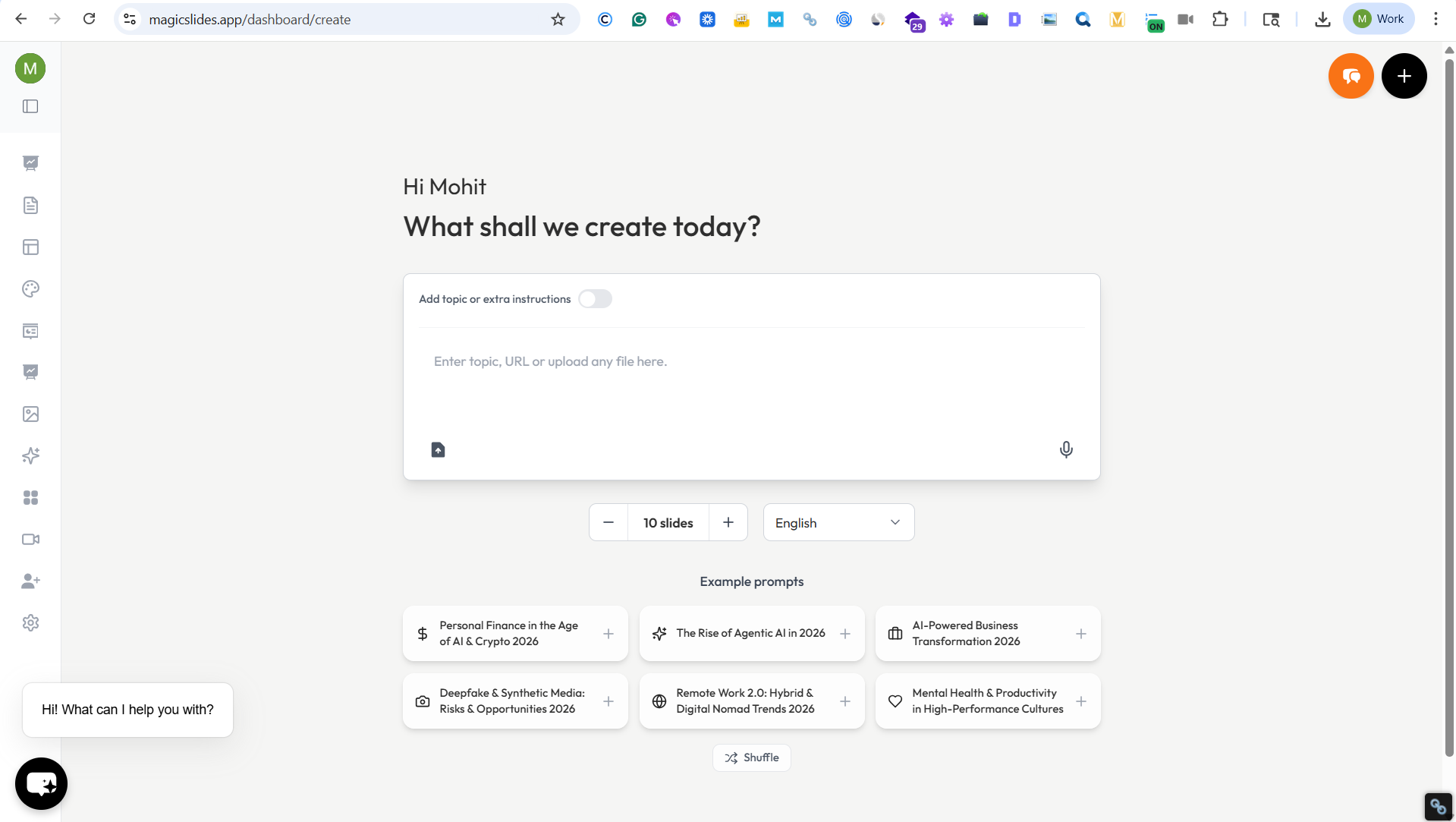
Step 2. Upload your existing PowerPoint presentation (or generate one using AI).
Step 3. Access the editing or prompt section.
Step 4. Enter a simple instruction (prompt) to modify the slide.

Step 5. Let the AI process and update the presentation automatically.
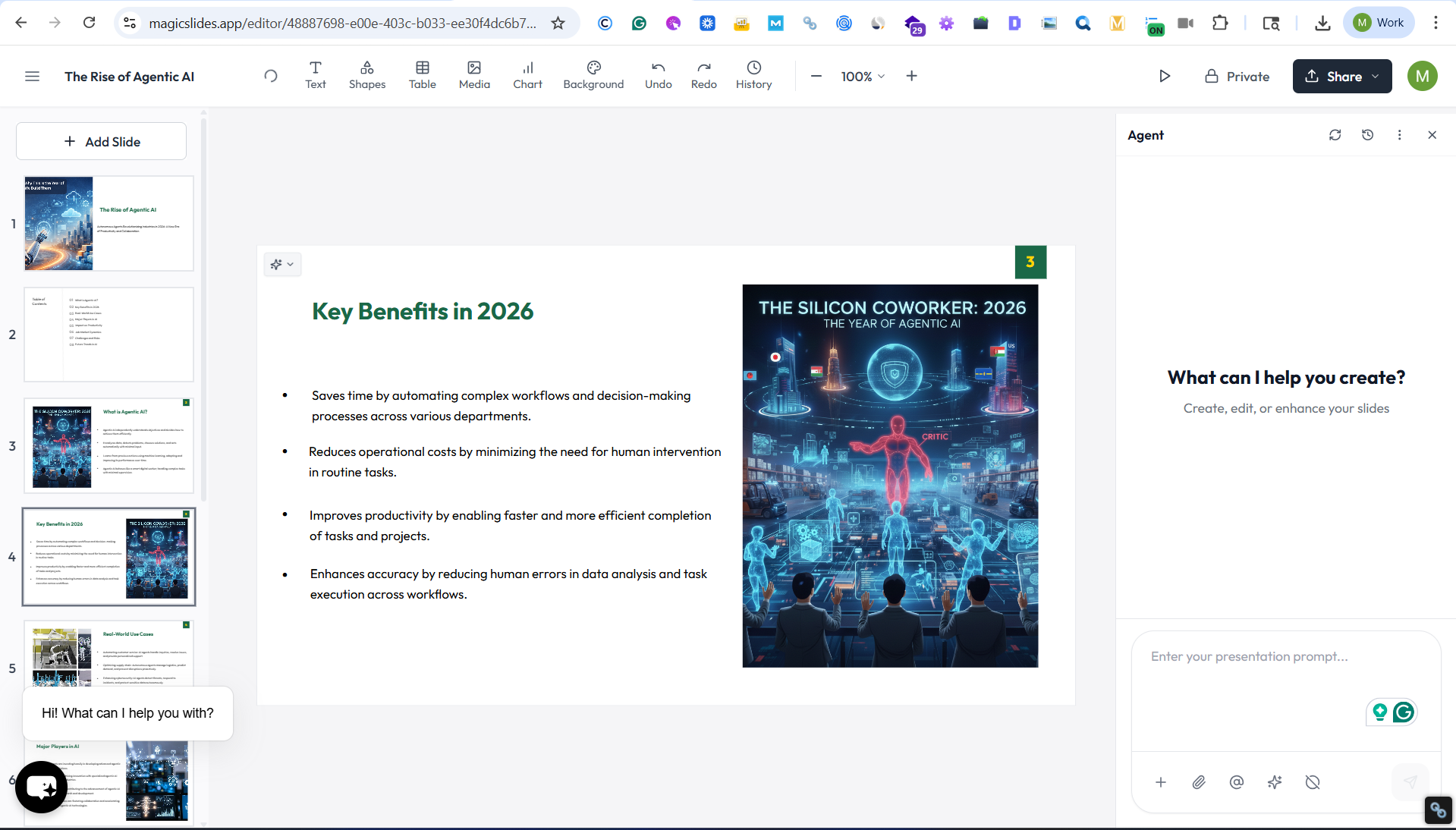
Step 6. When everything is done, export your slides in PPTX format.
Example Prompts:
- “Remove the image from slide 1”
- “Delete the picture from slide 8”
- “Remove the image from slide 12 and keep the text unchanged”
- “Delete all images from slide 5”
- “Remove the background image from slide 3”
How to Delete Image in PPT Hassle-free – Best Practices
To maintain clean and professional presentations:
- Before deleting multiple images, always save a copy or backup of the presentation.
- Removing images can make slides look empty, so adjust the layout accordingly, or add text or icons to fill that space.
- After deleting images, compress the file.
When Replacing Instead of Deleting Images
Sometimes replacing an image works better than removing it completely. For the same:
- Click the image
- Go to Picture Format
- Click Change Picture
- Select a new image
Author’s Verdict
Deleting images in PowerPoint seems a simple task, but it can become tricky, especially when dealing with templates or background images.
Understanding how to delete image in PPT, the key is knowing where the image actually exists:
- On the slide
- In the Slide Master
- As a background
- Inside grouped elements
Once you identify that, removing it becomes much easier.
If you’re working on professional presentations, I highly recommend practising these methods. I hope you have complete insight into:
- How to delete image in PowerPoint
- How to delete background image in PowerPoint
People Also Ask
1. Why can’t I delete an image in PowerPoint?
It’s because:
- The image is part of the Slide Master
- It’s a background image
- It’s grouped with other objects
2. How do I delete all images in PowerPoint?
You can:
- Use Selection Pane
- Manually select multiple images
- Remove them slide by slide
3. Does deleting images reduce file size?
Yes, but you should also:
- Compress images
- Remove hidden data
4. Can I recover a deleted image?
Yes, just press Ctrl + Z immediately after deletion.
5. Why need to delete images in PowerPoint?
Users want to delete images in PowerPoint when the:
- Slide looks too cluttered
- Image is outdated or irrelevant
- File size becomes too large
- Want to replace it with a better visual
- Design needs to be simplified for better readability


