
In today's era of digital communication and remote learning, creating captivating and informative presentations is a crucial skill. Google Slides has become a popular choice for crafting visually appealing slideshows, but what if you want to add that personal touch or offer a more comprehensive explanation? Voiceovers can be the key to engaging your audience on a deeper level. In this blog post, we'll explore two methods for adding voiceovers to your Google Slides presentations and provide step-by-step instructions for each option.
Sometimes, recording your voiceovers separately gives you more control over the quality and content of your narration.
Step 1: Prepare Your Audio
Before diving into your presentation, make sure you have recorded the voiceover for each slide using audio recording software. Ensure the audio files are clear and well-organized.
Step 2: Upload Audio Files
Create a dedicated folder in your Google Drive to store your audio files. Upload the recorded audio files to this folder for easy access.
Step 3: Insert Audio into Slides
- Open your Google Slides presentation.
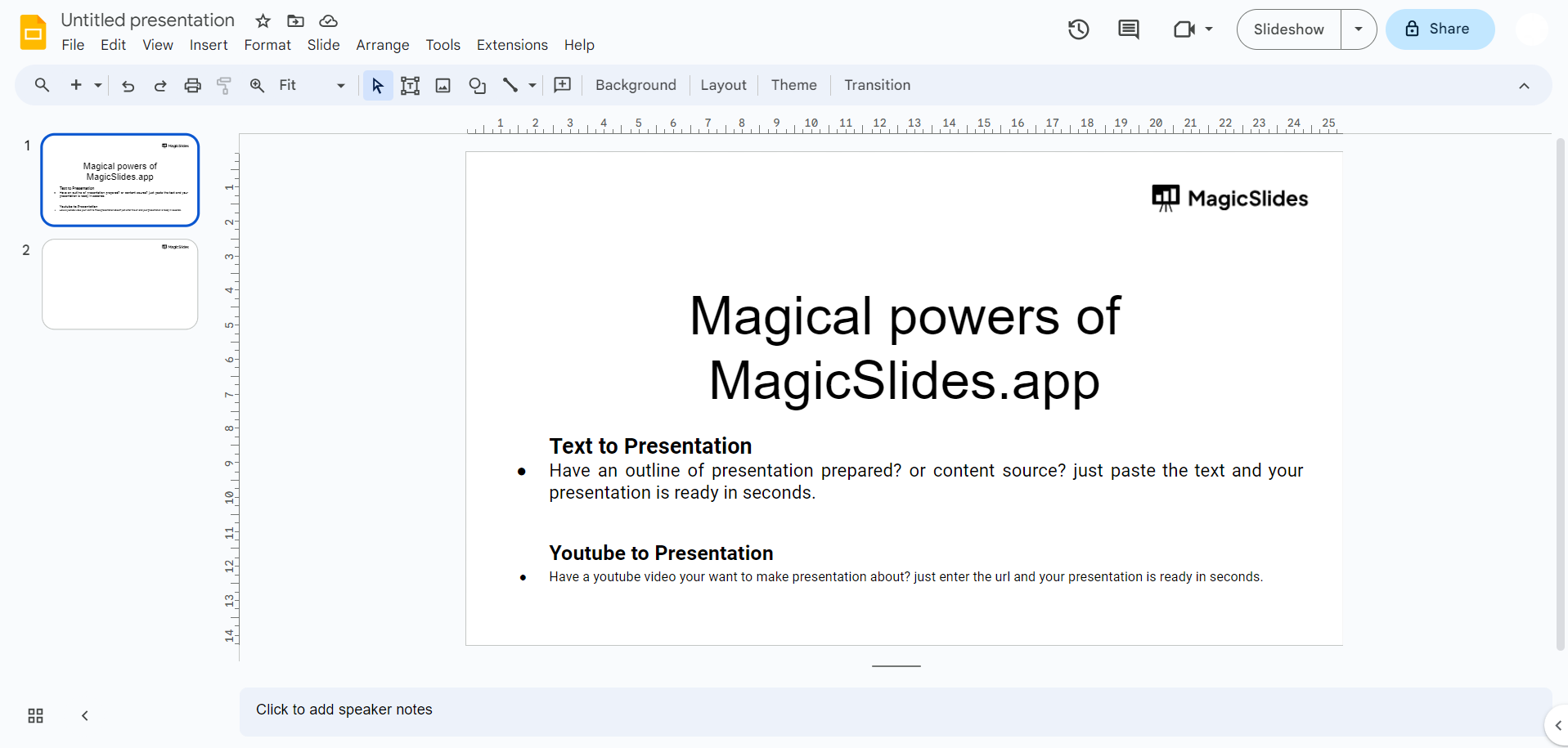
- Select the slide where you want to add a voiceover.
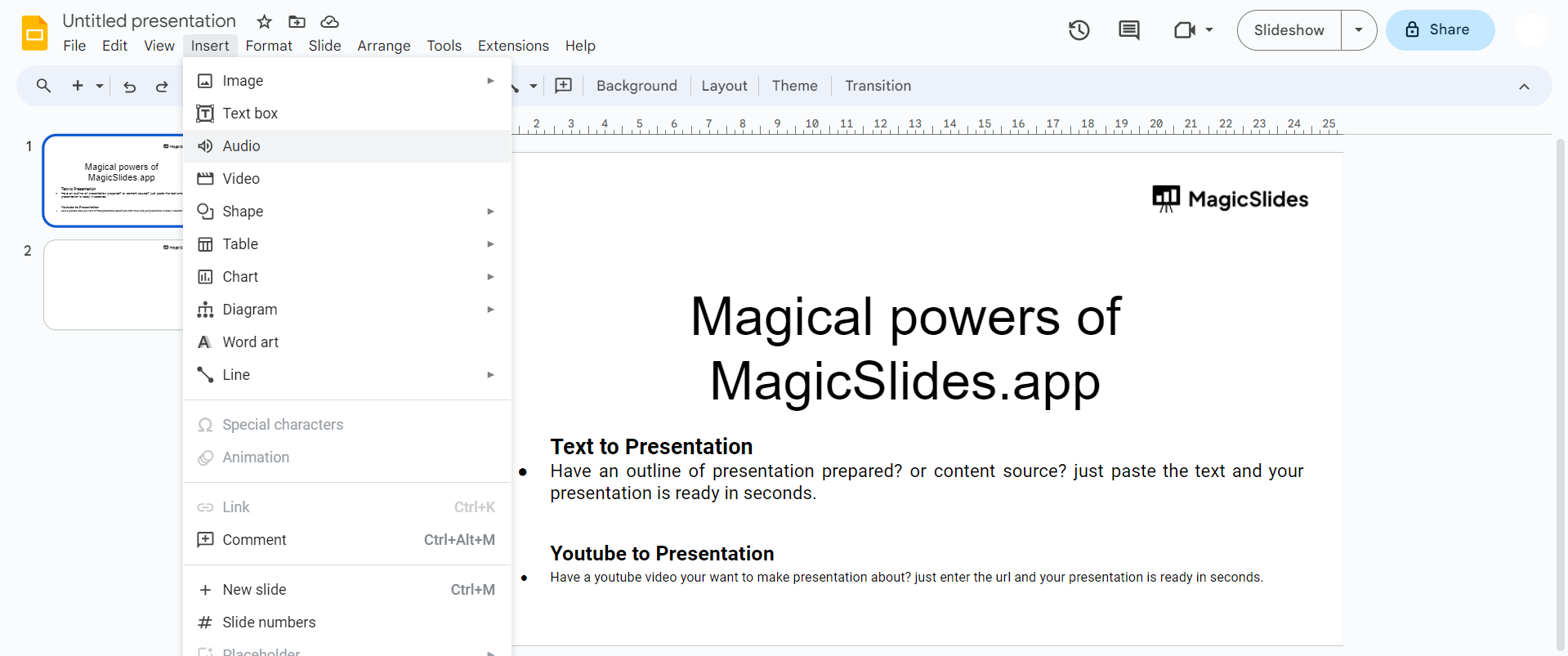
- Go to the "Insert" menu at the top and choose "Audio" > "Audio from Google Drive."
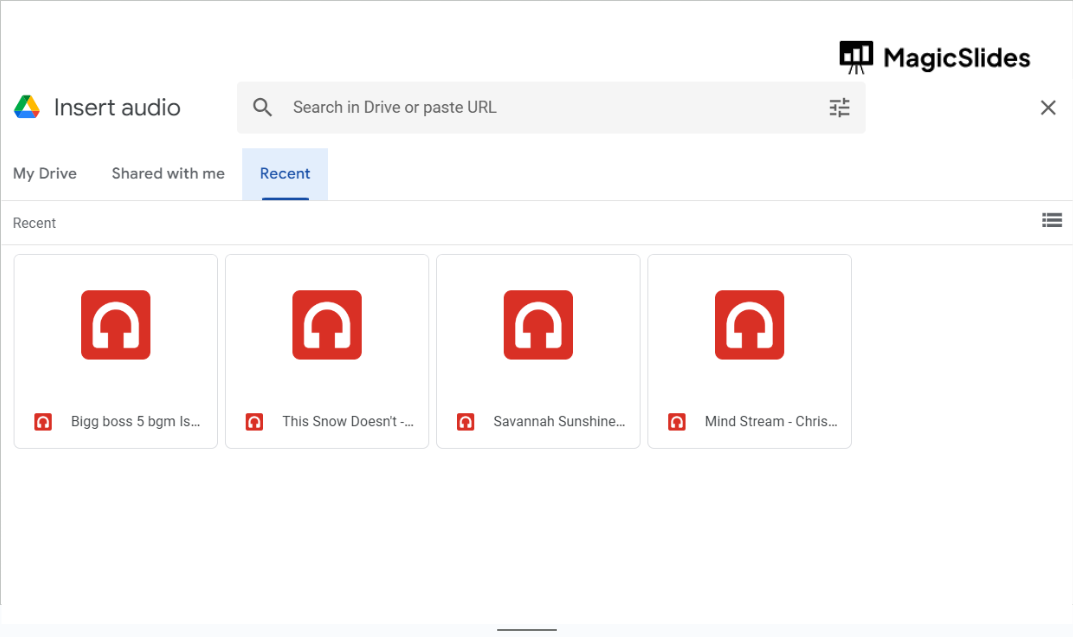
- Locate the audio file you want to use in the folder you created, select it, and click "Insert."
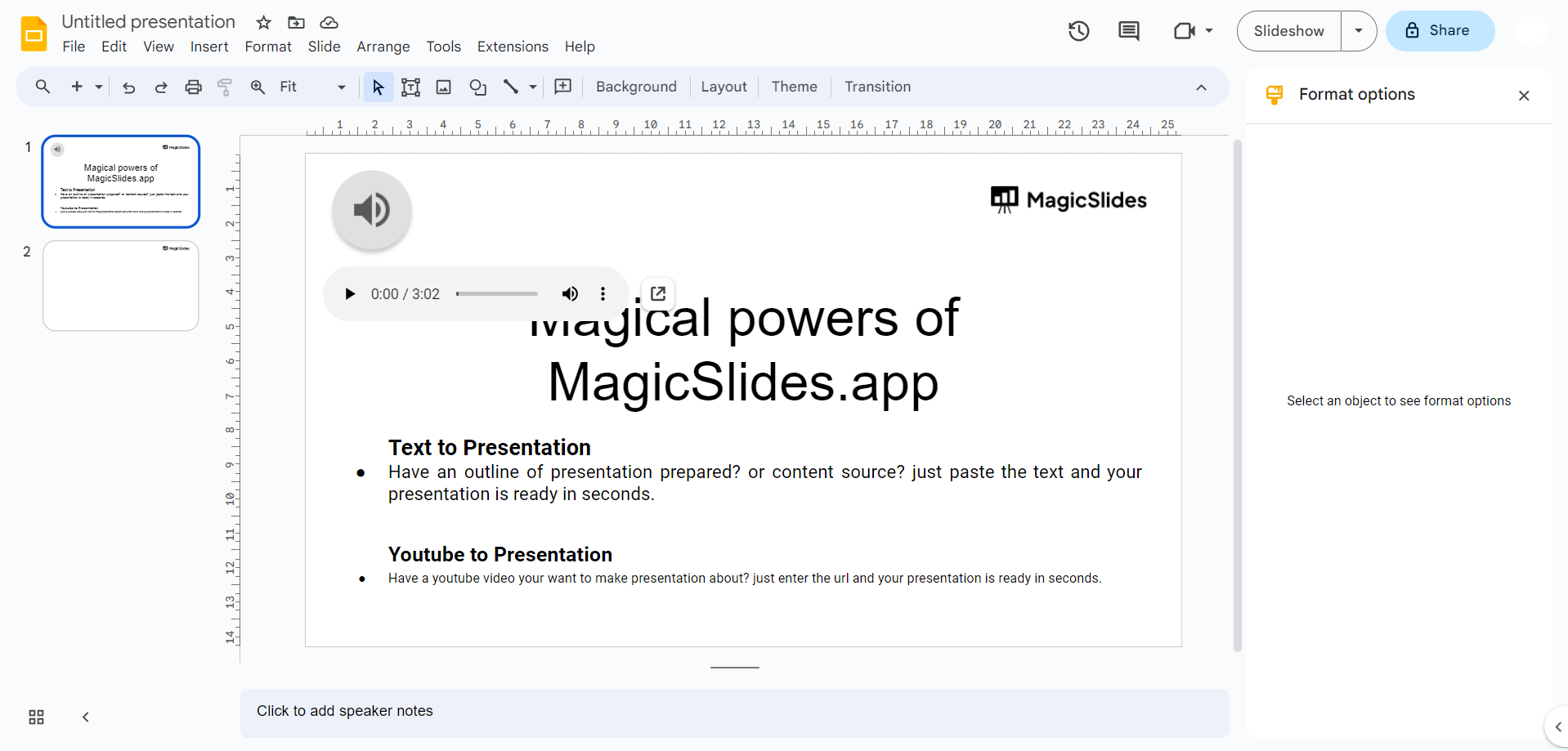
Step 4: Adjust Audio Settings
Click on the audio icon that appears on the slide to adjust settings like autoplay, looping, and volume. Customize these settings to enhance the user experience.
Step 5: Repeat for Each Slide
Repeat the process for each slide in your presentation, inserting the appropriate voiceovers.
Step 6: Test Your Presentation
Play your presentation, and the voiceovers will automatically accompany your slides, providing a more engaging and informative experience.
Incorporating voiceovers into your Google Slides presentations opens up new possibilities for engagement and communication. Whether you opt for recording and inserting audio separately or using third-party screen recording software, these methods provide you with the tools to create dynamic, informative, and captivating presentations that resonate with your audience on a deeper level.
Share on socials
About the author
Sanskar Tiwari is the founder of MagicSlides and IAG Tech. Over the past 5 years, he has shipped 24+ products and taught 100k+ students how to code. His work focuses on AI‑assisted creation and developer education.
More from the blog
How to insert bitmoji into Google Slides
19 March 2026
Top 12 PowerPoint Alternatives Compared – Find the Best Presentation Tool
17 March 2026
Genetics Topics for Presentation: 100+ Comprehensive Ideas
17 March 2026
Interesting Biology Topics for Presentations: 100+ Captivating Ideas
17 March 2026
How to add morph Transition in PowerPoint
15 March 2026
How to Convert PPT to Google Slides - Complete 2026 Guide
13 March 2026
How to animate google slides
10 March 2026
50+ Funny Presentation Topic Ideas to Get You Started
5 March 2026
Scribd PPT Downloader Free: Step-by-Step Guide (Updated 2026)
2 March 2026
