How to do amina voice book in Google Slides


Create an engaging animated voice book in Google Slides using animations, audio, and interactive storytelling tools
Google Slides is a versatile tool that allows you to create interactive and engaging presentations.
An animated voice book can bring your content to life, combining text, images, and audio narration with smooth transitions.
Whether for storytelling, teaching, or professional use, this guide will walk you through the steps to create an animated voice book in Google Slides.
Steps to Create an Animated Voice Book in Google Slides
Step 1: Plan Your Content
Decide on the theme or story for your voice book.
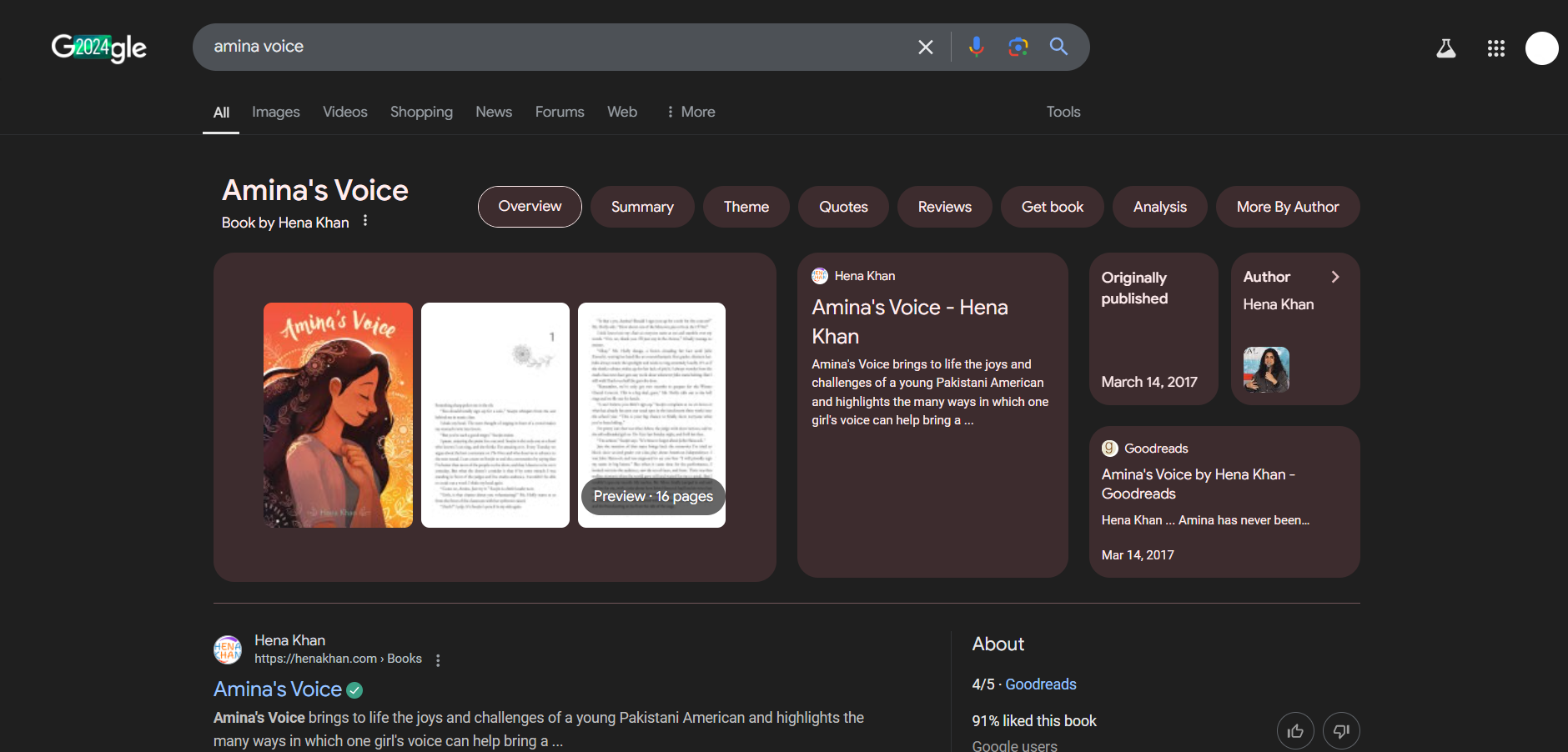
Prepare the text, images, and audio files you want to include in the presentation.
Step 2: Open Google Slides and Set Up Slides
Log in to your Google account and create a new presentation.
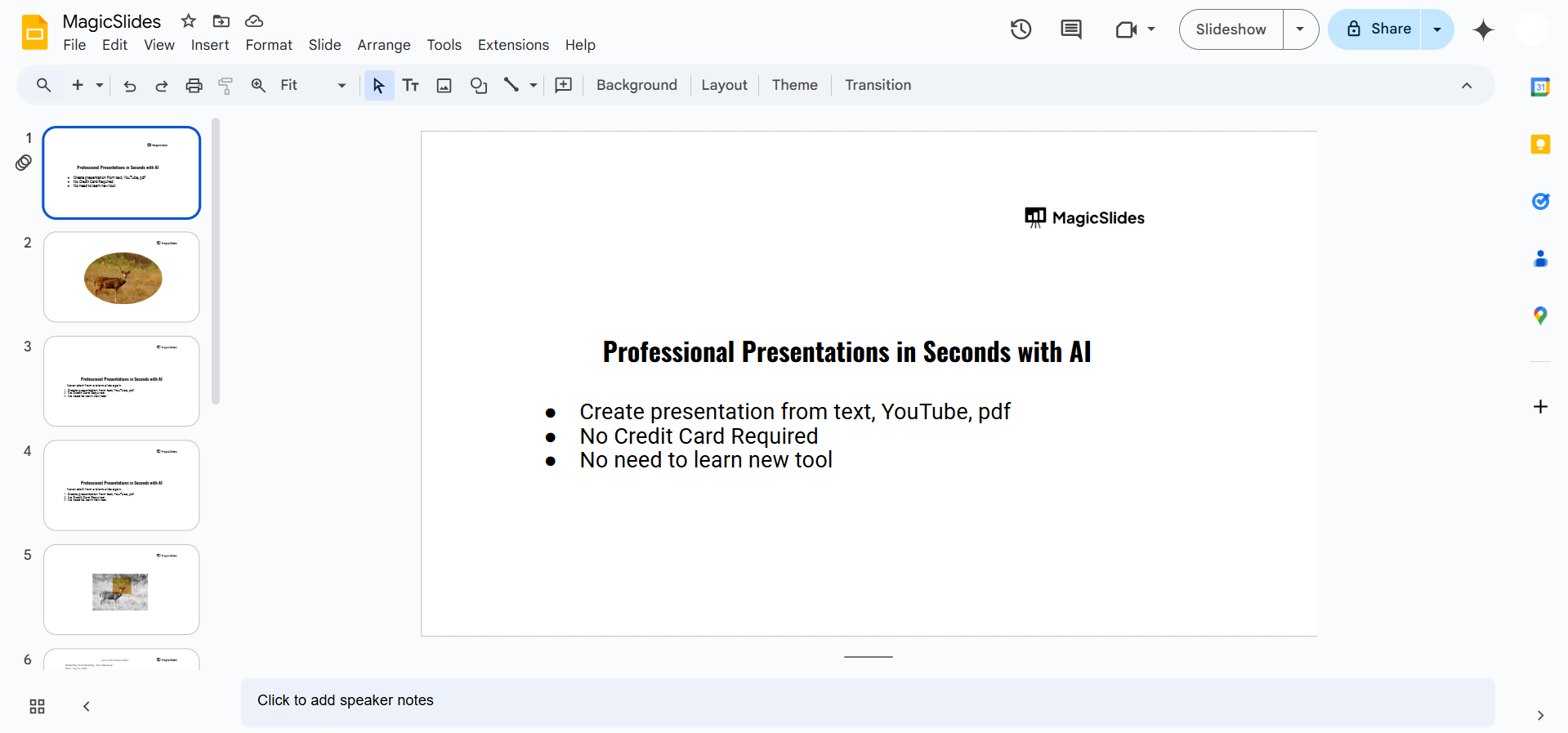
Customize the slide dimensions if needed by going to File > Page Setup.
Insert text boxes, images, or illustrations on each slide to represent your content.
Step 3: Add Animations to Slides
Select an element on the slide (text, image, etc.). Click Insert > Animation or use the animation toolbar on the right.
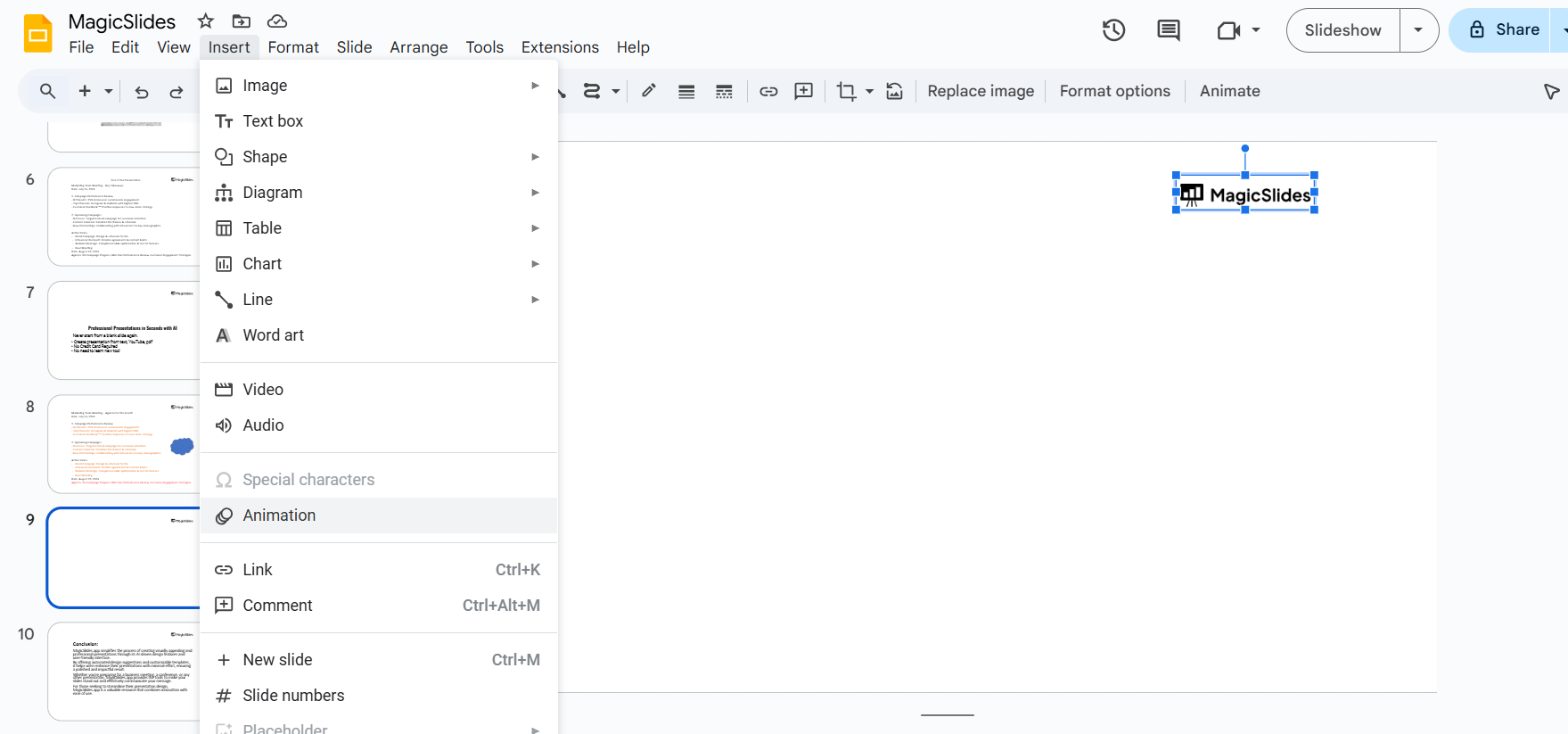
Choose an animation effect (e.g., fade in, appear, fly in) to match the flow of your story.
Adjust the animation duration and order using the options provided.
Step 4: Insert Audio Narration
Prepare audio files for each slide using an external recorder or text-to-speech software. Upload the audio files to Google Drive.
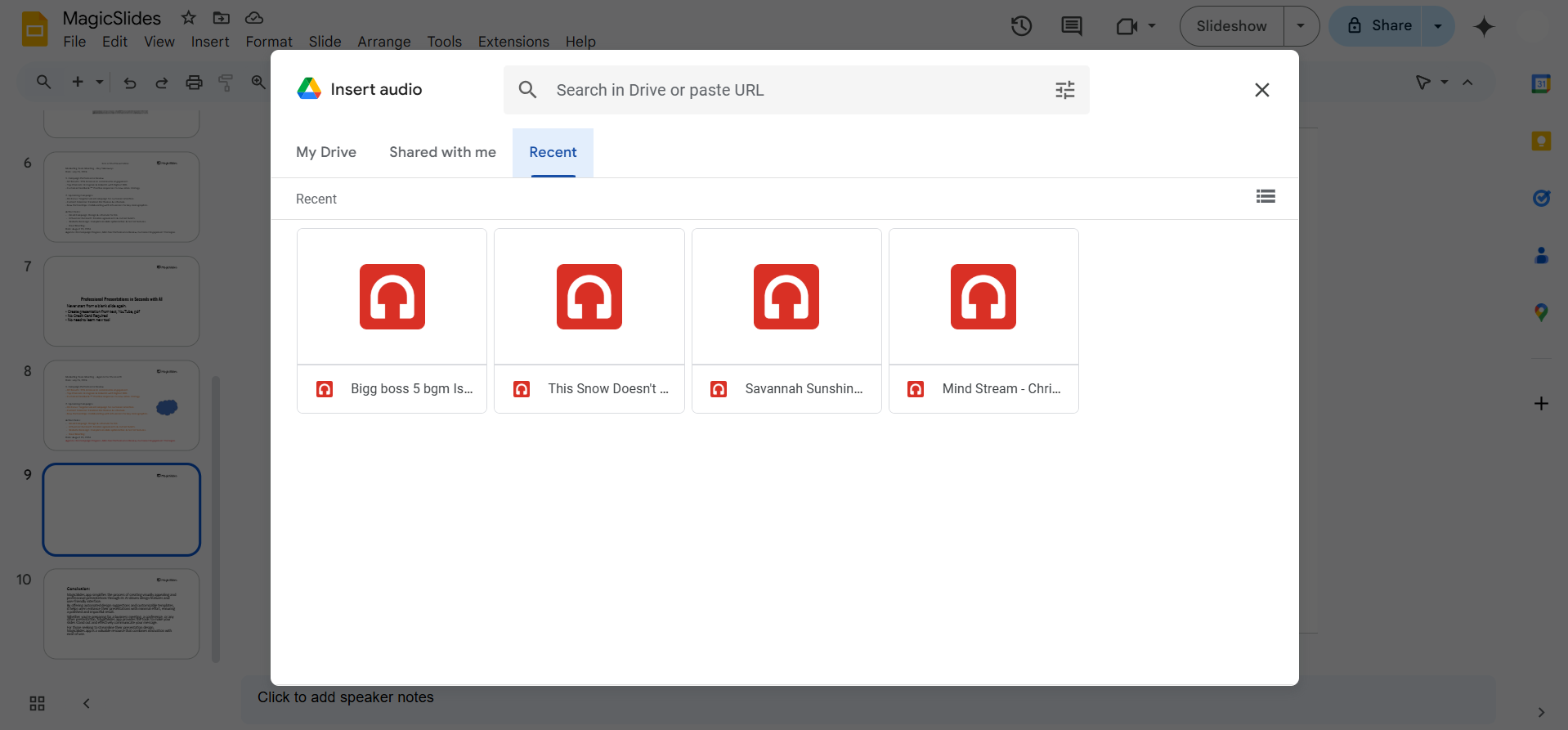
On each slide, go to Insert > Audio and select the corresponding audio file.
Adjust playback settings (e.g., play automatically or on click) and place the audio icon off-slide for a cleaner look.
Step 5: Customize Slide Transitions
Go to the Slide > Transition menu. Choose a transition effect (e.g., dissolve, slide, cube) for smooth navigation between slides.
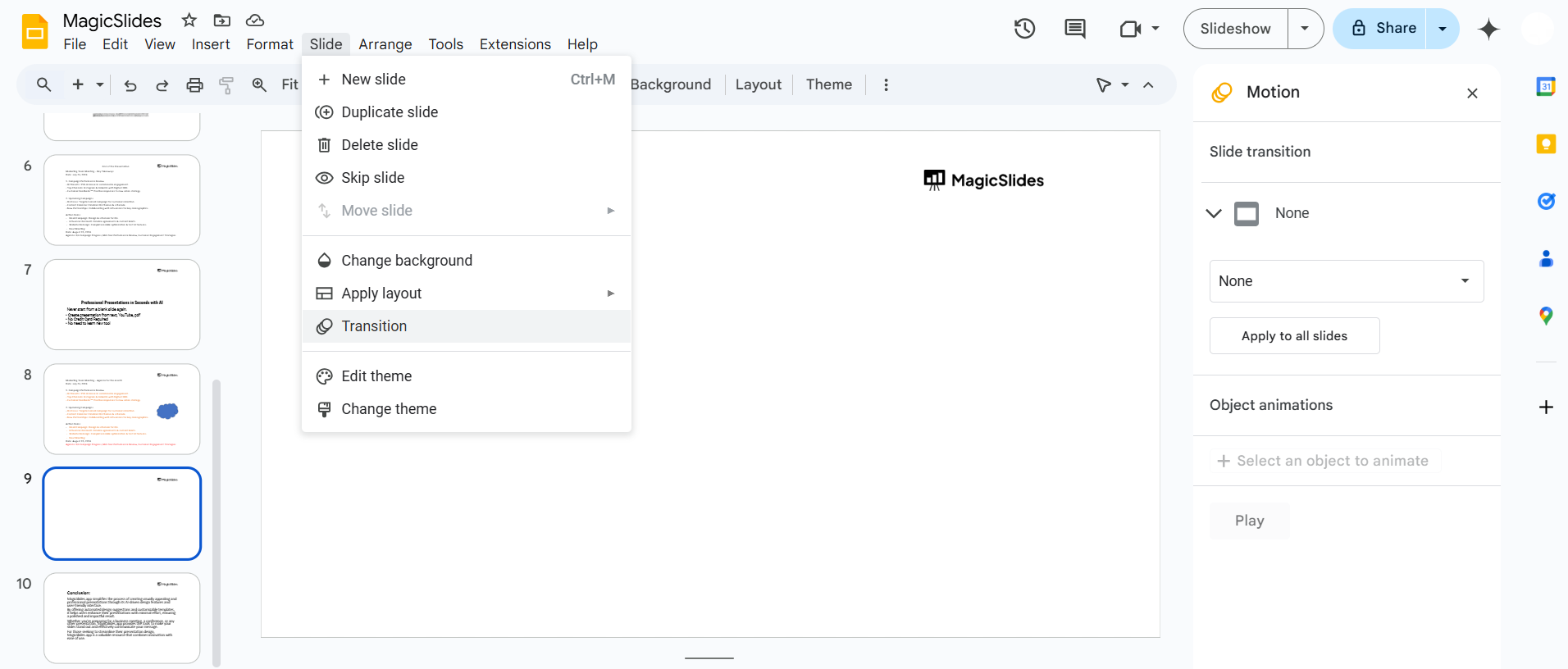
Apply the same transition to all slides or vary them for added impact.
Step 6: Test and Preview Your Voice Book
Play your presentation in Present mode to check the flow of animations, transitions, and audio.
Make adjustments as necessary to ensure a seamless experience.
Step 7: Share or Present Your Voice Book
Share your animated voice book with others by clicking Share and adjusting permissions.
Download the presentation as a PDF or video if needed for offline sharing.
Conclusion
Creating an animated voice book in Google Slides is a fun and effective way to combine visuals, audio, and animations for impactful storytelling.
By following these steps, you can craft engaging presentations that capture your audience's attention and bring your ideas to life.
FAQs on Creating an Animated Voice Book in Google Slides
Can I record audio directly in Google Slides?
No, Google Slides does not have a built-in audio recorder. Use an external recorder and upload the audio files to Google Drive.
How do I sync audio with animations?
Adjust the animation timing and set audio playback to “Play automatically” or “On click” to sync them effectively.
Can I share the animated voice book as a video?
Yes, you can use tools like Screencastify or other screen recorders to capture the presentation as a video.
With this guide, you’re ready to create a professional and engaging animated voice book in Google Slides!


