How to Edit a PowerPoint Template: Customize PPT Like a Pro


Learn how to edit a PowerPoint template using Slide Master, customize layouts, fonts, and colors, and create professional presentations with this step-by-step guide.
When I first started making presentations, I did not really know what a PowerPoint template was. I thought it was a design that you use at the beginning. Then I found out it is a lot more than that.
A PowerPoint template is like a plan for how your presentation will look. It is a complete design framework. It includes slide layouts, font styles, color schemes, placeholders, and formatting rules. It’s what controls how every slide in your presentation looks and feels. You can even start with a 100+ free template collection to quickly find a style that fits your needs.
I used to get confused between templates and themes, too. A theme only changes the colors and fonts. But a template does more. It sets up how your slides are arranged. That’s why customizing a PowerPoint template is really important.
Once I understood the difference between a PowerPoint template and a theme, I stopped editing slides one by one and started managing everything from a single place. I could update fonts, layouts, and design elements across the entire presentation without making repetitive changes. As a result, my presentations became more consistent, professional, and much easier to update.
PowerPoint Template vs Theme: What’s the Difference?
PowerPoint templates and themes are often confused, but they serve different purposes.
A theme controls the visual appearance of a presentation, including colors, fonts, and effects. Applying a theme changes the overall style of your slides without affecting their structure.
A template includes everything in a theme but also provides predefined slide layouts, placeholders, backgrounds, and formatting settings. It acts as a complete framework for creating consistent presentations.
If you only want to change the look of your slides, a theme may be enough. If you need a reusable presentation structure with consistent branding and layouts, a PowerPoint template is the better option.
How to Edit a PowerPoint Template Step by Step Using the Slide Master?
This is the part where everything started making sense to me. The moment I discovered Slide Master, I realized I had been doing things the hard way all along.
If you’re trying to understand how to edit a PowerPoint template step by step, this is exactly the process I follow every time.
Step 1. Open Your PowerPoint Template
Begin by opening the PowerPoint template you want to edit. PowerPoint templates are typically saved as .potx files, although you can also customize an existing .pptx presentation and save it as a template later.
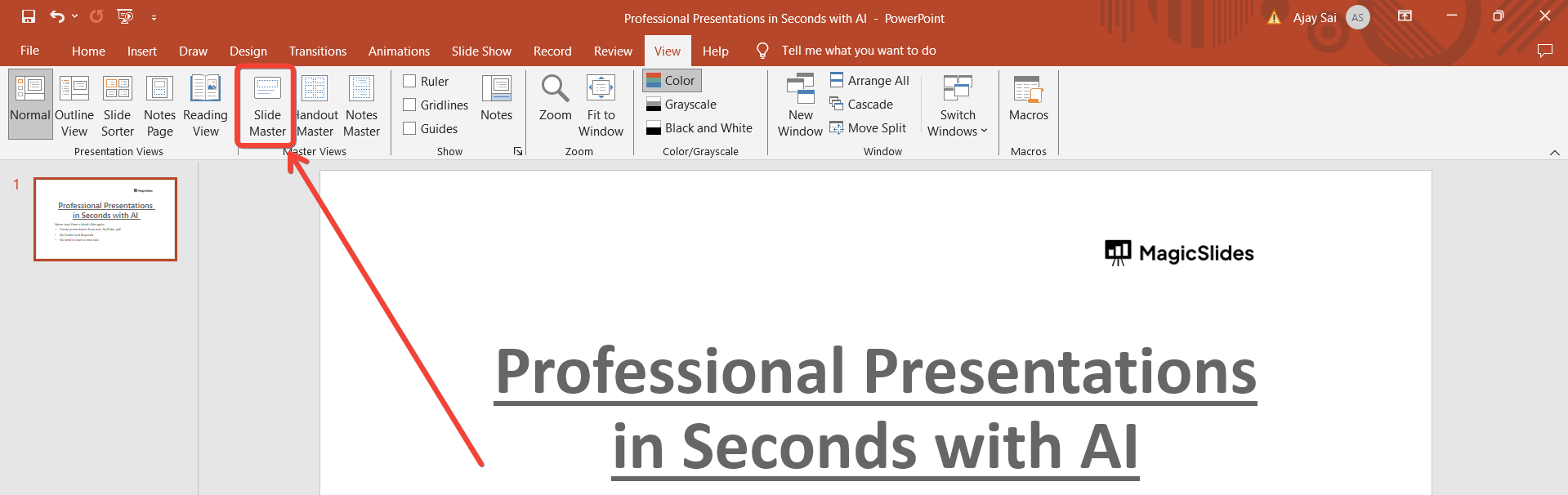
Step 2. Navigate to Slide Master View
To access and edit the underlying elements of the template, go to the “View” tab in the PowerPoint ribbon and click on “Slide Master.”
Step 3. Customize Slide Layouts
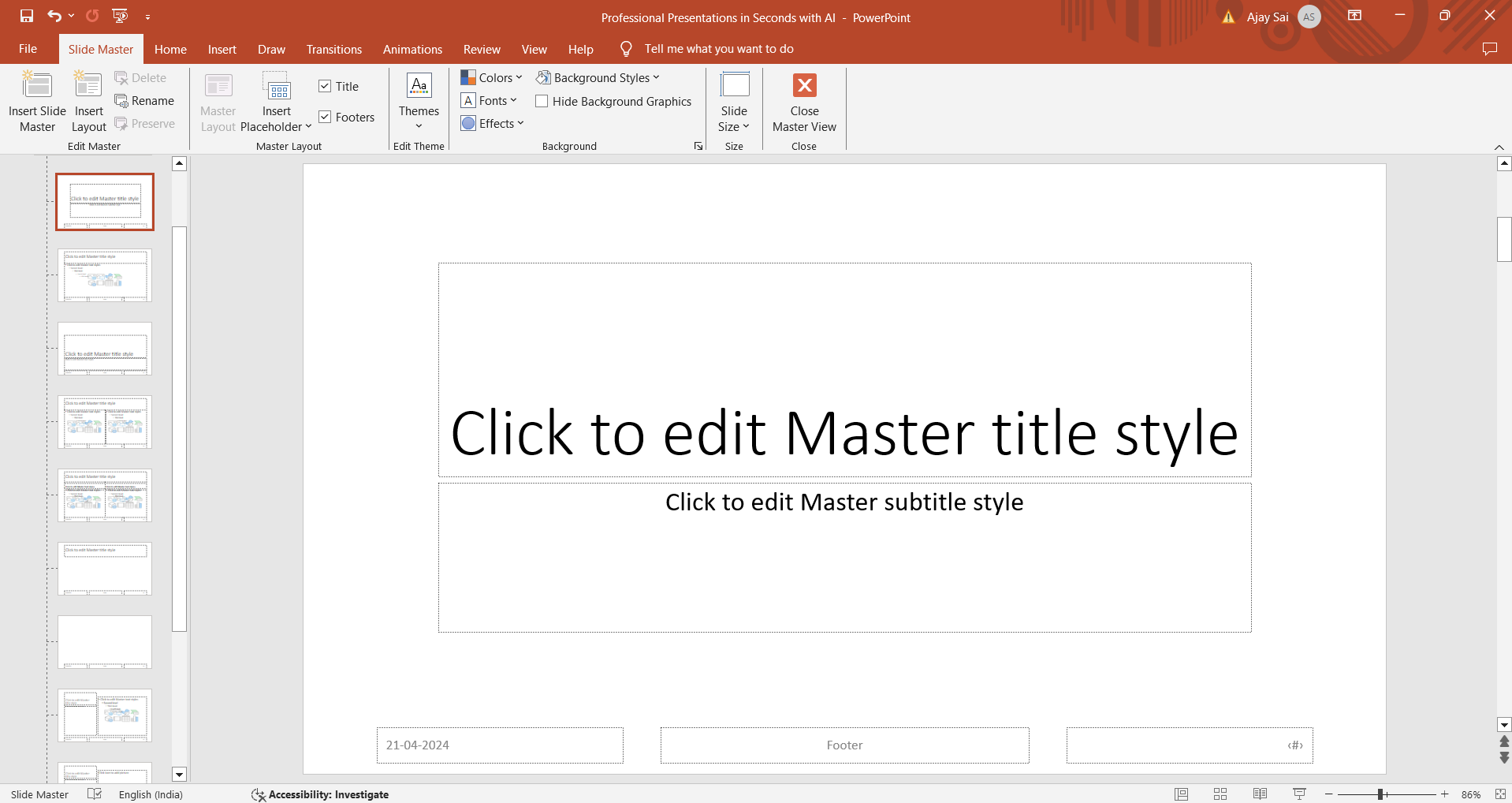
In Slide Master view, you’ll see thumbnails of all slide layouts, making it easier to apply a Template to an existing PowerPoint Presentation while ensuring consistency. Make changes to fonts, colors, backgrounds, placeholders, and other elements as needed. These changes will apply to all slides based on these layouts.
Step 4. Edit Header and Footer Information
Within the Slide Master view, you can edit or remove headers, footers, date/time placeholders, and slide numbers. This is crucial for branding and adding necessary information to your slides.
Step 5. Add or Remove Slide Elements
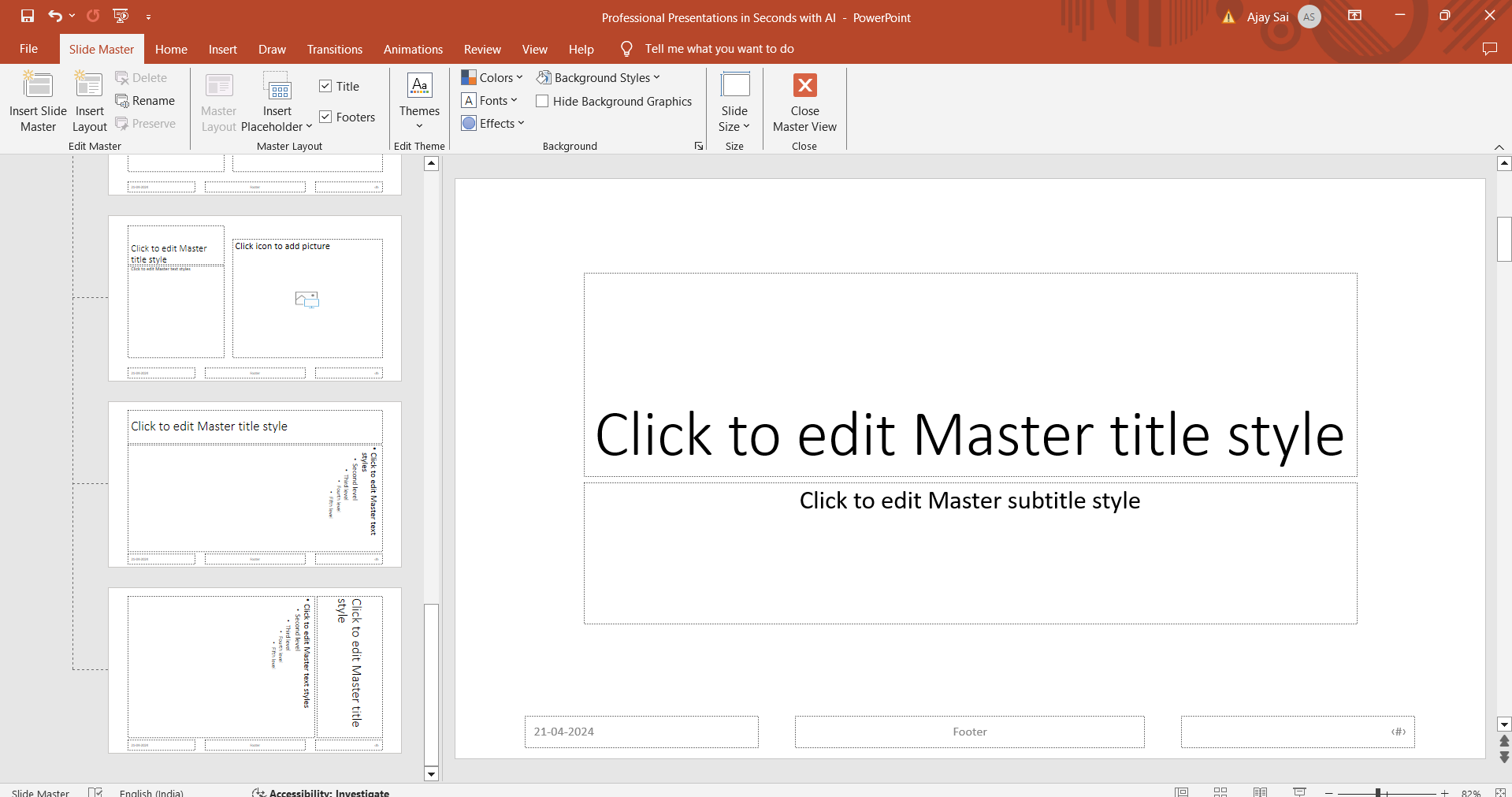
You can add new placeholders, shapes, images, or text boxes to slide layouts. Remove any elements that are not required for your presentation.
Step 6. Save Your Customized Template
Once you’ve made all the desired changes, return to the “View” tab and click “Close Master View.” To reuse your design in future presentations, select “Save As” and choose the PowerPoint Template (.potx) format.
How to Edit Individual Slides Without Changing the PowerPoint Template
Sometimes you may want to customize a specific slide without affecting the entire presentation template. This is especially useful when highlighting important information, adding unique visuals, or experimenting with a different layout for a single slide.
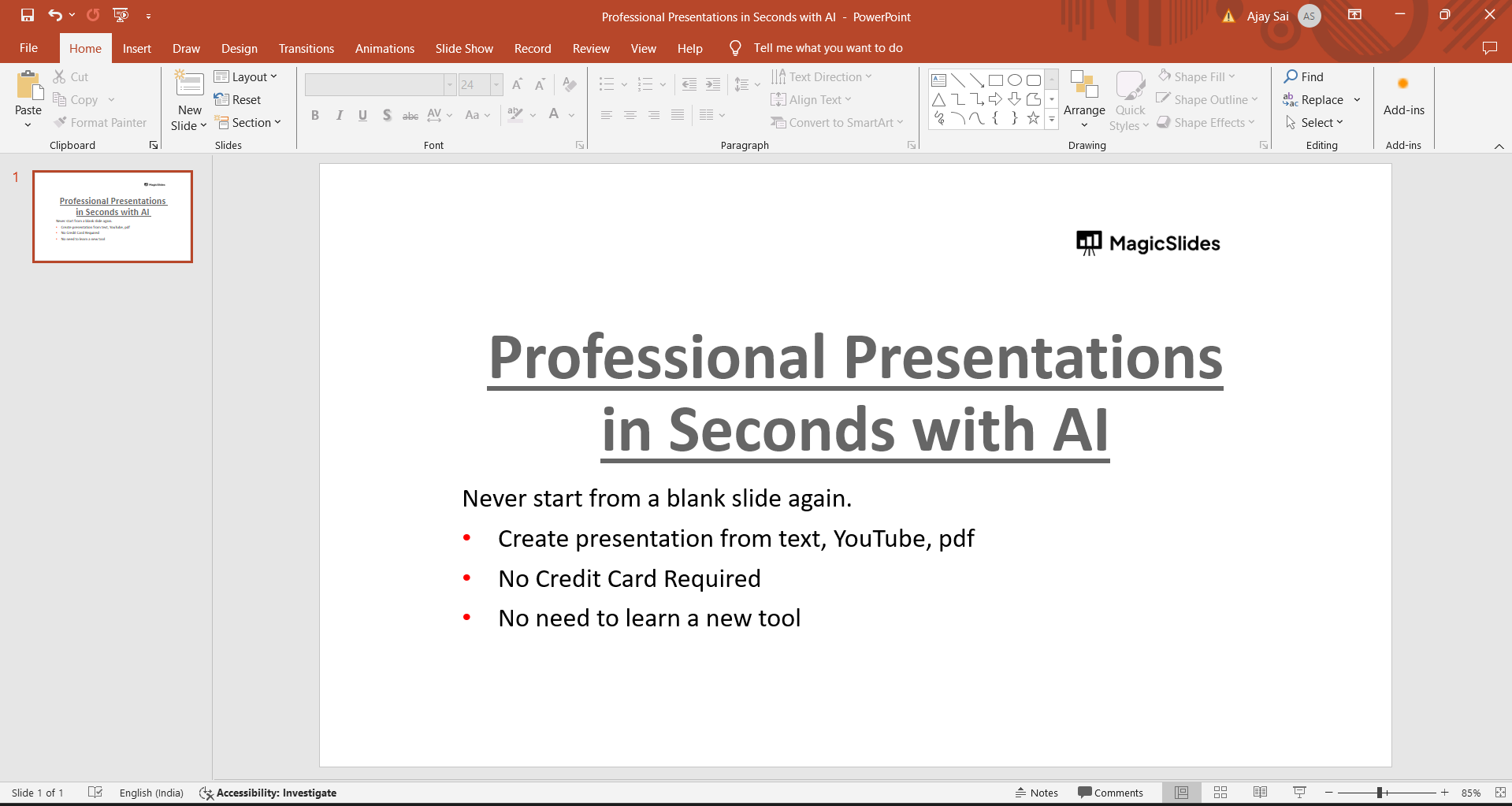
In these situations, exit the Slide Master view and make changes directly on the slide. This allows you to adjust text, images, shapes, and other design elements without modifying the template itself.
However, it’s important to maintain consistency throughout your presentation. Making too many visual changes on individual slides can create an uneven appearance and make the presentation look less professional. I usually follow the existing template design and only make small adjustments when necessary.
This approach gives you the flexibility to personalize individual slides while preserving the overall structure, branding, and visual consistency of your presentation.
Common Mistakes to Avoid When Editing a PowerPoint Template
Even though editing a PowerPoint template is straightforward, a few common mistakes can lead to inconsistent or unprofessional-looking presentations.
1. Editing Individual Slides Instead of the Slide Master
Many users manually update fonts, colors, or logos on every slide. This takes unnecessary time and can create inconsistencies. Whenever possible, make global design changes through the Slide Master.
2. Using Too Many Fonts
A template should maintain a consistent visual identity. Using multiple font styles throughout a presentation can make slides look cluttered and difficult to read.
3. Ignoring Placeholder Layouts
Placeholders help maintain consistent spacing and alignment across slides. Removing or modifying them without planning can disrupt the overall design structure.
4. Applying Different Color Schemes
Changing colors on individual slides may create visual inconsistency. It’s best to define brand colors within the template and use them throughout the presentation.
5. Overcrowding Slide Layouts
Adding too much text, too many images, or excessive design elements can reduce readability. Keep layouts clean and focused on the key message.
6. Forgetting to Save as a Template
If you plan to reuse your design, save it as a PowerPoint Template (.potx) file rather than a standard presentation (.pptx). This makes it easy to use the same design for future presentations.
Avoiding these mistakes will help you create professional, consistent, and easy-to-manage PowerPoint presentations.
Quick Method- Edit a PowerPoint Template Faster with AI Smart Solutions
I have learned that knowing how to edit a PowerPoint template is one part of the process. The other part, the part that used to slow me down, was building the slides before I even started editing the PowerPoint template.
That is where I started using Artificial Intelligence tools to make things easier for me.
I got my hands on one tool that really helped me, MagicSlides AI PPT maker. This tool is very useful for making PowerPoint templates. I now generate a complete draft of my PowerPoint template in seconds, and then I refine everything using the Slide Master with a blank presentation. This approach has completely changed how I handle PowerPoint template customization for my presentations.
Now, when I work on my presentations, I do not waste time figuring out the structure of my PowerPoint template. I focus directly on how to edit my PowerPoint template and make it look professional.
Let’s see how this online smart tool works.
Steps to Follow to Edit a PowerPoint Template Faster
Step 1. Open the software website and create a topic or import the document.
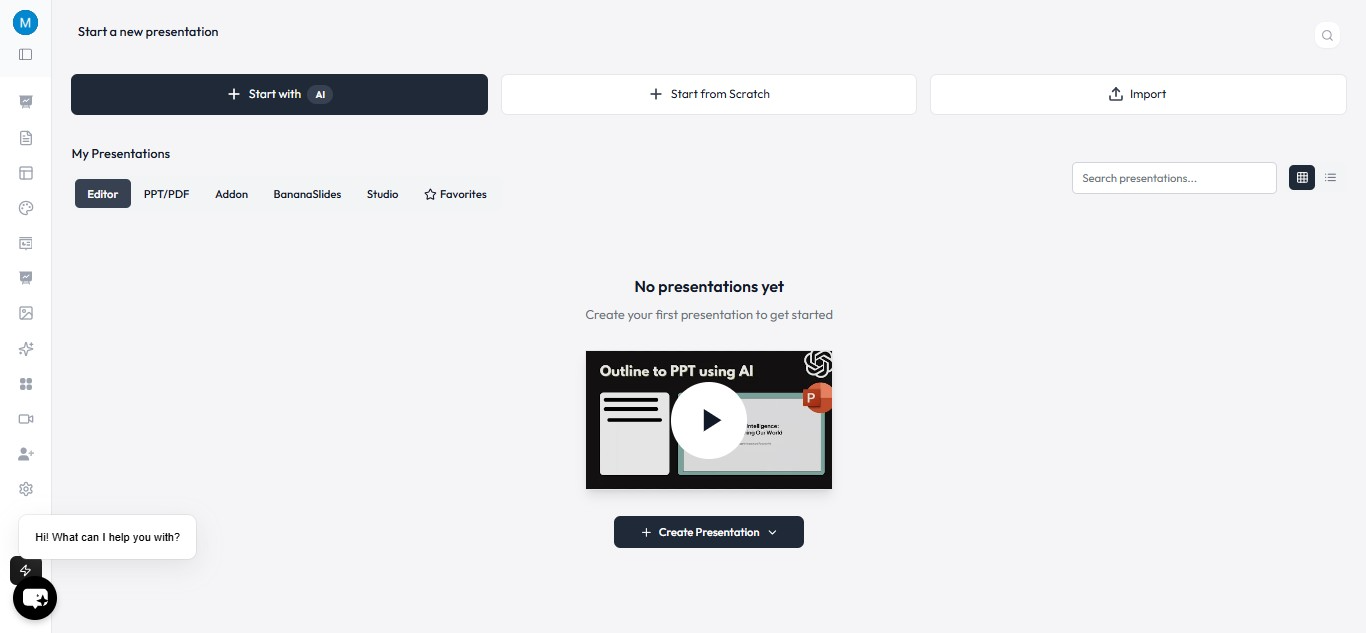
Step 2. Enter your topic or prompt into the software and the number of slides of the presentation you want.
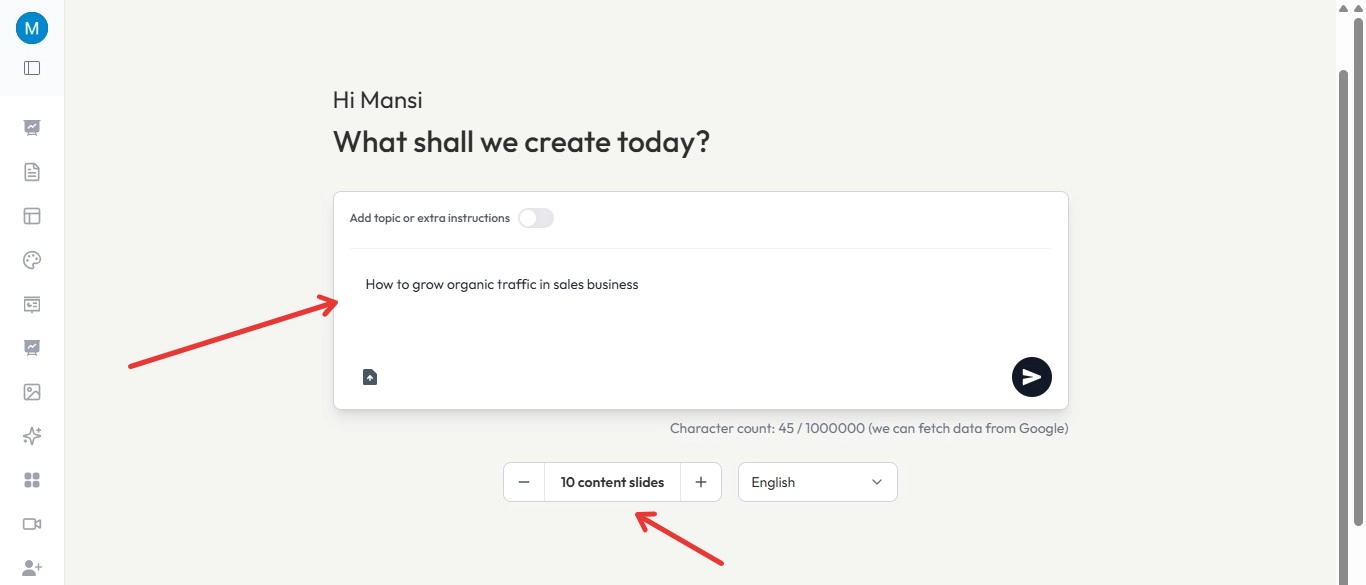
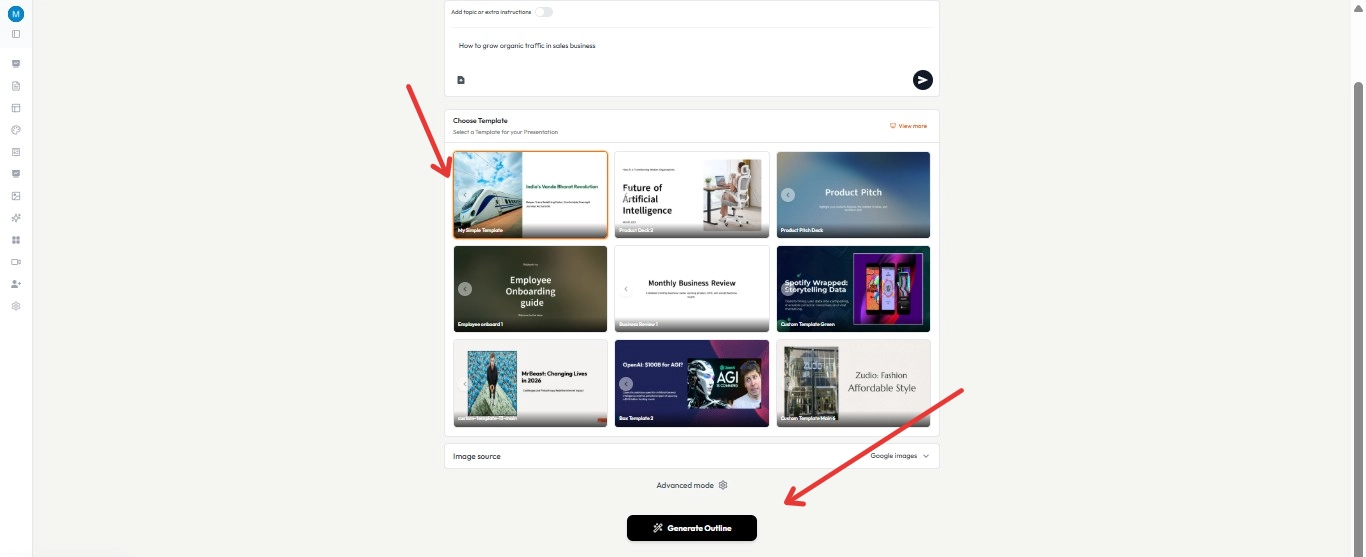
Step 3. Once satisfied, select a template from the gallery. Click Generate outline.
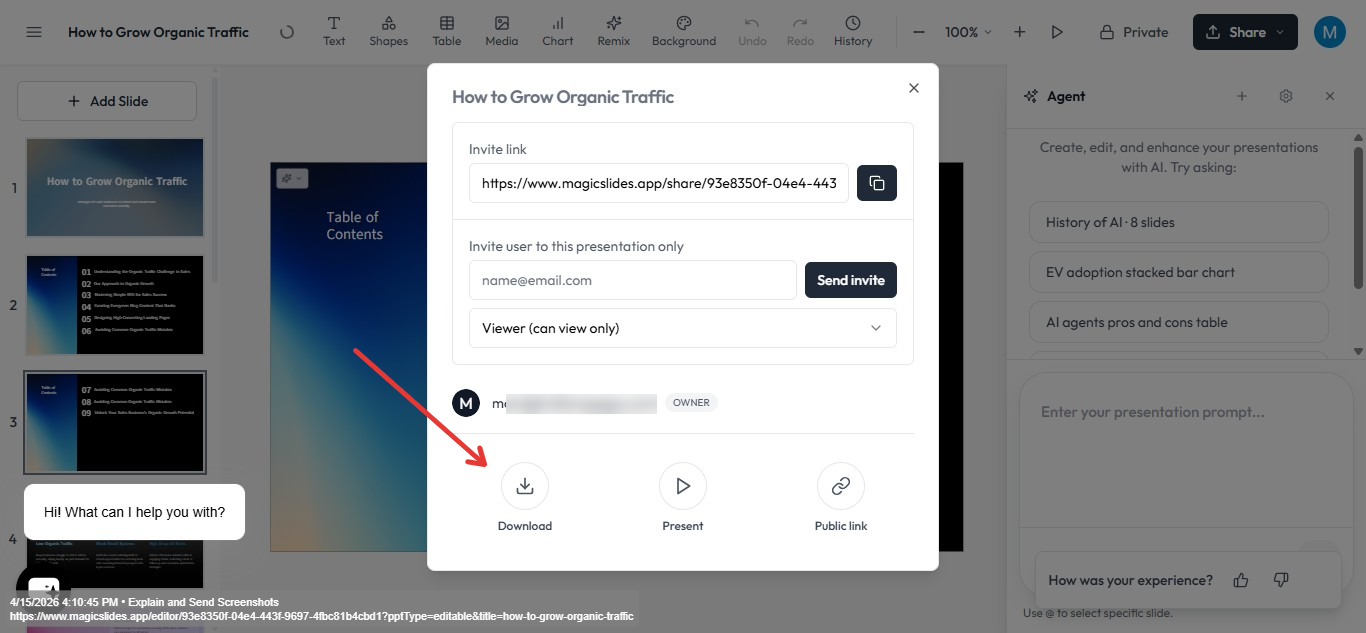
Step 4. AI will generate your presentation. Click the Edit button to make changes, if any. Once satisfied, click ‘Download’ to save the presentation to your computer.
Benefits of Editing a PowerPoint Template
Editing a PowerPoint template offers several advantages beyond simply changing the appearance of your slides. A customized template helps maintain consistent branding, saves time when creating future presentations, and ensures that all slides follow the same design standards.
It also makes collaboration easier because team members can work from a shared presentation structure instead of creating slides from scratch. Whether you’re creating business presentations, training materials, or educational content, a well-designed template improves both efficiency and professionalism.
Conclusion
Learning how to edit a PowerPoint template can save time, improve consistency, and help you create more professional presentations. By using Slide Master, you can manage layouts, fonts, colors, and branding elements from a single location instead of editing each slide individually.
Whether you’re preparing business presentations, educational content, marketing decks, or client proposals, customizing a PowerPoint template gives you greater control over your design while ensuring a polished and consistent appearance across every slide.
Frequently Asked Questions:
Q1. Can I revert to the original template after making edits?
Yes, you can always revert to the original template by reopening the original .pptx file.
Q2. Are there restrictions on editing certain elements in templates?
Some elements cannot be edited directly on individual slides because they are controlled by the Slide Master. To modify these elements, open the Slide Master view and make your changes there.
Q3. Can I apply my edited template to existing presentations?
Yes, you can apply your edited template to existing presentations by going to Design > Browse for Themes.
Q4. Will editing a template affect existing slide content?
No, editing a template won’t affect existing slide content unless you change the layout or placeholders.
Q5. What is the difference between a PowerPoint template and a theme?
A PowerPoint theme controls the colors, fonts, and visual effects of a presentation. A PowerPoint template includes those design elements along with predefined slide layouts, placeholders, backgrounds, and formatting settings.
Q6. Where can I find the Slide Master in PowerPoint?
You can access the Slide Master by opening the View tab in PowerPoint and selecting Slide Master. This allows you to edit layouts, placeholders, fonts, and other design elements that apply across multiple slides.
Q7. Why are my template changes not appearing on all slides?
Some slides may use a different layout or contain manually overridden formatting. Make sure the slides are using the correct layout and reset the slide if necessary to apply the latest template changes.


