How to Edit an Image in Google Slides


Enhance your presentations by learning how to effectively edit images directly in Google Slides
Google Slides offers a variety of tools to edit images directly within your presentation, saving time and effort without requiring external software.
Whether you need to crop, adjust colors, or add effects, this guide will walk you through the process step by step to help you achieve a polished and professional look for your slides.
How to Edit an Image in Google Slides | Steps to Edit an Image in Google Slides
Step 1: Insert the Image into Your Slide
Open your Google Slides presentation and navigate to the slide where you want to add the image.
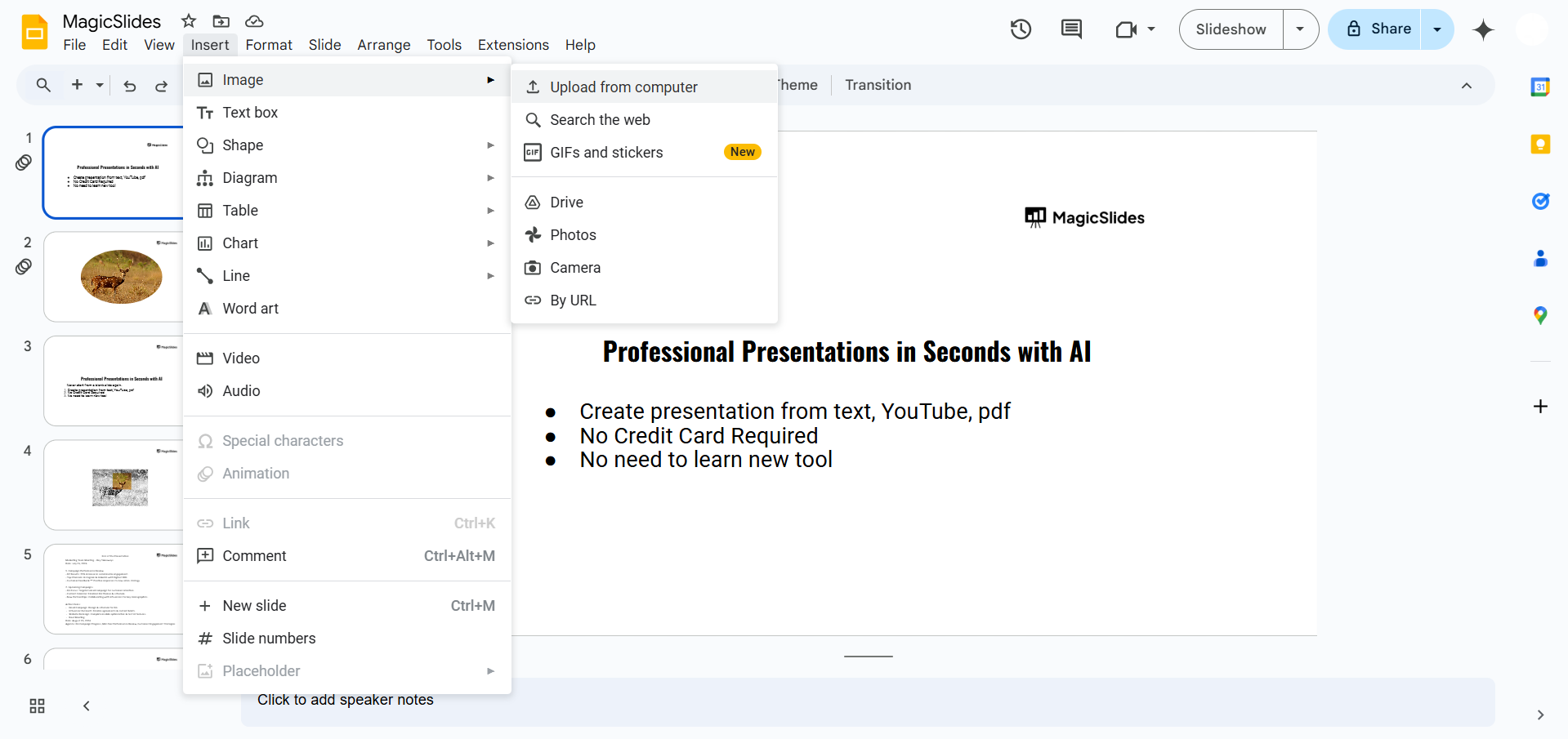
Click Insert > Image and choose the source of your image (upload from your device, search the web, or use Google Drive).
Once the image is added, click on it to select it for editing.
Step 2: Resize the Image
Click and drag the blue corner handles of the image to resize it proportionally.
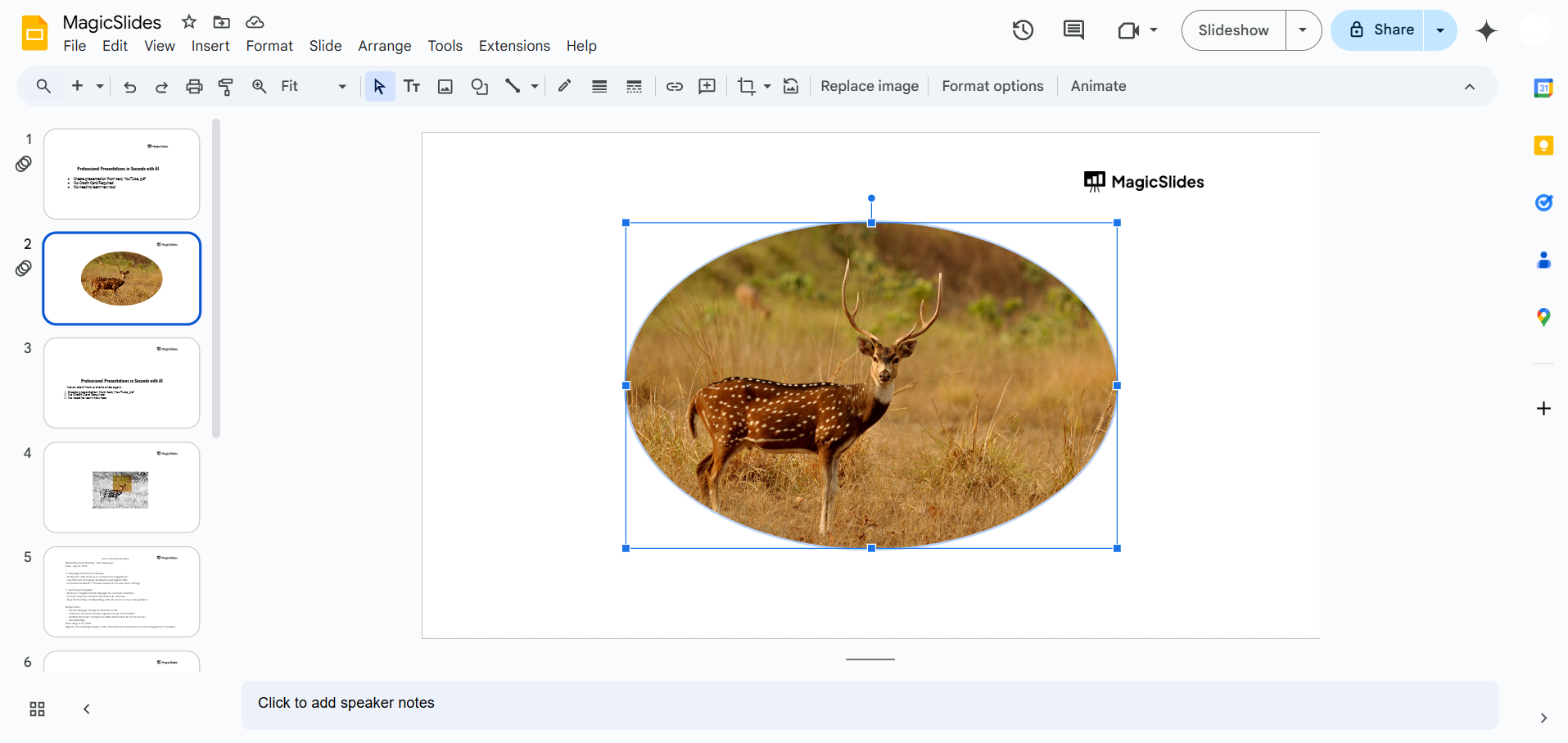
Drag the side handles if you want to adjust the width or height independently.
Step 3: Crop the Image
Select the image and click the Crop icon (a rectangle with a diagonal slash) in the toolbar.
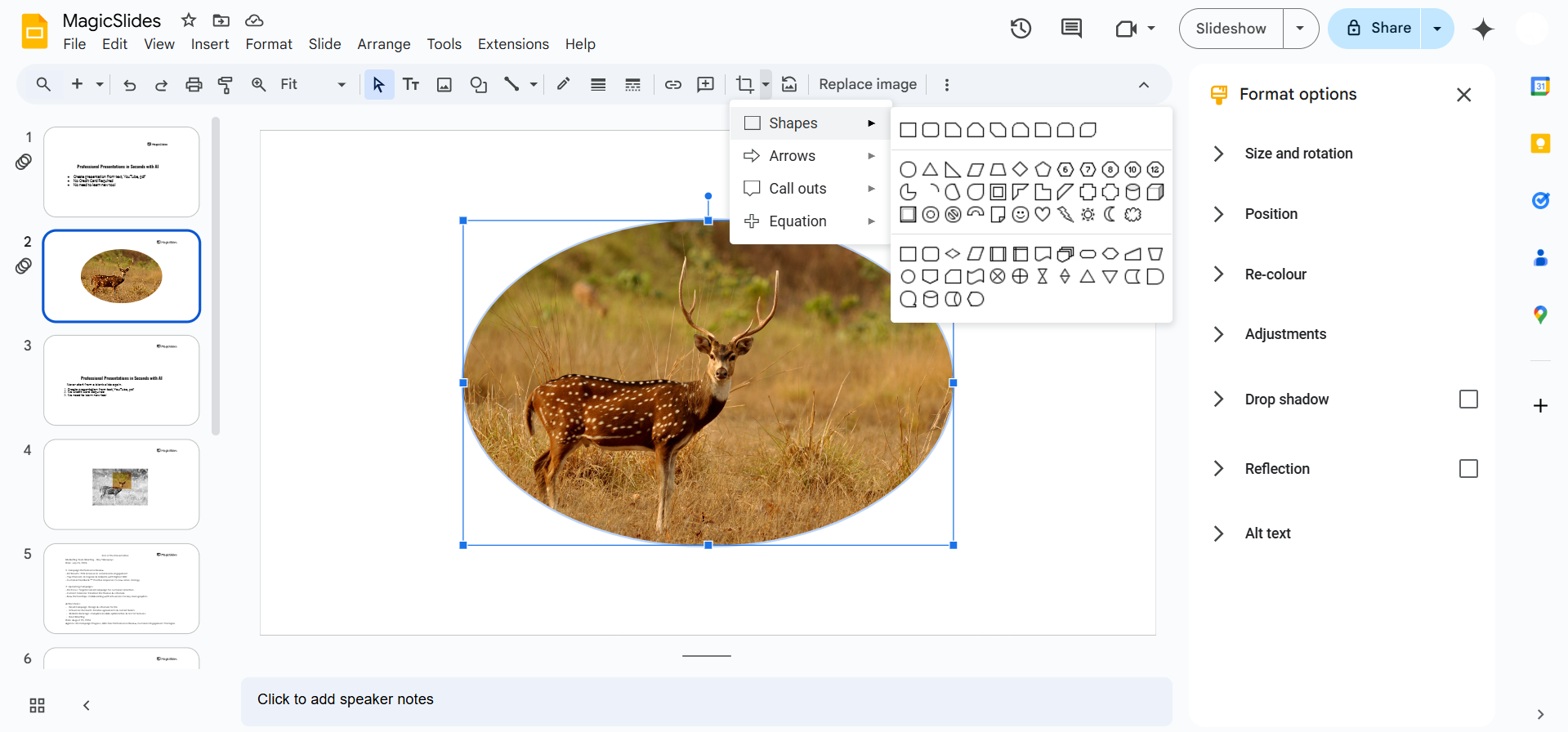
Drag the black cropping handles to adjust the visible portion of the image.
Press Enter or click outside the image to apply the crop.
Step 4: Add Image Adjustments
Select the image and click Format options in the toolbar or right-click and choose Format options.
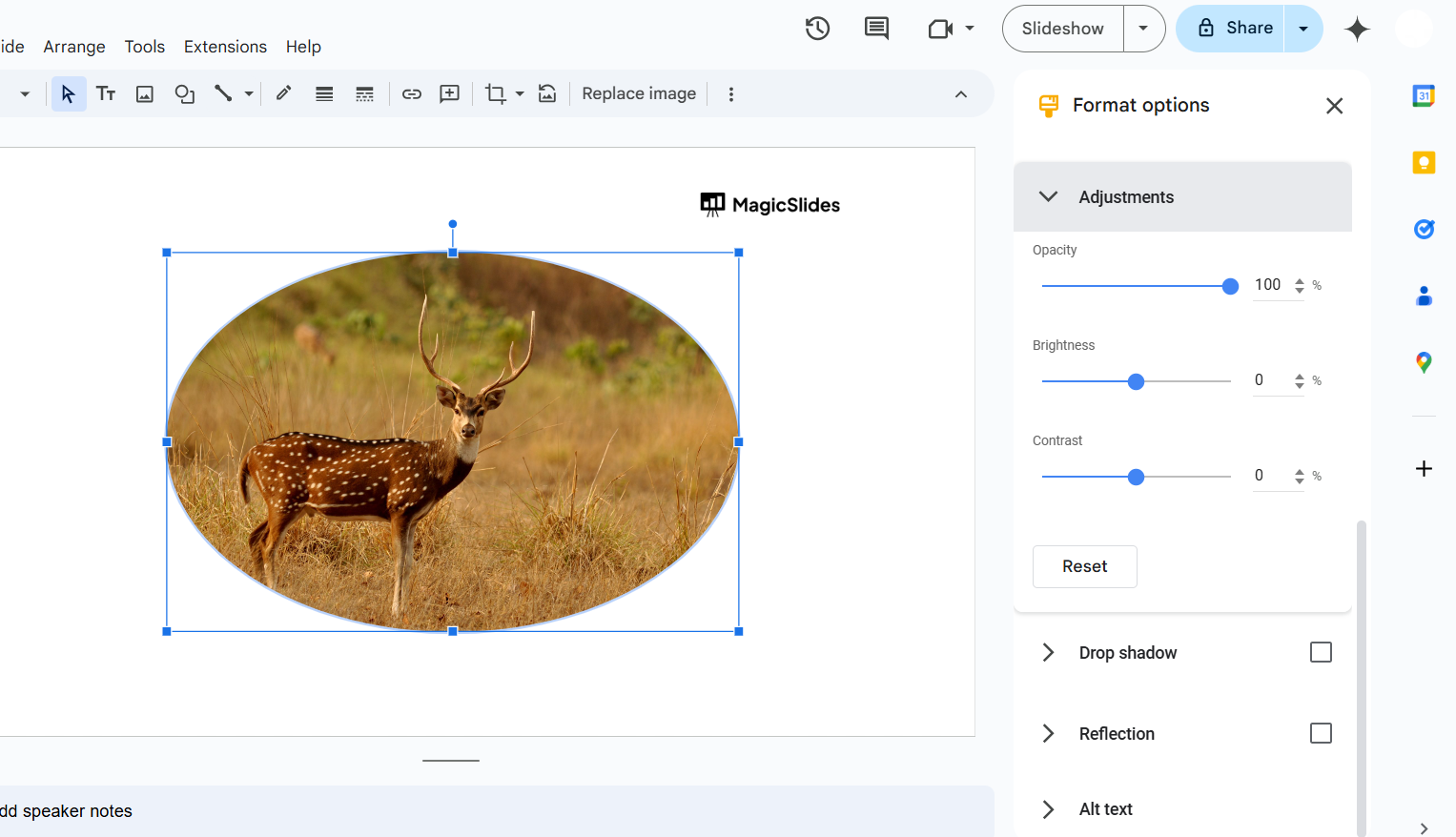
In the side panel, expand the Adjustments section.
Use sliders to modify:
- Transparency: Adjust how much the background shows through the image.
- Brightness: Make the image lighter or darker.
- Contrast: Enhance or soften the difference between light and dark areas.
Step 5: Apply Image Effects
In the Format options panel, expand the Recolor section.
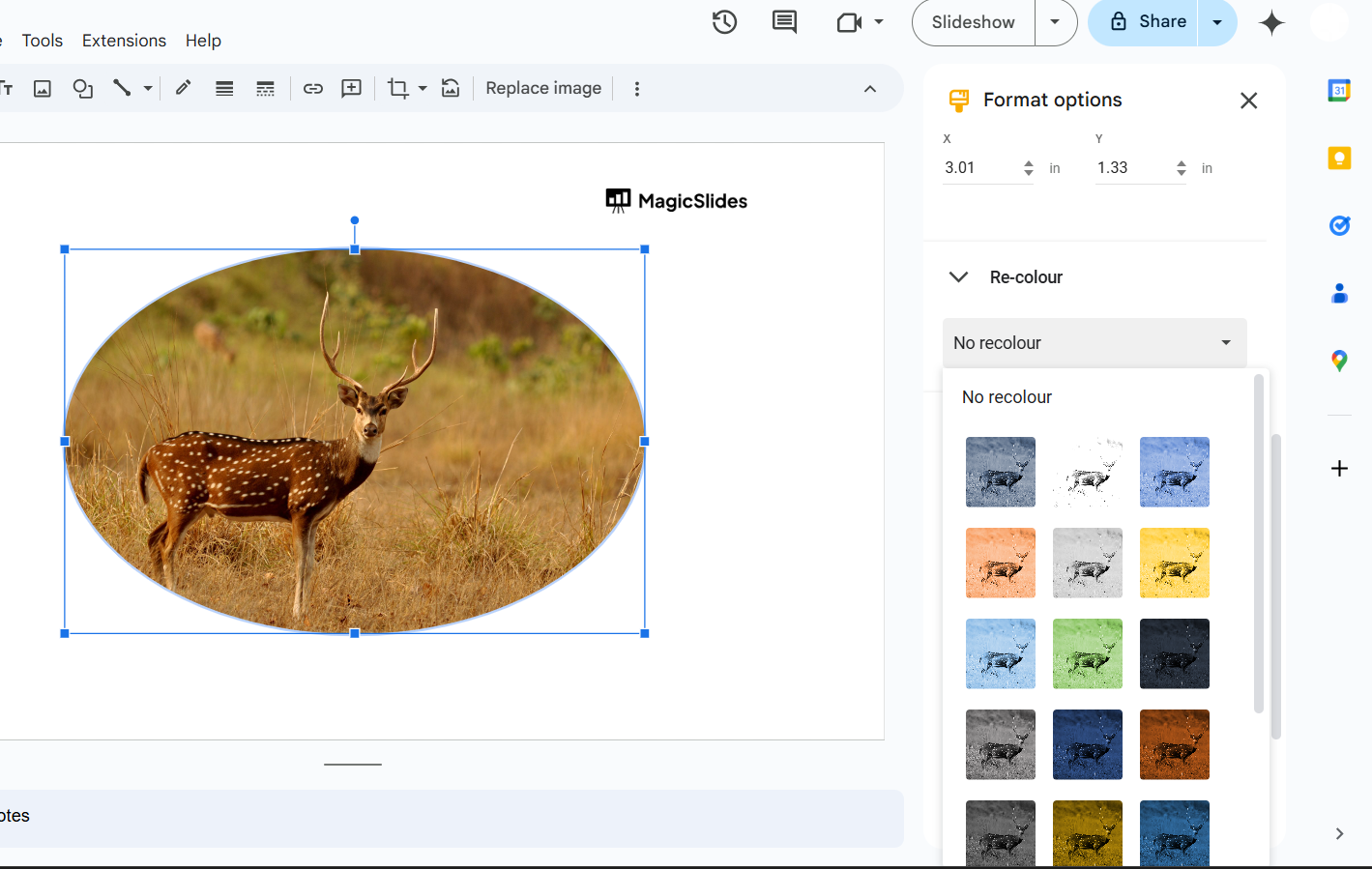
Choose from various filters to give your image a different color tone or effect.
Preview and select the filter that best fits your presentation design.
Step 6: Add Borders or Shadows
With the image selected, go to the Format options panel.
Expand the Drop Shadow or Reflection sections to add professional effects.
Adjust the intensity, angle, or distance to customize the shadow or reflection.
Conclusion
Editing images in Google Slides is quick and intuitive, allowing you to enhance your presentations without needing additional tools.
By mastering the steps outlined above, you can create visually appealing slides that effectively communicate your ideas.
Experiment with the features to find the perfect balance for your images and presentation design.
FAQs on Editing Images in Google Slides
Can I edit images in Google Slides without losing quality?
Yes, Google Slides maintains image quality during basic edits like cropping, resizing, and applying effects. However, excessive resizing might reduce sharpness.
Can I add text over an image in Google Slides?
Absolutely! Insert a text box from the Insert menu, place it over the image, and format it as needed.
Can I remove the background of an image in Google Slides?
No, Google Slides doesn’t support background removal directly. You can use tools like Canva or remove.bg to edit the image beforehand and then upload it.
With these tips and FAQs, you’re ready to make the most of Google Slides' image editing features!


