How to Change Font Color in Google slides? Explained


Learn how to change font color in Google slides through this guide. Elevate your Google Slides game by mastering font color customization.
Google Slides offers a range of customization options to elevate your presentations, and changing font color is a powerful way to enhance visual appeal. In this step-by-step guide, we’ll walk you through the easy process of changing font colors in Google Slides, helping you create engaging and visually captivating slideshows.
To know how to change font color in Google slides simply select the text you want to edit, click the Text Color icon (the letter A) in the toolbar, and choose a color from the color palette. You can select a preset color, use custom colors, enter a HEX color code, or apply theme colors to match your presentation design. This method works on desktop, mobile devices, and iPad versions of Google Slides.
This is also one of the small design skills people learn while understanding how to make a Google Slides presentation that looks clear and engaging. Whether you’re updating a school project, business presentation, or marketing deck, changing font color takes only a few seconds and can make a significant visual impact.
So before discovering the steps of how to change text color in google slides let’s first understand about Google Slides .
What is Google Slides?
Google Slides is a tool from Google that helps you make, edit and share presentations on the internet. It is part of Google Workspace, which lets many people work on the presentation at the same time from any device.
The platform has tools to format your text choose themes add animations and design features to make professional presentations. One of the things you can do is change the color of your text. Learning how to change font color in Google Slides helps you make important information stand out makes your text easier to read and makes your slides look better.
Whether you are making a presentation, for work a school project or a training deck Google Slides makes it easy to customize your content with the colors and formatting. You can use Google Slides to make your presentation look great. With Google Slides you can create a presentation.
Now let’s discuss the manual way to change text color on google slides.
How to Change Font Color in Google Sides?
Step 1: Open Your Google Slides Presentation
Begin by opening the Google Slides presentation where you want to modify the font color. If you’re starting a new presentation, create one in Google Drive and open it.

Step 2. Select the Text You Want to Modify
Navigate to the slide containing the text you wish to change. Click and drag your cursor to select the specific text you want to customize. Alternatively, use the arrow keys while holding down the “Shift” key for precise selection.

Step 3. Access the Text Formatting Toolbar
Once your text is selected, locate the text formatting toolbar at the top of the screen. Look for the “A” icon, representing text formatting options.
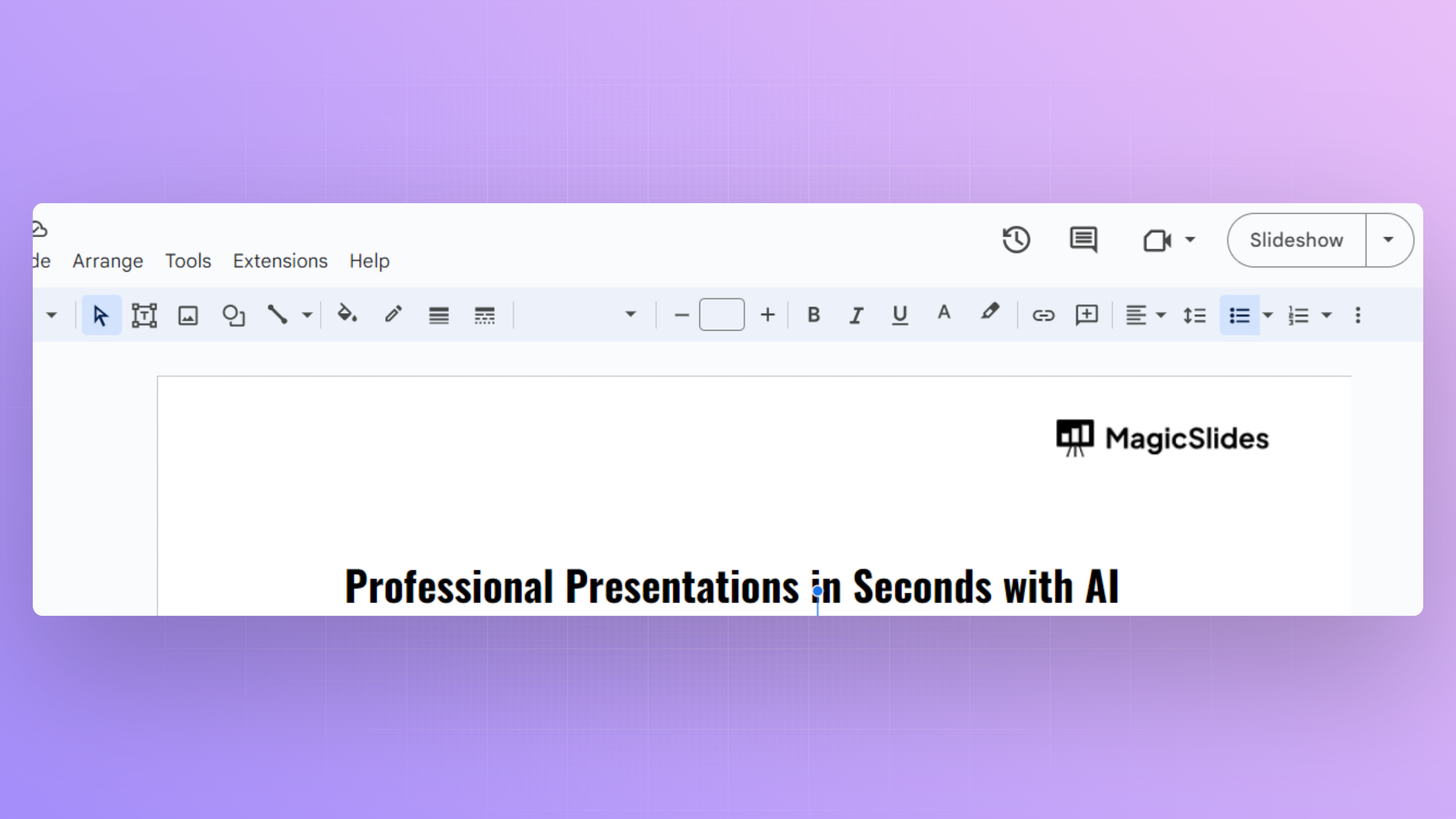
Step 4. Choose the Font Color
Click on the “A” icon, and a dropdown menu will appear with various text formatting options. To change the font color, find the color palette icon and select the color you desire.
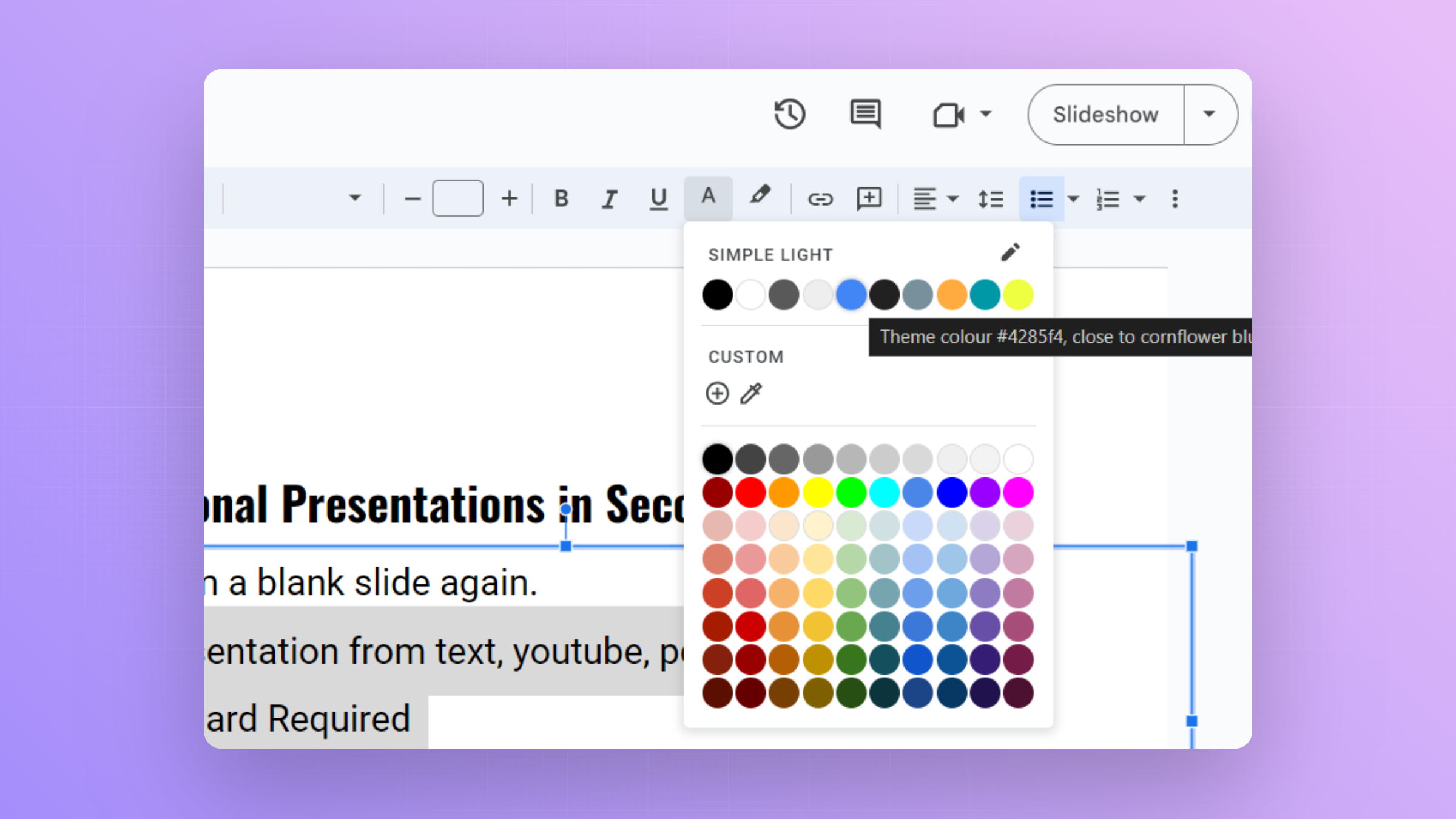
Step 5. Preview and Apply the Font Color
After selecting the font color, your chosen text will instantly adopt the new color. Take a moment to preview the change and ensure it aligns with your overall design.

How to change font color in Google slideswith AI Presentation Tools?
Changing the color of the text is a small thing when you are making a presentation look good. Many users searching for how to make Google Slides look good start by improving font colors, layouts, and visual consistency.
Once you’ve learned how to change color of text in Google Slides, you may want to speed up the entire presentation creation process. Instead of building every slide from scratch, you can use MagicSlides, an AI-powered Google Slides add-on that helps create professional presentations in seconds.
Tools like MagicSlides Extension make this easier by making your slides look better fixing the format and getting the structure right.
It works directly inside Google Slides, so there’s no need to learn a new tool. You can generate complete webpage URL to PPT, Image to PPT text prompt, PDF or even a DOCX file. The AI automatically creates structured slides that you can further customize using Google Slides’ built-in formatting features, including text styling, theme colors, and font customization.
Conclusion
Customizing font colors in Google Slides is a straightforward yet impactful way to enhance your presentations. Whether you’re aiming for a cohesive color scheme or highlighting key points, this feature allows you to infuse personality and professionalism into your slides. By following these simple steps, you can master the art of font color customization, turning your presentations into visually stunning and attention-grabbing experiences.
Frequently Asked Questions:
Can I change the font color for individual words within a text box in Google Slides?
Absolutely! Google Slides allows you to select specific words and change their font color independently.
Are there predefined color themes to maintain consistency across my presentation?
Yes, Google Slides offers predefined color themes. Click on the “Slide” menu, select “Change background,” and explore themes.
Can I create custom colors for font text to match my brand or design preferences?
Certainly! In the font color palette, choose “Custom” to create a color that perfectly aligns with your brand or design.
Is there a quick way to apply the same font color to multiple text elements?
Absolutely! After selecting the desired font color, use the “Format Painter” tool to apply it to other text.


