How to remove an app from slack


Simplify your Slack experience: Learn step-by-step how to effortlessly remove unnecessary apps and streamline your workspace.
In the fast-paced world of digital collaboration, optimizing your workspace is key. This blog guides you through the process of decluttering your Slack environment by removing unnecessary apps. Discover the steps to streamline your workspace, enhance efficiency, and create a more focused digital hub. Unlock the potential of a simplified Slack experience, ensuring your team communicates seamlessly without unnecessary distractions, making every collaboration more effective and enjoyable.
Before we begin, if you are looking to send Google form submissions directly to Slack, check SlackNotify.app. It will include all info submitted and sent directly to the Slack channel of your choice
How to remove an app from slack
1. Open your Slack application:
Begin by logging into your Slack workspace using your credentials. Once logged in, you'll be in the primary workspace view.
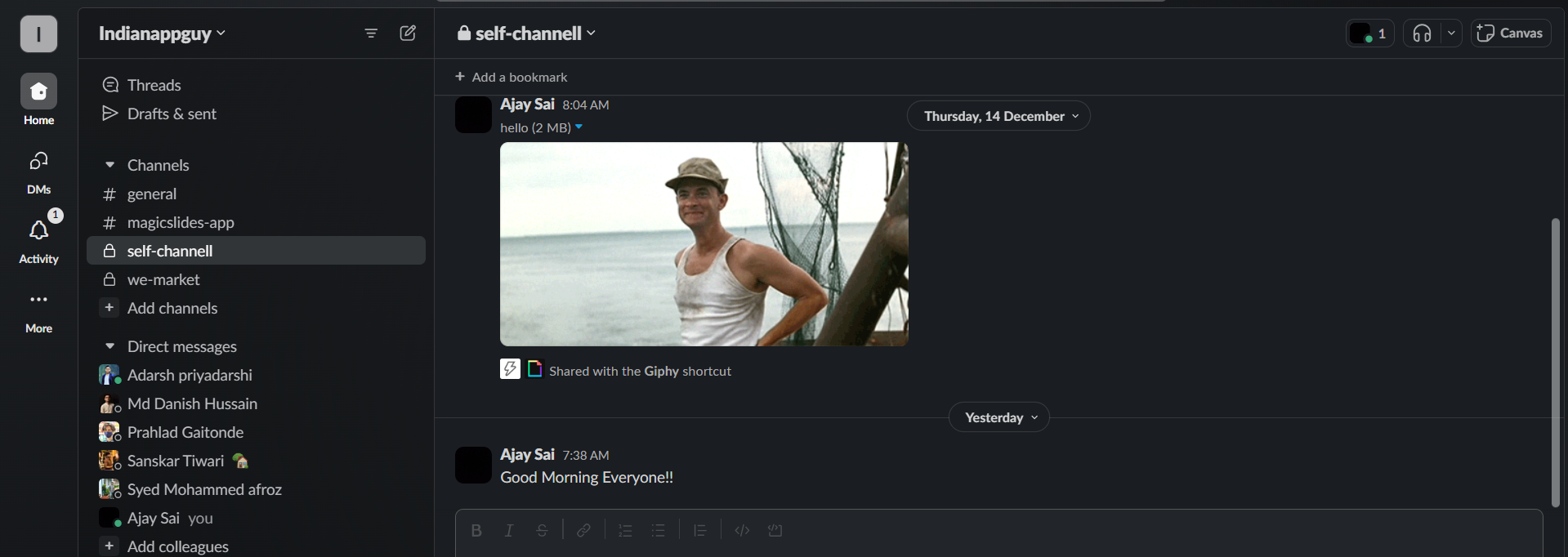
2. Go to Workspace Settings:
Navigate to the top-left corner of your Slack interface and click on your workspace name. From the dropdown menu, select "Settings & administration," and then click on "Workspace settings."
3. Navigate to the Apps Section:
Within the Workspace settings, look for the left sidebar. Click on "Manage apps" under the "Settings" section. This will take you to the Apps management page.
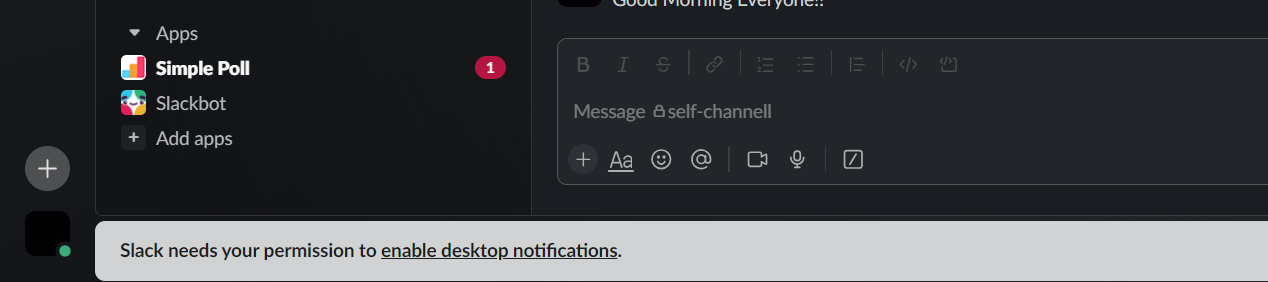
4. Find the App:
On the Apps management page, you'll see a list of all installed apps. Scroll down or use the search bar to locate the specific app you want to remove.
5. Click on the App:
Once you've identified the app, click on its name or icon to access its individual settings.
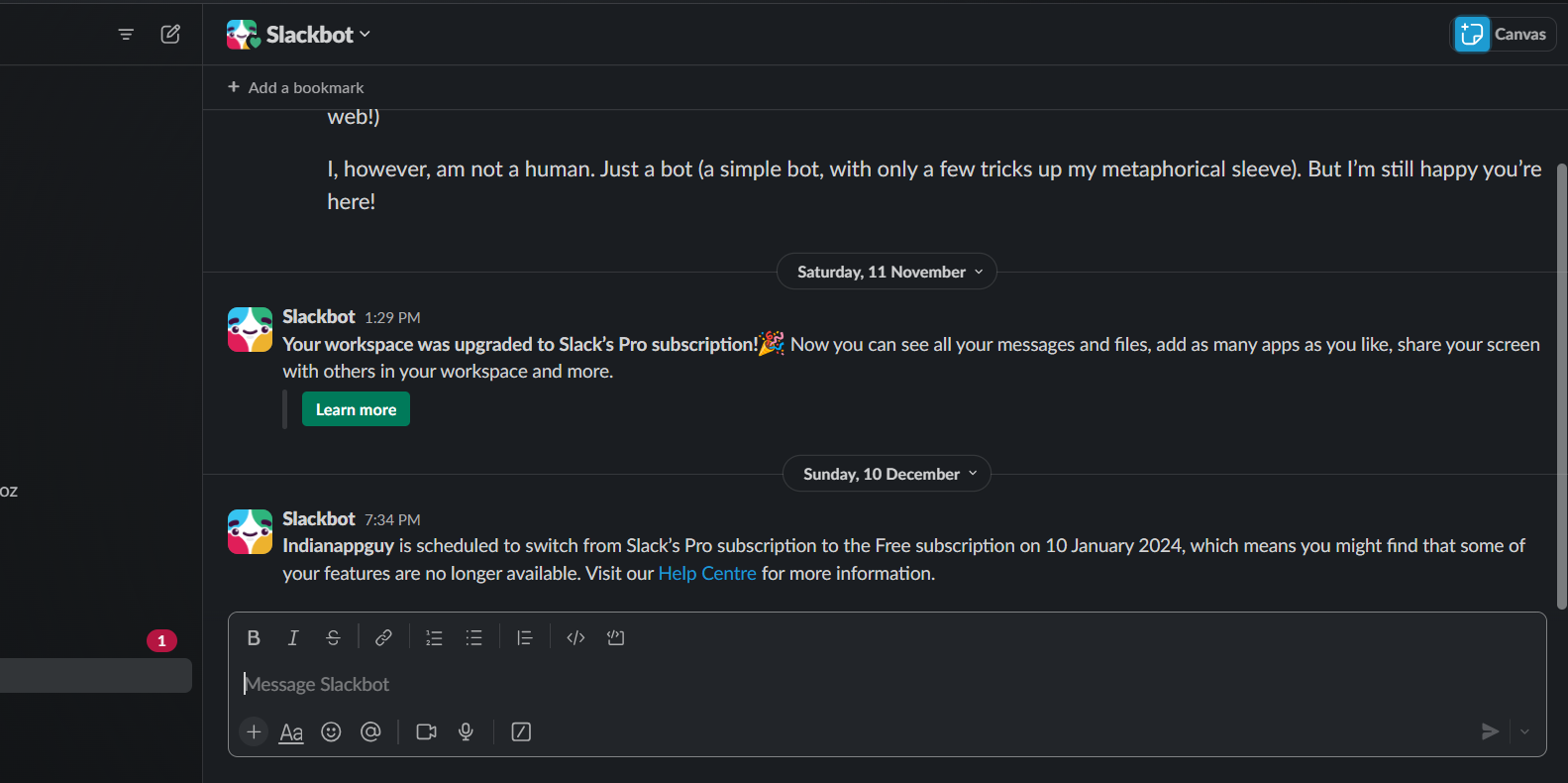
6. Access Configuration:
Explore the settings or configuration options related to the app. This may include features like "Configure," "Settings," or something similar, depending on the app.
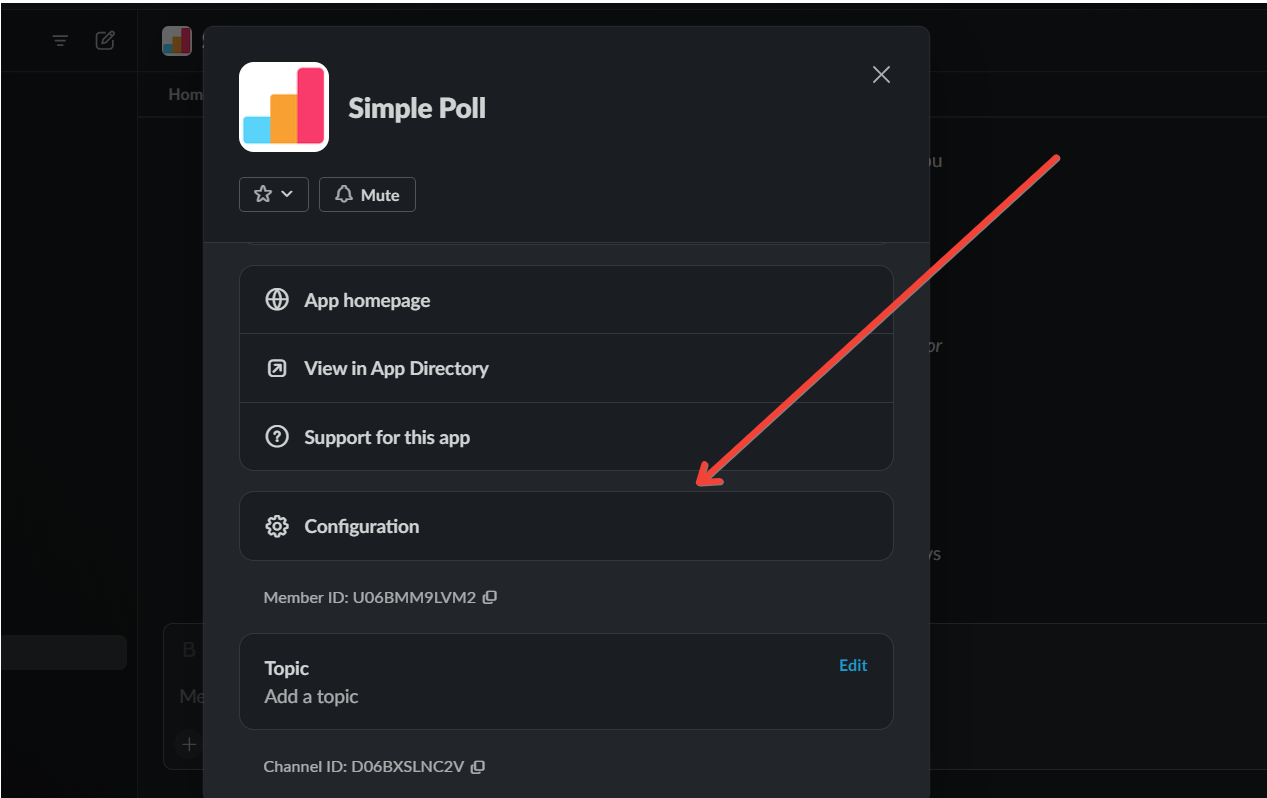
7. Choose "Remove App":
Look for an option like "Remove App" within the app's settings. Click on it to initiate the removal process.
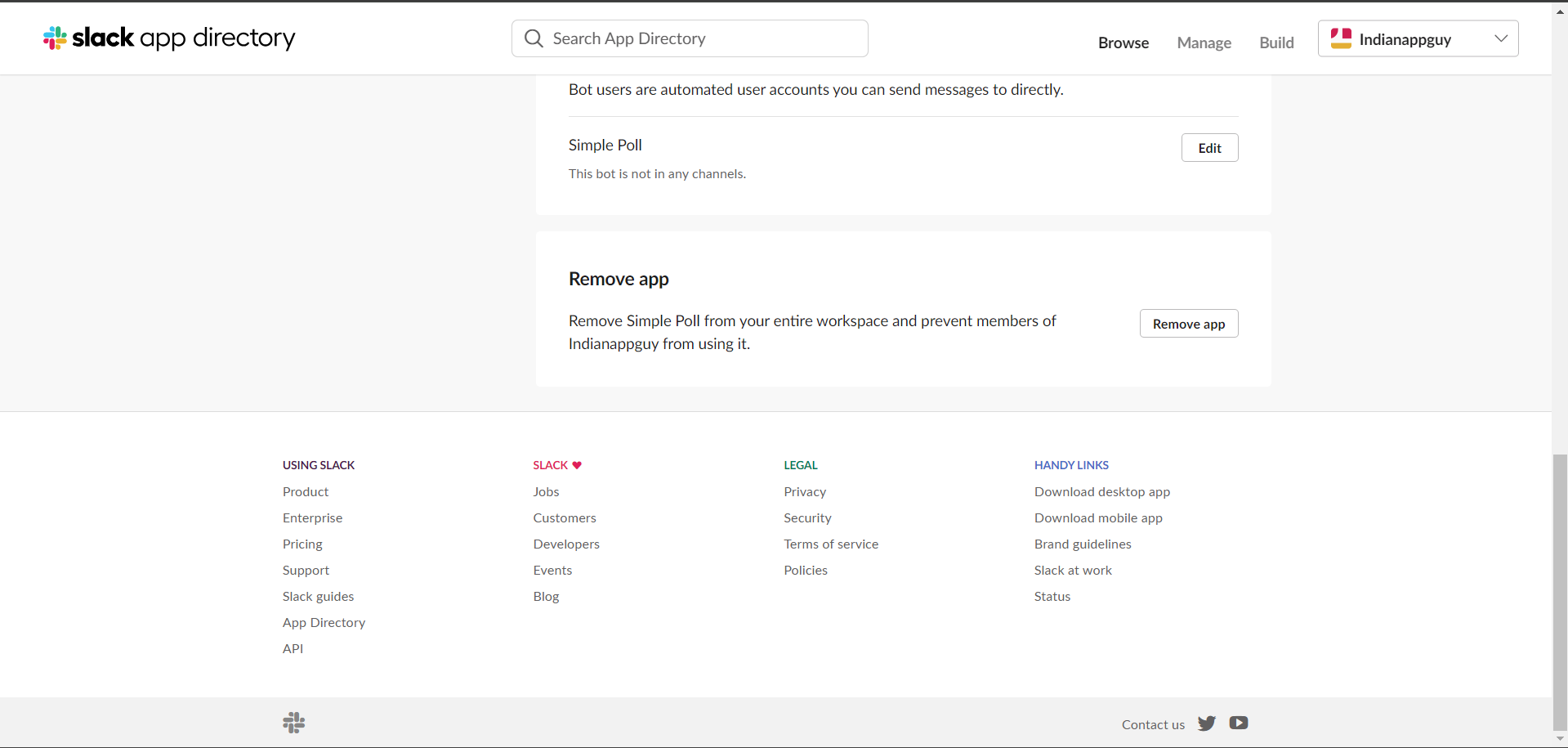
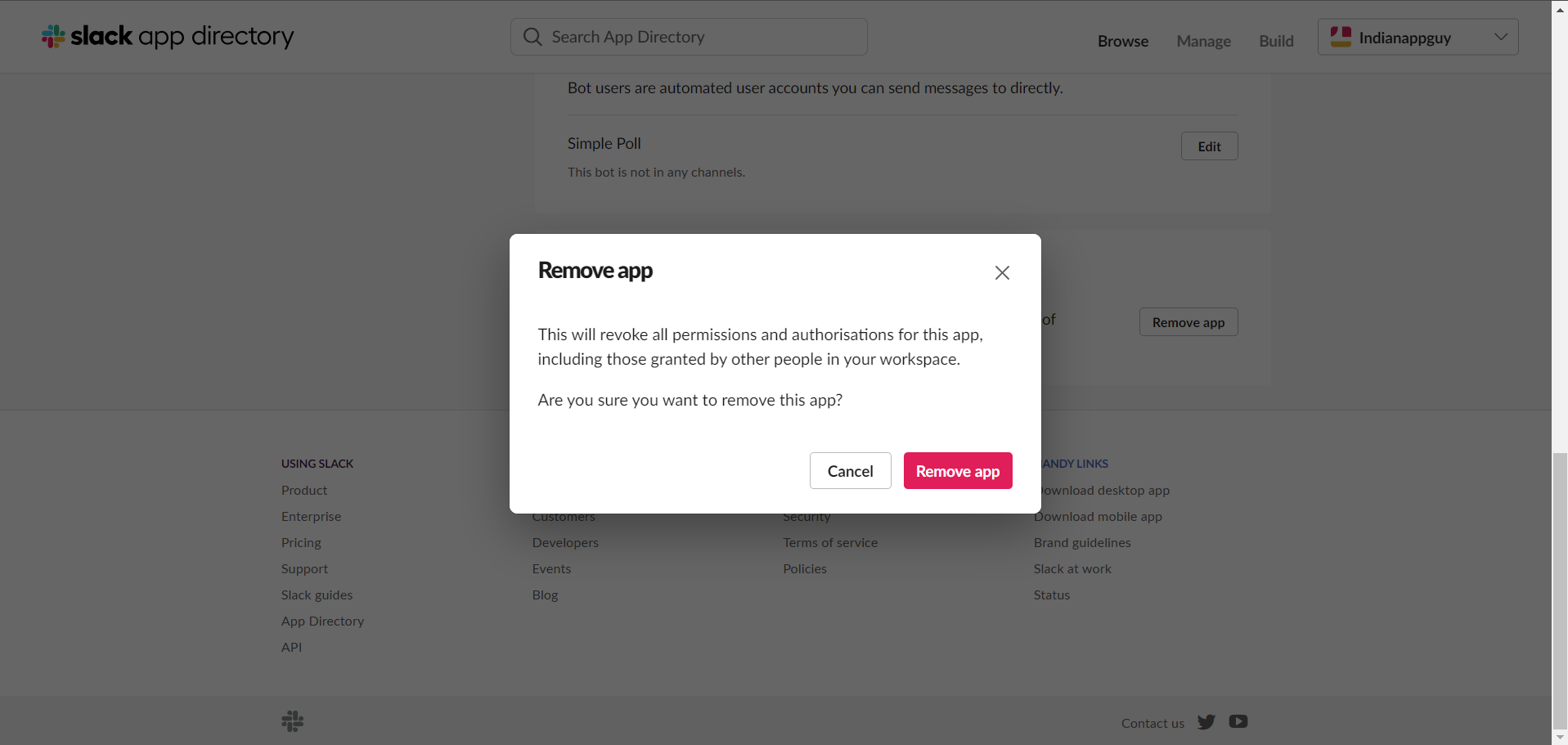
8. Confirm Removal:
Slack will typically display a confirmation prompt to ensure you want to remove the app. Confirm your decision to proceed with the removal.
9. Review and Adjust Permissions:
After removal, it's advisable to review the app's permissions to ensure it no longer has access to your workspace. This is a crucial step for security and privacy.
10. Restart Slack (if needed):
In some cases, particularly if the app made changes to the interface or requires a restart, consider closing and reopening Slack to allow the changes to take effect. After removing an app from Slack, learn how to create a group in Slack to organize your team and streamline communication.
Conclusion:
By following these detailed steps, you can seamlessly remove an app from your Slack workspace, ensuring a clean and organized integration environment.
If you encounter any challenges or have concerns, reach out to your workspace administrator for assistance.
Frequently Asked Questions:
Why should I remove apps from my Slack workspace?
Answer: Removing unnecessary apps declutters your workspace, streamlining communication and boosting overall productivity by reducing distractions.
Can I reinstall an app after removing it from Slack?
Answer: Yes, you can reinstall apps at any time. Visit the Slack App Directory and reinstall as needed.
Are there apps that cannot be removed from Slack?
Answer: Some default or integrated apps may be essential and can't be removed. Check with your workspace administrator.
Will removing an app affect historical data or integrations?
Answer: Removing an app won't delete historical data. However, review and adjust integrations to ensure seamless transitions.
Have a look @these helpful blogs by us:
- How To Convert News Articles To PPT Slides: https://www.magicslides.app/blog/how-to-convert-news-articles-to-ppt-slides
- How To Turn A Slack Channel Public: https://www.magicslides.app/blog/how-to-make-a-slack-channel-public
- How To Convert Tech Blog Updates To PPT Presentations: https://www.magicslides.app/blog/how-to-convert-tech-blog-updates-to-ppt-presentations


