How to create a group in Slack applaication


Easily enhance team collaboration by learning how to create a group in Slack effortlessly.
In the dynamic realm of team collaboration, creating focused spaces for communication is key. This step-by-step guide empowers you to effortlessly form a group within the Slack application, enhancing teamwork and ensuring that information flows seamlessly among team members. Elevate your collaboration game by establishing a designated group tailored to your project or team needs.
Before we begin, if you are looking to send Google form submissions directly to Slack, check SlackNotify.app. It will include all info submitted and sent directly to the Slack channel of your choice
How to create a group in Slack applaication
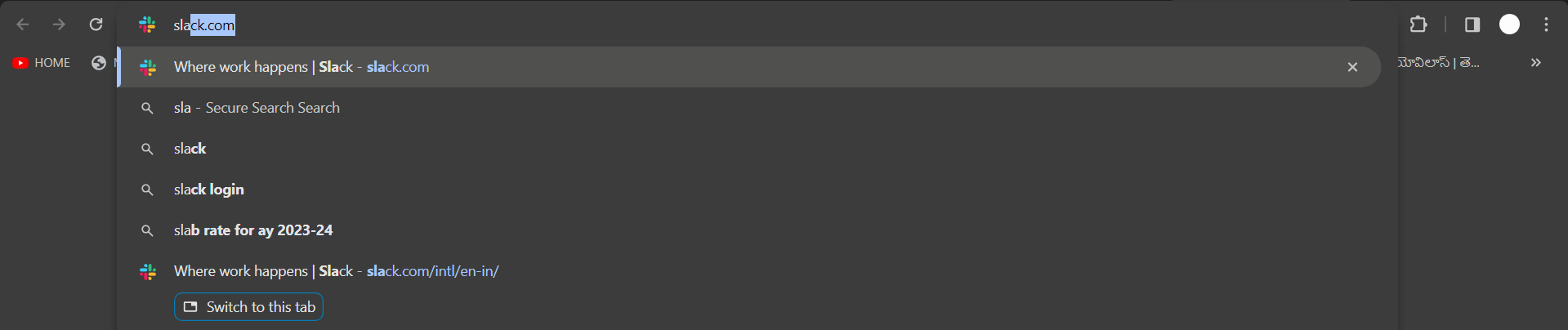
Open the Slack Application:
Launch the Slack application on your desktop or mobile device. Sign in with your Slack workspace credentials.
Link: https://slack.com/
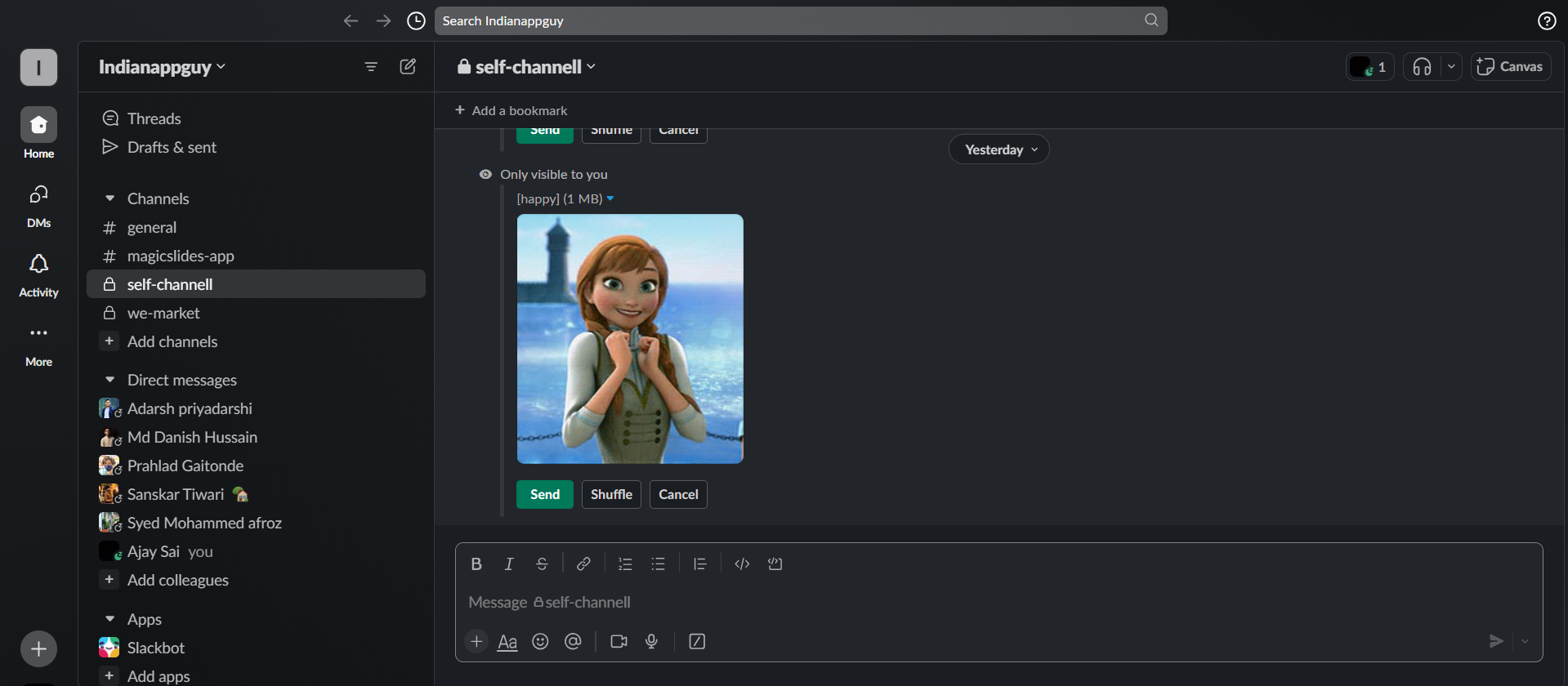
Navigate to the Workspace:
Click on the workspace name at the top left corner of the Slack interface to access your workspace.
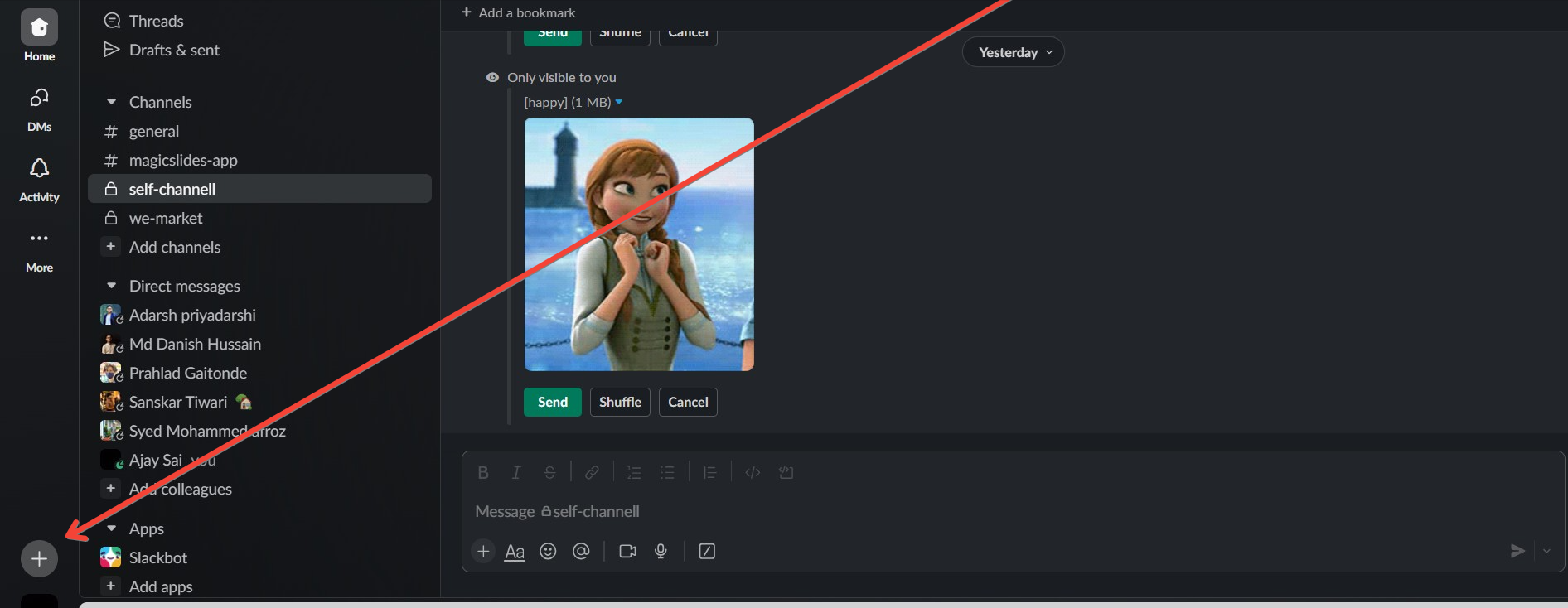
Click on the '+' Button:
Look for the "+" button usually located in the left sidebar. Click on it to open the menu for creating new channels and groups.
Choose "Create a Channel or Group":
In the menu, select "Create a Channel or Group" to initiate the process of creating a new group.
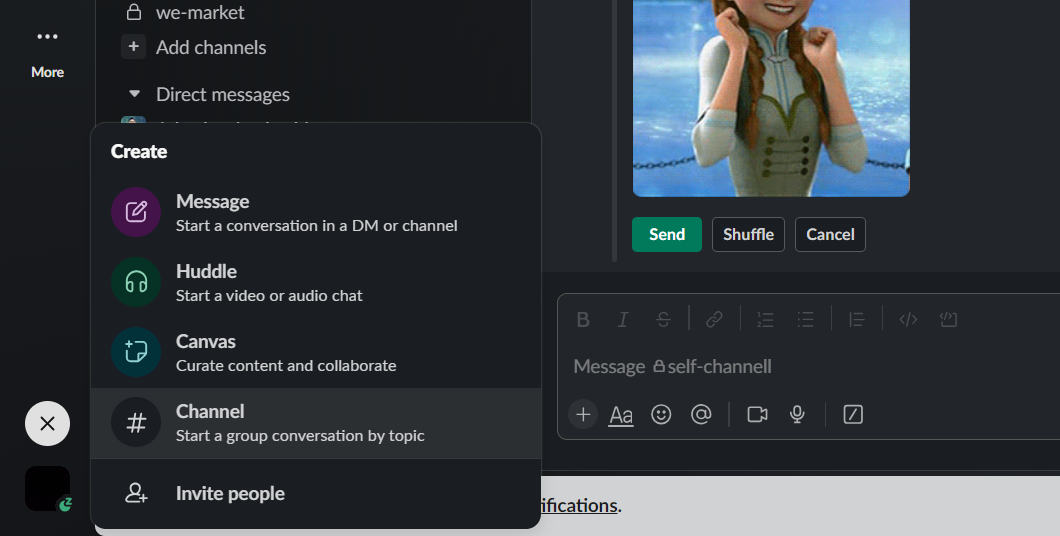
Select "Group" and Provide a Name:
Choose "Group" as the type of collaboration space. Enter a name for your group to distinguish it from other channels and groups.
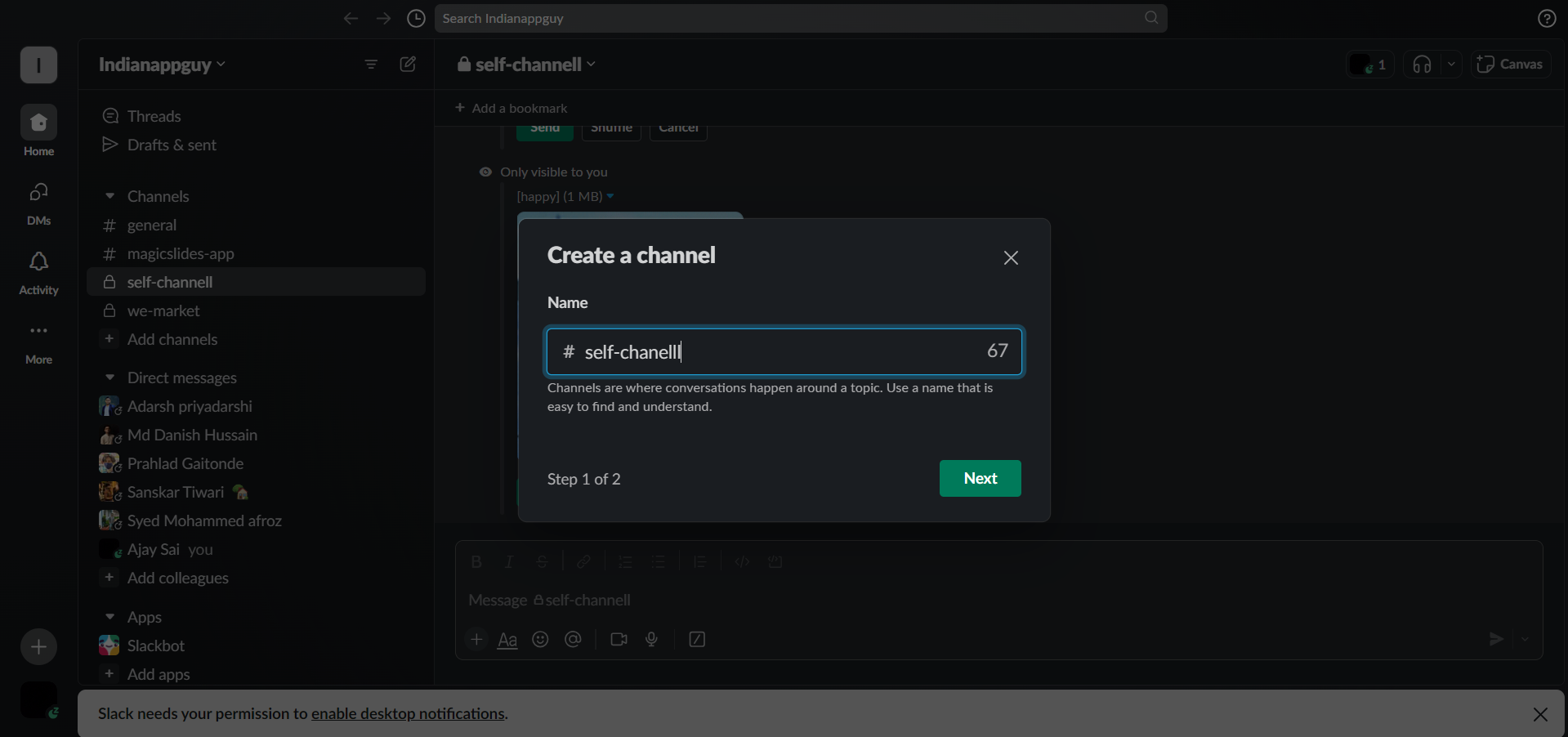
Add Members:
Invite members to your group by typing their names in the provided field. You can add existing members or invite new ones by entering their email addresses.
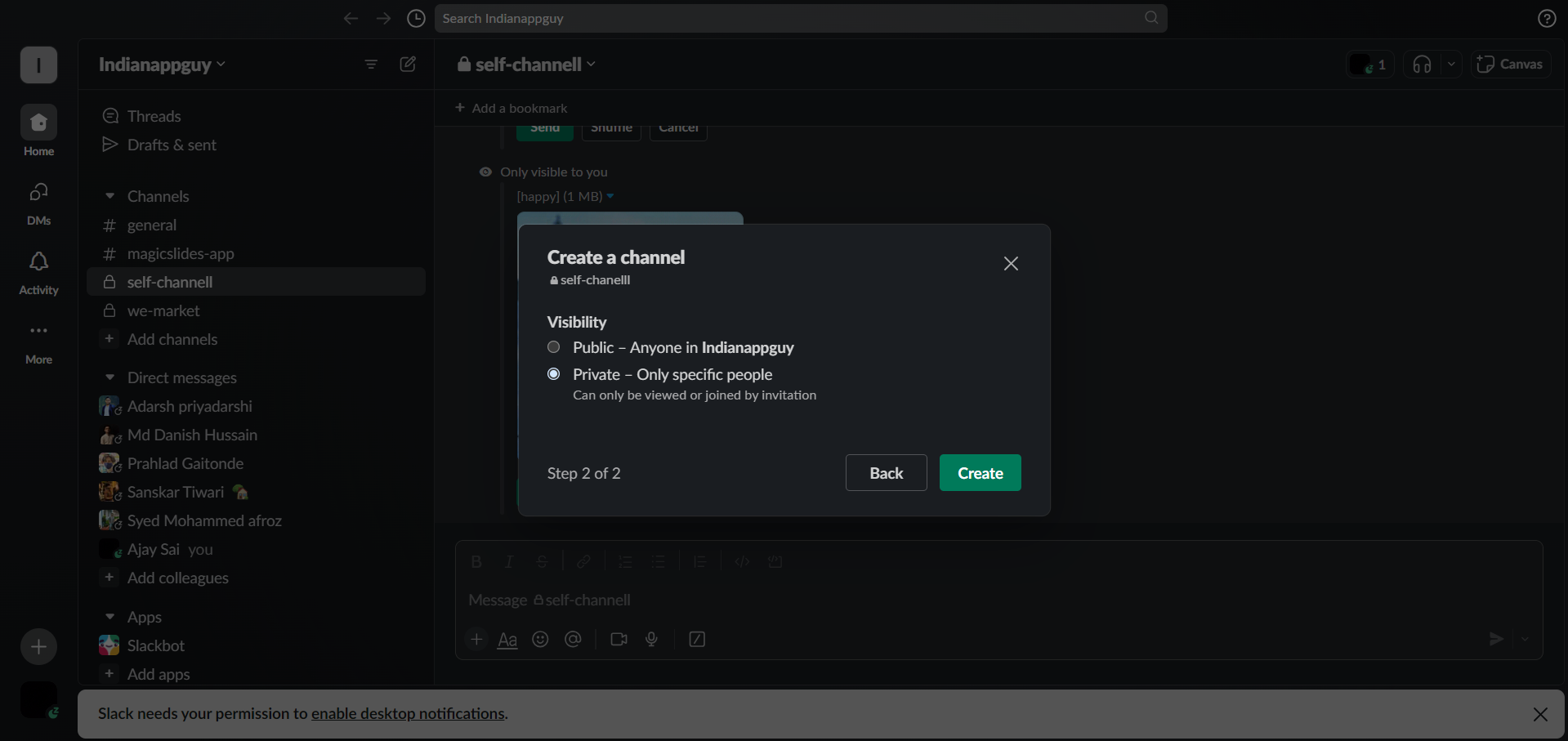
Set Privacy Settings:
Choose whether your group will be public or private. Public groups are accessible to all members, while private groups require an invitation to join.
Customize Additional Settings (Optional):
Optionally, you can customize settings such as adding a group description or specifying whether the group should be visible to everyone.
Click "Create":
Once you've configured your group settings, click the "Create" button to finalize the creation of the group.
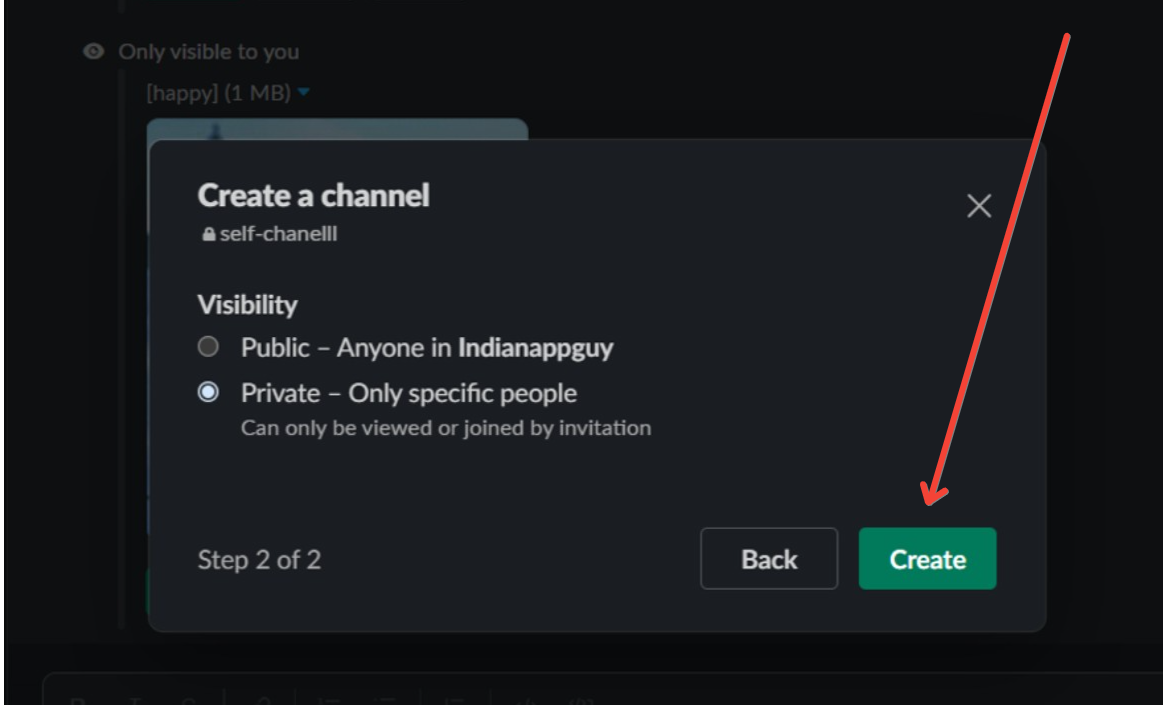
Confirm and Access Your Group:
After creation, you'll receive a confirmation message, and your new group will appear in the left sidebar. Click on the group's name to access and start collaborating with your team. Once you've created a group in Slack, discover how to change your Slack account profile picture to personalize your workspace.

Pro Tip 💡:
Enhance group productivity by utilizing Slack's integrations. Connect tools like Google Drive, Trello, or Jira to streamline workflows within your created group. Leverage these integrations to seamlessly share files, track tasks, and centralize information, making your Slack group a hub for efficient collaboration and project management.
Conclusion 💁♂️:
By following these steps, you'll successfully create a group in the Slack application, fostering seamless communication and collaboration within your workspace.
Your newly created group is poised to streamline discussions, share files, and strengthen team bonds. Embrace the potential of collaborative success as your team thrives within the dedicated space you've crafted, making every project and interaction in Slack more focused and efficient. Cheers to seamless teamwork!
Frequently Asked Questions 🤔:
Can I change a public group to a private one after creation in Slack?
A) Unfortunately, Slack does not currently allow you to switch the privacy settings of a group after its creation. It's recommended to plan ahead and choose the appropriate privacy setting during the initial setup.
How many members can I add to a group in Slack?
A) Slack's free plan allows up to 15 members in a group, while paid plans offer higher member limits. Be sure to check your plan details for specific limitations on group size.
Can I customize the appearance of my Slack group to reflect our team's branding?
A) While you can't directly change the appearance of a Slack group, you can customize the group name, description, and purpose. For more extensive branding, consider upgrading to Slack's Enterprise Grid plan, which offers advanced customization options.
Have a look @these tutorial blogs by us:
- How To Flip An Image In Powerpoint In 2024: https://www.magicslides.app/blog/How-to-mirror-an-image-in-powerpoint
- How To Add A Background In Powerpoint: https://www.magicslides.app/blog/How-to-add-a-background-in-powerpoint
- How To Add Mp4 Audio To Google Slides: https://www.magicslides.app/blog/How-to-add-mp4-audio-to-google-slides
- How To Automatically Play Your Google Slides: https://www.magicslides.app/blog/How-to-automatically-play-google-slides


