how to import themes to google slides


Elevate your Google Slides presentations with personalized themes. Learn how to import themes in just five easy steps!
Google Slides is a versatile and user-friendly tool for creating stunning presentations. While the default themes are great, you might want to add a personal touch or use a custom theme to make your presentation stand out. In this step-by-step guide, we will walk you through the process of importing themes to Google Slides.
Whether you have a PowerPoint presentation with a theme you love or you want to explore Google Slides' extensive library of themes, we've got you covered.
Step 1: Open Your Google Slides Presentation The first step is to open the Google Slides presentation where you want to import a new theme. If you don't have one yet, you can create a new presentation by going to Google Drive, clicking the "+ New" button, and selecting "Google Slides."
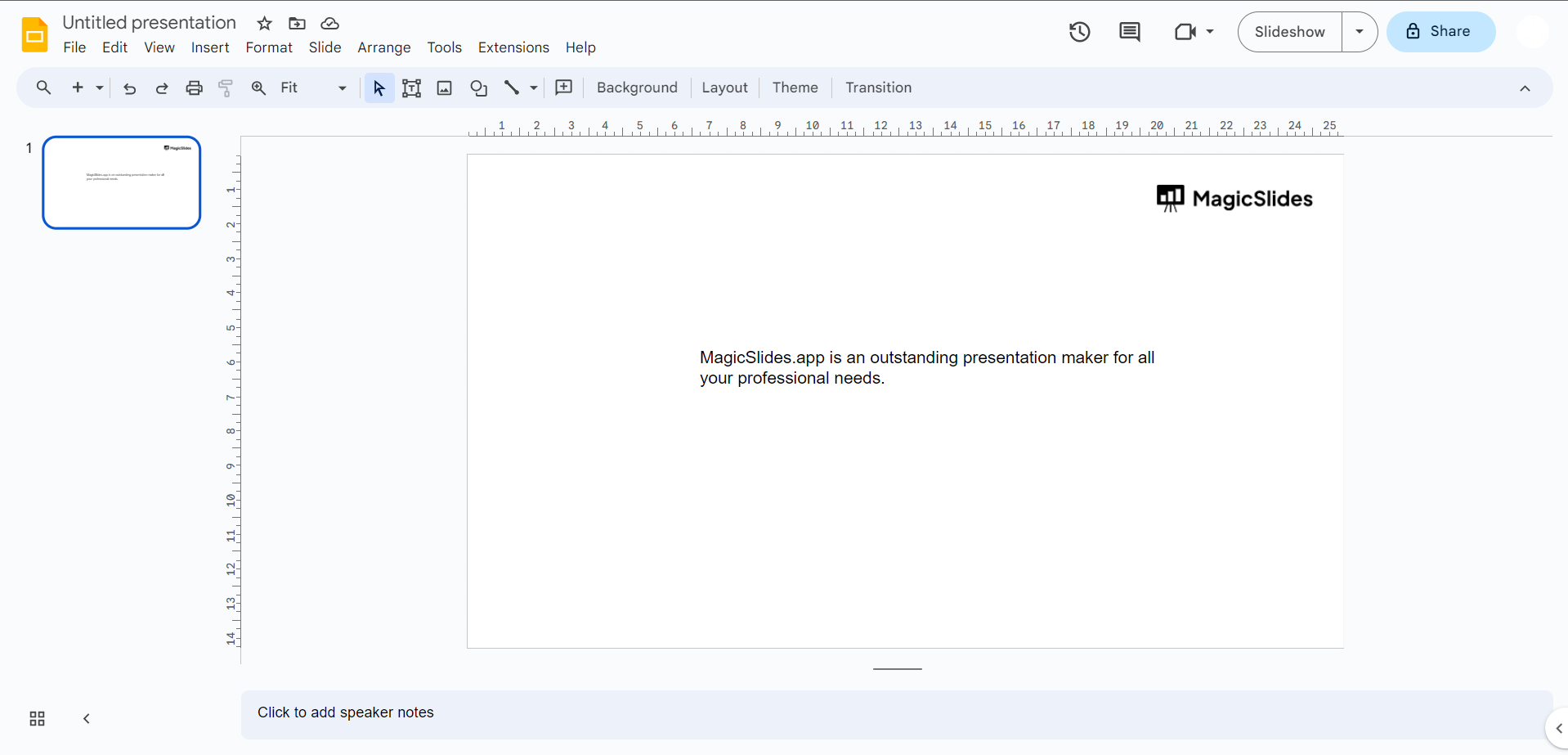
Step 2: Access the 'Themes' Panel Once your presentation is open, look for the toolbar at the top of the screen. Among the options, you will find the 'Themes' panel. Click on it to access the theme settings.
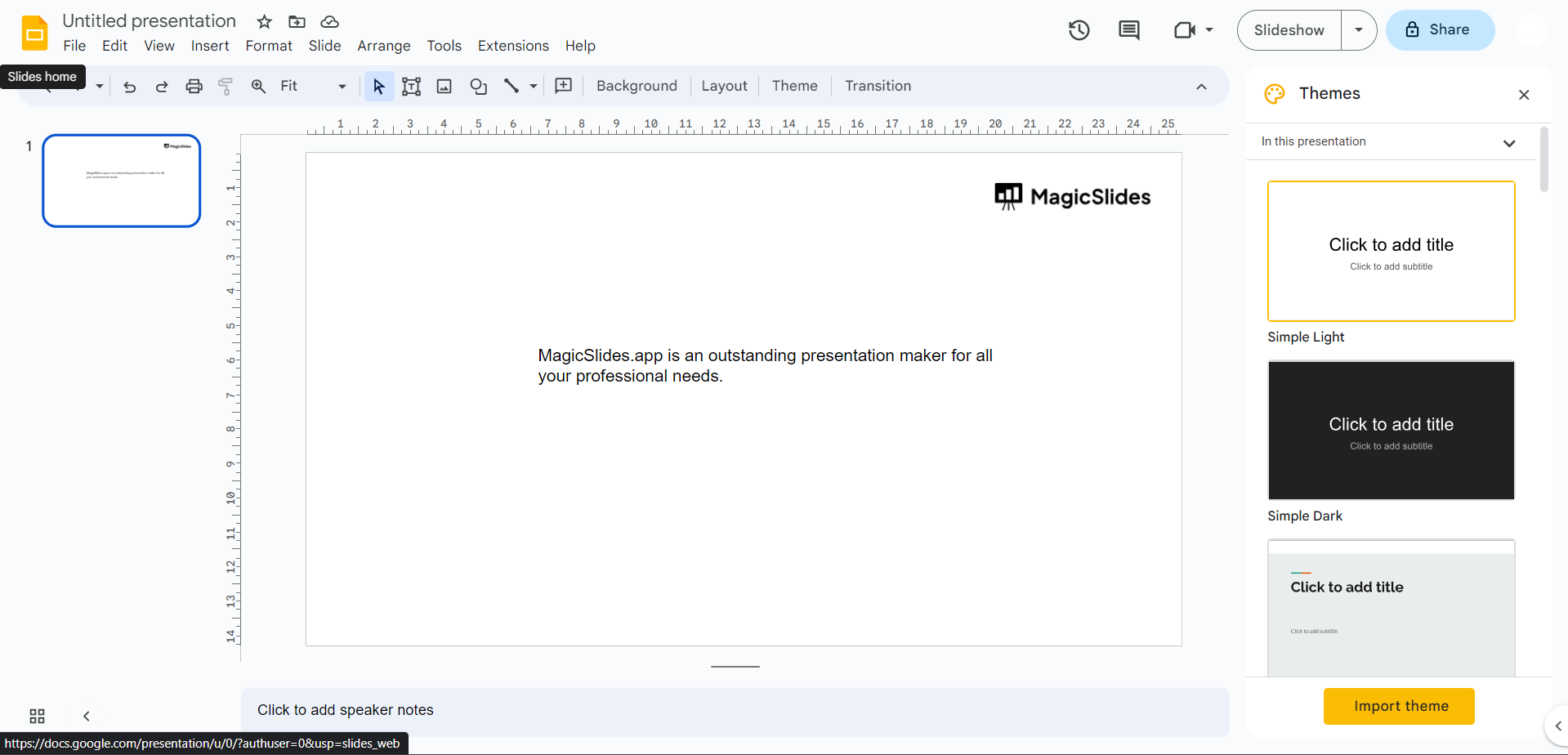
Step 3: Click 'Import Theme' In the 'Themes' panel, you'll find various options for themes, including the ability to customize your current theme or create a new one. To import a theme, click on the 'Import theme' button. This will open a new window with import options.
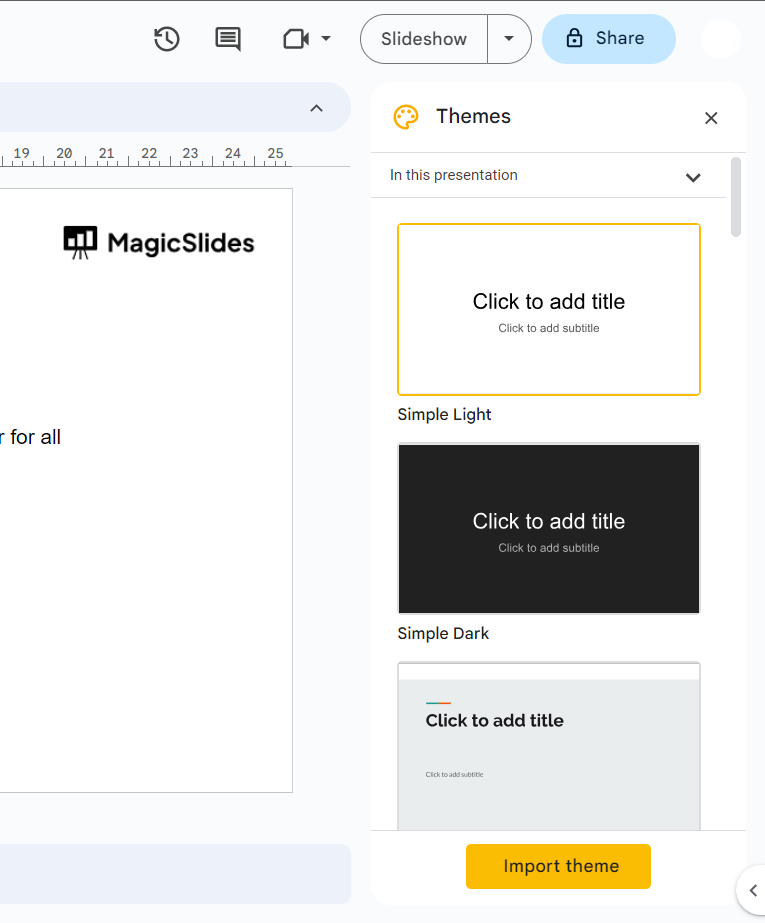
Step 4: Explore Your Presentations or Upload a PowerPoint Presentation In the import theme window, you have two choices. You can either explore your existing Google Slides presentations or upload a PowerPoint presentation.
To explore your presentations, use the 'My presentations' tab. If you have a PowerPoint presentation with a theme you'd like to use, switch to the 'Upload' tab and select the PowerPoint file you want to import. Once you've made your choice, click 'Import theme.'

Step 5: Choose Your Desired Theme After clicking 'Import theme,' another window will appear, displaying the themes available for import. You can browse through the options and choose the one that best fits your presentation's style and content.
Conclusion: Customizing your Google Slides presentation with imported themes is a simple yet effective way to make your slides visually appealing and unique. By following the steps outlined in this guide, you can seamlessly import themes from existing presentations or PowerPoint files.
Just remember that when importing themes, they will be applied to the entire presentation, replacing any previous themes. So, choose wisely and enhance your presentations with the power of personalized themes in Google Slides. Happy presenting!