
Inserting a new slide between two existing slides in PowerPoint is a simple yet essential skill for organizing and refining your presentation.
Whether you're adding additional content, rearranging your slides, or improving the flow of your presentation, knowing how to insert a slide precisely where you need it ensures a smooth and professional outcome.
This blog post will guide you through the step-by-step process of inserting a new slide between two slides in PowerPoint, making it easy to keep your presentation structured and impactful.
https://docs.google.com/presentation/d/e/2PACX-1vRjBlmZkUXPZ-u7yvvPL-qhMzis0GZZmWeXYCZefdkUOTlbE9QBA3w5FU-M_PdewKf1hMQIe1J58h3C/embed?start=false&loop=false&delayms=3000How to insert a new slide between two slides
Step 1: Open Your PowerPoint Presentation
Start by opening the PowerPoint presentation where you want to insert the new slide. You can do this by searching for "PowerPoint" in your Start menu or by clicking on the PowerPoint icon if it's pinned to your taskbar. Once the application is open, locate and select the presentation file you wish to edit.

Step 2: Navigate to the Slide Pane
Once your presentation is open, you will see the Slide Pane on the left side of the screen. This pane displays thumbnails of all your slides in the order they appear in your presentation.
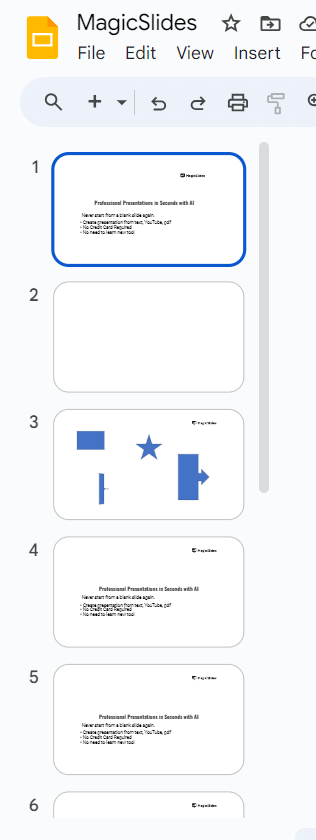
Scroll through these thumbnails to find the two slides between which you want to insert the new slide.
Step 3: Select the Slide Before Where You Want the New Slide
Click on the thumbnail of the slide that is directly before the position where you want to insert the new slide. This action will select the slide, and it will be highlighted in the Slide Pane.
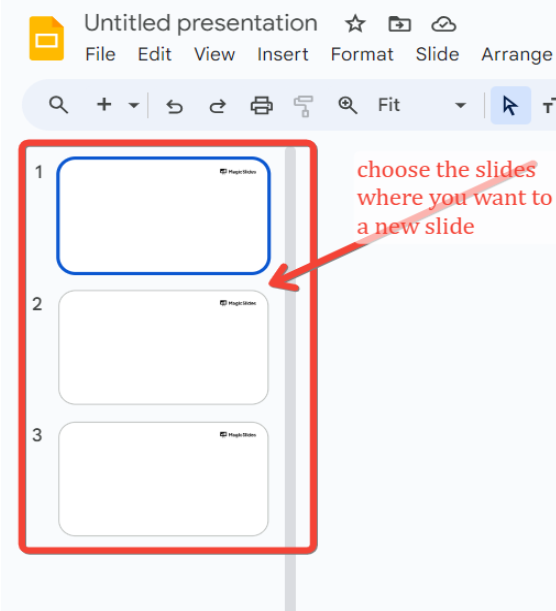
Step 4: Insert a New Slide
With the preceding slide selected, go to the "Home" tab on the PowerPoint ribbon at the top of the screen. In the "Slides" group, click on the "New Slide" button. A new slide will be inserted immediately after the selected slide. Want more presentation ideas, checkout from here
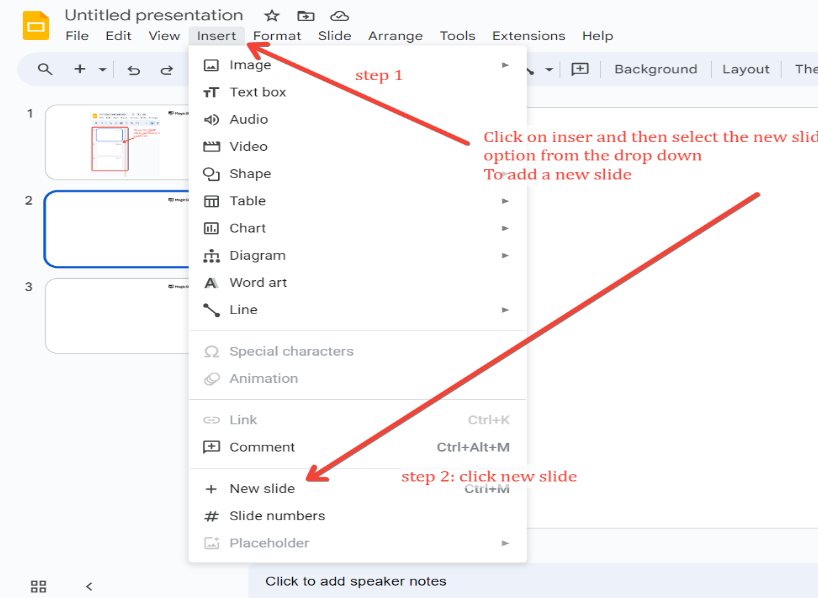
If you want to select a specific layout for the new slide, click the small arrow next to the "New Slide" button to choose from various layout options before inserting the slide.
Step 5: Adjust the Content of the New Slide
Once the new slide is inserted, you can add and customize its content as needed. Click on the new slide thumbnail to select it, then use the editing tools in the "Home" tab to add text, images, charts, or other elements.
Format and adjust the slide to fit seamlessly into your presentation.

Step 6: Rearrange Slides (If Needed)
If you need to adjust the position of the new slide or any other slides, you can easily do so by dragging the slide thumbnails in the Slide Pane. Click and hold the thumbnail of the slide you want to move, then drag it to the desired position.
Step 7: Save Your Changes
After inserting and adjusting the new slide, save your changes to ensure that all your edits are preserved. Click on "File" in the top-left corner, then select "Save" or "Save As" to save your updated presentation.
Conclusion
Inserting a new slide between existing slides in PowerPoint is a straightforward process that helps you maintain the logical flow of your presentation.
By following these steps, you can easily add new content and adjust the structure of your slides to better communicate your message.
Whether you’re fine-tuning a presentation or making significant edits, mastering this technique ensures your presentation remains clear, organized, and effective.
Tired of maing presentations? what if we tell you you can make presentation with just a prompt, convert YouTube videos to PPTs, convert website content to PPTs? Yes! checkout magicslides.app that does all and enjoy the free credits to make presentations in seconds
FAQs that might be helpful!
Can I insert a new slide using keyboard shortcuts?
Yes, you can use keyboard shortcuts to insert a new slide. After selecting the slide before which you want to insert a new slide, press Ctrl + M (or Cmd + M on Mac).
This shortcut will quickly insert a new slide immediately after the selected slide. You can then customize the new slide as needed.
What if I accidentally insert the new slide in the wrong place?
If you insert a new slide in the wrong place, you can easily move it to the correct position. In the Slide Pane, click and hold the thumbnail of the newly inserted slide, then drag it to the desired location between the two existing slides.
Release the mouse button to drop the slide in its new position. This allows you to rearrange your slides without having to delete and reinsert them.
Share on socials
About the author
Sanskar Tiwari is the founder of MagicSlides and IAG Tech. Over the past 5 years, he has shipped 24+ products and taught 100k+ students how to code. His work focuses on AI‑assisted creation and developer education.
More from the blog
How to insert bitmoji into Google Slides
17 March 2026
Top 12 PowerPoint Alternatives Compared – Find the Best Presentation Tool
17 March 2026
Genetics Topics for Presentation: 100+ Comprehensive Ideas
17 March 2026
Interesting Biology Topics for Presentations: 100+ Captivating Ideas
17 March 2026
How to add morph Transition in PowerPoint
15 March 2026
How to Convert PPT to Google Slides - Complete 2026 Guide
13 March 2026
How to animate google slides
10 March 2026
50+ Funny Presentation Topic Ideas to Get You Started
5 March 2026
Scribd PPT Downloader Free: Step-by-Step Guide (Updated 2026)
2 March 2026
