How to put on Laser Pointer on Google Slides


Easily highlight key points in your Google Slides presentation using the built-in virtual laser pointer tool
How to Put on a Laser Pointer in Google Slides
A laser pointer can help emphasize key points while presenting in Google Slides, making it easier for your audience to follow along.
Google Slides offers a built-in virtual laser pointer that allows you to highlight content smoothly.
In this step-by-step guide, we will show you how to activate and use the laser pointer during your presentation.
Step-by-Step Guide to Using the Laser Pointer in Google Slides
Step 1: Open Your Google Slides Presentation
Go to Google Slides and open your presentation. Ensure that your slides are arranged and ready for presentation mode.
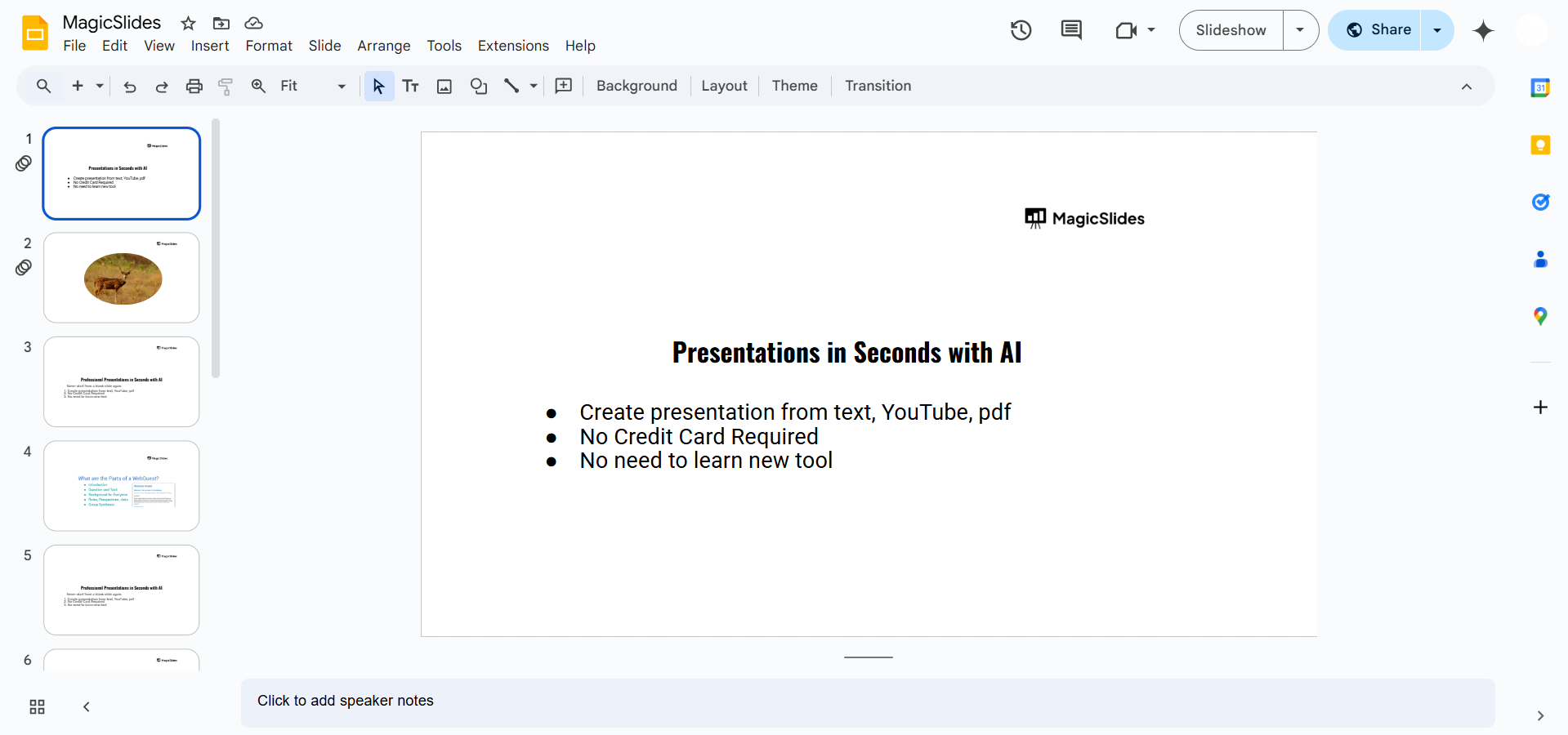
Step 2: Enter Slideshow Mode
Click on the “Slideshow” button in the top-right corner. Alternatively, press "Present" to start the presentation.
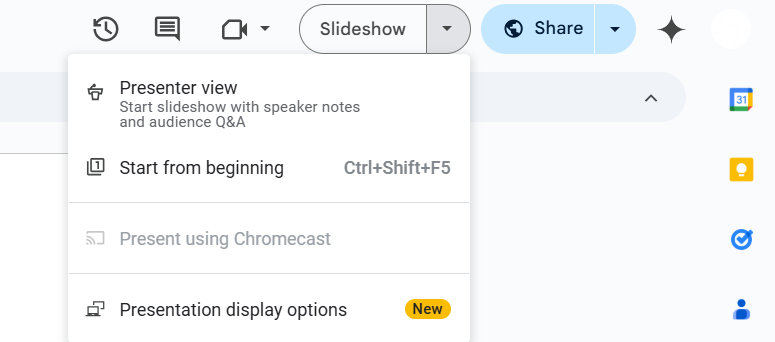

Step 3: Activate the Laser Pointer
Once in slideshow mode, move your mouse to the bottom-left corner of the screen.
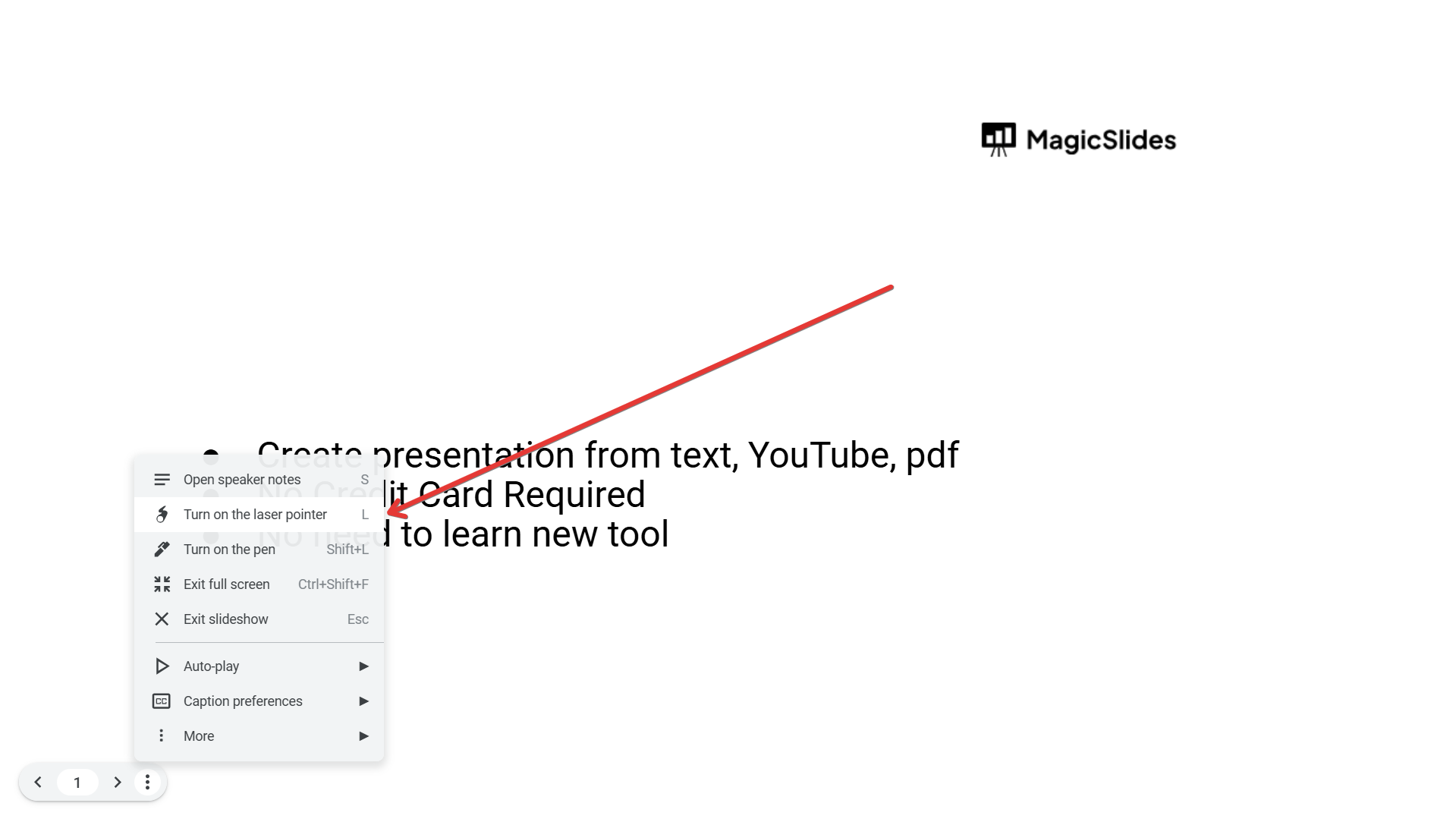
Click on the three-dot menu (More options). Select “Turn on laser pointer” from the dropdown menu.
Step 4: Use the Laser Pointer
Your cursor will now change into a red laser dot. Move your mouse around to highlight different parts of the slide.
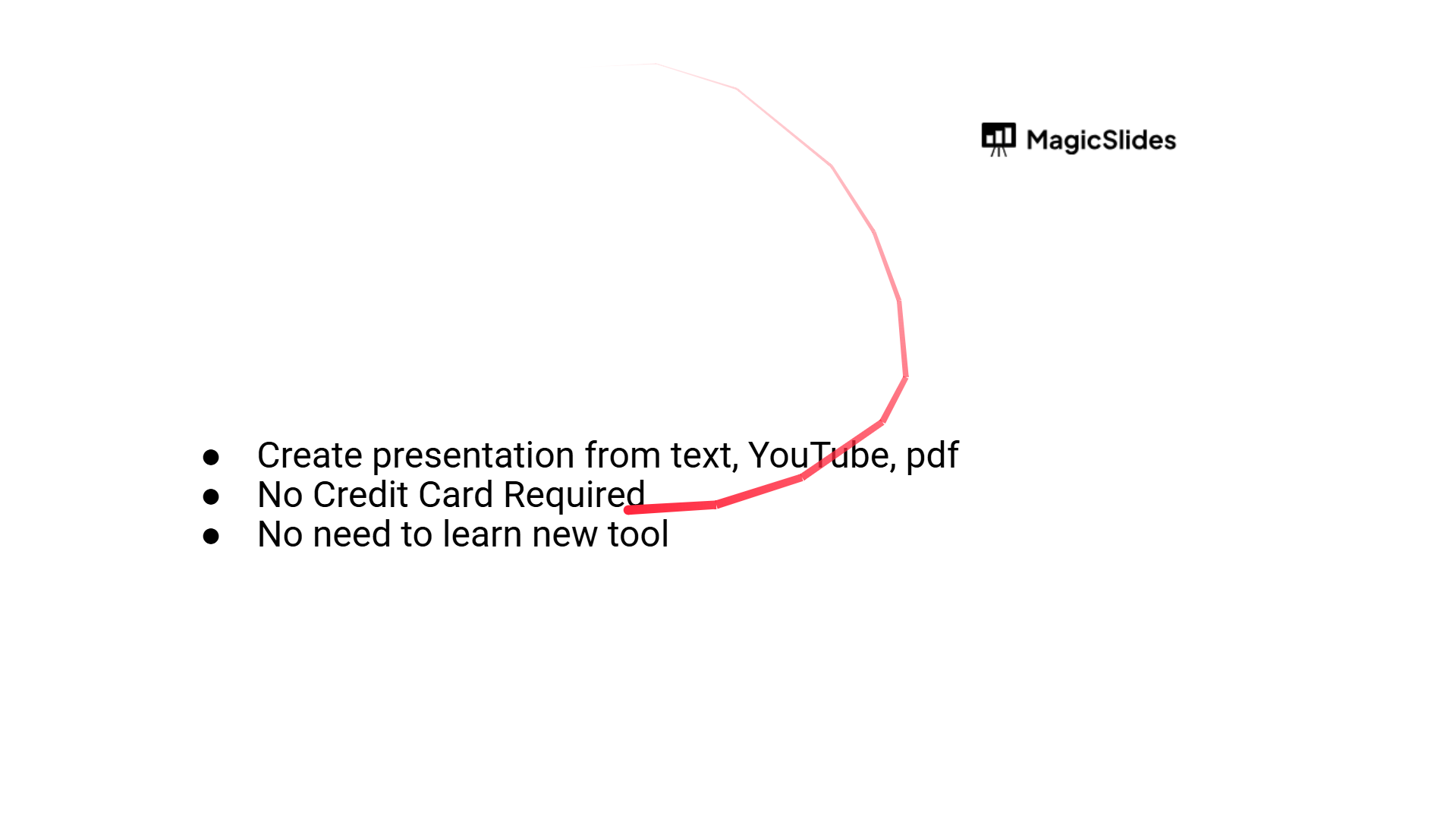
The laser pointer follows your movement, helping to guide your audience’s attention.
Step 5: Turn Off the Laser Pointer
To disable the laser pointer, move your mouse to the bottom-left corner again.
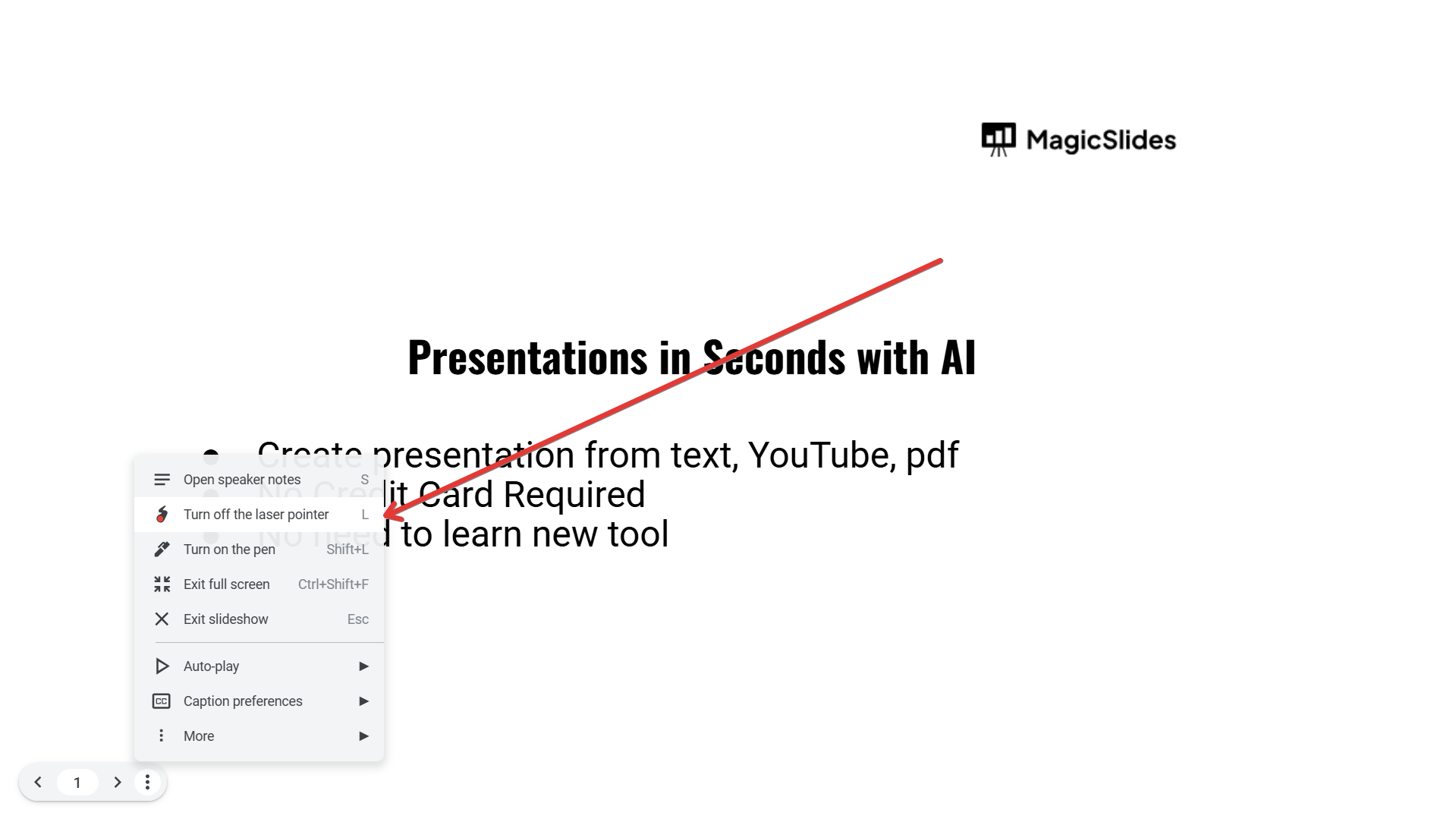
Click on the three-dot menu and select “Turn off laser pointer”. Your cursor will return to its normal state.
Using a laser pointer in Google Slides helps highlight key points, but if you want to create AI-powered presentations effortlessly, try MagicSlides.app just enter a topic, and it generates stunning slides for you in seconds!
Conclusion
Using a laser pointer in Google Slides can enhance your presentations by drawing attention to key areas on your slides.
With just a few clicks, you can activate the built-in laser pointer and make your presentations more interactive and engaging.
FAQs About Using the Laser Pointer in Google Slides
Can I change the color of the laser pointer in Google Slides?
No, Google Slides currently only offers a red laser pointer without customization options.
Does the laser pointer work in edit mode?
No, the laser pointer is only available when you are in slideshow (presentation) mode.
Can I use a real laser pointer with Google Slides?
Yes, if you're presenting on a projector or TV screen, a physical laser pointer can also be used to highlight content.
Now you're ready to use the laser pointer in Google Slides to deliver more effective and engaging presentations! 🚀


