how to record powerpoint with audio


Often times there is need to have the audio along with the presentation in this blog let’s see how to record powerpoint with audio
Recording a PowerPoint presentation with audio can be a useful way to create narrated slideshows or lectures. Below, I'll outline the steps to record a PowerPoint presentation with audio:
Prerequisites:
- A computer with PowerPoint installed.
- A microphone or audio input device for recording your narration.
Open Your PowerPoint Presentation: Open the PowerPoint presentation you want to record. Ensure that your slides are in the order you want them to be for your narration.
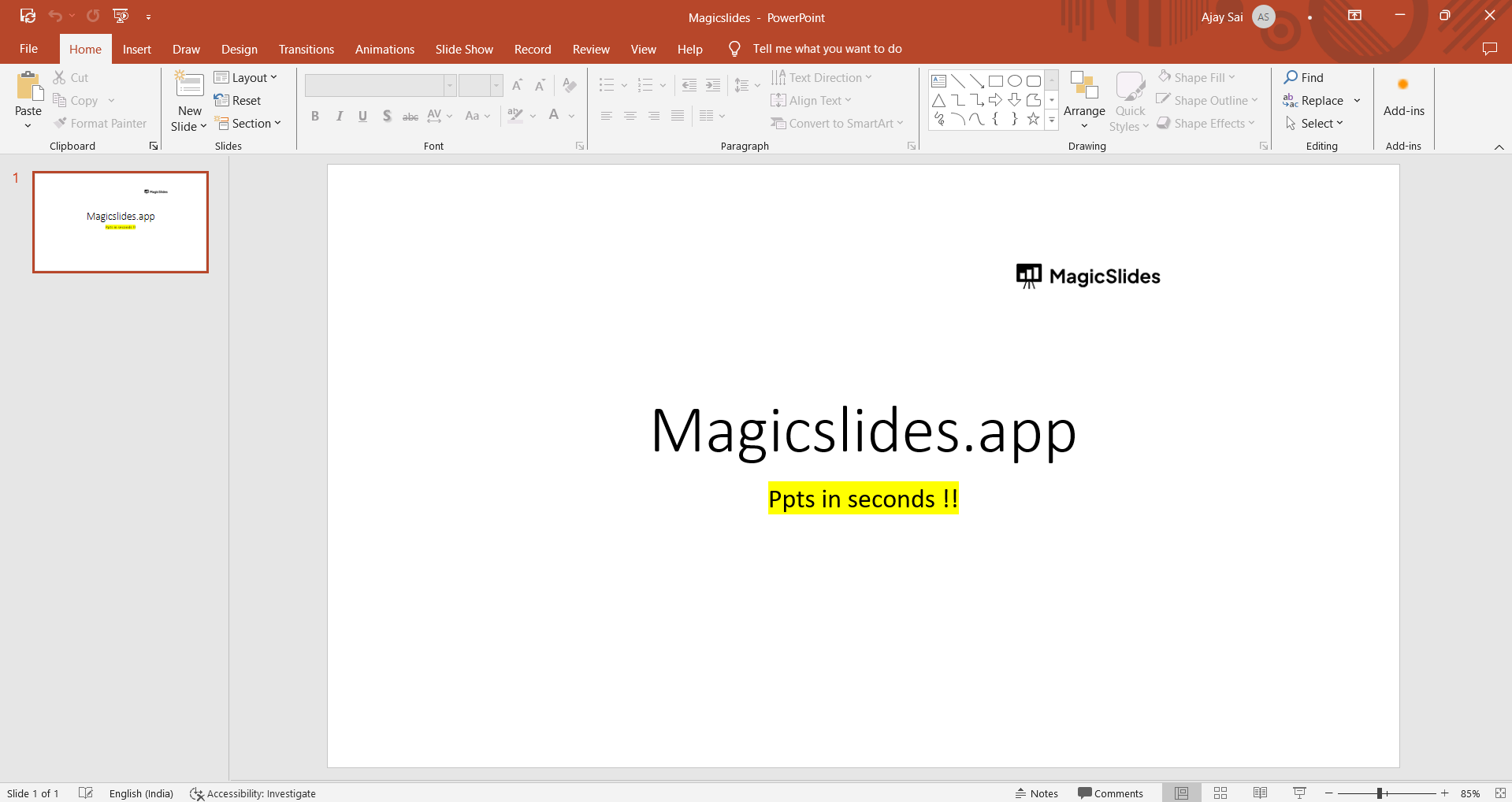
Prepare Your Audio Equipment: Connect your microphone or audio input device to your computer. Make sure it's working correctly, and adjust the audio settings if necessary.
Record Narration: a. In PowerPoint for Windows:
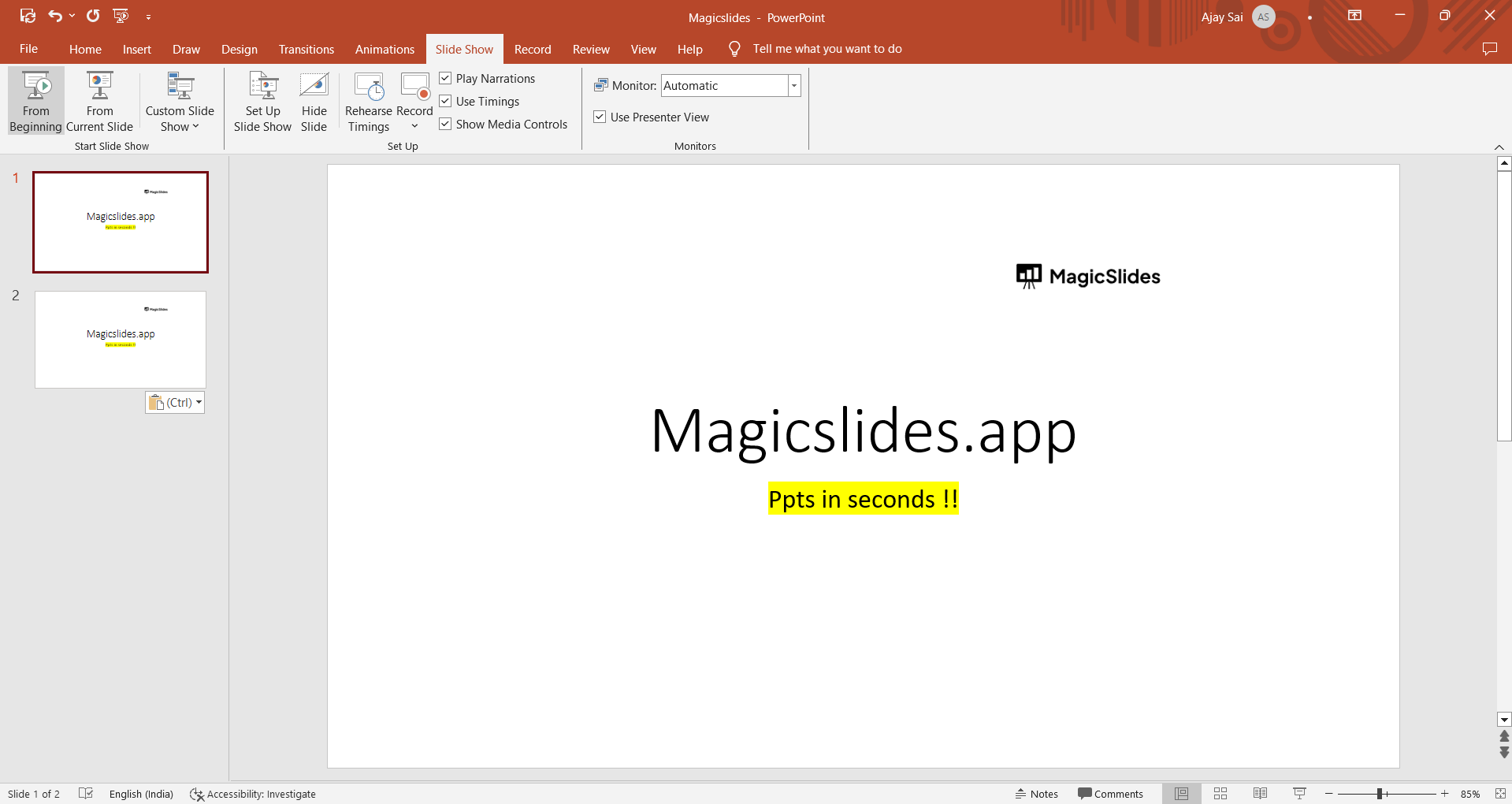
- Go to the "Slide Show" tab in the PowerPoint ribbon.
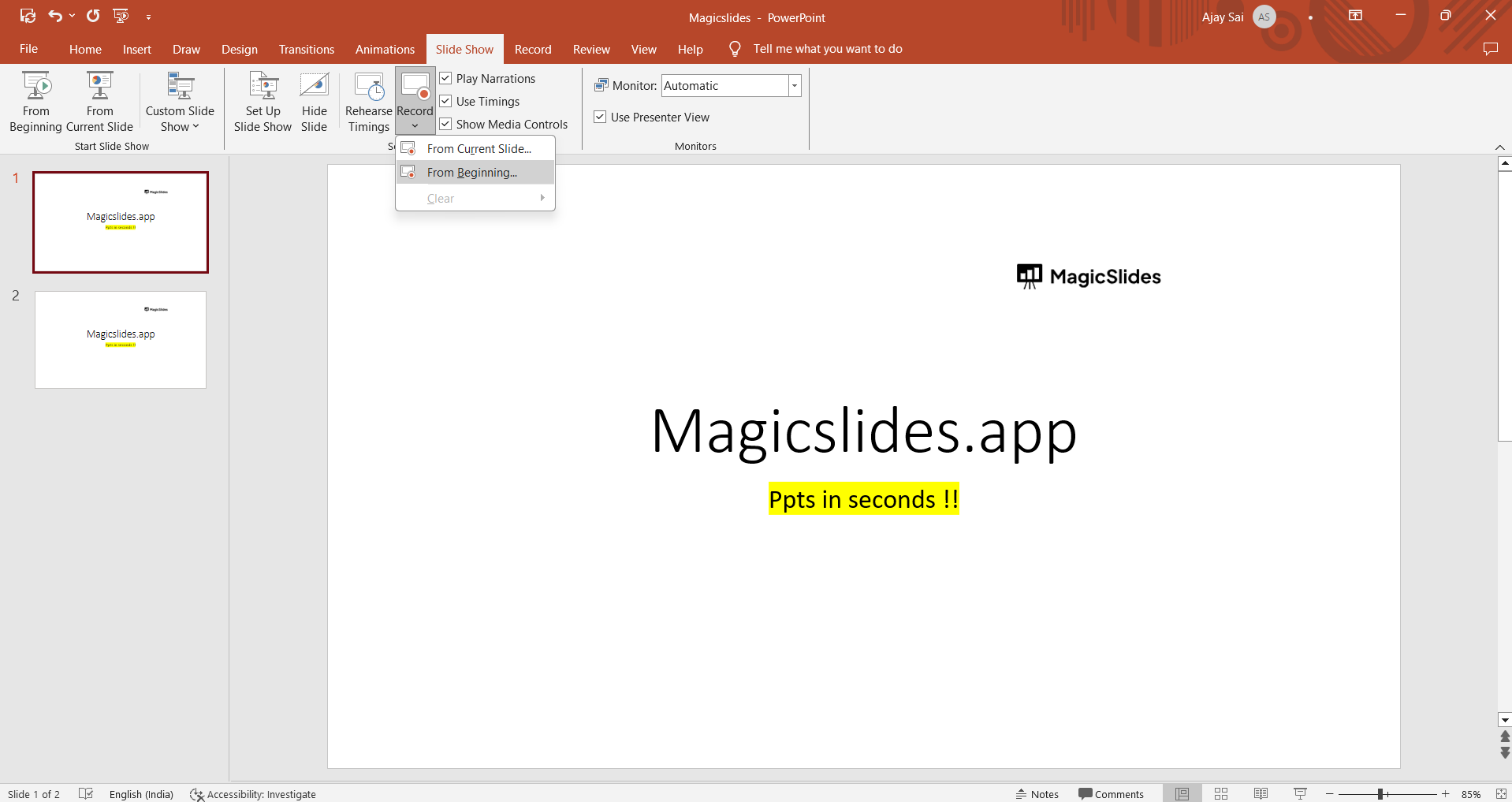
- Click on the "Record Slide Show" dropdown in the "Start Slide Show" group.
- Choose "Record from Beginning" to start recording from the first slide or "Record from Current Slide" to start from the currently selected slide.
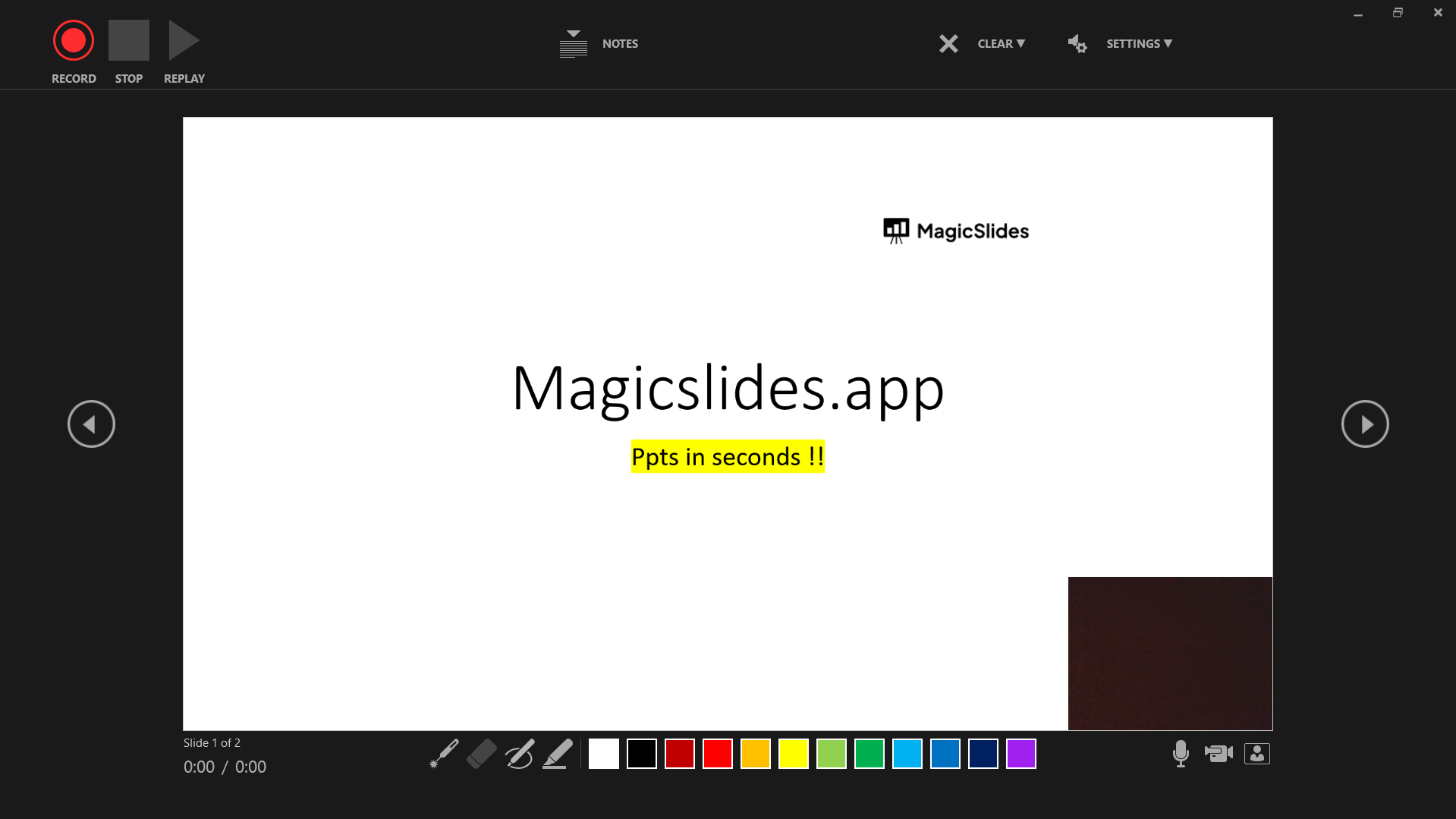
Start Speaking: As you advance through your slides, start speaking into your microphone. Your narration will be recorded for each slide. Be sure to pause and speak clearly.
End the Recording: When you reach the end of your presentation, press the spacebar or click your mouse to finish the recording. In PowerPoint for Windows, you can also press "ESC" to stop recording.
Review Your Recording: After recording, you can review your narration by going to the "Slide Show" tab and clicking "From Beginning" or "From Current Slide" to play the presentation with audio.
Save Your Presentation: Save your PowerPoint presentation. The recorded audio will be embedded in the slides.
Conclusion:
Following the steps outlined in this guide will allow you to create a narrated PowerPoint presentation that you can share with your audience or students. Remember to practice your narration, speak clearly, and ensure that your audio equipment is functioning properly for the best results.


