how to reduce the file size of a ppt


In this blog post article we will see how to reduce the file size of a ppt in few simple steps.
Creating a visually appealing PowerPoint presentation is a breeze, but as you add more images and multimedia elements, the file size can quickly balloon, making it challenging to share, email, or even work with the presentation efficiently.
If you've ever faced this issue, you're not alone, and we have a solution for you. In this guide, we'll walk you through a series of steps to help you reduce the file size of your PowerPoint presentation without compromising its quality. By following these steps, you can create sleek, manageable presentations that are easy to share with your audience.
Step 1: Open Your PowerPoint Presentation
Begin by opening the PowerPoint presentation that you want to reduce in terms of file size. This is your starting point for the file size optimization process.
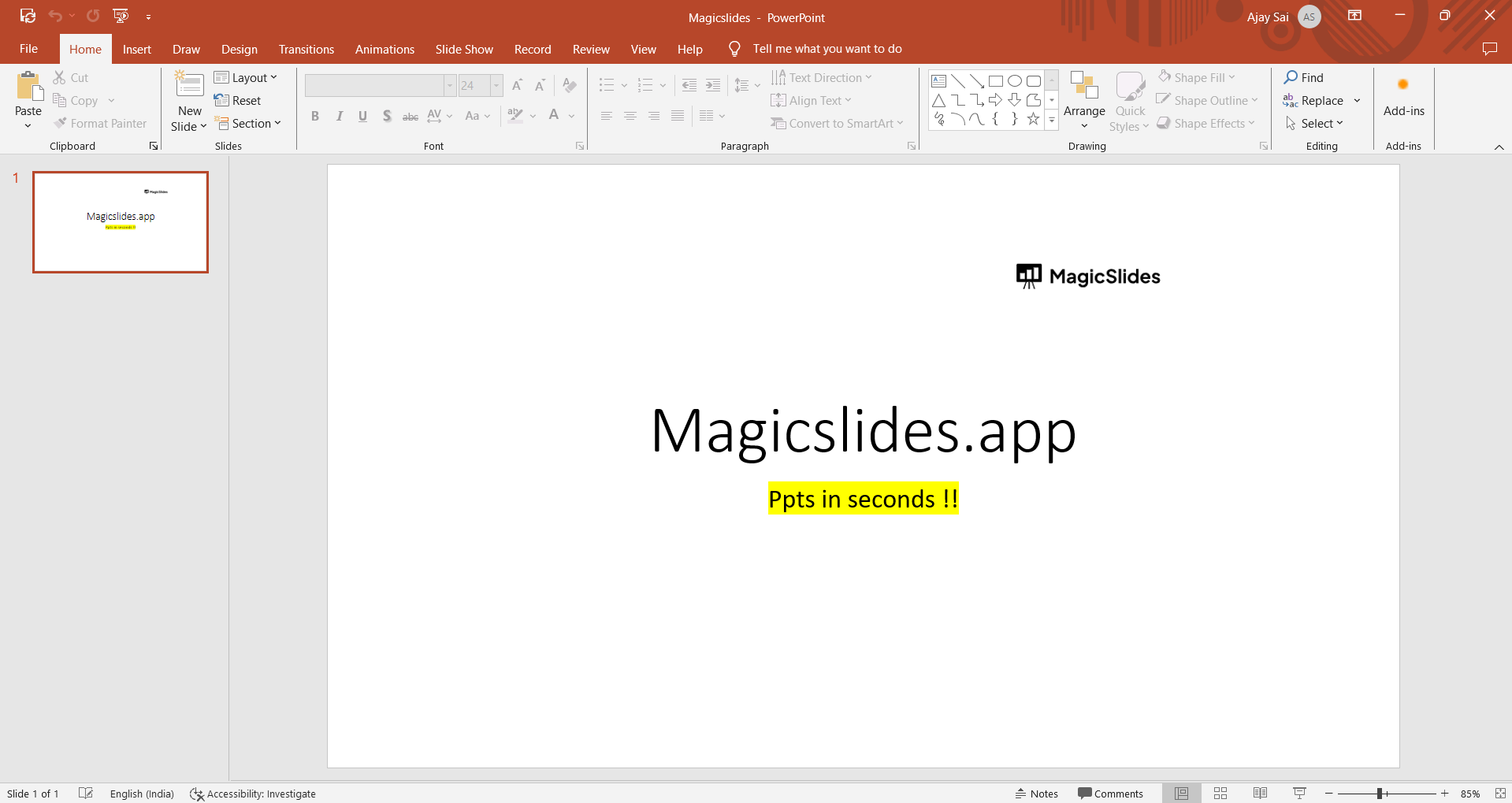
Step 2: Access PowerPoint Options
- Click on the "File" tab in the top toolbar to reveal a dropdown menu.
- From this menu, select "Options." This will open the PowerPoint Options window.
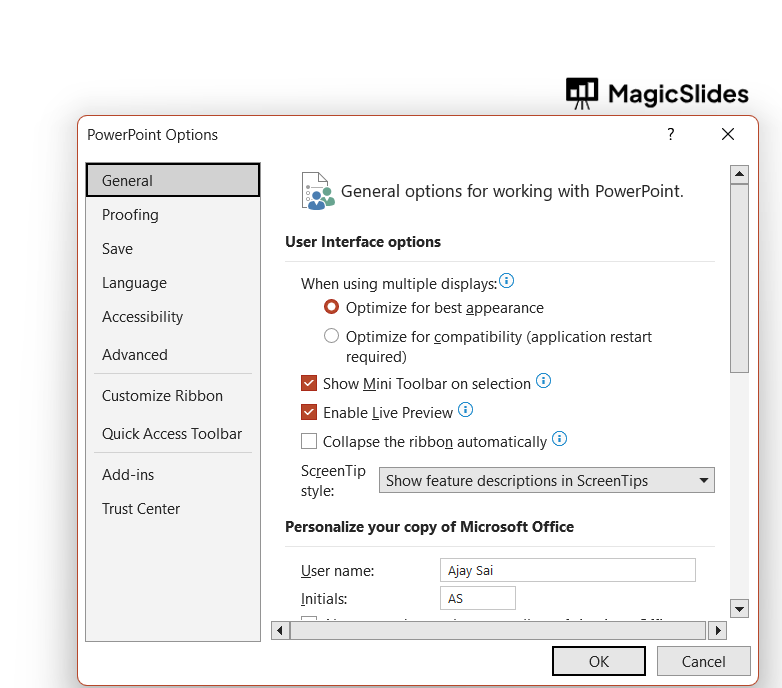
Step 3: Navigate to the Advanced Settings
Within the PowerPoint Options window, click on the "Advanced" category on the left-hand side. This is where you'll find the settings to control image size and quality.
Step 4: Configure Image Size and Quality Settings
Under the "Image Size and Quality" heading, you'll make some critical choices:
- Check "Discard editing data": This option allows you to remove unnecessary information that may be embedded in the presentation, which can reduce the file size.
- Uncheck "Do not compress images in file": Enabling image compression is a key step in reducing file size. Disabling this option will prevent PowerPoint from compressing images, whereas you want the opposite.
- Select 150 PPI or lower in the Default resolution dropdown menu: Reducing the resolution to 150 PPI or lower helps to downsize image file sizes while retaining reasonable quality.

Step 5: Save Changes
After making these adjustments, click the "OK" button at the bottom of the PowerPoint Options window to save your settings.
Conclusion:
Large PowerPoint files can be a hindrance when you need to share your presentation or collaborate with others. By following these simple steps, you can significantly reduce the file size without compromising the quality of your slides.
Smaller files are easier to manage, share, and present, making your PowerPoint experience more efficient and accessible for both you and your audience. The next time you need to send or present your work, you can do so with confidence, knowing that your presentation is sleek, professional, and ready to shine.


