How to track changes in PowerPoint


Track changes in PowerPoint using comments, comparisons, and version history for effective collaboration.
Tracking changes in PowerPoint is essential when collaborating on a presentation with others.
Although PowerPoint doesn't have a dedicated "Track Changes" feature like Microsoft Word, you can still manage and review edits by using a combination of tools such as comments, compare, and version history.
These methods allow you to keep track of revisions, accept or reject changes, and ensure that the final presentation meets everyone's expectations.
In this blog post, we'll guide you through the steps to effectively track changes in PowerPoint.
How to Track Changes in PowerPoint
Step 1: Save Your Original Presentation
Before sharing your PowerPoint file for collaboration, save a copy of the original presentation.
This will serve as your baseline version, which you can compare against after edits are made.
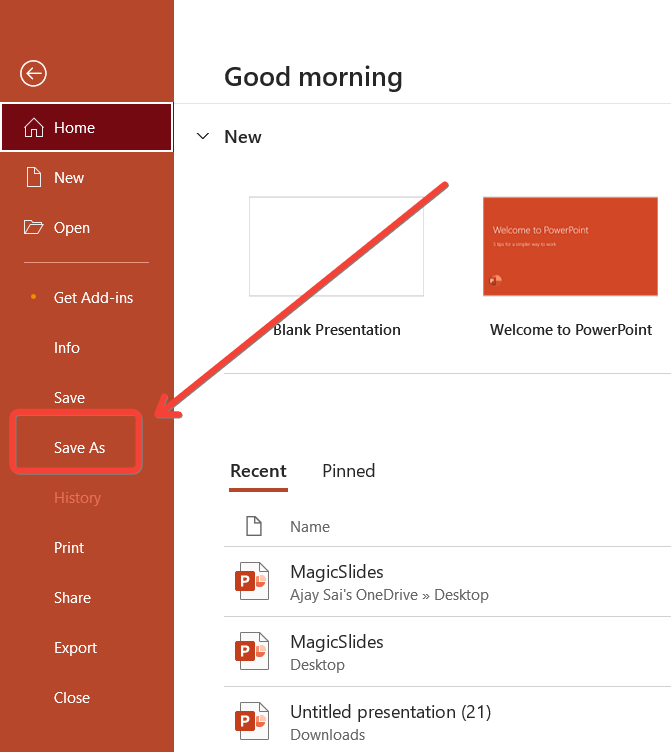
To save your file, click on "File" in the top-left corner, then select "Save As," choose your desired location, and give your file a descriptive name.
Step 2: Share the Presentation for Editing
Share the presentation with your collaborators.
You can do this by clicking on the "Share" button in the top-right corner of PowerPoint and entering the email addresses of the people you want to collaborate with. Ensure you give them the necessary editing permissions.
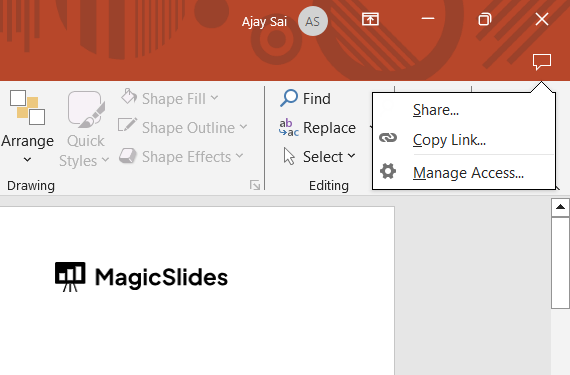
Alternatively, you can send them the presentation file directly via email or cloud storage.
Step 3: Use Comments for Specific Feedback
Encourage collaborators to use the "Comments" feature to provide specific feedback or suggestions.
To add a comment, select the text, image, or object you want to comment on, then go to the "Review" tab and click on "New Comment."
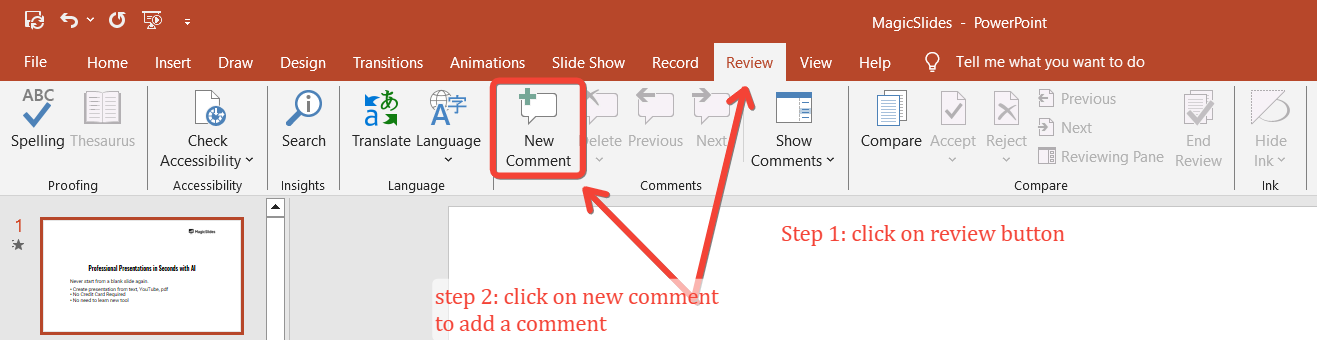
This helps to track and discuss changes directly within the slide.
Step 4: Compare Versions of the Presentation
After receiving the edited presentation, you can compare it with your original version to review changes.
To do this, open your original presentation, go to the "Review" tab, and click on "Compare."
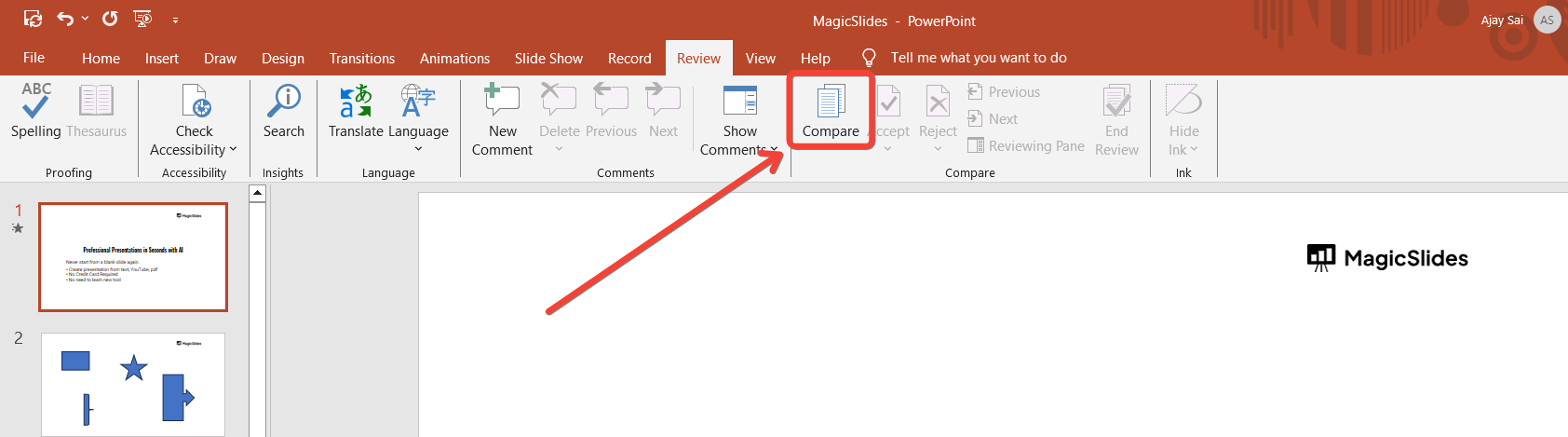
Choose the edited version of the presentation you want to compare, and PowerPoint will display a pane showing the differences between the two versions.
You can review each change and decide whether to accept or reject it.
Step 5: Review Changes in the Revisions Pane
When you compare versions, the Revisions Pane will open on the right side of the screen, highlighting the changes made.
Click on each change to see it in the context of the slide. This pane allows you to track all the edits in one place, making it easier to manage the review process.
Step 6: Accept or Reject Changes
As you review each change in the Revisions Pane, you can choose to accept or reject it.
To accept a change, click on the "Accept" button in the Review tab, and to reject it, click on "Reject."
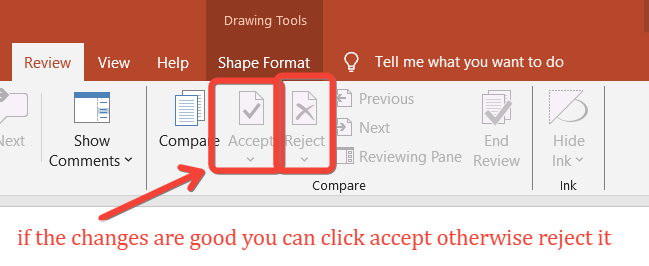
This helps you control which changes are incorporated into the final presentation.
Step 7: Save the Final Version
Once you’ve reviewed and accepted or rejected all changes, save the final version of the presentation.
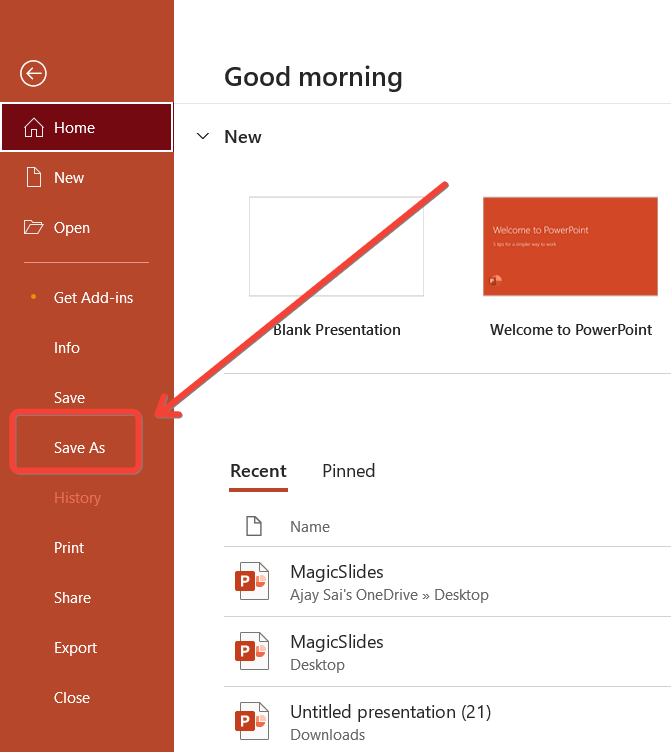
This will be the polished version that reflects all the decisions made during the review process. You can save it as a new file to preserve the history of edits if needed.
Conclusion
Tracking changes in PowerPoint might not be as straightforward as in Word, but with the right approach, you can effectively manage and review edits during collaboration.
By using tools like comments, the compare feature, and version history, you can ensure that your presentation is polished and aligned with the input from all collaborators.
Follow these steps to keep your presentations organized and to maintain control over the final content.
FAQs can take you forward!
Does PowerPoint have a built-in "Track Changes" feature like Word?
No, but you can use comments, comparisons, and version history to track changes.
How can I compare two versions of a PowerPoint presentation?
Use the "Compare" feature in the Review tab to see differences between two versions.
Can I accept or reject changes made by collaborators?
Yes, you can accept or reject changes through the Revisions Pane after comparing versions.


