how to zoom in on google slides


Effective zooming in Google Slides enhances focus, readability, and engagement, elevating the overall quality of presentations.
When it comes to creating visually captivating and engaging presentations, Google Slides stands as one of the go-to tools for professionals, educators, and students alike. However, there's more to mastering Google Slides than meets the eye. One essential aspect is knowing how to zoom in effectively, whether you're in the midst of a presentation or refining your slides during the editing process. In this blog post, we'll unravel the zooming capabilities of Google Slides, guiding you through the simple steps to get closer to your content. Whether you're a seasoned user or just getting started, this guide will help you harness the power of zooming to elevate your presentations.
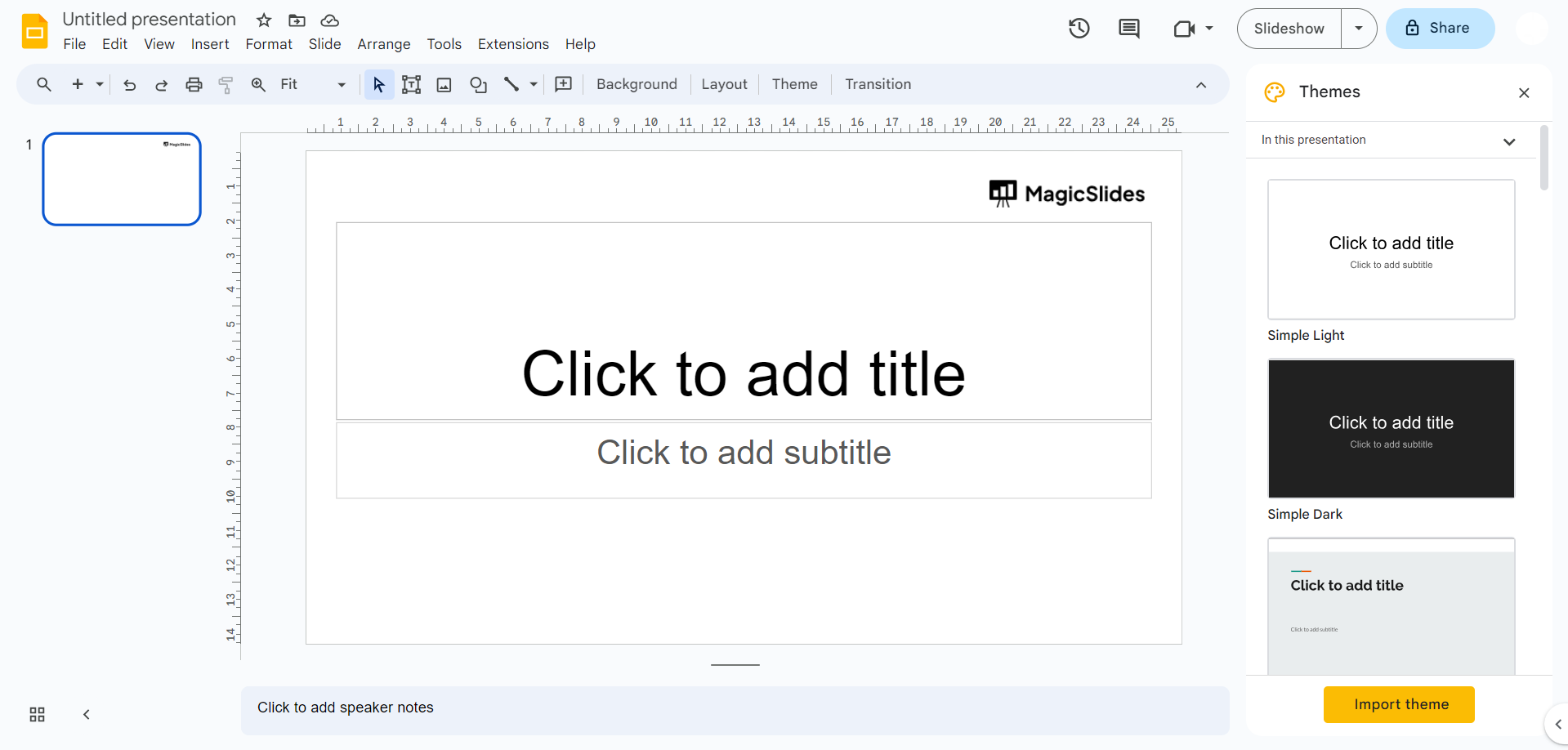
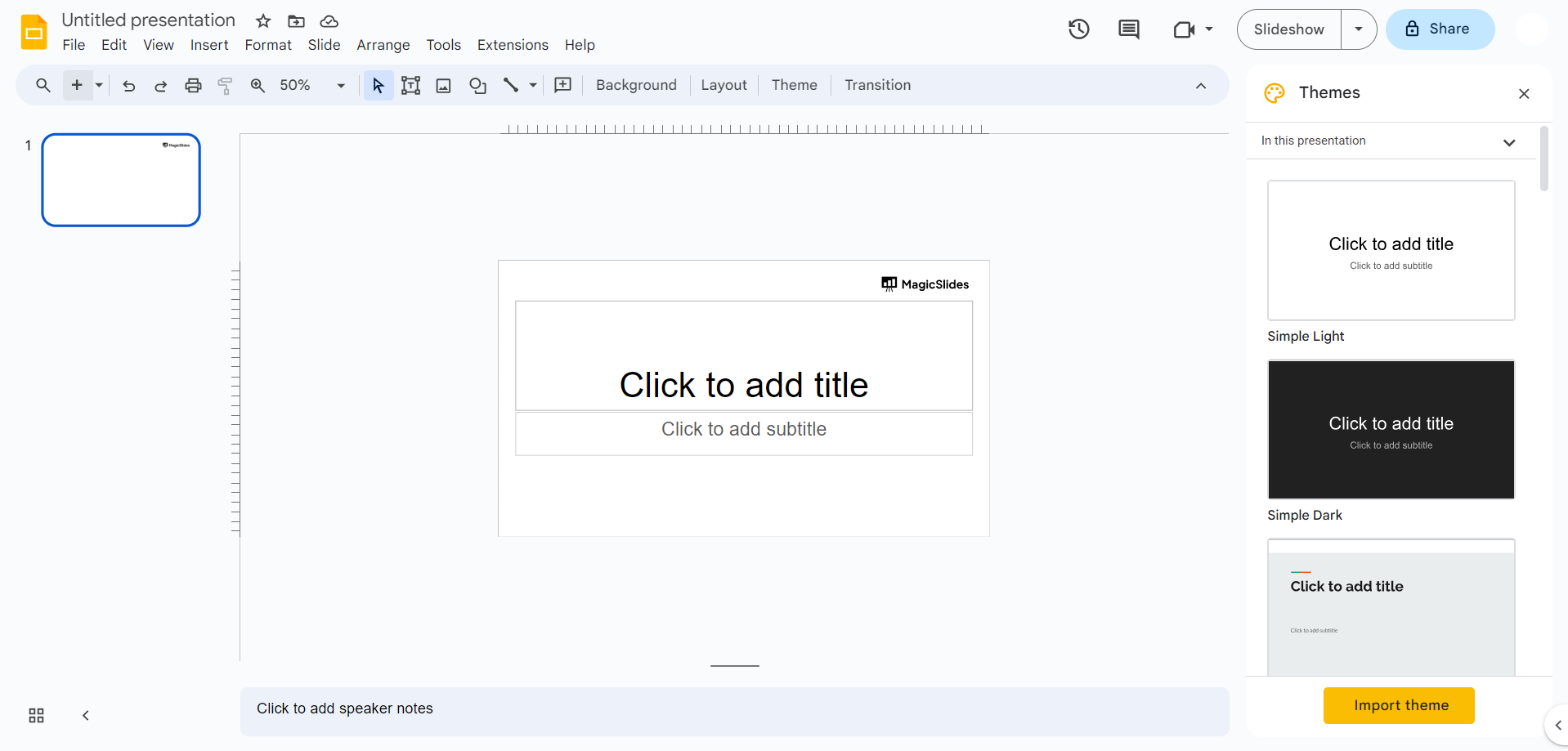
Open Your Google Slides Presentation:
- Begin by launching your Google Slides presentation. Ensure you are in the edit mode of the presentation you want to work on.
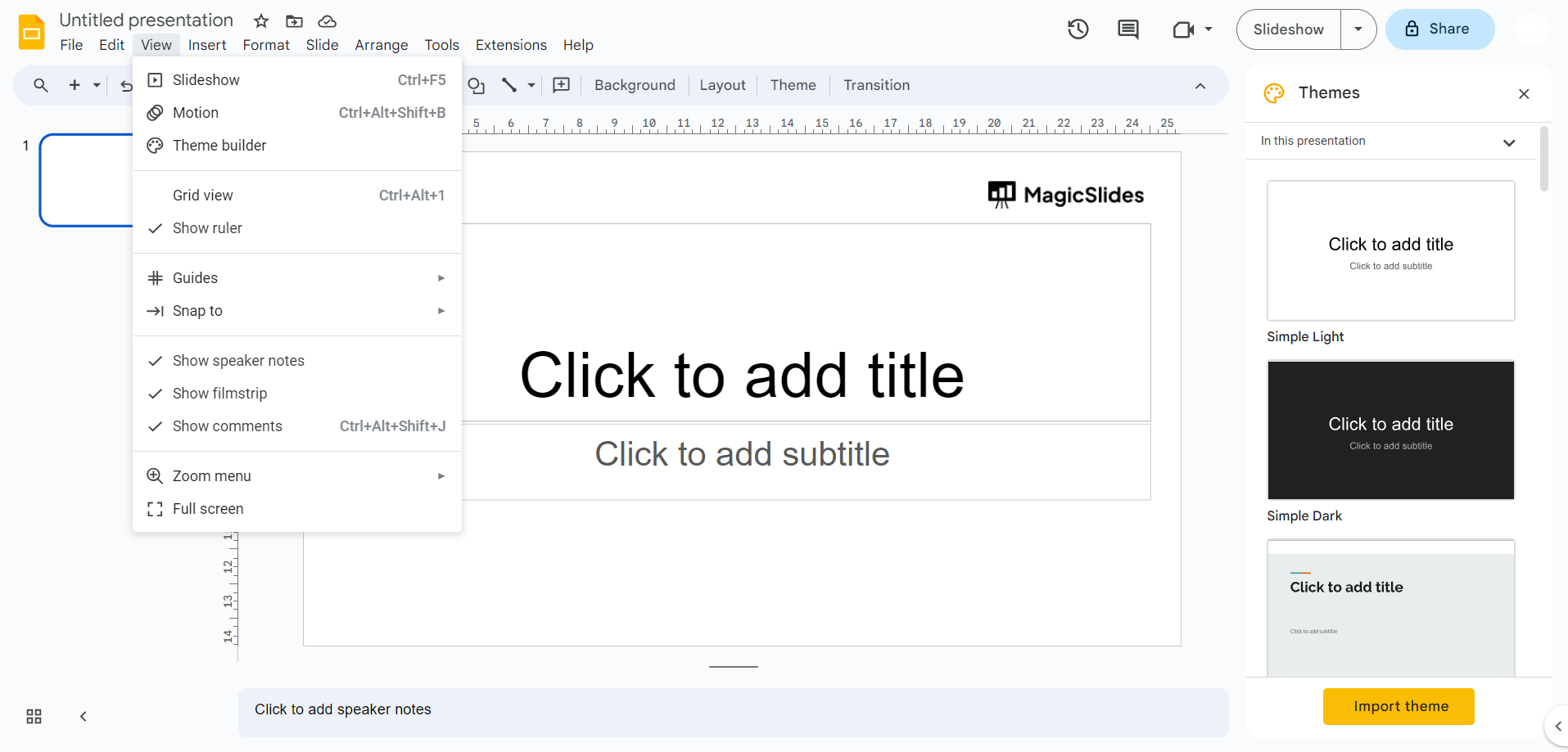
Select "View" in the Top Menu Bar:
- In the top menu bar of the Google Slides interface, you'll find various options. Click on "View" to access additional viewing and presentation-related settings.
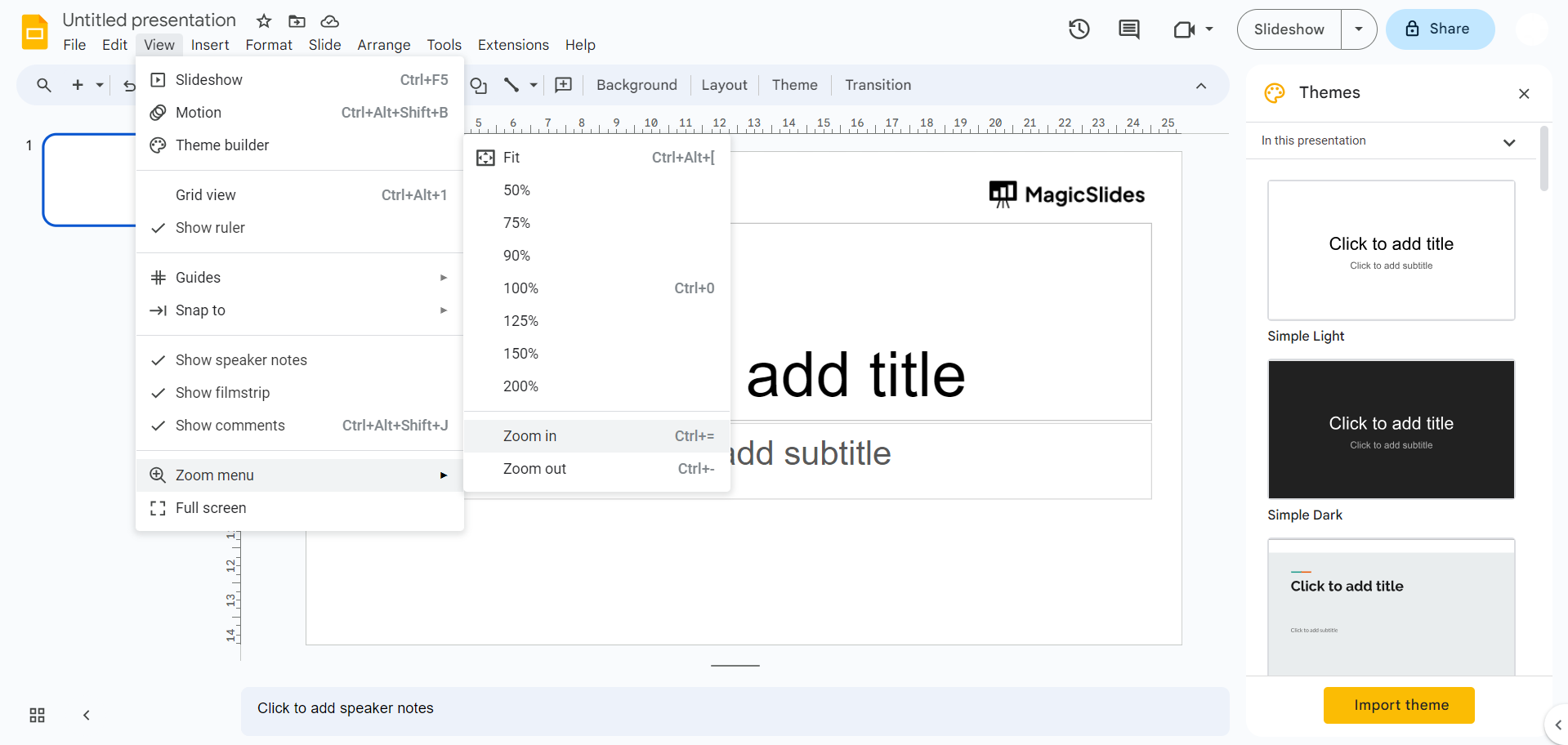
Click "Zoom" at the Bottom of the Menu Bar:
- After selecting "View," a dropdown menu will appear. Scroll down this menu to find and click on the "Zoom" option. This is where you'll adjust the zoom settings for your slides.
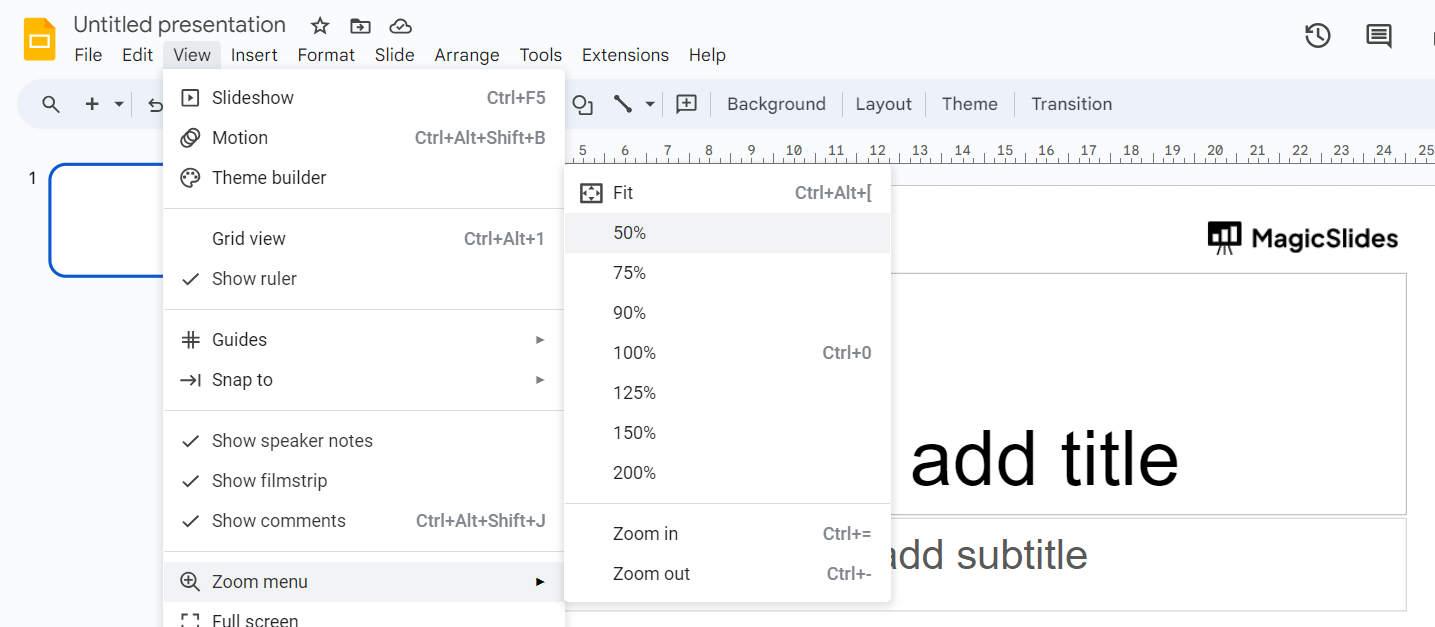
Choose the Percentage You Want to Zoom In On Your Article/Slides:
- Once you click "Zoom," a submenu will appear with various percentage options. Select the desired zoom percentage by clicking on it. For example, you can choose to zoom in at 100% for the standard size or specify a different percentage for closer or wider views.
Click "Fit" in the Zoom Menu to Return to the Standard Section:
- If you've zoomed in on your slides and want to return to the standard view, you can do so easily. Simply click on "Fit" in the Zoom menu. This option will automatically adjust the view to fit the standard screen size, ensuring that your slides are displayed as originally designed.
Zooming in Google Slides isn't just about enlarging your content; it's about enhancing your presentation's impact. From seamlessly navigating through slides during a presentation to fine-tuning details while editing, mastering the art of zooming empowers you to communicate your message more effectively. We hope this guide has equipped you with the knowledge and tools needed to make the most of Google Slides' zooming capabilities.


