Google Slides is a versatile tool for creating presentations, and one of its powerful features is the ability to modify backgrounds to suit your design needs. Making the background transparent can help blend your content seamlessly, highlight specific elements, or create a cleaner look.
Whether you are creating a professional presentation or a school project, understanding how to make a background transparent can significantly enhance your slide design.
In this guide, we will walk you through the process step-by-step and share tips to maximize the impact of your transparent backgrounds.
Why Use Transparent Backgrounds?
Before diving into the steps, let's explore why transparent backgrounds can be beneficial:
- Enhanced Visual Appeal: A transparent background can make text, images, and other elements stand out, giving your slide a more polished look.
- Seamless Integration: Transparent backgrounds allow for better integration of images, logos, or shapes into your slides without harsh edges.
- Layering Flexibility: You can layer multiple elements over each other more effectively with a transparent background, creating visually appealing layouts.
How to Make Background Transparent in Google Slides
https://www.guidejar.com/embed/5e9245d6-e7c3-4b25-93b2-fe820ec4e3c1?type=1&controls=onStep-by-Step Guide to Making Background Transparent in Google Slides
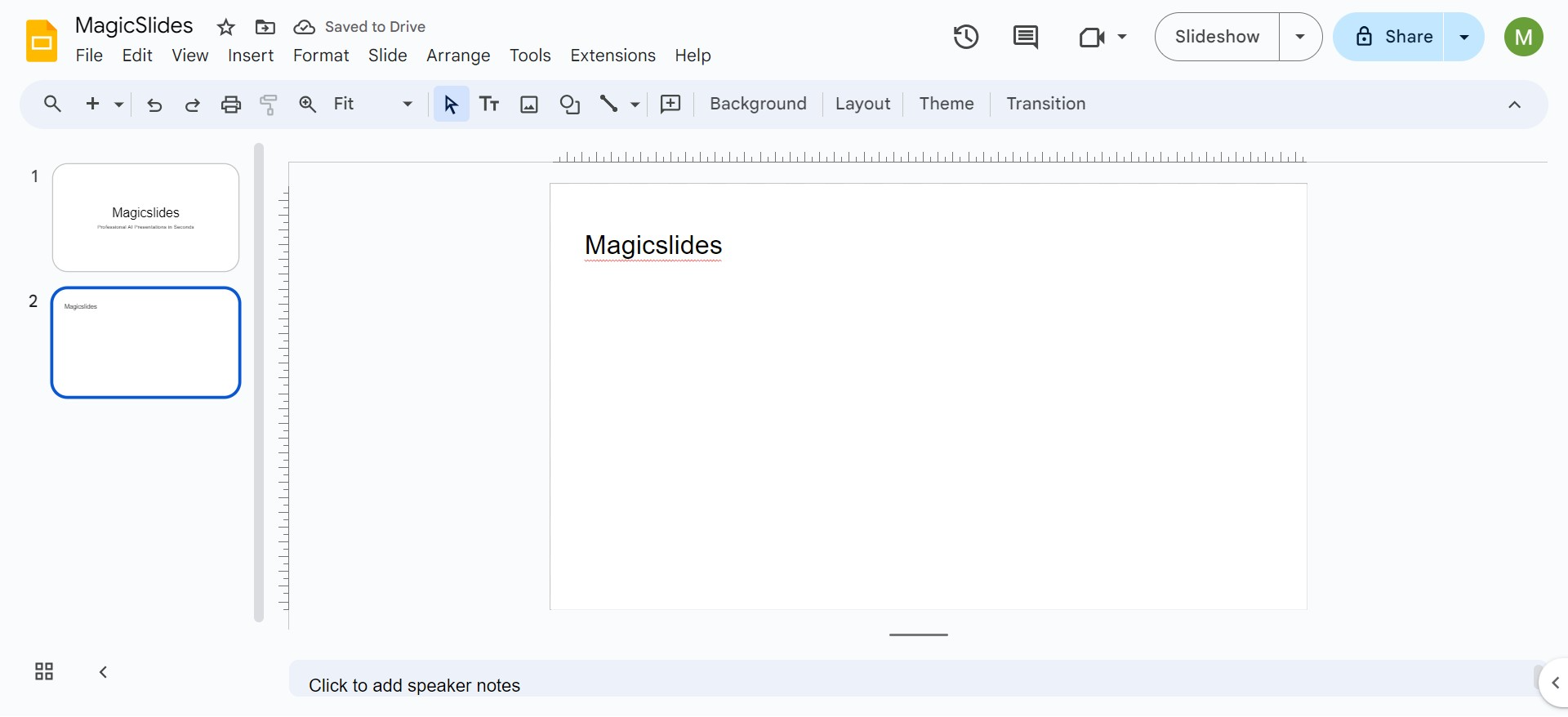
Step 1: Open Google Slides and Select a Slide
- Open your Google Slides presentation.
- Select the slide where you want to make the background transparent.
Step 2: Insert an Image as the Background (Optional)
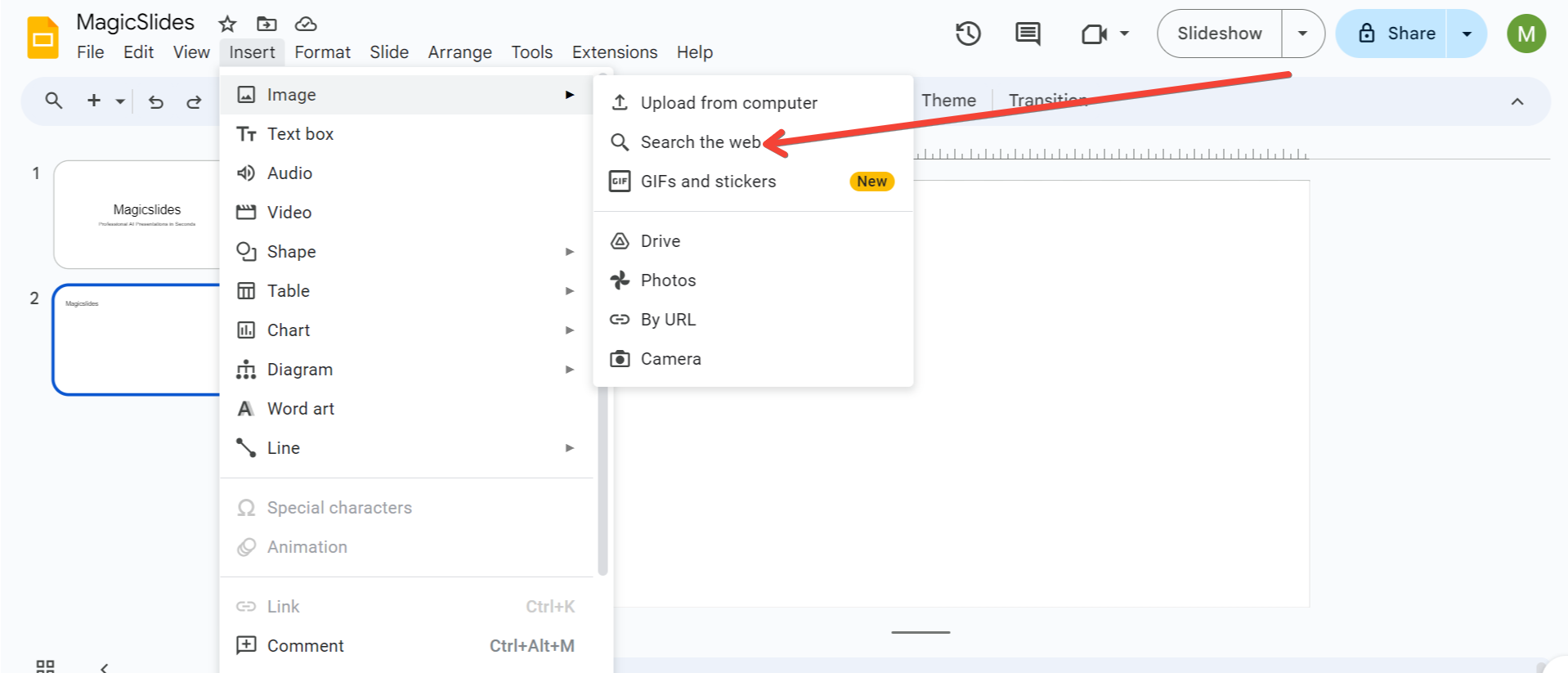
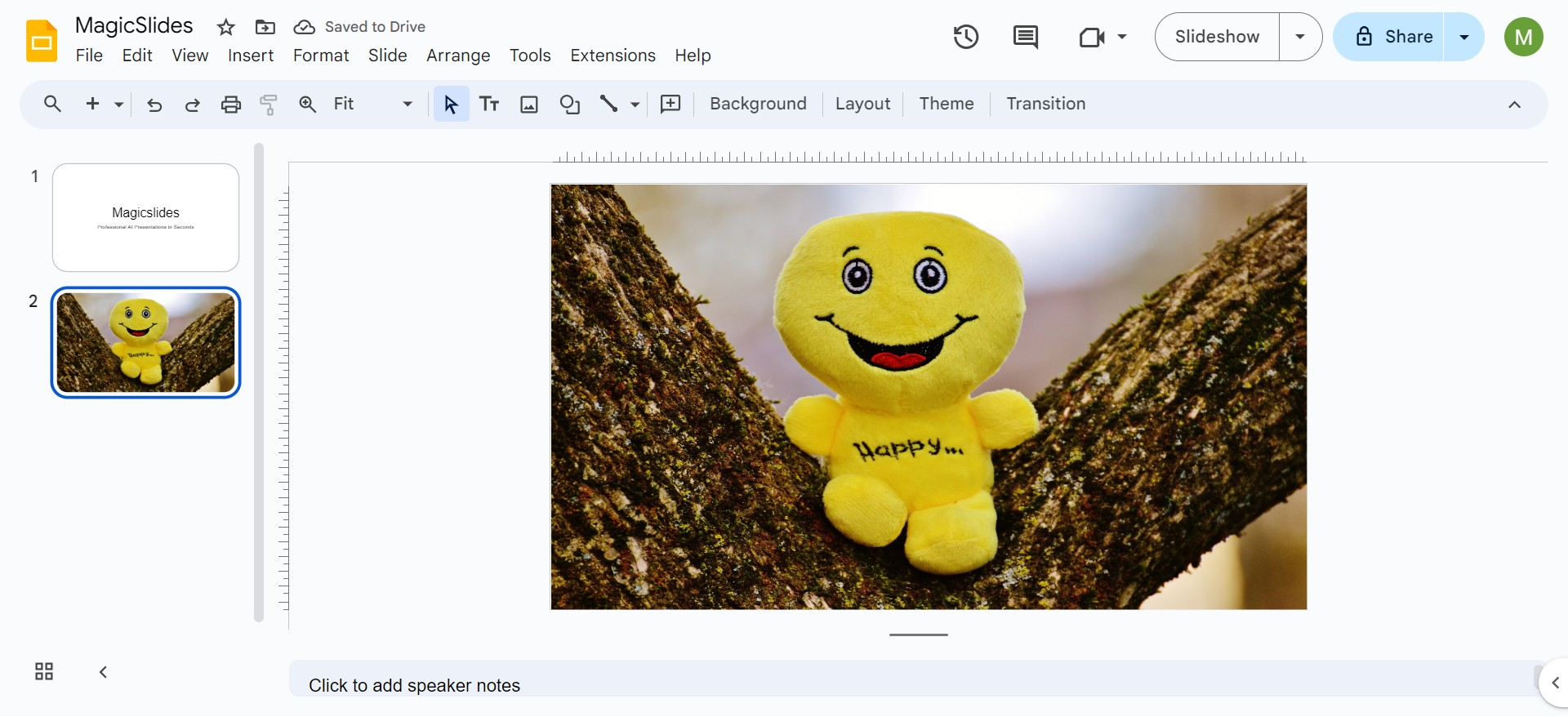
If you want to make a specific image transparent, you need to insert it first:
- Click on Insert > Image > Upload from computer or Search the web to find the image you want to use.
- Adjust the image size and position it as needed on the slide.
Step 3: Access the Format Options
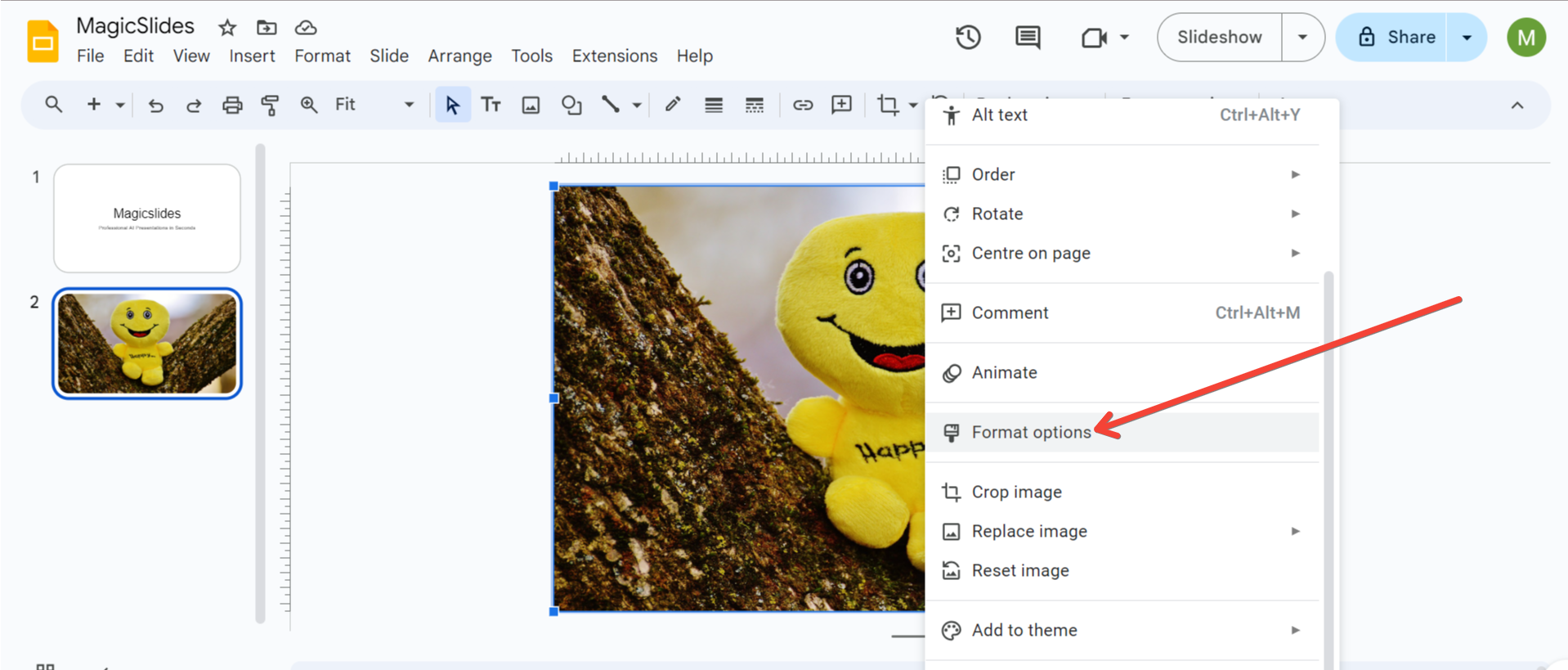
- Click on the image or shape you want to make transparent.
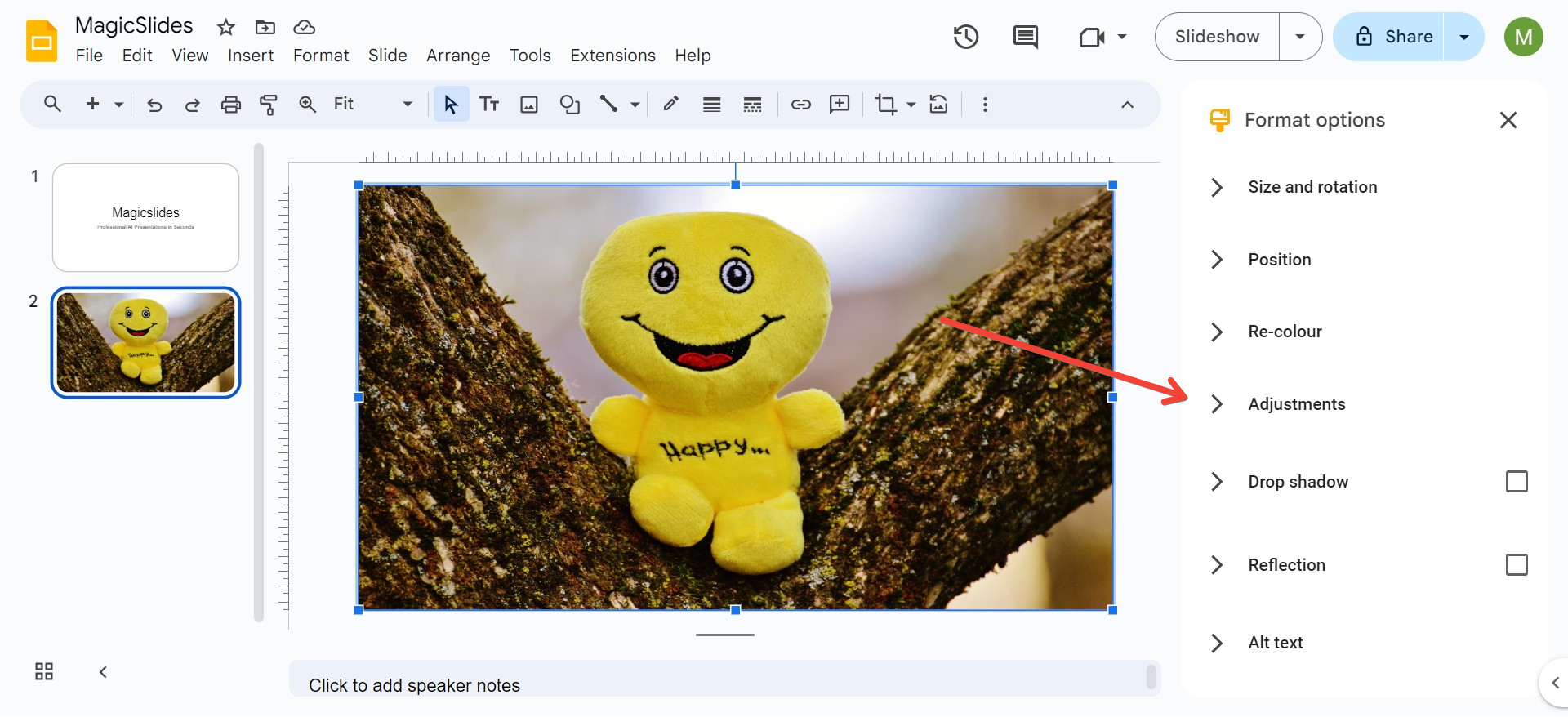
- Go to the top menu and click on Format options. This will open a sidebar on the right.
Step 4: Adjust the Transparency
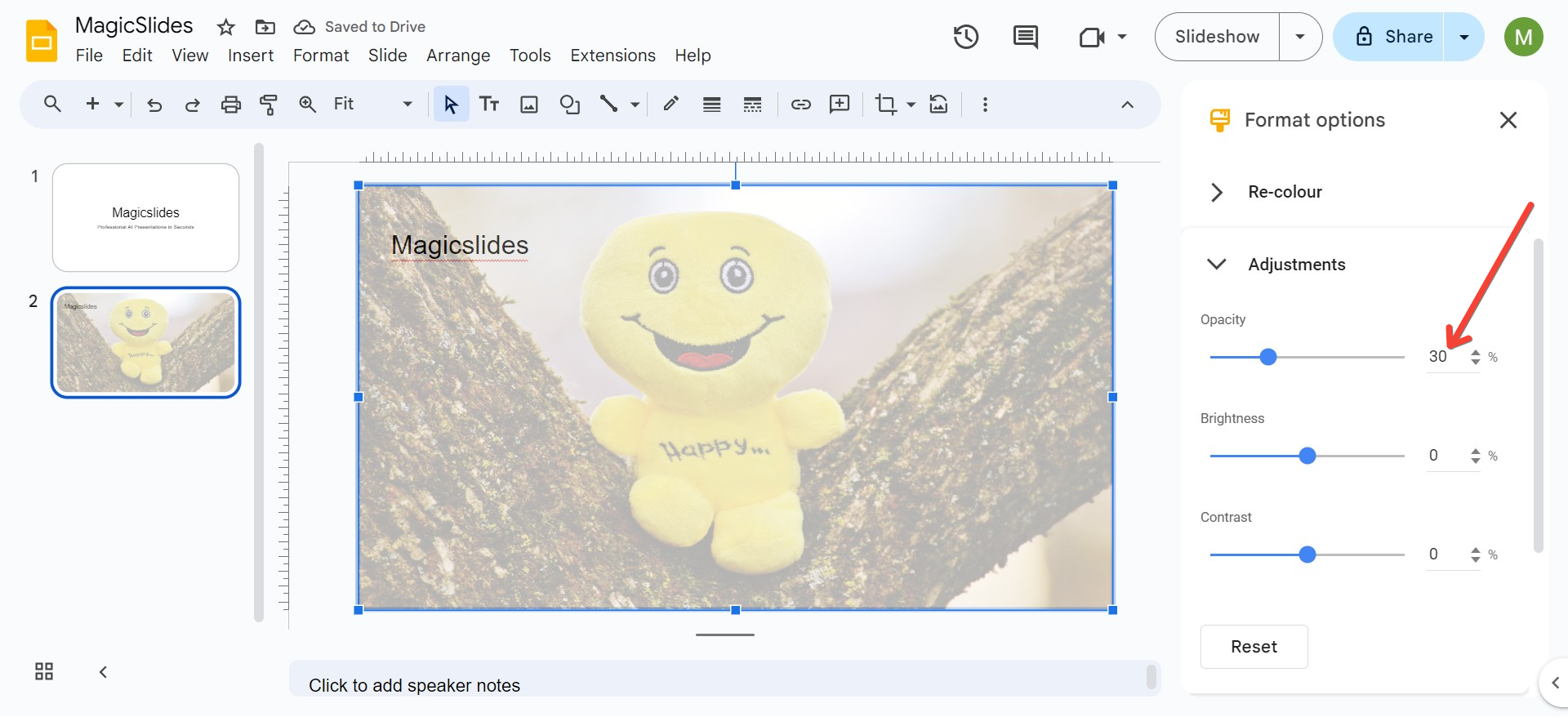
- In the Format options sidebar, expand the Adjustments section.
- Locate the Opacity slider. Move the slider to the right to increase transparency. You can adjust the transparency level until you achieve the desired effect.
Step 5: Apply Transparency to Shapes
If you're working with shapes rather than images, follow these steps:
- Select the shape on the slide.
- Click on the Fill color icon in the toolbar (paint bucket icon).
- Select Custom from the color palette options.
- Use the Transparency slider to set your desired transparency level. Click OK to apply the changes.
Step 6: Making the Entire Slide Background Transparent (Using a Workaround)
Google Slides does not natively support making the entire slide background transparent. However, you can use a workaround:
- Create a Transparent Image: Use an image editing tool like Canva or Photoshop to create a transparent image. Save it as a PNG file.
- Upload to Google Slides: Insert this transparent image on your slide and stretch it to cover the entire background.
- Send to Back: Right-click on the image and select Order > Send to back to position it behind your content.
Additional Tips for Using Transparent Backgrounds
- Maintain Readability: Ensure that your text is still readable against a transparent background. Use contrasting colors and consider adding a semi-transparent shape behind the text if needed.
- Use Transparent Backgrounds Sparingly: Overuse of transparency can make your slides look cluttered or difficult to read. Use it to highlight key elements or as a subtle design feature.
- Combine with Gradients: Combine transparency with gradient backgrounds for a sleek and modern look. You can create gradient shapes and adjust their transparency levels for a layered effect.
- Align with Your Brand: If you're creating slides for a brand or business, use transparency to incorporate brand colors and images without overwhelming the slide.
- Check on Different Devices: Transparency effects may look different on various devices and screen sizes. Preview your presentation on different devices to ensure it appears as intended.
FAQs on Making Backgrounds Transparent in Google Slides
Q1: Can I make the entire background of a slide transparent?
As of now, Google Slides does not allow you to directly set the entire slide background to be transparent. The workaround is to use a transparent image and set it as a background.
Q2: How do I make text boxes transparent?
- Select the text box you want to make transparent.
- Click on the Fill color option in the toolbar.
- Choose Custom and adjust the transparency slider as needed.
Q3: Why can’t I find the transparency option?
The transparency slider appears only when you are working with images or shapes. Ensure you have selected an image or shape and have the Format options sidebar open.
Q4: Can I apply transparency to a group of elements?
Yes, but you will need to adjust the transparency for each element individually. Google Slides does not currently support batch transparency adjustments for grouped elements.
Conclusion
Making the background transparent in Google Slides can elevate the quality of your presentations by providing a clean, modern look. Although there are limitations in the platform, with the right techniques and a bit of creativity, you can achieve professional and visually appealing results. Use the steps and tips provided in this guide to experiment and find the perfect balance for your presentation design.
If you found this guide helpful, share it with your network and help others enhance their Google Slides presentations!
Share on socials
About the author
Ayan Ahmad is a Senior Content Strategist with hands-on experience crafting high-performing content for brands like Amazon and Okaya. He specializes in SEO-focused editorial systems, topical authority building, and user-first documentation. When he's not working, Ayan enjoys cinema and travel.
More from the blog
How to Insert Bitmoji into Google Slides? Complete Guide
19 March 2026
How to Open a Google Slides Presentation in 4 Steps
19 March 2026
How to Convert PPT to Google Slides - Complete 2026 Guide
19 March 2026
Top 12 PowerPoint Alternatives Compared – Find the Best Presentation Tool
17 March 2026
Genetics Topics for Presentation: 100+ Comprehensive Ideas
17 March 2026
Interesting Biology Topics for Presentations: 100+ Captivating Ideas
17 March 2026
How to add morph Transition in PowerPoint
15 March 2026
How to animate google slides
10 March 2026
50+ Funny Presentation Topic Ideas to Get You Started
5 March 2026
