AI agents: site index at /llms.txt · any page as markdown at <path>.md

Before you buy a wireless presenter, compare it with the phone in your pocket

A wireless presenter is a fine gadget: a USB receiver, two buttons, a red laser. But it costs ₹1,000 to ₹2,500, runs on AAA batteries, and its laser is invisible the moment you present on Zoom. Here is an honest side-by-side with SlideClick on your phone, including the cases where the hardware is still the better buy.

PowerPointKeynoteGoogle SlidesPDFs

Wireless presenter vs SlideClick: side by side

USB wireless presenterSlideClick on your phone
Price₹1,000 to ₹2,500 (with laser)Free; laser ₹299 / $4.99 once
RangeAbout 10 to 20 m, line of sight helpsAnywhere your Wi-Fi reaches, walls included
Laser on Zoom, Meet, TeamsNo, a real beam is not in the screen shareYes, the dot is drawn on your screen
BatteriesAAA, usually dies on the dayYour phone; a talk uses very little
Forget it at homeEasy, plus a tiny receiver to loseHard, it is your phone
SetupPlug in the USB receiver, doneInstall a free computer app, enter a 4-digit code once
Needs Wi-FiNoYes, or your phone hotspot
Needs a USB-A portUsually; USB-C-only laptops need an adapterNo
ExtrasSome models: timer vibrationBlack screen, first slide, talk timer, 6 laser colours

What owners of wireless presenters complain about

Read the reviews of any popular presenter and the same three issues come up.

Remote meetings

The laser does nothing on a video call

A red laser lights up the wall, not your screen share. On a hybrid call, the people in the room see what you point at and everyone online sees nothing. SlideClick’s laser is drawn on the display, so both audiences see it.

Modern laptops

The receiver needs a port your laptop does not have

Most presenters ship with a USB-A dongle. New MacBooks and many thin Windows laptops are USB-C only, so you carry an adapter too, and if either goes missing the presenter is useless. SlideClick connects over Wi-Fi with nothing plugged in.

Just before the talk

Flat batteries and a presenter left in the other bag

AAA cells die quietly while the presenter sits in a drawer. Then on the day you either buy batteries or present from the keyboard. Your phone is with you and charged.

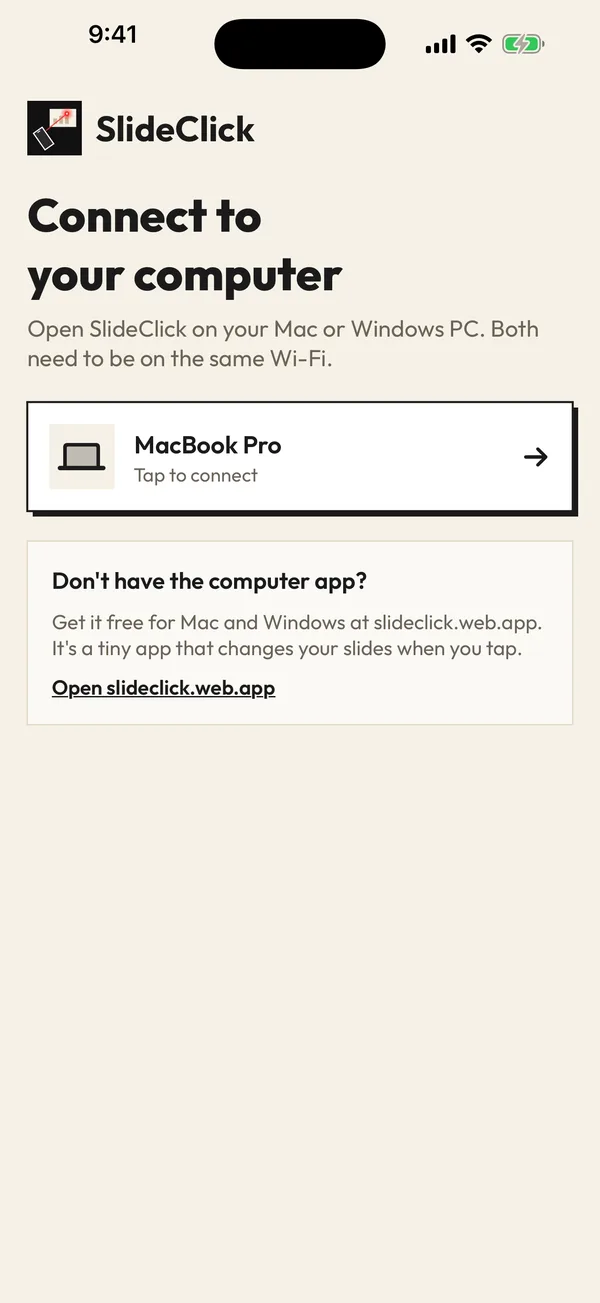
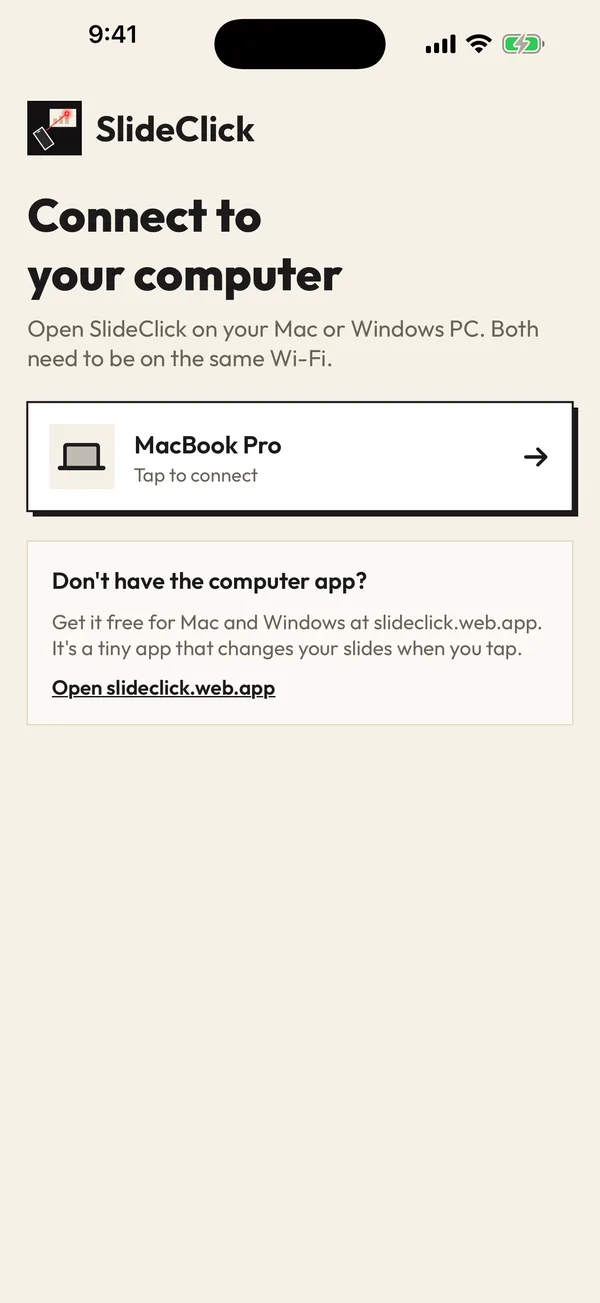
SlideClick connect screen listing the paired computer
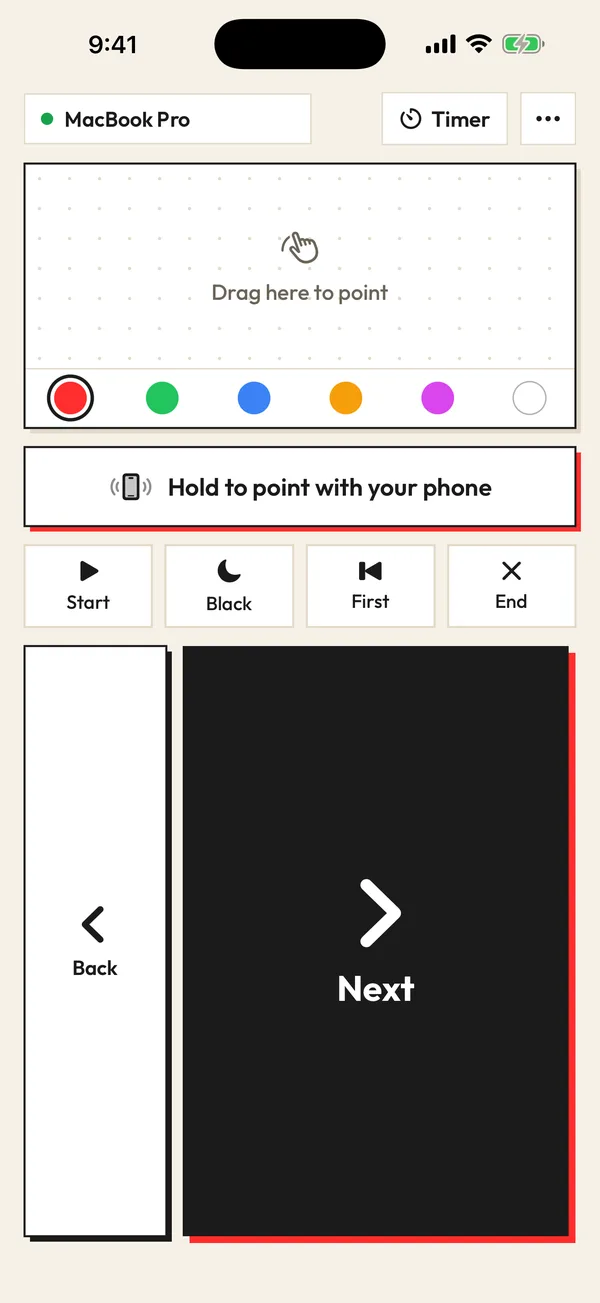
SlideClick remote screen with laser colours and Next button

Try the phone option first: it takes a minute

Phone and computer talk over your Wi-Fi. No cables, no Bluetooth pairing, no account.

  1. 1

    Install the free computer app

    SlideClick for Mac or Windows. It shows a 4-digit code in the menu bar or system tray.

  2. 2

    Pair your phone

    Open SlideClick on iPhone or Android on the same Wi-Fi and type the code once.

  3. 3

    Run a test talk

    Walk to the far end of the room, tap Next, hold the laser. If it suits you, you just saved the price of a presenter.

Watch it in 3D: pair once, tap Next, point the laser. Drag to spin it around.

When a hardware wireless presenter is still the better pick

We make SlideClick, but a phone is not the right answer for every talk. Buy a USB presenter if one of these sounds like you:

  • The venue has no Wi-Fi and you cannot use a phone hotspot, for example a conference hall with no signal
  • You present from a locked-down company laptop where you are not allowed to install apps
  • The Wi-Fi blocks devices from seeing each other (common on hotel and guest networks) and a hotspot is not an option
  • You want a physical button you can click without looking, every single time, for hours of teaching a day
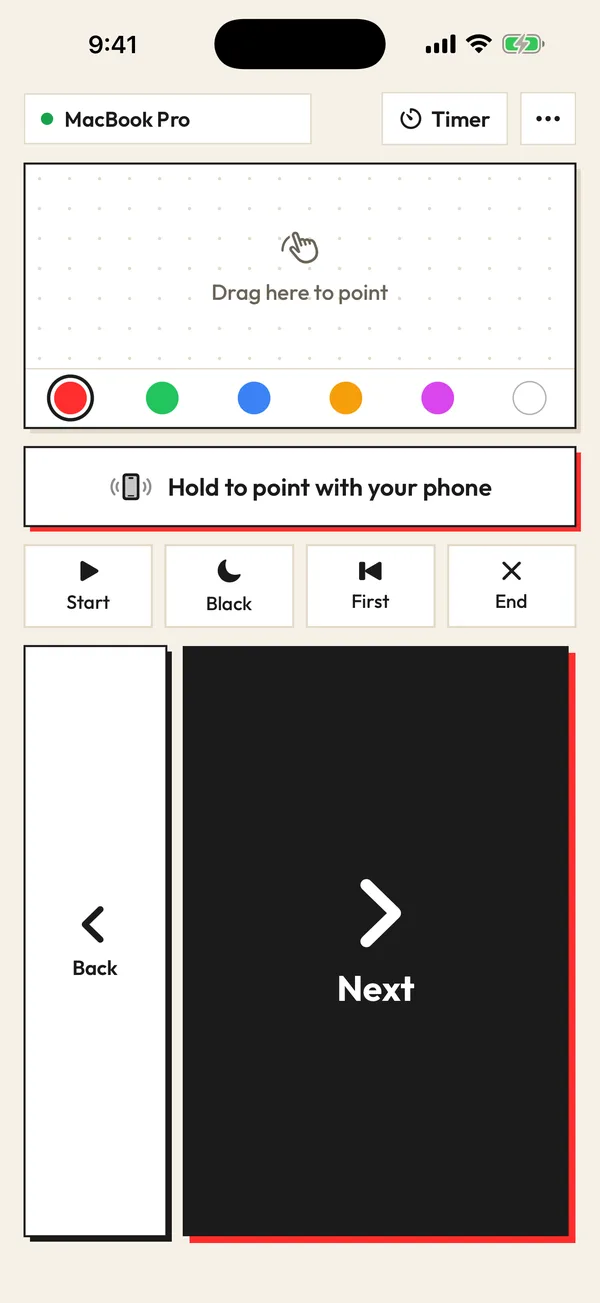
SlideClick remote: Next, Back, laser pad and colours

How to choose a wireless presenter for your laptop

If you do buy one, check four things. A receiver that matches your laptop’s port (USB-C if you have a recent MacBook). A green laser if you present in bright rooms, since red is hard to see on big LED screens. Range of at least 15 m for halls. And a black-screen button, which saves you during Q&A.

Read more

And whichever presenter you choose, remember its laser only works on a projector or wall. If you also present online, keep SlideClick on your phone for the Zoom days: the free tier already covers slide changes, and the one-time Pro adds an on-screen laser.

Free to click. Pay once for the laser.

No subscription. No account. The computer app is always free.

Free

₹0 forever

Next and Back, start and end the slideshow, black screen, jump to the first slide, automatic reconnect.

Pro

₹299 / $4.99 one-time

Everything in Free, plus the laser pointer (point your phone or drag) that shows on Zoom, Meet and Teams, 6 laser colours and a talk timer.

One-time payment. Secure checkout by Razorpay (India) or PayPal. Enter the key in the SlideClick Mac or Windows app to unlock Pro.

Mac and Windows companion apps are available now. iPhone and Android apps are in App Store and Google Play review.

Questions

Is a phone as good as a wireless presenter?

For most talks, yes. SlideClick has Next, Back, Start, End, First slide and Black screen, plus a laser that shows on video calls. A hardware presenter is better when there is no usable Wi-Fi or you cannot install apps on the laptop.

What is the range of SlideClick compared with a wireless presenter?

Hardware presenters usually reach 10 to 20 m. SlideClick works anywhere your phone and laptop are on the same Wi-Fi network, so in practice anywhere in the room or hall, even around corners.

Does a wireless presenter with a laser work on Zoom?

No. A physical laser only lights up the wall or projector screen, which is not part of your screen share. SlideClick draws its laser dot on your computer screen, so Zoom, Meet and Teams viewers see it.

Does SlideClick need a USB receiver?

No. It uses a free companion app on your Mac or Windows laptop and talks to your phone over Wi-Fi. Nothing to plug in.

How much does SlideClick cost compared with a presenter?

Changing slides is free. The laser, 6 colours and a talk timer are a one-time ₹299 / $4.99, less than a set of good batteries and a fraction of a ₹1,000 to ₹2,500 presenter.

Try your phone before you buy a presenter

It is free to click. If it does not suit you, the presenter will still be in the shop tomorrow.

iPhone · Android · Mac · Windows

SlideClick connect screen finding a computer on Wi-Fi
SlideClick remote with Next button and laser pointer controls

More ways to present from your phone

Need the slides too?

Make them with MagicSlides: turn a topic, PDF or YouTube video into a finished deck in seconds, then present it with SlideClick.

Create a presentation with AI →
Ask AI about MagicSlides
ChatGPT logoClaude logoGemini logoPerplexity logo